---
schema_version: "1"
id: 3177517cb1df7573f54c63d3e717adfd5268fd77223959867f48951d8f3a4398
title: List Files Using the File Connector
collection: mulesoft
version: current
locale: en-us
portal_url: https://docs.salesforce.com/mulesoft/current/en-us/file-connector/latest/file-list.md
canonical_url: https://docs.mulesoft.com/file-connector/latest/file-list
source_site: docs.mulesoft.com
content_type: documentation
content_hash: d7bed9b9f27f84b9c2e81f4a9b4a9802c2282c4a1fbd9661a4defbd3eaa3d91b
description: MuleSoft Documentation Site
release: "1.5"
latest: true
---
---
product: File Connector
version: 1.5
is-latest-version: true
---
# List Files Using the File Connector
> For the full documentation index, see: https://docs.mulesoft.com/llms.txt
Use the `List` operation to list the files and folders in the path pointed to by the `directoryPath`
parameter. The `List` operation returns an array of messages in which:
- Each message holds the file’s content in its payload.
- The file’s message attributes section carries the file’s metadata (such as name, creation time,
and size).
- The payload is empty if the element is a folder.
The `List` operation requires the `directoryPath` parameter, which represents the relative path of
the directory to list, unless you specify the full path of the directory. The path is relative to
the working directory value defined in the configuration referenced by the `config-ref` parameter.
If no configuration is referenced, the working directory defaults to the value of the `user.home`
system property. If the system property is not set, the connector fails to initialize.
For an example of setting a configuration, see [File Connection Settings](https://docs.mulesoft.com/file-connector/latest/#connection_settings).
Next is an example of a `List` operation that references a file configuration and thus uses a
relative path:
```xml
```
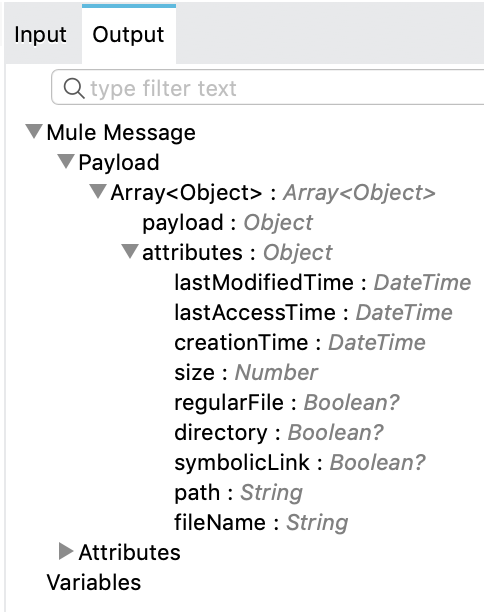
As mentioned earlier, this returns an array of messages. In Anypoint Studio, DataSense displays the
metadata for the operation’s output:
> [!IMPORTANT] The `List` operation lists both directories and files, but for files it also returns
> a lazy stream of the file’s contents in the payload, which can then be directly consumed by other
> operations. This means that you do not need to perform a `Read` operation after a `List` operation
> to access the file’s content. See [Read Files Returned by List](#read-files-returned) for an
> example.
## Read Files Returned by List
The following example lists all files and folders in `directoryPath` and, in a `foreach` loop:
```xml
```
The `foreach` loop determines whether each element is a file or folder with a `choice` component. If
the element is a file, then a [Logger](https://docs.mulesoft.com/mule-runtime/latest/logger-component-reference) outputs
its path and contents. If the element is a directory, it is sent to another flow for processing.
There is no `Read` operation inside the `foreach` loop because, as mentioned earlier, the `List`
operation already returns the file’s content in the payload, (but in a lazy manner), so there is no
need to worry about performance or overhead when the stream is not consumed in the end.
## List Files and Folders Within Subfolders
To list files or folders within any subfolders of the `directoryPath`, such as a recursive list, you
can set the `recursive` parameter to `true`.
```xml
```
## Filter Files by Matching Criteria
You can use the `` element to filter files based on the matching criteria you use for
accepting or rejecting a file. Here is an example of file matching rules you can use:
Example: File Matcher
```xml
```
All of the attributes above are optional and are ignored if not provided. They all relate to each
other under an `AND` operator.
### Top-level, Reusable Matcher
A file matcher can be a reusable element (a named top-level element) as shown in the following
example:
For example:
```xml
...
```
### Inner Element, Non-Reusable Matcher
A matcher can be an inner element that is proprietary to a particular component (non-reusable) as
shown in the following example:
```xml
...
```
## Time Between Size Checks Parameter
If you want to read the file contents returned by the `List` operation, but you are not sure if the
file is still being written to, you can use the `TimeBetweenSizeChecks` parameter, which works with
the `TimeBetweenSizeCheckUnit` parameter. Combined, these two parameters perform two size checks:
- One when the flow reaches a point where the stream is about to be consumed. The time check is not
done in the `List` operation because `List` returns a lazy stream pointing to the file’s content,
so it makes sense to do the size check only when the stream is about to be consumed.
- Another check is performed after the wait time set by the `TimeBetweenSizeChecks` and
`TimeBetweenSizeCheckUnit` parameters
If both size checks return the same file size, then the stream is consumed successfully. If the two
size checks return different file sizes, then the file is still being written to, so the stream is
not consumed and the operation fails with an error.
## Repeatable Streams
The **List** operation makes use of the repeatable streams functionality. The operation returns a
list of messages, where each message represents a file in the list and holds a stream to the file. A
stream is repeatable by default.
For more information, refer to [Streaming in Mule Apps](https://docs.mulesoft.com/mule-runtime/latest/streaming-about).
## Limit and Sort Number of Files Returned
In the **List** operation **Advanced** configuration tab, you can configure the **Subset** field to
limit the number of files returned and then sort them. The limit and offset attributes are optional.
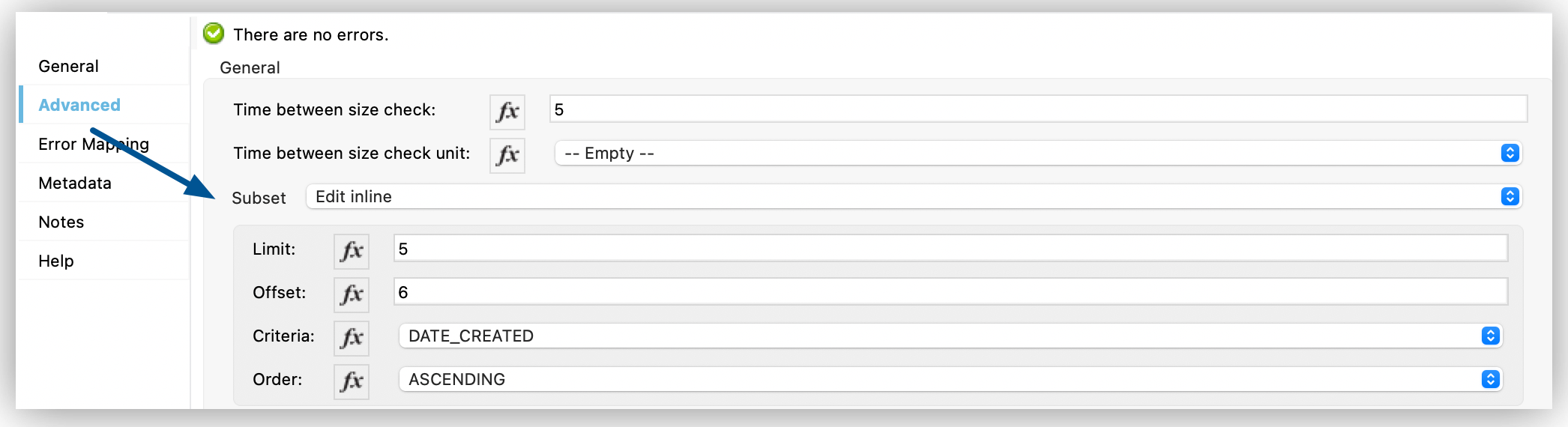
In the **Configuration XML** editor, the `` configuration looks like this:
```xml
```
## See Also
[File Connector Reference](https://docs.mulesoft.com/file-connector/latest/file-documentation)
[foreach loop](https://docs.mulesoft.com/mule-runtime/latest/for-each-scope-concept)
[Choice component](https://docs.mulesoft.com/mule-runtime/latest/choice-router-concept)