---
schema_version: "1"
id: 9e733c29d5baca90c950aa920b7e21d1b045858a48a7f25230c365b38526013e
title: Send Emails with Email Connector Examples
collection: mulesoft
version: current
locale: en-us
portal_url: https://docs.salesforce.com/mulesoft/current/en-us/email-connector/latest/email-send.md
canonical_url: https://docs.mulesoft.com/email-connector/latest/email-send
source_site: docs.mulesoft.com
content_type: documentation
content_hash: 18e159451b8e39535d782025141ea7dc963fc3a6fce28c79cfb20dd5bc23806b
description: MuleSoft Documentation Site
release: "1.8"
latest: true
---
---
product: Email Connector
version: 1.8
is-latest-version: true
keywords: email, connector, configuration, smtp, send, smtps
---
# Send Emails with Email Connector Examples
> For the full documentation index, see: https://docs.mulesoft.com/llms.txt
Use Anypoint Connector for Email (Email Connector) to send messages over SMTP and SMTPS servers by
using the **Send** operation. These examples show how to configure Email Connector to send emails
and attachments.
- [Understanding Attachments and the Attachments Map](#understanding-attachments)
Understand when to use fixed or dynamic attachments, what the **Attachments** parameter expects
(DataWeave expression returning a map), and how content types work.
- [Send Emails](#send-email)
Configure the Email Connector **Send** operation to send emails over an SMTPS server.
- [Configure TLS: Truststore and Keystore](#truststore-keystore)
Configure truststore and keystore files for SMTPS
- [Send an Attachment](#send-attachments)
Configure the File Connector **Read** operation to read a JSON file and the Email Connector
**Send** operation to send the file as an attachment over an SMTP server.
- [Send Multiple Attachments](#send-multiple-attachments)
Configure **Set Variable** components to define multiple media type attachments, and send these
attachments using the Email Connector **Send** operation. Then log the result message using a
**Logger** component.
- [Send Attachments Received from a REST API](#send-attachments-from-api)
Accept a PDF, MS Word document, and JSON file (for example, an incident report) via multipart REST
API, and forward them to a support function by email.
- [Send Files from an SFTP Server by Email](#send-sftp-files-by-email)
Poll or list files on an SFTP server and send them as email attachments to a function or mailbox.
## Understand Attachments
This section explains when to use fixed vs dynamic attachments, and what the **Attachments**
parameter expects.
### Using Fixed vs Dynamic Attachments
- Fixed attachments
These are useful when the same file is always sent with certain emails, for example:
- A legal disclaimer or terms document (PDF) attached to every outgoing contract email
- A cover letter or template (for example, a Word or PDF) that is the same for a batch of
notifications
- A static report template or form that recipients always need
In these cases you typically read the file once (for example, from classpath or a fixed path) or
set it in a variable, then reference it in the **Attachments** map.
- Dynamic attachments
These are built from runtime data: payload from a flow (File read, HTTP multipart, SFTP read),
variables set earlier in the flow, or DataWeave expressions that produce binary or string content.
The examples in this page show both patterns.
### Understanding Attachments Expectations
The **Attachments** parameter of the **Send** operation expects a DataWeave expression that
evaluates to an object (a map). It isn’t a Java type nor raw JSON configured in the UI; you write a
DataWeave expression (for example, in the XML `email:attachments` element or in the Studio
**Attachments** field) that produces the map.
- Map structure: Each key is the **attachment filename** (as shown in the email client). Each value
is the attachment content (Binary, String, or a stream).
- Content type: The map itself does not have a single content type. Each value is the raw content;
the connector uses the content as-is. When the value comes from a Mule message (for example,
`payload` or `vars.x`) that has a MIME type (for example, from an HTTP multipart part or a File
read), that type is used for the attachment. For inline DataWeave content, you can control the
type by using `read()` with a MIME type or by ensuring the value is the correct type (for example,
`output application/octet-stream` for binary).
- Example: `{ 'report.pdf' : payload }` uses the current payload as the content of `report.pdf`; if
`payload` was read from a file or HTTP part, its existing MIME type is used.
### Understanding Binary Attachments
Files such as Portable Document Format (PDF), Portable Network Graphics (PNG), Word documents, or
any non-text binary must be sent as binary content in the attachments map. SMTP transports text;
binary data is encoded for transport (for example, Base64).
- Pass the file content as binary. Do not convert binary data to String (for example, don’t use a
string representation or a character encoding like UTF-8 for the bytes); that can corrupt the
file. When you use the File Connector **Read** operation, HTTP **Listener** multipart parts, or
SFTP **Read**, the payload (or part content) is already binary and has the appropriate MIME type
(for example, `application/pdf`, `image/png`). Use that value directly in the attachments map.
- Email Connector encodes non-text attachments for transport. The default is **Base64**, which is
appropriate for PDF, PNG, and other binary formats. You don’t need to Base64-encode the value
yourself; the connector applies the encoding. To use a different encoding (for example,
QUOTED-PRINTABLE, 8BIT, 7BIT, or BINARY), configure the **Content Transfer Encoding** parameter on
the **Send** operation.
- If you build the attachment from a path or classpath resource, use DataWeave `read()` with the
correct MIME type so the value stays Binary and the attachment is sent with the right type. For
example:
```dataweave
{
'disclaimer.pdf' : read('classpath://disclaimer.pdf', 'application/pdf'),
'logo.png' : read('classpath://logo.png', 'image/png')
}
```
This keeps the content as binary and sets the MIME type for each attachment. The connector then
applies Content-Transfer-Encoding (default Base64) when sending.
## Send Emails
This example illustrates how to send emails over the SMTPS server. The flow initiates with a
**Scheduler** component, and then the **Send** operation sends the email. The SMTPS connection type
enables SSL or TLS encryption and sends encrypted messages over the secured version of the SMTP
server.
This screenshot shows the app flow for this example:

To create the flow:
1. Create a new Mule project in Studio.
2. In the **Mule Palette** view, select the **Scheduler** component and drag it onto the canvas.
This source initiates a flow when a time-based condition is met.
3. Drag the Email **Send** operation to the right of the **Scheduler** source.
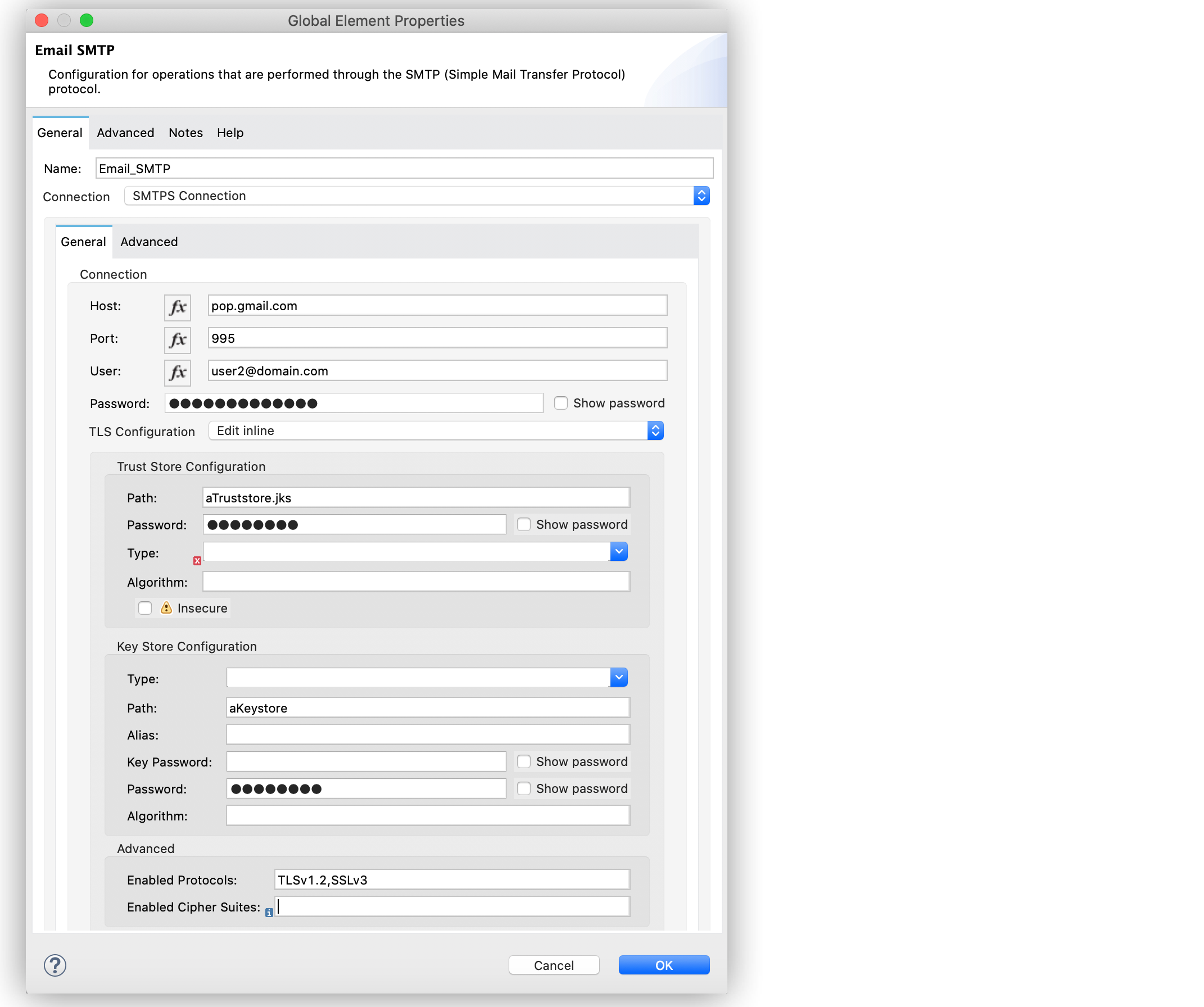
4. On the **Send** configuration screen, click the plus sign (**+**) next to the **Connector
configuration** field to configure a global element for the operation.
5. For **Connection**, select **SMTPS Connection**.
6. In the **General** tab, enter the following values:
- **Host** `pop.gmail.com`
- **Port** `995`
- **User** `user3@domain.com`
- **Password** `passwordconnection`
7. In the **TLS Configuration** section, select **Edit inline**.
8. In the **Trust Store Configuration** section, complete these fields:
- **Path** `truststore path`
- **Password** `passwordtrust`
9. In the **Key Store Configuration** section, enter the following values:
- **Path** `aKeystore`
- **Password** `passwordkey`
10. In the **Advanced** section, set **Enabled Protocols** to `TLSv1.2,SSLv3`.
11. Click **OK**.
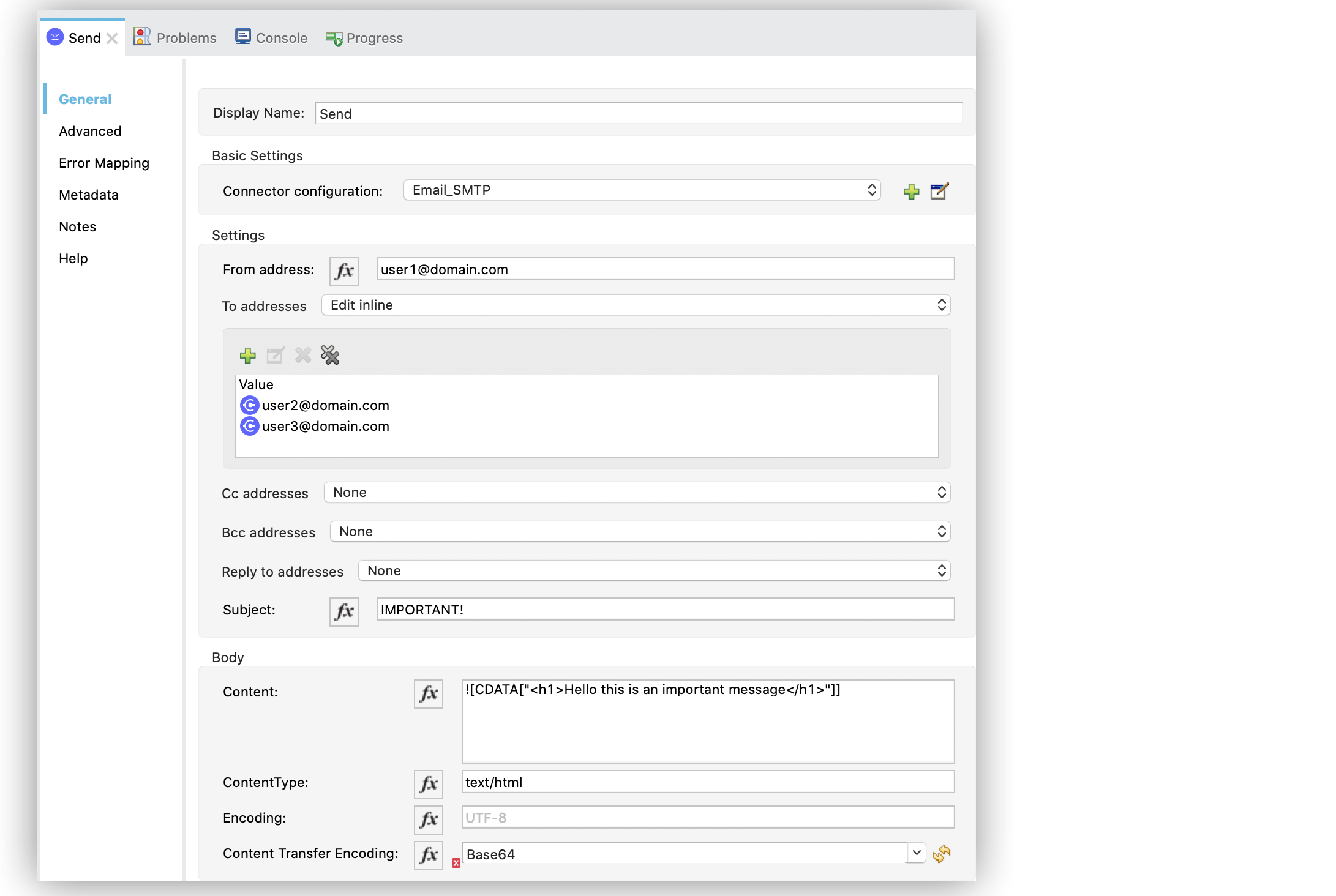
12. In the **Send** operation configuration screen, set the following values:
- **From address** `user1@domain.com`
- **To addresses** `Edit inline`
13. Click the plus sign (**+**) to add new emails.
14. Set **Value** to `user2@domain.com`.
15. Repeat the previous two actions and add another email as `user3@domain.com`.
16. Set **Subject** to `IMPORTANT!`.
17. Set **Content** to `"
Hello this is an important message
"` and **ContentType** to
`text/html`.
If **Content** is not empty, the content of the message payload is used by default. If that
payload is not `text`, the operation fails with an `EMAIL:SEND` error.
18. Save and run the app.
### XML for Sending Emails
Paste this code into the Studio XML editor to quickly load the flow for this example into your Mule
app:
```xml
Hello this is an important message"]]>
```
## Configuring TLS: Truststore and Keystore
When you use SMTPS Connection, you must configure Transport Layer Security (TLS) encryption. The
**Trust Store** and optionally **Key Store** settings tell the connector which certificates to use.
### Locating the Path
The **Path** in **Trust Store** and **Key Store** setting is resolved relative to (in order):
- The current classpath (for example, files under `src/main/resources` in your project)
- The file system (relative to the app runtime or absolute path)
Typical locations:
- Project resource: `src/main/resources/truststore.jks` — use path `truststore.jks` or
`classpath:truststore.jks`
- Absolute path: `/etc/mule/truststore.jks` (ensure the runtime has read access)
### Configuring Trust Store
The **Trust Store** holds certificates of servers (or CAs) that your app trusts. For SMTPS, the
client uses it to verify the mail server’s certificate.
For SMTPS you almost always need a truststore so the connector can validate the server’s certificate
(unless you use **Insecure** for development only).
- If your server uses a public CA (for example Gmail, Office 365): You can use the JVM’s default
truststore (often not required to set one) or export it and point **Path** to that file. Some
setups use a custom truststore that contains only the CA or server cert they need.
- Creating or updating a truststore with keytool (Java’s `keytool` is usually under
`JAVA_HOME/bin`):
- Import a CA or server certificate into a new truststore:
```bash
keytool -importcert -alias smtpserver -file server.cer -keystore truststore.jks -storepass changeit -noprompt
```
- Replace `server.cer` with the path to the server’s certificate or the CA certificate, and
`truststore.jks` with the path where you want the truststore file. Use a strong password in
production instead of `changeit`.
- In the Email Connector TLS configuration, set **Path** to the path of this trust store and
**Password** to the truststore password.
### Configuring Keystore
The **Key Store** holds your app’s private key and certificate (client identity). Use it when the
SMTPS server requires client certificate authentication (mutual TLS).
Use it only if the mail server is configured to require a client certificate. Many SMTPS servers
(for example, Gmail with user or password) don’t require a keystore; they only need the truststore
to verify the server.
- Creating a keystore with keytool (for testing or when you need to generate a key and self-signed
cert):
```bash
keytool -genkeypair -alias muleclient -keyalg RSA -keysize 2048 -keystore keystore.jks -storepass changeit -validity 365 -dname "CN=MyApp, OU=IT, O=MyOrg, L=City, ST=State, C=US"
```
- For production you typically import an existing key and certificate (for example, from your PKI)
into a keystore; use `keytool -importcert` or import a PKCS12 file.
- In the Email Connector TLS configuration, set **Path** to the keystore file, **Password** to the
keystore password, and **Key Password** if the private key has a different password. Use **Alias**
if the keystore contains multiple keys.
### Summary
Purpose
Store
When to use
Trust the mail server’s certificate
Truststore
Required for SMTPS (unless using insecure mode)
Prove client identity to the server
Keystore
Only when the server requires client certificate authentication
For full parameter details (Path, Password, Type, Algorithm, Insecure), see the
[Truststore](https://docs.mulesoft.com/email-connector/latest/email-documentation#TrustStore) and [Keystore](https://docs.mulesoft.com/email-connector/latest/email-documentation#KeyStore) sections
in the Email Connector Reference.
## Send an Attachment
This example illustrates how to send emails and attachments over the SMTP server. Use DataWeave to
manage the attachments. The flow reads a JSON file using the File Connector **Read** operation and
then uses the Email Connector **Send** operation to send the content of the file as an attachment:
The following screenshot shows the Anypoint Studio app flow for this example:

To create the flow:
1. Create a new Mule project in Studio.
2. In the **Mule Palette** view, select the **Scheduler** component and drag it onto the canvas.
The source initiates a flow when a time-based condition is met.
3. Drag the File Connector **Read** operation to the right of the **Scheduler** component.
4. Set **File Path** to `file.json`.
5. Drag the **Send** operation to the right of the **Read** operation.
6. On the **Send** configuration screen, click the plus sign (**+**) next to the **Connector
configuration** field to configure a global element for the operation.
7. For **Connection**, select **SMTP Connection**.
8. In the **General** tab, enter the following values:
- **Host** `pop.gmail.com`
- **Port** `995`
- **User** `user1@domain.com`
- **Password** `password`
9. Click **OK**.
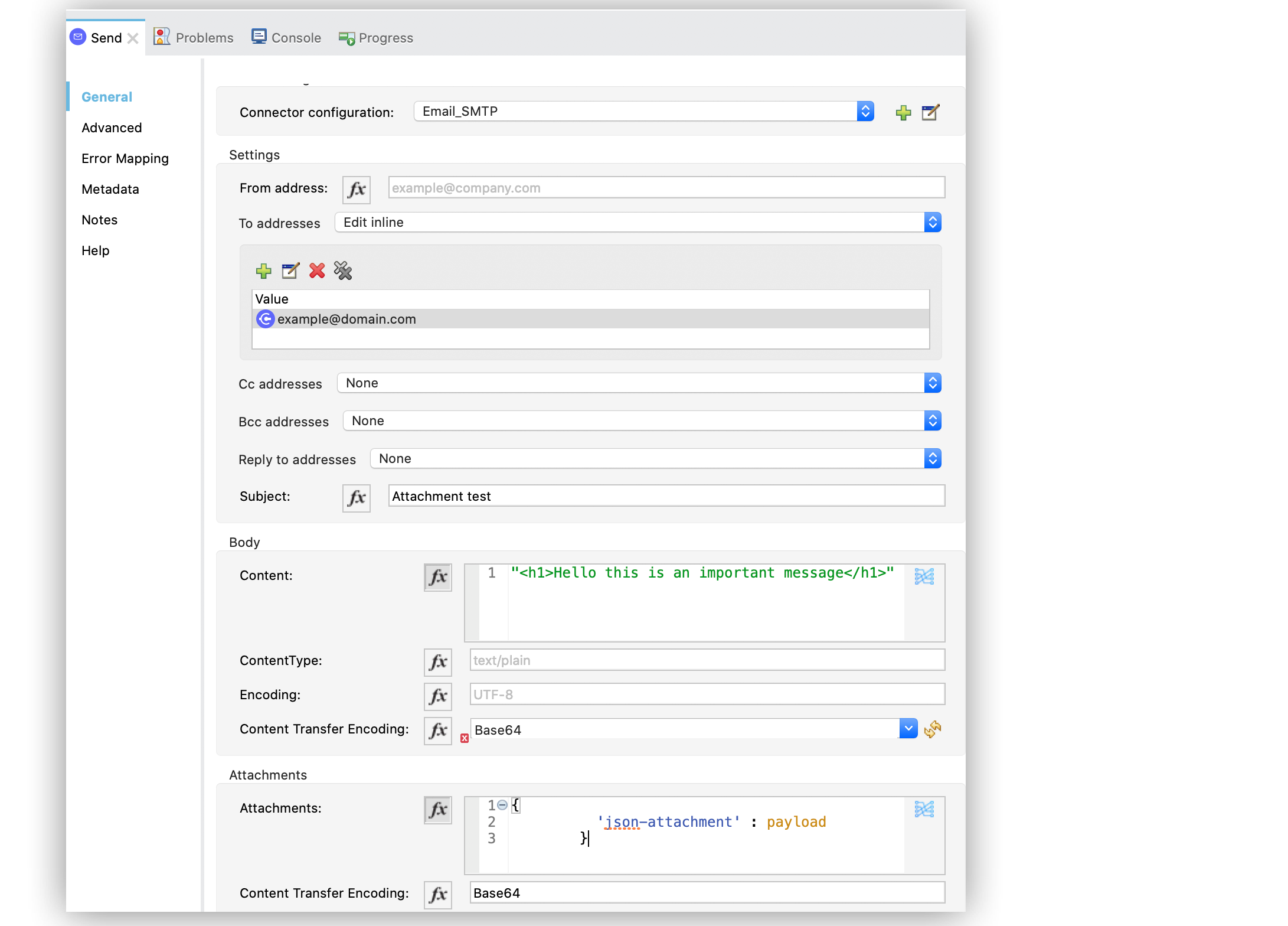
10. In the **Send** operation configuration screen, set the **To addresses** field to `Edit inline`.
11. Click the plus sign (**+**) to add a new email **Value** as `example@domain.com`.
12. Set **Subject** to `Attachment test`.
13. Set **Content** to `"
Hello this is an important message
"`.
14. In the **Attachments** field, enter the following DataWeave expression as a new attachment
element:
```DataWeave
{
'json-attachment' : payload
}
```
Note that `payload` is the content of the JSON file read by the File Connector **Read**
operation.
15. Save and run the app.
### XML for Sending Attachments
Paste this code into the Studio XML editor to quickly load the flow for this example into your Mule
app:
```xml
Hello this is an important message"]]]>#[{
'json-attachment' : payload
}]
```
## Send Multiple Attachments
This example illustrates how to send emails and multiple attachments over the SMTP server. The flow
initiates with a **Scheduler** component. Then, **Set Variable** components define each attachment
media type JSON, text and file. Subsequently, the Email Connector **Send** operation sends the
attachments in the email, after which you the result message using a **Logger** component.
This screenshot shows the Anypoint Studio app flow for this example:

Figure 1. Email Connector Multiple attachments
To create the flow:
1. Create a new Mule project in Studio.
2. In the **Mule Palette** view, select the **Scheduler** component and drag it onto the canvas.
The source initiates a flow when a time-based condition is met and sends the emails.
3. Drag a **Set Variable** component to the right of the **Scheduler** component.
4. In the **Set Variable** configuration screen, set the following parameters:
- **Name** `json`
- **Value** `output application/json --- {address: '221B Baker Street'}`
- **MIME Type** `application/json`
5. Drag another **Set Variable** component to the right of the first **Set Variable** component,
and set the following parameters:
- **Name** `textPlain`
- **Value** `This is the email text attachment for John Watson`
- **MIME Type** `text/plain`
6. Drag another **Set Variable** component to the right of the second **Set Variable** component,
and set the following parameters:
- **Name** `octectStream`
- **Value** `vars.textPlain`
- **MIME Type** `application/octet-stream`
7. Drag the Email **Send** operation to the right of the third **Set Variable** component.
8. On the **Send** configuration screen, click the plus sign (**+**) next to the **Connector
configuration** field to configure a global element for the operation.
9. For **Connection**, select **SMTP Connection**.
10. In the **General** tab, enter the following values:
- **Host** `pop.gmail.com`
- **Port** `995`
- **User** `user1@domain.com`
- **Password** `password`
11. Click **OK**.
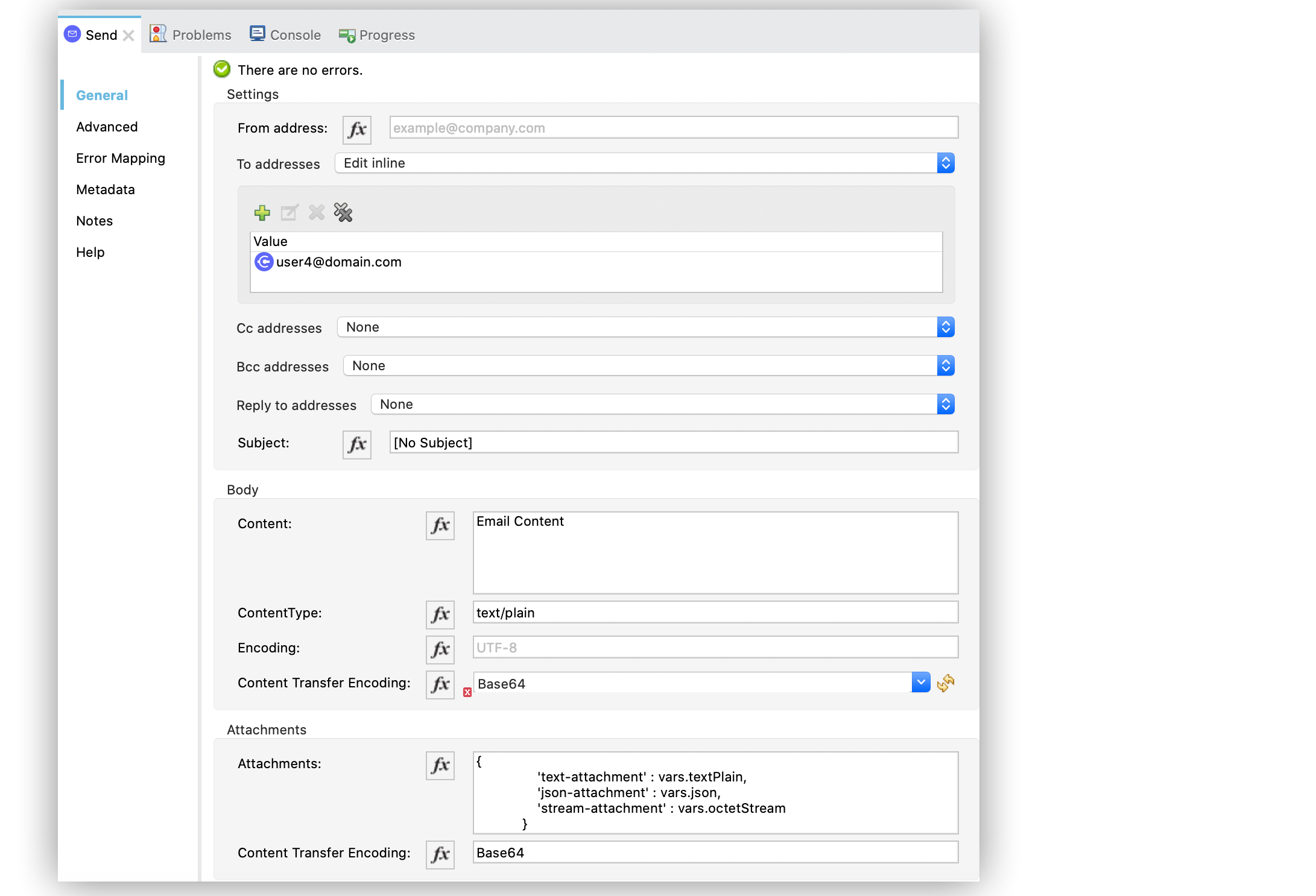
12. In the **Send** operation configuration screen, set the **To addresses** field to `Edit inline`
13. Click the plus sign (**+**) to add a new email **Value** as `user4@domain.com`.
14. Set the **Content** field to `Email Content` and the **ContentType** field to `text/plain`.
15. In the **Attachments** field, enter the following DataWeave expression:
```DataWeave
{
'text-attachment' : vars.textPlain,
'json-attachment' : vars.json,
'stream-attachment' : vars.octetStream
}
```
16. Save and run the app.
### XML for Sending Multiple Attachments
Paste this code into the Studio XML editor to quickly load the flow for this example into your Mule
app:
```xml
Email Content#[{
'text-attachment' : vars.textPlain,
'json-attachment' : vars.json,
'stream-attachment' : vars.octetStream
}]
```
## Send Attachments Received from a REST API
A common use case is accepting files (for example, a PDF, an MS Word document, and a JSON file
describing an incident) through a REST API and forwarding them to a support function by email. The
client sends a `multipart/form-data` POST request; each part is a file or a field (for example, an
incident description as JSON).
- Flow outline
An HTTP **Listener** (path for example, `/api/support/ticket`) receives the multipart request. The
payload is a multipart message; use `payload.parts.` to access each part. Build an
attachments map from the parts (using each part’s content and optionally filename from
`Content-Disposition`), then call Email **Send** with that map and the desired **To** address (for
example, [support@company.com](mailto:support@company.com)).
- Attachments map from multipart
Each part’s content is available as `payload.parts..content`. The filename (if present)
is in `payload.parts..headers.'Content-Disposition'.filename`. Use a DataWeave
expression to build a map: keys = attachment names (for example, original filename or a fixed
name), values = part content. The connector uses the part’s content type when available. Binary
parts (PDF, PNG, Word, and so on) are already Binary; the connector applies
Content-Transfer-Encoding (default Base64) for transport, so you do not need to encode them
yourself.
### Example: PDF, Word, and JSON Incident to Support
Assume the API expects three parts: `documentPdf`, `documentWord`, and `incidentJson`. This example
flow receives the request and sends the three as email attachments to support.
```xml
```
The client must POST to `/api/support/ticket` with `Content-Type: multipart/form-data` and three
parts named `documentPdf`, `documentWord`, and `incidentJson`. Each part’s content type (for
example, `application/pdf`,
`application/vnd.openxmlformats-officedocument.wordprocessingml.document`, `application/json`) is
preserved from the request and used for the corresponding email attachment.
## Send Files from an SFTP Server by Email
You may need to scan an SFTP directory and send the found files as email attachments to a function
or mailbox (for example a shared inbox or a processing service). There are two common patterns you
can follow:
- Use an **On New or Updated File** (SFTP Connector) to trigger a flow when a new or updated file
appears; read that file and send it (or a batch) by email.
- Use a **Scheduler** and SFTP **List** to poll a directory, then for each file (or for the whole
list), read the file(s) and send one or more emails with attachments.
In both cases, build the **Attachments** map from the file content. For a single file, the map can
be `{ filename : payload }` after an SFTP **Read**. For multiple files, collect them (for example,
in a **For Each** with **Set Variable** or a DataWeave transform) into a map of filename and content
and pass that map to **Attachments**.
### Example: Poll SFTP Directory and Email Files as Attachments
This example uses a **Scheduler** and SFTP **List** to list a directory, then a **For Each** to
process each item. For each file (non-directory), it reads the file and sends one email with that
file as a single attachment. The attachment name is taken from the file path (or attributes).
```xml
```
To send all listed files in a single email, first iterate to read each file and collect the name and
content into a variable (for example, using **Set Variable** with a DataWeave expression that merges
the current map with the new attachment), then call **Send** once with that variable as the
attachments map. The previous pattern sends one email per file for simplicity.
## See Also
- [Introduction to Anypoint Connectors](https://docs.mulesoft.com/connectors/introduction/introduction-to-anypoint-connectors)
- [Email Connector Examples](https://docs.mulesoft.com/email-connector/latest/email-examples)
- [Salesforce Help](https://help.salesforce.com)