---
schema_version: "1"
id: 53f57c6495872e680cf303d5ac86e67d3c2a685d36e972dc83bafd4f440f65fd
title: Move Messages Between Folders for IMAP/S Connection Providers Examples
collection: mulesoft
version: current
locale: en-us
portal_url: https://docs.salesforce.com/mulesoft/current/en-us/email-connector/latest/email-move-folder.md
canonical_url: https://docs.mulesoft.com/email-connector/latest/email-move-folder
source_site: docs.mulesoft.com
content_type: documentation
content_hash: c679dc990509fe0c005b5beed63d3d7f8e18214e453b7006aca8a36fc4d1fa78
description: MuleSoft Documentation Site
release: "1.8"
latest: true
---
---
product: Email Connector
version: 1.8
is-latest-version: true
---
# Move Messages Between Folders for IMAP/S Connection Providers Examples
> For the full documentation index, see: https://docs.mulesoft.com/llms.txt
Anypoint Connector for Email (Email Connector) provides the **Move to folder** operation that
enables you to move messages to folders for IMAP and IMAPS connection providers. The operation’s
main features include:
- Moving messages between folders of the email server.
- Preserving the moved message UID.
- Creating the target folder if the folder does not exist or fails depending on a parameter.
The following examples illustrate how to configure the operation for the connector.
## Move a Message from One Folder to Another Folder
The following example illustrates how to move a received message from one folder to another folder.
An **On New Email - IMAP** source initiates the flow, and then the **Mark as read** operation reads
the received email in the `INBOX` folder. Subsequently, the **Move to folder** operation moves the
email to the `TARGET` folder:
The following screenshot shows the app flow for this example:

To create the flow:
1. Create a new Mule project in Studio.
2. In the **Mule Palette** view, drag the **On New Email - IMAP** operation onto the canvas.
3. On the **On New Email - IMAP** configuration screen, click the plus sign (**+**) next to the
**Connector configuration** field to configure a global element for the operation.
4. Set **Connection** to **IMAPS Connection**.
5. Complete the following fields:
- **Host**: `test.host.com`
- **Port**: `993`
- **User**: `test123@testuser.com`
- **Password**: `testpassword`
6. Click **OK**.
7. Set **Folder** to `INBOX`.
8. Drag a **Mark as read** operation to the right of the **On New Email - IMAP** source.
9. For **Connector configuration**, select the previously created global configuration.
10. Set **Mailbox folder** to `INBOX`.
11. Set **Email ID** to the expression `attributes.id`.
12. Drag a **Move to folder** operation to the right of the **Mark as read** operation.
13. For **Connector configuration**, select the previously created global configuration.
14. Set **Mailbox folder** to `INBOX`.
15. Set **Target folder** to `TEST`.
16. Set **Email ID** to the expression `attributes.id`.
17. Save and run your Mule application.
18. Send a new email to the email address.
### XML for Moving a Message from One Folder to Another Folder
Paste this code into the Studio XML editor to quickly load the flow for this example into your Mule
app:
```xml
```
## Move a Message to a Target Folder and Create the Folder When Is Non-existent
The following example illustrates how to move a received message from one folder to another, if the
target folder does not exist, the folder is then created. An **On New Email - IMAP** source
initiates the flow, and then the **Mark as read** operation reads the received email in the `INBOX`
folder. Subsequently, the **Move to folder** operation moves the email to the `TARGET` folder. If
that folder does not exist, it is created automatically.
The following screenshot shows the app flow for this example:

To create the flow:
1. Create a new Mule project in Studio.
2. In the **Mule Palette** view, drag the **On New Email - IMAP** operation onto the canvas.
3. On the **On New Email - IMAP** configuration screen, click the plus sign (**+**) next to the
**Connector configuration** field to configure a global element for the operation.
4. Set **Connection** to **IMAPS Connection**.
5. Complete the following fields:
- **Host**: `test.host.com`
- **Port**: `993`
- **User**: `test123@testuser.com`
- **Password**: `testpassword`
6. Click **OK**.
7. Set **Folder** to **INBOX**.
8. Drag a **Mark as read** operation to the right of the **On New Email - IMAP** source.
9. For **Connector configuration**, select the previously created global configuration.
10. Set **Mailbox folder** to `INBOX`.
11. Set **Email ID** to the expression `attributes.id`.
12. Drag a **Move to folder** operation to the right of the **Mark as read** operation.
13. For **Connector configuration**, select the previously created global configuration.
14. Set **Mailbox folder** to `INBOX`.
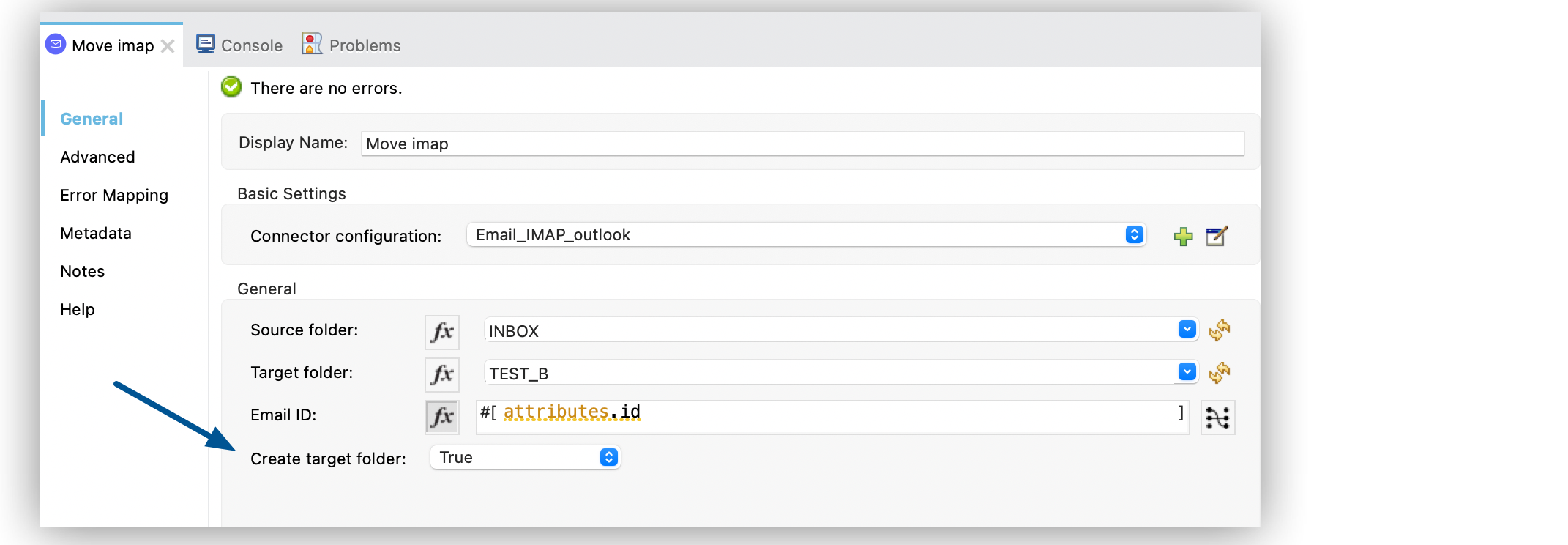
15. Set **Target folder** to `TEST_B`.
16. Set **Email ID** to the expression `attributes.id`.
17. Set **Create target folder** to **TRUE**.
18. Save and run your Mule application.
19. Send a new email to the email address.
### XML for Moving a Message to a Target Folder and Create the Folder When Is Non-existent
Paste this code into the Studio XML editor to quickly load the flow for this example into your Mule
app:
```xml
```
## See Also
- [Introduction to Anypoint Connectors](https://docs.mulesoft.com/connectors/introduction/introduction-to-anypoint-connectors)
- [Email Connector Examples](https://docs.mulesoft.com/email-connector/latest/email-examples)
- [Salesforce Help](https://help.salesforce.com)