---
schema_version: "1"
id: 784edd924b62175c78da091f88b8a3da2747e858fb7776c4782eeb9d47b7a351
title: Trigger a Flow When Receiving a New Email Examples
collection: mulesoft
version: current
locale: en-us
portal_url: https://docs.salesforce.com/mulesoft/current/en-us/email-connector/1.7/email-trigger.md
canonical_url: https://docs.mulesoft.com/email-connector/1.7/email-trigger
source_site: docs.mulesoft.com
content_type: documentation
content_hash: 2cfcebc26cba264b92025a6b944e8942bd164c113a2e861ce79c6eb848ac563a
description: MuleSoft Documentation Site
release: "1.7"
latest: false
---
---
product: Email Connector
version: 1.7
---
# Trigger a Flow When Receiving a New Email Examples
> For the full documentation index, see: https://docs.mulesoft.com/llms.txt
The following examples illustrate how you configure the Anypoint Connector for Email (Email
Connector) source listeners **On New Email - IMAP** and **On New Email - POP3** to identify and
retrieve unread email messages, initiating a flow.
Note that Email Connector currently doesn’t support multipart/signed (digitally signed) emails, and
they are not processed by **On New Email** listeners.
## Configure the Delete After Retrieve Parameter
Email Connector **On New Email - IMAP** and **On New Email - POP3** sources support the **Delete
after retrieve** parameter that enables the deletion of retrieved emails from the mailbox folder
after the operation process is complete. By deleting processed emails, you can ensure that the next
processed emails are new ones. Because the POP3 protocol doesn’t support watermarking, the **Delete
after retrieve** parameter is commonly used with this protocol.
The parameter is disabled by default to avoid deleting emails by mistake.
The following example shows how to configure this parameter in Anypoint Studio:
1. Select the **On New Email - IMAP** or **On New Email - POP3** source in the Studio canvas.
2. In the source configuration screen, enable the **Delete after retrieve** parameter.
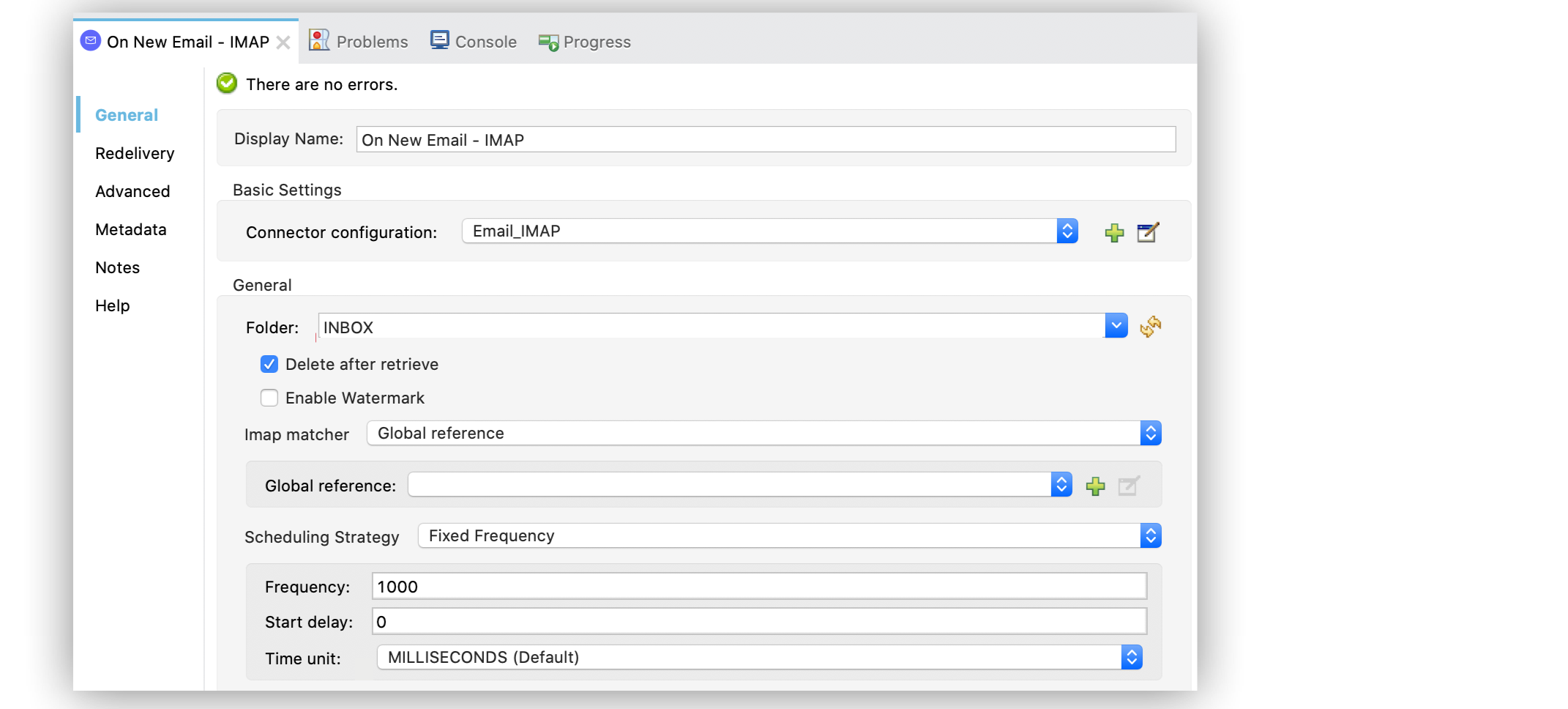
In the **Configuration XML** editor, the configuration `deleteAfterRetrieve="true"` is under the
`listener-imap` tag:
```xml
```
The following screenshot shows the **Delete after retrieve** configuration for the **On New Email -
POP3** source:
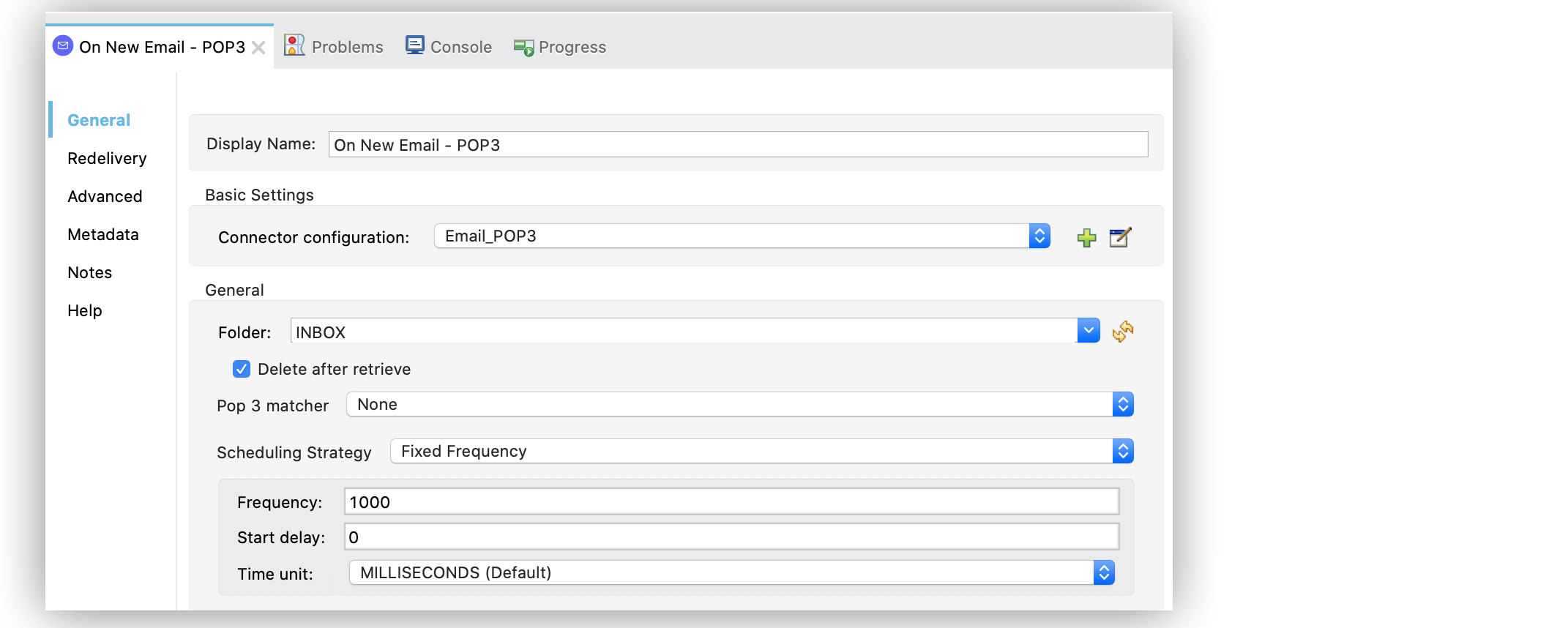
In the **Configuration XML** editor, the configuration `deleteAfterRetrieve="true"` is under the
`listener-pop3` tag:
```xml
```
## Configure the Enable Watermark Parameter
Email Connector can watermark emails over the IMAP protocol by received date. The **On New Email -
IMAP** source supports the **Enable Watermark** parameter, causing only those messages containing
emails received after the last poll executed to be dispatched.
The following example shows how to configure this parameter in Anypoint Studio:
1. Select the **On New Email - IMAP** source in the Studio canvas.
2. On the source configuration screen, enable the **Enable Watermark** parameter.
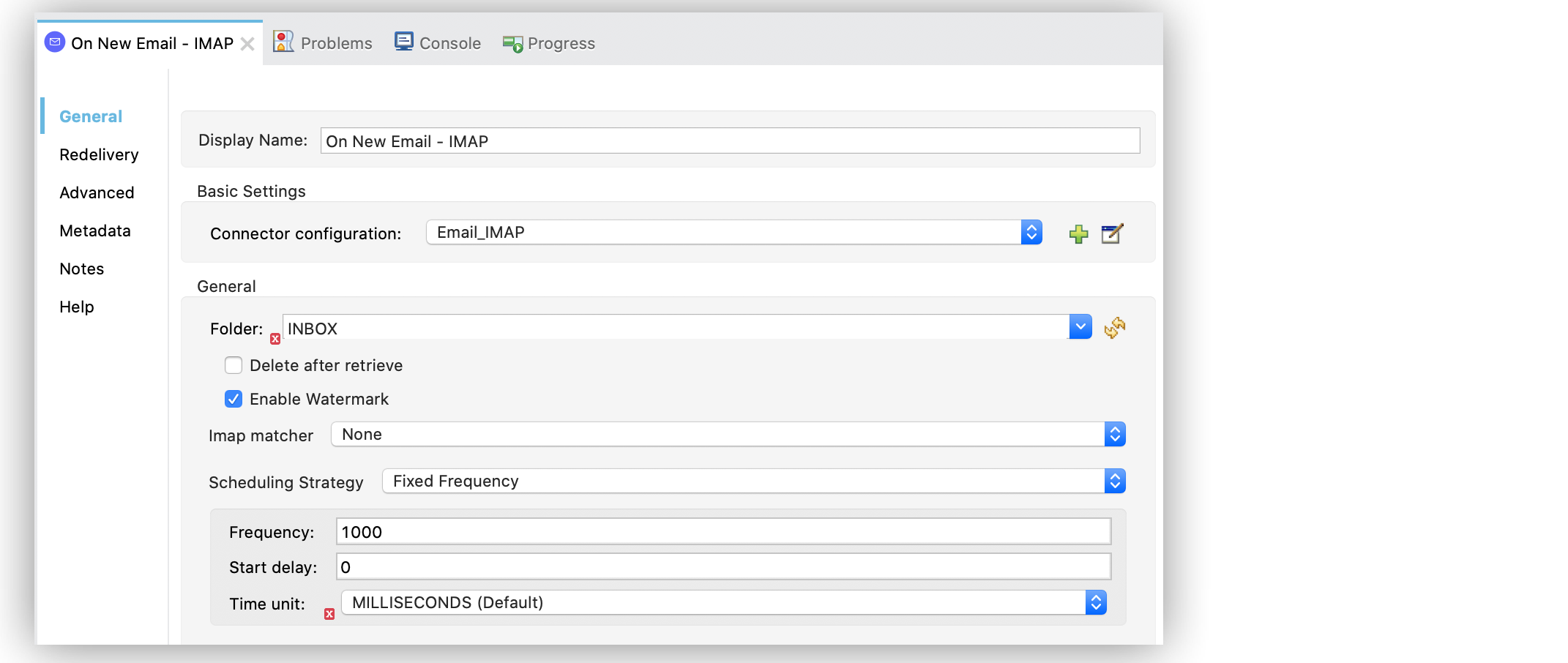
In the **Configuration XML** editor, the configuration `watermark="true"` is under the
`listener-imap` tag:
```xml
```
## Configure the IMAP Matcher and POP3 Matcher Parameters
Email Connector **On New Email - IMAP** and **On New Email - POP3** sources support **Imap matcher**
and **Pop3 matcher** parameters that enable you to configure custom matchers and thereby provide
another way of filtering dispatched messages. Each source matcher can filter emails by dates,
addresses, subject, flags, and so on.
The following example shows how to configure these parameters in Anypoint Studio by dispatching all
messages that contain the word `IMPORTANT`:
1. Select the **On New Email - IMAP** or **On New Email - POP3** source in the Studio canvas.
2. On the source configuration screen, for the **Imap matcher** or **Pop3 matcher** parameters,
select either:
- **Edit inline**
Set all the inline fields **Seen**, **Answered**, **Deleted**, **Recent**, and so on.
- **Global reference**
Create a global reference configuration to automatically set all the inline fields.
3. Set the **Subject regex** field as `IMPORTANT`.
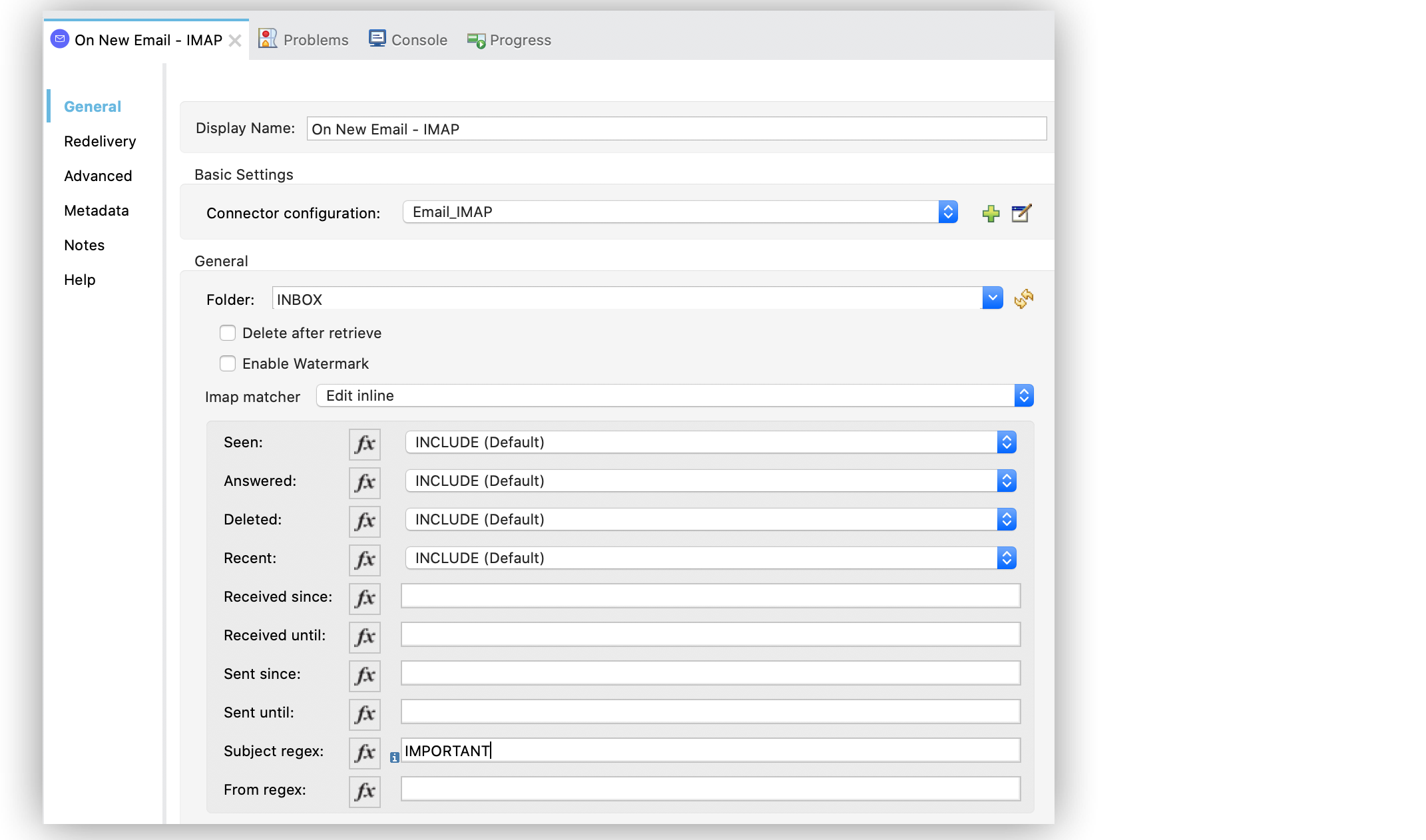
In the **Configuration XML** editor, the configuration `imap-matcher subjectRegex="IMPORTANT"` is
under the `listener-imap` tag:
```xml
```
## Configure the Attachment Naming Strategy Parameter
Email Connector **On New Email - IMAP**, **On New Email - POP3**, **List - IMAP**, and **List -
POP3** operations support the **Attachment naming strategy** parameter, which enables you to specify
a strategy for naming attachments. You can set the parameter in a global element or override it at
the operation level. The parameter has the following options: \* **NAME (Default)**
Email Connector names the attachment after the value of the `filename` field in the
`Content-Disposition` line of the attachment. If the `filename` field is not present or is empty,
then the attachment is named `Unnamed`. If multiple attachments have no name, they are called
`Unnamed`, `Unnamed_1`, `Unnamed_2`, and so on. \* **NAME\_HEADERS**
Email Connector first tries to obtain the name from the `filename` field in the
`Content-Disposition` line (the same as when using `NAME`). If that fails, the connector looks for
the `name` header in the `Content-Type` line of the attachment. If the `name` header is not present
or is empty, then the attachment is named `Unnamed`. \* **NAME\_HEADERS\_SUBJECT**
If both **NAME\_HEADERS** and **NAME\_HEADERS\_SUBJECT** fail, then the connector checks if the
attachment itself is an email (a nested message) and looks for the subject of the email. If the
subject is not empty, then the attachment is named after the subject. Otherwise, the attachment is
named `Unnamed`.
The following example shows how to configure this parameter in the global element:
1. In Studio, navigate to the **Global Element** view and click **Create** to open the **Choose
Global Type** window.
2. In the **Filter** box, type `email` and choose either **Email IMAP** or **Email POP3**, and
click **OK**.
3. In the **Global Element Properties** window, in the main **Advanced** tab, for the **Attachment
naming strategy** field, select one of the following options:
- **NAME**
- **NAME\_HEADERS**
- **NAME\_HEADERS\_SUBJECT**
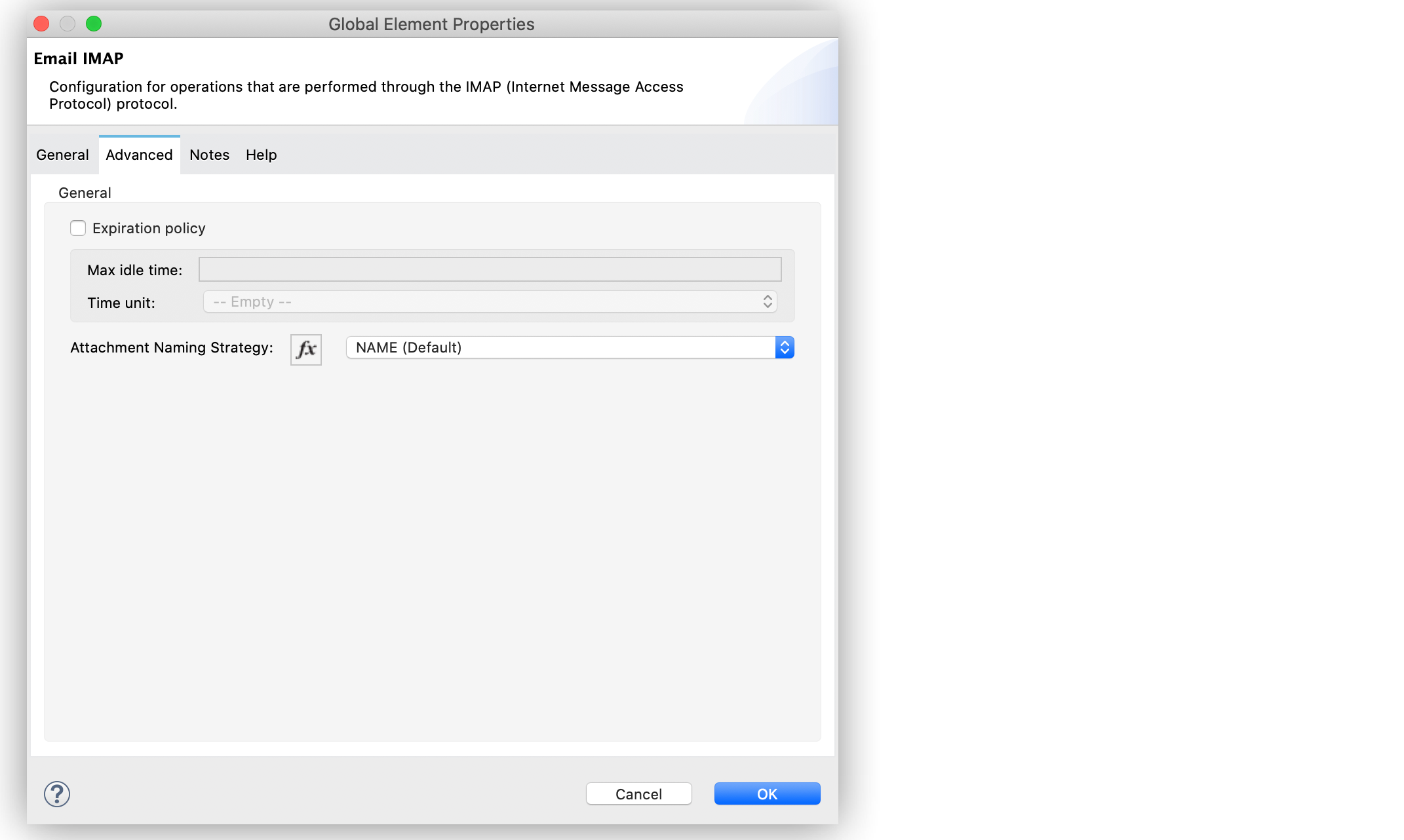
4. In the **General** tab, for **Connection** select any of the connection types to provide to the
configuration.
5. Specify the connection information for the connector, such as **Host**, **Port**, and **TLS
configuration**.
6. On the subsequent **Advanced** tab, optionally specify timeout configuration and reconnection
information, including a reconnection strategy.
7. Click **OK**.
In the **Configuration XML** editor, the configuration `attachmentNamingStrategy="NAME"` is under
the `imap-config` tag:
```xml
```
The following example shows how to override the naming strategy at the **On New Email - IMAP**
source level:
1. Select the **On New Email - IMAP** source in the Studio canvas.
2. On the source configuration screen, in the **Advanced** tab, for the **Attachment naming
strategy** field select one of the following options:
- **NAME**
- **NAME\_HEADERS**
- **NAME\_HEADERS\_SUBJECT**
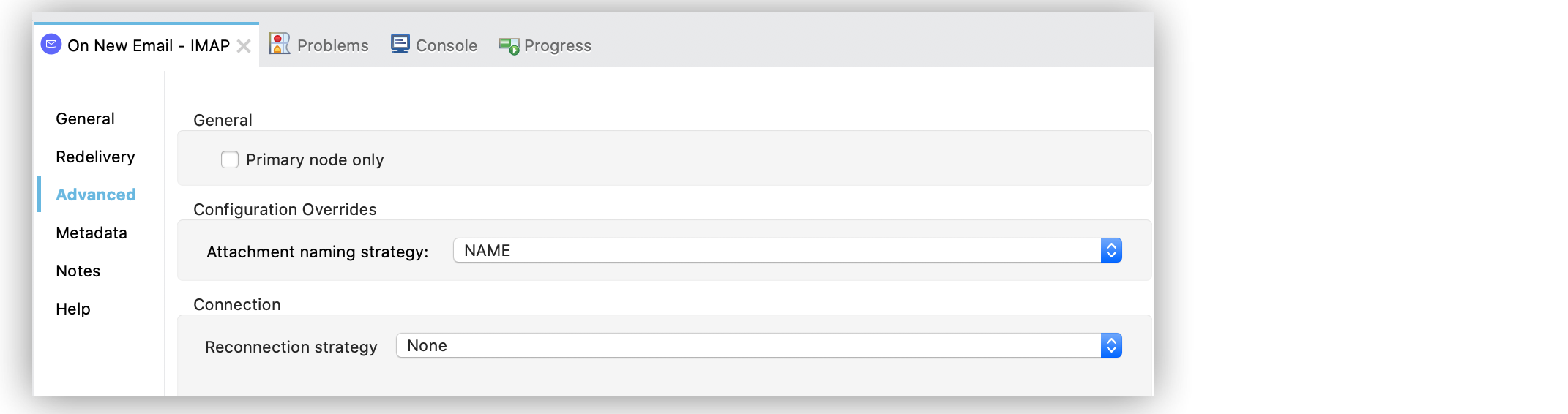
In the **Configuration XML** editor, the configuration `attachmentNamingStrategy="NAME"` is under
the `listener-imap` tag:
```xml
```
## Configure the Enable Remote Search for IMAP Matcher Parameter
When using the **On New Email - IMAP** source and **Imap matcher** parameter, you can specify
whether you want the filters to be applied server-side by enabling the **Enable Remote Search**
parameter.
This parameter is disabled by default because some email servers are not fully compliant with
`rfc-3501` search terms. Enabling the parameter decreases traffic by reducing the number of emails
sent to the client-side for processing.
For this feature to be fully functional, the email server should support the use of at least the
basic filtering flags: **Answered**, **Deleted**, **Seen** and **Recent**.
The following example shows how to configure this parameter in Anypoint Studio by enabling
server-side filtering to exclude all answered emails:
1. Select the **On New Email - IMAP** source in the Studio canvas.
2. In the source configuration screen, for the **Imap matcher**, select **Edit inline**.
3. In the **Answered** field, select the value **EXCLUDE**.
4. Enable the **Enable Remote Search** parameter.
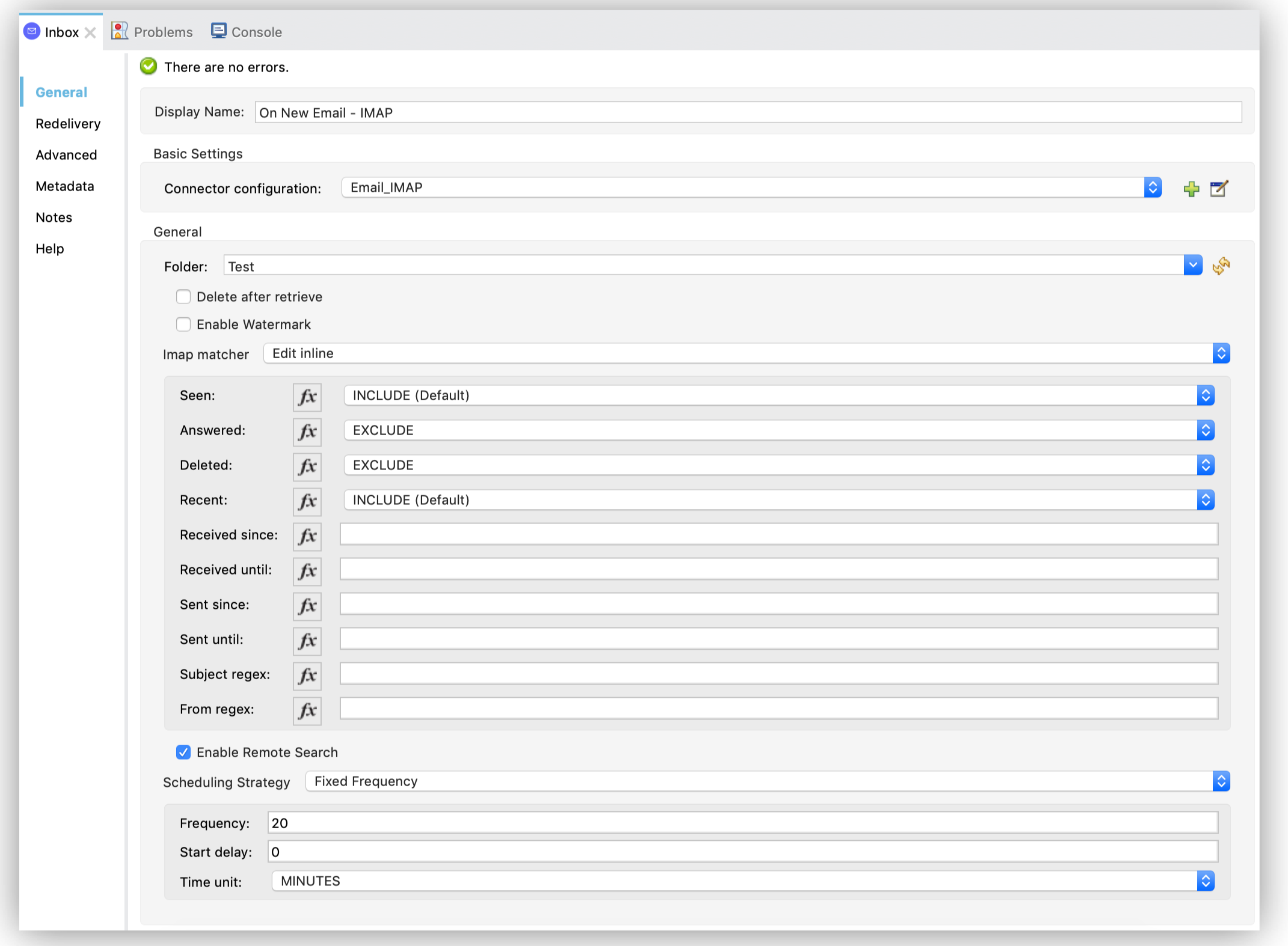
In the **Configuration XML** editor, the configuration `remoteSearchFilterEnabled="true"` is under
the `listener-imap` tag:
```xml
```
## See Also
- [Introduction to Anypoint Connectors](https://docs.mulesoft.com/connectors/introduction/introduction-to-anypoint-connectors)
- [Email Connector Examples](https://docs.mulesoft.com/email-connector/1.7/email-examples)
- [Salesforce Help](https://help.salesforce.com)