---
schema_version: "1"
id: dae14ef4c658e0398ab2b26a7cab4f1a96a84b01ebdb2ec35a18a326a86bd744
title: Using Anypoint Studio to Configure Email Connector 1.7
collection: mulesoft
version: current
locale: en-us
portal_url: https://docs.salesforce.com/mulesoft/current/en-us/email-connector/1.7/email-studio-configuration.md
canonical_url: https://docs.mulesoft.com/email-connector/1.7/email-studio-configuration
source_site: docs.mulesoft.com
content_type: documentation
content_hash: bdb2edbd418a2bd8ecd9840bc9a6006491b2b3d0a5726943948f2ab4b9dbf943
description: MuleSoft Documentation Site
release: "1.7"
latest: false
---
---
product: Email Connector
version: 1.7
---
# Using Anypoint Studio to Configure Email Connector 1.7
> For the full documentation index, see: https://docs.mulesoft.com/llms.txt
Anypoint Studio (Studio) editors help you design and update your Mule applications, properties, and
configuration files.
To add and configure a connector in Studio:
1. [Create a Mule project](#create-mule-project).
2. [Add the connector to your Mule project](#add-connector-to-project).
3. [Configure a source for the connector’s flow](#configure-input-source).
4. [Add a connector operation to the flow](#add-connector-operation).
5. [Configure a global element for the connector](#configure-global-element).
6. [Configure the other connector fields](#configure-other-fields).
When you run the connector, you can view the app log to check for problems, as described in
[View the App Log](#view-app-log).
If you are new to configuring connectors in Studio, see
[Using Anypoint Studio to Configure a Connector](https://docs.mulesoft.com/connectors/introduction/intro-config-use-studio).
If, after reading this topic, you need additional information about the connector fields, see the
[Email Connector Reference](https://docs.mulesoft.com/email-connector/1.7/email-documentation).
## Create a Mule Project
In Studio, create a new Mule project in which to add and configure the connector:
1. In Studio, select **File > New > Mule Project**.
2. Enter a name for your Mule project and click **Finish**.
## Add the Connector to Your Mule Project
Add Email Connector to your Mule project to automatically populate the XML code with the connector’s
namespace and schema location and to add the required dependencies to the project’s `pom.xml` file:
1. In the **Mule Palette** view, click **(X) Search in Exchange**.
2. In the **Add Dependencies to Project** window, type `email` in the search field.
3. Click **Email Connector** in **Available modules**.
4. Click **Add**.
5. Click **Finish**.
Adding a connector to a Mule project in Studio does not make that connector available to other
projects in your Studio workspace.
## Configure a Source
A source initiates a flow when a specified condition is met. You can configure one of these input
sources to use with Email Connector:
- **On New Email - IMAP**
Initiates a flow by retrieving all the emails from an IMAP mailbox folder, watermark can be
enabled for polled items
- **On New Email - POP3**
Initiates a flow by retrieving all the emails from an POP3 mailbox folder
- **HTTP > Listener**
Initiates a flow each time it receives a request on the configured host and port
- **Scheduler**
Initiates a flow when a time-based condition is met
For example, to configure the **On New Email - IMAP** source , follow these steps:
1. In the **Mule Palette** view, select **Email > On New Email - IMAP**.
2. Drag **On New Email - IMAP** to the Studio canvas.
3. On the **On New Email - IMAP** configuration screen, optionally change the value of the
**Display Name** field.
4. Click the plus sign (**+**) next to the **Connector configuration** field to configure a global
element that can be used by all instances of the source in the app.
5. On the **Email IMAP** window, for **Connection** select any of the connection types to provide
to this configuration:
- **IMAP Connection**
- **IMAPS Connection**
6. On the **General** tab, specify the connection information for the connector, such as **Host**,
**Port** and **TLS configuration**.
7. On the **Advanced** tab, optionally specify timeout configuration and reconnection information,
including a reconnection strategy.
8. Click **OK**.
9. On the **On New Email - IMAP** configuration screen, in the **General** section, select a
**Scheduling Strategy** to configure the scheduler that triggers the polling.
## Add a Connector Operation to the Flow
When you add a connector operation to your flow, you immediately define a specific operation for
that connector to perform.
To add an operation for Email Connector, follow these steps:
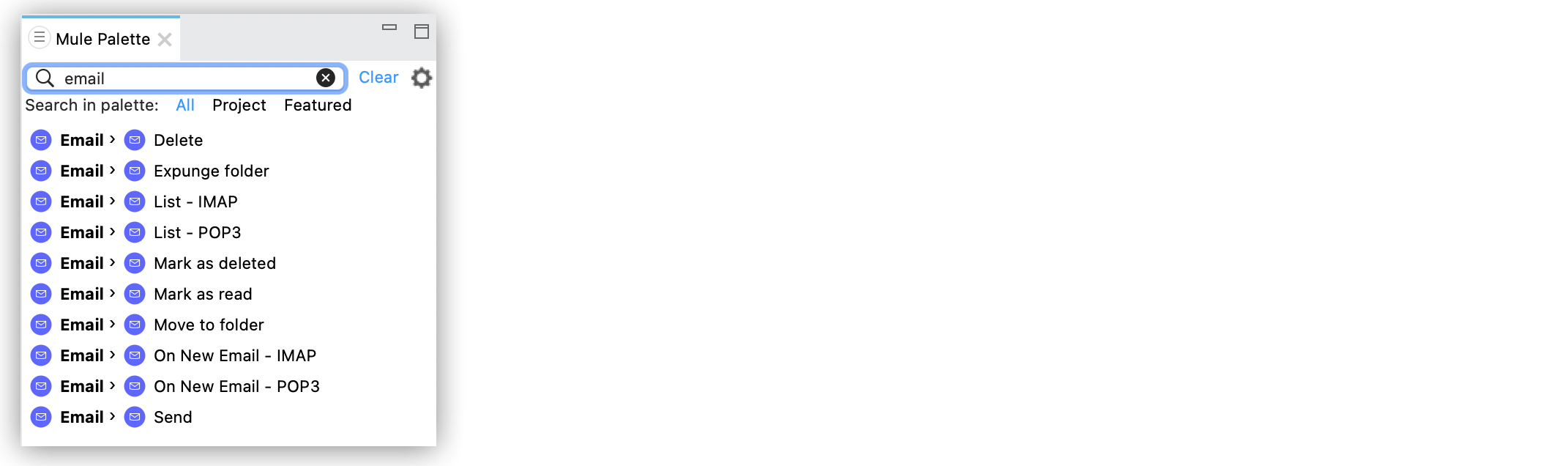
1. In the **Mule Palette** view, select **Email** and then select the desired operation.
2. Drag the operation onto the Studio canvas and to the right of the input source.
## Configure a Global Element for the Connector
When you configure a connector, it’s best to configure a global element that all instances of that
connector in the app can use. Configuring a global element for Email Connector requires you to set a
configuration based on the supported protocols for the connector operations:
Global Element Configuration
Connector Operation/Sources
IMAP (Internet Message Access Protocol)
Delete
Expunge Folder
List - IMAP
Mark As Deleted
Mark As Read
On New Email - IMAP
POP3 (Post Office Protocol 3)
List POP3
On New Email - POP3
SMTP (Simple Mail Transfer Protocol)
Send
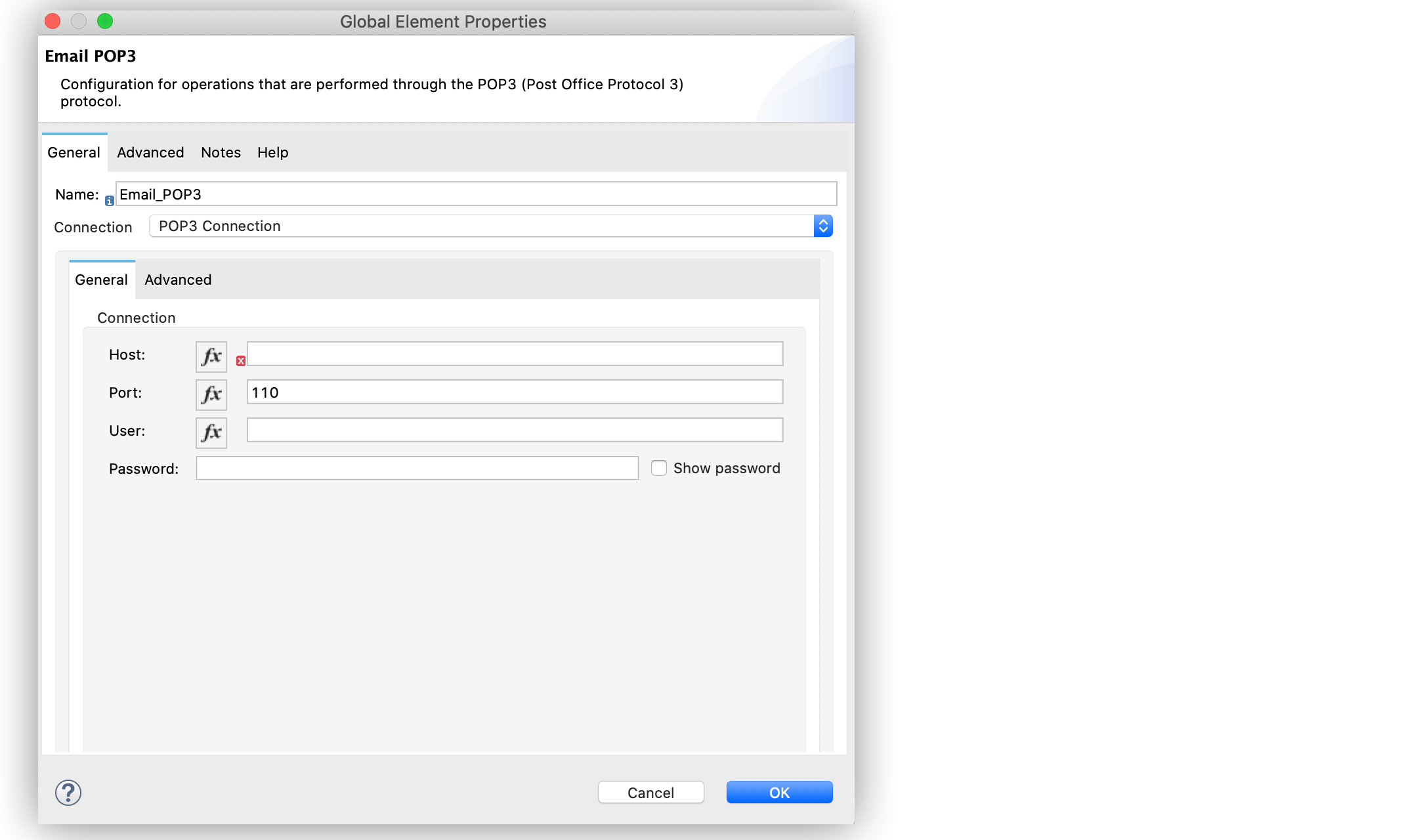
For example, to configure a POP3 global element for the **List POP3** operation, follow these steps:
1. Select the name of the connector in the Studio canvas.
2. Select the **List POP3** operation in the Studio canvas.
3. In the **List POP3** configuration screen for the operation, click the plus sign (**+**) next to
the **Connector configuration** field to access the global element configuration fields. On the
**Email POP3** window, for **Connection** select any of the connection types to provide to this
configuration:
- **POP3 Connection**
- **POP3S Connection**
4. On the **General** tab, specify the connection information for the connector, such as **Host**,
**Port** and **TLS configuration**.
5. On the **Advanced** tab, optionally specify timeout configuration and reconnection information,
including a reconnection strategy.
6. Click **OK**.
## Configure Additional Connector Fields
For IMAPS, POP3S, and SMTPS protocol connections, you can use Transport Layer Security (TLS) and
configure email by providing a key store with your certificate. Additionally, you can also enable
two-way authentication by providing a trust store. For details, see
[Email Connector Reference](https://docs.mulesoft.com/email-connector/1.7/email-documentation#Tls) and
[Configure TLS with Keystores and Truststores](https://docs.mulesoft.com/mule-runtime/latest/tls-configuration).
## View the App Log
To check for problems, you can view the app log as follows:
- If you’re running the app from Anypoint Platform, the output is visible in the Anypoint Studio
console window.
- If you’re running the app using Mule from the command line, the app log is visible in your OS
console.
Unless the log file path is customized in the app’s log file (`log4j2.xml`), you can also view the
app log in the default location `MULE_HOME/logs/.log`.
## See Also
- [Introduction to Anypoint Connectors](https://docs.mulesoft.com/connectors/introduction/introduction-to-anypoint-connectors)
- [Using Anypoint Studio to Configure a Connector](https://docs.mulesoft.com/connectors/introduction/intro-config-use-studio)
- [Email Connector Reference](https://docs.mulesoft.com/email-connector/1.7/email-documentation)
- [Salesforce Help](https://help.salesforce.com)