---
schema_version: "1"
id: 5e2c98e2079a7c751bfb9c7765bc17ac630d7405011add2513e6a6d5c2692082
title: Send Emails with Email Connector Examples
collection: mulesoft
version: current
locale: en-us
portal_url: https://docs.salesforce.com/mulesoft/current/en-us/email-connector/1.7/email-send.md
canonical_url: https://docs.mulesoft.com/email-connector/1.7/email-send
source_site: docs.mulesoft.com
content_type: documentation
content_hash: 4a51148cd550696cc17b3602f6e8f828740c0acc6f11fe62a2bbe2261ab577fe
description: MuleSoft Documentation Site
release: "1.7"
latest: false
---
---
product: Email Connector
version: 1.7
keywords: email, connector, configuration, smtp, send, smtps
---
# Send Emails with Email Connector Examples
> For the full documentation index, see: https://docs.mulesoft.com/llms.txt
Use Anypoint Connector for Email (Email Connector) to send messages over SMTP and SMTPS servers by
using the **Send** operation. The following examples show how to configure Email Connector to send
emails and attachments, in both Anypoint Studio and the XML editor:
- [Send Emails](#send-email)
Configure the Email Connector **Send** operation to send emails over an SMTPS server.
- [Send an Attachment](#send-attachments)
Configure the File Connector **Read** operation to read a JSON file and the Email Connector
**Send** operation to send the file as an attachment over an SMTP server.
- [Send Multiple Attachments](#send-multiple-attachments)
Configure **Set Variable** components to define multiple media type attachments, and send these
attachments using the Email Connector **Send** operation. Then log the result message using a
**Logger** component.
## Send Emails
The following example illustrates how to send emails over the SMTPS server. The flow initiates with
a **Scheduler** component, and then the **Send** operation sends the email. The SMTPS connection
type enables SSL or TLS encryption and sends encrypted messages over the secured version of the SMTP
server.
The following screenshot shows the app flow for this example:

To create the flow:
1. Create a new Mule project in Studio.
2. In the **Mule Palette** view, select the **Scheduler** component and drag it onto the canvas.
This source initiates a flow when a time-based condition is met.
3. Drag the Email **Send** operation to the right of the **Scheduler** source.
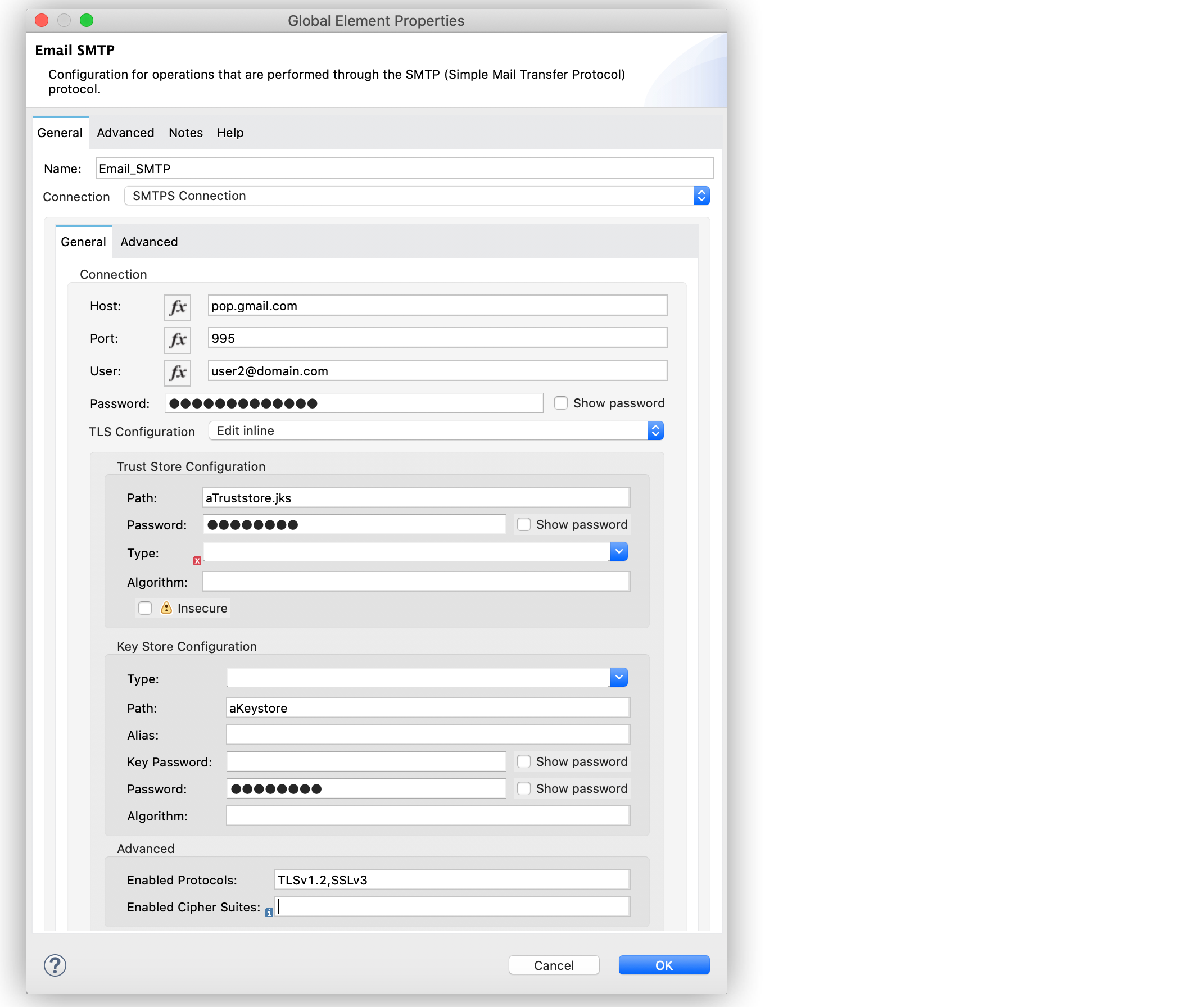
4. On the **Send** configuration screen, click the plus sign (**+**) next to the **Connector
configuration** field to configure a global element for the operation.
5. For **Connection**, select **SMTPS Connection**.
6. In the **General** tab, enter the following values:
- **Host** `pop.gmail.com`
- **Port** `995`
- **User** `user3@domain.com`
- **Password** `passwordconnection`
7. In the **TLS Configuration** section, select **Edit inline**.
8. In the **Trust Store Configuration** section, complete these fields:
- **Path** `trustore path`
- **Password** `passwordtrust`
9. In the **Key Store Configuration** section, enter the following values:
- **Path** `aKeystore`
- **Password** `passwordkey`
10. In the **Advanced** section, set **Enabled Protocols** to `TLSv1.2,SSLv3`.
11. Click **OK**.
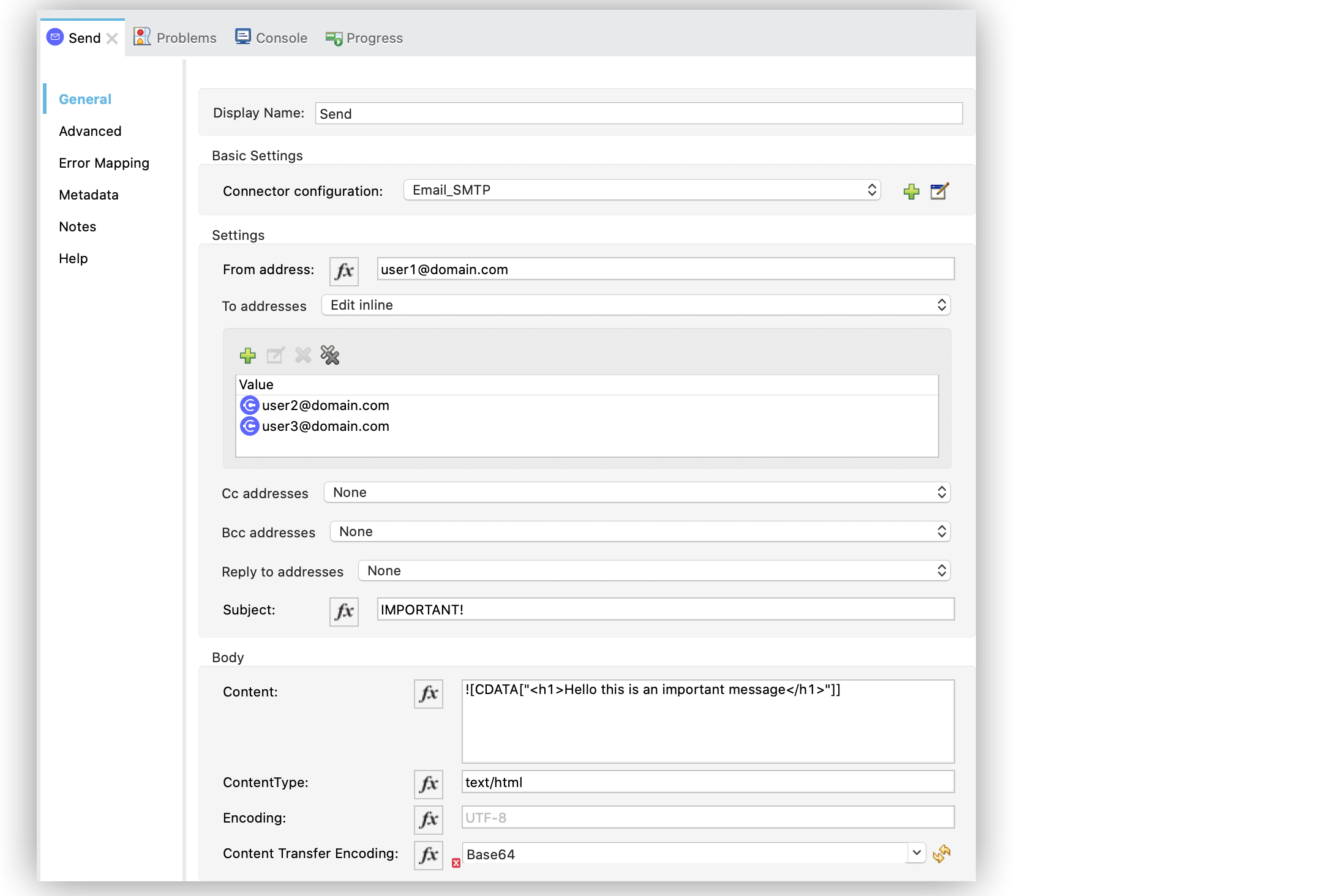
12. In the **Send** operation configuration screen, set the following values:
- **From address** `user1@domain.com`
- **To addresses** `Edit inline`
13. Click the plus sign (**+**) to add new emails.
14. Set **Value** to `user2@domain.com`.
15. Repeat the previous two actions and add another email as `user3@domain.com`.
16. Set **Subject** to `IMPORTANT!`.
17. Set **Content** to `"Hello this is an important message
"` and **ContentType** to
`text/html`.
If **Content** is not empty, the content of the message payload is used by default. If that
payload is not `text`, the operation fails with an `EMAIL:SEND` error.
18. Save and run the app.
### XML for Sending Emails
Paste this code into the Studio XML editor to quickly load the flow for this example into your Mule
app:
```xml
Hello this is an important message"]]>
```
## Send an Attachment
The following example illustrates how to send emails and attachments over the SMTP server. Use
DataWeave to manage the attachments. The flow reads a JSON file using the File Connector **Read**
operation and then uses the Email Connector **Send** operation to send the content of the file as an
attachment:
The following screenshot shows the Anypoint Studio app flow for this example:

To create the flow:
1. Create a new Mule project in Studio.
2. In the **Mule Palette** view, select the **Scheduler** component and drag it onto the canvas.
The source initiates a flow when a time-based condition is met.
3. Drag the File Connector **Read** operation to the right of the **Scheduler** component.
4. Set **File Path** to `file.json`.
5. Drag the **Send** operation to the right of the **Read** operation.
6. On the **Send** configuration screen, click the plus sign (**+**) next to the **Connector
configuration** field to configure a global element for the operation.
7. For **Connection**, select **SMTP Connection**.
8. In the **General** tab, enter the following values:
- **Host** `pop.gmail.com`
- **Port** `995`
- **User** `user1@domain.com`
- **Password** `password`
9. Click **OK**.
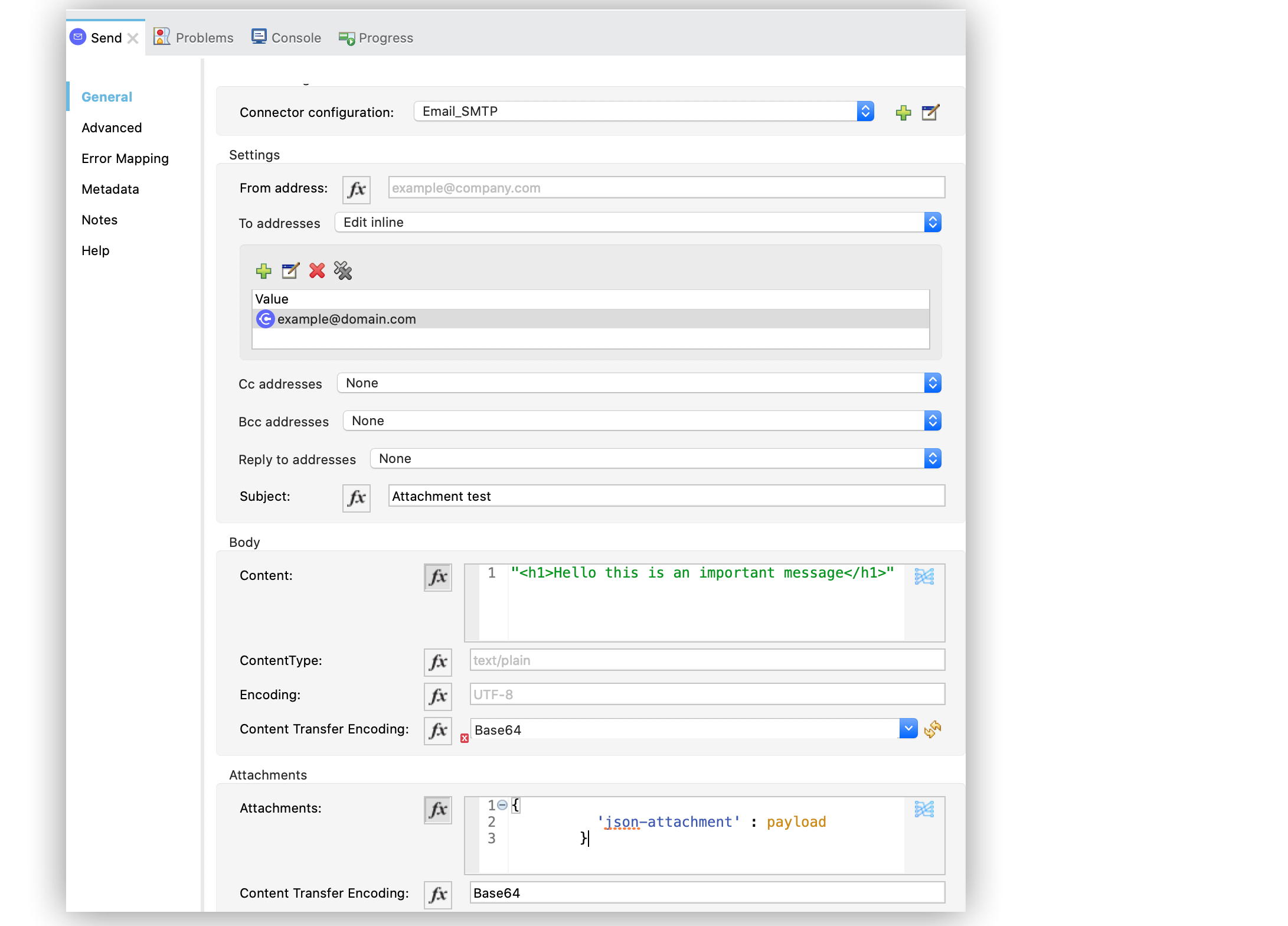
10. In the **Send** operation configuration screen, set the **To addresses** field to `Edit inline`.
11. Click the plus sign (**+**) to add a new email **Value** as `example@domain.com`.
12. Set **Subject** to `Attachment test`.
13. Set **Content** to `"Hello this is an important message
"`.
14. In the **Attachments** field, enter the following DataWeave expression as a new attachment
element:
```DataWeave
{
'json-attachment' : payload
}
```
Note that `payload` is the content of the JSON file read by the File Connector **Read**
operation.
15. Save and run the app.
### XML for Sending Attachments
Paste this code into the Studio XML editor to quickly load the flow for this example into your Mule
app:
```xml
Hello this is an important message"]]]>
#[{
'json-attachment' : "payload"
}]
```
## Send Multiple Attachments
The following example illustrates how to send emails and multiple attachments over the SMTP server.
The flow initiates with a **Scheduler** component. Then, **Set Variable** components define each
attachment media type JSON, text and file. Subsequently, the Email Connector **Send** operation
sends the attachments in the email, after which you the result message using a **Logger** component.
The following screenshot shows the Anypoint Studio app flow for this example:

Figure 1. Email Connector Multiple attachments
To create the flow:
1. Create a new Mule project in Studio.
2. In the **Mule Palette** view, select the **Scheduler** component and drag it onto the canvas.
The source initiates a flow when a time-based condition is met and sends the emails.
3. Drag a **Set Variable** component to the right of the **Scheduler** component.
4. In the **Set Variable** configuration screen, set the following parameters:
- **Name** `json`
- **Value** `output application/json --- {address: '221B Baker Street'}`
- **MIME Type** `application/json`
5. Drag another **Set Variable** component to the right of the first **Set Variable** component,
and set the following parameters:
- **Name** `textPlain`
- **Value** `This is the email text attachment for John Watson`
- **MIME Type** `text/plain`
6. Drag another **Set Variable** component to the right of the second **Set Variable** component,
and set the following parameters:
- **Name** `octectStream`
- **Value** `vars.textPlain`
- **MIME Type** `application/octet-stream`
7. Drag the Email **Send** operation to the right of the third **Set Variable** component.
8. On the **Send** configuration screen, click the plus sign (**+**) next to the **Connector
configuration** field to configure a global element for the operation.
9. For **Connection**, select **SMTP Connection**.
10. In the **General** tab, enter the following values:
- **Host** `pop.gmail.com`
- **Port** `995`
- **User** `user1@domain.com`
- **Password** `password`
11. Click **OK**.
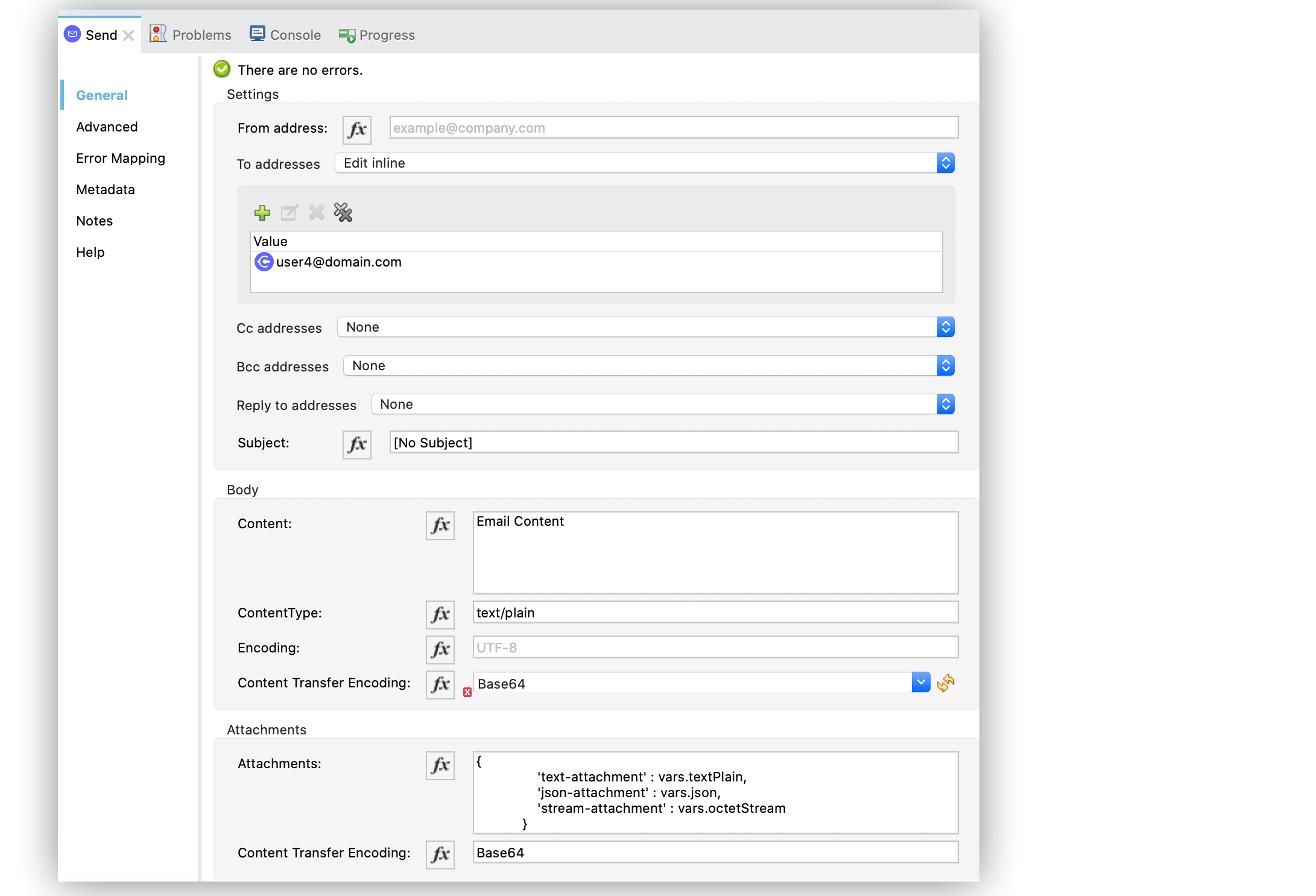
12. In the **Send** operation configuration screen, set the **To addresses** field to `Edit inline`
13. Click the plus sign (**+**) to add a new email **Value** as `user4@domain.com`.
14. Set the **Content** field to `Email Content` and the **ContentType** field to `text/plain`.
15. In the **Attachments** field, enter the following DataWeave expression:
```DataWeave
{
'text-attachment' : vars.textPlain,
'json-attachment' : vars.json,
'stream-attachment' : vars.octetStream
}
```
16. Save and run the app.
### XML for Sending Multiple Attachments
Paste this code into the Studio XML editor to quickly load the flow for this example into your Mule
app:
```xml
Email Content
#[{
'text-attachment' : vars.textPlain,
'json-attachment' : vars.json,
'stream-attachment' : vars.octetStream
}]
```
## See Also
- [Introduction to Anypoint Connectors](https://docs.mulesoft.com/connectors/introduction/introduction-to-anypoint-connectors)
- [Email Connector Examples](https://docs.mulesoft.com/email-connector/1.7/email-examples)
- [Salesforce Help](https://help.salesforce.com)