---
schema_version: "1"
id: 47560ee160202e976cd6f7e795298444c4c238499705f335567ea534f56a6182
title: List Emails with Email Connector Examples
collection: mulesoft
version: current
locale: en-us
portal_url: https://docs.salesforce.com/mulesoft/current/en-us/email-connector/1.7/email-list.md
canonical_url: https://docs.mulesoft.com/email-connector/1.7/email-list
source_site: docs.mulesoft.com
content_type: documentation
content_hash: f75d4be224d60a64a0f5ca70f99bc29f3e9cb542c468c3f5136ec24d3d4e3421
description: MuleSoft Documentation Site
release: "1.7"
latest: false
---
---
product: Email Connector
version: 1.7
---
# List Emails with Email Connector Examples
> For the full documentation index, see: https://docs.mulesoft.com/llms.txt
Anypoint Connector for Email (Email Connector) provides the **List - IMAP** and **List - POP3**
operations, which list emails from any part of the flow. The following examples illustrate how to
configure these operations for the connector:
- [List Emails from an IMAPS Server](#list-emails-from-an-imaps-server)
Configure the **List - IMAP** operation to list all the emails in the configured IMAP mailbox
folder from an IMAPS server that has a TLS connection. Additionally, set a **For Each** scope
component and two **Set Variable** components to iterate over the emails and save the email body
and attachment content in variables.
- [List Emails from a POP3 Server](#list-emails-from-a-pop3-server)
Configure the **List - POP3** operation to list all the emails in the configured POP3 mailbox
folder that matched the criteria specified in the **Match with** parameter.
These example use variables for some field values. You can either:
- Replace the variables with their values in the code.
- Provide the values for each variable in a properties file and then refer to that file from the
connector configuration.
If you don’t know how to use a properties file, see
[Configuring Property Placeholders](https://docs.mulesoft.com/mule-runtime/latest/mule-app-properties-to-configure).
## List Emails from an IMAPS Server
The following example illustrates how to list all the emails in the configured IMAP mailbox folder
from an IMAPS server that has a TLS connection. A **Scheduler** component initiates the flow, and
then the **List - IMAP** operation lists the emails. Subsequently, a **For Each** scope component
and two **Set Variable** components iterate over the emails, and save the body and attachments of
the email content payload in variables:
The following screenshot shows the app flow for this example:

Figure 1. List Emails from an IMAPS Server flow
To create the flow:
1. Create a new Mule project in Studio.
2. In the **Mule Palette** view, select the **Scheduler** component and drag it onto the canvas.
This source initiates a flow when a time-based condition is met.
3. Drag the **List - IMAP** operation to the right of the **Scheduler** source.
4. On the **List - IMAP** configuration screen, click the plus sign (**+**) next to the **Connector
configuration** field to configure a global element for the operation.
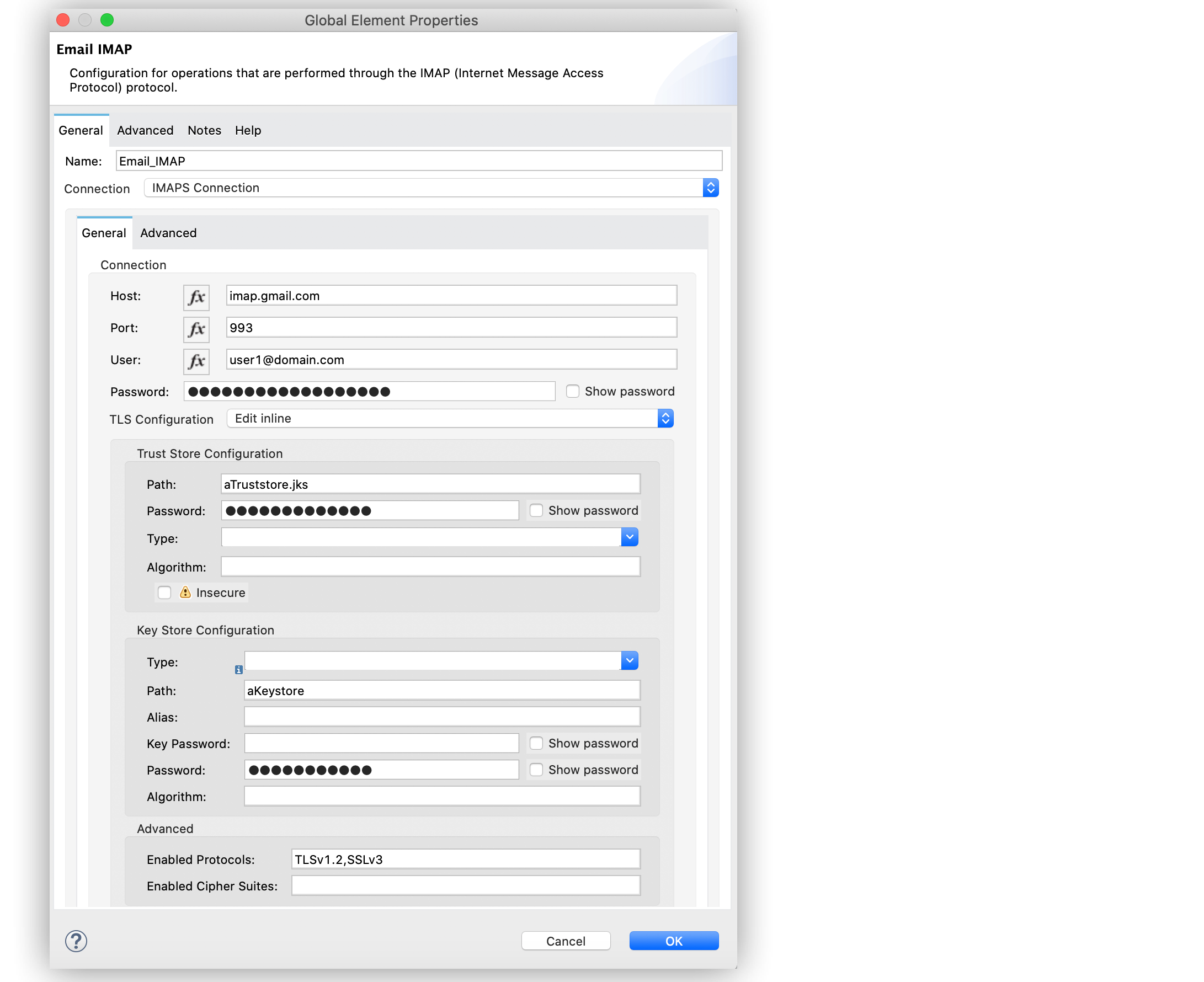
5. For **Connection**, select **IMAPS Connection**.
6. In the **General** tab, enter the following values:
- **Host** `imap.gmail.com`
- **Port** `993`
- **User** `user1@domain.com`
- **Password** `passwordconnection`
7. In the **TLS Configuration** section, select **Edit inline**.
8. In the **Trust Store Configuration** section, enter the following values:
- **Path** `aTruststore.jks`
- **Password** `passwordtrust`
9. In the **Key Store Configuration** section, enter the following values:
- **Path** `aKeystore`
- **Password** `passwordkey`
10. In the **Advanced** section, set **Enabled Protocols** to `TLSv1.2,SSLv3`.
11. Click **OK**.
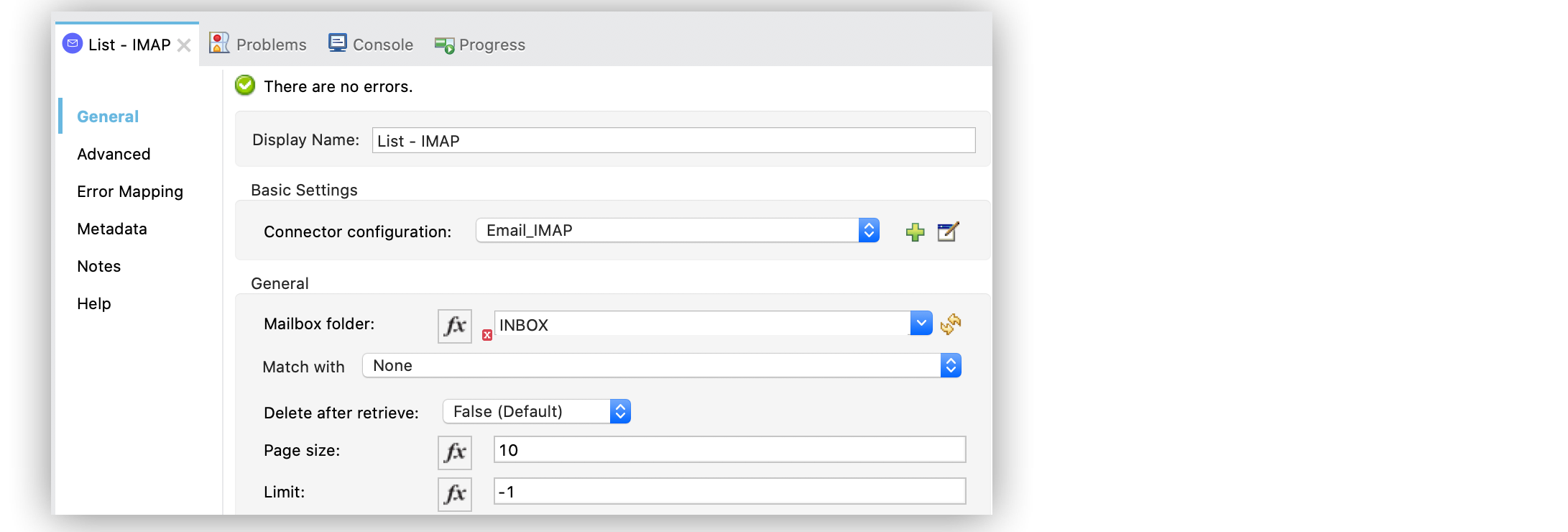
12. On the **List - IMAP** configuration screen, set the **Mailbox folder** field to `INBOX`.
13. Drag the **For each** scope component to the right of the **List - IMAP** operation.
14. Drag a **Set Variable** component inside the **For each** scope component.
15. Set **Name** to `email-content` and **Value** to `payload.body`.
This component saves the body content of the email in a new variable.
16. Drag another **Set Variable** component to the right of the first **Set Variable** component.
17. Set **Name** to `json-attachment` and **Value** to `#[payload.attachments.'attachment-name']`.
This component saves the email `.json` attachment to a new variable.
18. Save and run the app.
### XML for Listing Emails from an IMAPS Server
Paste this code into the Studio XML editor to quickly load the flow for this example into your Mule
app:
```xml
```
## Set Pagination Offset for List IMAP
The **Pagination offset** field enables you to set the pagination offset and retrieve a certain
record (or subset of records) within a particular page for the **List - IMAP** operation.
1. In Studio, select the **List - IMAP** operation from your flow.
2. Set **Connector configuration** to **Email\_IMAP\_outlook**.
3. Set **Page size** to `10`.
4. Set **Pagination offset** to `2`.
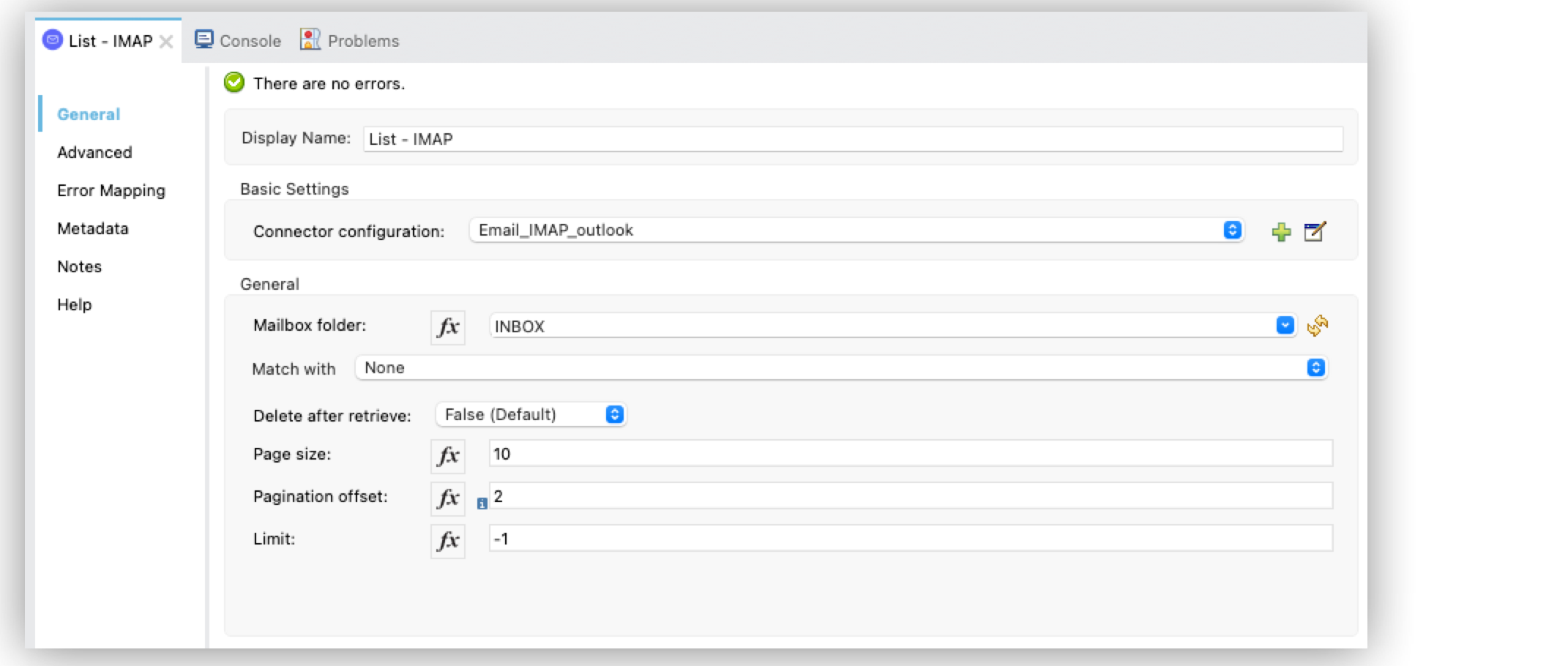
In the **Configuration XML** editor, the `paginationOffset` configuration looks like this:
```xml
```
## List Emails from a POP3 Server
When listing emails, you can filter them using the **Match with** parameter, which defines the
criteria to process the emails. All matcher attributes are optional. They are also related to each
other under an `AND` operator, meaning that all the criteria must be true. These attributes vary
depending on the type of configuration that you are using. For example, the IMAP protocol provides
more metadata about the retrieved email such as the `recent`, `seen`, `deleted`, and `answered`
attribute flags.
The following example illustrates how to list all the emails in the configured POP3 mailbox folder
that match the specified criteria set in the **Match with** parameter for the configuration. A
**Scheduler** component initiates the flow, and then the **List - POP3** operation lists only the
emails whose subject regex match `BETA`:
The following screenshot shows the app flow for this example:

Figure 2. List Emails from an POP3 Server flow
To create the flow:
1. Create a new Mule project in Studio.
2. In the **Mule Palette** view, select the **Scheduler** component and drag it onto the canvas.
This source initiates a flow when a time-based condition is met.
3. Drag the **List - POP3** operation to the right of the **Scheduler** source.
4. On the **List - POP3** configuration screen, click the plus sign (**+**) next to the **Connector
configuration** field to configure a global element for the operation.
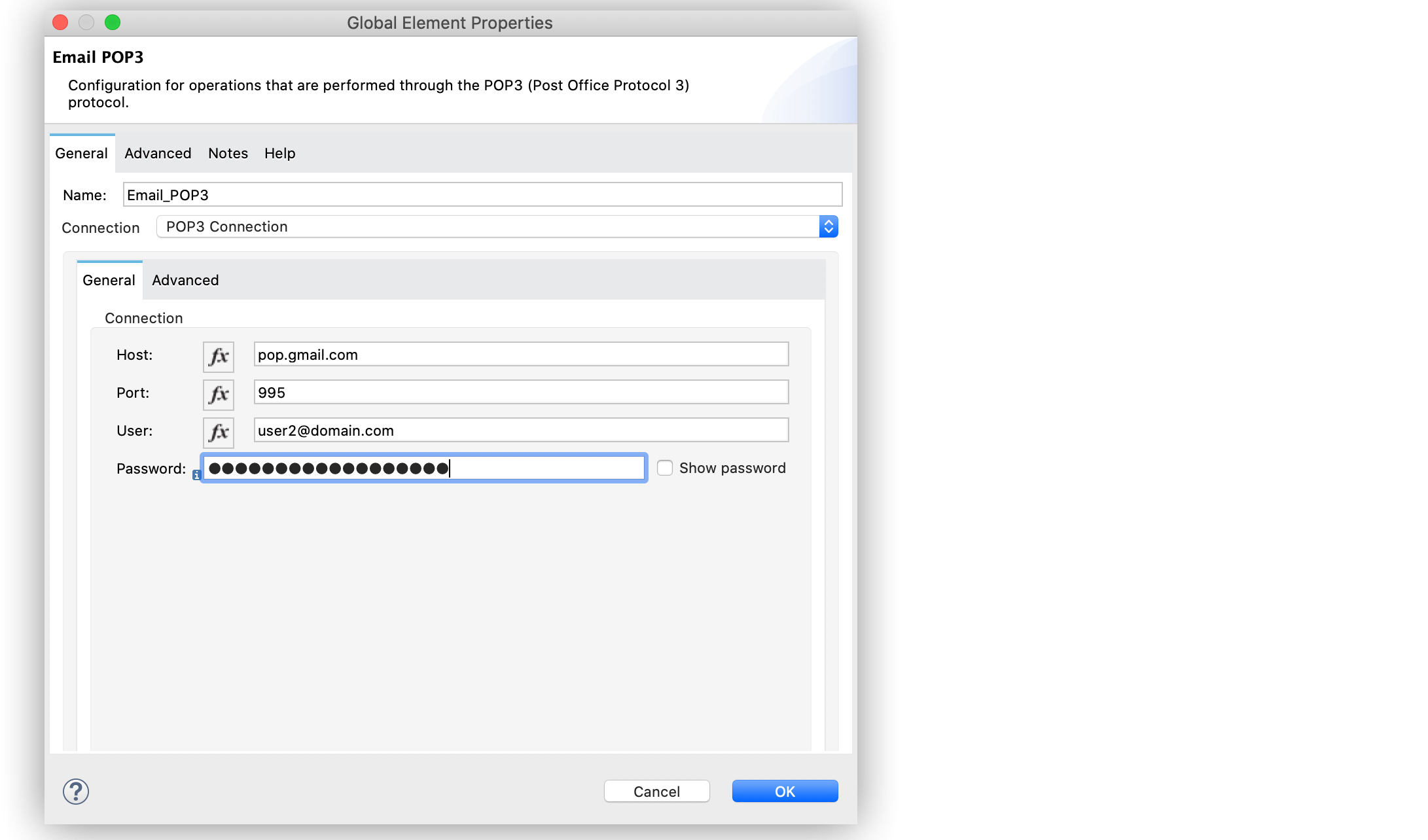
5. For **Connection**, select **POP3 Connection**.
6. In the **General** tab, enter the following values:
- **Host** `pop.gmail.com`
- **Port** `995`
- **User** `user2@domain.com`
- **Password** `passwordconnection`
7. Click **OK**.
8. On the **List - POP3** configuration screen, set the **Mailbox folder** field to `INBOX`.
9. Set **Match with** to `Edit inline`
10. Set **Subject regex** to `BETA.`
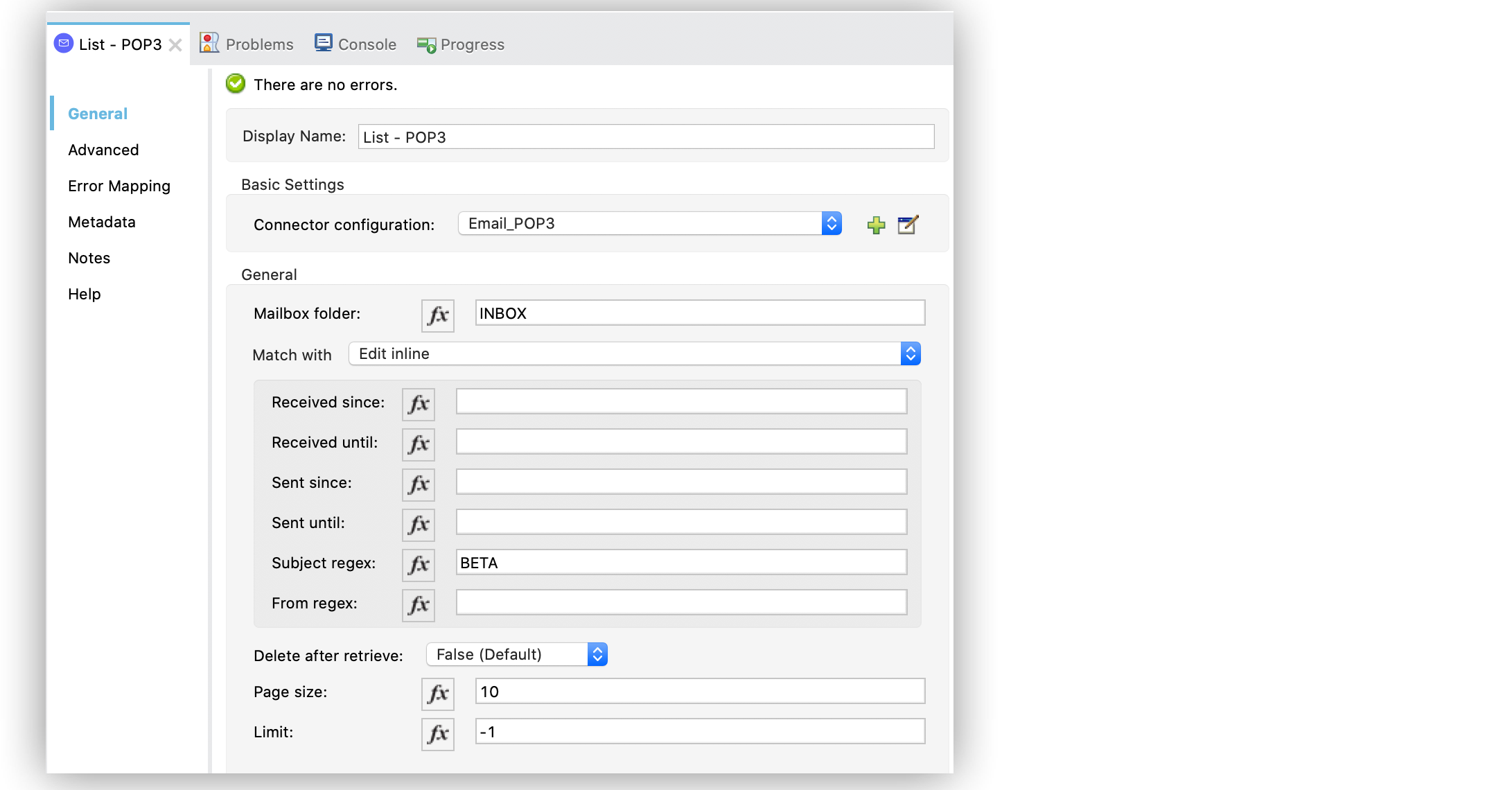
11. Save and run the app.
### XML for Listing Emails from a POP3 server
Paste this code into the Studio XML editor to quickly load the flow for this example into your Mule
app:
```xml
```
## Set Pagination Offset for List POP3
The **Pagination offset** field enables you to set the pagination offset and retrieve a certain
record (or subset of records) within a particular page for the **List - POP3** operation.
1. In Studio, select the **List - POP3** operation from your flow.
2. Set **Connector configuration** to **Email\_POP3**.
3. Set **Page size** to `10`.
4. Set **Pagination offset** to `2`.
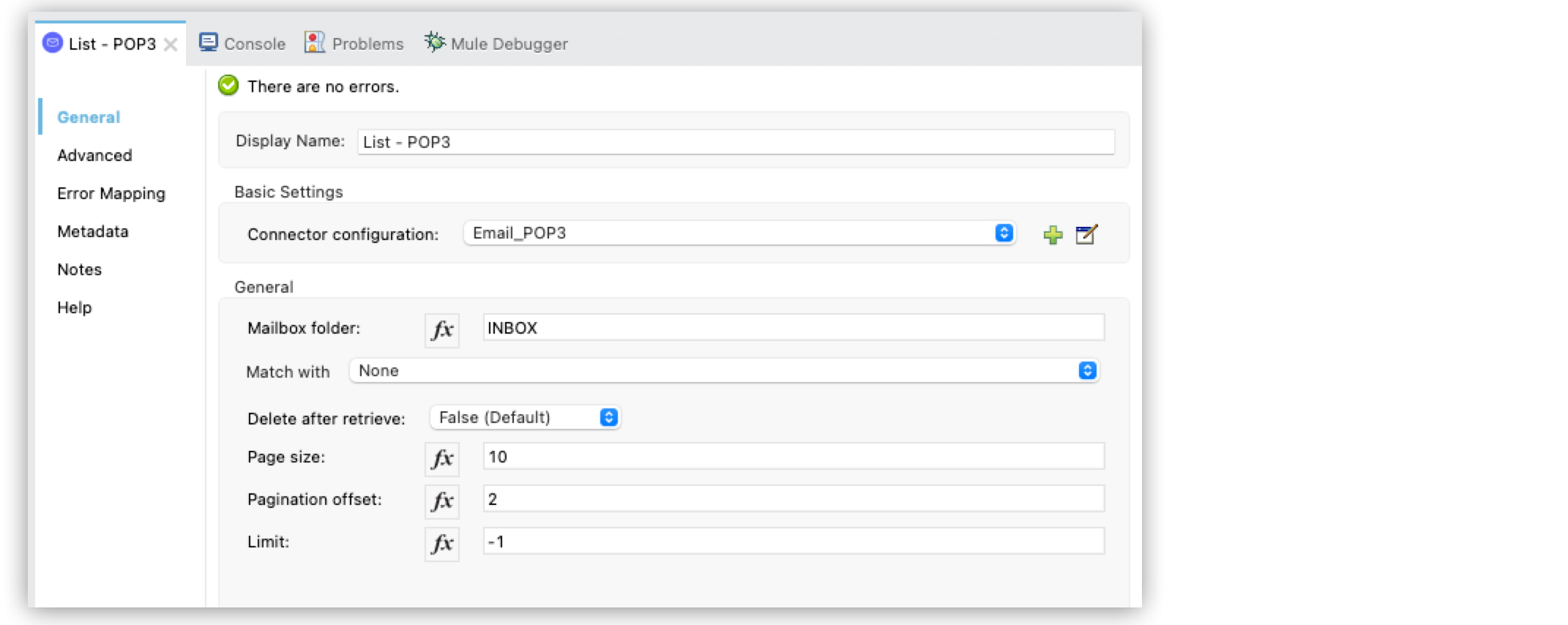
In the **Configuration XML** editor, the `paginationOffset` configuration looks like this:
```xml
```
## See Also
- [Introduction to Anypoint Connectors](https://docs.mulesoft.com/connectors/introduction/introduction-to-anypoint-connectors)
- [Email Connector Examples](https://docs.mulesoft.com/email-connector/1.7/email-examples)
- [Salesforce Help](https://help.salesforce.com)