---
schema_version: "1"
id: ac0b2641178b3d55ba826a3371085366611d56d4466bdd3ad6f54b6e3d938f7b
title: Connect to Gmail with Email Connector Examples
collection: mulesoft
version: current
locale: en-us
portal_url: https://docs.salesforce.com/mulesoft/current/en-us/email-connector/1.7/email-gmail.md
canonical_url: https://docs.mulesoft.com/email-connector/1.7/email-gmail
source_site: docs.mulesoft.com
content_type: documentation
content_hash: b731b851994db8770fbc90384a6b2d2da7c2298b24e4872c321af047d7b689e3
description: MuleSoft Documentation Site
release: "1.7"
latest: false
---
---
product: Email Connector
version: 1.7
---
# Connect to Gmail with Email Connector Examples
> For the full documentation index, see: https://docs.mulesoft.com/llms.txt
To connect Anypoint Connector for Email (Email Connector) to your Gmail account, configure a global
element for the IMAPS, POP3S, or SMTPS server connection that you want to use.
For new integrations, use OAuth 2.0 with [Gmail Connector](https://docs.mulesoft.com/gmail-connector/latest/), which is
the preferred Google authentication method for Gmail API access. If you use Email Connector with
username and password, Google requires an app password with 2-Step Verification enabled.
## Configure an App Password in Your Gmail Account
To send emails to a Gmail account via Email Connector, you must
[configure an app password](https://support.google.com/accounts/answer/185833?visit_id=637917932546436561-2352829986&p=InvalidSecondFactor&rd=1)
in your Gmail account.
Use the app password instead of your regular Gmail email password, which enables you to use email
protected by MFA (Multi-Factor Authentication).
## Configure an IMAPS Connection
To connect Email Connector to your Gmail account using an IMAPS connection, configure a global
element:
1. In Studio, navigate to the **Global Elements** view.
2. Click **Create** to open the **Choose Global Type** view.
3. In **Filter**, type `email`, select **Email IMAP**, and click **OK**.
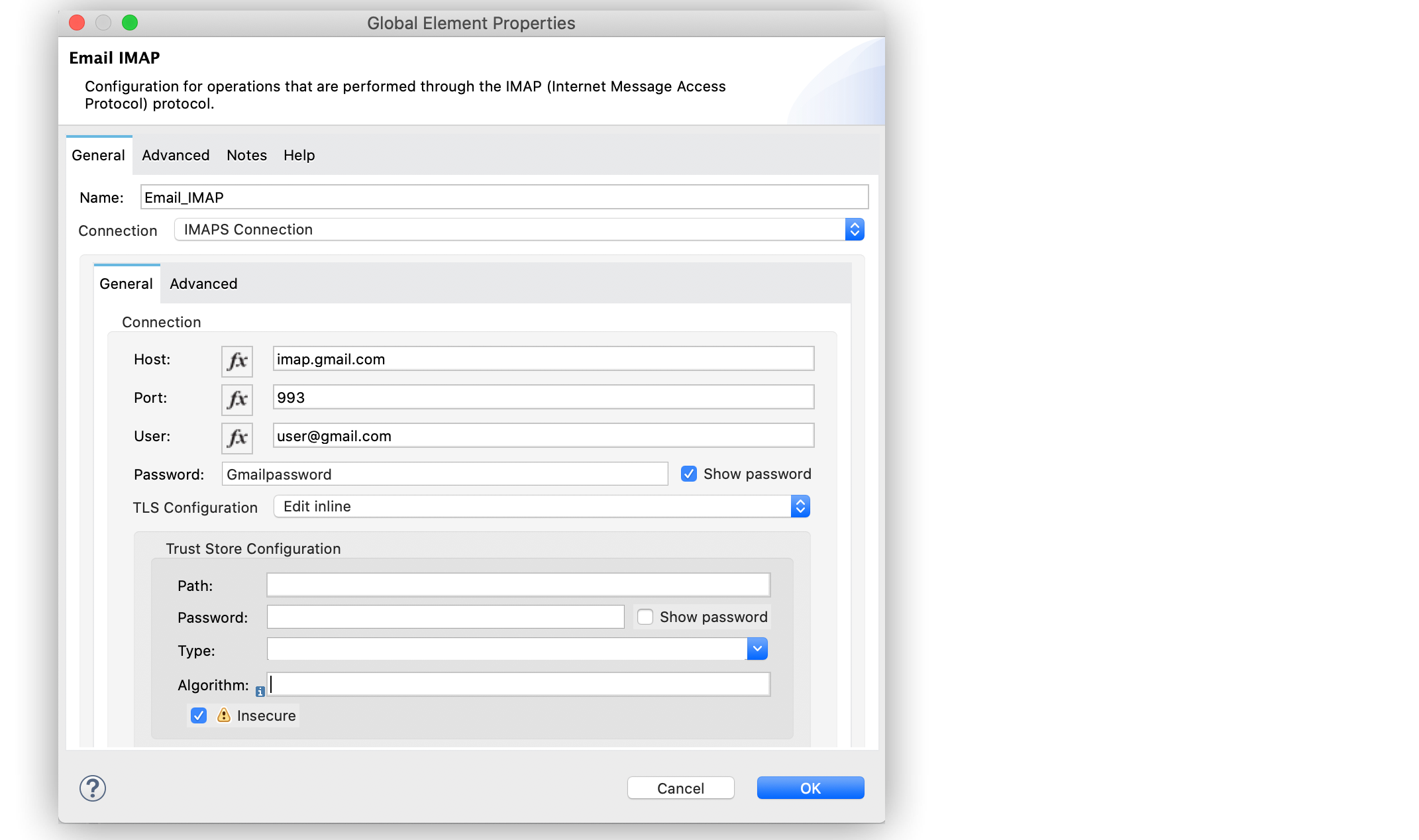
4. In the **Email IMAP** window, for the **Connection** field, select **IMAPS Connection**.
5. In the **General** section, enter the following values:
- **Host** `imap.gmail.com`
- **Port** `993`
- **User** `user@gmail.com`
- **Password** `appPassword`
6. In the **Trust Store Configuration** section, select the **Insecure** checkbox.
7. Click **OK**.
In the **Configuration XML** editor, the configuration looks like this:
```xml
```
## Configure a POP3S Connection
To connect Email Connector to your Gmail account using a POP3S connection, configure a global
element:
1. In Studio, navigate to the **Global Elements** view.
2. Click **Create** to open the **Choose Global Type** view.
3. In **Filter**, type `email`, select **Email POP3**, and click **OK**.
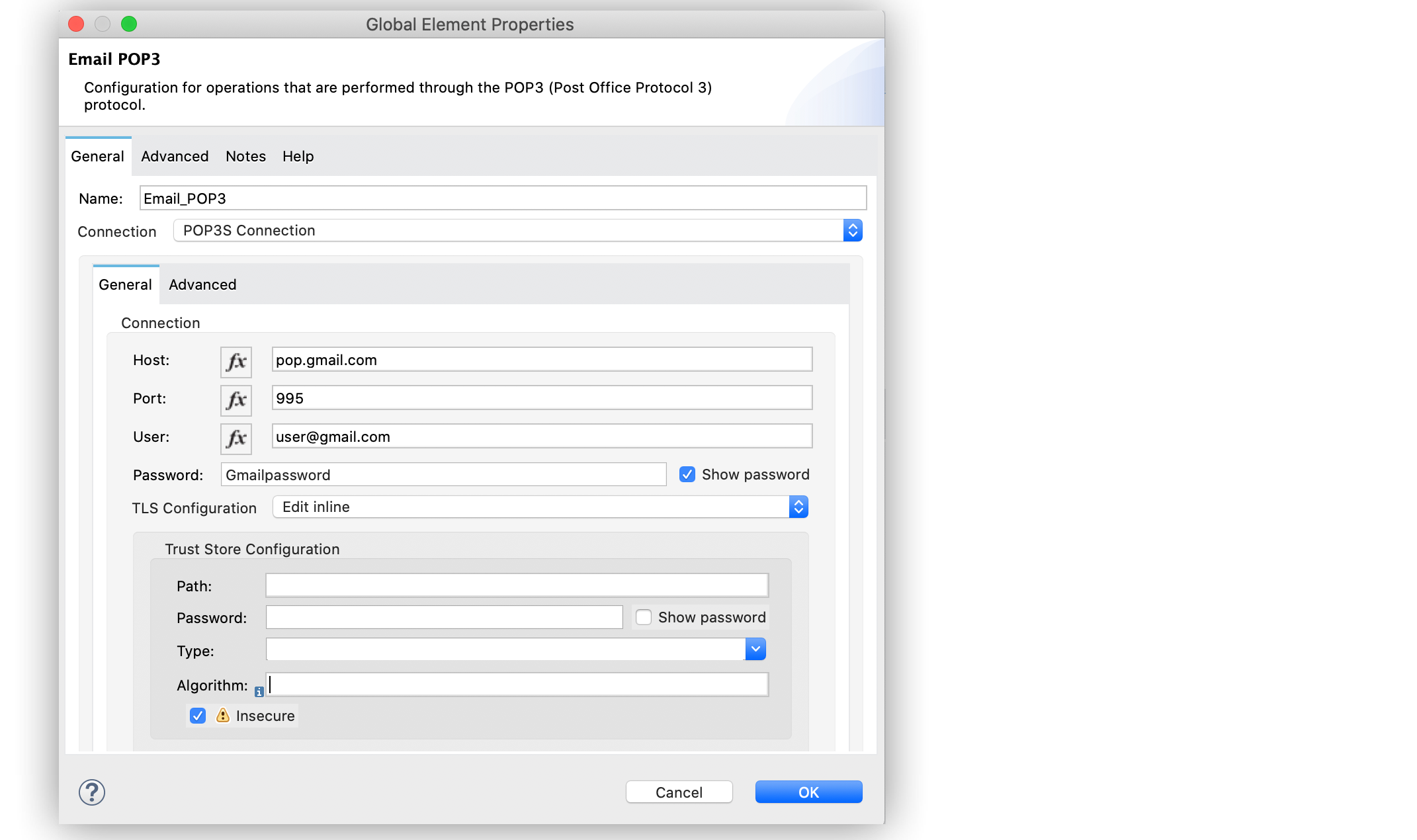
4. In the **Email POP3** window, for the **Connection** field, select **POP3S Connection**.
5. In the **General** section, enter the following values:
- **Host** `pop.gmail.com`
- **Port** `995`
- **User** `user@gmail.com`
- **Password** `appPassword`
6. In the **Trust Store Configuration** section, select the **Insecure** checkbox.
7. Click **OK**.
In the **Configuration XML** editor, the configuration looks like this:
```xml
```
## Configure an SMTP Connection
To connect Email Connector to your Gmail account using an SMTPS connection, configure a global
element:
1. In Studio, navigate to the **Global Elements** view.
2. Click **Create** to open the **Choose Global Type** view.
3. In **Filter**, type `email`, select **Email SMTP**, and click **OK**.
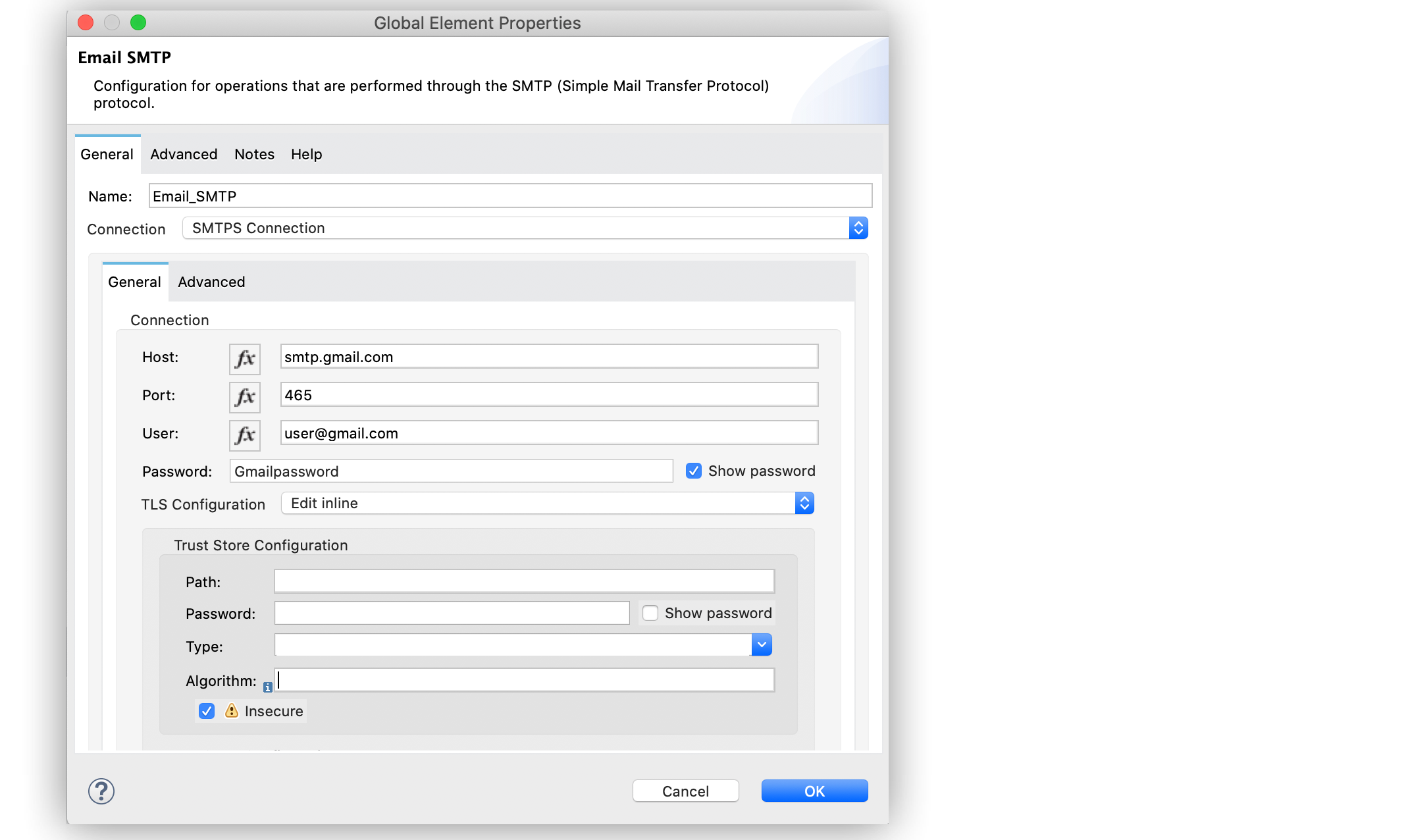
4. In the **Email SMTP** window, for the **Connection** field, select **SMTPS Connection**.
5. In the **General** section, enter the following values:
- **Host** `smtp.gmail.com`
- **Port** `465`
- **User** `user@gmail.com`
- **Password** `appPassword`
6. In the **Trust Store Configuration** section, select the **Insecure** checkbox.
7. Click **OK**.
In the **Configuration XML** editor, the configuration looks like this:
```xml
```
## Troubleshoot SMTPS Connection Issues
Google no longer supports the Less Secure Apps setting for Gmail accounts.
If SMTP authentication fails when you use Email Connector with Gmail:
- Verify that 2-Step Verification is enabled for the Gmail account.
- Generate an app password and use that password in your Email Connector configuration.
- Confirm that you’re not using your normal Gmail account password.
For details, see [Sign in using app passwords](https://support.google.com/accounts/answer/185833).
## See Also
- [Introduction to Anypoint Connectors](https://docs.mulesoft.com/connectors/introduction/introduction-to-anypoint-connectors)
- [Email Connector Examples](https://docs.mulesoft.com/email-connector/1.7/email-examples)
- [Gmail Connector Overview](https://docs.mulesoft.com/gmail-connector/latest/)
- [Salesforce Help](https://help.salesforce.com)