---
schema_version: "1"
id: b671d5a9c790788c0a1b1c631c9dd47435410cd1ba525a3848f98f78f90683f7
title: Count Messages with Email Connector
collection: mulesoft
version: current
locale: en-us
portal_url: https://docs.salesforce.com/mulesoft/current/en-us/email-connector/1.7/email-connector-count-messages.md
canonical_url: https://docs.mulesoft.com/email-connector/1.7/email-connector-count-messages
source_site: docs.mulesoft.com
content_type: documentation
content_hash: 5c99b21fbee168cd4aeb8e01f30802b9538a15d1a06b3a49672bbb19c53a9561
description: MuleSoft Documentation Site
release: "1.7"
latest: false
---
---
product: Email Connector
version: 1.7
---
# Count Messages with Email Connector
> For the full documentation index, see: https://docs.mulesoft.com/llms.txt
Anypoint Connector for Email (Email Connector) provides the **Count messages - IMAP** and **Count
messages - POP3** operations, which get the total amount of messages in a specified mailbox folder.
## Configure Count Messages - IMAP Operation
The following example shows how to configure the **Count messages - IMAP** operation:
1. Create a new Mule project in Studio.
2. Drag an HTTP **Listener** source to the canvas.
3. On the **Listener** configuration screen, click the plus sign (**+**) next to the **Connector
configuration** field to configure a global element for the operation.
4. Configure the required HTTP **Listener** connection fields and click **OK**.
5. Set **Path** to `/count`.
6. Drag the **Count messages - IMAP** operation to the right of HTTP **Listener**.
7. On the **Count messages - IMAP** configuration screen, click the plus sign (**+**) next to the
**Connector configuration** field to configure a global element for the operation.
8. Set the following fields:
- **Host**: `192.168.0.1`
- **User**: `usertest`
- **Host**: `userpass`
9. Click **OK**.
10. For **Mailbox folder**, click **fx** to switch to literal mode and set it to
`vars.mailboxFolder`.
11. Set **Count filter** to any of the following options:
- **ALL (Default)**
- **DELETED**
- **NEW**
- **UNREAD**
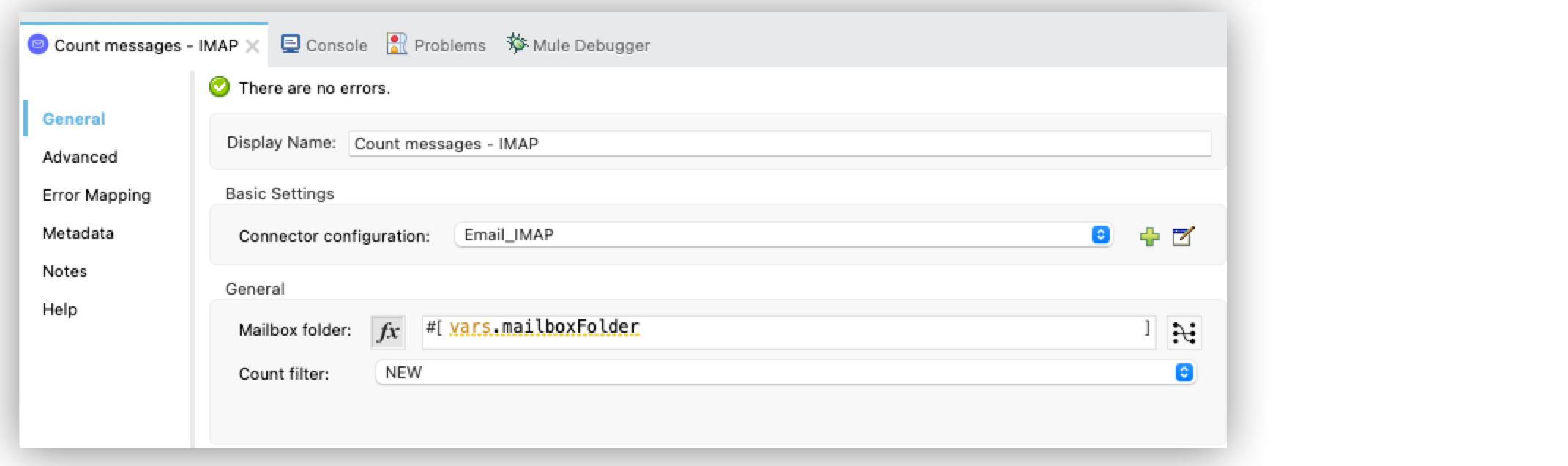
In the **Configuration XML** editor, the `email:count-messages-imap` configuration looks like this:
```xml
```
## Configure Count Messages - POP3 Operation
The following example shows how to configure the **Count messages - POP3** operation:
1. Create a new Mule project in Studio.
2. Drag an HTTP **Listener** source to the canvas.
3. On the **Listener** configuration screen, click the plus sign (**+**) next to the **Connector
configuration** field to configure a global element for the operation.
4. Configure the required HTTP **Listener** connection fields and click **OK**.
5. Set **Path** to `/count`.
6. Drag the **Count messages - POP3** operation to the right of HTTP **Listener**.
7. On the **Count messages - POP3** configuration screen, click the plus sign (**+**) next to the
**Connector configuration** field to configure a global element for the operation.
8. Set the following fields:
- **Host**: `192.168.0.1`
- **User**: `usertest`
- **Host**: `userpass`
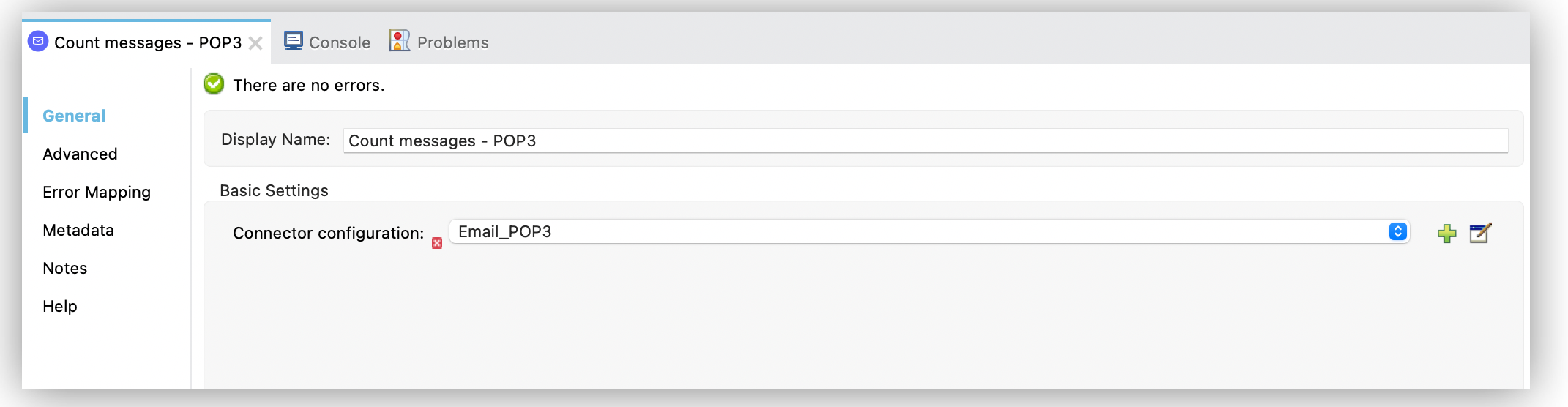
In the **Configuration XML** editor, the `email:count-messages-pop3` configuration looks like this:
```xml
```
## See Also
- [Introduction to Anypoint Connectors](https://docs.mulesoft.com/connectors/introduction/introduction-to-anypoint-connectors)
- [Email Connector Examples](https://docs.mulesoft.com/email-connector/1.7/email-examples)
- [Salesforce Help](https://help.salesforce.com)