---
schema_version: "1"
id: 6edb480d3c15eaead8ce404f4ce454ba42855c2000fd378f0f5ac8794a2471bf
title: Query a Single Record from a Database Example
collection: mulesoft
version: current
locale: en-us
portal_url: https://docs.salesforce.com/mulesoft/current/en-us/db-connector/latest/database-connector-query-single.md
canonical_url: https://docs.mulesoft.com/db-connector/latest/database-connector-query-single
source_site: docs.mulesoft.com
content_type: documentation
content_hash: 341ea4d9ec6d04ce79034ef18d1ae6c70cafc26c1d76597111f8d223c0829216
description: MuleSoft Documentation Site
release: "1.16"
latest: true
---
---
product: Database Connector
version: 1.16
is-latest-version: true
---
# Query a Single Record from a Database Example
> For the full documentation index, see: https://docs.mulesoft.com/llms.txt
The Anypoint Connector for Database (Database Connector) **Query single** operation enables you to
execute an SQL query that returns a single record (row) from a database and access the result
payload without any additional transformations. This operation does not stream any of the returned
fields. When the query is executed, all the values of the returned row are read into memory and
returned in the payload.
You must be careful, however, because if your row is too large, you could run out of memory. Also,
if you use connection pooling you do not have to worry about your application running out of
connections, because this operation returns the connection to the pool immediately after the query
is executed.
You invoke the **Query single** operation in the same way as you invoke the **Select** operation;
however, you always get a single result using the **Query single** operation, regardless of the
number of records returned by the actual SQL query.
The following example shows how to configure the operation in a Mule application that retrieves
books information from a table in a MySQL database. To accomplish this example, you must:
- Run an SQL statement that creates a table called `BOOK` and inserts seven records of book
information (title, author, bookshopName, isbn, price).
- Configure the SQL database connection.
- Create the Mule application.
- Run the application and then test it by using with curl commands.
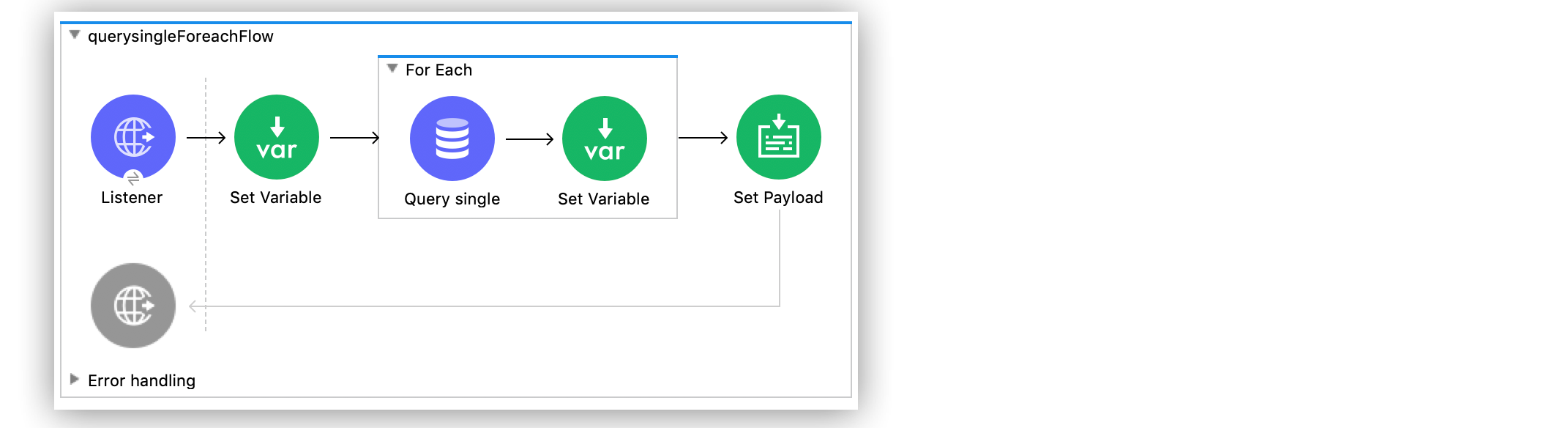
Figure 1. Query a Single Record from a Database flow
## Create the Table in the Database
Before configuring the SQL database connection and creating the Mule app, run the following SQL
statement to create a table called `BOOK` and insert seven book records. An incremental `id` is
associated with each new book added into to table. For example, the first book added to the table
has an `id` equal to `1`, the second book has an `id` equal to `2`, and so on.
```sql
USE SYS;
CREATE TABLE BOOK(
id MEDIUMINT NOT NULL AUTO_INCREMENT,
title VARCHAR(100),
author VARCHAR(100),
bookshopName VARCHAR(100),
isbn VARCHAR(13),
price SMALLINT,
PRIMARY KEY (id)
);
INSERT INTO BOOK(title, author, bookshopName, isbn, price) VALUES('Good Omens', 'Terry Pratchett and Neil Gaiman', 'A.Z. Fell and Co.', '9780060853983', 50);
INSERT INTO BOOK(title, author, bookshopName, isbn, price) VALUES('A Wizard of Earthsea', 'Ursula K. Le Guin', 'A.Z. Fell and Co.', '9780547773742', 20);
INSERT INTO BOOK(title, author, bookshopName, isbn, price) VALUES('IT', 'Stephen King', 'A.Z. Fell and Co.', '9781508297123', 20);
INSERT INTO BOOK(title, author, bookshopName, isbn, price) VALUES('The Nice and Accurate Prophecies of Agnes Nutter', 'Agnes Nutter', 'A.Z. Fell and Co.', '000000000000', 200);
INSERT INTO BOOK(title, author, bookshopName, isbn, price) VALUES('Cujo', 'Stephen King', 'A.Z. Fell and Co.', '9781501192241', 20);
INSERT INTO BOOK(title, author, bookshopName, isbn, price) VALUES('Nation', 'Terry Pratchett', 'A.Z. Fell and Co.', '9780552557795', 30);
INSERT INTO BOOK(title, author, bookshopName, isbn, price) VALUES('The Ocean at the End of the Lane', 'Neil Gaiman', 'A.Z. Fell and Co.', '9780062459367', 30);
```
## Configure a MySQL Database Connection
After you create the table, go to Anypoint Studio to configure the MySQL database connection:
1. Create a new Mule project in Studio.
2. Navigate to the **Global Elements** view.
3. Click **Create** to open the **Choose Global Type** view.
4. In the **Filter** field, type `http`, select **HTTP Listener config**, and click **OK**.
This configuration is for the HTTP **Listener** source that initiates the Mule application flow.
5. In the **HTTP Listener config** window, complete the following fields:
- **Protocol**: `HTTP (Default)`
- **Host**: `All Interfaces [0.0.0.0] (default)`
- **Port**: `8081`
6. Click **OK**.
7. In the **Global Elements** view, click **Create** to open the **Choose Global Type** view.
8. In the **Filter** field, type `database`, select **Database Config**, and click **OK**.
9. In the **Database Config** window, set the **Name** field to `dbConfig`.
10. In the **Connection** field, select **MySQL Connection**.
11. Click **Configure** to add the required MySQL JDBC driver and select one of:
- **Add recommended library**
Install the recommended library.
- **Use local file**
Install the library using a local file.
- **Add Maven dependency**
Install a Maven dependency to add to the project.
12. In the **Connection** section, complete the following fields:
- **Host**: `localhost`
- **Port**: `3306`
- **User**: `root`
- **Password**: `mysql`
- **Database**: `sys`
13. On the **Advanced** tab, set the **Pooling profile** field to **Edit inline**.
14. Set the **Max pool size** field to `5`.
15. Click **Test Connection** to confirm that Mule can connect to the database.
16. Click **OK**.
The following screenshot shows the HTTP **Listener** global element configuration:
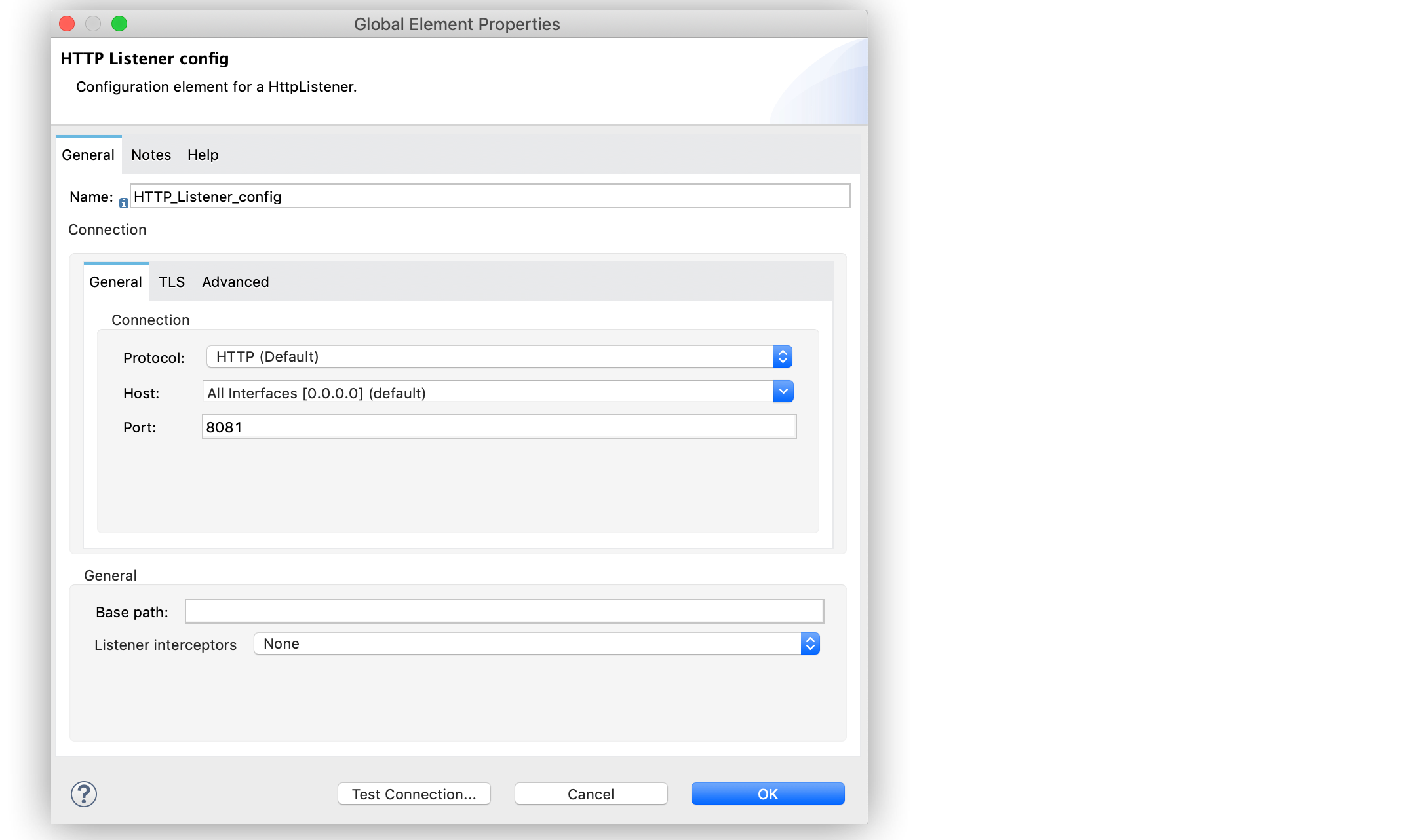
Figure 2. HTTP Listener configuration
The following screenshots show the Database global element configuration:
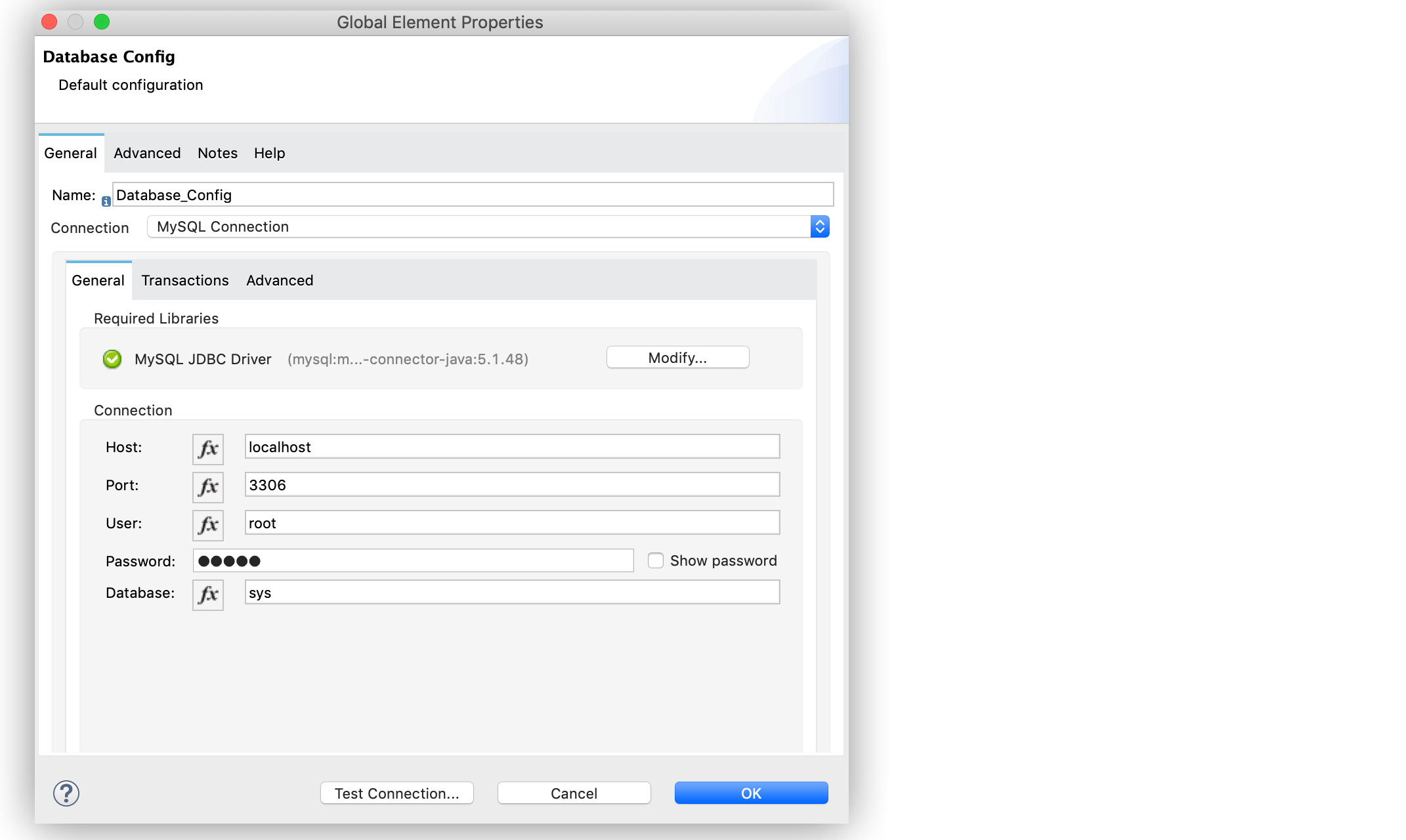
Figure 3. Database Config General configuration
## Create, Configure, Run and Test the Mule Application
After you configure the MySQL database connection, create, configure, run, and test the Mule app:
### Create a Flow by Configuring the HTTP Listener and Set Variable Component
To create the Mule flow:
1. In the **Mule Palette** view, select the HTTP **Listener** source and drag it onto the canvas.
The source initiates the flow by listening for incoming HTTP message attributes.
2. In the **Connector configuration** field, select the `HTTP_Listener_config` global
configuration.
3. Set the **Path** field to `/select/book/{maxId}`.
The `maxId` value parameter indicates how many books records to retrieve from the database. You
can increment this value regardless of the number of maximum connections you configured in your
database connection pool.
4. In the **Mime Type** tab, set the **Mime Type** field to `application/json`.
5. In the **Advanced** tab, set the **Allowed methods** field to `GET`.
6. Drag a **Set Variable** component to the right of the **Listener** source.
This component creates a new variable to save the database results that will be obtained from
the **Query single** operation.
7. Set the **Name** field to `bookCollection` and the **Value** field to `#[[]]`:
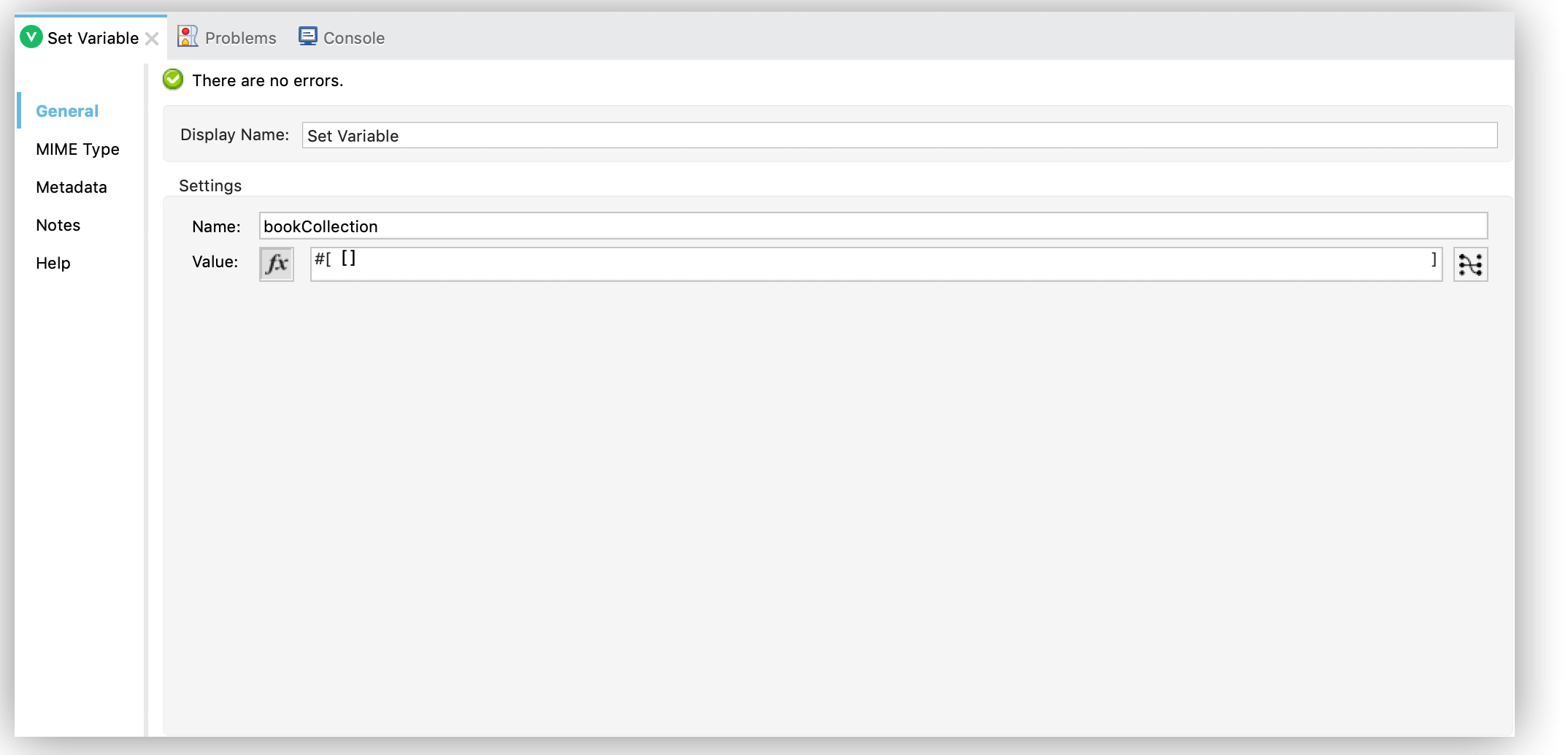
Figure 4. Set Variable configuration
### Configure the For Each Component, the Query Single Operation, and the Set Payload Component
Continue creating the Mule application using a **For Each** component to iterate the number of books
requested by **HTTP Listener**. Then retrieve the book information using the **Query single**
operation, and save the results in a payload variable:
1. Drag a **For Each** component to the right of **Set Variable**.
2. Set the **Collection** field to `#[1 to attributes.uriParams.maxId as Number]`.
This expression iterates the collection of books in the table, from the first book (`1`) to the
number of books set in the `maxId` parameter, when performing the HTTP request
`/select/book/{maxId}`.
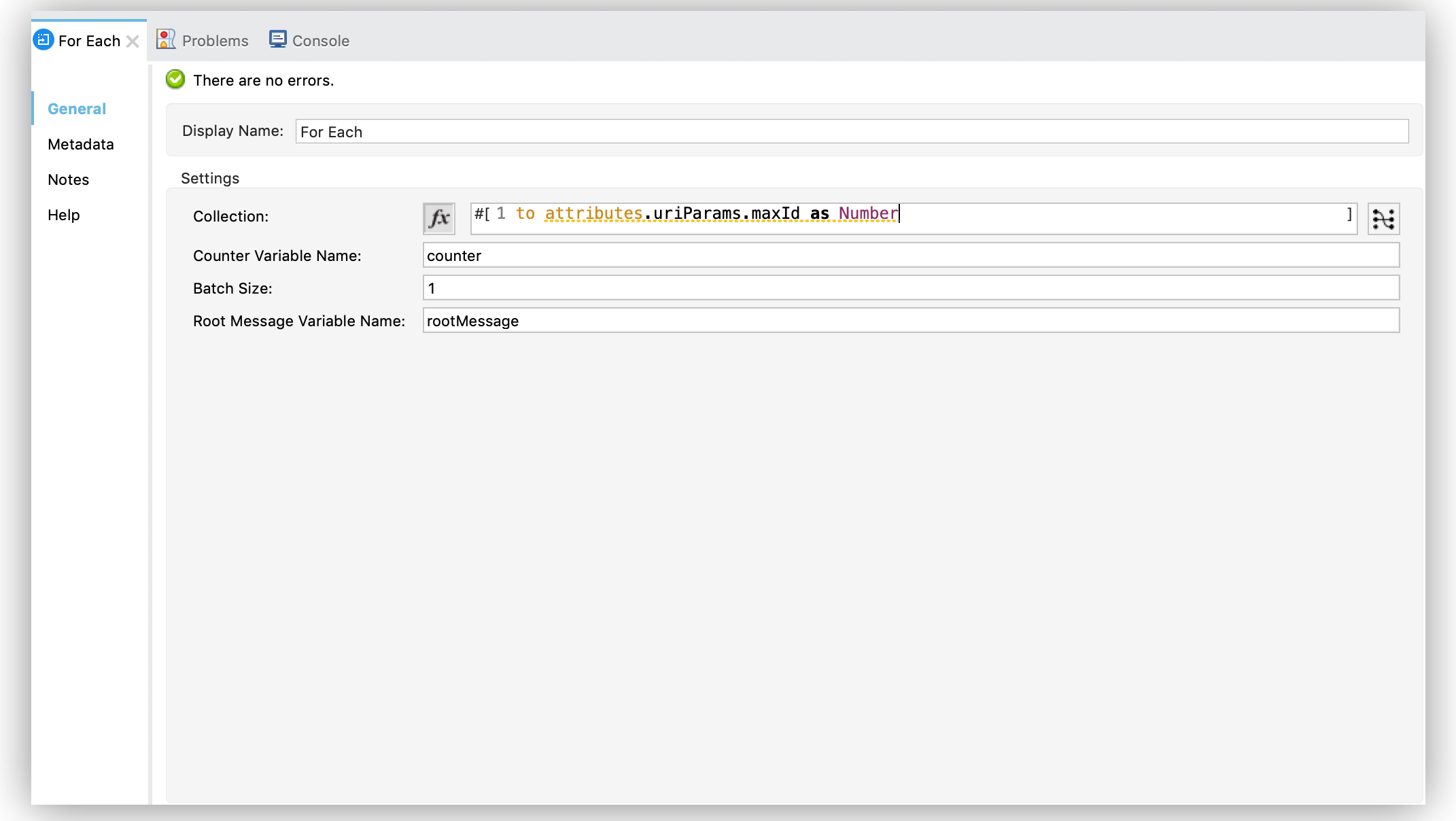
Figure 5. For Each configuration
3. Drag the **Query single** operation into the **For Each** component.
4. Set the **Connector configuration** field to `Database_Config` to connect to the MySQL database
configuration.
5. Set the **SQL Query Text** field to `SELECT id, title, author FROM BOOK WHERE id = :id`.
This query selects the books information from the database.
6. Set the **Input Parameters** field to `![CDATA[#[{'id': payload }]]]`.
This expression maps the key parameter `id` (referenced in the previous **SQL Query Text**
expression) to `payload` which is the result value of books information retrieved using the
`SELECT` query.
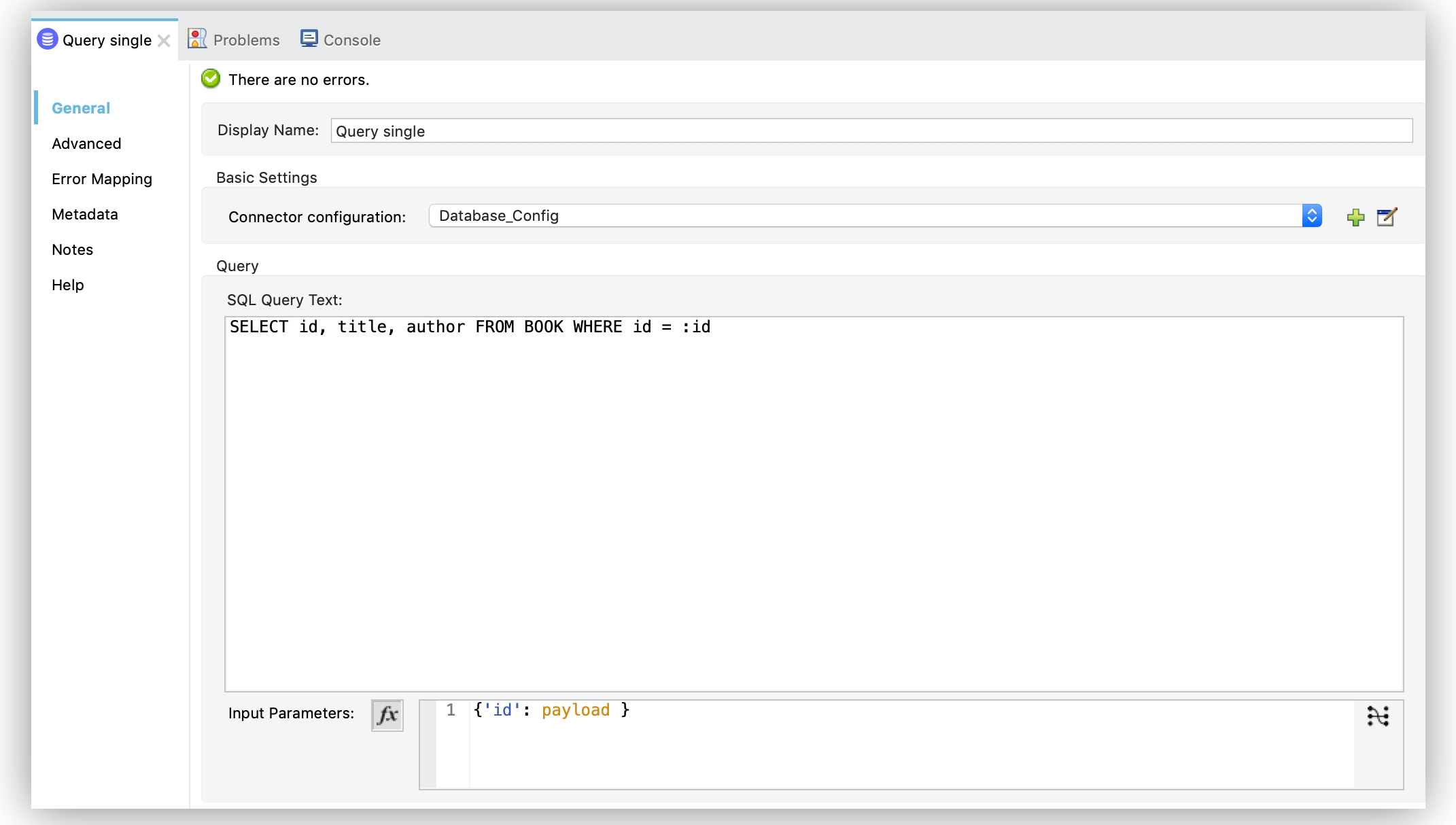
Figure 6. Query single configuration
7. Drag another **Set Variable** component to the right of the **Query single** operation.
8. Set the **Name** field to `bookCollection` and the **Value** field to
`#[vars.bookCollection ++ [payload]]`.
The original variable `bookCollection` now saves the `payload` of the retrieved book
information.
9. Drag a **Set Payload** component to the right of the **For Each** component.
10. Set the **Value** field to `#[vars.bookCollection]` to save the variable content as a new output
payload:
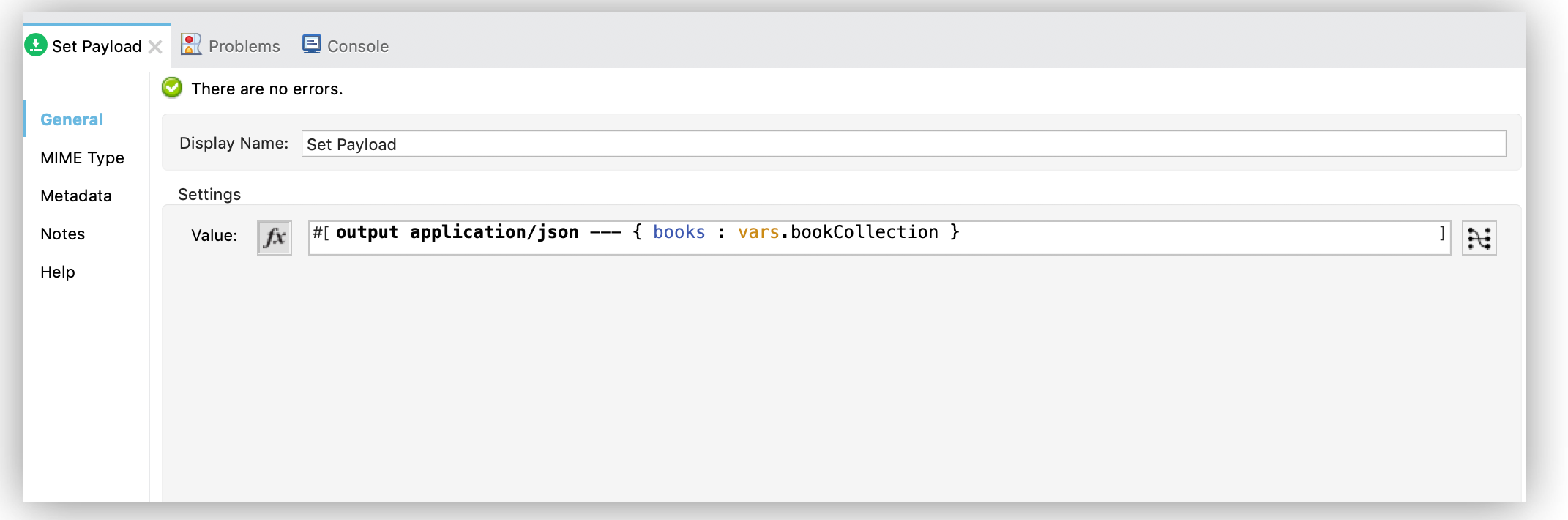
Figure 7. Set Payload configuration
### Run and Test the Mule Application
To run and test the Mule application:
1. Save the project in Studio.
2. Test the app by running `curl localhost:8081/select/book/7` at the command line.
This command selects the first seven books of the table, regardless of the maximum number of
connections (`5`) configured in the pool.
## XML for Querying a Single Record from a Database
Paste this code into your Studio XML editor to quickly load the flow for this example into your Mule
app:
```xml
SELECT id, title, author FROM BOOK WHERE id = :id
```
## See Also
- [Database Connector Examples](https://docs.mulesoft.com/db-connector/latest/database-connector-examples)
- [Salesforce Help](https://help.salesforce.com)