---
schema_version: "1"
id: c88bc181856187f645501ce80eb44d51144207ef3ecb329e619c3f9dfda84aba
title: Configure Database Transactions Example
collection: mulesoft
version: current
locale: en-us
portal_url: https://docs.salesforce.com/mulesoft/current/en-us/db-connector/1.15/database-connector-transactions.md
canonical_url: https://docs.mulesoft.com/db-connector/1.15/database-connector-transactions
source_site: docs.mulesoft.com
content_type: documentation
content_hash: ebb6848fd9c9d05f721c6c80862a973234a549859f5a6c75fa28a883b4e2dc3a
description: MuleSoft Documentation Site
release: "1.15"
latest: false
---
---
product: Database Connector
version: 1.15
---
# Configure Database Transactions Example
> For the full documentation index, see: https://docs.mulesoft.com/llms.txt
Anypoint Connector for Database (Database Connector) enables you to execute database operations in
the context of a transaction. Each operation has a **Transactional action** field in which you
specify the type of joining action that operations can take regarding the active transaction.
The following examples illustrate how to configure the **Transactional action** field in Studio,
both for the **Select** operation and when grouping operations using the **Try** scope component.
## Configure the Transactional Action Field in Studio
To configure the field, follow these steps:
1. In your Studio flow, select the **Select** operation.
2. In the connector configuration screen, click the **Advanced** tab.
3. Set the **Transactional action** field to any of the following options:
- **ALWAYS\_JOIN**
Expects a transaction to be in progress when a message is received. If there is no
transaction, an error is raised.
- **JOIN\_IF\_POSSIBLE**
Joins the current transaction if one is available. Otherwise, no transaction occurs.
- **NOT\_SUPPORTED**
Executes outside any existing transaction.
The following screenshot shows the configuration in Studio:

Figure 1. Transactional action configuration
In the XML editor, the `transactionalAction` configuration looks like this:
```xml
```
## Configure the Transactional Action Field in the Try Scope to Group Operations
Sometimes you need to execute several queries atomically in the context of the same transaction. If
these queries are executed in the context of an already-existing transaction, the queries belong to
the same transaction.
The following example shows that during a bank account transfer, you use two Database Connector
**Update** operations to subtract money from one account and add it to another, but if any of the
two operations fails, roll back both. If there’s no active transaction, you can start one by
grouping the operations using the **Try** scope component:
1. In the **Mule Palette** view, search for `try` and select the **Try** scope component.
2. Drag the **Try** scope component onto the Studio canvas.
3. Drag an **Update** operation inside the **Try** scope component.
4. In the **General** tab of the operation configuration screen, click the plus sign (**+**) next
to the **Connector configuration** field to access the global element configuration fields.
5. Specify the database connection information and click **OK**.
6. Set the **SQL Query Text** field to the SQL query to execute, for example,
`UPDATE ACCOUNT set BALANCE = BALANCE - :money where ID = :source`.
7. Set the **Input Parameters** field to `{‘money’ : payload.money, ‘source’: payload.source}`.
8. Drag another **Update** operation to the right of the first **Update** operation inside the
**Try** component.
9. Set the **Connector configuration** field to the previously created database connection.
10. Set the **SQL Query Text** field to the SQL query to execute, for example,
`UPDATE ACCOUNT set BALANCE = BALANCE + :money where ID = :target`.
11. Set the **Input Parameters** field to `{‘money’ : payload.money, ‘target’’: payload.target}`.
12. Select the **Try** scope component in your flow.
13. In the component configuration screen, set the **Transactional action** field to `ALWAYS_BEGIN`.
The following screenshot shows the configuration in Studio:
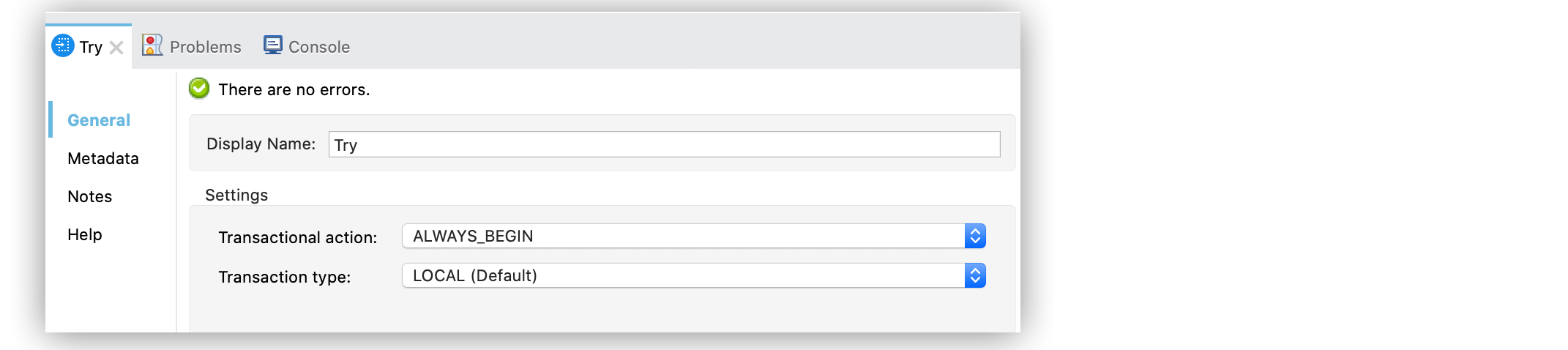
Figure 2. Transactional action configuration
In the XML editor, the `transactionalAction` configuration looks like this:
```xml
UPDATE ACCOUNT set BALANCE = BALANCE - :money where ID = :source
#[{'money' : payload.money, 'source': payload.source}]
UPDATE ACCOUNT set BALANCE = BALANCE + :money where ID = :target
#[{'money' : payload.money, 'target'': payload.target}]
```
## Transactions and Streaming
Results from some Database Connector operations (for example the **Select** operation) are
automatically streamed to prevent loading all the results at once, which can lead to performance and
memory issues. This behavior means that database rows are loaded lazily when needed. When Database
Connector operations are performed inside a transaction (for example a **Try** scope component), and
that transaction is closed before consuming the data, accessing the results that haven’t been loaded
will fail.
## See Also
- [Database Connector Examples](https://docs.mulesoft.com/db-connector/1.15/database-connector-examples)
- [Salesforce Help](https://help.salesforce.com)