---
schema_version: "1"
id: e2e4e6850af6d14007e46d6c4578251bd3e194676d0b9e59961ad50f436f0ea1
title: Configure a Database Connection
collection: mulesoft
version: current
locale: en-us
portal_url: https://docs.salesforce.com/mulesoft/current/en-us/db-connector/1.14/database-connector-connection.md
canonical_url: https://docs.mulesoft.com/db-connector/1.14/database-connector-connection
source_site: docs.mulesoft.com
content_type: documentation
content_hash: b3ab7ffa6ae1c64bf55ae8ddc68adaa9d326f8478011187a945c1d06c5c55933
description: MuleSoft Documentation Site
release: "1.14"
latest: false
---
---
product: Database Connector
version: 1.14
---
# Configure a Database Connection
> For the full documentation index, see: https://docs.mulesoft.com/llms.txt
Anypoint Connector for Database (Database Connector) can connect to any database for which a JDBC
driver is available. The following examples show how to connect to the most popular databases such
as Derby, Microsoft SQL Server, MySQL, Oracle, and a generic database. Additionally, for advanced
uses cases, there are examples showing how to connect to a global data source, configure a JDBC
driver, configure connection pooling, and connect to an Oracle database with TNS, both in Anypoint
Studio and the XML editor.
## Configure a Data Source Reference Connection
Database Connector generates a JDBC data source by using the parameter values you provide when you
configure the **Generic Connection** field. If you want to create your own data source and use it to
connect to a database, configure the **Data Source Reference Connection** field.
The following example shows how to use Anypoint Studio to configure a data source reference
connection to a Derby database:
1. In Studio, in the `src/main/resources` folder, create a `datasource-config.xml` bean file to
define a custom `enhydra` data source that connects to a Derby database:
datasource-config.xml File
```xml
```
2. Return to your Mule flow, go to the **Global Elements** view, and click **Create** to open the
**Choose Global Type** window.
3. In the **Filter** field, type `spring`, select **Spring Config**, and click **OK**.
4. In the **Spring Config** window **Files** field, add `datasource-config.xml` to reference the
spring configuration file with the Spring module.
5. Click **OK**.
The following screenshot shows the configuration:
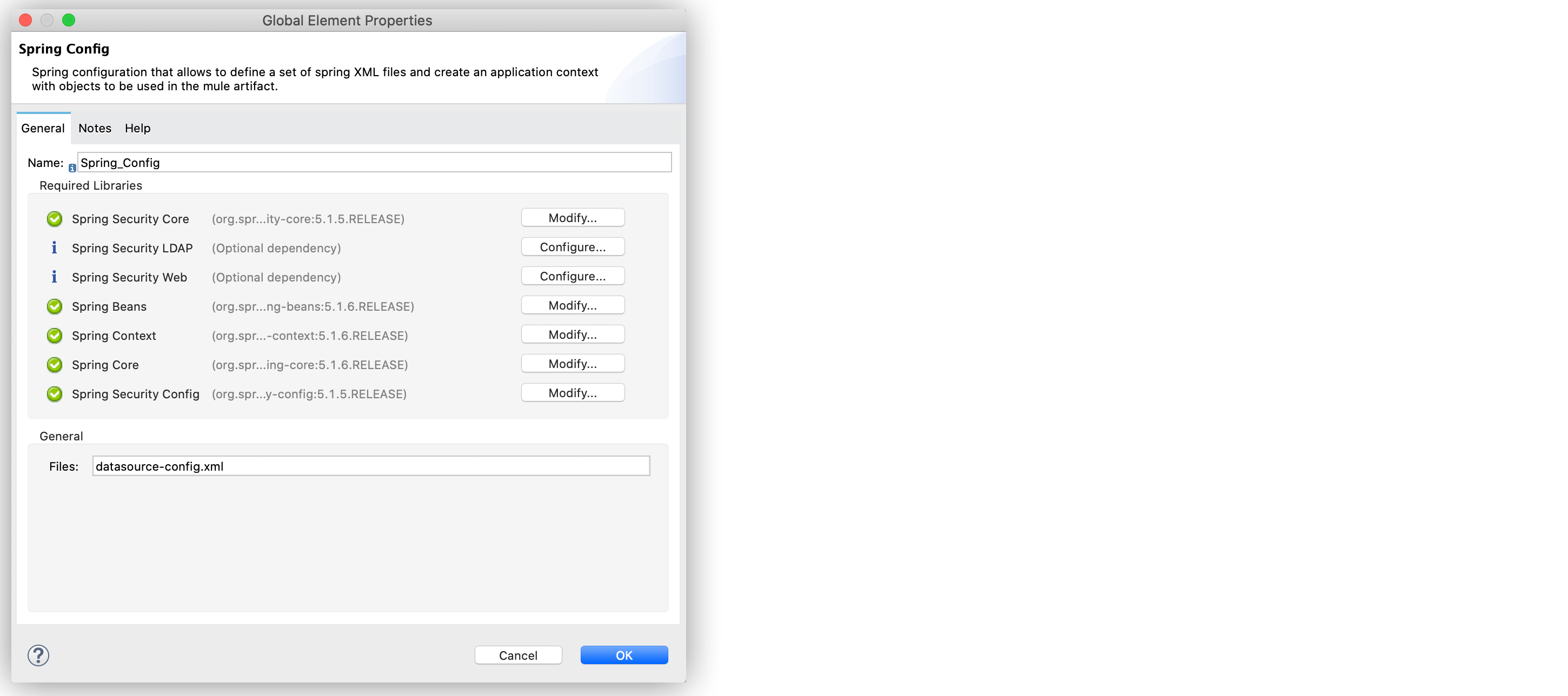
Figure 1. Spring Configuration Data Source
6. In the **Global Elements** view, click **Create** to open the **Choose Global Type** window.
7. In the **Filter** field, type `database`, select **Database Config**, and click **OK**.
8. In the **Database Config** window, for the **Connection** field, select **Data Source Reference
Connection**.
9. Click **Configure** to add the required JDBC driver and select either:
- **Use local file**
Install the library using a local file.
- **Add Maven dependency**
Install a Maven dependency to add to the project.
10. For **Data source ref**, add the bean ID `jdbcDataSource` created in the `datasource-config.xml`
bean file.
11. Click **Test Connection** to confirm that Mule can connect to the database.
12. Click **OK**.
The following screenshot shows the configuration:
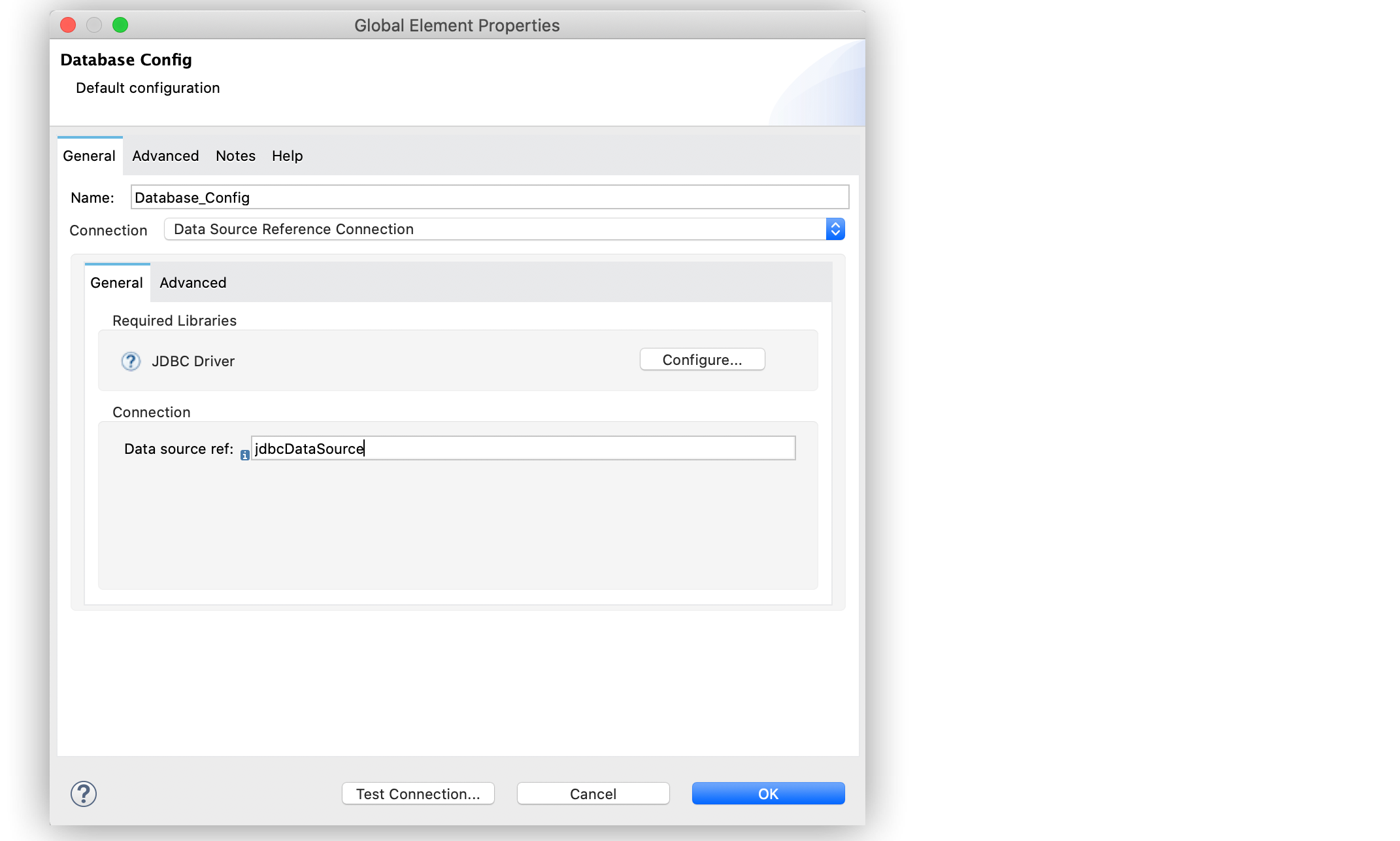
Figure 2. Data Source Reference Connection
In the XML editor, both the spring and database configurations look like this:
```xml
```
## Configure a Data Source Reference Connection When in XA Transaction Mode
If your Mule app requires operations bound to XA transactions, and connection pooling is enabled for
the database configuration in use, the default connection pool implementation for Data Source
Reference Connection is Enhydra XAPool.
Enhydra XAPool does not support prepared statements. To execute these operations use the Bitronix
connection pool. Refer to
[Configuring the Bitronix Transaction Manager](https://docs.mulesoft.com/mule-runtime/latest/using-bitronix-to-manage-transactions#configuring-the-bitronix-transaction-manager)
documentation for details.
> [!NOTE] When using XA transactions, you must provide an `XADataSource` object in the JDBC data
> source spring bean configuration file of your app.
The following example shows how to configure a **Data Source Reference Connection** for a Derby
database when in XA transaction mode:
1. In Studio, in the `src/main/resources` folder, create a `datasource-config.xml` spring bean
file.
2. Add the `XADataSource` object to the end of the class `org.enhydra.jdbc.standard.Standard`, for
example, `class="org.enhydra.jdbc.standard.StandardXaDataSource`:
datasource-config.xml File
```xml
```
3. Return to your Mule flow and navigate to **Global Elements** > **Create** to open the **Choose
Global Type** window.
4. In **Filter**, type `spring`, select **Spring Config**, and click **OK**.
5. In **Spring Config** > **Files**, add `datasource-config.xml` to reference the Spring
configuration file with the Spring module.
6. Click **OK**.

8. In **Global Elements**, click **Create** to open the **Choose Global Type** window.
9. In **Filter**, type `database`, select **Database Config**, and click **OK**.
10. In **Database Config** > **Connection**, select **Data Source Reference Connection**.
11. Click **Configure** to add the required JDBC driver and select either:
- **Use local file**
Install the library using a local file.
- **Add Maven dependency**
Install a Maven dependency to add to the project.
12. For **Data source ref**, add the bean ID `jdbcDataSource` created in the `datasource-config.xml`
bean file.
13. In the **Advanced** tab, configure the **Pooling profile**, **Column types**, and
**Reconnection** fields.
14. Click **Test Connection** to confirm that Mule can connect to the database.
15. Click **OK**.
In the XML editor, both the Spring and database configurations look like this:
```xml
```
## Configure a Derby Connection
Use the **Derby Connection** field type to connect to a Derby database.
The following example shows how to configure the connection in Anypoint Studio:
1. In Studio, navigate to the **Global Elements** view.
2. Click **Create** to open the **Choose Global Type** view.
3. In the **Filter** field, type `database`, select **Database Config**, and click **OK**.
4. In the **Database Config** window, for the **Connection** field, select **Derby Connection**.
5. Click **Configure** to add the required Derby JDBC driver and select one of:
- **Add recommended library**
Install the recommended library.
- **Use local file**
Install the library using a local file.
- **Add Maven dependency**
Install a Maven dependency to add to the project.
6. Set **Database** to `derbyDB` and **Subsub protocol** to `directory`.
7. On the **Transactions** tab, optionally specify the transaction isolation, or XA transactions
when connecting to the database.
8. On the **Advanced** tab, optionally specify connection pooling and reconnection information,
including a reconnection strategy.
9. Click **Test Connection** to confirm that Mule can connect to the database.
10. Click **OK**.
The following screenshot shows the configuration in Studio:
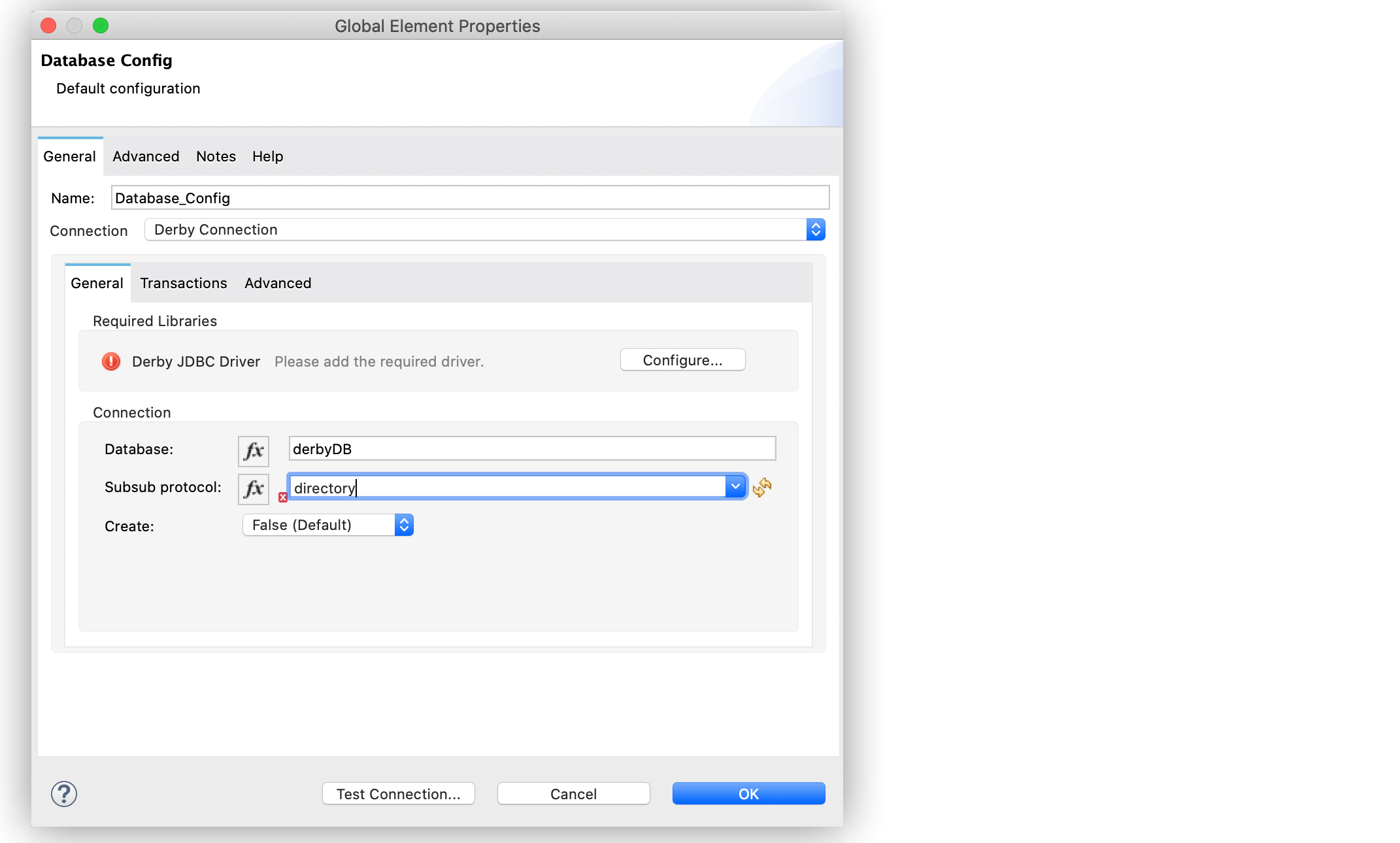
Figure 3. Derby Connection configuration
In the XML editor, the configuration looks like this:
```xml
```
## Configure a Generic Connection
Use the **Generic Connection** field type to connect to:
- A database for which MuleSoft does not provide a specific connection type
- A supported database in which you are using custom options that are not included in the connection
types
The following example shows how to connect to an H2 database in Anypoint Studio:
1. In Studio, navigate to the **Global Elements** view.
2. Click **Create** to open the **Choose Global Type** view.
3. In the **Filter** field, type `database`, select **Database Config**,and click **OK**.
4. In the **Database Config** window, for the **Connection** field select **Generic Connection**.
5. Click **Configure** to add the required JDBC driver and select either:
- **Use local file**
Install the library using a local file.
- **Add Maven dependency**
Install a Maven dependency to add to the project.
6. Set **URL** to `jdbc:h2:file:/tmp/datasenseDBand` and **Driver class name** to `org.h2.Driver`.
7. Click **Test Connection** to validate the connection with the database.
8. Click **OK**.
The following screenshot shows the configuration in Studio:
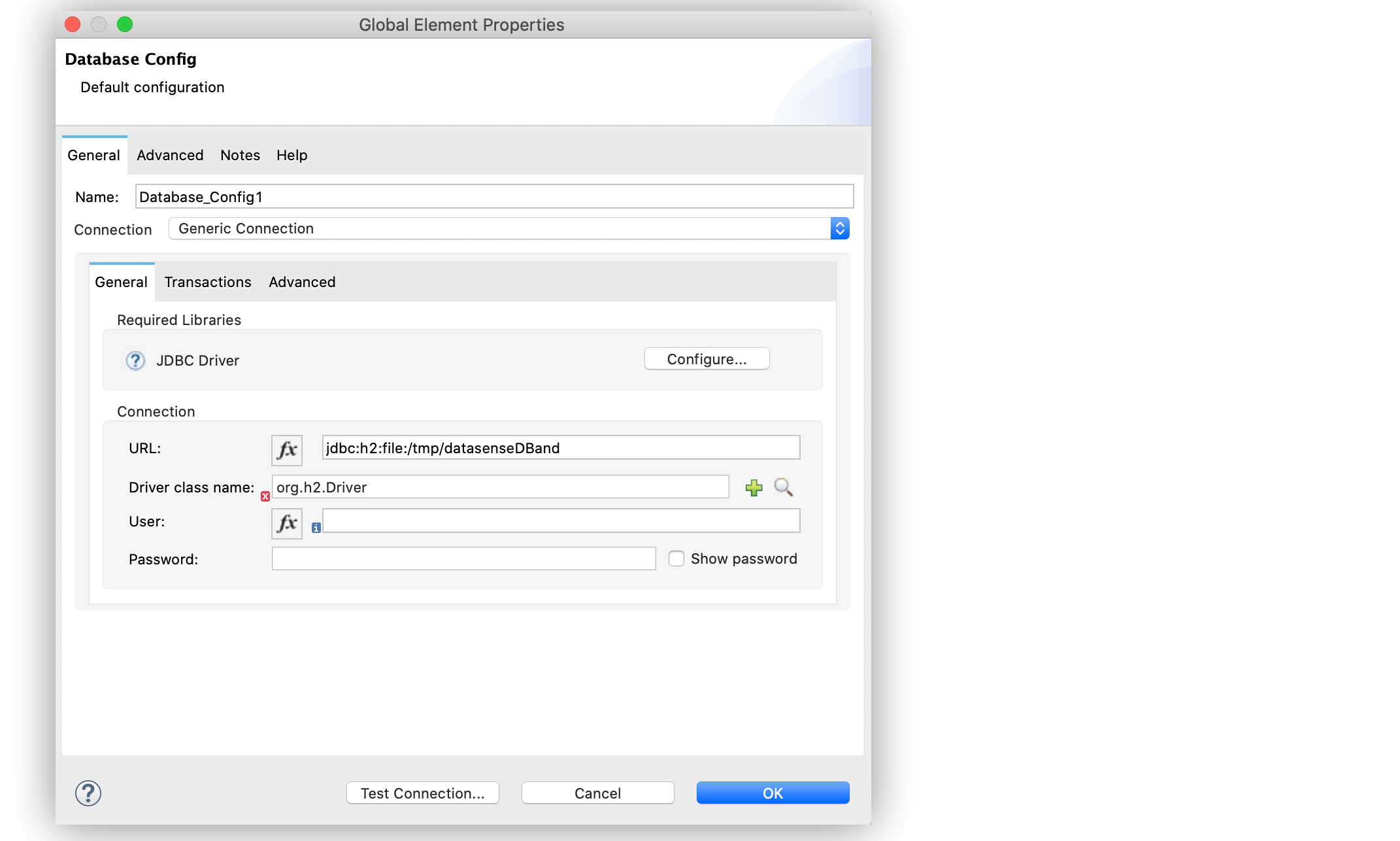
Figure 4. Generic Connection configuration
In the XML editor, the configuration looks like this:
```xml
```
## Configure a Microsoft SQL Server Connection
Use the **Microsoft SQL Server Connection** field type to connect to a Microsoft SQL Server
database.
The following example shows how to configure the connection in Anypoint Studio:
1. In Studio, navigate to the **Global Elements** view.
2. Click **Create** to open the **Choose Global Type** view.
3. In the **Filter** field, type `database`, select **Database Config**, and click **OK**.
4. In the **Database Config** window, for the **Connection** field, select **Microsoft SQL Server
Connection**.
5. Click **Configure** to add the required Microsoft SQL Server driver and select one of:
- **Add recommended library**
Install the recommended library.
- **Use local file**
Install the library using a local file.
- **Add Maven dependency**
Install a Maven dependency to add to the project.
6. Set **Host** to `0.0.0.0`, **Port** to `553`, **User** to `Max`, **Password** to `password` and
**Database name** to `microsoftDB`.
7. On the **Transactions** tab, optionally specify the transaction isolation, or XA transactions
when connecting to the database.
8. On the **Advanced** tab, optionally specify connection pooling and reconnection information,
including a reconnection strategy.
9. Click **Test Connection** to confirm that Mule can connect to the database.
10. Click **OK**.
The following screenshot shows the configuration in Studio:
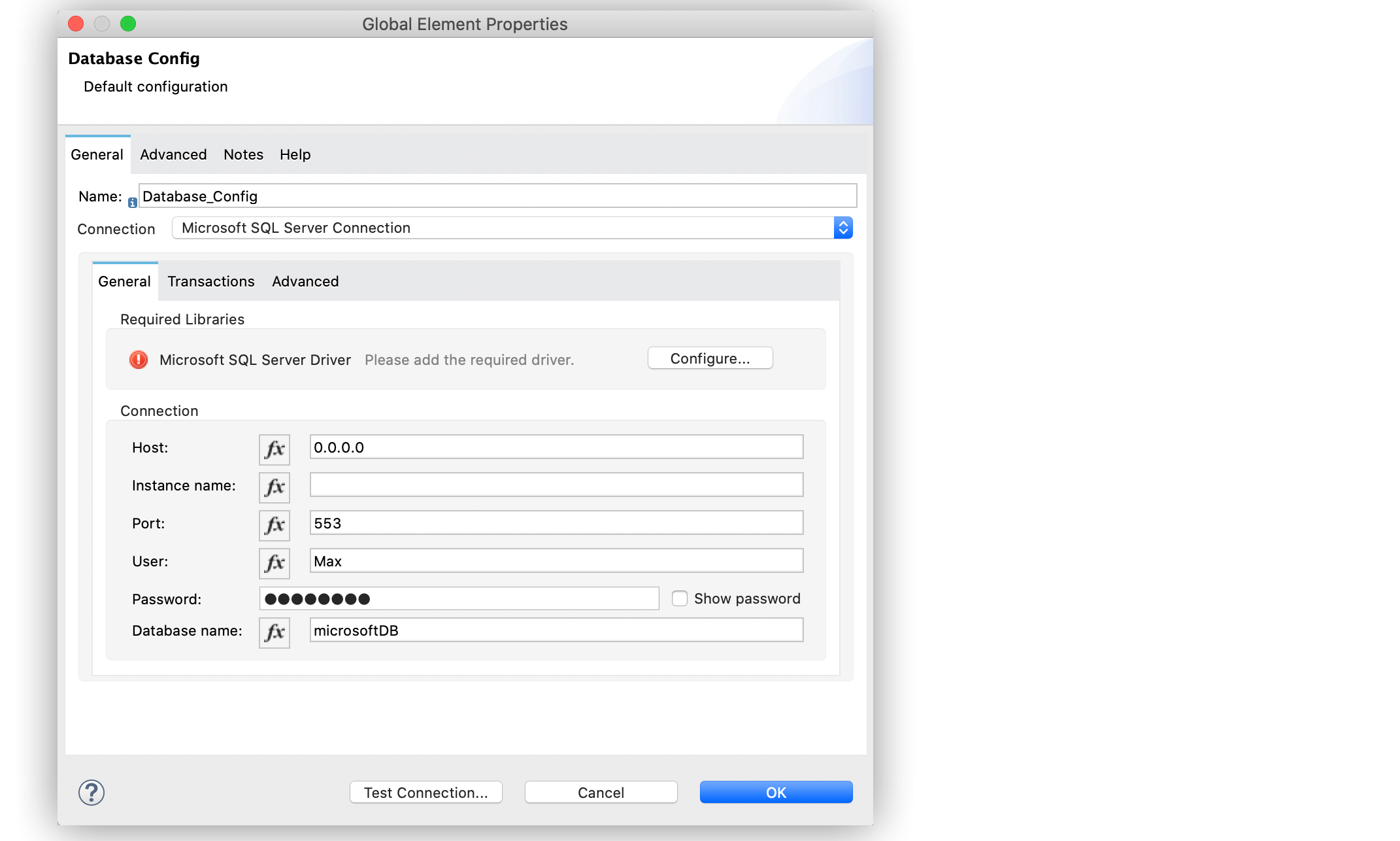
Figure 5. Microsoft SQL Server Connection configuration
In the XML editor, the configuration looks like this:
```xml
```
## Configure a MySQL Database Connection
Use the **MySQL Connection** field type to connect to a MySQL database.
The following example shows how to configure the connection in Anypoint Studio:
1. In Studio, navigate to the **Global Elements** view.
2. Click **Create** to open the **Choose Global Type** view.
3. In the **Filter** field, type `database`, select **Database Config**, and click **OK**.
4. In the **Database Config** window, for the **Connection** field, select **MySQL Connection**.
5. Click **Configure** to add the required MySQL JDBC driver and select one of:
- **Add recommended library**
Install the recommended library.
- **Use local file**
Install the library using a local file.
- **Add Maven dependency**
Install a Maven dependency to add to the project.
6. Set **Host** to `0.0.0.0`, **Port** to `3306`, **User** to `Max`, **Password** to `password`,
and **Database** to `someSchema`.
7. On the **Transactions** tab, optionally specify the transaction isolation, or XA transactions
when connecting to the database.
8. On the **Advanced** tab, optionally specify connection pooling and reconnection information,
including a reconnection strategy.
9. Click **Test Connection** to confirm that Mule can connect to the database.
10. Click **OK**.
The following screenshot shows the configuration in Studio:
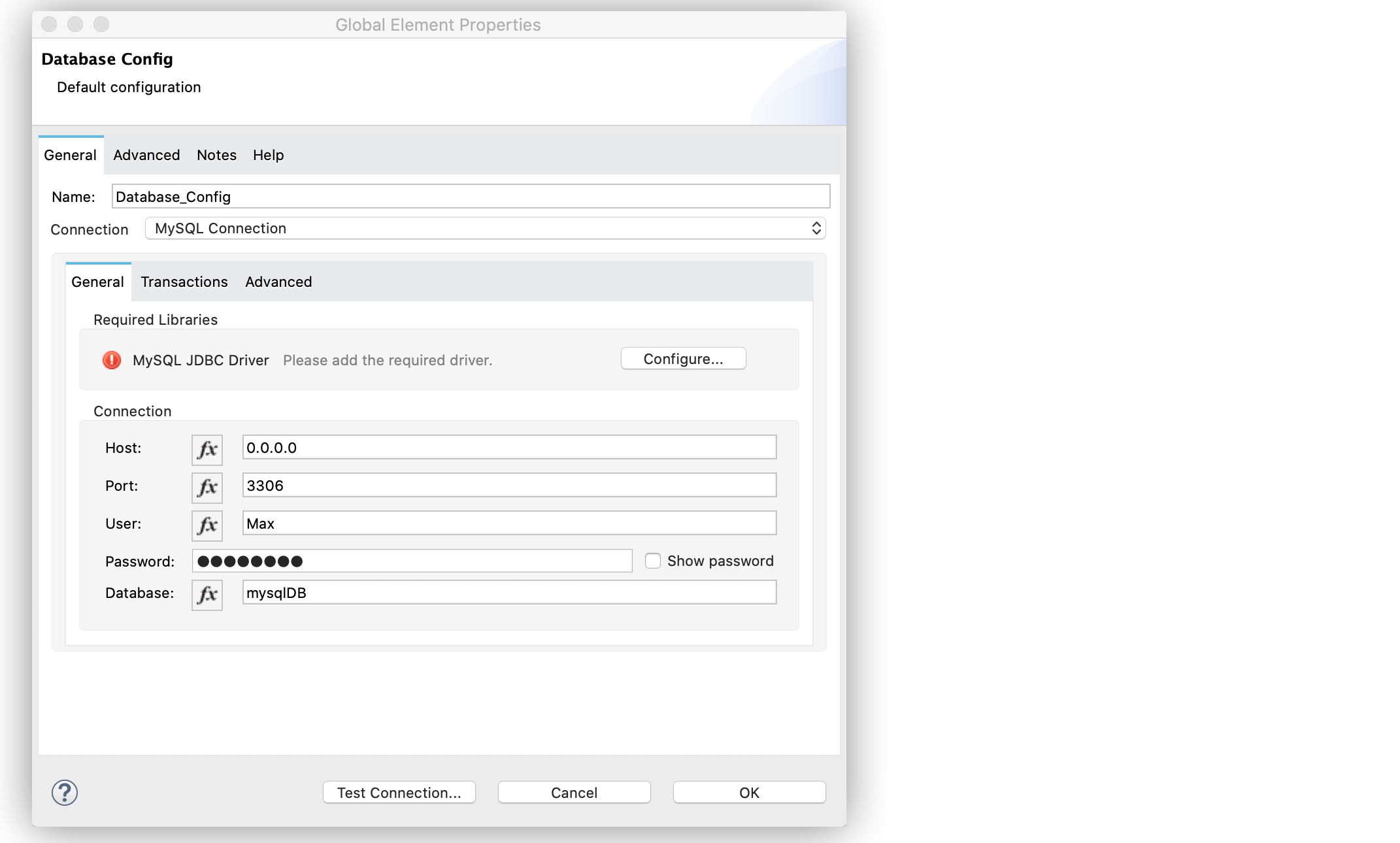
Figure 6. MySQL Connection configuration
In the XML editor, the configuration looks like this:
```xml
```
## Configure an Oracle Connection
Use the **Oracle Connection** field type to connect to an Oracle database.
The following example shows how to configure the connection in Anypoint Studio:
1. In Studio, navigate to the **Global Elements** view.
2. Click **Create** to open the **Choose Global Type** view.
3. In the **Filter** field, type `database`, select **Database Config** and click **OK**.
4. In the **Database Config** window, for the **Connection** field, select **Oracle Connection**.
5. Click **Configure** to add the required Oracle JDBC driver and select either:
- **Use local file**
Install the library using a local file.
- **Add Maven dependency**
Install a Maven dependency to add to the project.
6. Set **Host** to `192.168.99.100`, **Port** to `1521`, **User** to `system`, **Password** to
`oracle`, and **Instance** to `xe`.
7. On the **Transactions** tab, optionally specify the transaction isolation, or XA transactions
when connecting to the database.
8. On the **Advanced** tab, optionally specify connection pooling and reconnection information,
including a reconnection strategy.
9. Click **Test Connection** to confirm that Mule can connect to the database.
10. Click **OK**.
The following screenshot shows the configuration in Studio:
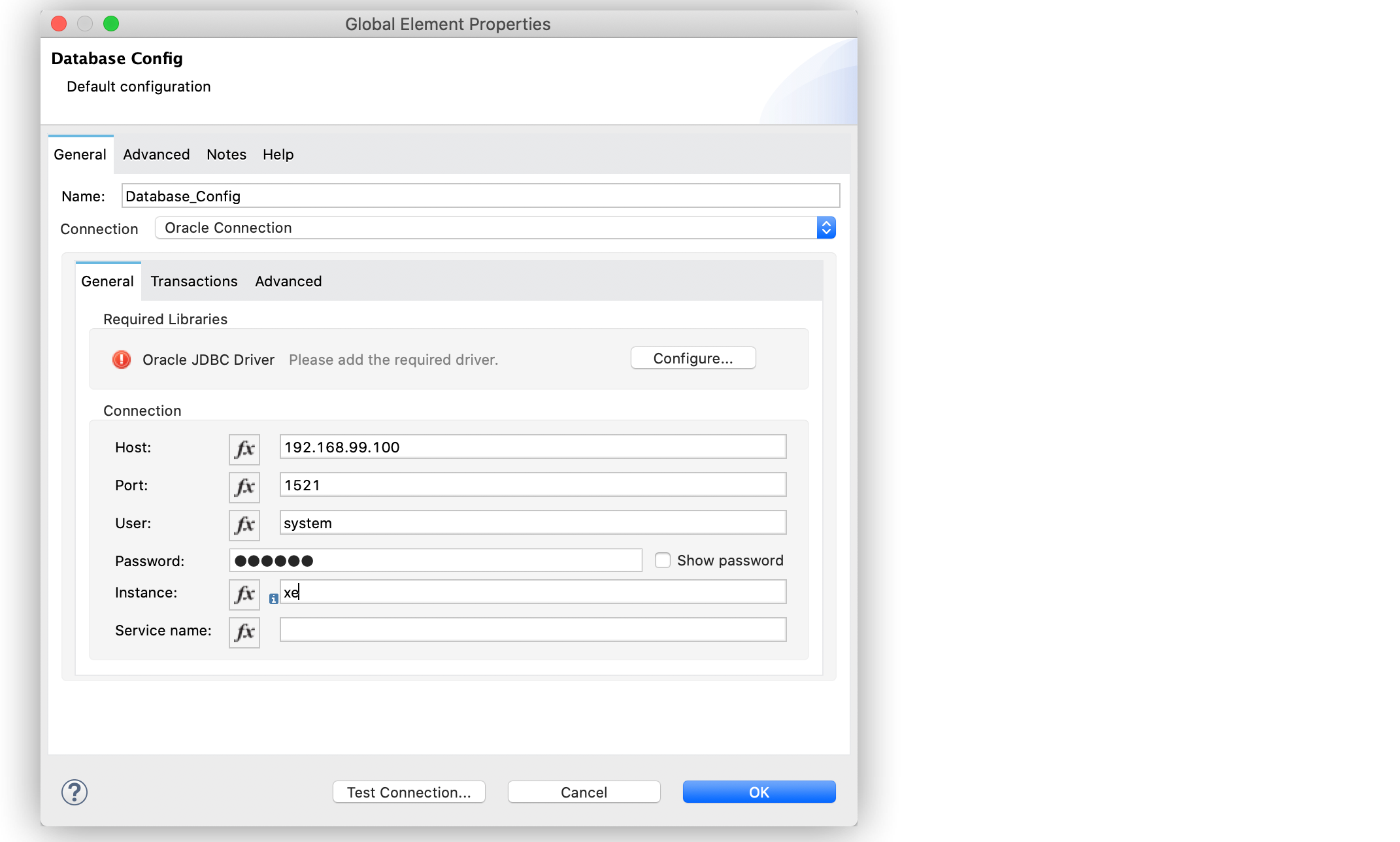
Figure 7. Oracle Connection configuration
In the XML editor, the configuration looks like this:
```xml
```
## Configure the JDBC Driver
After you configure the connections, add the JDBC driver. The following example shows how to add a
driver for the MySQL database:
1. In Studio, add the driver using either of the following options:
- In the **Database Config** window, click **Configure**, select **Add Maven dependency**, and
pick the dependency:
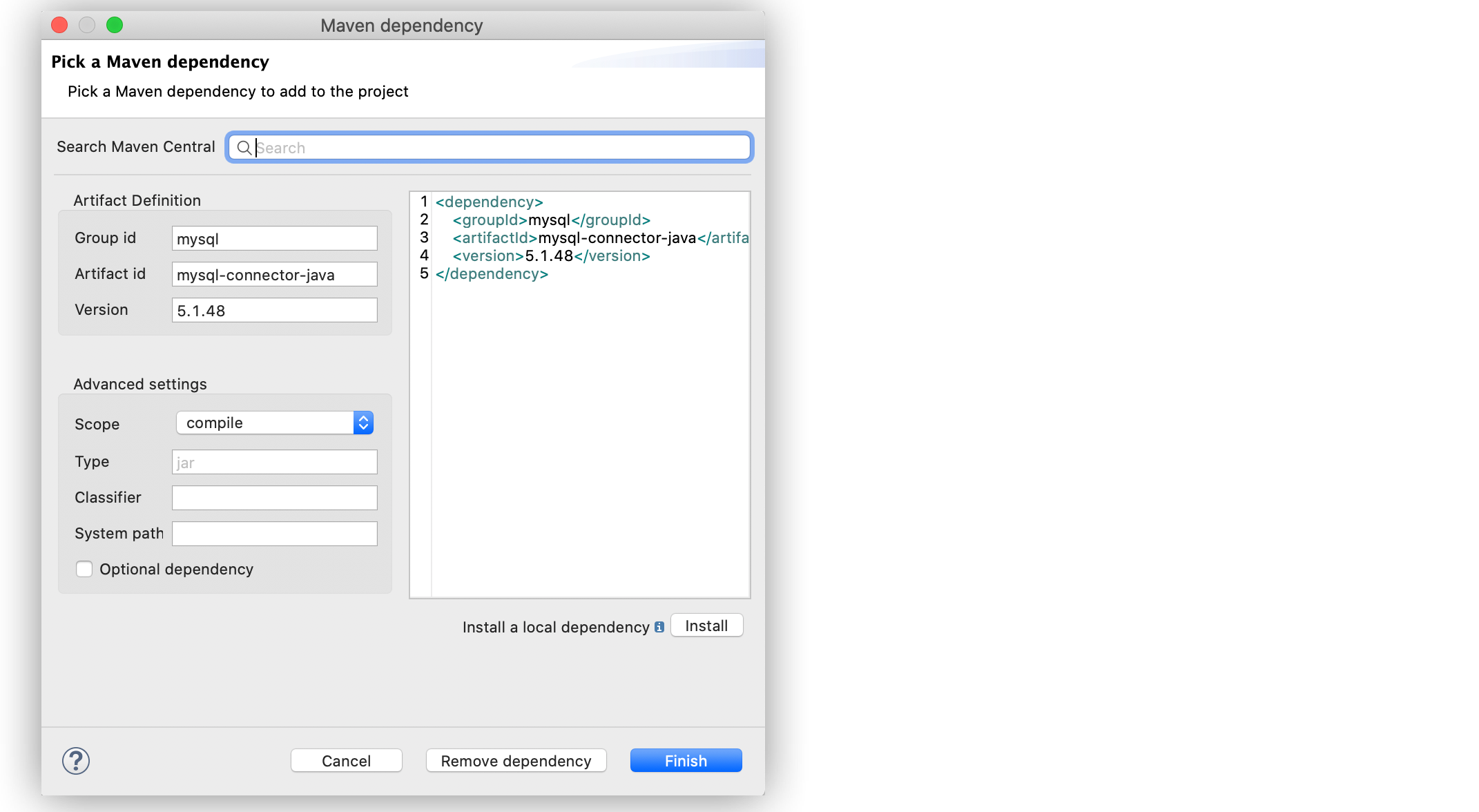
Figure 8. Pick Maven dependency
- Add the dependency directly to your project’s `pom.xml` file:
```xml
mysql
mysql-connector-java
5.1.48
```
2. Configure your `pom.xml` file so that Mule exposes the driver dependency to Database Connector:
```xml
org.mule.tools.maven
mule-maven-plugin
1.0.0
mysql
mysql-connector-java
```
## Configure Connection Pools
Establishing connections is costly in terms of connectors, the relational database management system
(RDBMS) network, and processing overhead. Database Connector supports the use of pooling profiles
that enable you to build a connection pool. This is a group of established connections that the
connector can use to perform required operations without having to establish new connections every
time.
When you configure the **Pooling profile** field in the global element of your application, deselect
the **Test connection on checkout** field to improve the connector performance with connection
pooling. If you leave the field selected as default (`TRUE`), every time a connection is checked out
of the pool, the connection pool performs connectivity checks against the database, which increases
the time required for each operation to complete.
All connection type configurations accept the **Pooling profile** field configuration. In JDBC,
pooling occurs at the data source level, so to enable pooling, you have to configure the global data
source.
The following example shows how to configure a pooling profile for an Oracle database connection
with the **Test connection on checkout** field set to `FALSE`:
1. In the **Database Config** window, in the **Advanced** tab, for **Pooling profile** select
**Edit inline**.
2. Set the following fields:
- **Max pool size**: `30`
- **Min pool size**: `4`
- **Acquire increment**: `1`
- **Prepared statement cache size** `5`
- **Max wait**: `0`
- **Max wait unit**: `SECONDS (Default)`
- **Max idle time** `60`
- **Max statements** `0`
3. Deselect **Test connection on checkout**.
This sets the field as `FALSE`.
4. For **Column types** select **Edit inline**.
5. Click the (**+**) plus sign to add a column type.
6. In the **Column type** window, set **Id** to `2003`, **Type name** to `1000`, and click
**Finish**.
7. Repeat step 5.
8. To add a new column type, set **Id** to `2002`, **Type name** to `PHONE_NUMBER_ARRAY`, and click
**Finish**.
The following screenshot shows the configuration in Studio:
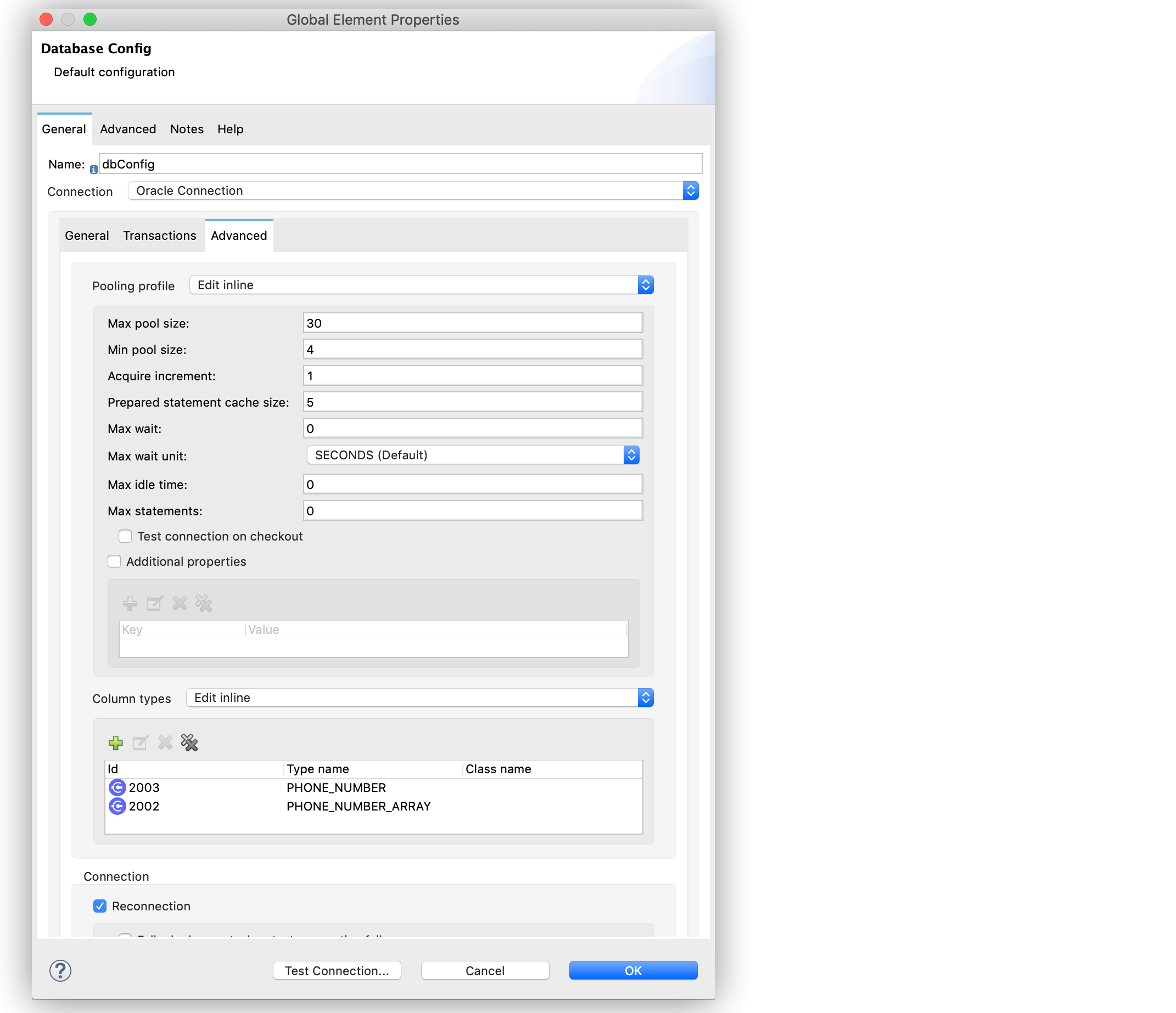
Figure 9. Pooling Profile Configuration
In the XML editor, the `` and `testConnectionOnCheckout="false` configurations
look like these:
```xml
```
## Configure an Oracle Connection with TNS Names
The following example shows how to configure the **Generic Connection** field to connect to an
Oracle database that relies on the `tnsnames.ora` file. If a firewall separates your Mule runtime
engine from the database, use the `ENABLE=BROKEN` parameter to enable a keep-alive connection at the
TNS connection. If a keep-alive connection is not set, the connection can drop traffic due to
expiring inactivity timers.
1. In Studio, navigate to the **Global Elements** view.
2. Click **Create** to open the **Choose Global Type** view.
3. In the **Filter** field, type `database`, select **Database Config** and click **OK**.
4. In the **Database Config** window, for the **Connection** field, select **Generic Connection**.
5. Click **Configure** to add the required JDBC driver and select either:
- **Use local file**
Install the library using a local file.
- **Add Maven dependency**
Install a Maven dependency to add to the project.
6. Set the connection **URL** to
`jdbc:oracle:thin:${oracle.user}/${oracle.password}@(DESCRIPTION=(ENABLE=BROKEN)(FAILOVER=ON)(ADDRESS_LIST=(ADDRESS=(PROTOCOL=TCP)(HOST=${oracle.host1})(PORT=${oracle.port}))(ADDRESS=(PROTOCOL=TCP)(HOST=${oracle.host2})(PORT=${oracle.port})))(CONNECT_DATA=(SERVICE_NAME=${oracle.service})))`.
7. Set **Driver class name** to `oracle.jdbc.driver.OracleDriver`.
8. Click **Test Connection** to validate the connection with the database.
9. Click **OK**.
The following screenshot shows the configuration in Studio:
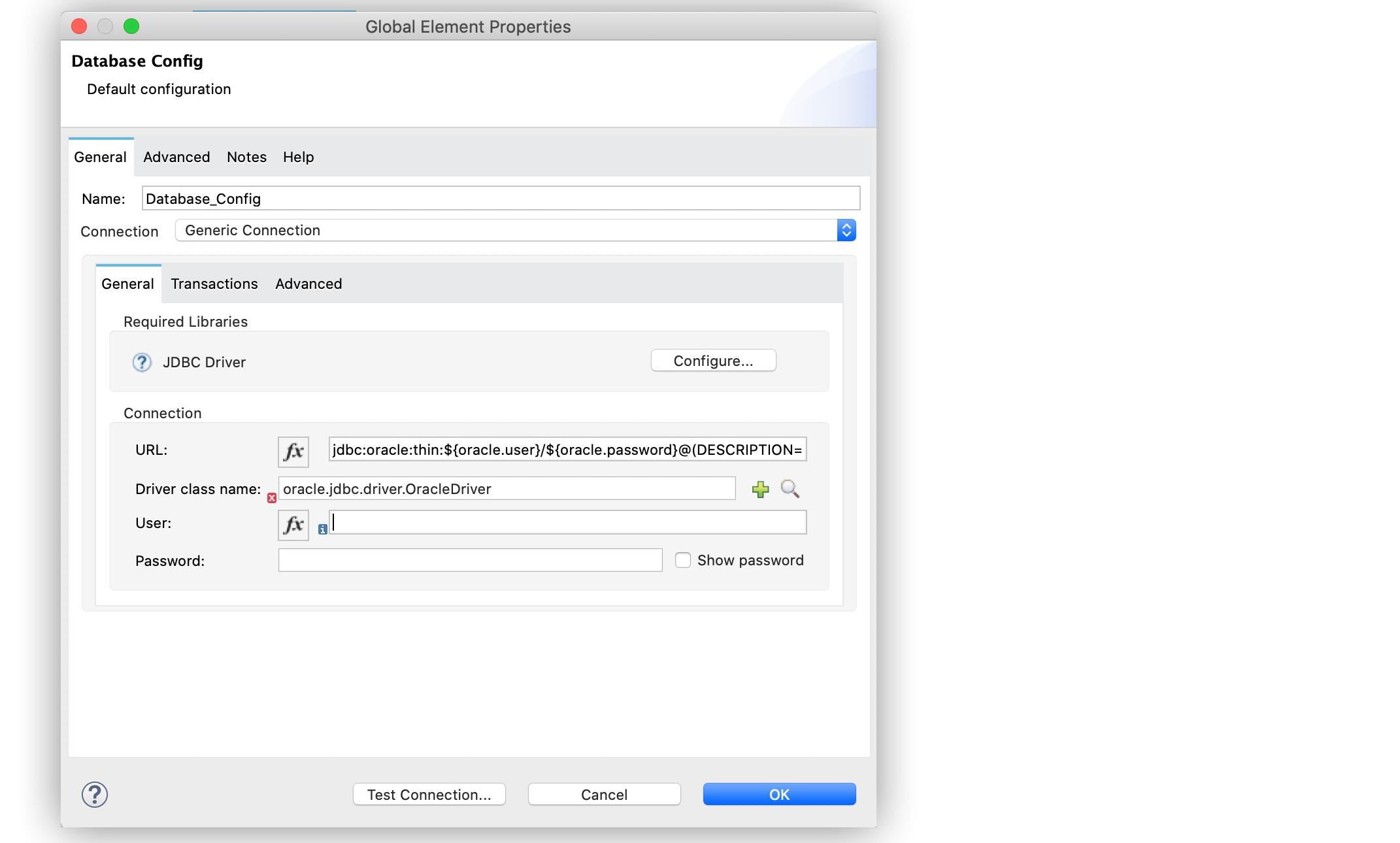
Figure 10. Oracle with TNS configuration
In the XML editor, the configuration looks like this:
```xml
```
## Configure Cache Query Template Size
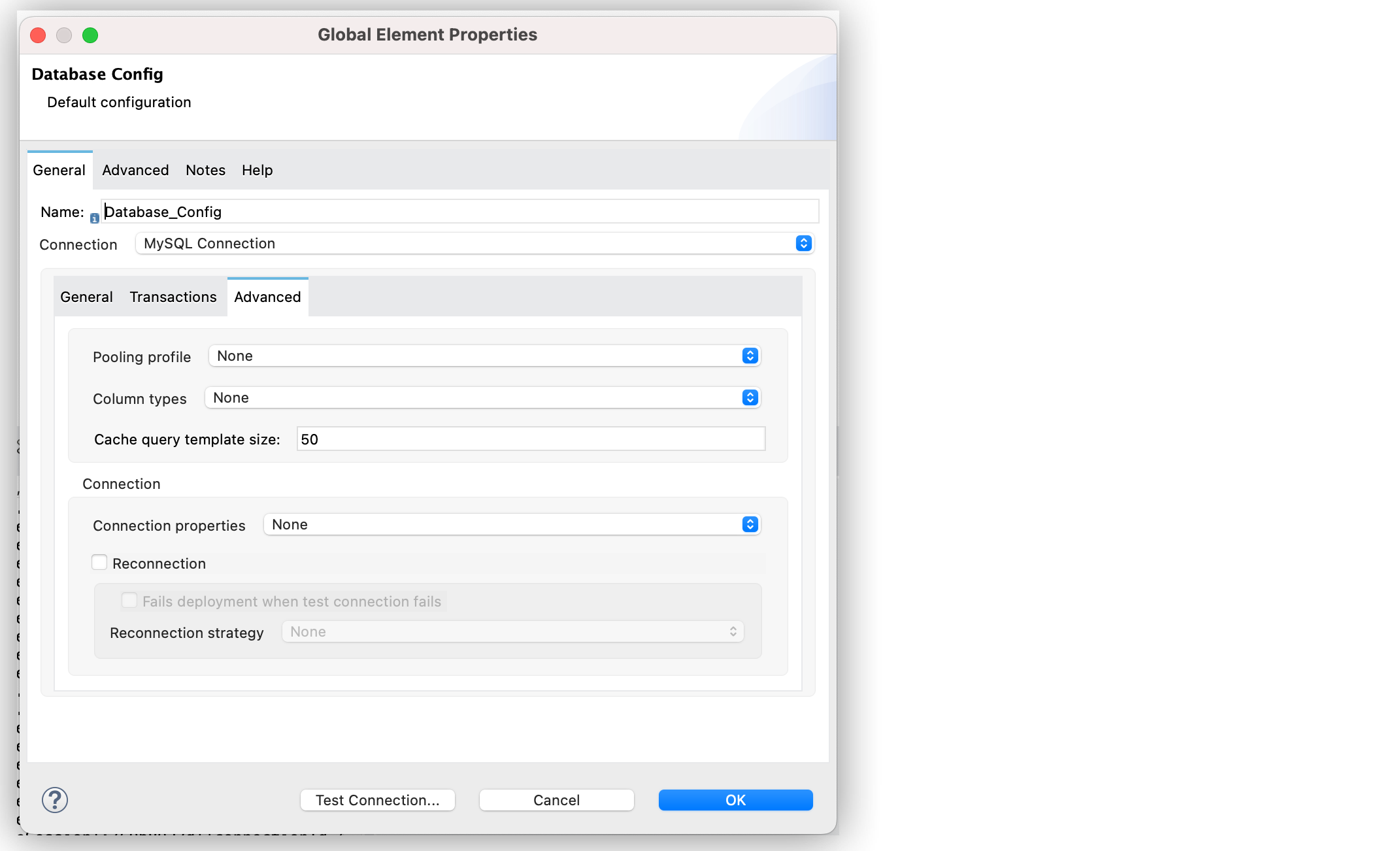
The following example shows how to configure the **Cache Query Template Size** field for the
connection.
1. In Studio, open the Database Global Configuration window.
2. Select the **Advanced** tab.
3. Set the **Cache Query Template Size** field to your desired value.
## See Also
- [Database Connector Reference](https://docs.mulesoft.com/db-connector/1.14/database-documentation)
- [Salesforce Help](https://help.salesforce.com)