---
schema_version: "1"
id: e83df2411684e3aa155b89381ccf9d14c43376f39c8832bea08d9d5eb8ca2e55
title: DataWeave Quickstart
collection: mulesoft
version: current
locale: en-us
portal_url: https://docs.salesforce.com/mulesoft/current/en-us/dataweave/2.3/dataweave-quickstart.md
canonical_url: https://docs.mulesoft.com/dataweave/2.3/dataweave-quickstart
source_site: docs.mulesoft.com
content_type: documentation
content_hash: 5ae973908dc6e440c358ac18c5f0a0655a2a28d11fee1921bf41dc3a7d806c3d
description: MuleSoft Documentation Site
release: "2.3"
latest: false
---
---
product: DataWeave
version: 2.3
keywords: studio, anypoint, transform, transformer, format, xml, json, metadata, dataweave, data weave, datamapper, dwl, dfl, dw, output structure, input structure, map, mapping
---
# DataWeave Quickstart
> For the full documentation index, see: https://docs.mulesoft.com/llms.txt
In this guide, you run DataWeave version 2 scripts on sample data, without relying on external data
sources.
The examples introduce some key DataWeave concepts that you can explore further whenever you are
ready, and they show how to turn the Transform Message component into a DataWeave playground.
To run the scripts, you copy them into the source code area of a Transform Message component in
[Studio](https://docs.mulesoft.com/studio/), then view the results in the component’s **Preview** pane. You also load
content from files so that your DataWeave script can act on it. Once you feel comfortable with
DataWeave examples here and elsewhere in the docs, you can use the DataWeave playground to practice
writing your own DataWeave scripts on sample data.
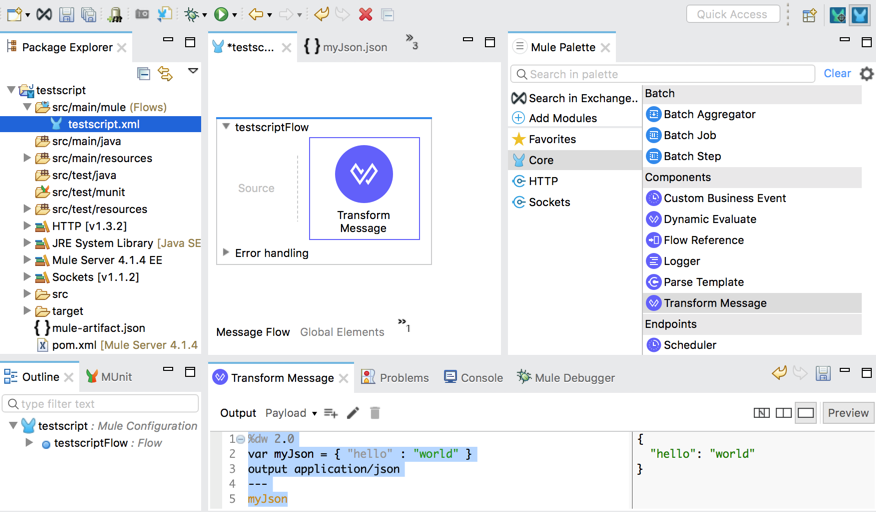
The figure shows a Transform Message component in the center canvas, within **testingscriptFlow**.
Below the Studio canvas, the **Transform Message** tab includes a DataWeave script in the source
code area with output in the **Preview** pane.
## Prerequisites
[Studio 7](https://docs.mulesoft.com/studio/to-download-and-install-studio) is required. Versions 7.3 or 7.2.3 are
recommended. Other Studio 7 versions are untested with this guide.
Once Studio is installed, you need to set up a project with a Transform Message component. See
[Set Up a Project in Studio](#setup).
## Set Up a Project in Studio
Set up a Mule project that serves as a DataWeave playground:
1. In Studio, click **File** → **New** → **Mule Project** to create a Mule project.
2. Provide the name `testscript` for the project, and click **Finish**.
3. From the **Mule Palette** tab of your new project, click **Core**, and then drag the **Transform
Message** component into the Studio canvas.
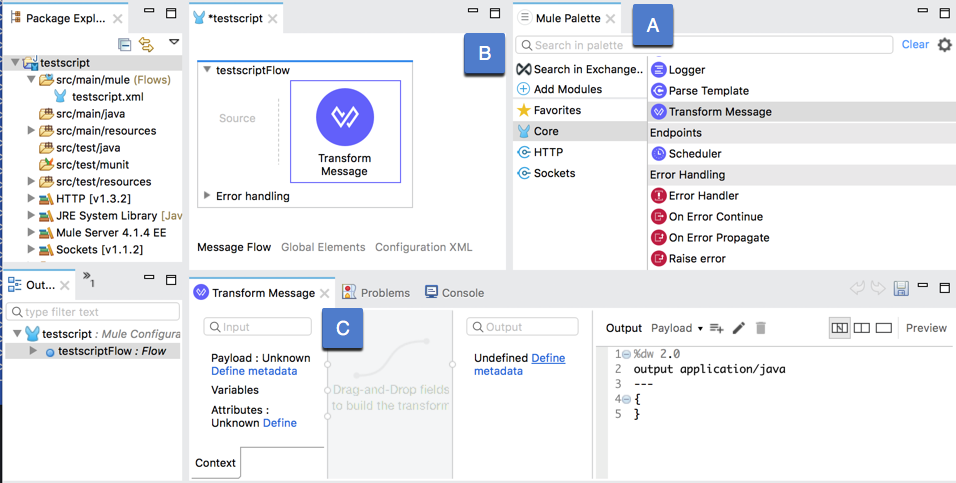
(A) **Mule Palette** tab
(B) Studio canvas with Transform Message component
(C) **Transform Message** tab
4. In the **Transform Message** tab, click **Preview** (on the far right) to open the Preview pane,
and click the _empty_ rectangle next to **Preview** to expand the source code area.
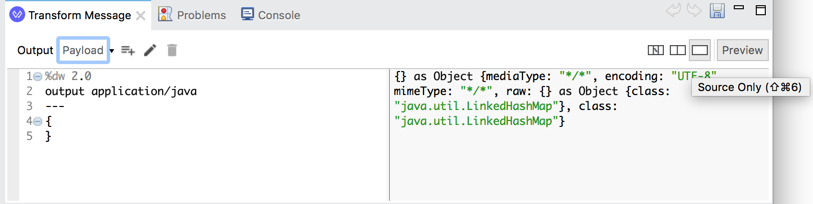
The source code area on the left is the place where you are going to add DataWeave scripts, and
the Preview pane on the right is where you view the output of the scripts.
5. Proceed to [Start Scripting](#start_scripting).
## Start Scripting
1. [Concatenate Two Strings into a Single String](#step_1)
2. [Transform JSON Input to XML Output](#step_2)
3. [Learn About Supported Data Types](#step_3)
4. [Define and Use a DataWeave Variable as Input](#step_4)
5. [Use a DataWeave Function in a DataWeave Variable](#step_5)
6. [Read, Transform, and Select Content from an Input](#step_6)
7. [Read File Contents with a DataWeave Function](#step_7)
8. [Map Elements from an Array into an Object](#step_8)
9. [Pluck Values from an Object into an Array](#step_9)
10. [Map and Merge Fields](#step_10)
### Concatenate Two Strings into a Single String
Begin with a simple DataWeave script that concatenates two strings ("hello" and "World") together
into a single string ("helloWorld").
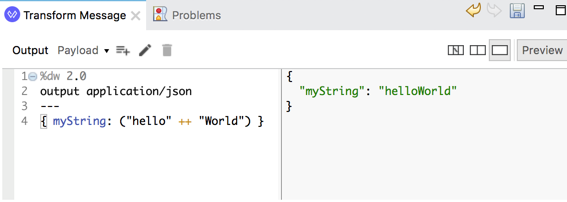
1. Replace the current script in the source code area of the **Transform Message** tab with this
one:
```dw
%dw 2.0
output application/json
---
{ myString: ("hello" ++ "World") }
```
- The body of the DataWeave script contains a key-value pair
(`{ myString: ("hello" ++ "World") }`). The value of this input object is a DataWeave
expression (`("hello" ++ "World")`) for concatenating the strings "hello" and "World" into a
single string, "helloWorld".
When you are ready, you can learn about the DataWeave [++](https://docs.mulesoft.com/dataweave/2.3/dw-core-functions-plusplus)
function used to concatenate the strings.
- The header of the script is all the content above the three dashes, `---`. It includes
important directives, including one for specifying the output format `application/json`. You
can learn more about [DataWeave Scripts](https://docs.mulesoft.com/dataweave/2.3/dataweave-language-introduction) when you are ready.
2. See the JSON output in the **Preview** pane:
```json
{ "myString": "helloWorld" }
```
3. Proceed to [Transform JSON Input to XML Output](#step_2).
### Transform JSON Input to XML Output
Many integrations require transformations from one format to another. This procedure uses the
`output` directive to produce XML output from JSON input.
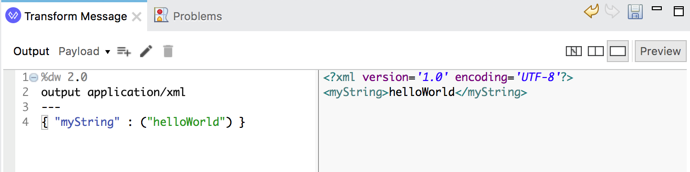
1. Replace the body of the current script in the source code area with JSON output from
[Concatenate Two Strings into a Single String](#step_1), and change the
`output application/json` directive to `output application/xml`:
```dw
%dw 2.0
output application/xml
---
{ "myString" : ("helloWorld") }
```
2. See the XML output in the **Preview** pane:
```xml
helloWorld
```
Notice that the `"myString"` key of the input JSON object `{ "myString" : ("helloWorld") }` is
converted to the root element of the XML output and that the concatenated string becomes the
value of that XML object. So the XML output is `helloWorld`. That output is
preceded by a standard XML declaration that specifies the XML version and encoding.
> [!NOTE] Without a _single_ key to serve as a root node for XML output (for example, if the
> input is simply `("helloWorld")`), the transformation to XML will fail with a yellow warning
> (**!**) in the source code area. The warning message is
> `Trying to output non-whitespace characters outside main element tree`. If you like, you can
> try to produce this warning on your own.
DataWeave supports many output and input formats. You can learn more about
[Supported Data Formats](https://docs.mulesoft.com/dataweave/2.3/dataweave-formats) when you are ready.
3. Proceed to [Learn About Supported Data Types](#step_3)
### Learn About Supported Data Types
Now provide a DataWeave script that simply introduces you to a variety of supported data types and
shows how to add comments to a script.
1. Replace the current script in the source code area of the **Transform Message** tab with this
one:
```dw
%dw 2.0
output application/json
---
{
/*
* A multi-line
* comment here.
*/
myString: "hello world",
myNumber: 123,
myFloatingPointNumber: 123.456,
myVeryBigNumber: 12341234134123412341234123,
myDate: |2018-12-07|,
myTime: |11:55:56|,
myDateTime: |2018-10-01T23:57:59-03:00|,
myBoolean: true,
myArray: [ 1, 2, 3, 5, 8],
myMixedArray: [ 1, 2, "blah", { hello: "there" } ],
myObjectKeyValuePair: { innerKey: "innerValue" },
myObjectWithConditionalField: { a : { b : 1, ( c : 2 ) if true, (d : 4) if false } },
myNull: null,
myBinary: "abcd1234123" as Binary
//A one-line comment here.
}
```
DataWeave supports multi-line comments within `/* */` markup and single-line comments after
forward slashes (`//`). It also supports many data types, shown after the colon (`:`) in
key-value pairs, such as `myString: "hello world"` and `myNumber: 123`. These types include
strings (surrounded by quotation marks, `""`), numbers, date and time structures (within pipes,
`||`), Booleans (`true` and `false`), arrays (within square brackets, `[]`), JSON-like objects
(key-value structures within curly braces, `{}`), `null`, and binaries. When you are ready for
more on this topic, you can review [DataWeave types](https://docs.mulesoft.com/dataweave/2.3/dataweave-types).
2. See the JSON output in the **Preview** pane:
```json
{
"myString": "hello world",
"myNumber": 123,
"myFloatingPointNumber": 123.456,
"myVeryBigNumber": 12341234134123412341234123,
"myDate": "2018-12-07",
"myTime": "11:55:56",
"myDateTime": "2018-10-01T23:57:59-03:00",
"myBoolean": true,
"myArray": [1, 2, 3, 5, 8],
"myMixedArray": [1, 2, "blah", { "hello": "there" }],
"myObjectKeyValuePair": { "innerKey": "innerValue" },
"myObjectWithConditionalField": { "a": { "b": 1, "c": 2 } },
"myNull": null,
"myBinary": "abcd1234123"
}
```
3. Proceed to [Define and Use a DataWeave Variable as Input](#step_4)
### Define and Use a DataWeave Variable as Input
Now try a simple DataWeave script that outputs the value of the DataWeave variable `myJson`. You set
the variable using the `var` directive in the script’s header.
1. Replace the current script in the source code area of the **Transform Message** tab with this
one:
```dw
%dw 2.0
var myJson = { "hello" : "world" }
output application/json
---
myJson
```
A JSON object (`{ "hello" : "world" }`) is defined as the `myJson` variable in the script’s
header. You can learn more about [DataWeave Variables](https://docs.mulesoft.com/dataweave/2.3/dataweave-variables) when you are ready.
2. See the output in the **Preview** pane:
```json
{
"hello": "world"
}
```
3. Proceed to [Use a DataWeave Function in a DataWeave Variable](#step_5)
### Use a DataWeave Function in a DataWeave Variable
Now try a script that uses the DataWeave `avg` function in a DataWeave variable (`myJson`) to get
averages of two sets of numbers.
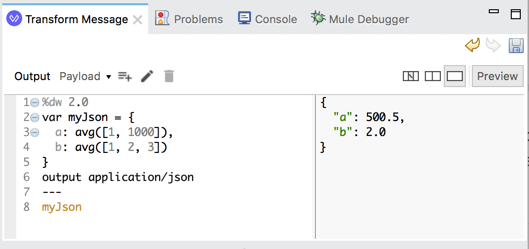
1. Replace the current script in the source code area with this one:
```dw
%dw 2.0
var myJson = {
a: avg([1, 1000]),
b: avg([1, 2, 3])
}
output application/json
---
myJson
```
The `avg` functions here get invoked when you add `myJson` to the body of the script, producing
the calculated averages within the JSON object you can see in the **Preview** pane. The
structures `[1, 1000]` and `[1, 2, 3]` are [arrays](https://docs.mulesoft.com/dataweave/2.3/dataweave-types#dw_type_array). You can
learn more about [avg](https://docs.mulesoft.com/dataweave/2.3/dw-core-functions-avg) when you are ready.
2. Preview the output:
```json
{
"a": 500.5,
"b": 2.0
}
```
3. Proceed to [Read, Transform, and Select Content from an Input](#step_6)
### Read, Transform, and Select Content from an Input
Now try a more complicated script that reads XML input, transforms it to JSON, and only selects the
contents of the `car` element.
1. Replace the current script in the source code area with this one:
```dw
%dw 2.0
var myRead = read("red",
"application/xml")
output application/json
---
{
mySelection : myRead.car
}
```
If you encounter an issue previewing this example, try changing `myRead.car` to `myRead."car"`.
Learn more about the [read](https://docs.mulesoft.com/dataweave/2.3/dw-core-functions-read) function,
[Supported Data Formats](https://docs.mulesoft.com/dataweave/2.3/dataweave-formats), and [DataWeave Selectors](https://docs.mulesoft.com/dataweave/2.3/dataweave-selectors) when
you are ready.
2. Preview the output:
```json
{
"mySelection": {
"color": "red"
}
}
```
3. Proceed to [Read File Contents with a DataWeave Function](#step_7)
### Read File Contents with a DataWeave Function
Now use `readUrl` to read the contents of a file in the Studio `src/main/resources` folder so you
can use that content as sample data for a DataWeave script.
1. Add a file by right-clicking the `src/main/resources` folder in the **Package Explorer** tab,
then navigating to **New** → **File**, providing the file name `myJson.json` for that file, and
clicking **Finish**.
2. From `src/main/resources`, provide and save the following sample content in the **myJson.json**
tab (or within the **Source** sub-tab of the **myJson.json** tab, if it is present):
```json
{
"hello": "world"
}
```
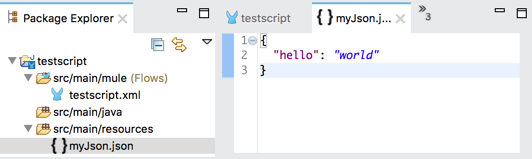
Figure 1. myJson.json in Studio
3. Returning to the Transform Message component within the **testscript** tab, replace the current
script with one that uses `readUrl` to read the JSON contents from your file:
```dw
%dw 2.0
output application/json
---
readUrl("classpath://myJson.json", "application/json")
```
Learn more about the [readUrl](https://docs.mulesoft.com/dataweave/2.3/dw-core-functions-readurl) function when you are ready.
4. View the matching output in the **Preview** pane.
```json
{
"hello": "world"
}
```
Note that you can also load the contents of a file through a metadata type in the Transform
Message component. That procedure is covered later, in
[Run Examples with Longer Payloads](#med_large_payload). It uses the `myJson.json` file you just
created.
5. Proceed to [Map Elements from an Array into an Object](#step_8)
### Map Elements from an Array into an Object
Almost all integrations require data mappings. Here, you map elements within an array to keys and
values of a JSON object:
1. Replace the current script in the source code area with this one:
```dw
%dw 2.0
output application/json
---
{
(
["a", "b", "c"] map ((value, index) -> {
(index): value
})
)
}
```
The `map` function iterates over the array on the left to apply the lambda (anonymous function)
on the right (`((value, index) → { (index): value })`) to elements in that array. The lambda
uses [named parameters](https://docs.mulesoft.com/dataweave/2.3/dataweave-functions-lambdas#_use_named_parameters_in_a_lambda) (`value`
and `index`) to select the values and indices from the array and populate a JSON object with
key-value pairs. Learn about [map](https://docs.mulesoft.com/dataweave/2.3/dw-core-functions-map), and when you are ready, compare `map`
with [mapObject](https://docs.mulesoft.com/dataweave/2.3/dw-core-functions-mapobject), which takes an object as input.
2. Preview the output:
```json
{
"0": "a",
"1": "b",
"2": "c"
}
```
3. Proceed to [Pluck Values from an Object into an Array](#step_9)
### Pluck Values from an Object into an Array
Now use the DataWeave `pluck` function to iterate over values in a JSON object and output those
values into an array.
1. Replace the contents of the source code area with a script that uses `pluck` on a JSON object:
```dw
%dw 2.0
output application/json
---
{
"0": "a",
"1": "b",
"2": "c"
} pluck ((value) -> value)
```
Notice that the input object matches the [output](#output_map) of the `map` example and that the
output array matches the [input](#input_map) from the `map` example. Learn more about
[pluck](https://docs.mulesoft.com/dataweave/2.3/dw-core-functions-pluck) when you are ready.
2. Preview the output:
```json
["a", "b", "c"]
```
3. Proceed to [Map and Merge Fields](#step_10).
### Map and Merge Fields
Now try a more complex example that maps and merges fields from items in separate arrays. The point
here is simply to provide a taste of DataWeave’s ability to handle more complex mappings and
transformations needed for some integrations.
1. Replace the current script in the source code area with this one:
```dw
%dw 2.0
var myVar = [
{ bookId: 101,
title: "world history",
price: "19.99"
},
{
bookId: 202,
title: 'the great outdoors',
price: "15.99"
}
]
var myVar2 = [
{
bookId: 101,
author: "john doe"
},
{
bookId: 202,
author: "jane doe"
}
]
output application/json
---
myVar map (item, index) -> using (id = item.bookId) {
"id" : id,
"topic" : item.title,
"cost" : item.price as Number,
(myVar2 filter ($.*bookId contains id) map (item) -> {
author : item.author
})
}
```
When you are ready to explore the language further, you can learn how the
[filter](https://docs.mulesoft.com/dataweave/2.3/dw-core-functions-filter) function used near the end returns `author` values from the
array in the `myVar2` variable. You can read about
[type coercion with DataWeave](https://docs.mulesoft.com/dataweave/2.3/dataweave-types-coercion) to see how `as` works with the data
type in the line `"cost" : item.price as Number,` to coerce input strings like `"19.99"` into
numbers like `19.99`. You can see how `using` (shown in `using (id = item.bookId)`) enables you
to create [local DataWeave variables](https://docs.mulesoft.com/dataweave/2.3/dataweave-variables#example_local_variable) in a script.
2. Preview the output:
```json
[
{
"id": "101",
"topic": "world history",
"cost": 19.99,
"author": "john doe"
},
{
"id": "202",
"topic": "the great outdoors",
"cost": 15.99,
"author": "jane doe"
}
]
```
3. Proceed to [Try Out More DataWeave Examples](#more_examples).
## Try Out More DataWeave Examples
Now you are ready to run DataWeave examples on your own. In your DataWeave playground, you can run
examples from the docs whenever you want to discover more about the DataWeave language. You can play
with the examples and use them to start your own scripts.
> [!NOTE] For examples that use `payload` to reference input data (such as the
> [contains](https://docs.mulesoft.com/dataweave/2.3/dw-core-functions-contains#contains1) or [mapObject](https://docs.mulesoft.com/dataweave/2.3/dw-core-functions-mapobject)
> function examples), you can avoid payload-related issues by using techniques described in
> [Run Examples that Act on a Payload](#provide_payload).
1. Find many more examples to try out in Studio here:
- [DataWeave Operators](https://docs.mulesoft.com/dataweave/2.3/dw-operators)
- [DataWeave Reference](https://docs.mulesoft.com/dataweave/2.3/dw-functions): Docs on the DataWeave function modules provide many
examples that use DataWeave functions.
- [Flow Control in DataWeave](https://docs.mulesoft.com/dataweave/2.3/dataweave-flow-control)
- [Pattern Matching in DataWeave](https://docs.mulesoft.com/dataweave/2.3/dataweave-pattern-matching)
- [DataWeave Cookbook](https://docs.mulesoft.com/dataweave/2.3/dataweave-cookbook)
- [Define DataWeave Functions](https://docs.mulesoft.com/dataweave/2.3/dataweave-functions)
2. Proceed to [Next Steps](#next_steps).
### Run Examples that Act on a Payload
In DataWeave, `payload` is a built-in Mule Runtime variable that holds the contents of a
[Mule message](https://docs.mulesoft.com/mule-runtime/4.3/about-mule-message#_message_payload). It enables you to
retrieve the body of a message simply by typing `payload` into the DataWeave script. The docs often
refer to this content as "the payload."
To try out DataWeave examples that use `payload` to get the contents of a Mule message, you have
some options:
- [Run Examples with Short Payloads](#small_payload): You can use a DataWeave variable.
- [Run Examples with Longer Payloads](#med_large_payload): Add the payload content through a file.
This technique also works for short payloads.
Alternatives that require a running Mule app (such as using
[Set Payload](https://docs.mulesoft.com/mule-runtime/4.3/set-payload-transformer-reference)) are not covered here but
are introduced in [Next Steps](#next_steps).
#### Run Examples with Short Payloads
For short examples with a few lines of sample data, you can convert the input payload to a variable.
You simply copy the payload’s content into a DataWeave variable (`var`) in the header of a DataWeave
script. Then, in the body of the script, you replace `payload` with the name of the new variable to
reference that variable.
1. Start with this script in the source code area:
```DataWeave
%dw 2.0
output application/json
---
ContainsRequestedItem: payload.root.*order.*items contains "3"
```
Notice that you cannot preview it yet:
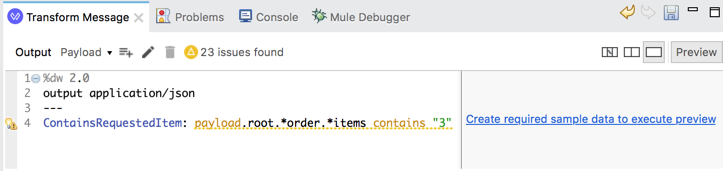
2. Now modify this example so that it uses some sample input instead of attempting to use `payload`
to input content of a Mule message that does not exist:
1. Add a `myInput` DataWeave variable supplying some input data the script can read, and change
the Mule `payload` variable in the body of the script to the DataWeave `myInput` variable.
```DataWeave
%dw 2.0
var myInput = read("
1
3
2
",
"application/xml")
output application/json
---
ContainsRequestedItem: myInput.root.*order.*items contains "3"
```
2. Preview the results:
```json
{
"ContainsRequestedItem": true
}
```
When you are ready, learn more about the [contains](https://docs.mulesoft.com/dataweave/2.3/dw-core-functions-contains) function and
about the built-in `payload` variable, in
[Predefined Variables](https://docs.mulesoft.com/dataweave/2.3/dataweave-variables-context).
#### Run Examples with Longer Payloads
For DataWeave examples with many lines of sample data, consider creating a metadata type through
Transform Message. Metadata types can accept a local file that contains sample data.
1. Use the [readUrl](#readurl_ex) example to create `src/main/resources/myJson.json` in Studio.
You can skip this step if you still have the file in Studio. The next steps show how to use the
contents of this file as your payload.
2. Now replace the current script from the source code area of the Transform Message with one that
selects the payload of the input:
```dw
%dw 2.0
output application/json
---
payload
```
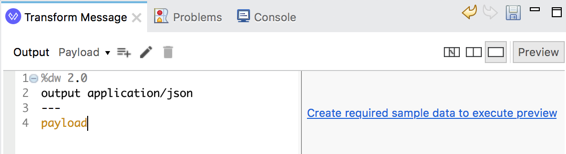
3. Notice that you cannot preview a payload now because it does not exist yet.
4. Now provide a simple JSON object as the payload of the Transform Message:
1. In the **Transform Message** tab, click the _left-most_ rectangle from the **Preview**
button to open the columned, graphical view next to the source code area:
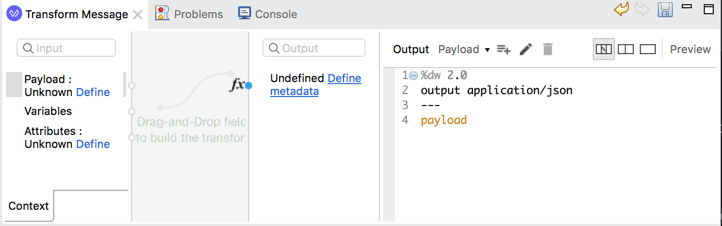
If you mouse over that rectangle, you can see the label **Show Graphic**.
2. In the left-most column of the **Transform Message** tab, find **Payload: Unknown**, and
click **Define metadata**.
If you do not see the **Define metadata** link, simply right-click the **Payload:** entry in
the left-most column, and then click **Set Metadata** to open the **Select metadata type**
dialog.
5. Now load the contents of `myJson.json` (created in the [readUrl](#readurl_ex) example) into the
Transform Message component:
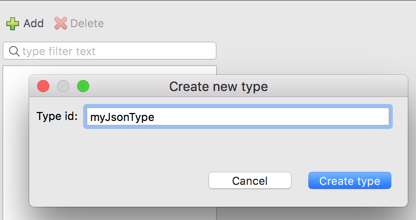
1. Click **+Add** to open the **Create new type** dialog.
2. In the dialog, provide the **Type id** `myJsonType`, and click **Create type**.
3. Back in the **Select metadata type** dialog that opens, select **JSON** from the **Type**
drop-down menu.
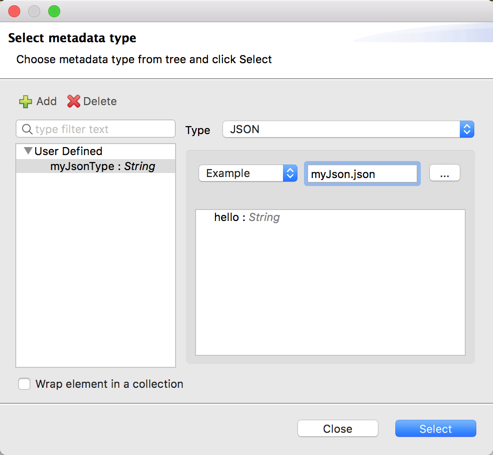
4. Below the new type, change **Schema** to **Example** (as shown above).
5. Use the navigation button with the ellipsis (**…**) to find
`src/main/resources/myJson.json`, and click **Open**, which displays the structure of the
file contents (`hello: _String_`) in the **Select metadata type** window.
6. Now click **Select** to load the contents of the file into the message payload.
7. Notice that the JSON object from `myJson.json` is now in the Preview pane.
If necessary, you can click **Preview** to open the Preview pane.
8. Now click the _empty_ rectangle next to the **Preview** button to open the source code area,
and change the body of the script to `payload.hello`, retaining the existing DataWeave
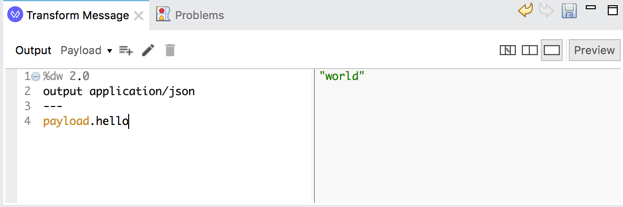
header content.
Notice that the Preview pane now contains only the value of the payload: `"world"`.
Here is what this example looks like in Studio:
Learn more about [DataWeave Selectors](https://docs.mulesoft.com/dataweave/2.3/dataweave-selectors) when you are ready.
## Next Steps
- To get started with Mule app development and data mapping through the Studio UI, see
[Tutorial: Create a Mule app that uses the Database Connector and DataWeave](https://docs.mulesoft.com/mule-runtime/4.3/mule-app-tutorial).
- Beyond the Transform Message component, many Mule connectors, modules, and Core components accept
DataWeave selectors and short DataWeave expressions in their **fx** fields.
To learn about the components, you can start from
[Mule Components](https://docs.mulesoft.com/mule-runtime/4.3/mule-components).
To try out sample data in a running Mule app, without relying on external data sources, you can
use these Core components with or without Transform Message:
- [Set Payload](https://docs.mulesoft.com/mule-runtime/4.3/set-payload-transformer-reference) to provide content for
the payload of a Mule event.
- [Set Variable](https://docs.mulesoft.com/mule-runtime/4.3/variable-transformer-reference) to create content in a
Mule event [variable](https://docs.mulesoft.com/mule-runtime/4.3/about-mule-variables).
- [Scheduler](https://docs.mulesoft.com/mule-runtime/4.3/scheduler-concept) to trigger the regular generation of Mule
events.
- [Logger](https://docs.mulesoft.com/mule-runtime/4.3/logger-component-reference) to view output and issues logged in
the Studio console.
Here is an example that uses some of these components:
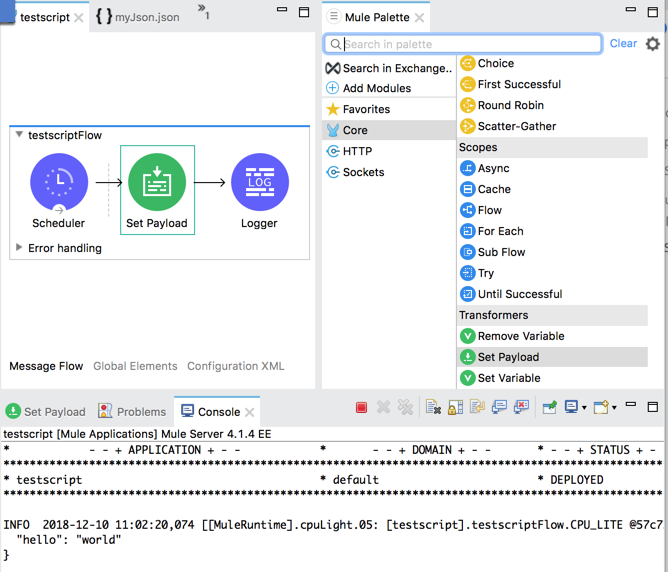
- The **fx** value of Set Payload is set to `output application/json --- { hello : "world"}`.
- The **fx** value of the Logger is set to `payload`, which looks like `#[payload]` in the UI and
the XML configuration file for the project.
- The **Console** tab of the _running_ Mule app (`testscript`) displays the payload from Set
Payload.