---
schema_version: "1"
id: 4bec5c3a4cfe0c0479dd062156c04080d757c1422e294af8e8cdb52967c47ed8
title: Configuring XML Cryptography
collection: mulesoft
version: current
locale: en-us
portal_url: https://docs.salesforce.com/mulesoft/current/en-us/cryptography-module/2.0/cryptography-module-xml.md
canonical_url: https://docs.mulesoft.com/cryptography-module/2.0/cryptography-module-xml
source_site: docs.mulesoft.com
content_type: documentation
content_hash: 042a4325946f06a98cb4fdce6d078a2e6e20f58431467e10d9db802bfed463e6
description: MuleSoft Documentation Site
release: "2.0"
latest: false
---
---
product: Cryptography Module
version: 2.0
---
# Configuring XML Cryptography
> For the full documentation index, see: https://docs.mulesoft.com/llms.txt
Mule runtime engine (Mule) XML Cryptography enables you to encrypt entire XML messages or just
specific parts of them. Unlike PGP, which combines compression, XML encryption focuses on securing
the content within XML structures. While JCE Cryptography offers broader encryption for various
data, XML Cryptography is designed for the structured nature of XML, letting you precisely encrypt
specific elements or the whole document. This is useful for protecting sensitive data like social
security numbers or credit card details within an XML message.
Use the Cryptography Module XML operations for encryption and decryption.
> [!NOTE] If you’re upgrading to Cryptography Module 2.0, configure the required Java dependencies
> so your project compiles. For details, refer to
> [Upgrading and Migrating Cryptography Module 2.0](https://docs.mulesoft.com/cryptography-module/2.0/cryptography-module-upgrade).
## Configure XML Encryption Operations in Anypoint Studio
Follow these steps:
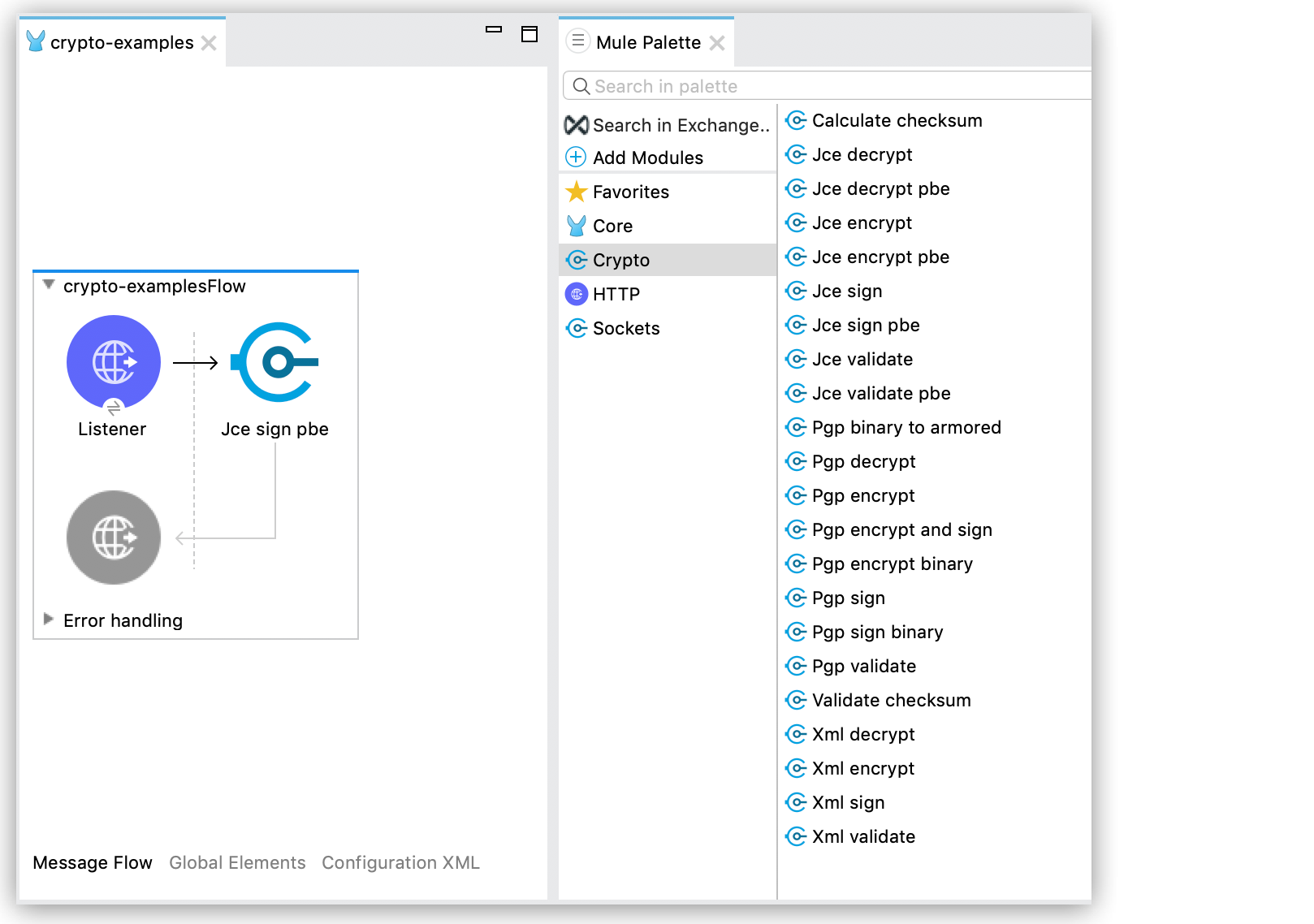
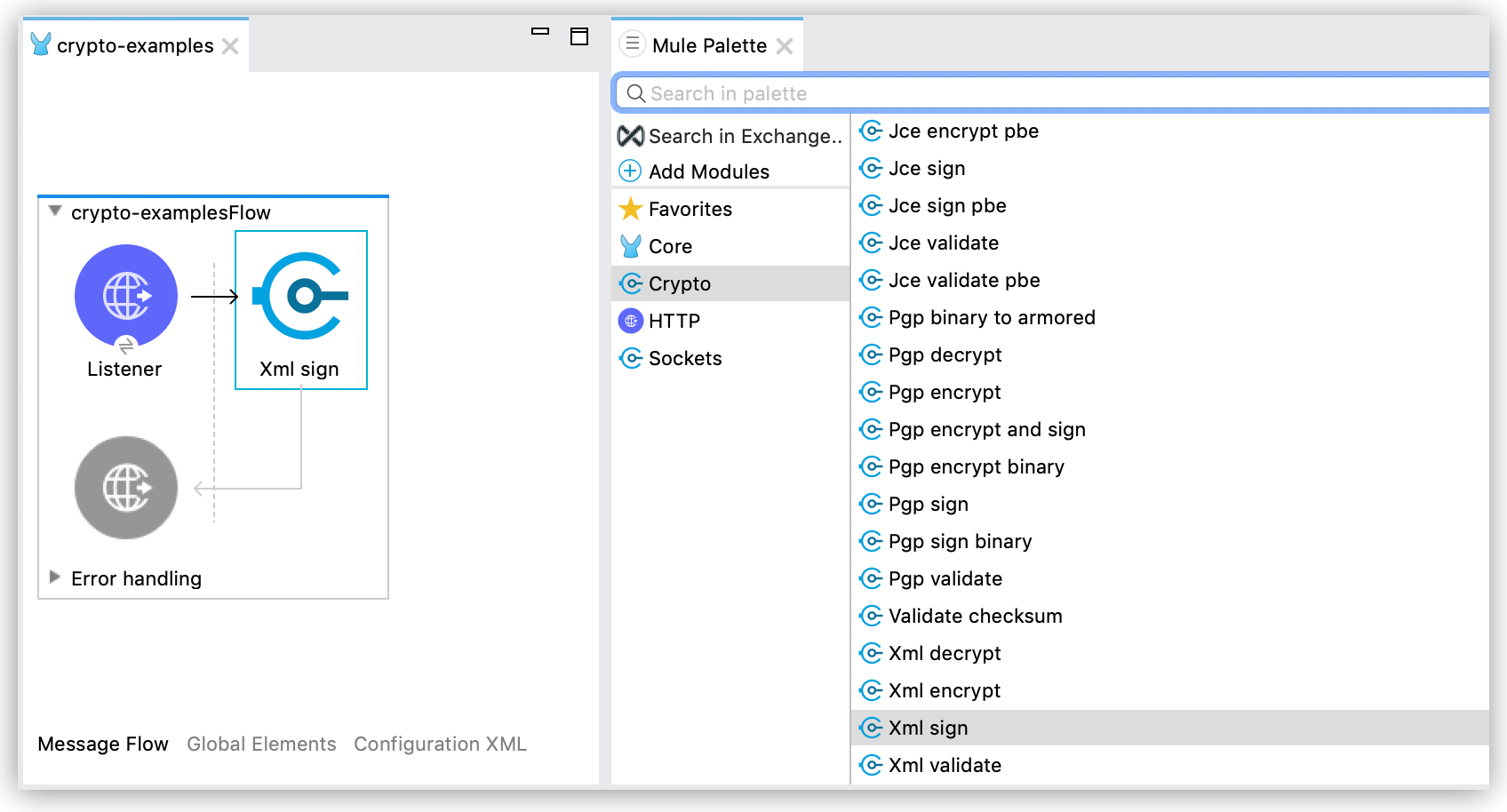
1. In Anypoint Studio, drag a Cryptography Module XML operation to the canvas flow.
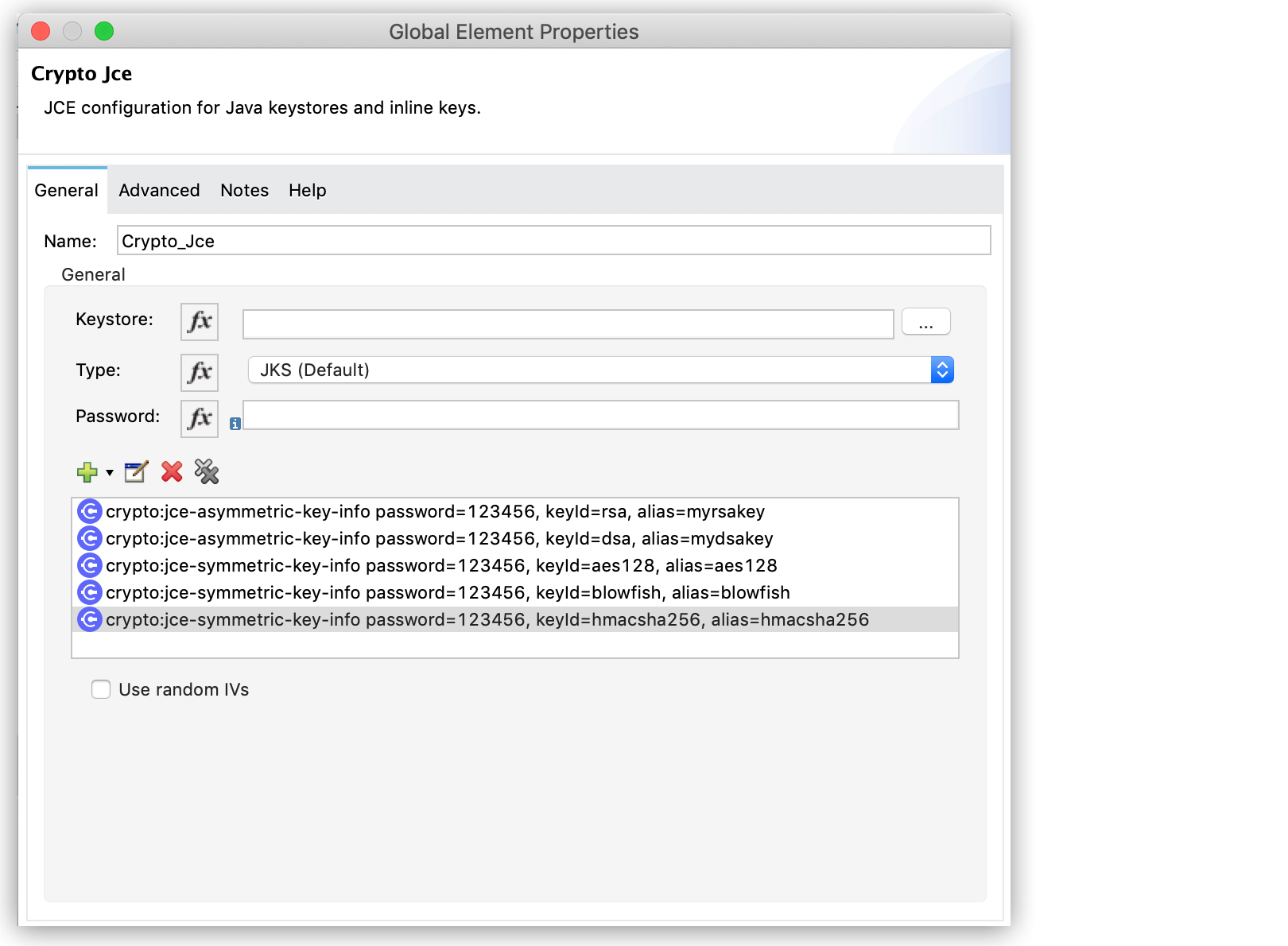
2. In the operation configuration window, select an existing **Module configuration**, or create a
new one by configuring the **Keystore**, **Type** (JKS, JCEKS, PKCS12) and **Password**.
You can also add symmetric or asymmetric key information to be used in the sign operations:
3. Configure **Key selection** by using a **Key id** value previously defined in the module
configuration, or define a new one for this operation:
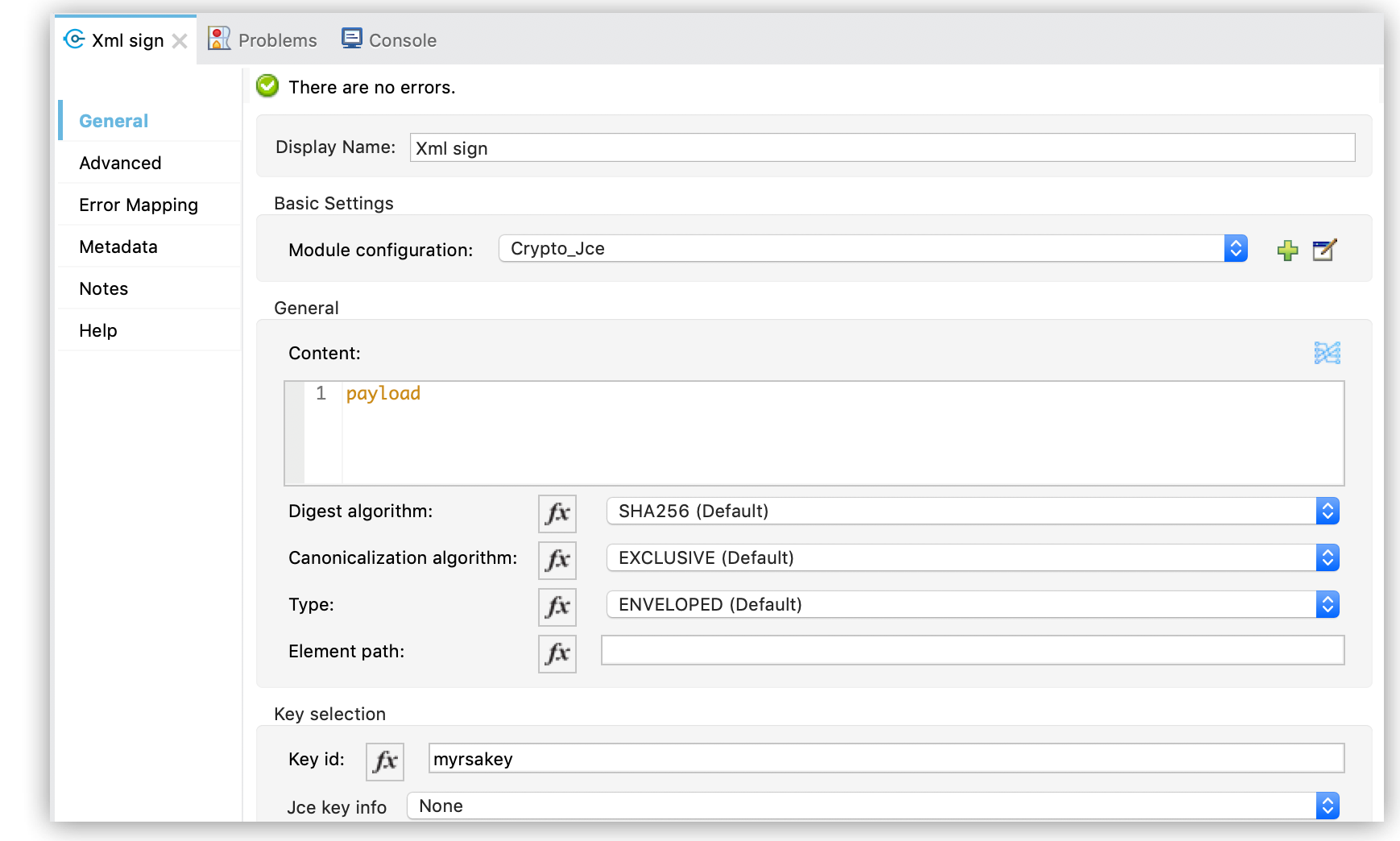
4. Select **Digest Algorithm**, **Canonicalization Algorithm**, **Type**, and **Element path**.
## Encrypt
This example configures a keystore that contains a symmetric key that will be used for encryption:
Example: JCE Configuration
```xml
```
In this example, the **Xml encrypt** operation encrypts a specific element of the XML document:
```xml
```
The `elementPath` is an XPath expression that identifies the element to encrypt. Depending on your
needs, you can use a symmetric or asymmetric key for encrypting an XML document.
## Decrypt
This example configures the decryption:
Example: JCE Configuration
```xml
```
In this example, the **Xml decrypt** operation decrypts an XML document. The operation uses the
asymmetric key stored in the referenced keystore.
```xml
```
Depending on your needs, you can use a symmetric or asymmetric key for decryption.
## Sign
This examples shows the JCE configuration to sign:
Example: JCE Configuration
```xml
```
In this example, the **Xml sign** operation uses the asymmetric key to sign an XML document by
creating an XML envelope and inserting the signature inside the content that is being signed.
Example: Enveloped Signature
```xml
```
In this example, a detached XML signature is created based on an element of the XML document.
Instead of being inserted in the signed content, the detached signature is returned as a separate
XML element.
Example: Detached Signature
```xml
```
### Select the Signing Algorithm
In the **Xml Sign** operation, the `digestAlgorithm` parameter defines the hashing algorithm applied
to the content before signing, for example SHA1, SHA256, or SHA512.
However, the final XML signature algorithm is not manually selected. It is automatically determined
based on the type of key (RSA, DSA, EC, HMAC) configured in the module.
The signing process combines the chosen hash algorithm `digestAlgorithm` with the key type to
produce the signature method used in the XML document.
For example:
- An RSA key with `digestAlgorithm=SHA256` results in the `rsa-sha256` signature method.
- A DSA key with `digestAlgorithm=SHA1` results in the `dsa-sha1` signature method.
- An EC key with `digestAlgorithm=SHA256` results in the `ecdsa-sha256` signature method.
If you want to use a different signature method, you must change the type of key in the
`digestAlgorithm` parameter configuration. It is not currently possible to manually select the
signature method within the operation.
## Validate a Signature
This examples shows the JCE configuration to validate a signature:
Example: JCE Configuration
```xml
```
In this example, the asymmetric key is used to validate the signature of the XML element specified
by the `elementPath` XPath expression.
Example: Using the Validate Operation
```xml
```
If the document has multiple signatures, set `elementPath` to select the signature to validate.
Specify a signed element using an XPath expression to validate the signature for that element.
## Target a Custom Namespace by Using Element Path
To sign or validate an XML element that is inside a custom namespace, specify the namespace by using
the XPath functions:
[namespace-uri](https://developer.mozilla.org/en-US/docs/Web/XML/XPath/Reference/Functions/namespace-uri)
and
[local-name](https://developer.mozilla.org/en-US/docs/Web/XML/XPath/Reference/Functions/local-name).
For example, consider the following document:
```xml
```
To target the content of `FirstElement` inside `soap:Envelope`, you specify the `xmlns:soap`
namespace. The XML schema for `xmlns:soap` is defined in
`[http://www.w3.org/2003/05/soap-envelope/](http://www.w3.org/2003/05/soap-envelope/)`.
The following example shows an `xml-sign` operation configured to sign `FirstElement`:
```xml
```
Note that the `elementPath` expression specifies the `xmlns:soap` namespace.
## See Also
- [Cryptography Module Reference 2.0](https://docs.mulesoft.com/cryptography-module/2.0/cryptography-module-reference)