---
schema_version: "1"
id: 7cb08ddae911ffd17f3b34d3988058e19f06987519f95ff0772c34c8a204601d
title: Configuring JCE Cryptography
collection: mulesoft
version: current
locale: en-us
portal_url: https://docs.salesforce.com/mulesoft/current/en-us/cryptography-module/2.0/cryptography-module-jce.md
canonical_url: https://docs.mulesoft.com/cryptography-module/2.0/cryptography-module-jce
source_site: docs.mulesoft.com
content_type: documentation
content_hash: d651c5b8b246e76d55628068731db2808ee6aeb1d86f921c9233994eff8cff3f
description: MuleSoft Documentation Site
release: "2.0"
latest: false
---
---
product: Cryptography Module
version: 2.0
---
# Configuring JCE Cryptography
> For the full documentation index, see: https://docs.mulesoft.com/llms.txt
The Java Cryptography Extension (JCE) strategy lets you use Java’s powerful encryption features. You
have the flexibility to encrypt an entire message or just specific parts of it using either of these
two methods:
- Password-based encryption (PBE)
This method enables you to encrypt and sign content by simply providing an encryption password.
- Key-based encryption (KBE)
Similar to PGP and XML encryption, this method enables you to configure a symmetric or asymmetric
key to perform encryption and signing operations.
Use the Cryptography Module JCE operations to configure these methods.
> [!NOTE] If you’re upgrading to Cryptography Module 2.0, configure the required Java dependencies
> so your project compiles. For details, refer to
> [Upgrading and Migrating Cryptography Module 2.0](https://docs.mulesoft.com/cryptography-module/2.0/cryptography-module-upgrade).
## Before You Begin
You are familiar with PBE and KBE encryption, concepts of public and private keys, and asymmetric
cryptography.
## Configure PBE Encryption
This method takes your password and runs it through a hash function to create a symmetric encryption
key. This generated key works with standard encryption algorithms. Because PBE only needs a
password, you don’t need a separate Global Configuration Element for JCE PBE operations.
### Configure JCE PBE Operations in Anypoint Studio
Follow these steps:
1. In Anypoint Studio, drag a **Cryptography Module** JCE PBE operation to the canvas flow.
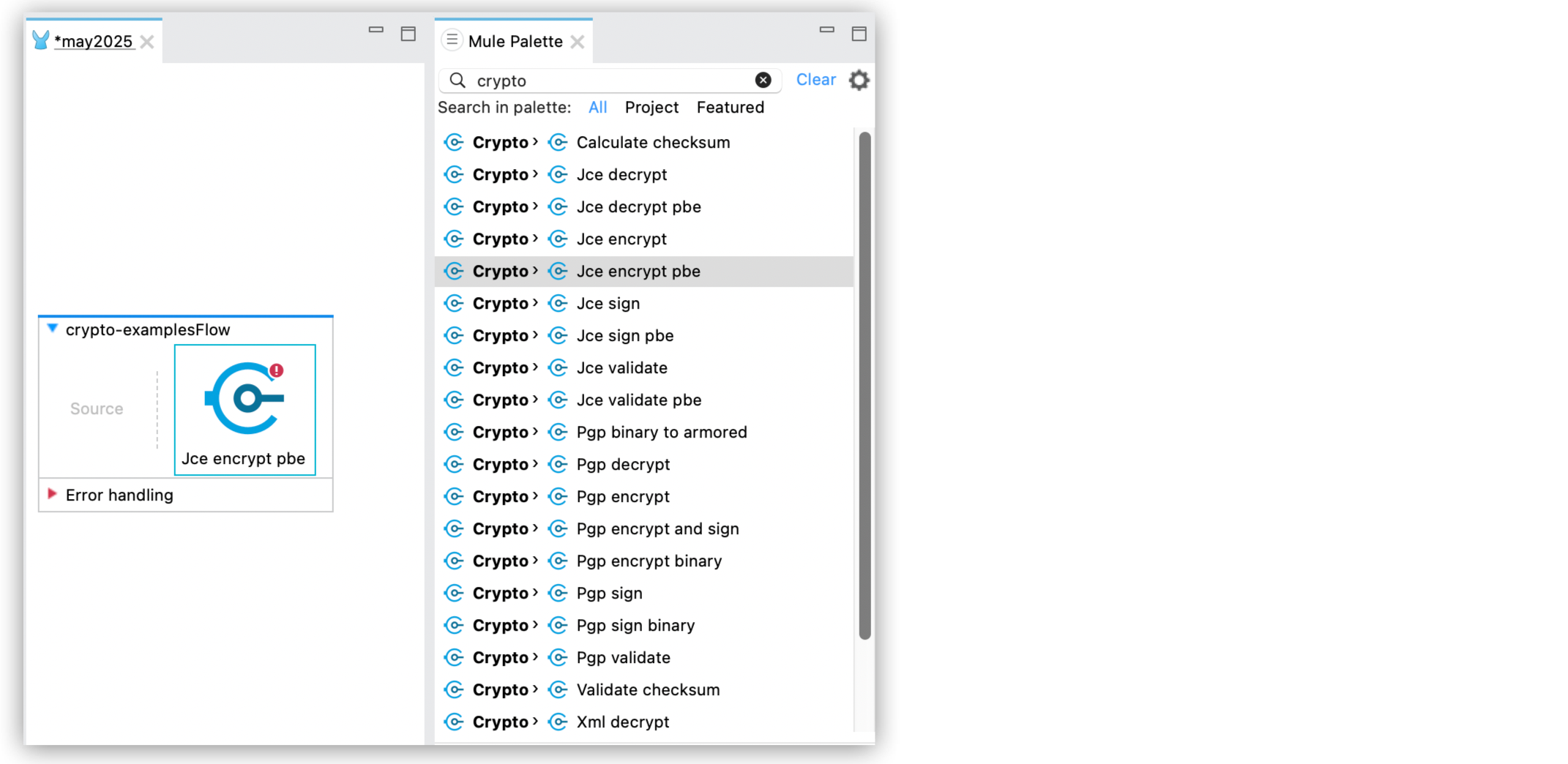
2. In the operation configuration window, set the **Algorithm**, **Password** **Password salt** and
**Iteration count** properties: +git s image::crypto-jce-setting.png\["Configuration settings
for JCE encrypt PBE with algorithm, password, password salt, iteration options"\]
### XML Examples
These are XML examples for each of the JCE PBE operations:
- **Jce encryption pbe**
```xml
```
If you don’t specify an algorithm, the module uses `PBEWithHmacSHA256AndAES_128` .
- **Jce decrypt pbe**
```xml
```
- **Jce sign pbe**
```xml
```
If you don’t specify an algorithm, the module uses `PBEWithHmacSHA256`.
- **Jce validate pbe**
```xml
```
The `expected` parameter defines the signature used to validate the message.
## Configure KBE Encryption
Configure a symmetric or asymmetric key to perform encryption and signing operations.
### Configure JCE KBE Operations in Anypoint Studio
Follow these steps:
1. In Anypoint Studio, drag a Cryptography Module JCE KBE operation to the canvas flow.
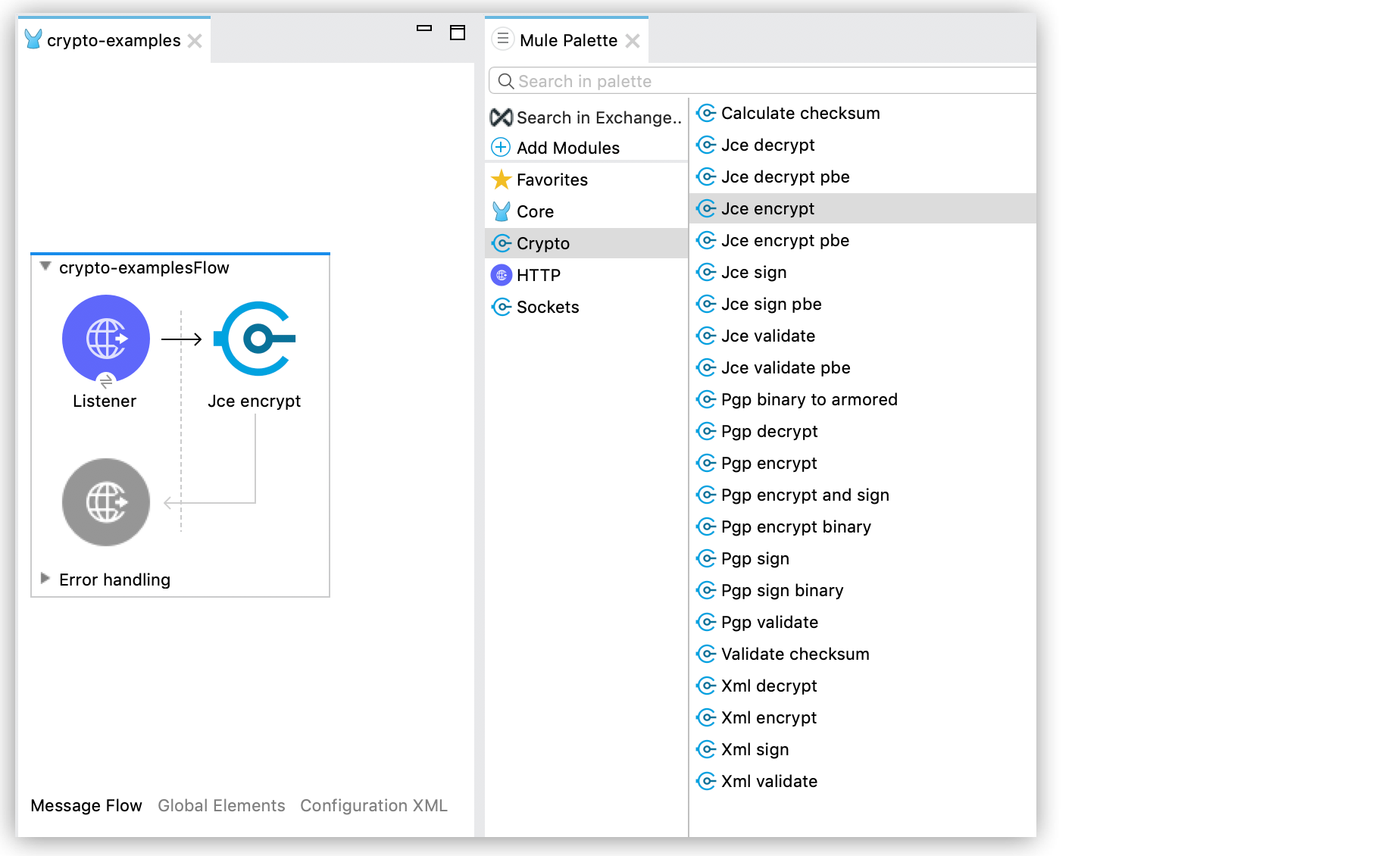
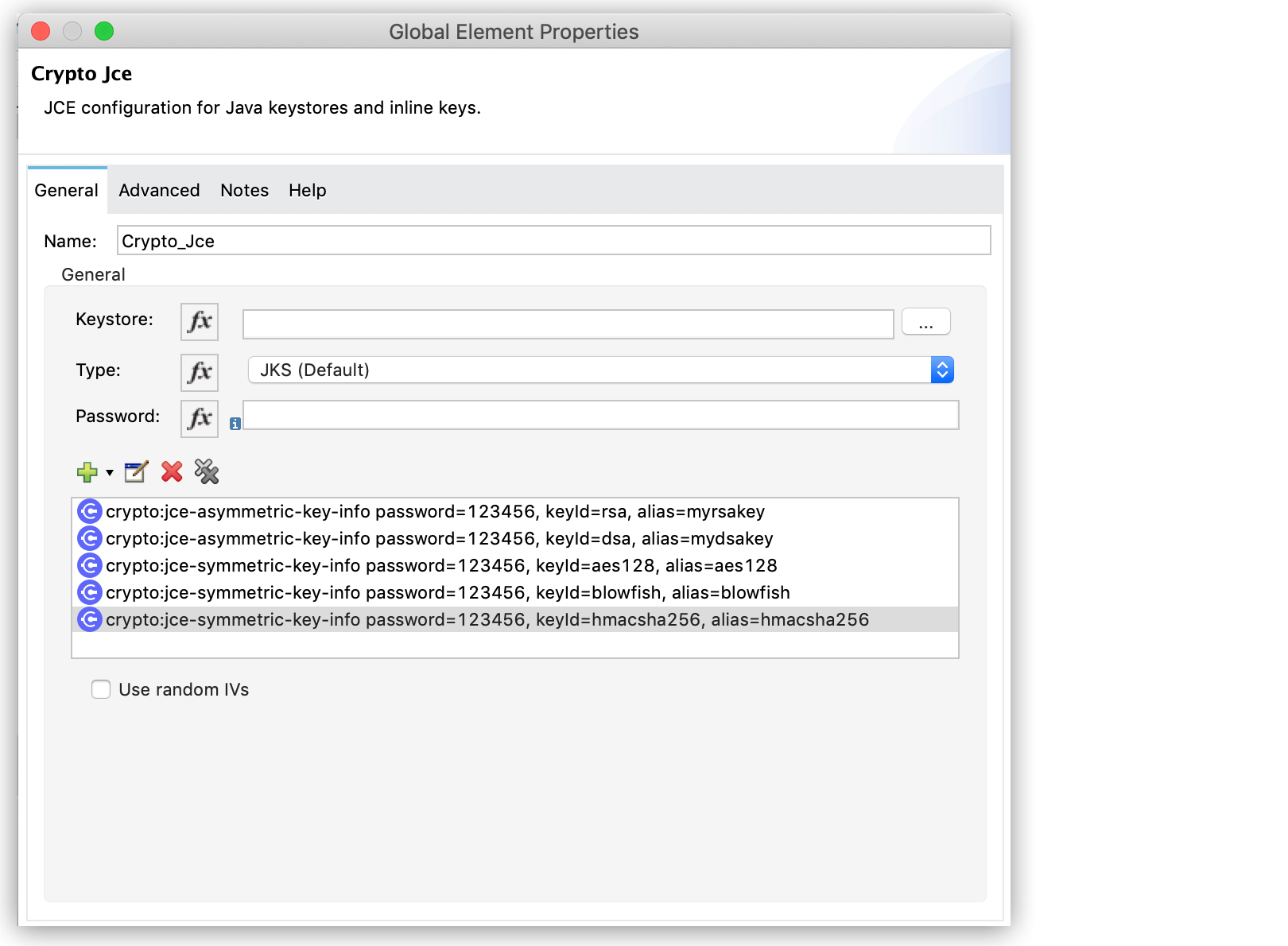
2. In the operation configuration window, select an existing **Module configuration**, or create a
new one by configuring the **Keystore**, **Type** (JKS, JCEKS, PKCS12), and **Password**
parameters.
You can also add symmetric or asymmetric key information to use in sign operations:
3. Configure **Key selection** by using a **Key id** value previously defined in the module
configuration, or define a new one for this operation:
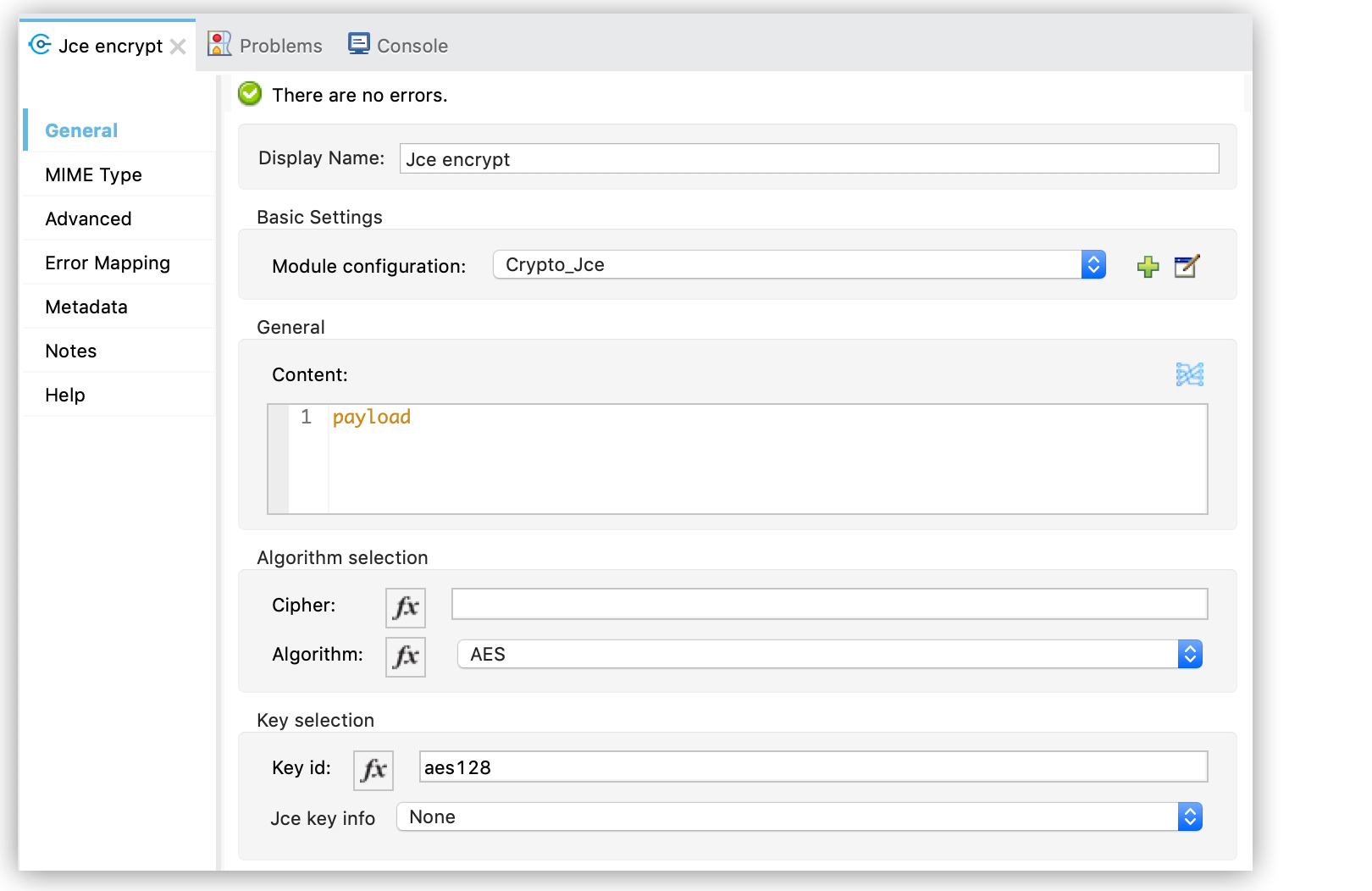
4. Select the algorithm to use during the operation.
### XML Examples
These XML examples show a JCE configuration that defines symmetric and asymmetric keys and different
operations using these keys.
- Configuration
In this example, the JCE configuration contains a keystore with different types of keys:
```xml
```
- Asymmetric Encryption
In this example, the operations **Jce encrypt** and **Jce decrypt** use the asymmetric keys
defined in the previous configuration.
Encrypting a Message
```xml
```
Decrypting a Message
```xml
```
- Symmetric Encryption
In this example, the operations **Jce encrypt** and **Jce decrypt** use the symmetric keys defined
in the previous configuration.
Encrypting a Message
```xml
```
Decrypting a Message
```xml
```
- Signature and Validation
In this example, the **Jce sign** and **Jce validate** operations use a key defined in the
previous configuration:
Signing a Message
```xml
```
Validating a Signature
```xml
```
The `expected` parameter defines the signature used to validate the message.
## See Also
- [Cryptography Module Examples](https://docs.mulesoft.com/cryptography-module/2.0/cryptography-module-examples)
- [Cryptography Module Reference 2.0](https://docs.mulesoft.com/cryptography-module/2.0/cryptography-module-reference)