---
schema_version: "1"
id: 6113751422777f374f5ad59669848bf8c684806d1f846f4aa0d3679d10b7fe6a
title: Archiving and Extracting Files
collection: mulesoft
version: current
locale: en-us
portal_url: https://docs.salesforce.com/mulesoft/current/en-us/compression-module/latest/compression-module-archive-extract.md
canonical_url: https://docs.mulesoft.com/compression-module/latest/compression-module-archive-extract
source_site: docs.mulesoft.com
content_type: documentation
content_hash: 2cdf7fde6ba813f8dbeed68766ce426070686b8ecccf7ceb225c968610ce76a5
description: MuleSoft Documentation Site
release: "2.2"
latest: true
---
---
product: Compression Module
version: 2.2
is-latest-version: true
---
# Archiving and Extracting Files
> For the full documentation index, see: https://docs.mulesoft.com/llms.txt
The Compression module provides the **Archive** operation that enables you to compress a set of
entries into a new archive file and the **Extract** operation that enables you to decompress content
that represents an archive file.
## Configure Archive Operation
Given an input stream payload, the **Archive** operation enables you to compress all the payload
entries into a new archive file in the Zip format. The operation receives a map that identifies the
values to compress. Then, the operation receives each entry, which is placed inside the compressed
archive file with the entry name you provide in a DataWeave expression.
1. In Studio, drag the **Archive** operation to your flow.
2. Set **Entries** to a DataWeave script defining each name of the entry to compress as a key and
the content of that entry as its value, for example:
```dataweave
{
summary.pdf: vars.summary,
'details/result_001.pdf': vars.file1
'details/result_002.pdf': vars.file2
}
```
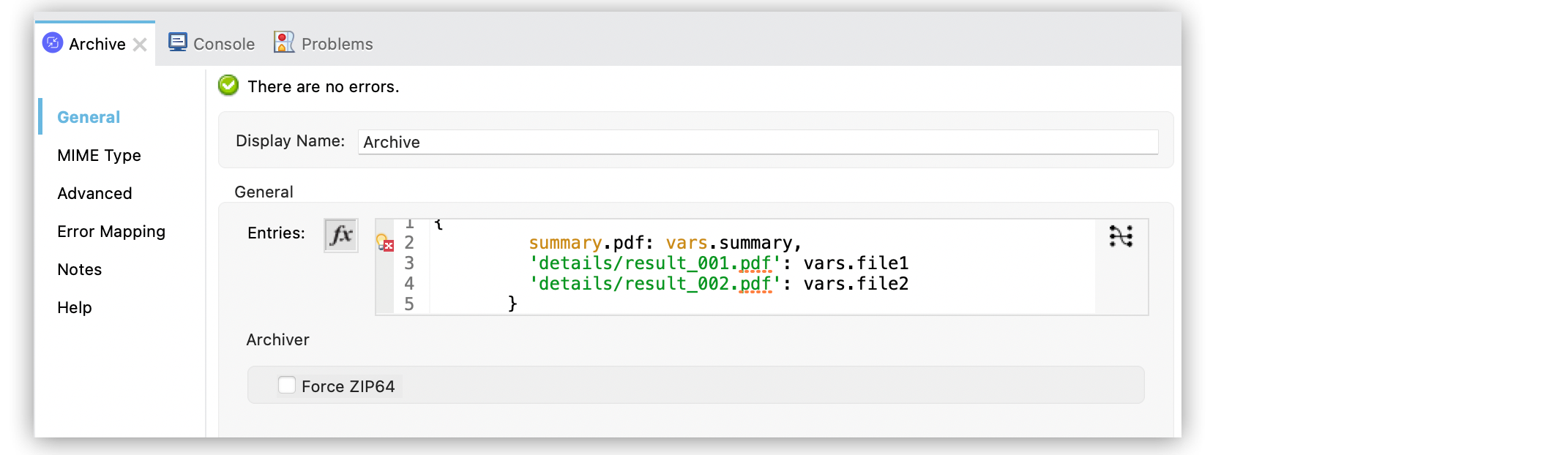
In the **Configuration XML** editor, the configuration looks like this:
```xml
#[
{
summary.pdf: vars.summary,
'details/result_001.pdf': vars.file1
'details/result_002.pdf': vars.file2
}
]
```
The resulting archive contains three entries:\`summary.pdf\`, located at the root level and
`result_001.pdf` and `result_002.pdf`, located in the `details` directory.
```none
+- content.zip
| \- summary.pdf
| \+ details
| \- result_001.pdf
| \- result_002.pdf
```
Note that the slash `/` in the name of an entry, for example, `details/result_001.pdf`, indicates a
directory separation. All names are introspected to create directories inside the archive.
> [!NOTE] If you create the input to the **Archive** operation using a DataWeave expression, the
> DataWeave expression must output an object used to build the Java map object. Define unique keys
> to add the entire object to the archive.
## Configure ZIP64 Archiver Strategy
An archiver strategy compresses multiple entries into an archive. The Zip archiver strategy declares
that the content must be compressed using the Zip format. In Studio, the **Archiver** field is set
by default. To archive files and byte arrays greater than 4 GB, select the **Force ZIP64** field.
1. In Studio, select the **Archive** operation from your flow.
2. Set the **Entries** field to the following expression, for example:
```DataWeave
output application/java
---
(0 to sizeOf(payload) - 1) as Array
reduce (index, acc={}) ->
acc ++ { (payload[index].attributes.fileName): payload[index].payload}
```
3. Select **Force ZIP64**.
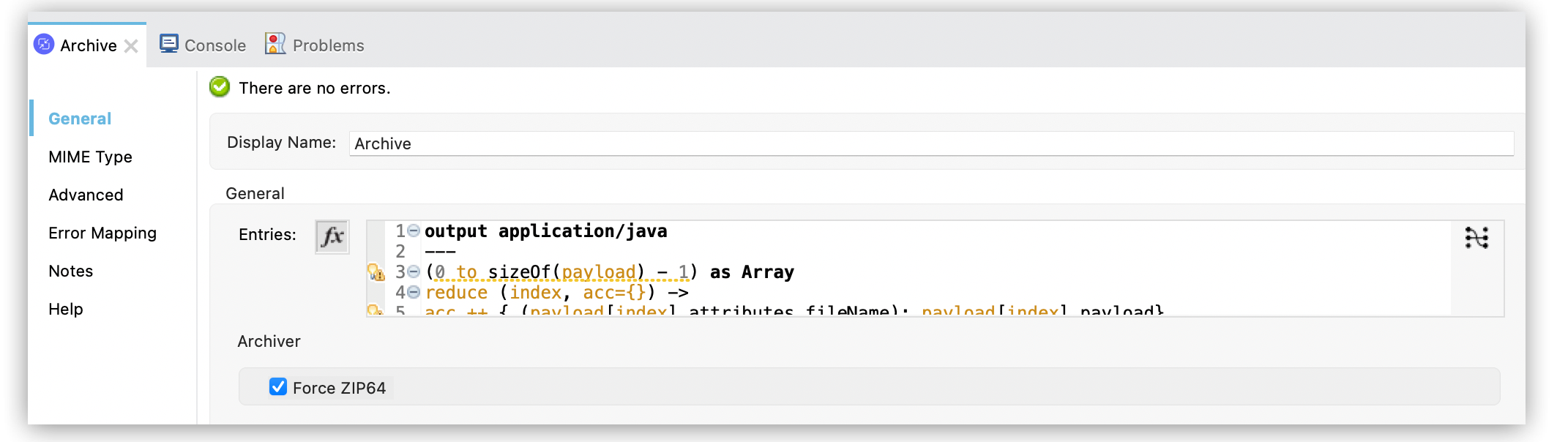
In the **Configuration XML** editor, the `zip-archiver` and `forceZip64` configuration look like
this:
```xml
acc ++ { (payload[index].attributes.fileName): payload[index].payload}]]]>
```
## Configure Extract Operation
The **Extract** operation enables you to decompress content that represents an archive in some
compression format. The entries of the archive file are returned as objects, each accessible by its
entry name.
1. In Studio, select the **Extract** operation from your flow.
2. Set the **Compressed** field to `vars.archive`.
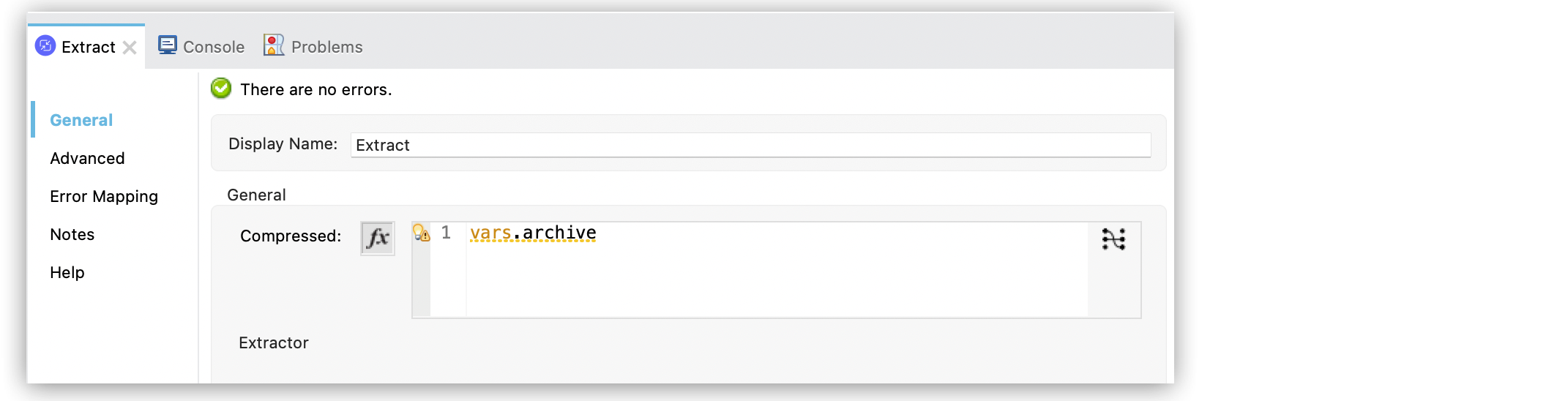
In the **Configuration XML** editor, the configuration looks like this:
```xml
#[vars.archive]
```
Now, assume that you decompress an archive with three entries that contain the following structure:
```none
+- Archive
| \- summary.pdf
| \+ details
| \- result_001.pdf
| \- result_002.pdf
```
In this case, you can access the extracted contents of the entries using: `payload['summary.pdf']`
or `payload.details['result_001.pdf']`
## Configure Zip Extractor Strategy
An extractor strategy decompresses an archive with multiple entries that are compressed in a
particular format. The Zip archive strategy declares that the content must be extracted with the Zip
format. In Studio, the **Extractor** field is set by default.

In the **Configuration XML** editor, the configuration looks like this:
```xml
```
## See Also
- [Compression Module Reference](https://docs.mulesoft.com/compression-module/latest/compression-documentation)
- [Salesforce Help](https://help.salesforce.com)