---
schema_version: "1"
id: 9ca0c6e576a486a35f5256e84d2ca847720eae99172a2374f606b1615c3e90c9
title: Commerce Cloud B2C Shop Connector 2.1 Example
collection: mulesoft
version: current
locale: en-us
portal_url: https://docs.salesforce.com/mulesoft/current/en-us/commerce-cloud-shop-api-connector/latest/shop-api-connector-examples.md
canonical_url: https://docs.mulesoft.com/commerce-cloud-shop-api-connector/latest/shop-api-connector-examples
source_site: docs.mulesoft.com
content_type: documentation
content_hash: 0c20159de291133a21da7f765ca5209028c68e912ed66f1a6ed910fcbb698d94
description: MuleSoft Documentation Site
release: "2.1"
latest: true
---
---
product: Salesforce Commerce Cloud B2C Shop API Connector
version: 2.1
is-latest-version: true
---

# Commerce Cloud B2C Shop Connector 2.1 Example

> For the full documentation index, see: https://docs.mulesoft.com/llms.txt

Commerce Cloud B2C Shop Connector is an operation-based connector, which means that when you add the
connector to your flow, you need to configure a specific operation for the connector to perform.
Commerce Cloud B2C Shop Connector supports two different types of configuration. This example uses
the Customer Auth Connection Provider configuration. After successful execution of the Get Customer
operation we get the customer result.

To get an access token, you can use **Authenticate Customer** and **Get Access Token** (if you are
using B2C Shop Connector 2.1 and later) or you can use **Authorize Customer**.

**Authenticate Customer** and **Get Access Token**

1.  Create a new Mule application in Anypoint Studio, configuring port 8081 as HTTP Listener and the
    path, for example, `/login`.

2.  Before you can use **Authenticate Customer**, you must prepare a redirect URI for handling the
    redirect from SLAS that contains the shopper USID and authorization code. The redirect URI must
    be publicly accessible, so you must use a tool such as webhook.site or ngrok to expose a
    localhost endpoint externally.

3.  Drag the **Authenticate Customer** operation from the Mule palette to the flow.

4.  For registered users, you must register the token using the code from **Authenticate Customer**
    callback response. Create a new HTTP Listener on port 8081 with the path `/register`.

5.  Drag the **Get Access Token** operation from the Mule palette to the flow with the path
    `/register`.

6.  Obtain the required parameters for the **Authenticate Customer** and **Get Access Token**
    operations from Postman.

7.  For both of the operations, select the Commerce Cloud B2C Shop Connector Shopper Token Config
    from B2C Shop Connector and configure the required values or add a new configuration by clicking
    the green plus (+) symbol.

8.  After entering all the required parameters, save the Mule project.

9.  Run the project as a Mule application by right-clicking the project name in **Package Explorer**
    and selecting **Run As > Mule Application**.

10. Navigate to `http://localhost:8081/auth`, open Postman, and check the response. You should see
    an empty body in Postman with the status 200, which means a callback request is sent to the
    redirect URI.

11. Retrieve the code query parameter from the callback request. This step differs based on how you
    handle the OAuth2 callback.

12. Use the code in the second request to construct a new request to **Get Access Token**.

13. Navigate to `http://localhost:8081/register`, open Postman, and check the response. After a
    successful call, retrieve the access and refresh token to use in other SCAPI calls. Provide this
    JWT token from Postman as an authorization header parameter to perform operations.

**Authorize Customer**

1.  Perform an **Authorize Customer** operation to get the Shopper JWT token.

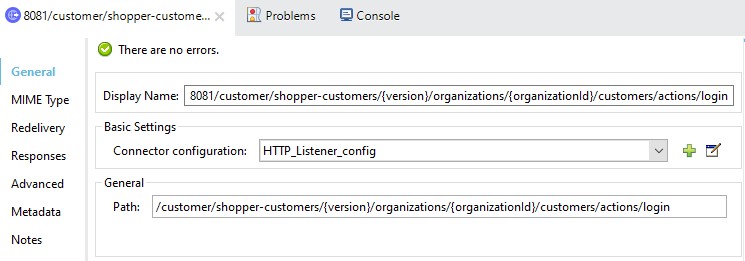
2.  Create a new Mule application in Anypoint Studio (Studio), configuring port 8081 as HTTP
    Listener and the path as
    "/customer/shopper-customers/{version}/organizations/{organizationId}/customers/actions/login".
![Authorize Customer operation config in General tab](/mulesoft/current/en-us/commerce-cloud-shop-api-connector/latest/_images/shop-connector-authorize-customer-http-listener-config.jpg)

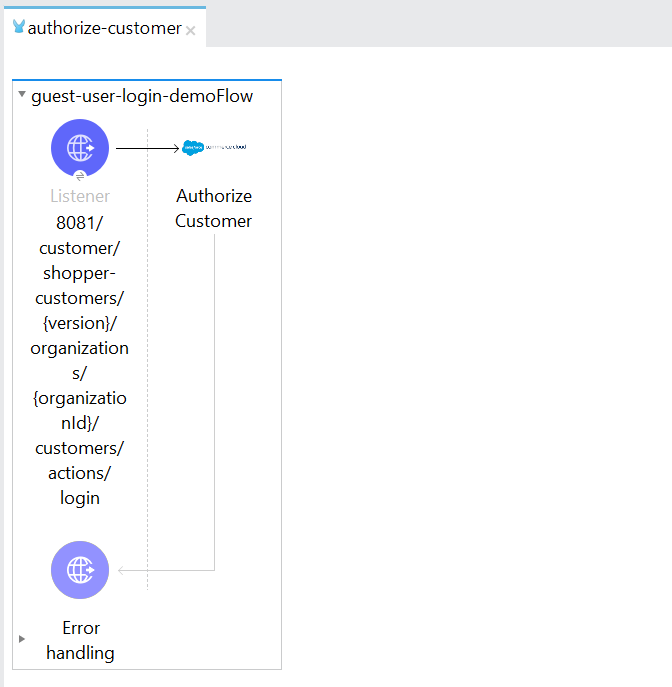
3.  Add Operation, "Authorize Customer" from the palette to the flow.
![Authorize Customer operation dragged to the flow](/mulesoft/current/en-us/commerce-cloud-shop-api-connector/latest/_images/shop-connector-authorize-customer.png)

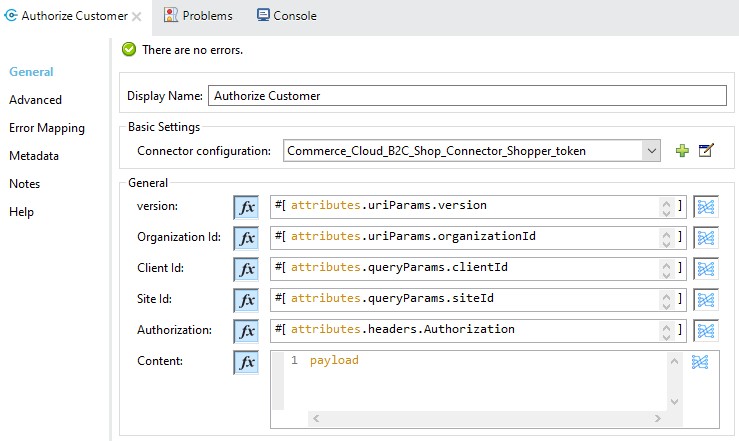
4.  Obtain the required parameters for Authorize Customer operation from the postman.
![Authorize Customer operation fields configuration](/mulesoft/current/en-us/commerce-cloud-shop-api-connector/latest/_images/shop-connector-authorize-customer-body.jpg)

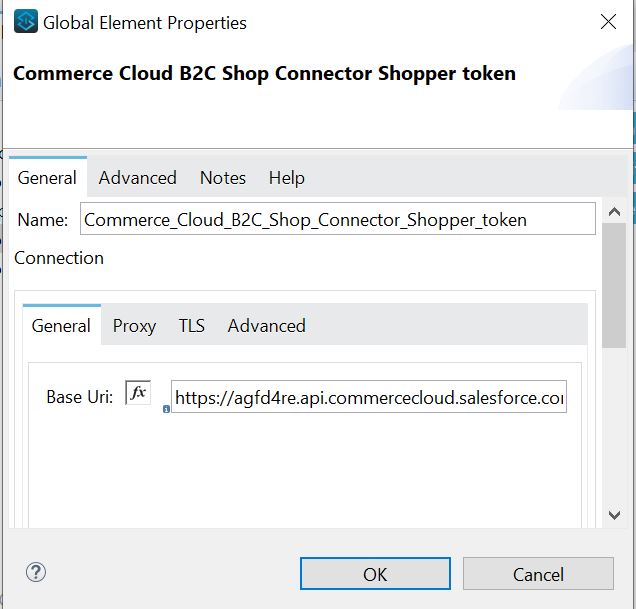
5.  Select the Commerce Cloud B2C Shop Connector Shopper Token Config from Commerce Cloud B2C Shop
    Connector and configure it with the required values or add a new configuration by clicking the
    green plus (+) symbol.
![General tab in Global config window for token](/mulesoft/current/en-us/commerce-cloud-shop-api-connector/latest/_images/shop-connector-shopper-token-config.jpg)

6.  After entering all the required parameters, save the Mule project.

7.  Run the project as a Mule application by right-clicking the project name in Package Explorer and
    selecting Run As > Mule Application.

8.  Navigate to
    `http://localhost:8081/customer/shopper-customers/{version}/organizations/{organizationId}/customers/actions/login`,
    open Postman, and check the response.

9.  You should see the JWT Token in the response header. Provide this JWT Token from Postman as
    authorization header parameter to perform operations.

**Get Customer**

1.  Create a new Mule application in Anypoint Studio (Studio), configuring port 8081 as HTTP
    Listener and the path as
    "/customer/shopper-customers/{version}/organizations/{organizationId}/customers/{customerId}".

![HTTP listener config panel in General tab](/mulesoft/current/en-us/commerce-cloud-shop-api-connector/latest/_images/shop-connector-http-listener-config.jpg)

2.  Add Operation, "Get Customer" from the palette to the flow.
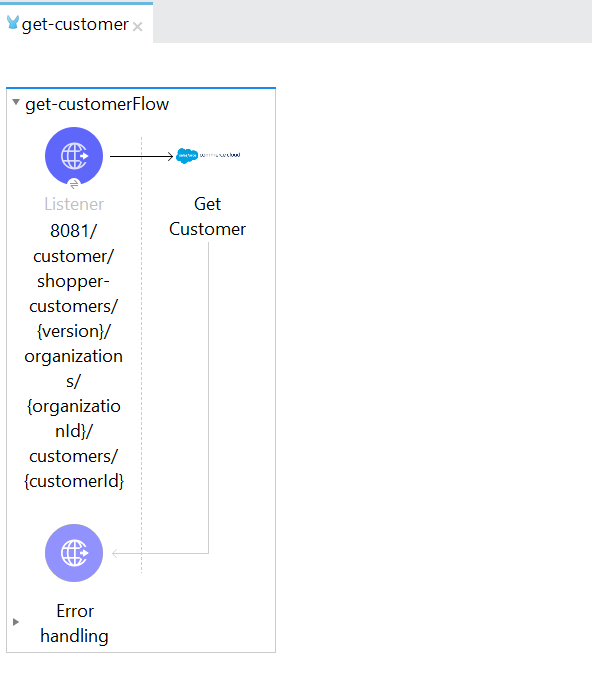
![Get Customer operation dragged to the flow](/mulesoft/current/en-us/commerce-cloud-shop-api-connector/latest/_images/shop-connector-get-customer-flow.png)

3.  Obtain the required parameters for Get Customer operation from the postman.
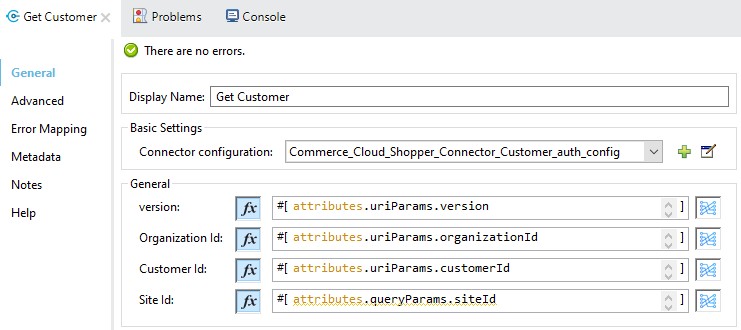
![Get Customer operation fields configuration](/mulesoft/current/en-us/commerce-cloud-shop-api-connector/latest/_images/shop-connector-get-customer-body.jpg)

4.  Select the Commerce Cloud B2C Shop Connector Config from Commerce Cloud B2C Shop Connector and
    configure it with the required values or add a new configuration by clicking the green plus (+)
    symbol.
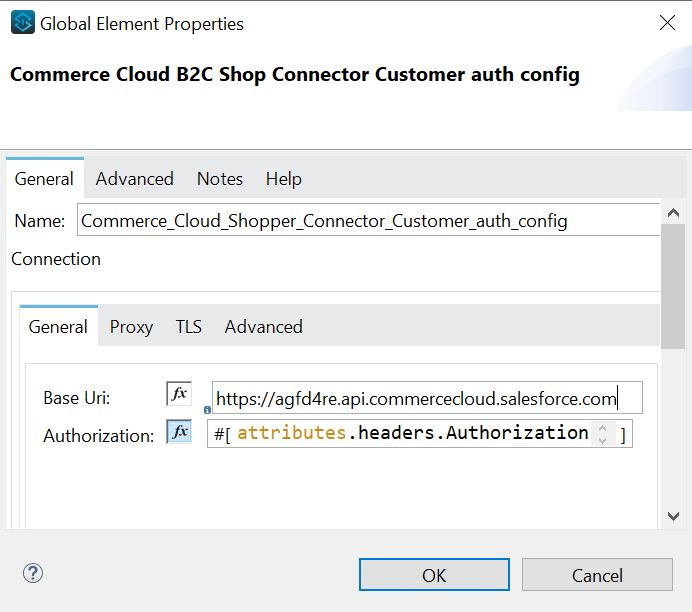
![General tab in Global config window for auth config](/mulesoft/current/en-us/commerce-cloud-shop-api-connector/latest/_images/shop-connector-customer-auth-config.jpg)

5.  In the above image we are using the authentication token from Authorize Customer as
    Authorization parameter value.

6.  After entering the all required parameters, save the Mule project.

7.  Run the project as a Mule application by right-clicking the project name in Package Explorer and
    selecting Run As > Mule Application.

8.  Navigate to
    `http://localhost:8081/customer/shopper-customers/{version}/organizations/{organizationId}/customers/{customerId}`,
    open Postman, pass the Shopper JWT Token from the header and check the response.

9.  You should see the customer details in the output.

## XML for Authenticate Customer and Get Access Token

Paste this code into the Studio XML editor to quickly load the flow for this example into your Mule
app:

```xml
# guest_flow.xml

<?xml version="1.0" encoding="UTF-8"?>

<mule xmlns:commerce-cloud-shopper-api="http://www.mulesoft.org/schema/mule/commerce-cloud-shopper-api" xmlns:http="http://www.mulesoft.org/schema/mule/http"
	xmlns="http://www.mulesoft.org/schema/mule/core"
	xmlns:doc="http://www.mulesoft.org/schema/mule/documentation" xmlns:xsi="http://www.w3.org/2001/XMLSchema-instance" xsi:schemaLocation="http://www.mulesoft.org/schema/mule/core http://www.mulesoft.org/schema/mule/core/current/mule.xsd
http://www.mulesoft.org/schema/mule/http http://www.mulesoft.org/schema/mule/http/current/mule-http.xsd
http://www.mulesoft.org/schema/mule/commerce-cloud-shopper-api http://www.mulesoft.org/schema/mule/commerce-cloud-shopper-api/current/mule-commerce-cloud-shopper-api.xsd">
	<flow name="get-guest-access-tokenFlow" doc:id="708f66c3-d761-4151-8ba1-ae5c67d34fab" >
		<http:listener doc:name="Listener" doc:id="701eda50-679c-4e9e-91bb-3f576b8f878b" config-ref="HTTP_Listener_config" path="/login" />
		<commerce-cloud-shopper-api:create-shopper-auth-organizations-oauth2-token-by-version-organization-id doc:name="Get Access Token" doc:id="9e26b4e3-57d9-4428-bbb6-f8c66855ea1c" config-ref="Commerce_Cloud_B2C_Shop_Connector_Shopper_token_config" version="${shopper.version}" organizationId="${shopper.orgId}" authorization="${shopper.clientAuthHeader}" >
			<commerce-cloud-shopper-api:custom-query-params ><![CDATA[#[output application/java
---
{
	"grant_type" : "client_credentials",
	"channel_id" : "${shopper.siteId}"
}]]]></commerce-cloud-shopper-api:custom-query-params>
			<commerce-cloud-shopper-api:custom-headers ><![CDATA[#[output application/java
---
{
	"Content-Type" : "application/x-www-form-urlencoded"
}]]]></commerce-cloud-shopper-api:custom-headers>
		</commerce-cloud-shopper-api:create-shopper-auth-organizations-oauth2-token-by-version-organization-id>
	</flow>
</mule>
```

```xml
# registered_flow.xml

<?xml version="1.0" encoding="UTF-8"?>

<mule xmlns:commerce-cloud-shopper-api="http://www.mulesoft.org/schema/mule/commerce-cloud-shopper-api" xmlns:http="http://www.mulesoft.org/schema/mule/http"
	xmlns="http://www.mulesoft.org/schema/mule/core"
	xmlns:doc="http://www.mulesoft.org/schema/mule/documentation" xmlns:xsi="http://www.w3.org/2001/XMLSchema-instance" xsi:schemaLocation="http://www.mulesoft.org/schema/mule/core http://www.mulesoft.org/schema/mule/core/current/mule.xsd
http://www.mulesoft.org/schema/mule/http http://www.mulesoft.org/schema/mule/http/current/mule-http.xsd
http://www.mulesoft.org/schema/mule/commerce-cloud-shopper-api http://www.mulesoft.org/schema/mule/commerce-cloud-shopper-api/current/mule-commerce-cloud-shopper-api.xsd">
	<flow name="login" doc:id="f7f75d0e-fb56-4d42-b329-8e04b9cff3fa" >
		<http:listener doc:name="Listener" doc:id="5ecd86a9-800e-4773-966d-55333d7ae026" config-ref="HTTP_Listener_config" path="/login" responseStreamingMode="ALWAYS" />
		<commerce-cloud-shopper-api:create-shopper-auth-organizations-oauth2-login-by-version-organization-id doc:name="Authenticate Customer" doc:id="cf3ff6ff-b2ae-48e7-b5f6-e6b8de6476df" config-ref="Commerce_Cloud_B2C_Shop_Connector_Shopper_token_config" version="${shopper.version}" organizationId="${shopper.orgId}" authorization="#[attributes.headers.Authorization]" streamingType="ALWAYS" />
	</flow>
	<flow name="register-user-access-token-flow" doc:id="021f4f75-3916-4399-a346-b7a1a6da0881" >
		<http:listener doc:name="Listener" doc:id="642be5c6-bbed-4ab8-8deb-2f0c96ce8784" config-ref="HTTP_Listener_config" path="/register" />
		<commerce-cloud-shopper-api:create-shopper-auth-organizations-oauth2-token-by-version-organization-id doc:name="Get Access Token" doc:id="36aaa585-793e-4437-9653-ddf84f3c558d" config-ref="Commerce_Cloud_B2C_Shop_Connector_Shopper_token_config" version="${shopper.version}" organizationId="${shopper.orgId}" >
			<commerce-cloud-shopper-api:custom-headers ><![CDATA[#[output application/java
---
{
	"Content-Type" : "application/x-www-form-urlencoded"
}]]]></commerce-cloud-shopper-api:custom-headers>
		</commerce-cloud-shopper-api:create-shopper-auth-organizations-oauth2-token-by-version-organization-id>
	</flow>
</mule>
```

## Steps for Authenticate Customer and Get Access Token

1.  Create new Mule application.

2.  Click the Configuration XML tab at the base of the canvas.

3.  Copy and paste the above code.

4.  Save the project.

5.  Run the project as a Mule application by right-clicking the project name in Package Explorer and
    selecting Run As > Mule Application.

6.  Navigate to `http://localhost:8081/login` for the guest flow and
    `http://localhost:8081/register` for the registered user flow, open Postman, and check the
    response.

7.  You should see the JWT token in the response header. Provide this JWT token from Postman as an
    authorization header parameter to perform operations.

## XML for Authorize Customer

Paste this code into the Studio XML editor to quickly load the flow for this example into your Mule
app:

```xml
<?xml version="1.0" encoding="UTF-8"?>

<mule xmlns:commerce-cloud-shopper-api="http://www.mulesoft.org/schema/mule/commerce-cloud-shopper-api"
	xmlns:http="http://www.mulesoft.org/schema/mule/http"
	xmlns:commerce-cloud-shopperapi="http://www.mulesoft.org/schema/mule/commerce-cloud-shopperapi"
	xmlns="http://www.mulesoft.org/schema/mule/core" xmlns:doc="http://www.mulesoft.org/schema/mule/documentation"
	xmlns:xsi="http://www.w3.org/2001/XMLSchema-instance"
	xsi:schemaLocation="
http://www.mulesoft.org/schema/mule/http http://www.mulesoft.org/schema/mule/http/current/mule-http.xsd http://www.mulesoft.org/schema/mule/core http://www.mulesoft.org/schema/mule/core/current/mule.xsd
http://www.mulesoft.org/schema/mule/commerce-cloud-shopperapi http://www.mulesoft.org/schema/mule/commerce-cloud-shopperapi/current/mule-commerce-cloud-shopperapi.xsd
http://www.mulesoft.org/schema/mule/commerce-cloud-shopper-api http://www.mulesoft.org/schema/mule/commerce-cloud-shopper-api/current/mule-commerce-cloud-shopper-api.xsd">
	<flow name="guest-user-login-demoFlow">
		<http:listener
			doc:name="8081/customer/shopper-customers/{version}/organizations/{organizationId}/customers/actions/login"
			config-ref="HTTP_Listener_config"
			path="/customer/shopper-customers/{version}/organizations/{organizationId}/customers/actions/login"
			allowedMethods="POST">
			<http:response>
				<http:headers><![CDATA[#[output application/java
---
{
"Authorization" : message.attributes.headers.Authorization }]]]></http:headers>

			</http:response>
			<http:error-response statusCode="#[error.errorMessage.attributes.statusCode]">
				<http:body><![CDATA[#[output text/json --- error.errorMessage.payload]]]></http:body>

			</http:error-response>
		</http:listener>
		<commerce-cloud-shopper-api:create-customer-shopper-customers-organizations-customers-actions-login-by-version-organization-id
			doc:name="Authorize Customer"
			version="#[attributes.uriParams.version]"
			organizationId="#[attributes.uriParams.organizationId]" clientId="#[attributes.queryParams.clientId]"
			siteId="#[attributes.queryParams.siteId]" authorization="#[attributes.headers.Authorization]" config-ref="Commerce_Cloud_B2C_Shop_Connector_Shopper_token"/>

	</flow>
</mule>
```

## Steps for Authorize Customer

1.  Create new Mule Application.

2.  Click the Configuration XML tab at the base of the canvas.

3.  Copy and paste the above code.

4.  Save the project.

5.  Run the project as a Mule application by right-clicking the project name in Package Explorer and
    selecting Run As > Mule Application.

6.  Navigate to
    `http://localhost:8081/customer/shopper-customers/{version}/organizations/{organizationId}/customers/actions/login`,
    open Postman, and check the response.

7.  You should see the JWT Token in the response header. Provide this JWT Token from Postman as
    authorization header parameter to perform operations.

## XML for Get Customer

Paste this code into your Studio XML editor to quickly load the flow for this example into your Mule
app:

```xml
xml <?xml version="1.0" encoding="UTF-8"?>

<mule xmlns:commerce-cloud-shopper-api="http://www.mulesoft.org/schema/mule/commerce-cloud-shopper-api"
xmlns:http="http://www.mulesoft.org/schema/mule/http" xmlns="http://www.mulesoft.org/schema/mule/core"
xmlns:doc="http://www.mulesoft.org/schema/mule/documentation"
xmlns:xsi="http://www.w3.org/2001/XMLSchema-instance"
xsi:schemaLocation="http://www.mulesoft.org/schema/mule/core http://www.mulesoft.org/schema/mule/core/current/mule.xsd
http://www.mulesoft.org/schema/mule/http http://www.mulesoft.org/schema/mule/http/current/mule-http.xsd
http://www.mulesoft.org/schema/mule/commerce-cloud-shopper-api http://www.mulesoft.org/schema/mule/commerce-cloud-shopper-api/current/mule-commerce-cloud-shopper-api.xsd">
<flow name="get-customerFlow"> <http:listener doc:name="8081/customer/shopper-customers/{version}/organizations/{organizationId}/customers/{customerId}" config-ref="HTTP_Listener_config" path="/customer/shopper-customers/{version}/organizations/{organizationId}/customers/{customerId}" allowedMethods="GET"> <http:error-response statusCode="#[error.errorMessage.attributes.statusCode]"> <http:body><![CDATA[#[output text/json --- error.errorMessage.payload]]]></http:body>

			</http:error-response>
		</http:listener>
		<commerce-cloud-shopper-api:get-customer-shopper-customers-organizations-customers-by-version-organization-id-customer-id
			doc:name="Get Customer"
			config-ref="Commerce_Cloud_Shopper_Connector_Customer_auth_config"
			version="#[attributes.uriParams.version]" organizationId="#[attributes.uriParams.organizationId]"
			customerId="#[attributes.uriParams.customerId]" siteId="#[attributes.queryParams.siteId]" />
	</flow>
</mule>
```

## Steps for Get Customer

1.  Create new Mule Application.

2.  Click the Configuration XML tab at the base of the canvas.

3.  Copy and paste the above code.

4.  Save the project.

5.  Run the project as a Mule application by right-clicking the project name in Package Explorer and
    selecting Run As > Mule Application.

6.  Navigate to
    `http://localhost:8081/customer/shopper-customers/{version}/organizations/{organizationId}/customers/{customerId}`,
    open Postman, pass the Shopper JWT Token from the header and check the response.

7.  You should see the customer details in the output.

## See Also

- [Introduction to Anypoint Connectors](https://docs.mulesoft.com/connectors/introduction/introduction-to-anypoint-connectors)

- [Salesforce Help](https://help.salesforce.com)
