---
schema_version: "1"
id: fad71c2365e854b7d8d64484e3a4b40176ea09866272ab1162e570ce9916eb0e
title: CloudHub Connector 1.2
collection: mulesoft
version: current
locale: en-us
portal_url: https://docs.salesforce.com/mulesoft/current/en-us/cloudhub-connector/latest/index.md
canonical_url: https://docs.mulesoft.com/cloudhub-connector/latest/
source_site: docs.mulesoft.com
content_type: documentation
content_hash: af57a42ada50a5578260c8f6e1fce3acaa395be0d982255098a6260a48a21e40
description: MuleSoft Documentation Site
release: "1.2"
latest: true
---
---
product: CloudHub Connector
version: 1.2
is-latest-version: true
---
# CloudHub Connector 1.2
> For the full documentation index, see: https://docs.mulesoft.com/llms.txt
Anypoint Connector for CloudHub (CloudHub Connector) enables you to connect to the CloudHub API from
your Mule application.
For information about compatibility and fixed issues, see the
[CloudHub Connector Release Notes](https://docs.mulesoft.com/release-notes/connector/cloudhub-connector-release-notes-mule-4).
> [!NOTE] CloudHub Connector is supported only on CloudHub 1.0. CloudHub Connector isn’t supported
> on CloudHub 2.0 or Runtime Fabric. For more information about feature comparison, see
> [Features of CloudHub 2.0](https://docs.mulesoft.com/cloudhub-2/ch2-features).
## Create the CloudHub Configuration
CloudHub Connector connections use the following authentication types:
- Basic Authentication
Uses a username and password for authentication
- OAuth Client Credentials
Delegates user authentication to the service hosting the user account
The basic CloudHub configuration has the following properties:
- Connection Provider
One of the authentication types (Basic Authentication or OAuth Client Credentials)
- Credentials
Depending on the authentication type selected, you must specify your username and password or
client ID and client secret.
- Environment
The CloudHub environment to use. By default this is the environment defined as the default in
Anypoint Platform.
CloudHub Configuration using Basic Authentication example:
```xml
```
CloudHub Configuration using OAuth Client Credentials Authentication example:
```xml
```
## POM File Information
If you create your app outside of Anypoint Studio, update your POM file as follows:
```xml
com.mulesoft.connectorsmule-cloudhub-connectorx.x.xmule-plugin
```
Replace `x.x.x` with the version that corresponds to the connector you are using.
To obtain the most up-to-date `pom.xml` file information:
1. Go to [Anypoint Exchange](https://www.mulesoft.com/exchange/).
2. In Exchange, click **Login** and supply your Anypoint Platform username and password.
3. In Exchange, search for `cloudhub`.
4. Click **Dependency Snippets**.
## List Available Environments
After the credentials are configured correctly, you can retrieve the available environments for
easier configuration.
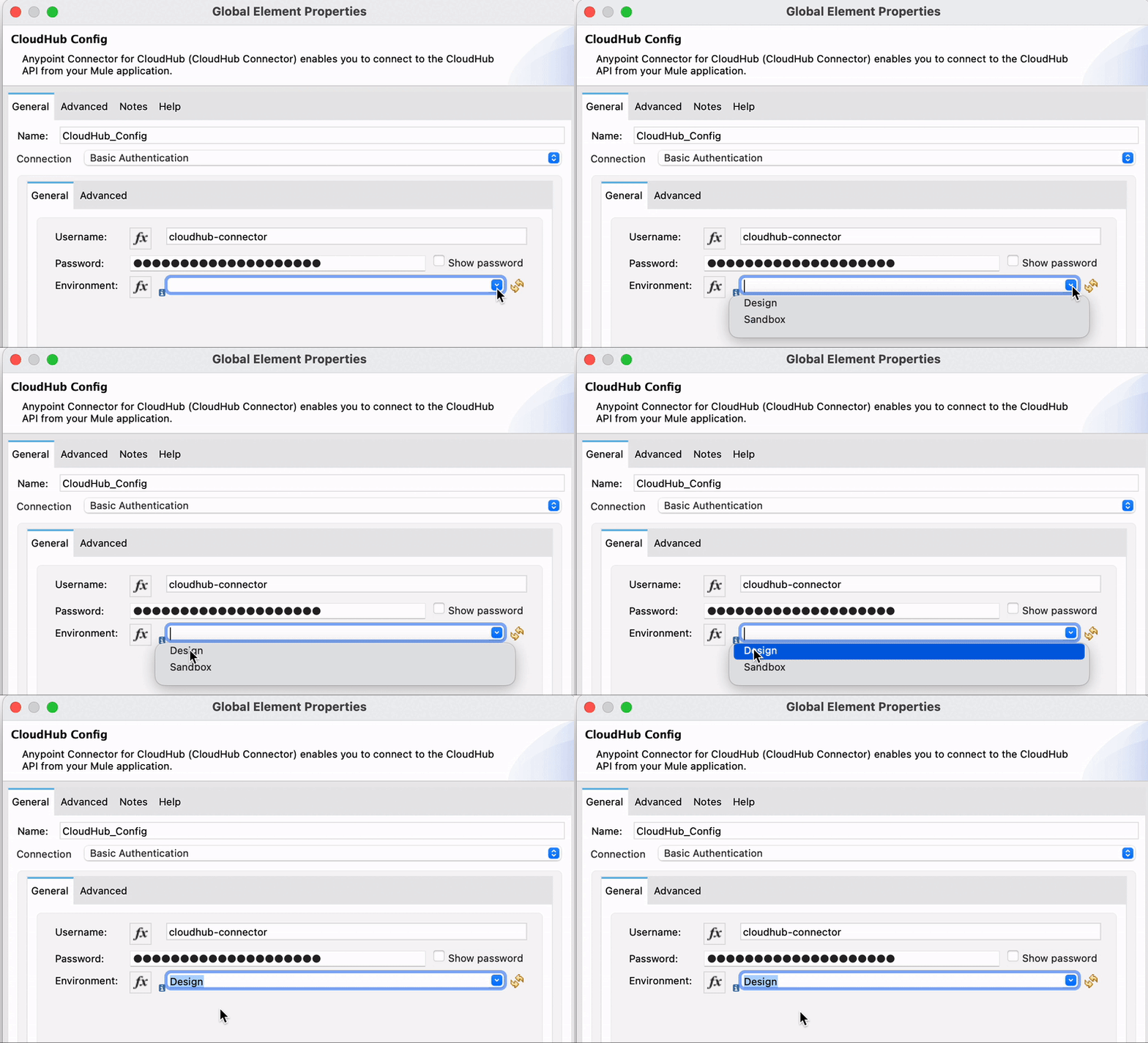
CloudHub Connector is sometimes unable to fetch the available environments from the `/account` API
endpoint, resulting in an empty dropdown list. If you are using the **OAuth Client Credentials**
connection type, the **Environment** field is optional so an empty dropdown list should not cause
any issues.
> [!NOTE] The dropdown list will be populated with those environments belonging to the main business
> group of the configured credential’s user. To use an environment from a child business group, that
> the same user has access to, manually specify its ID on either this field or corresponding XML
> attribute.
## Use the CloudHub Environment
To specify the app deployment environment, use the [`environment.id`](#environment.id-sysprop)
system property.
Using the deployment environment
```xml
```
## Creating a Notification
To create a notification, the user must have the Runtime Manager `Read application` permission for
the specified environment.
For information about assigning permissions to users, see
[Granting Permissions and Roles to Users](https://docs.mulesoft.com/access-management/users#granting-permissions-and-roles-to-users).
To create a notification, use the Create Notification operation. This operation requires the
notification message and the associated domain. You can specify the domain using the
[`domain`](#domain-sysprop) system property.
You can also configure:
- **Custom properties**
An open object to provide additional information about the created notification
- **Priority**
Specify the priority of the notification:
- ERROR
- INFO
- WARN
- Transaction ID
The transaction ID associated with the created notification
```xml
```
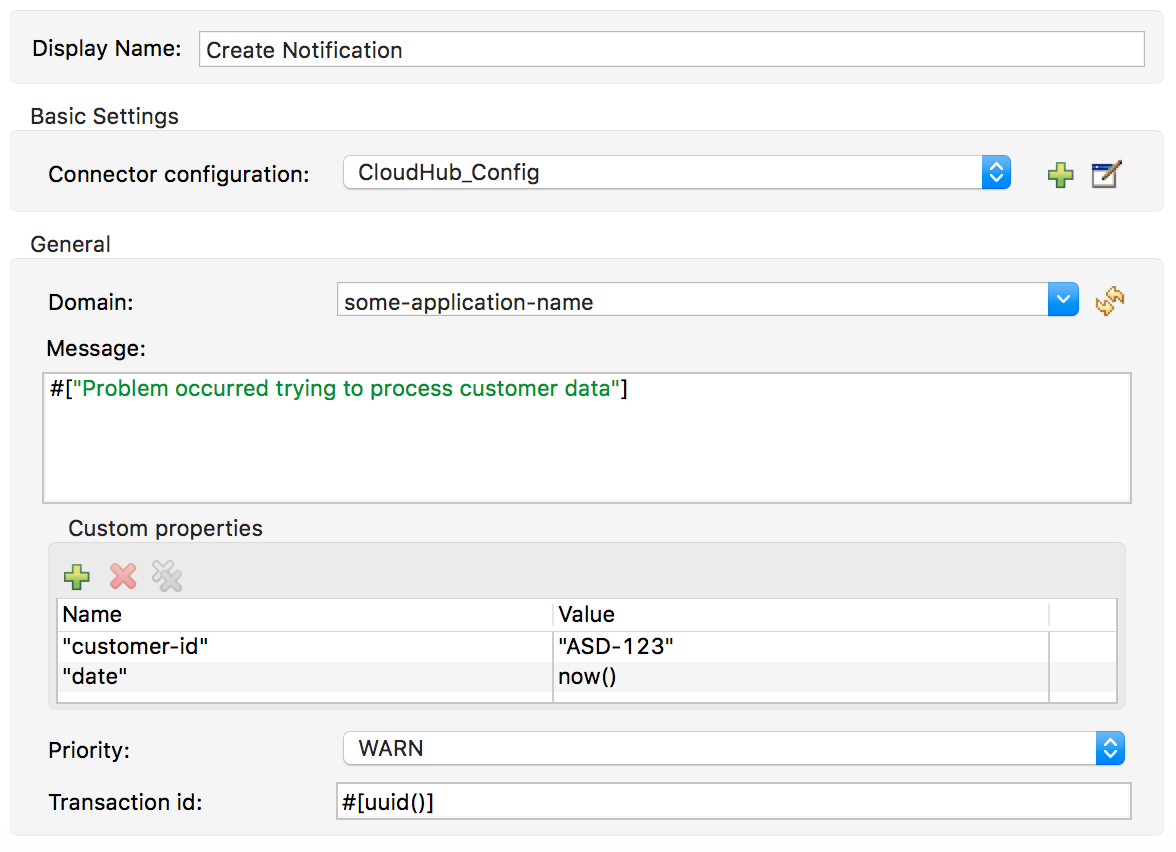
Figure 1. Configuring in Studio
## List Notifications
To consume notifications, use the List Notifications operation.
This operation requires only that you specify the domain from which to retrieve notifications. You
can specify the domain using the [`domain`](#domain-sysprop) system property.
You can also configure:
- Limit
Specifies the number of notifications to retrieve (default `-1`, which indicates all available
notifications)
- Status
Filters the notifications to retrieve as unread, read, or all (default `unread`, which retrieves
only notifications marked as unread
- Search
Retrieves only notifications that contain the specified text
```xml
```
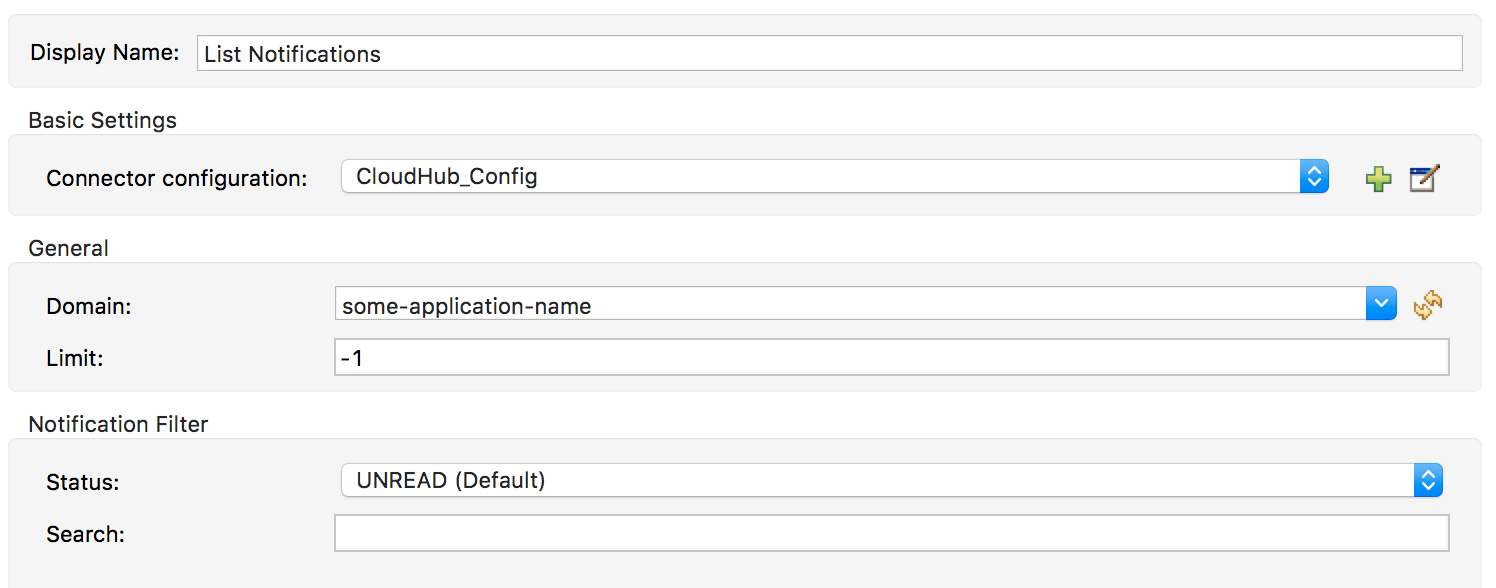
Figure 2. Configuring in Studio
This operation returns a list of notifications with the following structure:
```yaml
Notification:
type: object
properties:
id: string
domain: string
priority?: string
read: boolean
readOn?: datetime
createdAt: datetime
href: string
properties: object
```
## Mark a Notification as Read
Use the Mark Notification operation to mark the notification as read.
After a notification is consumed, mark a notification as read so that the next time notifications
are read, only the unread ones are retrieved.
The Mark Notification operation requires only the notification ID, which you can obtain from the
`id` property of a [Notification object](#notification-object).
Example of marking notifications as read
```xml
```
## List Applications
Using the connector, you can retrieve all available applications in the given environment. No
configuration is required.
```xml
```
You can customize how information is retrieved to get less or more information about the
applications.
## Retrieve an Application
The connector retrieves information about an application’s deployment. The only required
configuration is to specify the domain and the application name. You can specify the domain using
the [`domain`](#domain-sysprop) system property.
```xml
```
This operation returns all information about the application deployment.
## Useful CloudHub System Properties
Name
Information
Usage
Domain
The name of the domain where the application is deployed in CloudHub.
${domain}
Environment
The ID of the environment where the application is deployed.
${environment.id}
## See Also
- [Introduction to Anypoint Connectors](https://docs.mulesoft.com/connectors/introduction/introduction-to-anypoint-connectors)
- [Use Exchange to Discover Connectors, Templates, and Examples](https://docs.mulesoft.com/connectors/introduction/intro-use-exchange)
- [CloudHub Connector Reference](https://docs.mulesoft.com/cloudhub-connector/latest/cloudhub-connector-ref)
- [CloudHub Connector in Anypoint Exchange](https://www.mulesoft.com/exchange/com.mulesoft.connectors/mule-cloudhub-connector/)
- [Salesforce Help](https://help.salesforce.com)