---
schema_version: "1"
id: 88db833930199df625ffdd68ff4bbdaea67f1ad86ed6bf38d956f66158da504b
title: Azure Service Bus Management 1.0 Examples
collection: mulesoft
version: current
locale: en-us
portal_url: https://docs.salesforce.com/mulesoft/current/en-us/azure-service-bus-management-connector/latest/azure-service-bus-management-connector-examples.md
canonical_url: https://docs.mulesoft.com/azure-service-bus-management-connector/latest/azure-service-bus-management-connector-examples
source_site: docs.mulesoft.com
content_type: documentation
content_hash: 303cbb429923f5d6ed17cc168980c8fb79f3d2821d968b253f4d73c626c0a103
description: MuleSoft Documentation Site
release: "1.0"
latest: true
---
---
product: Azure Service Bus Management Connector
version: 1.0
is-latest-version: true
---
# Azure Service Bus Management 1.0 Examples
> For the full documentation index, see: https://docs.mulesoft.com/llms.txt
The examples in this section show how to get information about Azure Service Bus queues and how to
create an Azure Service Bus topic. These examples use variables for some field values. You can
either:
- Replace the variables with their values in the code
- Provide the values for each variable in a properties file and then refer to that file from the
connector configuration
If you don’t know how to use a properties file, see
[Configuring Property Placeholders](https://docs.mulesoft.com/mule-runtime/latest/mule-app-properties-to-configure)
## Get Queue Information Example
This example shows how to get information about a particular queue in the Azure service bus
instance. The following screenshot shows the Anypoint Studio app flow for this example:
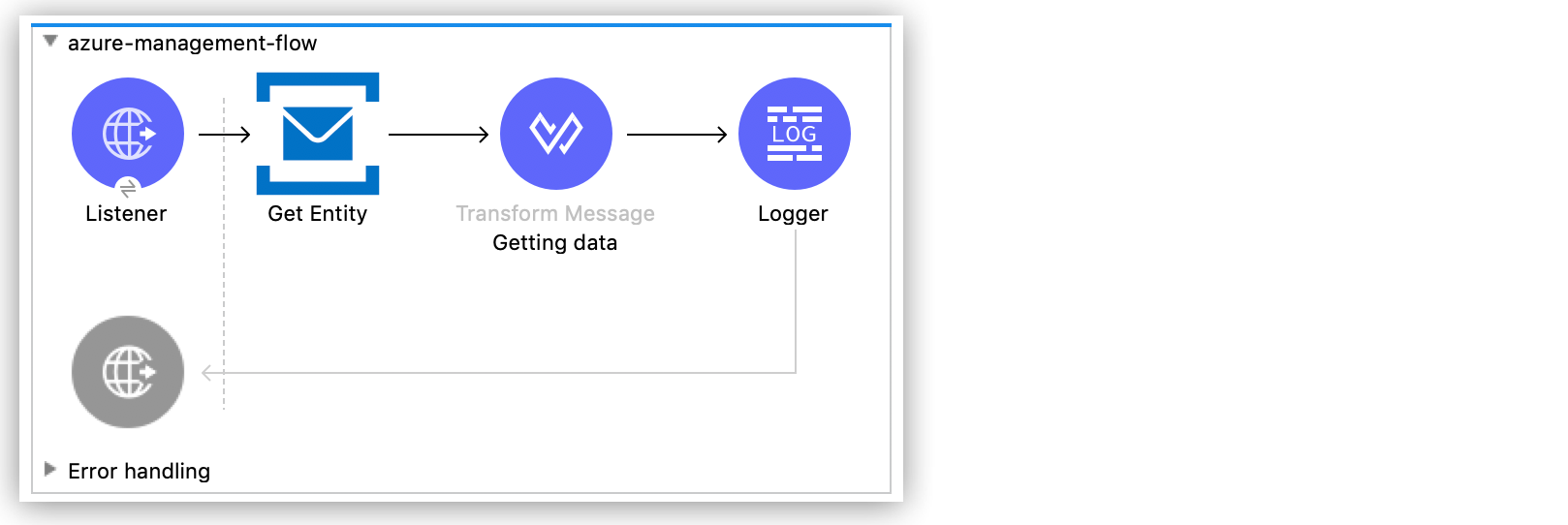
Figure 1. App flow for the Get Queue Information example
1. Create a new Mule project in Studio.
2. In the **Mule Palette** view, search for `http` and select the **Listener** operation:
3. Drag the **Listener** operation onto the Studio canvas.
4. In the **Listener** configuration, click **+** next to the **Connector configuration** field to
add a global element.
5. Accept the defaults.
6. Set the **Path** field to `/queue`.
### Add and Configure the Get Entity Operation Example
Add the **Get Entity** operation to see information about the specified queue, including
configuration information and information about the metadata:
1. In the **Mule Palette** view, search for `azure` and select the Azure Service Bus Management
Connector **Get Entity** operation.
2. Drag the **Get Entity** operation onto the Studio canvas, to the right of **Listener**.
3. In the **Get Entity** configuration, click **+** next to the **Connector configuration** field
to add a global element.
4. Enter values for the **SMS Namespace**, **Shared Access Key Name**, and **Shared Access Key**
fields.
5. Click **Test Connection** to confirm that Mule can connect with the Azure Service Bus instance:
- If the connection is successful, click **OK** to save the configuration.
- Otherwise, review to correct any incorrect parameters, and test again.
6. In the **Entity(Queue or Topic)** field, enter the name of the queue for which you want
information.
### Add a Transform Message Component
Add a **Transform Message** component to format the data and show how the metadata is rendered for
the output of the **Get Entity** operation:
1. In the **Mule Palette** view, search for `transform`:
2. Drag the **Transform Message** component onto the canvas, to the right of the **Get Entity**
component.
3. In the **Transform Message** configuration, change the display name to `Getting Data`.
4. Overlay the brackets in the **Output** section with this XML:
```xml
%dw 2.0
output application/json
ns ns0 http://www.w3.org/2005/Atom
ns ns01 http://schemas.microsoft.com/netservices/2010/10/servicebus/connect
---
{
"title": payload.ns0#entry.ns0#title,
"publishedAt": payload.ns0#entry.ns0#published,
"lockDuration": payload.ns0#entry.ns0#content.ns01#QueueDescription.ns01#LockDuration,
"maxSize": payload.ns0#entry.ns0#content.ns01#QueueDescription.ns01#MaxSizeInMegabytes,
"requiresDuplicate": payload.ns0#entry.ns0#content.ns01#QueueDescription.ns01#RequiresDuplicateDetection,
"requiresSession": payload.ns0#entry.ns0#content.ns01#QueueDescription.ns01#RequiresSession,
"deadLettering": payload.ns0#entry.ns0#content.ns01#QueueDescription.ns01#DeadLetteringOnMessageExpiration,
"enabledBatched": payload.ns0#entry.ns0#content.ns01#QueueDescription.ns01#EnableBatchedOperations,
"defaultMTTL": payload.ns0#entry.ns0#content.ns01#QueueDescription.ns01#DefaultMessageTimeToLive,
"duplicateDetection": payload.ns0#entry.ns0#content.ns01#QueueDescription.ns01#DuplicateDetectionHistoryTimeWindow,
}
```
### Add a Logger Component
Add a Logger component to show the response in the **Mule Console**:
1. In the **Mule Palette** view, search for `logger` and select the **Logger (Core)** component.
2. Drag the **Logger (Core)** component onto the Studio canvas, to the right of the **Transform
Message** component.
3. In the **Message** field of the Logger configuration, enter `#[payload]`.
4. Save the project.
5. Test the app by sending a GET request to `http://127.0.0.1:8081/queue`.
### XML Code for the Get Queue Example
```xml
```
## Create Topic Example
This example shows how to create a new topic for the Azure Service Bus instance. The following
screenshot shows the Anypoint Studio flow for this example:
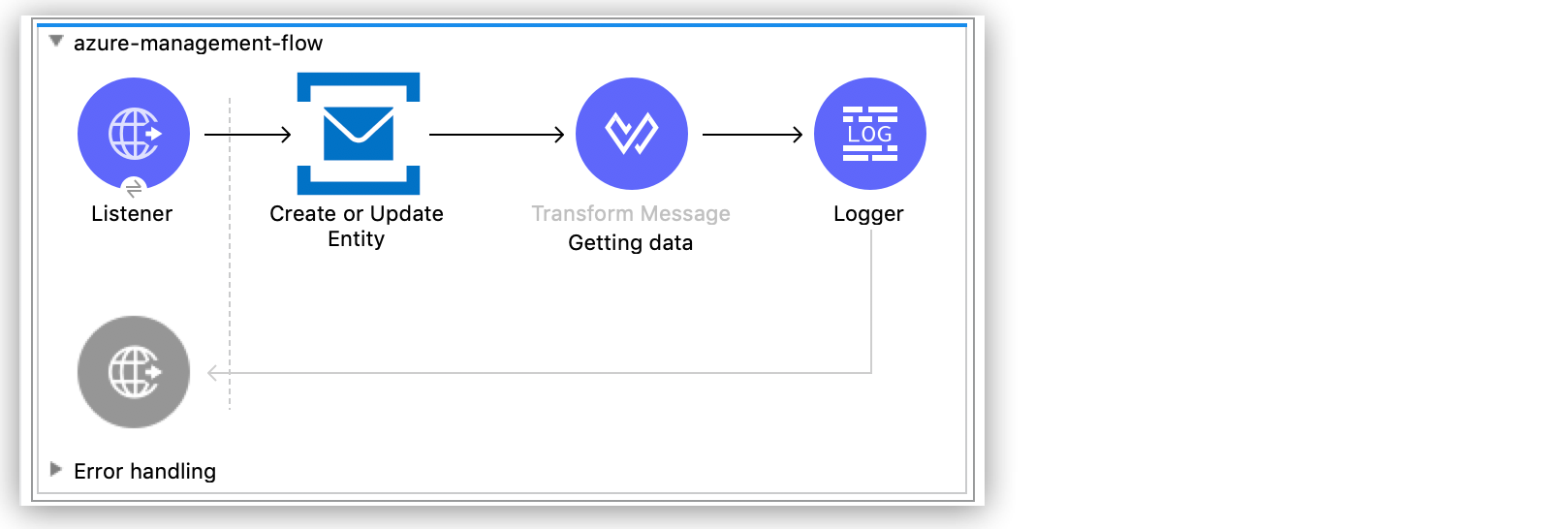
Figure 2. App flow for the Create Topic example
1. Create a new Mule project in Studio.
2. In the **Mule Palette** view, search for `http` and select the **Listener** operation:
3. Drag the **Listener** operation onto the canvas.
4. In the **Listener** configuration, click **+** next to the **Connector configuration** field to
add a global element.
5. Set the **Host** field to 0.0.0.0, the **Port** field to `808`, and click **Save**.
6. Set the **Path** field to `/topic`.
### Add and Configure the Create or Update Entity Operation
The **Create or Update Entity** operation enables you to create the topic:
1. In the **Mule Palette** view, search for `azure service bus management` and select the **Create
or Update Entity** operation.
2. Drag the **Create or Update Entity** operation onto the canvas, to the right of **Listener**.
3. In the **Create or Update Entity** configuration, click **+** next to the **Connector
configuration** field to add a global element.
4. Enter values for the **SMS Namespace**, **Shared Access Key Name**, and **Shared Access Key**
fields.
5. Click **Test Connection** to confirm that Mule can connect with the Azure Service Bus instance:
- If the connection is successful, click **OK** to save the configuration.
- Otherwise, review or correct any incorrect parameters, and test again.
6. In the **Entity(Queue or Topic)** field, enter the name of the queue for which you want
information.
### Add a Transform Message Component
Add a **Transform Message** component to format the data and show how the metadata is rendered for
the output of the **Create or Update Entity** operation:
1. In the **Mule Palette** view, search for `transform`:
2. Drag the **Transform Message** component onto the canvas, to the right of the **Create or Update
Entity** component.
3. In the **Transform Message** configuration, change the display name to `Getting Data`.
4. Overlay the brackets in the **Output** section with this XML:
```xml
%dw 2.0
output application/json
ns ns0 http://www.w3.org/2005/Atom
ns ns01 http://schemas.microsoft.com/netservices/2010/10/servicebus/connect
---
{
title: payload.ns0#entry.ns0#title,
publishedAt: payload.ns0#entry.ns0#published,
maxSize: payload.ns0#entry.ns0#content.ns01#TopicDescription.ns01#MaxSizeInMegabytes,
requiresDuplicate: payload.ns0#entry.ns0#content.ns01#TopicDescription.ns01#RequiresDuplicateDetection,
enableBatched: payload.ns0#entry.ns0#content.ns01#TopicDescription.ns01#EnableBatchedOperations,
defaultMTTL: payload.ns0#entry.ns0#content.ns01#TopicDescription.ns01#DefaultMessageTimeToLive,
duplicateDetection: payload.ns0#entry.ns0#content.ns01#TopicDescription.ns01#DuplicateDetectionHistoryTimeWindow,
}
```
### Add a Logger Component
The Logger component displays the new topic in the **Mule Console**:
1. In the **Mule Palette** view, search for `logger` and select the **Logger (Core)** component.
2. Drag the **Logger (Core)** component onto the Studio canvas, to the right of the **Transform
Message** component.
3. In the **Message** field of the Logger configuration, enter `#[payload]`.
4. Save the project.
5. Test the app by sending a GET request to `http://127.0.0.1:8081/topic`.
### XML for the Create Topic Example
```xml
1024
false
false
PT256204778H48M5S
PT10M
']]]>
```
## See Also
- [Introduction to Anypoint Connectors](https://docs.mulesoft.com/connectors/introduction/introduction-to-anypoint-connectors)
- [Salesforce Help](https://help.salesforce.com)