---
schema_version: "1"
id: 59b31b02bc71f5201f1cc968285e1a265659bf718eafb794565d9688c2bf86fa
title: Azure Data Lake Storage Connector Examples
collection: mulesoft
version: current
locale: en-us
portal_url: https://docs.salesforce.com/mulesoft/current/en-us/azure-data-lake-storage-connector/latest/azure-data-lake-connector-examples.md
canonical_url: https://docs.mulesoft.com/azure-data-lake-storage-connector/latest/azure-data-lake-connector-examples
source_site: docs.mulesoft.com
content_type: documentation
content_hash: dc0ddde7c2ec6b737566db1d9b306db0583b3ab88741aebf21b7abdfd45586e8
description: MuleSoft Documentation Site
release: "1.0"
latest: true
---
---
product: Azure Data Lake Storage Connector
version: 1.0
is-latest-version: true
---
# Azure Data Lake Storage Connector Examples
> For the full documentation index, see: https://docs.mulesoft.com/llms.txt
The following Azure Data Lake Storage Connector examples show you how to:
- [Create an Azure Data Lake Storage file system](#create-file-system-example).
- [Create a path inside an Azure Data Lake Storage file system](#create-path-example).
- [Update a path inside an Azure Data Lake Storage file system](#update-path-example).
- [Implement error handling](#error-handling-example).
These examples use variables for some field values. You can either:
- Replace the variables with their values in the code.
- Provide the values for each variable in a properties file and then refer to that file from the
connector configuration.
For information about the benefits of using property placeholders and how to configure them, see
[Anypoint Connector Configuration](https://docs.mulesoft.com/connectors/introduction/intro-connector-configuration-overview).
## Create an Azure Data Lake Storage file system
This example shows you how to create a file system in Azure Data Lake Storage, and includes these
steps:
1. [Set up the app flow](#set-up-flow).
2. [Configure the File System operation](#configure-file-system-operation).
3. [Optionally, copy and paste the XML](#xml-creating-file-system) for the flow in to the
**Configuration XML** tab.
### Set Up the App Flow
1. Create a new Mule project in Studio.
2. In the **Mule Palette** view, search for `http` and select the **Listener** operation.
3. Drag the **Listener** operation onto the Studio canvas.
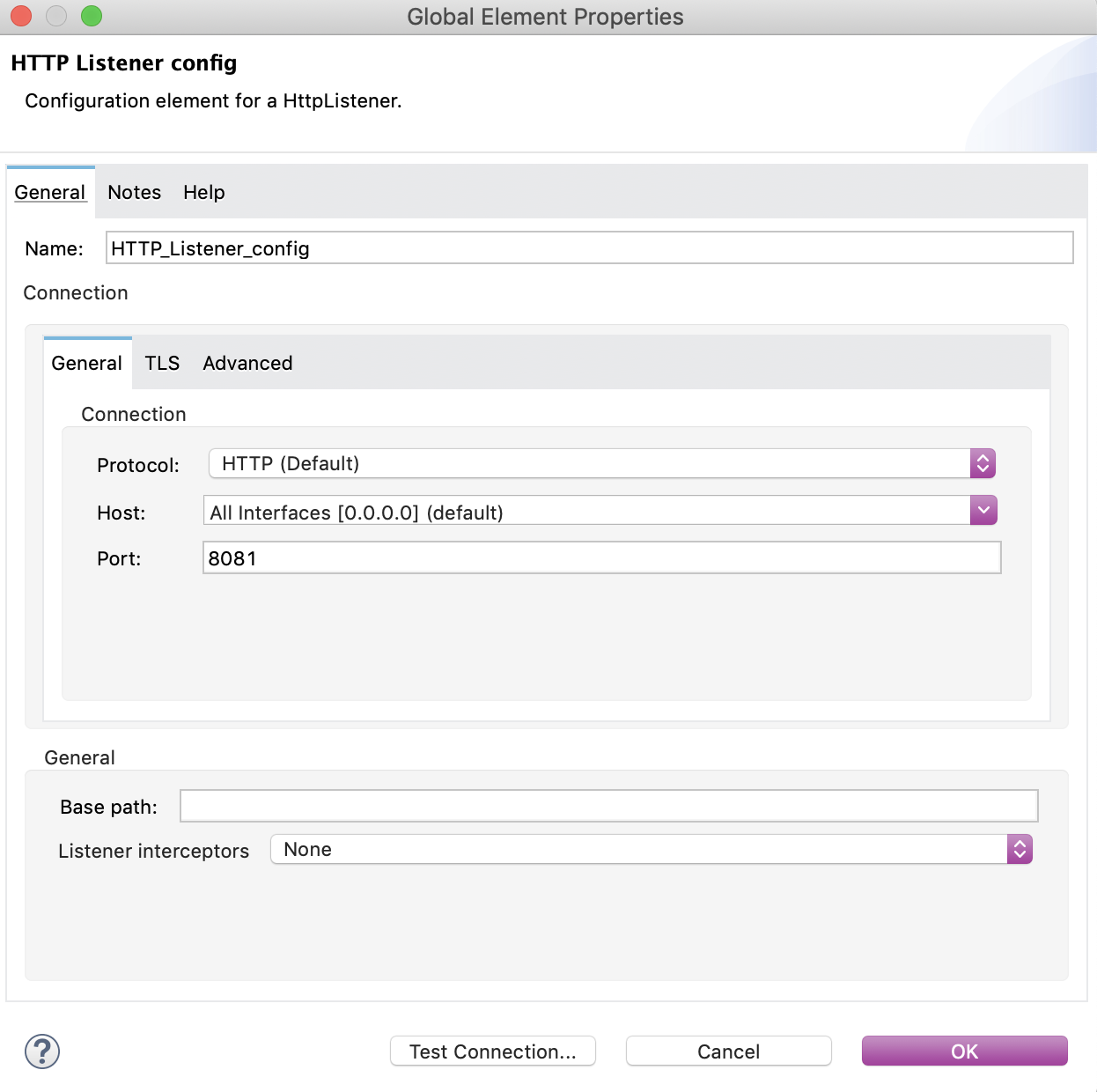
4. In the **Listener** configuration, click **+** next to the **Connector configuration** field to
add a global element.
5. Accept the defaults and click **OK**.
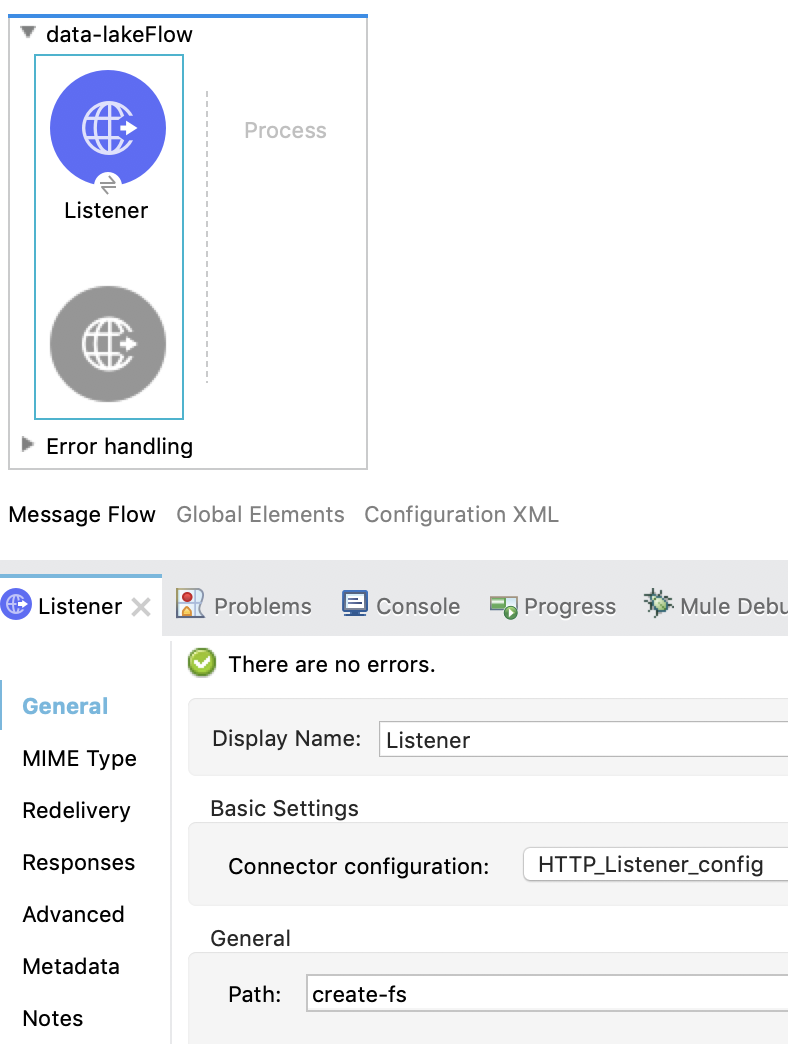
6. In the **General** properties tab, set the **Path** field to `create-fs`:
### Configure the Create File System Operation
1. In the **Mule Palette** view, search for `azure` and select the **Azure Data Lake Storage
Connector > Create File System** operation.
2. Drag the **Create File System** operation from the **Mule Palette** onto the **Listener** flow.
3. In the configuration screen for the operation, click the plus sign (**+**) next to the
**Connector configuration** field to access the global element configuration fields.
4. On the **General** tab, in **Connection**, select the authentication method to configure and
enter all the required values:
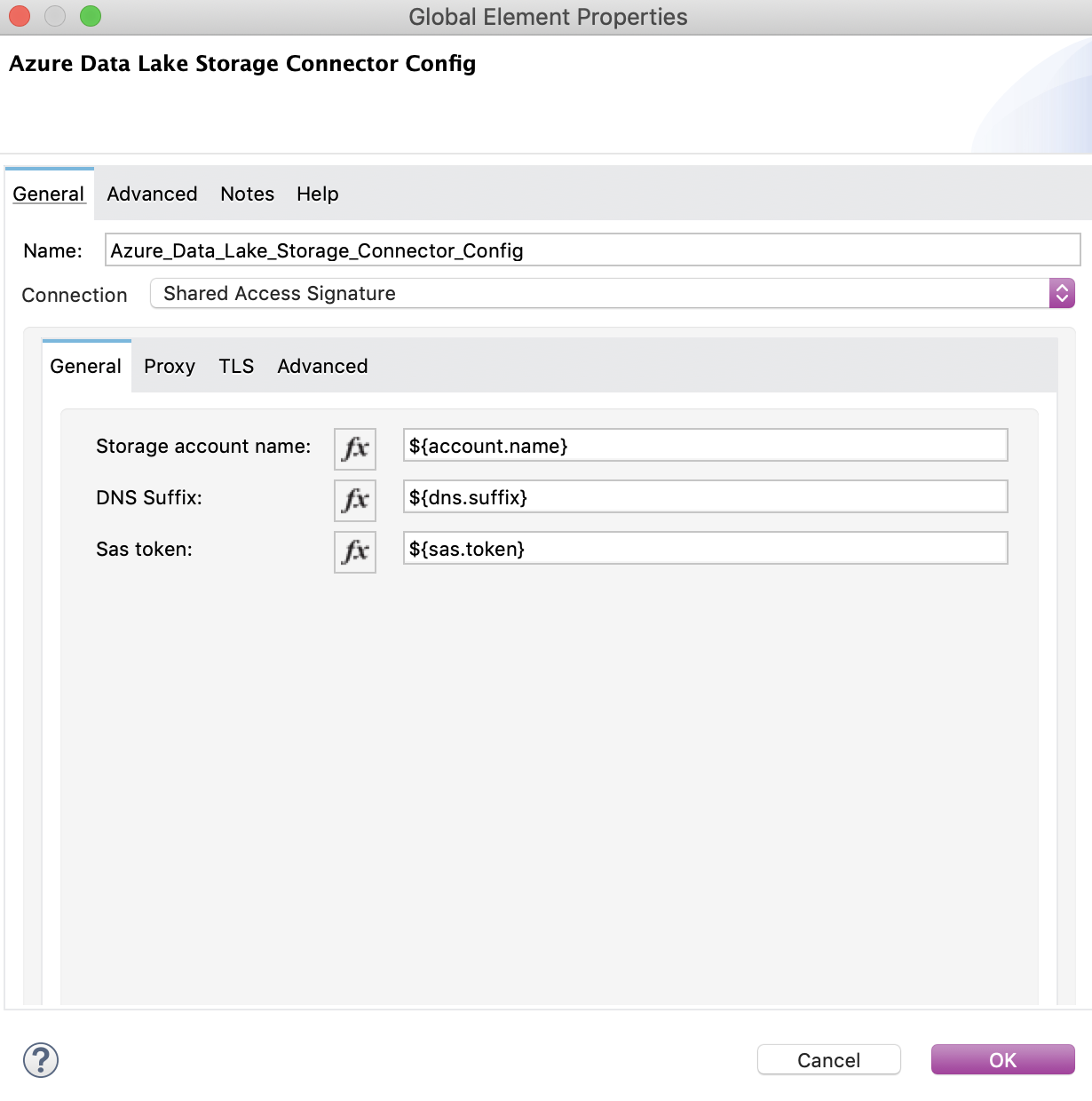
5. Click **OK**.
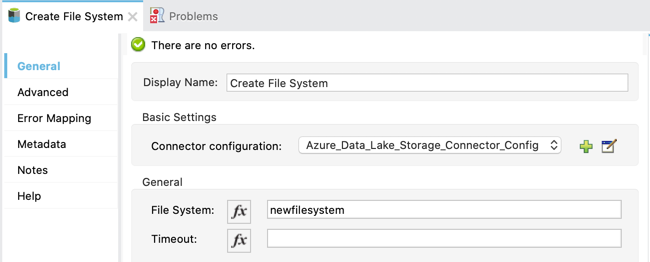
6. On the **General** properties tab, in the **File System** field, enter a name for the file
system:
7. Save the project.
8. Open a browser and send a GET request to `localhost:8081/create-fs` to test your app.
### XML for Creating a File System
Paste this code into the **Configuration XML** tab of your flow to quickly load the flow for this
example into your Mule app:
```xml
```
## Create a Path
This example shows you how to create a path in Azure Data Lake Storage and includes the following
steps:
1. [Set up the app flow](#set-up-create-path-flow).
2. [Configure the Create Path operation](#configure-create-path).
3. [Optionally, copy and paste the XML](#create-path-xml) for the flow in to the **Configuration
XML** tab.
### Set Up the App Flow
Follow these steps to create and configure an HTTP **Listener** source to initiate the flow each
time it receives a request on the configured host and port:
1. Create a new Mule project in Studio.
2. In the **Mule Palette** view, search for `http` and select the **Listener** operation:
3. Drag the **Listener** operation onto the Studio canvas.
4. In the **Listener** configuration, click **+** next to the **Connector configuration** field to
add a global element.
5. Accept the defaults and click **OK**.
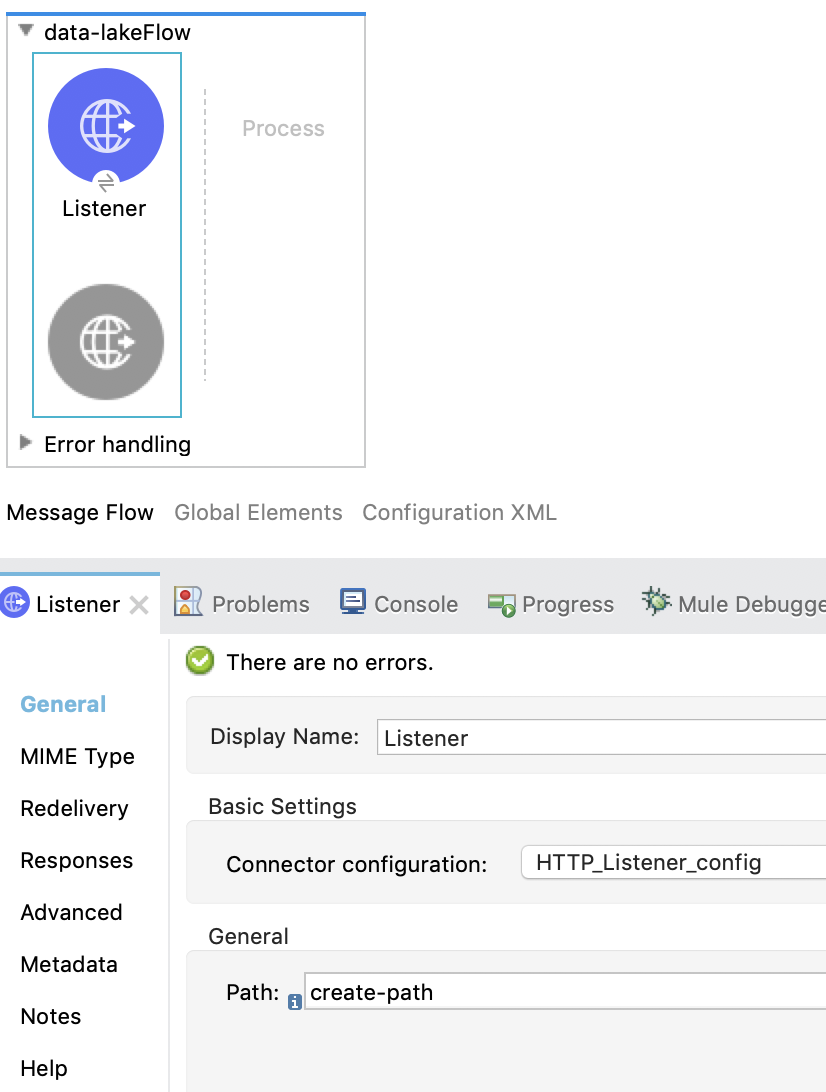
6. In the **General** properties tab, set the **Path** field to `create-path`:
### Configure the Create Path operation
Follow these steps to create a file or directory on the provided Azure Data Lake Storage file
system:
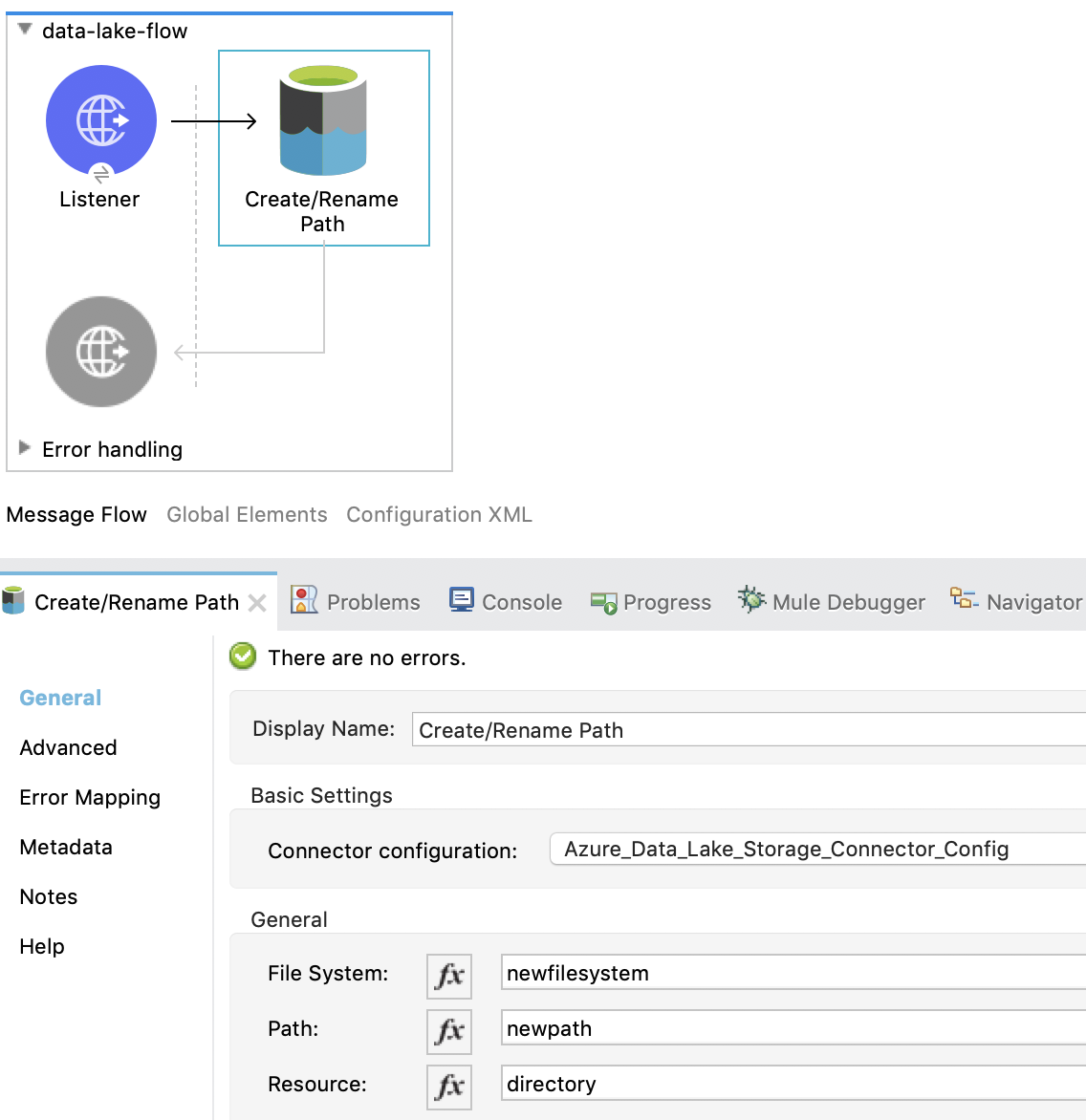
1. In the **Mule Palette** view, search for `azure` and select the **Create/Rename Path**
operation.
2. Drag the **Create/Rename Path** operation from the Studio canvas onto the **Listener** flow.
3. In the **Create/Rename Path** configuration, click **+** next to the **Connector Configuration**
field to add a connection configuration.
4. On the **General** tab, in **Connection**, select the authentication method to configure and
enter all the required values:

5. Click **OK**.
6. In the **File System** field, enter the value for your target Azure Data Lake Storage file
system.
If the file system does not exist, an error is thrown.
7. In **Path**, enter your desired path name.
8. In **Resource**, enter either `file` or `directory`:
9. Save the project.
10. Test the app by sending a GET request to `localhost:8081/create-path`.
### XML for Creating a Path
Paste this code into the **Configuration XML** tab of your flow to quickly load the flow for this
example into your Mule app:
```xml
```
## Configure Update Path Operations with Append and Flush
In this example, you configure two **Update Path** operations:
- The first **Update Path** operation is configured with **append** to append contents to an
existing file on the Azure Data Lake Storage file system.
To do this, you first set up the app flow, add the File Connector **Read** operation, configure
the **Set Variable** component, then configure the **Update Path** operation with **append**.
- The second **Update Path** operation is then configured with **flush** to flush the contents of an
existing file on the Azure Data Lake Storage file system.
### Set Up the App Flow
Follow these steps to create and configure an HTTP **Listener** source to initiate the flow each
time it receives a request on the configured host and port:
1. Create a new Mule project in Studio.
2. In the **Mule Palette** view, search for `http` and select the **Listener** operation:
3. Drag the **Listener** operation onto the Studio canvas.
4. In the **Listener** configuration, click **+** next to the **Connector configuration** field to
add a global element.
5. Accept the defaults and click **OK**.
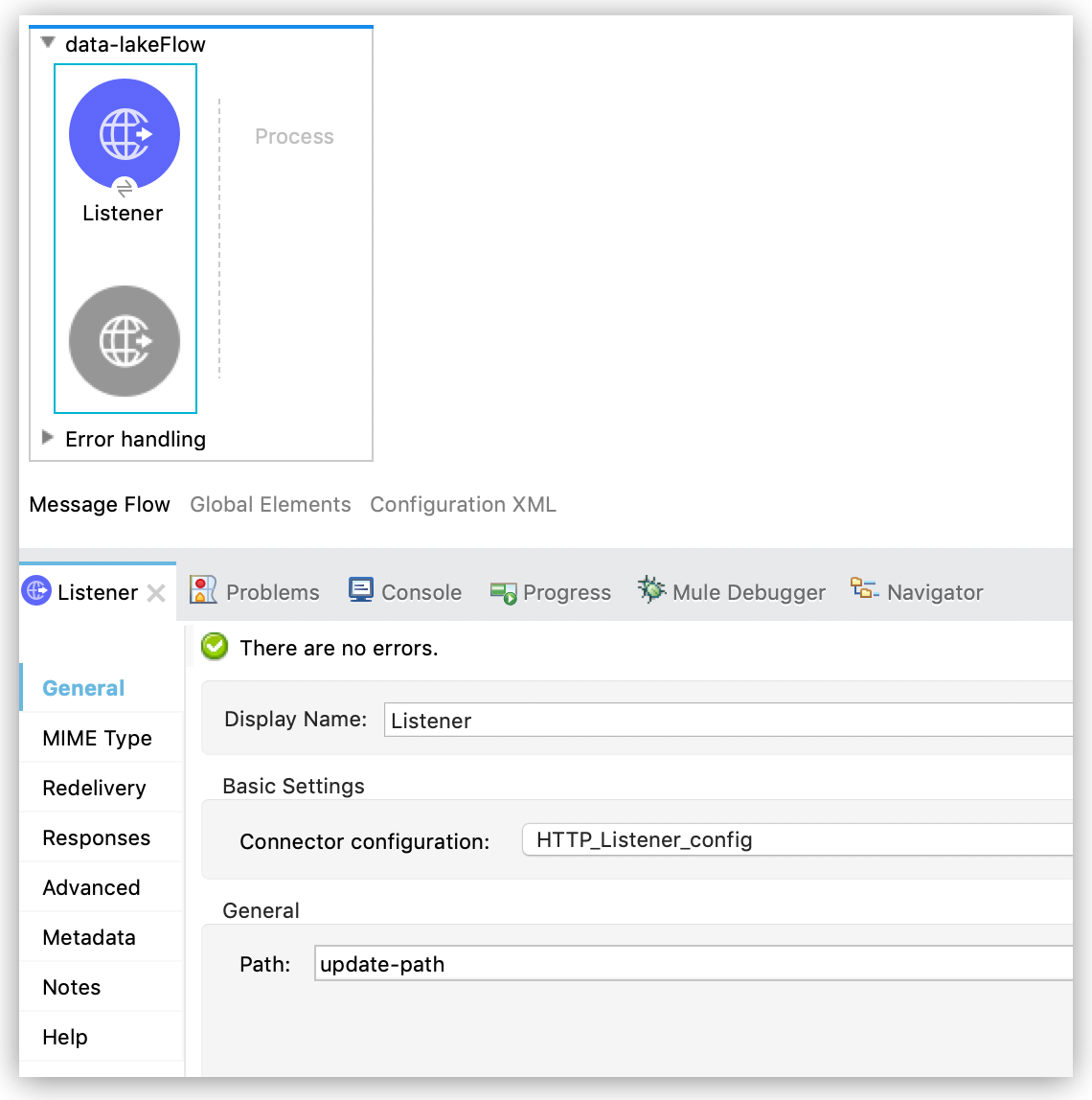
6. In the **General** properties tab, set the **Path** field to `update-path`:
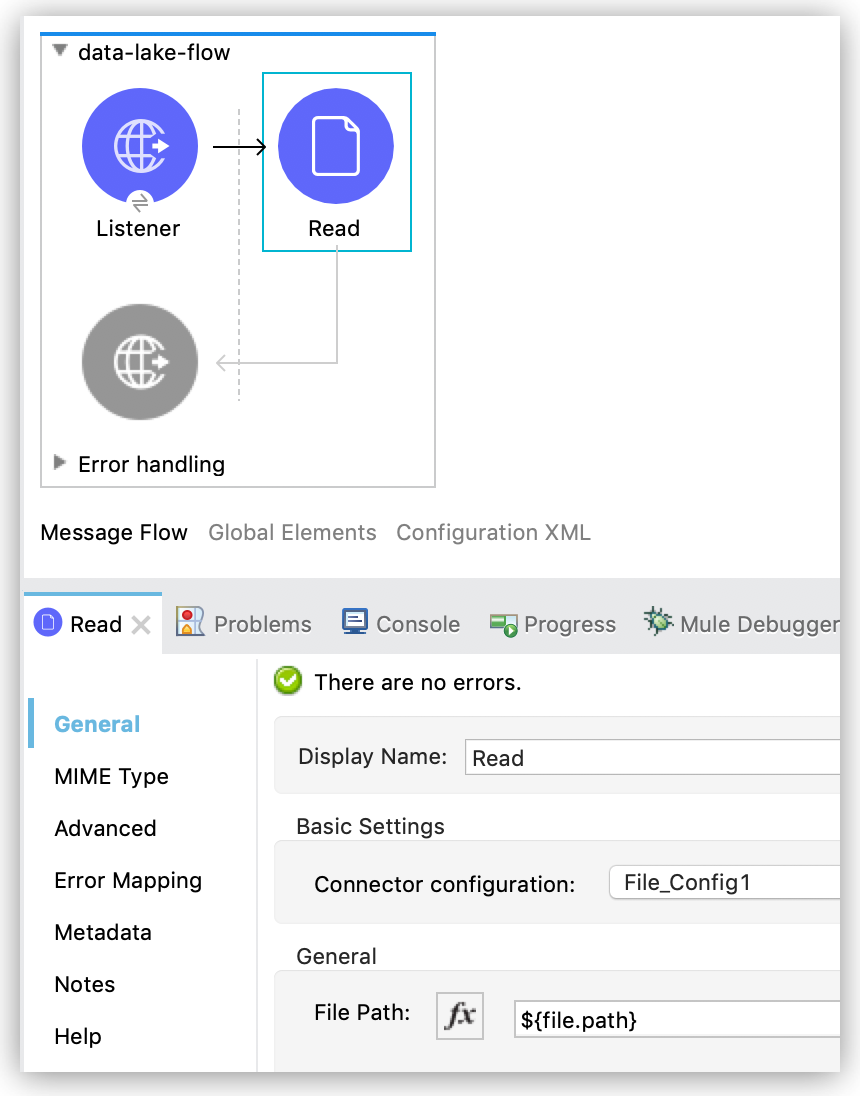
### Add and Configure File Connector
Add File Connector to your project and configure the **Read** operation to read files on the Azure
Data Lake Storage file system:
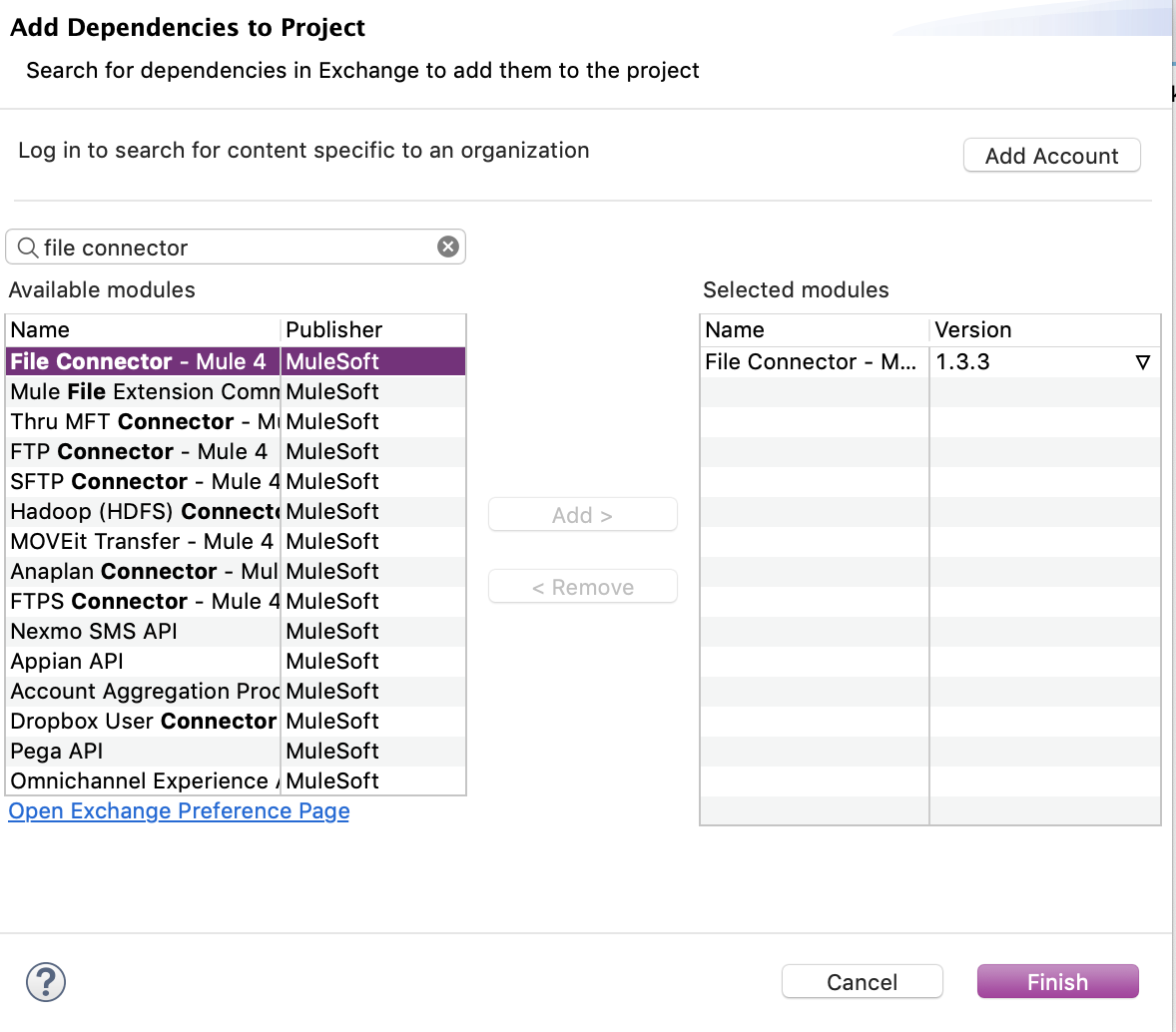
1. In the **Mule Palette** view, click **(X) Search in Exchange**.
2. In **Add Modules to Project**, type `file connector` in the search field.
3. Click **File Connector** in **Available modules**.
4. Click **Add**.
5. Click **Finish**.
6. In the **Mule Palette** view, select **File > Read** and drag the **Read** operation onto the
flow.
7. In **General** properties tab for the **Read** operation, click **+** next to the **Connector
Configuration** field to add a connection configuration.
8. Enter the values and click **OK**.
9. In the **General** properties for the **Read** operation, enter the absolute path to the file
upload in **File Path**:
### Configure the Set Variable Component
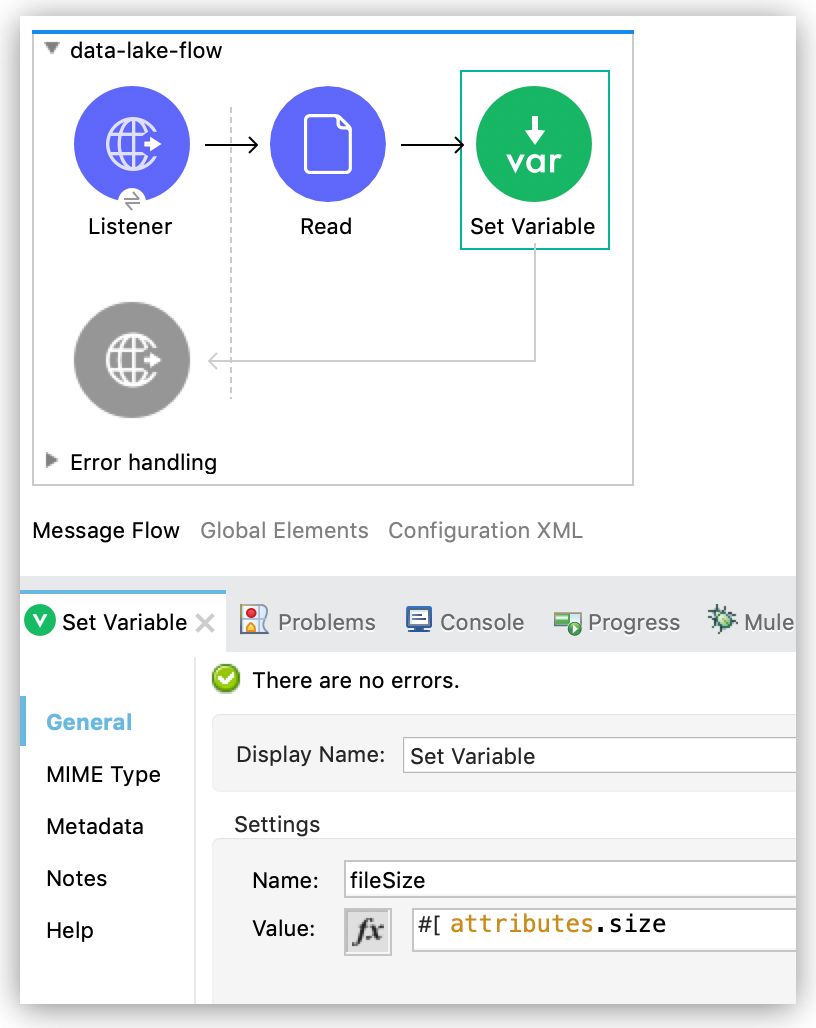
Configure a **Set Variable** component to store and use a variable later in the flow:
1. From the **Mule Palette** view, search for `set variable` and drag **Set Variable** next to the
**Read** operation on the Studio canvas.
2. In the **General** properties tab, enter these values:
- **Name**
`fileSize`
- **Value**
`#[attributes.size]`\+ This saves the length of the file variable for the next operations.
### Configure the Update Path Operation with Append
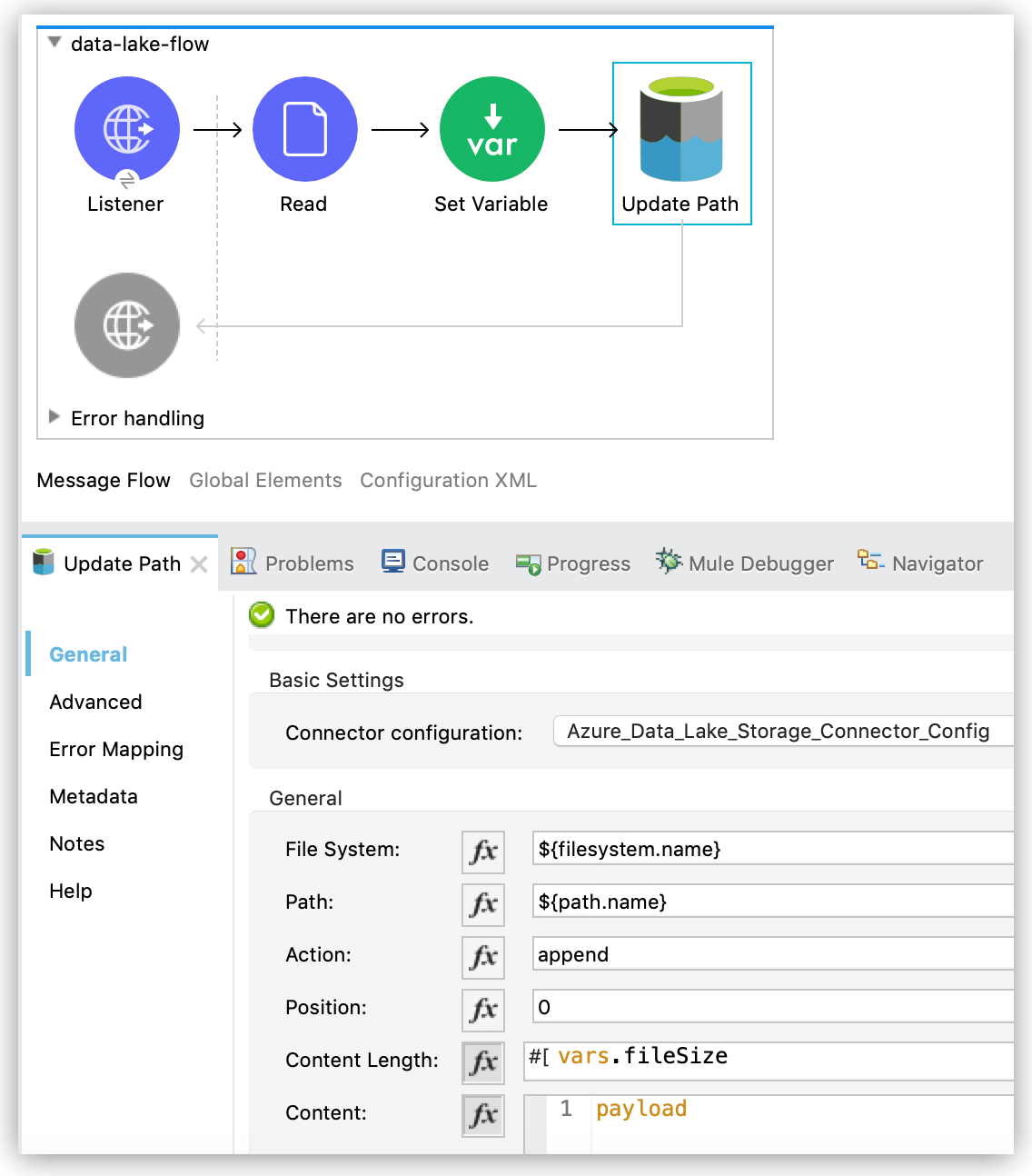
Configure the **Update Path** operation to add **append** so you can append contents to a file:
1. In the **Mule Palette** view, search for `azure` and select the Azure Data Lake Storage
Connector **Update Path** operation.
2. Drag the **Update Path** operation from the **Mule Palette** view onto the **Listener** flow,
next to the **Set Variable** component.
3. In the **General** configuration properties pane of **Update Path**, select the connection
configuration for the operation.
4. In the **General** properties tab, enter the following values:
- **File System**
Value for your target Azure Data Lake Storage file system
- **Path**
Value for your target path
- **Action**
`append`
- **Position**
`0`
- **Content Length**
`#[vars.fileSize]`
- **Content**
`payload`
5. Save the project.
### Configure the Update Path Operation with Flush
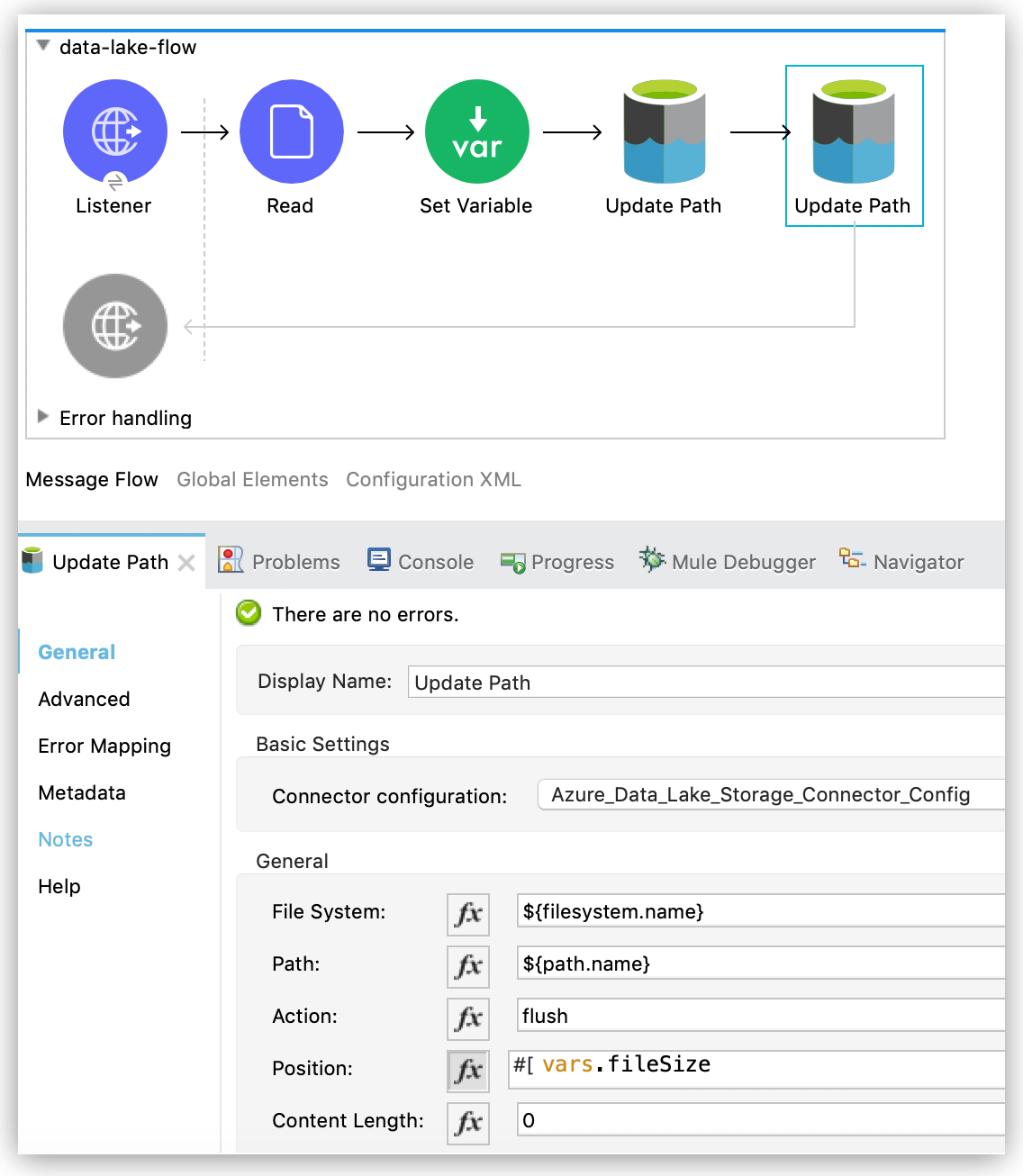
Configure the **Update Path** operation to add **flush** so you can flush the contents of a file:
1. In the **Mule Palette** view, search for `azure` and select the Azure Data Lake Storage
Connector **Update Path** operation.
2. Drag the **Update Path** operation from the Studio canvas onto the **Listener** flow, next to
the **Update Path** operation that you created in [the step for append](#update-path-append).
3. In the **General** configuration properties pane of **Update Path**, select the connection
configuration for the operation.
4. In the **General** properties tab, enter the following values:
- **File System**
Your target Azure Data Lake Storage file system
- **Path**
Your target path
- **Action**
`flush`
- **Position**
`#[vars.fileSize]`
- **Content Length**
`0`
5. Save the project.
6. Open a browser and send a GET request to `localhost:8081/update-path` to test the app.
### XML for Updating a Path
Paste this code into the **Configuration XML** tab of your flow to quickly load the flow for this
example into your Mule app:
```xml
```
## Implement Error Handling
This section shows you how to implement simple error handling on a flow that uses Azure Data Lake
Storage Connector.
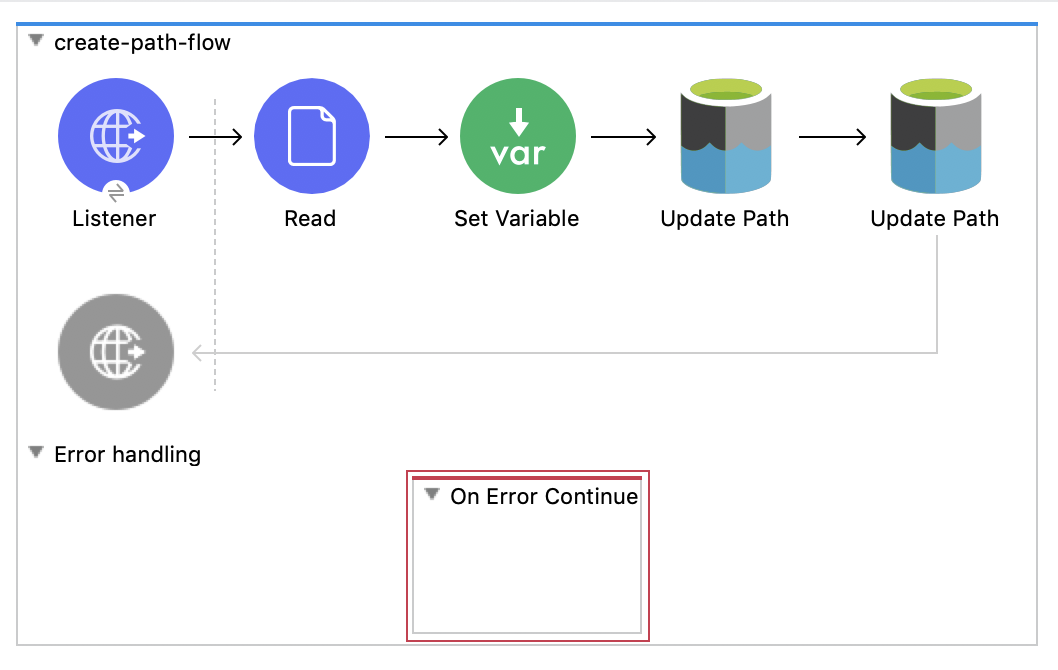
1. In any flow, from the **Mule Palette** view, select **Core > On Error Continue** and drag it to
the **Error Handling** section of the flow:
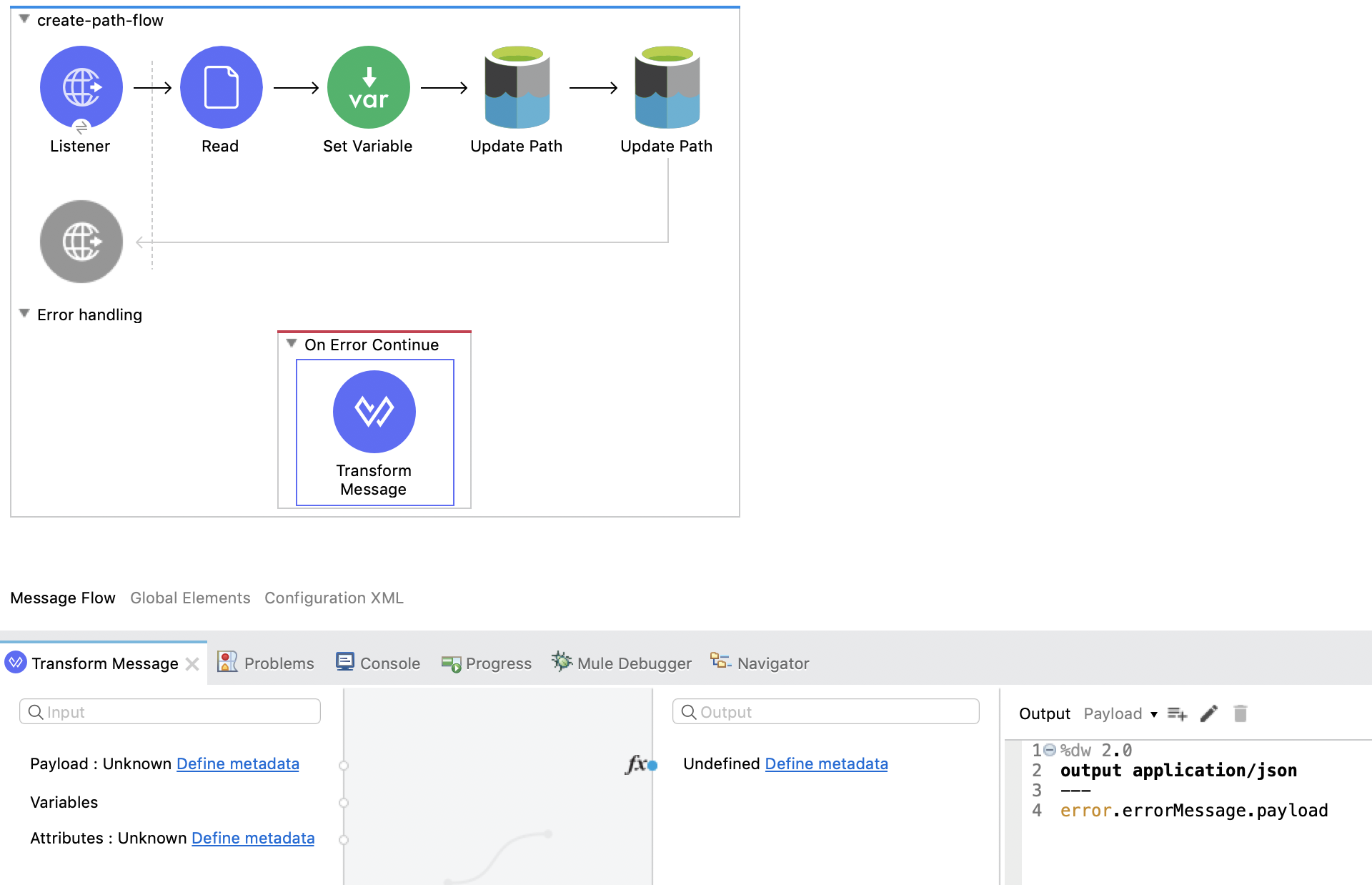
2. From the **Mule Palette** view, drag **Core > Transform Message** to the flow:
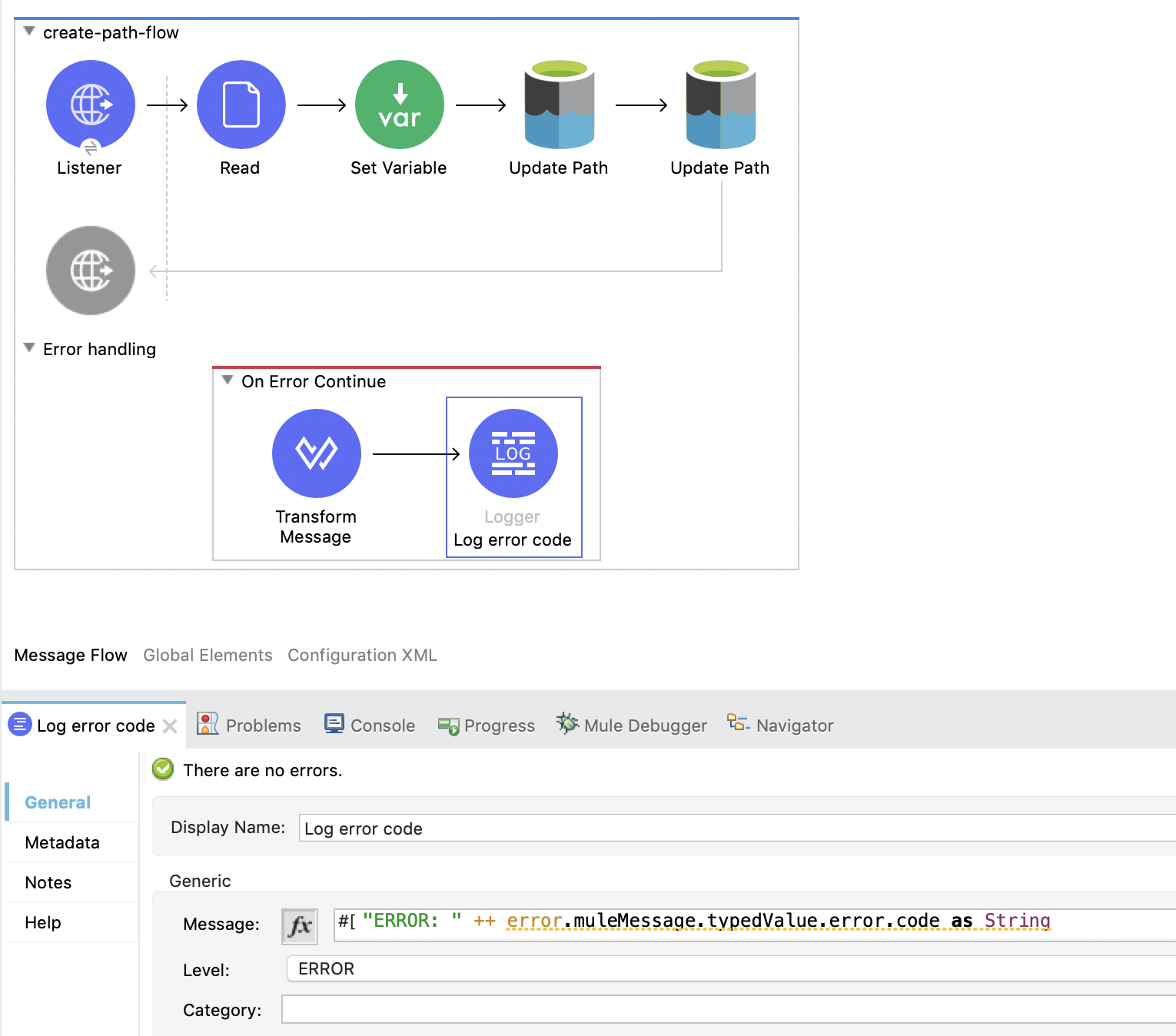
3. In the **Mule Palette** view, search for `logger` and drag the **Logger** component to the right
of **Transform Message**.
4. In the **General** properties tab for the **Logger** component, enter the following values:
output application/json
---
error.errorMessage.payload
To access the error code that comes from the Azure service, the expression is:
`error.muleMessage.typedValue.error.code`
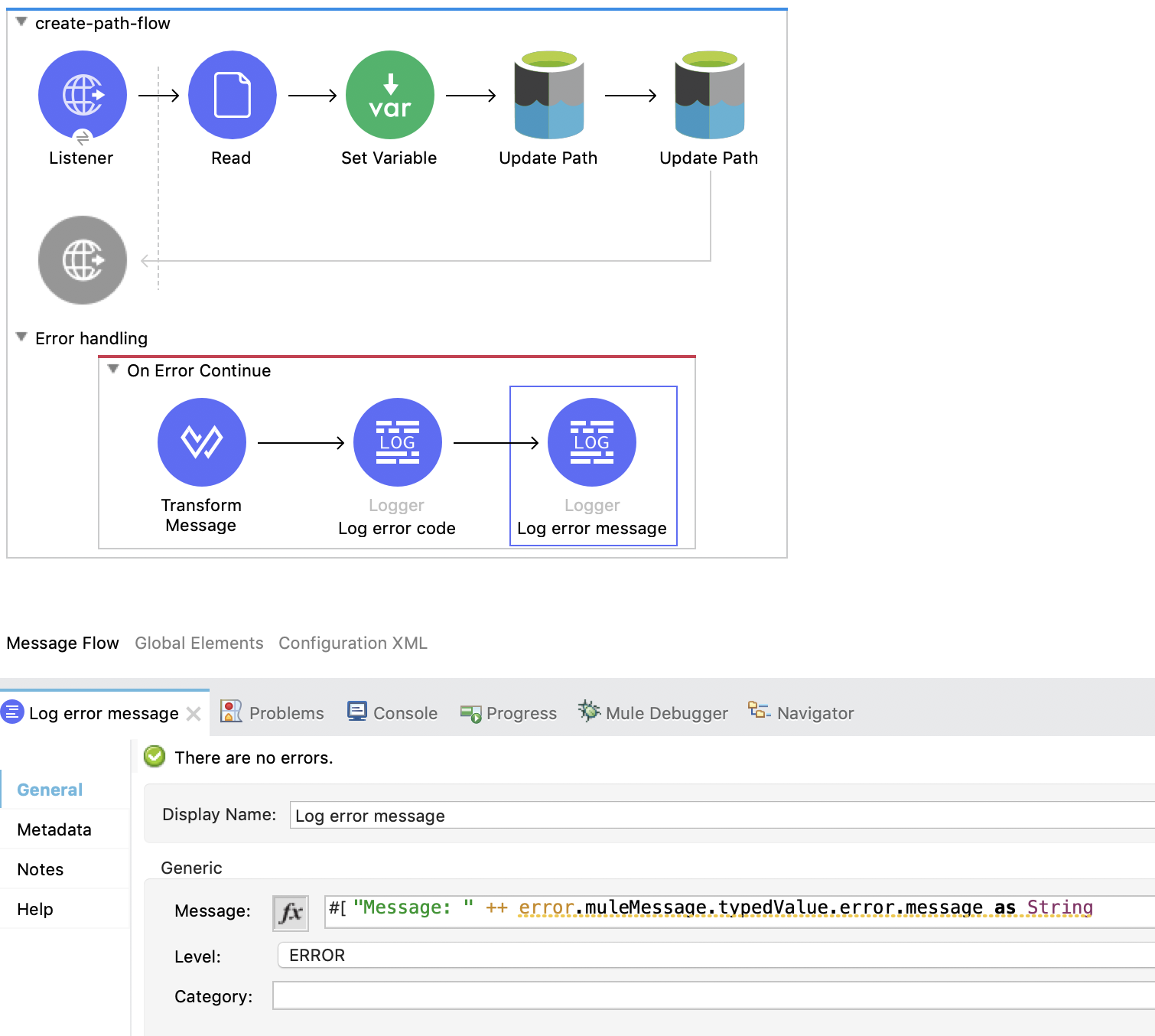
To access the error message, the expression is:
`error.muleMessage.typedValue.error.message`
## See Also
- [Introduction to Anypoint Connectors](https://docs.mulesoft.com/connectors/introduction/introduction-to-anypoint-connectors)
- [Salesforce Help](https://help.salesforce.com)