---
schema_version: "1"
id: 3f40afdfea860b410cb98e2ed9033cea583de9e629bc5d6200522d45034a2b6c
title: Sending AS2 Messages and Receiving MDNs
collection: mulesoft
version: current
locale: en-us
portal_url: https://docs.salesforce.com/mulesoft/current/en-us/as2-connector/latest/as2-connector-example-send.md
canonical_url: https://docs.mulesoft.com/as2-connector/latest/as2-connector-example-send
source_site: docs.mulesoft.com
content_type: documentation
content_hash: 02c5cd4dc980ebd72d9fc9602daacdca261cc790033edafa492fdf9567d138fd
description: MuleSoft Documentation Site
release: "7.0"
latest: true
---
---
product: AS2 Connector
version: 7.0
is-latest-version: true
---
# Sending AS2 Messages and Receiving MDNs
> For the full documentation index, see: https://docs.mulesoft.com/llms.txt
These examples show how to use Anypoint Connector for AS2 (AS2 Connector) to send AS2 messages to a
trading partner and receive Message Disposition Notifications (MDNs) in response:
- [Send with Synchronous MDN](#send-with-synchronous-mdn)
Send an AS2 message and receive a synchronous MDN in response.
- [Send with Asynchronous MDN](#send-with-asynchronous-mdn)
Send an AS2 message and receive an asynchronous MDN in response.
## Send with Synchronous MDN
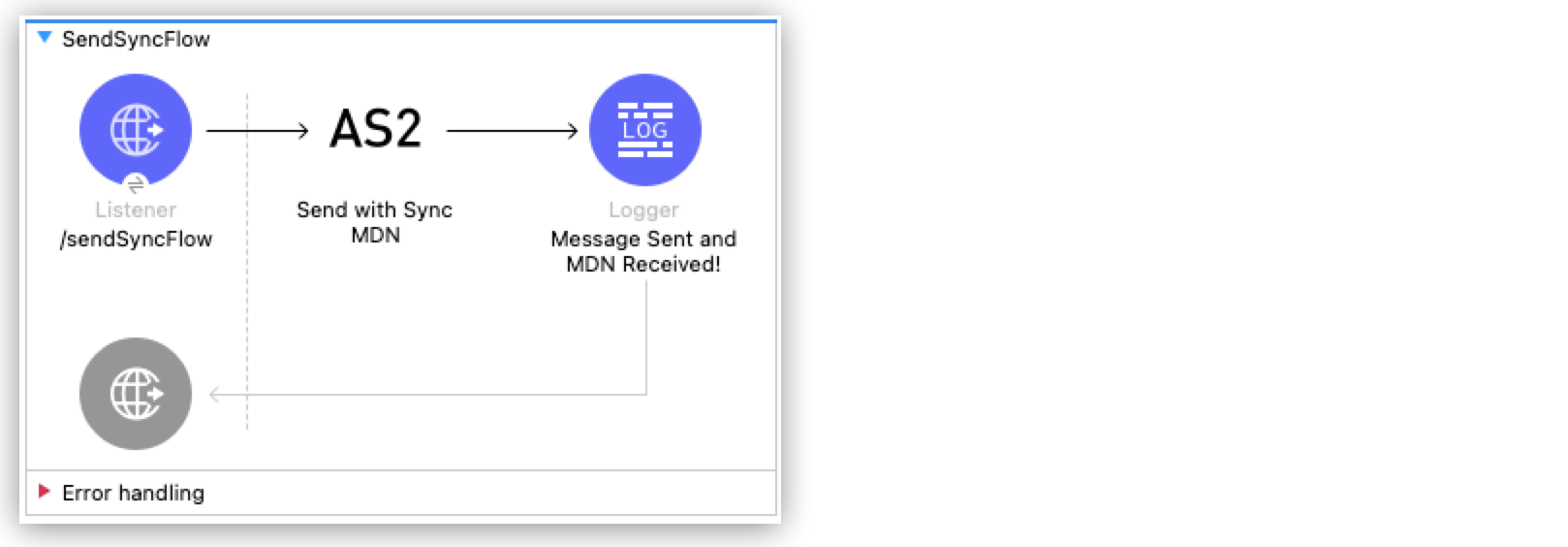
To create this example, start a new Mule project and configure the `http:listener` source and the
Logger component.
The image shows the Anypoint Studio flow for this example:
### Create a Flow to Send an AS2 Message
Follow these steps to configure the `http:listener` source to initiate a Mule flow when a call is
made to the `/sendSyncFlow` path on localhost port 8082:
1. Drag the HTTP listener from the Mule Palette onto the canvas.
2. Optionally, change the display name on the properties window for the listener and click **OK**.
3. Set the **Path** field to `/sendSyncFlow`.
4. Click the plus sign (**+**) next to the **Connector configuration** field to configure a global
element that can be used by all instances of the HTTP listener.
5. On the **General** tab, accept the defaults and click **OK**.
### Add the Send with Synchronous MDN Operation
Follow these steps to add the **Send with Sync MDN** operation and configure it to send MDNs to the
receiving endpoint of `partnera`:
1. Drag the **Send with Sync MDN** operation next to the listener component on the canvas.
2. Click the plus sign (**+**) next to the **Connector configuration** field to configure a global
element for the **Send with Sync MDN** operation.
3. Configure the connection by setting the **Partner URL** field to
`http://localhost:8081/as2-receive` on the **General** tab.
4. Specify the self and partner credentials.
Configure these fields in the **Self Config** section:
Configure these fields in the **Partner Config** section:
5. If you want to use algorithms, configure them in the **Requester Config** section.
6. In the **Keystore** section, apply these values to the keystore that contains the certificates
and keys:
| Field | Value |
|---|
Keystore Password | test |
Keystore Path | as2/partnerb.p12 |
Private Key Password | test |
### Add the Logger Component
Add the logger component and configure it to log a message when the app sends an AS2 message and
receives a synchronous MDN.
1. From the Mule Palette, select **Core** and drag the logger component next to the **Send with
Sync MDN** operation.
2. Set the message for the logger to `Message Sent and MDN Received!`.
### Save and Test the Mule App
Follow these steps to deploy your application locally and verify that it correctly sends AS2
requests and receives synchronous MDNs.
1. Save the project.
2. Run the app by clicking the project name in **Package Explorer** and then clicking **Run** >
**Run As** > **Mule Application**.
If the application starts correctly, the console shows a success message.
3. Test the app by opening `http://localhost:8082/sendSyncFlow` from a browser or an app like
Postman.
You can now send AS2 requests to the endpoint configured in the
[Receiving AS2 Messages and Sending Back MDNs](https://docs.mulesoft.com/as2-connector/latest/as2-connector-example-receive-send#receiving-messages-example)
example. With the example running, you can observe the message sent by the **Send with Sync MDN**
operation.
### XML for the Sending Synchronous AS2 MDNs Example
Paste this code into your Studio XML editor to quickly load the flow for this example into your Mule
app:
```xml
```
## Send with Async MDN
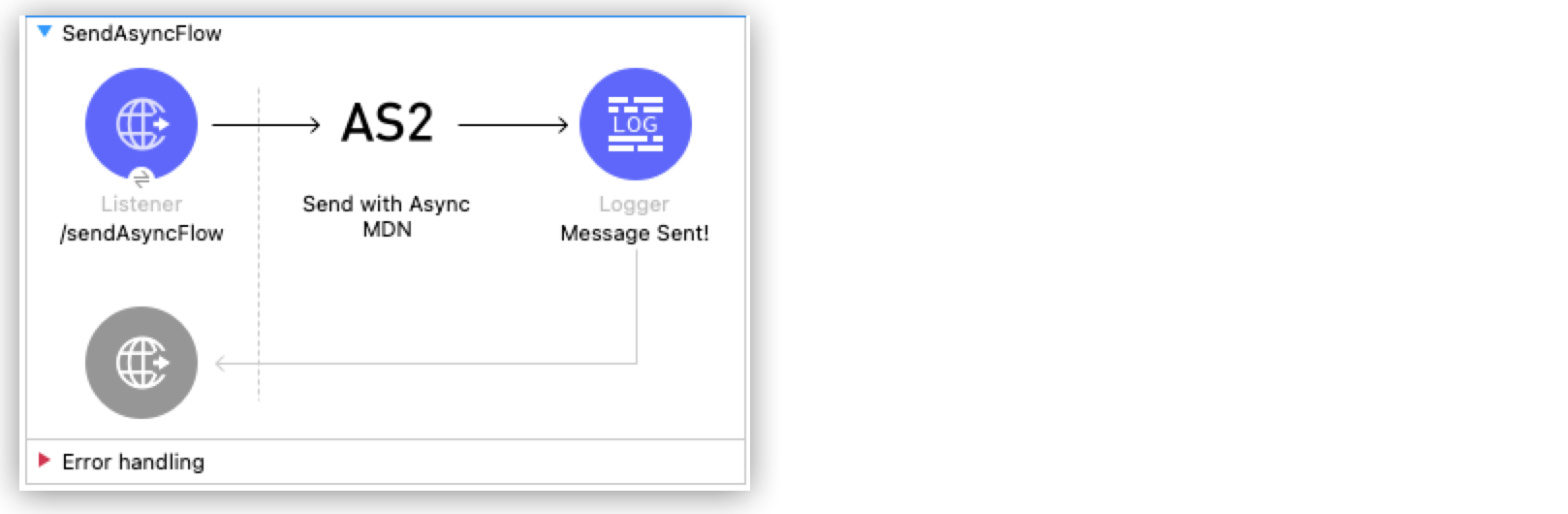
This example follows the same structure as the [Send with Sync MDN](#send-with-synchronous-mdn)
example but incorporates these changes:
- The **Send with Async MDN** operation is used instead of the **Send with Sync MDN** operation.
- A value is specified for the **Receipt delivery url** field. The field can be configured in the
global element for the **Send with Async MDN** operation or in the properties window.
The image shows the Anypoint Studio flow for this example:
### XML for the Sending AS2 Asynchronous MDNs Example
Paste this code into your Studio XML editor to quickly load the flow for this example into your Mule
app:
```xml
```
### Save and Test the Mule App
Follow these steps to deploy your application locally and verify that it correctly sends AS2
requests and receives asynchronous MDNs.
1. Save the project.
2. Run the app by clicking the project name in **Package Explorer** and then clicking **Run** >
**Run As** > **Mule Application**.
If the application starts correctly, the console shows a success message.
3. Test the app by opening `http://localhost:8082/sendAsyncFlow` from a browser or an app like
Postman.
You can now send AS2 requests to the endpoint configured in the
[Receiving AS2 Messages and Sending Back MDNs](https://docs.mulesoft.com/as2-connector/latest/as2-connector-example-receive-send#receiving-messages-example)
example. With the example running, you can observe the message sent by the **Send with Async MDN**
operation.
The MDN is omitted from the logs because it’s routed to the `receiptDeliveryUrl` shown in the
[Receiving AS2 MDNs](https://docs.mulesoft.com/as2-connector/latest/as2-connector-example-receiving-mdn-messages) example.
## See Also
- [AS2 Connector Examples](https://docs.mulesoft.com/as2-connector/latest/as2-connector-examples)
- [Introduction to Anypoint Connectors](https://docs.mulesoft.com/connectors/introduction/introduction-to-anypoint-connectors)
- [Salesforce Help](https://help.salesforce.com)