---
schema_version: "1"
id: 5a1acedf82485c36826541a213b16c785787d6b3f6b82a62b7c6600a87fe793c
title: Working With Sandboxes
collection: mulesoft
version: current
locale: en-us
portal_url: https://docs.salesforce.com/mulesoft/current/en-us/api-experience-hub/working-with-sandboxes.md
canonical_url: https://docs.mulesoft.com/api-experience-hub/working-with-sandboxes
source_site: docs.mulesoft.com
content_type: documentation
content_hash: 77d37931aac69d626b40e2d31d0c23b201e69baec72f9108ad6129ec6d755dc4
description: MuleSoft Documentation Site
latest: true
---
---
product: API Experience Hub
---
# Working With Sandboxes
> For the full documentation index, see: https://docs.mulesoft.com/llms.txt
Use Salesforce sandbox organizations to test your portal in a sandbox environment under the same
conditions as your production environment. With API Experience Hub, you can manage separate
deployment environments for your API portal. You can connect to multiple Salesforce sandbox
organizations and switch between them. Switching doesn’t impact the established connections with the
Salesforce organization and Anypoint Platform. For example, if you switch from production to a
sandbox, the connection with the production environment remains operational. The portal functions as
it did before.
Manage Salesforce organizations from the **Manage your portal** page by selecting sandbox
environments that are available in the current Salesforce connection.
## Before You Begin
1. Create a public group:
1. Go to Salesforce > **Setup** > **Users** > **Public Groups**.
2. Click **New** and enter a label and group name.
3. From the **Available Members** list, select the members who you want to assign to the group.
To move the selected members to the **Selected Members** list, click **Add**.
4. Save your changes.
2. Ensure that you have sandbox organizations already set up.
For more information about creating sandboxes, see
[Create a Sandbox](https://help.salesforce.com/s/articleView?id=platform.data_sandbox_create.htm&type=5)
in the Salesforce documentation.
> [!NOTE] Anypoint assets and applications aren’t copied to sandbox or production organizations.
## Manage Salesforce Organization Connections
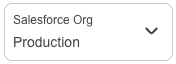
1. In the **Manage your portal** page, click the connection control.
2. Select an option:
- To connect to a production organization, click **Connect production org** from the **Connected
Salesforce Orgs** dialog.
The connection process restarts and you can to connect to the production organization.
- To switch to another sandbox for the connected production organization, click **Switch to this
org** from the **Connected Salesforce Orgs** dialog.
- To connect to a sandbox organization that isn’t connected, click **Connect**.
The connection process restarts and you can connect to the sandbox organization.
- To connect to a new sandbox organization, click **Connect new sandbox org**.
The connection process restarts and you can connect to the new sandbox organization.
- To switch to another sandbox organization, click **Switch to this org**.
## Manage Orphaned Sandboxes
Orphan sandboxes occur when you disconnect a production organization and child sandbox organizations
are still connected. If you connect to a sandbox that isn’t a child of the production organization,
the sandbox appears in the **More sandbox orgs** section of the **Connected Salesforce
Organizations** dialog. You can still switch to this sandbox. A sandbox no longer appears as an
orphan when you reconnect to the associated production organization.
## Manage Refreshed Sandbox Connections
Refreshing a sandbox updates the metadata from the source organization. If a sandbox refreshes after
the production organization is connected, reconnect to switch to this sandbox.
If a sandbox refreshes before the production organization is connected, you can switch to this
sandbox without reconnecting.
## Delete Sandbox Organizations
To delete a sandbox organization, see
[Delete a sandbox](https://help.salesforce.com/s/articleView?id=000383260&type=1) in the Salesforce
documentation.
## Promoting a Sandbox to Production
After testing a portal in a sandbox environment and it’s is ready for production, deploy a subset of
the Salesforce metadata using your CI/CD pipeline to production. Afterward, connect to the
production instance with the subset of the Salesforce metadata to complete the installation and
start curating APIs.
### Before You Begin
Ensure you have basic knowledge of the following:
- Version control systems (VCS), for example, Git
- [Salesforce CLI](https://developer.salesforce.com/tools/salesforcecli)
- CI/CD pipeline concepts
- API portal created in a sandbox environment
### Promote a Sandbox to Production
Move the portal’s styling and customizations from the sandbox organization to the production
organization:
1. Create a Git repository to store the API Experience Hub metadata:
1. [Create a Git repository](https://docs.github.com/en/repositories/creating-and-managing-repositories/quickstart-for-repositories).
2. Clone it locally to your machine.
3. [Create a SFDX project](https://developer.salesforce.com/docs/atlas.en-us.sfdx_dev.meta/sfdx_dev/sfdx_dev_ws_create_new.htm).
4. Create a manifest `package.xml` file in `./manifest`, using this example with your
information:
Details
homeroCompanyLogo
homeroLoginBackground
minionHomeBanner
minionPageBanner
ContentAsset
API\_Experience\_Hub1\_banner
API\_Experience\_Hub1\_logo
StaticResource
AEH
AEH/API\_Experience\_Hub1\_logo
Document
AEH
AEH/ChangedPasswordEmailTemplate
AEH/ForgotPasswordEmailTemplate
AEH/NewMemberWelcomeEmailTemplate
AEH/RejectedMemberEmailTemplate
EmailTemplate
AEHLetterhead
Letterhead
Anypoint
AnypointDevx
AnypointEu
AnypointQax
AnypointStgx
ExchangeAssetIcons
ExchangeAssetIconsDevx
ExchangeAssetIconsEu
ExchangeAssetIconsQax
ExchangeAssetIconsStgx
GStaticFonts
GoogleFonts
SegmentAPI
SegmentCDN
CspTrustedSite
Anypoint
AnypointDevx
AnypointEu
AnypointQax
AnypointStgx
ExchangeAssetIcons
ExchangeAssetIconsDevx
ExchangeAssetIconsEu
ExchangeAssetIconsQax
ExchangeAssetIconsStgx
SegmentAPI
RemoteSiteSetting
API\_Experience\_Hub\_Manage\_Networks
PermissionSet
API Experience Hub
Network
HTTP\_API\_Audience
Audience
API\_Experience\_Hub
CustomSite
API\_Experience\_Hub1
ExperienceBundle
AEH\_Default\_Navigation
AEH\_Default\_User\_Navigation
NavigationMenu
cbAPI\_Experience\_Hub
NetworkBranding
60.0
5. In a VCS, create a development branch.
6. Download the metadata using the manifest created from the Salesforce sandbox organization.
2. Retrieve the metadata from the Salesforce sandbox organization using Salesforce CLI commands:
1. Log in to the Salesforce sandbox organization:
sf auth web login --instance-url=https:// --alias sandboxOrg
2. Edit the `manifest/package.xml` file before retrieving the metadata from the sandbox
organization.
Your sandbox organization can contain metadata from multiple products because it’s a copy of
the Salesforce production organization. API Experience Hub is a subset of the sandbox
organization specified in the `manifest/package.xml` file created when you created the Git
repository in a previous step.
3. If the portal contains branding images, add them in the `ContentAsset` section of the
`manifest/package.xml`. For example:
... homeroCompanyLogo homeroLoginBackground
minionHomeBanner minionPageBanner
ContentAsset ...
4. Review the metadata and retrieve it by running this command:
sf project retrieve start --manifest ./manifest/package.xml --target-org sandboxOrg
5. Confirm the metadata and commit all the metadata changes into the Git repository, or modify
the `manifest/package.xml` and repeat the process if some metadata is missing or
unnecessary.
3. Move the API Experience Hub portal from the sandbox organization to the production organization:
1. Log in to the production organization:
sf auth web login --instance-url=https:// --alias productionOrg
2. Install the package in production if it’s not installed already.
Before installing the API Experience Hub Manage package in your production organization, get
the managed package version ID from the `SubscriberPackageVersionId` field that’s installed
in the sandbox organization.
1. Run the following command to get the managed package version ID. The
`SubscriberPackageVersionId` field from the API Experience Hub managed package begins
with `04t`:
sf package installed list --target-org sandboxOrg --json
2. Install the API Experience Hub managed package in the production organization:
sf package install --package 04t... --target-org productionOrg --no-prompt --wait 30
3. Deploy the API Experience Hub metadata to the production organization using Jenkins or other
CI/CD tools, for example:
sf project deploy start --manifest=manifest/package.xml --target-org productionOrg
All configurations deploy in the production organization and you’re ready to connect this
organization with API Experience Hub.
4. Configure API Experience Hub in the production organization:
1. Navigate to Anypoint Platform, enter your username and password, and click **Sign in**.
2. From Anypoint Platform, select **API Experience Hub**.
3. Connect the Salesforce production organization (Enterprise organization).
4. Click **Use existing portal** to reuse the portal that already exists.
5. From the **Catalog management** page, add assets to the portal.
6. Click **Preview and publish your portal** to preview the portal, and then click **Publish**.
## See Also
- [Continuous Integration](https://developer.salesforce.com/docs/atlas.en-us.sfdx_dev.meta/sfdx_dev/sfdx_dev_ci.htm)
- [Deploy an Experience Cloud Site from Sandbox to Production](https://developer.salesforce.com/docs/atlas.en-us.communities_dev.meta/communities_dev/networks_migrate_overview.htm)
- [Maintaining User References](https://developer.salesforce.com/docs/atlas.en-us.api_meta.meta/api_meta/meta_user_references.htm)
- [Anypoint Platform Environments](https://docs.mulesoft.com/access-management/environments)
- [Setting Up the Portal](https://docs.mulesoft.com/api-experience-hub/setting-up-the-api-portal)