
Configure identity management in Anypoint Platform and Salesforce to set up users for single sign-on (SSO).
API Experience Hub supports multiple IdPs for SSO.
Before You Begin
Before configuring SSO, ensure you have the following permissions, context, and setup:
-
Organization Administrator permission or role in the main Anypoint Platform organization.
-
System Administrator role in Salesforce.
-
Experience with identity management and setting up identity providers for SSO.
-
Review Access Management’s Identity Provider documentation to understand identity management for Anypoint Platform.
-
In the identity provider of your choice, the users or identities must exist for the users with access to the application. For information, see the identity provider’s documentation.
-
Review the information in Gathering Setup Information for SSO.
Step 1: Enable SSO for Your Portal
To enable SSO, an identity provider is required for Anypoint Platform to create identities in Anypoint Platform for Salesforce users.
In this step, you create an application in the identity provider for the API Experience Hub portal, enable the ability to send group information in the application configuration, configure groups, and configure the default identity provider. Performing these steps require you to move back and forth between applications and the identity provider application to copy or add information.
Create and Configure an Application
Create and configure an application using one of these example methods:
Okta OpenID Connect
Create a new application for the API Experience Hub portal in the identity provider using OpenID Connect.
-
In Okta, create an OpenID Connect Web application. For more information, see Create OIDC app integrations.
-
From the General Settings section, complete these fields:
Field Value App integration name
Enter a name for the app.
Grant type
Select Authorization Code.
Assignments
Select Limit access to selected groups.
Selected group(s)
Enter the name of the group who must have access to the application.
-
Verify that your identity provider sends the expected claims listed in the Required Claims and Attributes.
-
Configure the claims that the application sends.
For example, for OpenID Connect for Okta, configure the groups claim using these steps:
-
From the Sign On tab, click Edit from the OpenID Connect ID Token section.
-
From Groups claim type, select Filter.
-
From Groups claim filter, enter
groups. -
Select Matches regex for the expression then enter
.*for wildcard.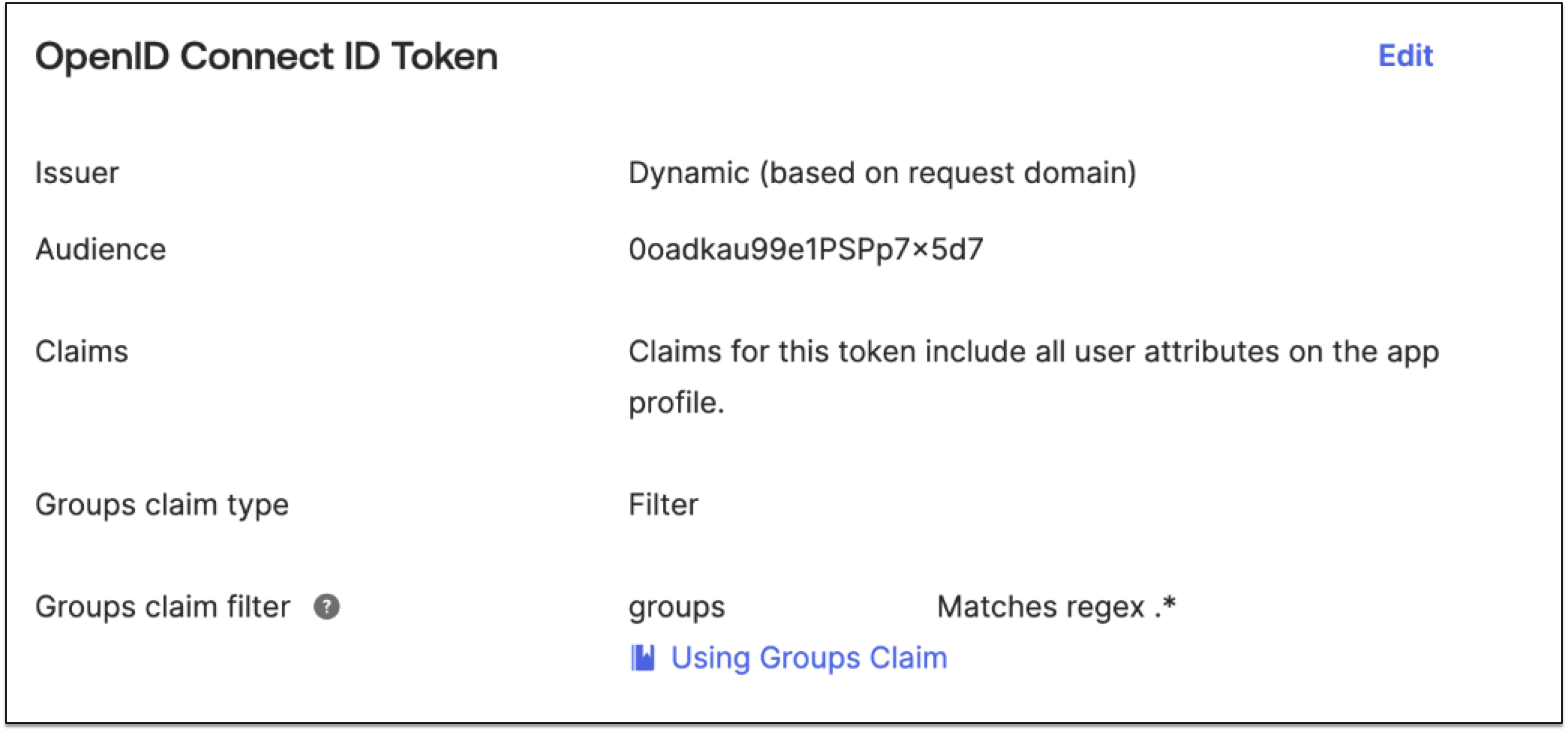
-
-
Configure an authentication provider for Salesforce using OpenID Connect.
You set up the auth provider or SSO settings in Salesforce with the identity provider application information.
-
From the OpenID Connect application, get these configuration values:
-
Client ID
-
Client Secret
-
Authorize Endpoint URL
-
Token Endpoint URL
-
User Info Endpoint URL
-
-
In Salesforce, go to Setup.
-
In the Quick Find box, enter
Auth, and then select Auth. Providers. -
Click New and select OpenID Connect for the Provider Type.
-
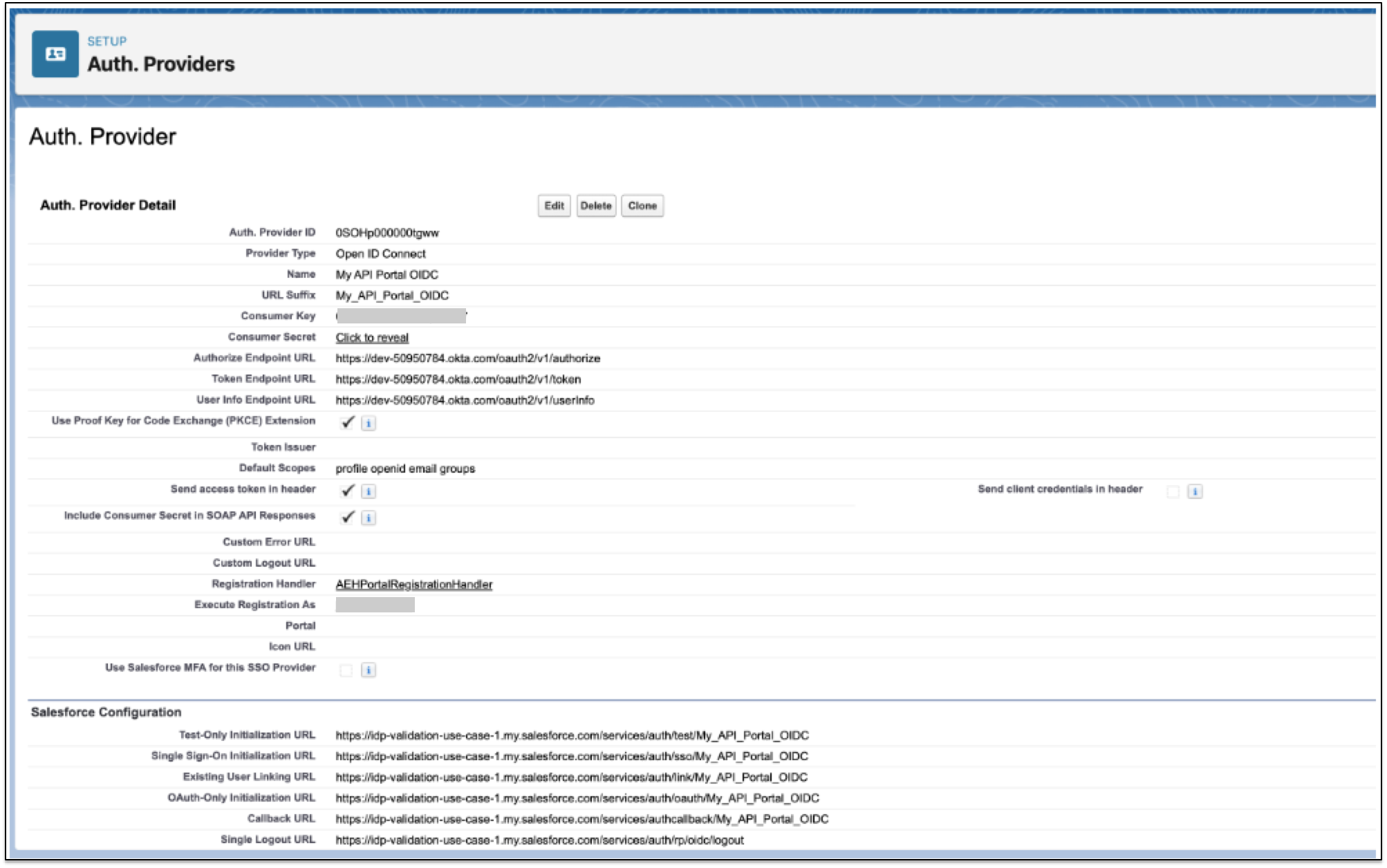
Complete these fields:
Field Value Provider Type
OpenID Connect
Name
Enter a name for the provider.
Consumer Key
Enter the client ID from the identity provider.
Consumer Secret
Enter the client secret from the identity provider.
Authorize Endpoint URL
Token Endpoint URL
User Info Endpoint URL
Default Scopes
profile openid email groups
Registration handler
AEHPortalRegistrationHandler
Execute Registration As
Select an administrator user.
-
Click Save.
-
-
Configure the redirect URIs for the portal.
To configure the redirects, use your 15-digit organization ID and 18-digit org ID and add a URL for each organization ID.
-
In the Okta application, select the General tab. Add the following URLs for Sign-in redirect URIs:
-
https://login.salesforce.com/services/authcallback/${15DigitSalesforceOrganizationId}/${authProviderURLSuffix} -
https://login.salesforce.com/services/authcallback/${18DigitSalesforceOrganizationId}/${authProviderURLSuffix} -
https://${domain}.my.site.com/aeh/services/authcallback/${authProviderURLSuffix}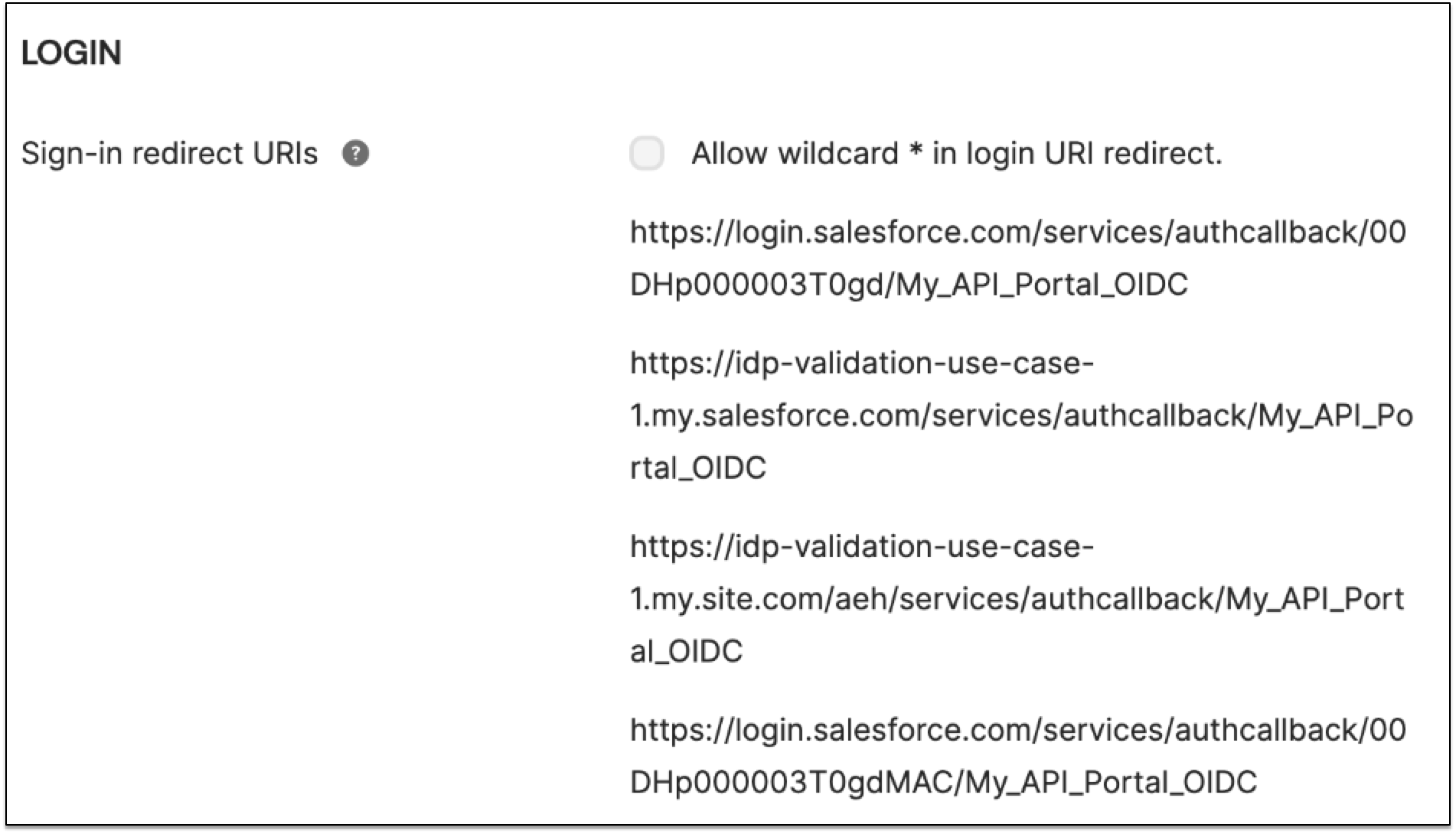
To find the URLs:
-
For salesforceOrganizationId, go to Setup > Company Information.
-
For authProviderURLSuffix, go to Setup > Auth Providers, click your auth provider, and select URL Suffix.
-
For domain, go to Setup > My Domain > Current My Domain URL.
-
-
Map the Application to the Identity Provider for Anypoint Platform NOTE: Skip this step if you’re configuring a new identity provider for Anypoint Platform. Go to Step 2: Add Salesforce Identity Providers.
If there’s an existing identity provider already configured for Anypoint Platform, you must map the identity provider ID with the anypoint_idp_id by adding and configuring a new custom attribute called anypoint_idp_id.
If usernames for the portal and Anypoint Platform don’t match, add another custom attribute called anypoint_username to force an update for existing identity provider users to match the identity in the portal to the users in Anypoint Platform.
To map anypoint_idp_id to with the Anypoint Platform identity provider ID for Okta:
-
In the Okta application, go to Directory > Profile Editor and select the portal application that you just configured.
-
Click Add Attributes to create a new attribute called anypoint_idp_id.
-
Complete these fields:
Field Value Display name
anypoint_idp_id
Value name
anypoint_idp_id
-
Save your changes.
-
Go to Access Management > Identity Providers and click the identity provider.
-
From the browser URL, copy the 32 digit ID.

-
Go to Okta > Directory > Profile Editor and click Mappings
-
Paste the ID into the empty field for the new anypoint_idp_id attribute. The ID must be in quotes.
-
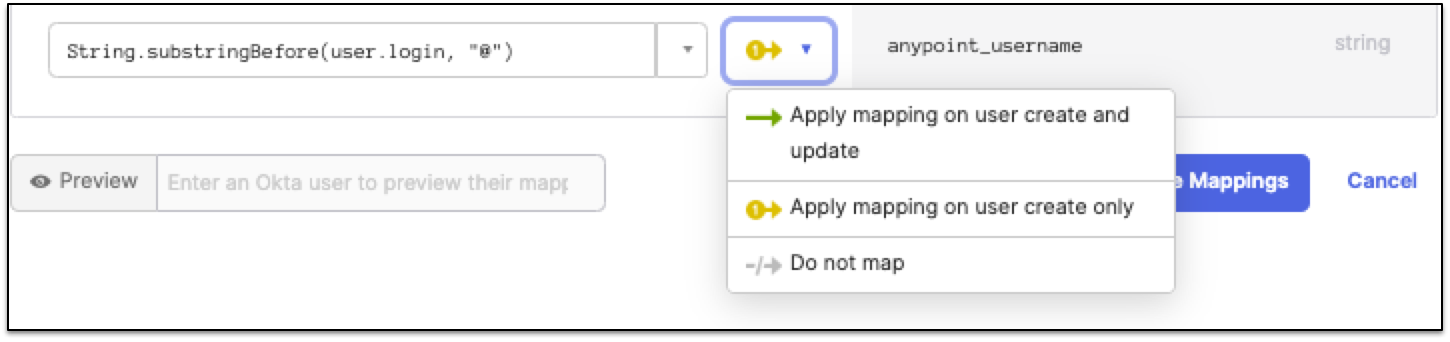
From the yellow arrow drop-down menu, select Apply mapping on user create and update.

-
Save your changes.
-
Apply the mappings to all users in the profile.
If the user already exists and logs in to the portal before the anypoint_idp_id is set, the default identity provider AEH Users - ${salesforceOrganizationId} is used. To prevent the user from being duplicated, the user isn’t added to the new identity provider specified in the anypoint_idp_id field.
If the user already exists in Salesforce and uses SSO to log in to the portal, the API Experience Hub Member User permission set is assigned to that user (if no permission set is already assigned).
-
To reconcile the usernames assignment for a single identity in the portal and Anypoint Platform:
-
In the Okta application, go to Directory > Profile Editor and select the portal application that you just configured.
-
Click Add Attributes to create a new attribute called anypoint_username.
-
Complete these fields:
Field Value Display name
anypoint_username
Value name
anypoint_username
-
Save your changes.
-
Click Mappings.
-
In the empty field of the new anypoint_username attribute, enter
String.substringBefore(user.login, "@"). Since Okta usernames are email-based, this expression removes the email domain.
-
-
From the yellow arrow drop-down menu, select Apply mapping on user create and update.
-
Save your changes.
-
Okta SAML
Create a new application for the API Experience Hub portal in the identity provider using SAML. For more information, see Create SAML app integrations in the Okta documentation.
-
From Okta, create a SAML application and enter a name for your SAML application in General Settings.
-
Select Do not display application icon to users and click Next.
-
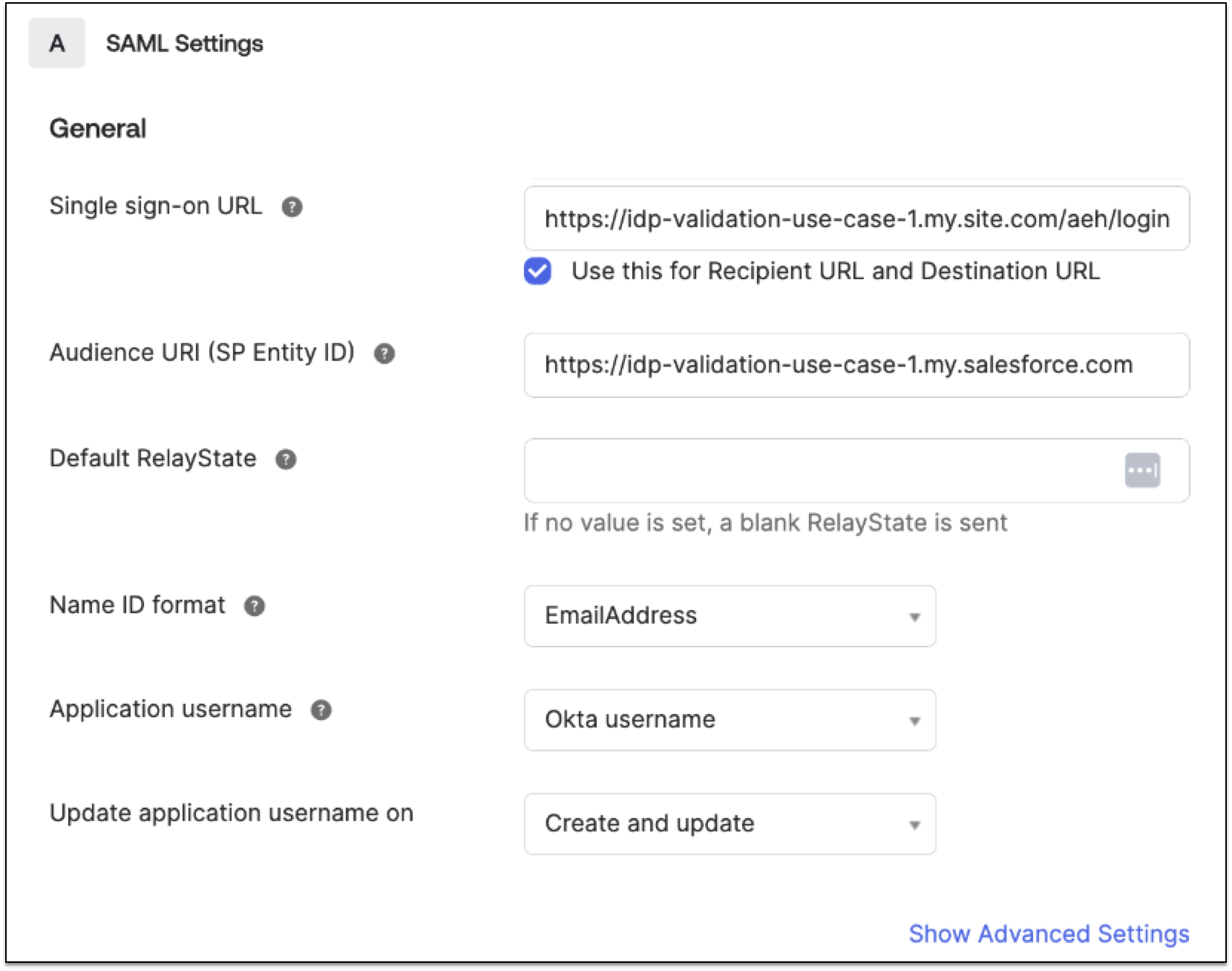
In SAML Settings, complete these fields:
Field Value Single Sign-On URL
Enter the URL for the portal login.
Use this for Recipient URL and Destination URL
Select this option.
Audience URI (SP Entity ID)
Enter https with the Salesforce domain for example,
https://{salesforcedomain}.com.Name ID format
EmailAddress
Application username
Okta username
Update application username on
Create and update
-
Review the gathering-set-up-information.adoc#required-claims-and-attributes-for-ssofor information about what API Experience Hub expects for claims to properly map users in the identity provider.
-
In the Attribute Statements (optional) section, configure the SAML integration by adding these custom attributes. For supported formats, see the supported format for user attributes listed in gathering-set-up-information.adoc#required-claims-and-attributes-for-sso:
Name Name format Value first_name
Unspecified
user.firstName
last_name
Unspecified
user.lastName
email
Unspecified
user.email
groups
Unspecified
(",", getFilteredGroups({"00gdkat3p5RCvkQQC5d7", "00gdjgk337kYDxtE35d7"}, "group.name", 40))
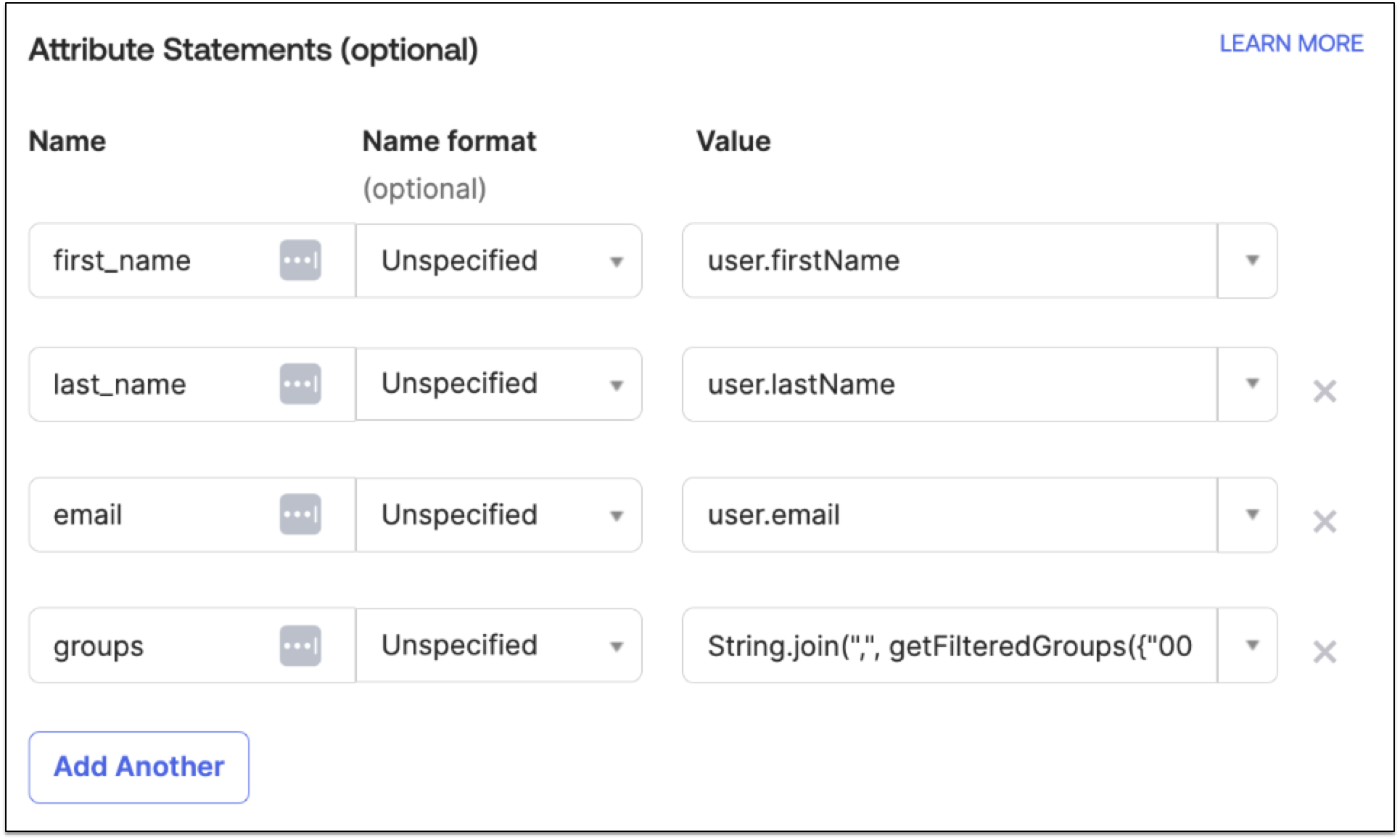
The example IDs, 00gdkat3p5RCvkQQC5d7 and 00gdjgk337kYDxtE35d7 correspond to the groups that you want to send. Ensure that you send all Anypoint Platform groups when you’re configuring Okta in Anypoint Platform. Otherwise, the user can lose access.
-
Enable multi-valued SAML attributes when sending multiple groups in the groups claim.
Sending groups as a comma-separated list isn’t required.
-
Navigate to Salesforce > Setup.
-
From Setup, in the Quick Find box, enter
Custom Metadata Types, and then select Custom Metadata Types. -
Click Manage Records for API Experience Hub Configuration.
-
Click Edit for the Default record, select the Enable Multi-Valued SAML Attributes checkbox, and then click Save.
-
-
Click Next, select I’m an Okta customer adding an internal app, and then click Finish.
-
Select the Assignments tab and select Groups.
-
Click Assign and select Assign to groups.
-
From the list, click Assign from the row of the specific group and click Done.
-
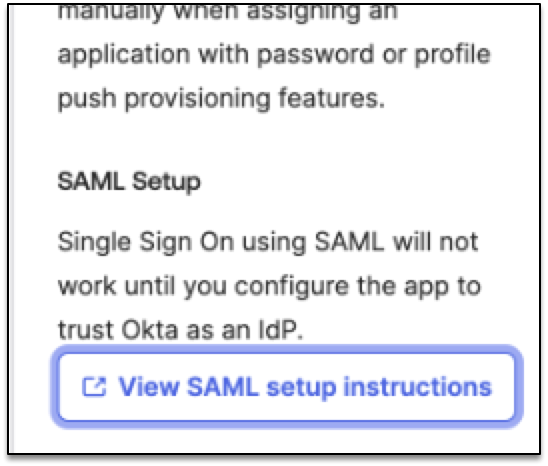
Select the Sign On tab, and click View SAML setup instructions to see instructions about how to configure SAML for your application.
-
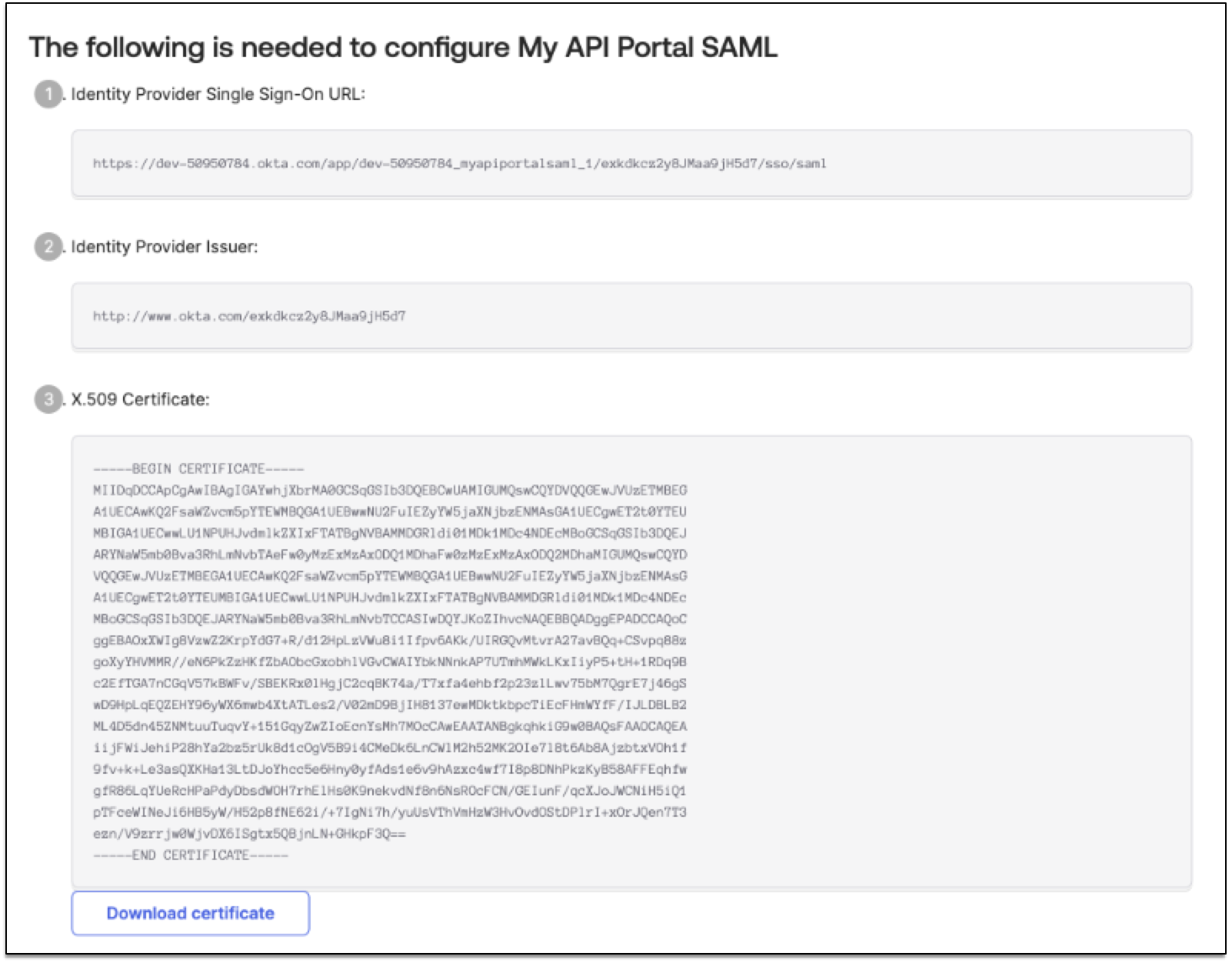
Get this information from the instructions page to configure the Single Sign-on Settings tab in Salesforce:
-
Identity Provider Single Sign-On URL
-
Identity Provider Issuer
-
X.509 Certificate (download the certificate)
-
-
Go to Salesforce > Setup and search for Single Sign-On Settings.
-
From Single Sign-On Settings in the Federated Single Sign-On Using SAML section, select SAML Enabled and click Save.
-
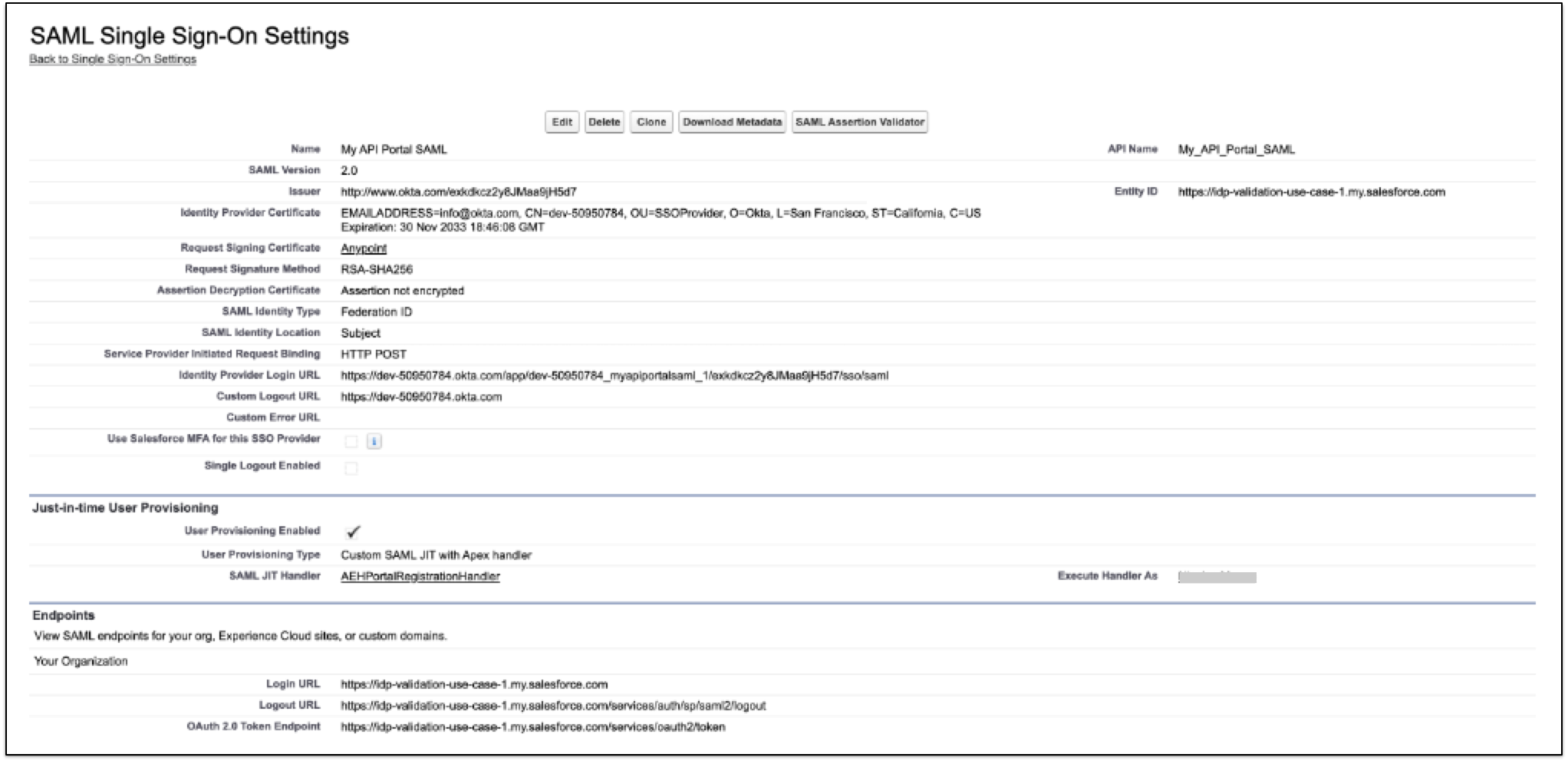
From Single Sign-On Settings, click Edit and complete these fields:
Field Value Issuer
Match the Identity Provider Issuer from the View SAML setup instructions.
Entity ID
Match the Audience Restriction you set in the application.
Identity Provider Certificate
Upload the certificate previously downloaded from the View SAML setup instructions.
SAML Identity Type
Assertion contains the Federation ID from the user object.
SAML Identity Location
Identity is in the NameIdentified element of the Subject statement.
Identity Provider Login URL
Match the Identity Provider Single Sign-On URL from the View SAML setup instructions.
Custom Logout URL
Okta URL
User Provisioning
Enabled
User Provisioning Type
Custom SAML JIT with Apex Handler
SAML JIT Handler
AEHPortalRegistrationHandler
Execute Handler As
Select a system administrator.
Microsoft Entra ID SAML for Cloud
Create a new application for the API Experience Hub portal in the identity provider using Microsoft Entra ID. Microsoft Entra ID for OpenID Connect isn’t supported.
-
In Azure, create a SAML Enterprise application:
-
Go to the Azure administration portal or enter
https://portal.azure.comin a browser. -
Go to Microsoft Entra ID (Active Directory service), click Add, and select Enterprise application.
-
In Browse Microsoft Entra Gallery, select the Salesforce application.
-
Enter a name like AEH Portal and click Create.
-
-
Configure the single sign-on settings for the application:
-
From Manage, select Single sign-on and select SAML.
-
From Basic SAML Configuration, click Edit.
-
Complete these required fields:
Field Value Identifier (Entity ID)
https://<YOUR_DOMAIN>.my.site.com/aehReply URL (Assertion Consumer Service URL)
https://<YOUR_DOMAIN>.my.site.com/aeh/loginSign on URL
https://<YOUR_DOMAIN>.my.site.com/aeh/loginLogout Url (Optional)
https://<YOUR_DOMAIN>.my.site.com/aeh/services/auth/sp/saml2/logout -
Save your changes.
-
-
Configure the required first name, last name, email, and username claims that the application sends:
-
From Attributes & Claims, click Edit.
-
Click Add a group claim, select All Groups or any other option except None, and click Save.
At least one group must be associated to perform a group mapping in a later step.
-
Add a new claim for each required claim by clicking + Add new claim and completing these fields for each claim:
-
First Name
Field Value Name
firstName
Source attribute
user.givenname
-
Last Name
Field Value Name
lastName
Source attribute
user.surname
-
Email
Field Value Name
email
Source attribute
user.mail
-
Username
Field Value Name
http://schemas.xmlsoap.org/ws/2005/05/identity/claims/name
Source attribute
user.userprincipalname
-
-
API Experience Hub uses the value of the http://schemas.xmlsoap.org/ws/2005/05/identity/claims/name claim as the username, which must be email-shaped for Salesforce to accept it. The Microsoft Entra ID user.userprincipalname attribute is email-shaped by default. If this claim is not present, API Experience Hub uses the value of the email claim instead.
-
Save your changes.
-
Enable multi-valued SAML attributes when sending multiple groups in the groups claim.
Sending groups as a comma-separated list isn’t required.
-
-
Navigate to Salesforce > Setup.
-
From Setup, in the Quick Find box, enter
Custom Metadata Types, and then select Custom Metadata Types. -
Click Manage Records for API Experience Hub Configuration.
-
Click Edit for the Default record, select the Enable Multi-Valued SAML Attributes checkbox, and then click Save.
-
If this single sign-on is already configured in Anypoint Platform, map the application to the identity provider for Anypoint Platform using a new custom attribute,
anypoint_idp_id.
-
-
Click + Add new claim and complete these fields:
Field Value Name
anypoint_idp_id
Source attribute
"<identity_provider_id>" The ID must be in quotes.
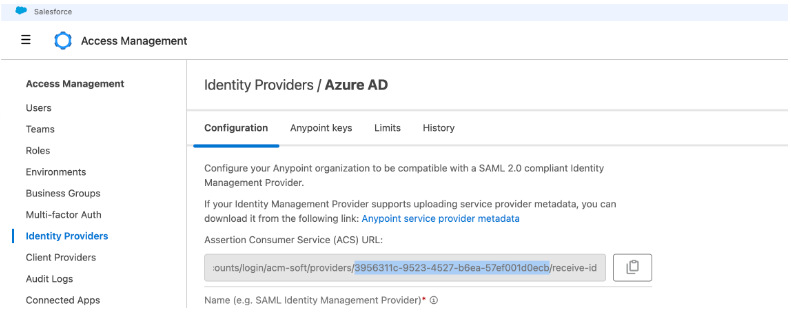
To get the identity provider ID, go to Access Management > Identity Providers, click the identity provider, and copy the 32-digit ID from the browser URL.
-
Save your changes.
-
If usernames for the portal and Anypoint Platform are different, add another custom attribute named
anypoint_username. This attribute updates existing identity provider users to match the identities in the portal and Anypoint Platform.
-
-
Click + Add new claim and complete these fields:
Field Value Name
anypoint_username
Source attribute
Define an attribute for example, ExtractMailPrefix (user.mail)
-
Save your changes.
-
From Source, select Transformation and complete these fields:
Field Value Transformation
ExtractMailPrefix()
Parameter 1
Attribute
Attribute name
user.mail
-
Click Add.
-
From Manage claim, save your changes.
-
Create single sign-on settings in Salesforce:
-
Select Single Sign-on and click Download from Federation Metadata XML in the SAML Certificates section.
-
Go to Salesforce > Setup > Single Sign-On Settings and click New from Metadata File.
-
From Metadata File, click Choose File, select the Federation Metadata XML file, and click Create.
-
Complete these fields:
Field Value Name
Enter a name.
API Name
Enter a name.
Entity ID
Enter the value from the Azure Enterprise application’s Identifier (Entity ID) field. For example,
https://<YOUR_DOMAIN>.my.site.com/aeh.SAML Identity Type
Assertion contains the Federation ID from the User object.
Just-in-time User Provisioning
Enabled
User Provisioning Type
SAML JIT with Apex handler
SAML JIT Handler
AEHPortalRegistrationHandler
Execute Handler As
Select a system administrator.
-
Save your changes.
-
Step 2: Add Salesforce Identity Providers
After the identity provider is configured for Salesforce, add and enable the identity provider from the API Experience Hub UI. When the identity provider is enabled, users can log in to the portal using this identity provider.
-
Go to API Experience Hub > User management and click Login settings.
-
From the Single sign-on (SSO) section, scroll down to step 2 Add Salesforce identity providers.
-
Click Select identity provider and select an option from the drop-down menu.
-
Click + Add identity provider and move the slider to Enabled.
Step 3: Add Group Mappings
When setting up SSO for the portal, your users must have an identity in both Salesforce and Anypoint Platform. SSO users are mapped to teams using their group names. You must map your users to teams using Access Management. API Experience Hub provides an out-of-the-box team called AEH Portal - ${salesforceOrganizationId}_${salesforceCommunityId} that is added automatically as a team in Access Management.
Add group mappings by adding the user to the corresponding profile in API Experience Hub:
-
Go to Access Management > Teams.
-
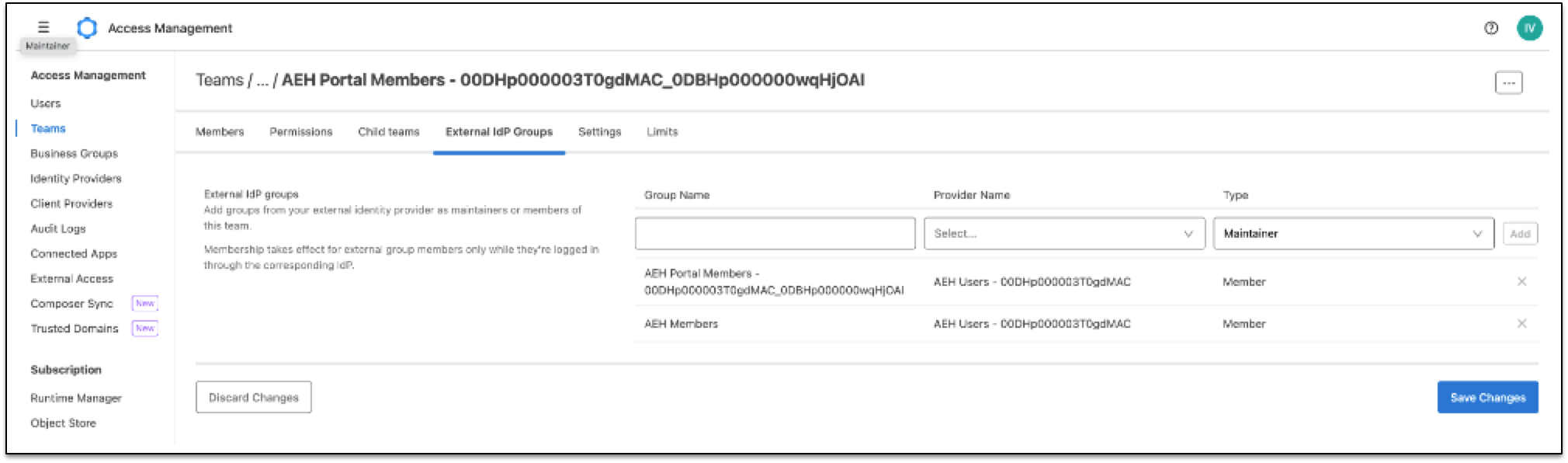
Click AEH Portal Guests and click AEH Portal Members > External IdP Groups.
-
Complete these fields:
Field Value Group Name
Enter
AEH Membersor enter the value of the groups claim.Provider Name
The name of the corresponding Salesforce identity provider.
Type
Member.
-
From Type, click Add.
-
Save your changes.
The SSO users associated with the group you designated are assigned to the team.
Step 4: Test the SSO Configuration
Verify that the SSO for the portal is configured properly.
-
Open an incognito window in a browser and go to your API Experience Hub portal.
-
Select the SSO option that you configured.
-
Log in with a user that belongs to the group you configured in the identity provider for your portal.
-
Check the visibility of APIs for the user in the portal.
-
Go to Access Management and select Users.
-
Search using the username to confirm that the user is mapped to the expected identity provider.
-
Go to the team with the configured group mappings.
From the Members tab, ensure that you can see your user there.