---
schema_version: "1"
id: 4736c67727afda9238a5103df49413314fe77cf759dd3b8d68333be19ca4cccb
title: Anypoint MQ Publish Operation
collection: mulesoft
version: current
locale: en-us
portal_url: https://docs.salesforce.com/mulesoft/current/en-us/anypoint-mq-connector/latest/anypoint-mq-publish.md
canonical_url: https://docs.mulesoft.com/anypoint-mq-connector/latest/anypoint-mq-publish
source_site: docs.mulesoft.com
content_type: documentation
content_hash: 6a15a6e5afe3c9226d99bc6553ad8cf91a008fa7907a87acbdbe7a3b5222569b
description: MuleSoft Documentation Site
release: 4.x
latest: true
---
---
product: Anypoint MQ Connector
version: 4.x
is-latest-version: true
---
# Anypoint MQ Publish Operation
> For the full documentation index, see: https://docs.mulesoft.com/llms.txt
The Publish operation enables you to create a new Anypoint MQ message and send it to the specified
destination: queue, FIFO queue, or message exchange. With it, you can configure both the content of
the message and all the headers and properties you need.
## Outgoing Message Structure
Messages contain these parameters:
- `body`
Contains the body of the published Anypoint MQ message.
- `properties`
Represents a simple key-value map of strings that are the message properties of the message.
## Send a Message
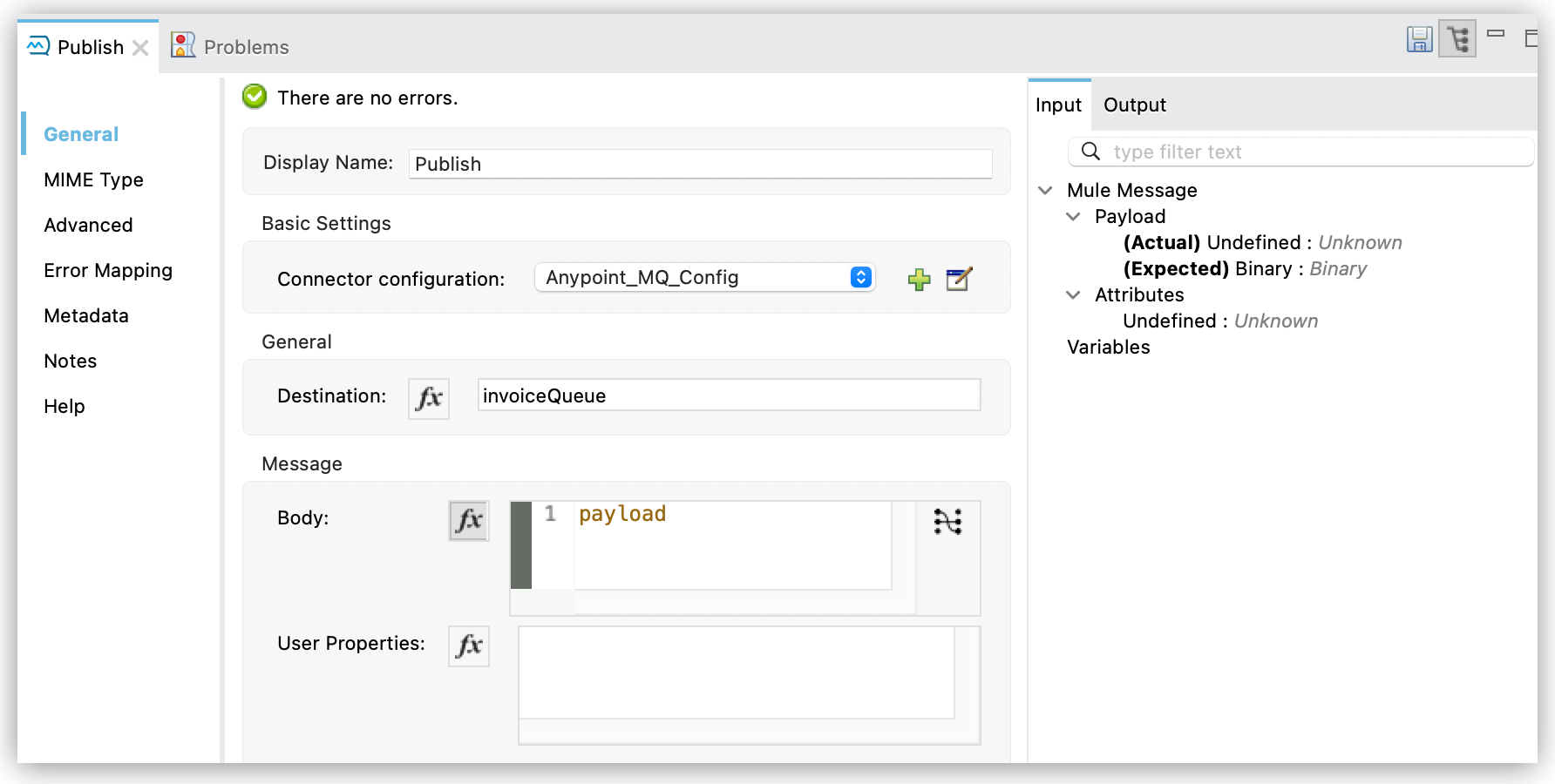
When used in its default form, the connector publishes the content found in the incoming message
`payload` as `body` of the Anypoint MQ message, serialized as a string, to the declared
`destination`:
```xml
```
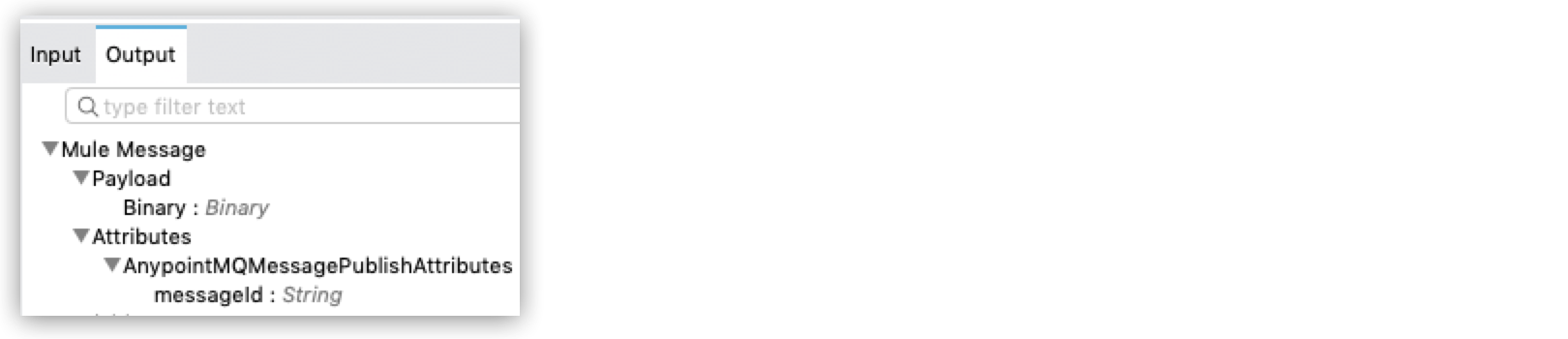
This operation produces the following output:
- A copy of the body sent as payload
For example, if you are sending a "Hello world" message, the resulting payload is the "Hello
world" string.
- The message `messageId` value in the message attributes
## Configure User Properties
You can define properties for outgoing messages, for example, to provide compatibility with other
messaging systems or to communicate the content type of a message. Anypoint MQ supports strings and
numbers in property values.
> [!IMPORTANT] If you create routing rules on numeric property values and you use Anypoint MQ
> Connector to publish messages, you must upgrade to Anypoint MQ Connector version 3.2.0 or later.
> Previous versions of the connector send all property values as strings, which results in messages
> not matching routing rules on numeric properties.
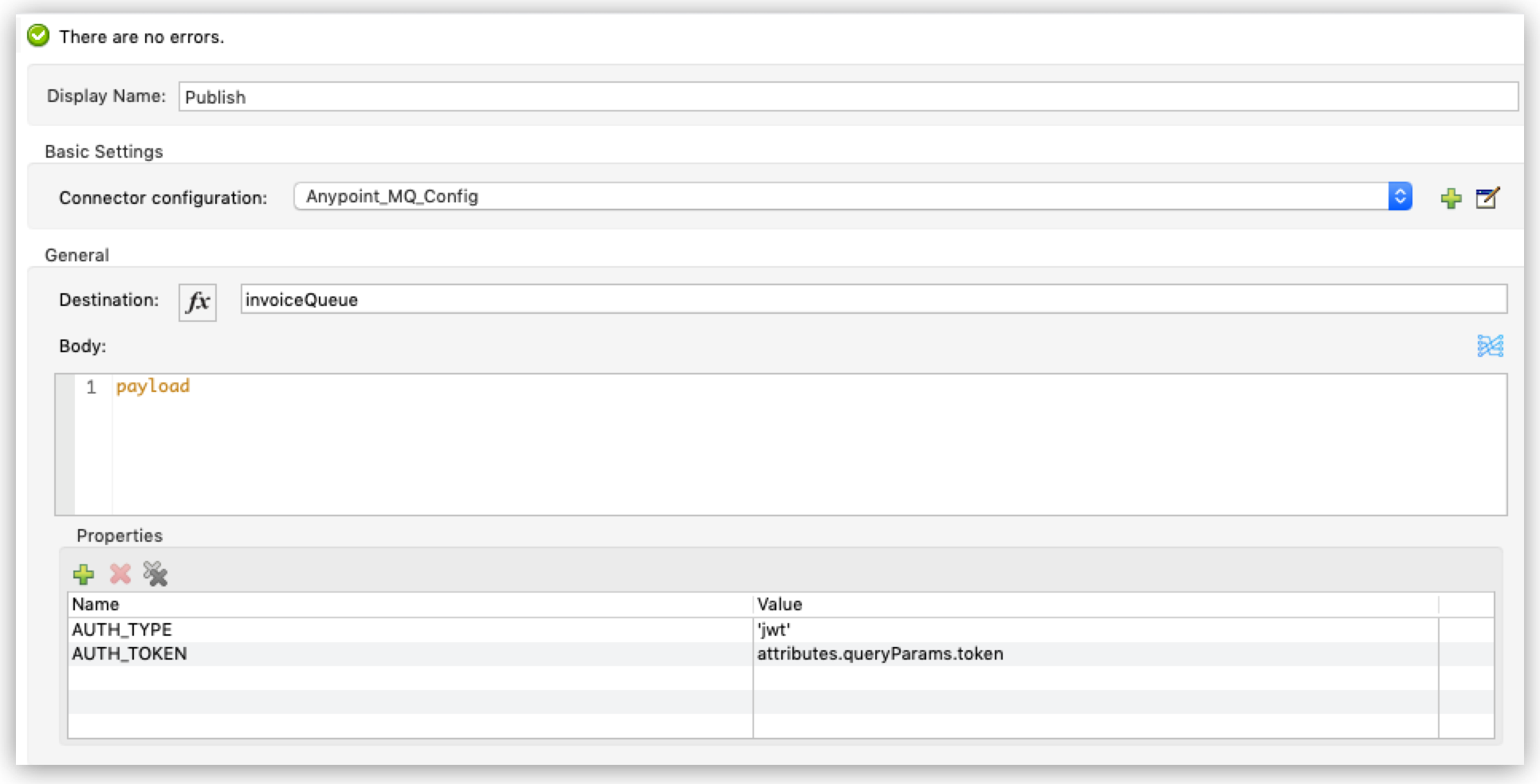
To configure these properties directly in the message, use the `properties` parameter of the Publish
operation and define a key-value map using DataWeave.
For example:
```xml
```
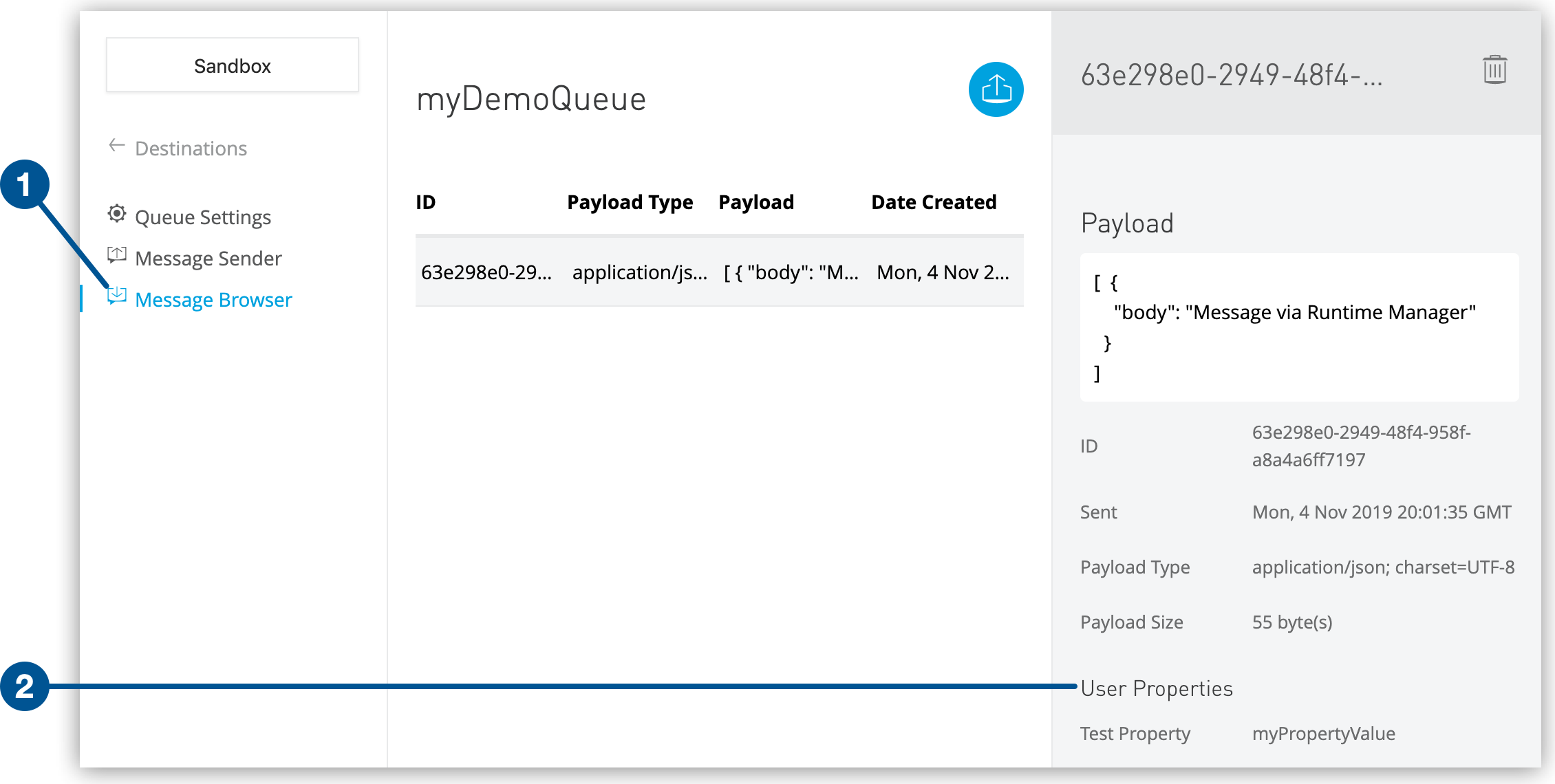
User properties that you define in the Publish operation appear in Anypoint MQ in the **Message
Browser** details pane for the message:
### Transform the Message Body
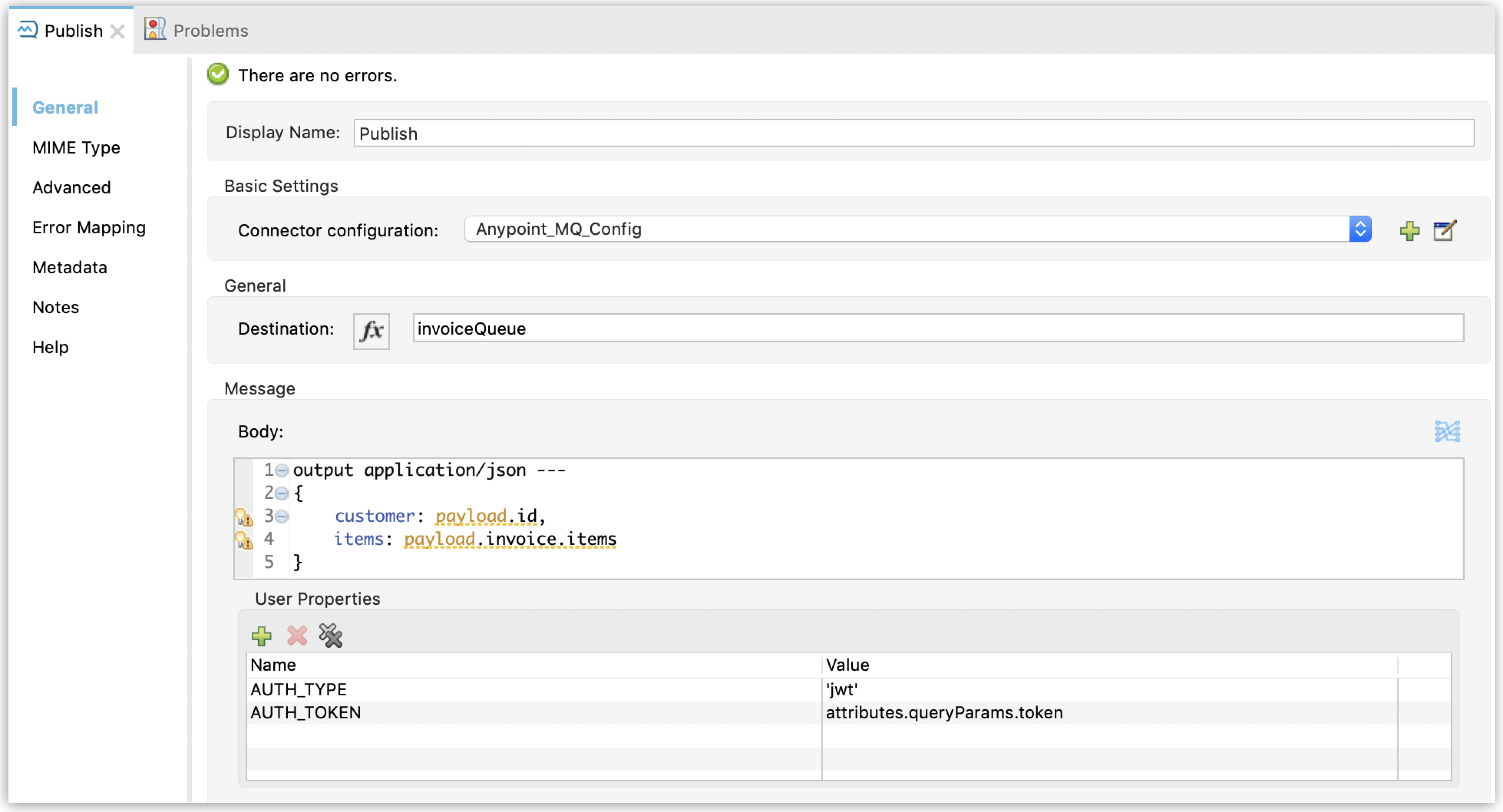
If the payload is not in the correct format, you can transform it to the correct format.
To transform a payload, declare an inline DataWeave transformation in the `body` parameter of the
Publish operation:
```xml
```
In this case, the result of the operation is the _transformed_ value as JSON.
## Advanced Configurations
You might want to set a unique custom message ID instead of letting Anypoint MQ generate it. You can
also add the content type of the message body as a property.
### Set a Custom Message ID
Instead of letting Anypoint MQ generate a unique `messageId` value for the new published message,
set a custom `messageId` value in the **Message Id** field in the **Advanced** tab:
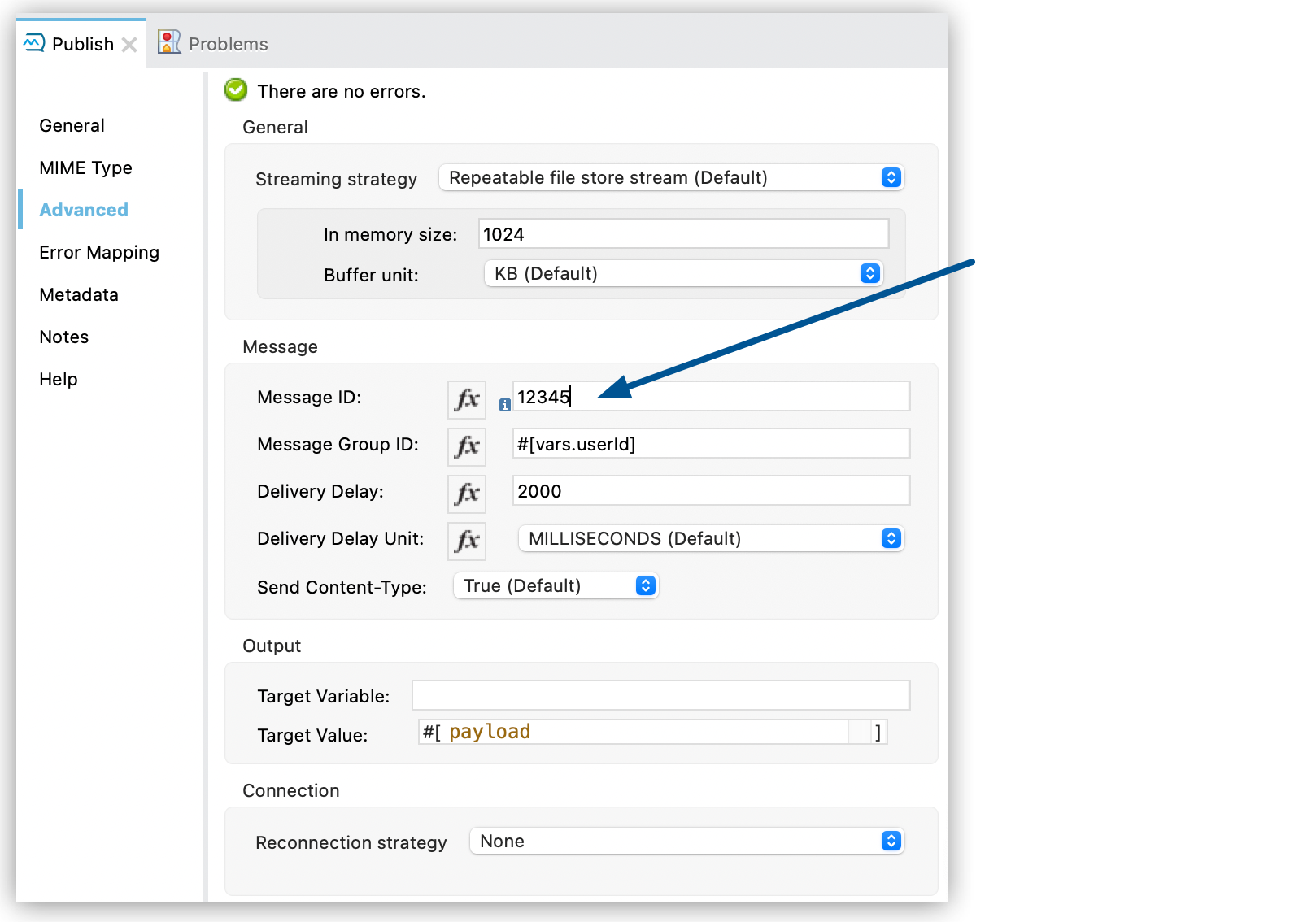
The ID of an Anypoint MQ message must be unique. Make sure to choose a unique custom ID to avoid
unwanted side effects of duplicated IDs. FIFO queues provide message deduplication. If multiple
messages are sent to a FIFO queue containing the same message ID, the first message to arrive is
kept as the valid message. See
[FIFO Exactly-Once Delivery](https://docs.mulesoft.com/mq/mq-queues#fifo-exactly-once-delivery) for more information.
### Delay Message Delivery
Anypoint MQ supports the ability to publish a message and postpone making it visible to consumers
using the `deliveryDelay` parameter:
1. Select the Publish operation.
2. Click the **Advanced** tab.
3. Set the **Delivery Delay** parameter to the amount of time to delay:
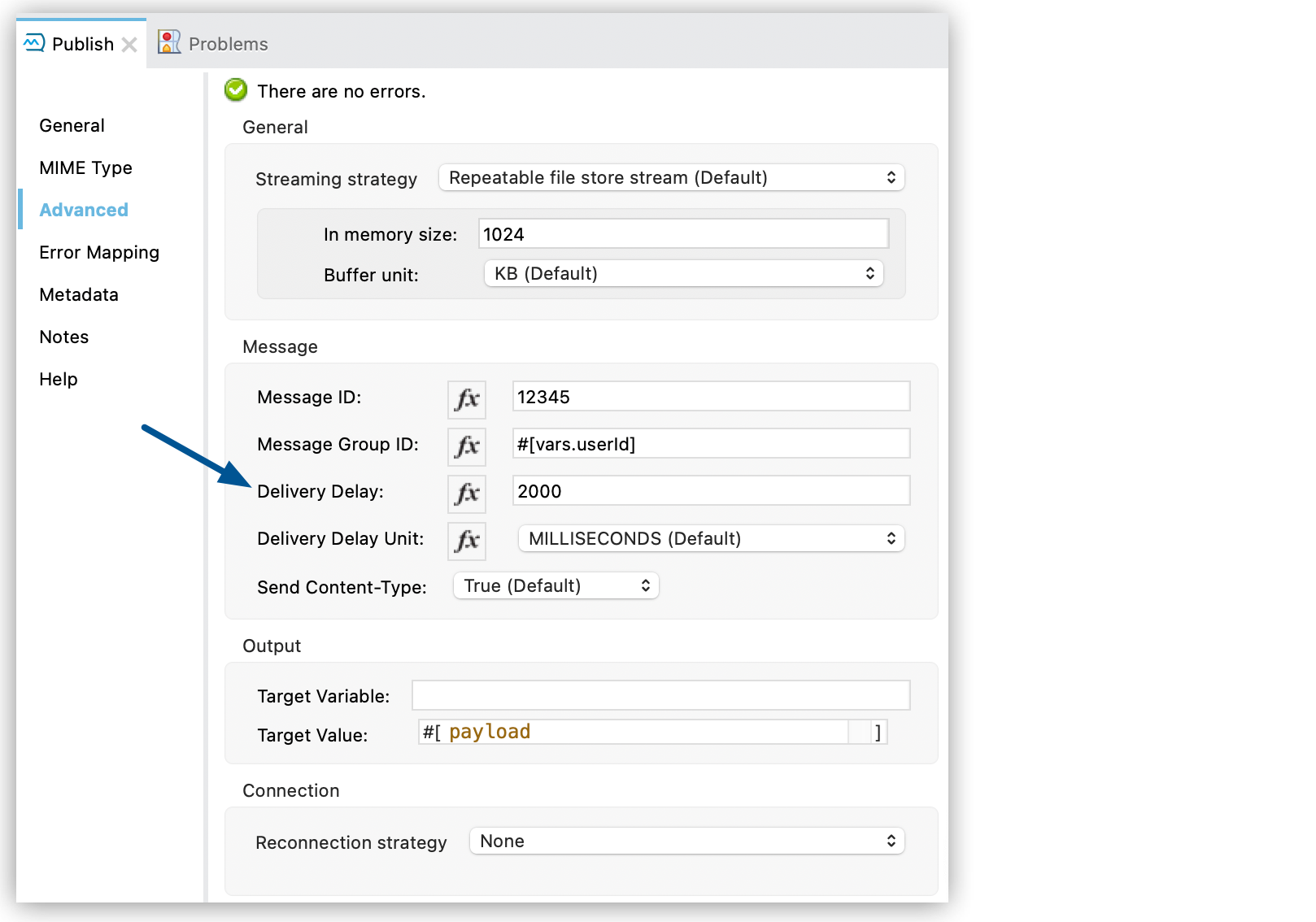
By default, the `deliveryDelay` parameter is set to `0`, which specifies to deliver messages
immediately (no delay). The maximum `deliveryDelay` value is 15 minutes.
See [Delayed Message Delivery](https://docs.mulesoft.com/mq/mq-glossary#delay-messages) for more information.
4. Select the unit from the **Delivery Delay Unit** menu.
### Set a Message Group ID
When using FIFO queues, you can assign a message group ID to an outgoing message using the
`messageGroupID` parameter:
1. Select the Publish operation.
2. Click the **Advanced** tab.
3. Enter an ID in the **Message Group ID** field:
![Publish configuration window Advanced tab showing Message Group ID set to #\[vars.userId\]](_images/amq-4x-publish-advanced-groupid.png)
By default, all messages sent to a FIFO queue have the same autogenerated group ID.
See [FIFO Queues and Message Groups](https://docs.mulesoft.com/mq/mq-queues#fifo-queues-msg-groups) for more
information.
To get the maximum value from message groups, define more granular groups with fewer messages in
each group. For example, when processing messages from multiple users, to keep each user’s events in
relative order, use the value of the user’s `userId` as the message group ID.
### Propagate Content Type
To specify whether the content type of the message body is propagated as a property of the Anypoint
MQ message or not, use the `sendContentType` parameter.
Setting this parameter to `true` automatically adds a `contentType` property to the outgoing
message. This can be useful to declare that a message body is in `application/json` or
`application/xml` format.
## See Also
- [Anypoint MQ Subscriber Source](https://docs.mulesoft.com/anypoint-mq-connector/latest/anypoint-mq-listener)
- [Anypoint MQ Glossary](https://docs.mulesoft.com/mq/mq-glossary)
- [Configuring and Using Queues](https://docs.mulesoft.com/mq/mq-queues)