---
schema_version: "1"
id: 70c646f60709d933490a2451e22378e75982832c49d2b5e6603e53ac35d7aaa9
title: Upgrading and Migrating Anypoint MQ Connector
collection: mulesoft
version: current
locale: en-us
portal_url: https://docs.salesforce.com/mulesoft/current/en-us/anypoint-mq-connector/latest/anypoint-mq-connector-upgrade-migrate.md
canonical_url: https://docs.mulesoft.com/anypoint-mq-connector/latest/anypoint-mq-connector-upgrade-migrate
source_site: docs.mulesoft.com
content_type: documentation
content_hash: 86d6e56be15095e90e2802663dbd0fa708b1e7e957f0ee8d49a29c182811bc6c
description: MuleSoft Documentation Site
release: 4.x
latest: true
---
---
product: Anypoint MQ Connector
version: 4.x
is-latest-version: true
---
# Upgrading and Migrating Anypoint MQ Connector
> For the full documentation index, see: https://docs.mulesoft.com/llms.txt
To use the latest features, upgrade Anypoint Connector for Anypoint MQ (Anypoint MQ Connector) from
version 3.x to version 4.x.
## Supported Upgrade Paths
## Changes in This Release
Some changes included in version 4.x break backward compatibility with version 3.x.
Anypoint MQ Connector 4.x includes support for these features:
- Cross-Region Failover
Anypoint MQ Connector for Mule 4 version 4.0.7 and later provides failover capability for standard
queues.
When enabled, if a Mule app can’t reach an Anypoint MQ server in a region, the connector switches
to the fallback queue in the fallback region to publish and consume messages.
For information, see:
- [Configuring Cross-Region Failover for Standard Queues](https://docs.mulesoft.com/mq/mq-failover)
- [Configuring Cross-Region Failover in Your App](https://docs.mulesoft.com/anypoint-mq-connector/latest/anypoint-mq-failover)
- Connected Apps
Anypoint MQ Connector for Mule 4 version 4.0.1 and later includes a new format for the **URL**
field in the **Global Element Properties** page.
- In Anypoint MQ Connector 3.x, the URL format was:
`https://mq-us-east-1.anypoint.mulesoft.com/api/v1`
- In Anypoint MQ Connector 4.x, the URL format includes `{orgID}` and `{envID}`. For example:
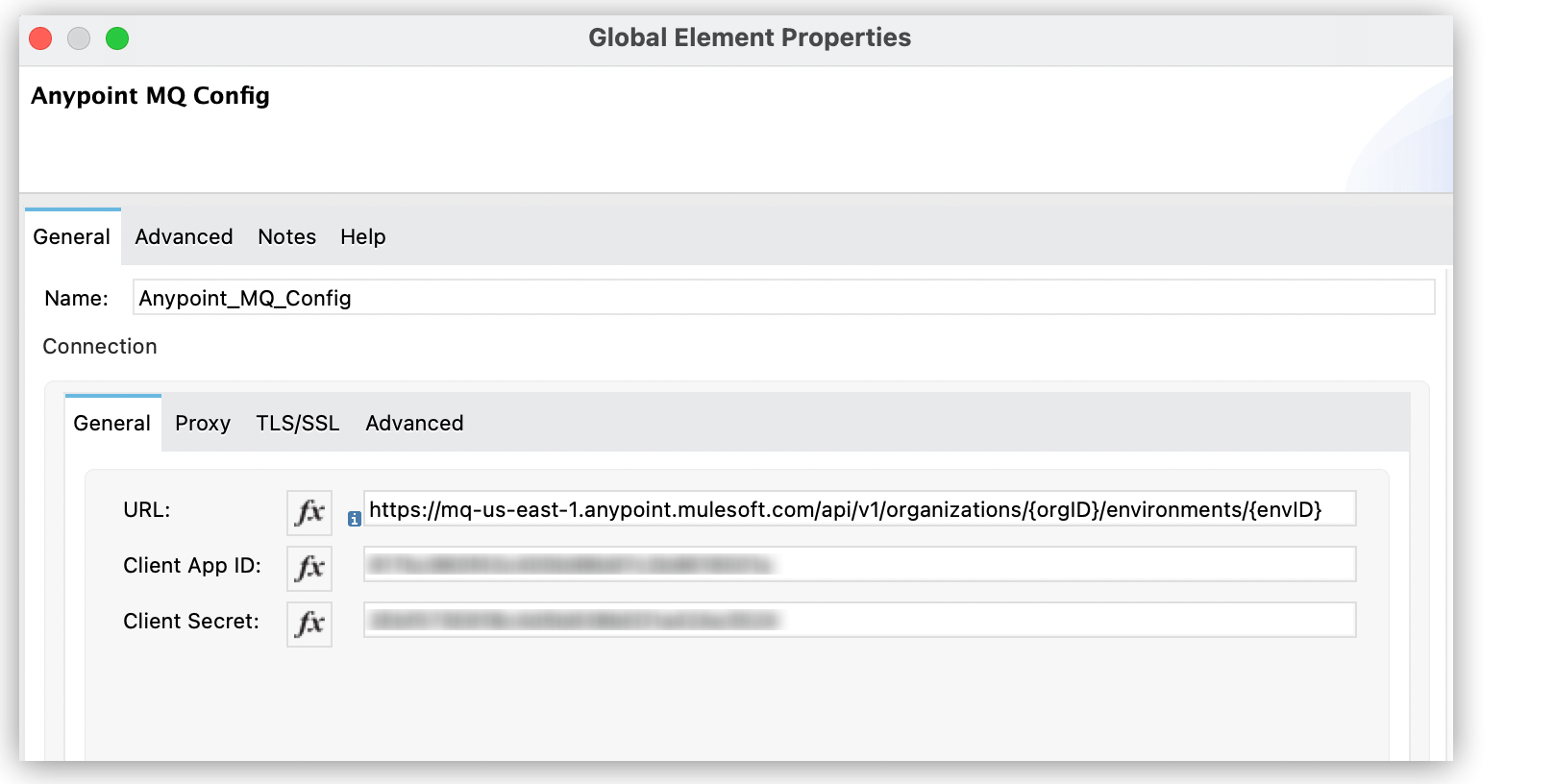
`https://mq-us-east-1.anypoint.mulesoft.com/api/v1/organizations/{orgID}/environments/{envID}`
> [!IMPORTANT] If you configure the connector with the wrong version of the URL, Anypoint MQ
> returns the following error:
>
> `Invalid api url provided`
To use the failover feature, see
[Configuring Cross-Region Failover in Your App](https://docs.mulesoft.com/anypoint-mq-connector/latest/anypoint-mq-failover).
## Upgrade Prerequisites
Before you perform the upgrade, create a backup of your files, data, and configurations in case you
need to revert to the previous version.
## Upgrade Steps
To upgrade to Anypoint MQ Connector 4.x:
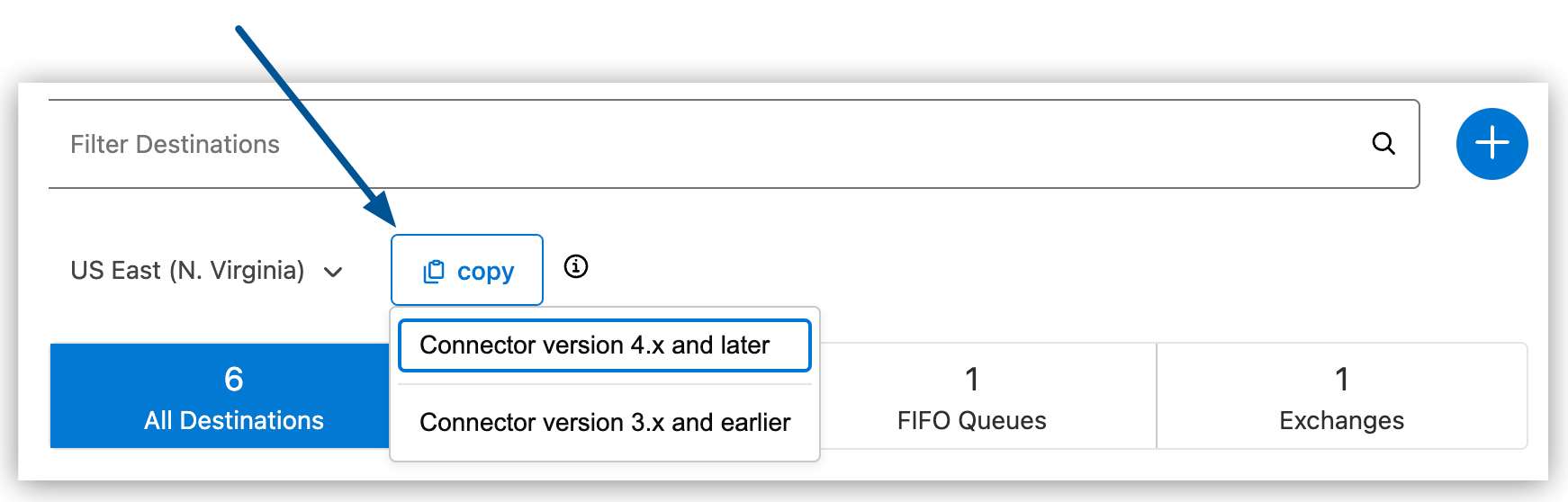
1. In Anypoint MQ, in the **Destinations** page, click **Copy** and select **Connector version 4.x
and later** from the menu:
2. In Anypoint Studio, open the Mule project.
3. In the Mule Palette view, click **Search in Exchange**.
4. In **Add Dependencies to Project**, type `Anypoint MQ` in the search field.
5. In **Available modules**, select **Anypoint MQ Connector - Mule 4** and then click **Add**.
6. Click **Finish**.
Anypoint Studio upgrades the connector automatically.
7. Verify that the `mq-connector` dependency version is `4.0.5` or later in the `pom.xml` file:
```xml
com.mulesoft.connectors
anypoint-mq-connector
4.0.5
mule-plugin
```
8. In Anypoint Studio, in the **Anypoint MQ Config** window, paste the URL in the **URL** field:
9. Depending on your authentication method, complete the **Client App ID** and **Client Secret**
fields:
- **Connected App**:
Paste the values of **ID** and **Secret** from **Anypoint Platform** > **Access Management** >
**Connected Apps**.
For information about configuring Connected Apps in Anypoint MQ, see
[Configuring Connected Apps](https://docs.mulesoft.com/mq/mq-connected-apps).
- **Client App**:
Paste the values of **Client App ID** and **Client Secret** from **Anypoint Platform** >
**MQ** > **Client Apps**.
For information about configuring Client Apps in Anypoint MQ, see
[Configuring Client Apps](https://docs.mulesoft.com/mq/mq-client-apps).
## Post Upgrade Steps
After you install the latest version of the connector, follow these steps to complete the upgrade:
1. In Anypoint Studio, verify that there are no errors in the **Problems** or **Console** views.
2. Check the project pom.xml and verify that there are no problems.
3. Test the connection and verify that the operations work.
## Troubleshooting
If you experience problems with caching the parameters and caching the metadata, restart Anypoint
Studio.
### Reverting the Upgrade
To revert to the previous version of Anypoint MQ Connector, in Anypoint Studio, change the
`mq-connector` dependency version in the project’s `pom.xml` file to the previous version.
## See Also
- [Introduction to Anypoint Connectors](https://docs.mulesoft.com/connectors/introduction/introduction-to-anypoint-connectors)
- [Salesforce Help](https://help.salesforce.com)