---
schema_version: "1"
id: 6de859f44c9b627ddc8463640c52b95f42acad225b59b698395108b210e78a35
title: Extract Payload Information to Variables
collection: mulesoft
version: current
locale: en-us
portal_url: https://docs.salesforce.com/mulesoft/current/en-us/anypoint-code-builder/tut-slack-extract-payload-information.md
canonical_url: https://docs.mulesoft.com/anypoint-code-builder/tut-slack-extract-payload-information
source_site: docs.mulesoft.com
content_type: documentation
content_hash: cdb59b6a4213f5656c6dca729706e9f0e02864d3748889f6cd40526b78ae0f78
description: MuleSoft Documentation Site
latest: true
---
---
product: Anypoint Code Builder
version: master
---
# Extract Payload Information to Variables
> For the full documentation index, see: https://docs.mulesoft.com/llms.txt
This section of the tutorial teaches you how to extract information from the payload into different
variables to refer to those values later in the flow.
## Before You Begin
Complete these procedures:
- [Integrate Salesforce Data into Slack and Email Notifications](https://docs.mulesoft.com/anypoint-code-builder/tut-slack-create-escalation-api).
- [Create a Configuration File for Slack and Salesforce](https://docs.mulesoft.com/anypoint-code-builder/tut-slack-create-config-files-sfdc).
- Configure your Salesforce integration.
## Extract Values From the Payload
1. In Anypoint Code Builder, open your `new-case-salesforce.xml` file.
2. Click the  (**Add component**) icon after the **On New Case**
Salesforce component:
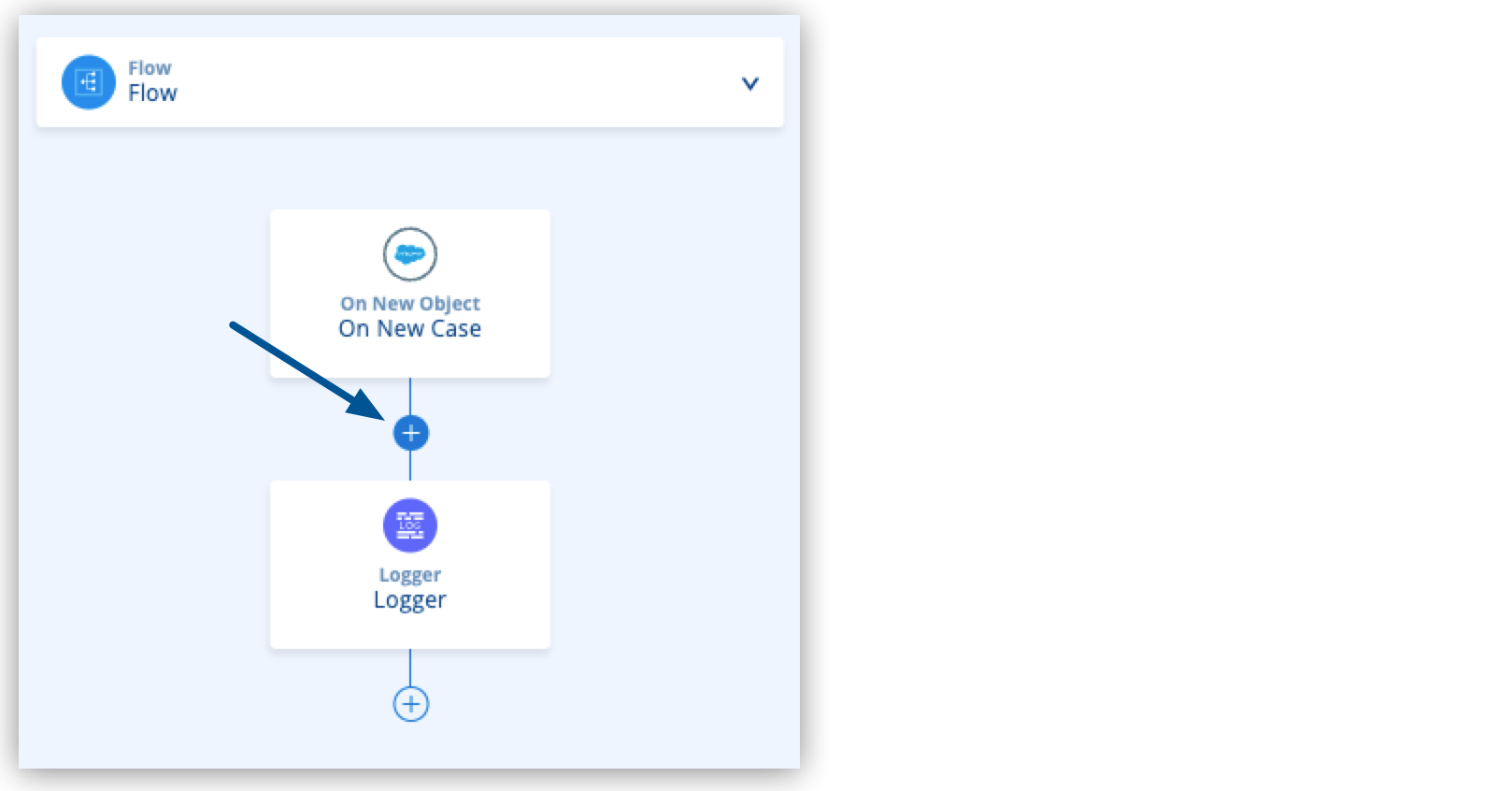
3. Type `Transform` and select **Transform**.
4. Configure the Transform Message component to extract data from the payload to variables:
```XML
(1)
(2)
(3)
```
1
casestatus retrieves the Salesforce case status: New, Working, or Escalated.
2
casenumber retrieves the case number created by Salesforce.
3
Set the slackchannel to the channel name that you set earlier in the tutorial.
## Concatenate Your Values in The Payload
Add a Set Payload component to concatenate the value of your variables in the resulting payload of
your application:
1. Click the  (**Add component**) icon after the Transform Message
component:
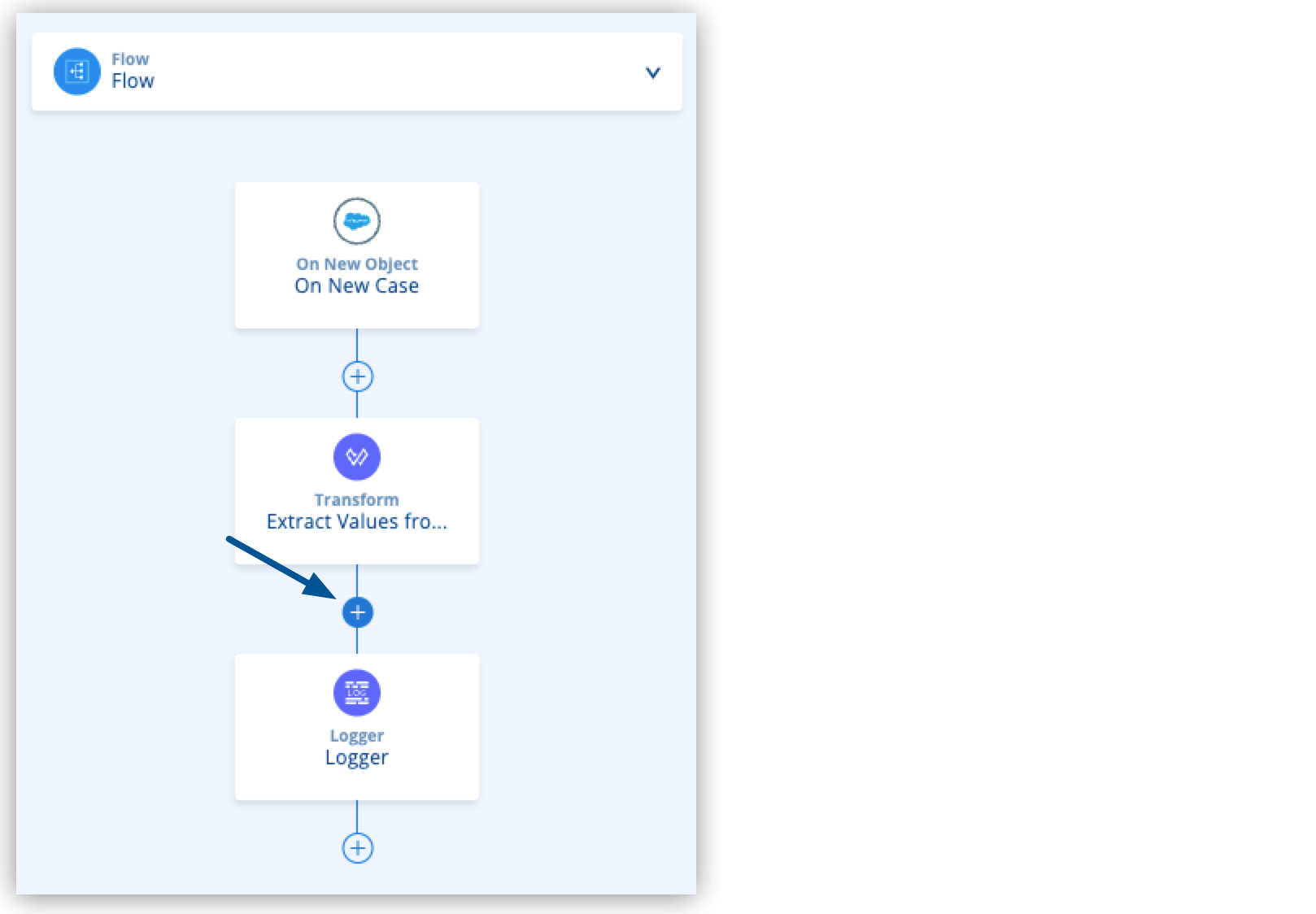
2. Type `set` and select **Set Payload**.
3. Configure the Set Payload component with the following code:
```XML
```
4. Proceed to [Add a Condition to Your Flow Logic](https://docs.mulesoft.com/anypoint-code-builder/tut-slack-add-condition-to-your-flow) to create
a condition to send an email if the case is escalated or otherwise inform about the case in a
Slack channel.
[Create a Configuration File for Slack and Salesforce](https://docs.mulesoft.com/anypoint-code-builder/tut-slack-create-config-files-sfdc)
[Add a Condition to Your Flow Logic](https://docs.mulesoft.com/anypoint-code-builder/tut-slack-add-condition-to-your-flow)