---
schema_version: "1"
id: a8281db715052aad53d6a719c54c7a0941f260dea26e6f01357a37aba8b93b6c
title: Create a Configuration File for Slack and Salesforce
collection: mulesoft
version: current
locale: en-us
portal_url: https://docs.salesforce.com/mulesoft/current/en-us/anypoint-code-builder/tut-slack-create-config-files-sfdc.md
canonical_url: https://docs.mulesoft.com/anypoint-code-builder/tut-slack-create-config-files-sfdc
source_site: docs.mulesoft.com
content_type: documentation
content_hash: 7929d2bac202fe80c4358f482d953dd44c702f42fd1f0abd7264fecb20899dfa
description: MuleSoft Documentation Site
latest: true
---
---
product: Anypoint Code Builder
version: master
---
# Create a Configuration File for Slack and Salesforce
> For the full documentation index, see: https://docs.mulesoft.com/llms.txt
A configuration file is a YAML file that can reference different configurations and specify
different values for your connector properties. Configuration files enable you to define specific
properties depending on the environment to which you are deploying your application.
To start configuring your Slack and Salesforce connectors in your escalation API, create a
configuration file.
## Before You Begin
Complete
[Integrate Salesforce Data into Slack and Email Notifications](https://docs.mulesoft.com/anypoint-code-builder/tut-slack-create-escalation-api).
## Create a Configuration File
1. In your Explorer view, right-click the **resources** folder (`src/main/resources`) and select
**New File**:
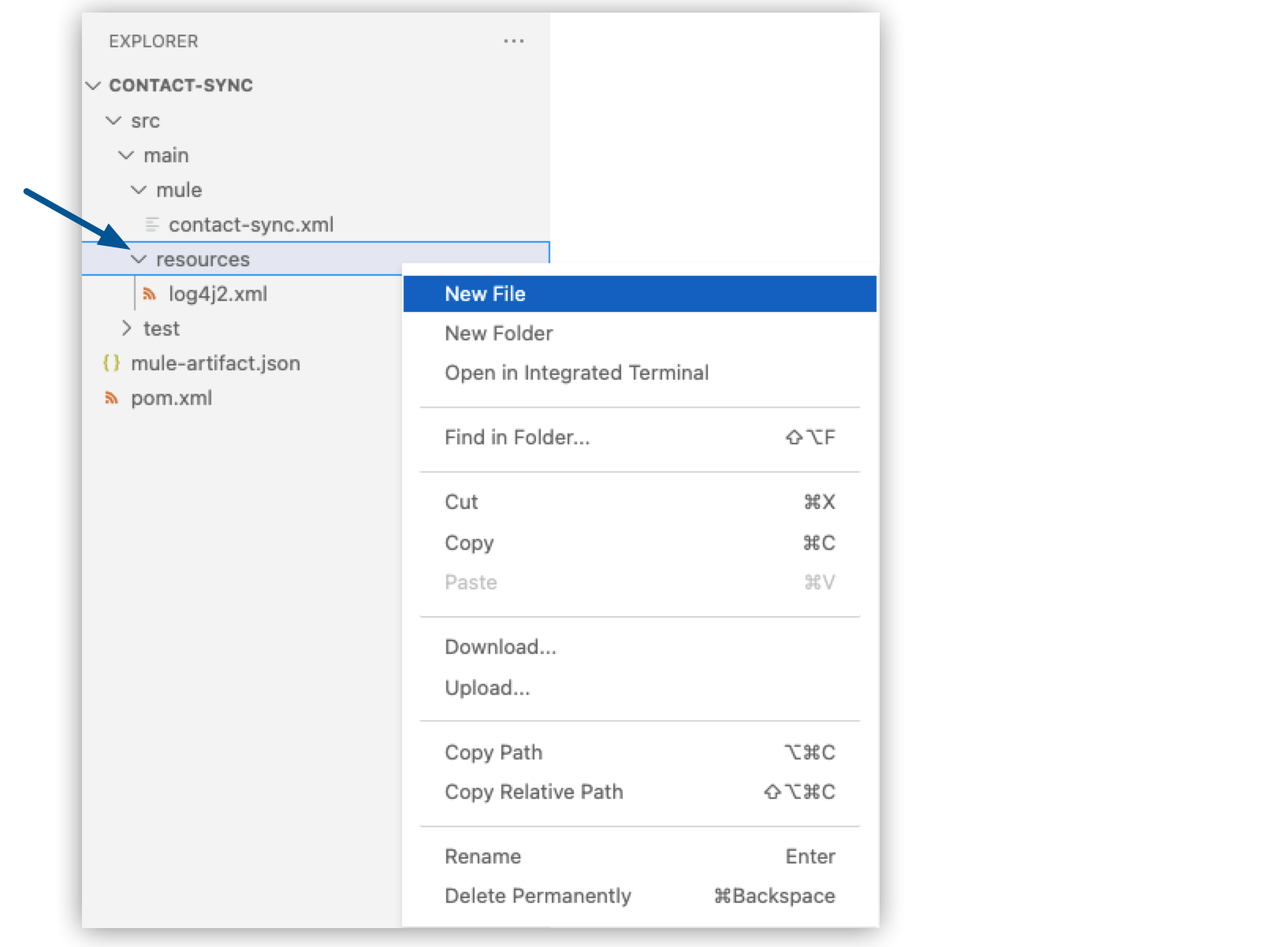
2. Name the file `config.yaml`.
3. Populate your file with your Salesforce, Gmail, and Slack configurations:
```YAML
salesforce:
username: "yourUserName"
password: "yourPassword"
token: "yourToken"
email:
host: "smtp.gmail.com"
username: "yourGmailEmail"
password: "yourEmailAppPassword"
slack:
token: "yourSlackToken"
```
4. Navigate to your `new-case-salesforce.xml` file, add a new line before the `` tag, and
paste this line:
```XML
```
## Configure Your Salesforce Connector
Use the values in your `config.yaml` file to connect the Salesforce Connector to your Salesforce
environment:
1. In your `new-case-salesforce.xml` file, create a new line after the
`` element, and paste the following code:
```XML
```
-
> [!NOTE] When you move your cursor over the `${salesforce.username}` and `${salesforce.password}`
> elements, Anypoint Code Builder shows the values from the configuration file.
1. Verify your connection to Salesforce by clicking **Test Connection** for the
`` element:

Anypoint Code Builder returns a **Connection is valid** message.
If you get an error, verify the error message to troubleshoot further.
## Add a Salesforce Trigger
1. Add a new flow on your canvas.
2. In the code editor, name the flow `NewSalesforceCaseFlow`:
```XML
```
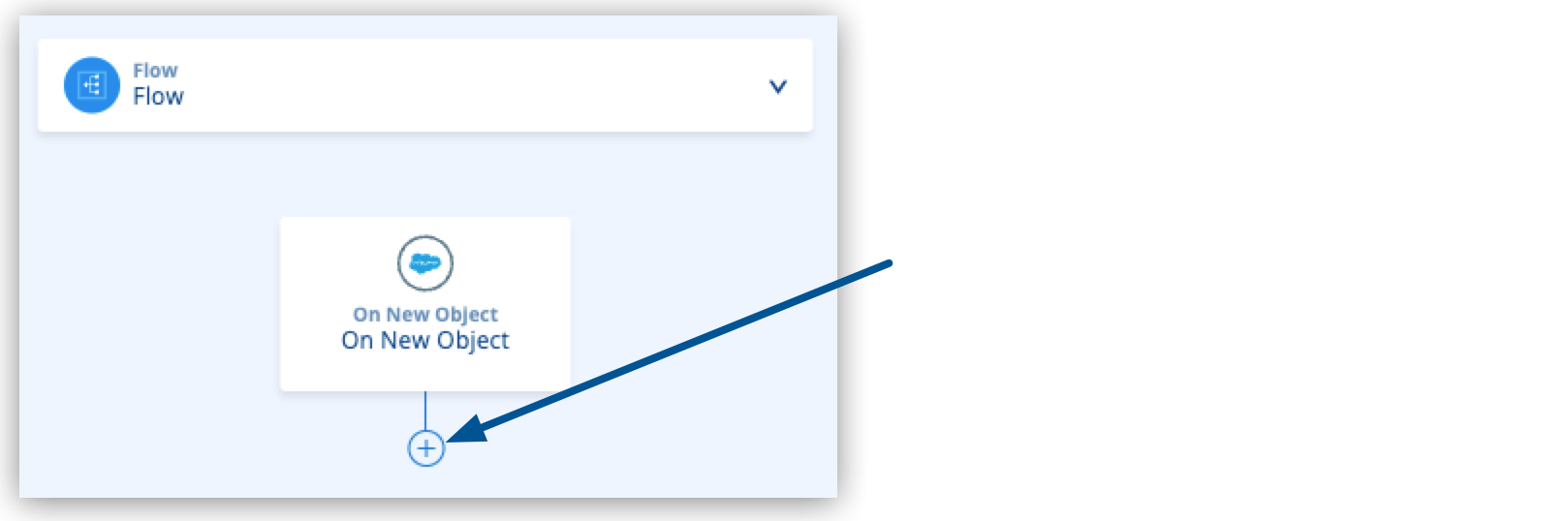
3. On your canvas, click the  (**Add component**) icon after **Flow**,
type `new object`, and select **On new object** after **Salesforce**.
4. In the code editor, set the following values of the `` element:
- `objectType`: **Case**
- `config-ref`: **Salesforce-Config**
- `name`: **On New Case**
5. In the `` element, replace `` with the
following XML:
```XML
```
## Test Your Salesforce Integration
1. Add a logger at the end of your flow:
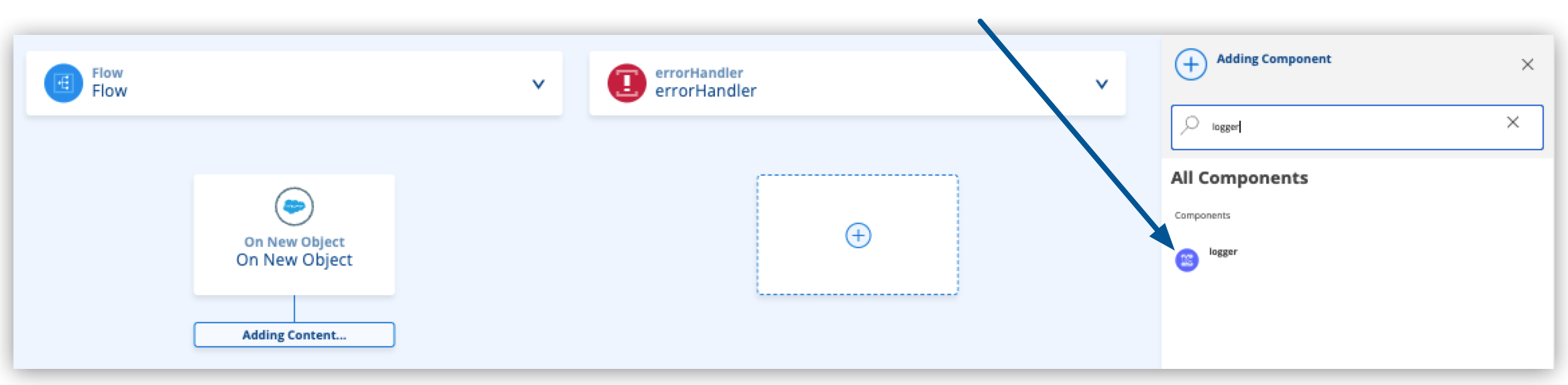
A `logger` component is added to the flow in the code editor.
2. Replace the `logger` component in the code editor with the following:
```XML
```
3. Add a breakpoint to this line by clicking the red dot at the line number:

Alternatively, add a breakpoint to the `logger` component by right-clicking on the component in
the canvas UI and selecting **Add Breakpoint**.
4. Select **Run** > **Start Debugging (F5)**.
5. After your application deploys successfully, log in to your Salesforce account.
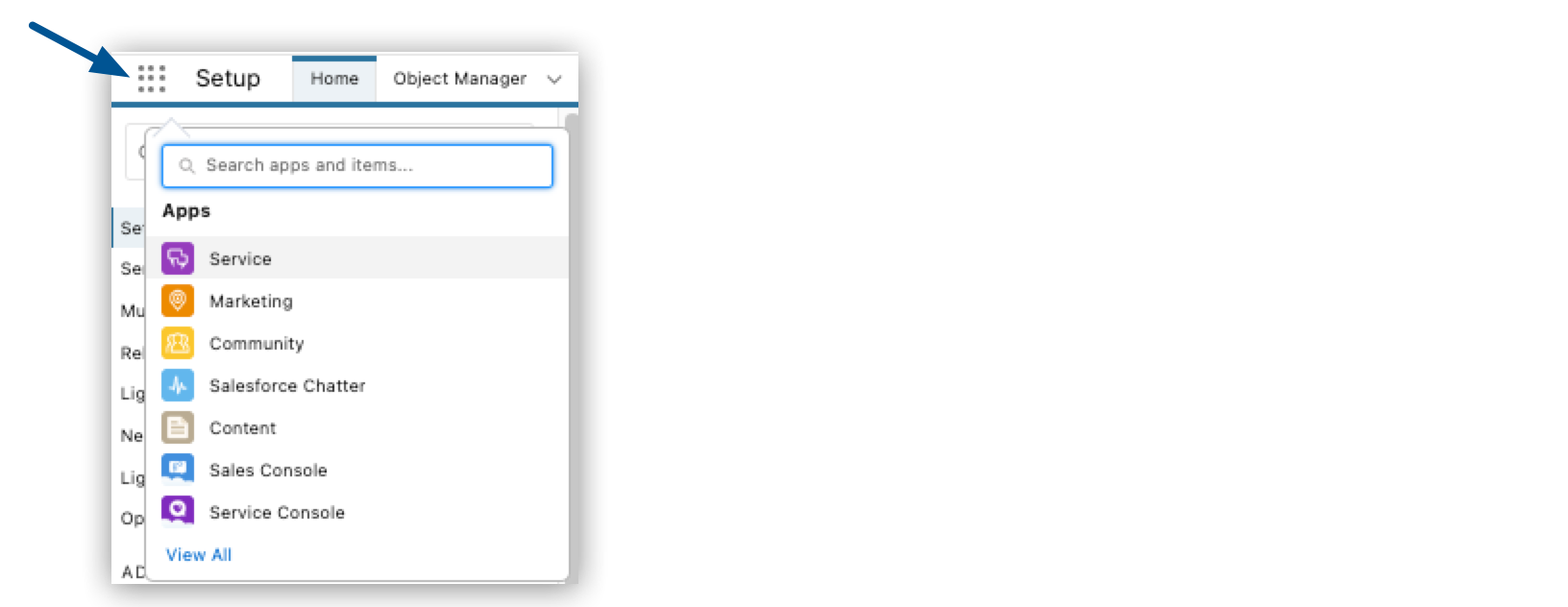
6. From **App Launcher**, select **Service**:
7. Select **Cases** > **New Case**:

8. Ensure that the **Status** of the new case is **New**.
9. Create a new case and save it.
10. In Anypoint Code Builder, your application stops at the logger. Inspect the payload in
**Variables**:
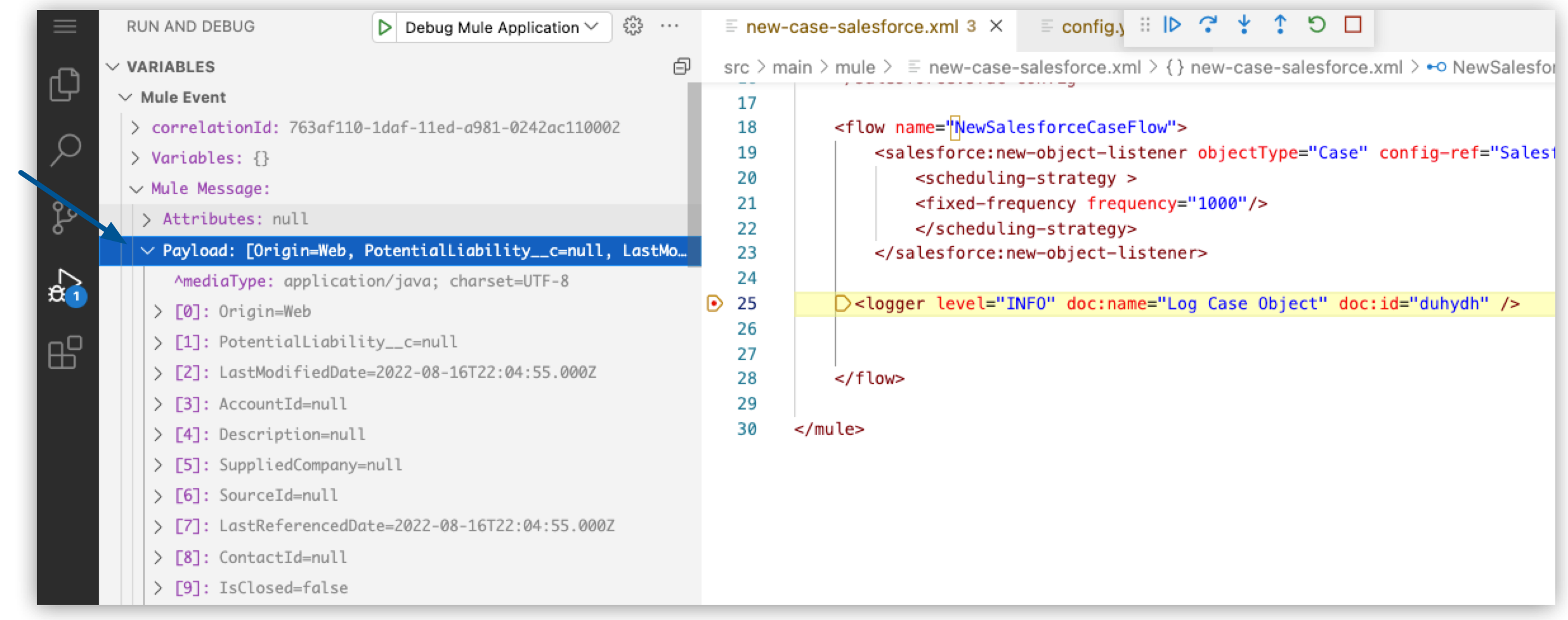
The payload contains information about your newly created case.
11. Step over your Logger component.
12. Proceed to [Extract Payload Information to Variables](https://docs.mulesoft.com/anypoint-code-builder/tut-slack-extract-payload-information) to
learn how to extract your case information to a variable to use it later in the flow.
[Integrate Salesforce Data into Slack and Email Notifications](https://docs.mulesoft.com/anypoint-code-builder/tut-slack-create-escalation-api)
[Extract Payload Information to Variables](https://docs.mulesoft.com/anypoint-code-builder/tut-slack-extract-payload-information)