---
schema_version: "1"
id: 36eef9e9033d94c5a1ea4f7753d45baacbd35cc1c27e680fabc64dfe6b9494cf
title: Add a Condition to Your Flow Logic
collection: mulesoft
version: current
locale: en-us
portal_url: https://docs.salesforce.com/mulesoft/current/en-us/anypoint-code-builder/tut-slack-add-condition-to-your-flow.md
canonical_url: https://docs.mulesoft.com/anypoint-code-builder/tut-slack-add-condition-to-your-flow
source_site: docs.mulesoft.com
content_type: documentation
content_hash: e8e11b4ce99aac7fa9b639a50d0dd23e66bef45409858f51ff7401f11d7c3aa4
description: MuleSoft Documentation Site
latest: true
---
---
product: Anypoint Code Builder
version: master
---
# Add a Condition to Your Flow Logic
> For the full documentation index, see: https://docs.mulesoft.com/llms.txt
In this section of the tutorial, you learn how to add a condition to your flow to send an email to
the regional leader if the Salesforce case is escalated, otherwise your Mule application sends a
message to Slack.
## Before You Begin
Complete these procedures:
1. [Integrate Salesforce Data into Slack and Email Notifications](https://docs.mulesoft.com/anypoint-code-builder/tut-slack-create-escalation-api).
2. [Create a Configuration File for Slack and Salesforce](https://docs.mulesoft.com/anypoint-code-builder/tut-slack-create-config-files-sfdc) and
configure your Salesforce integration.
3. [Extract Payload Information to Variables](https://docs.mulesoft.com/anypoint-code-builder/tut-slack-extract-payload-information).
## Define the Behavior for When the Case Is Escalated
Use a Choice router to define behaviors based on specific conditions. In this case, choose to send
an email if the case is escalated.
1. In Anypoint Code Builder, open your `new-case-salesforce.xml` file.
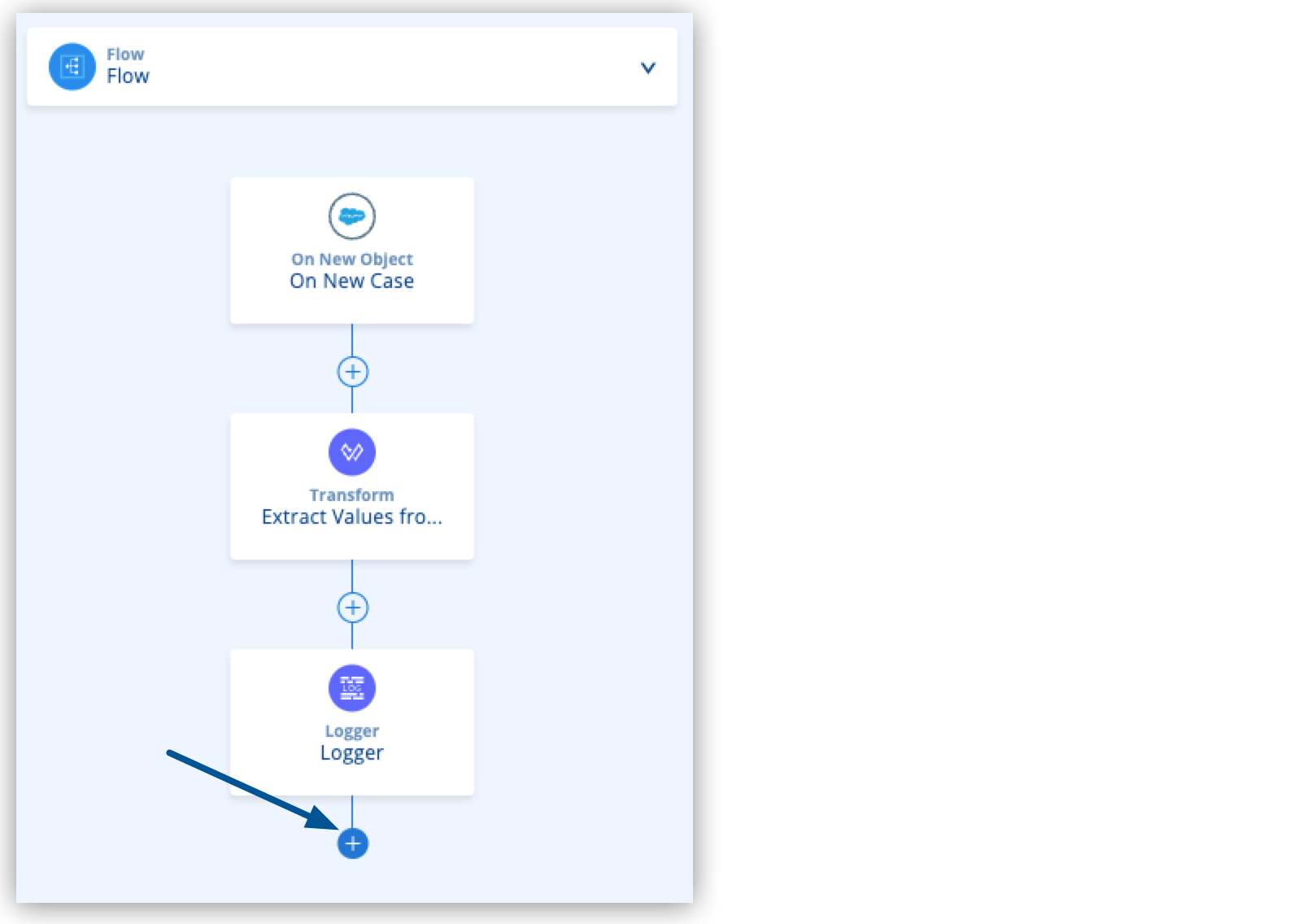
2. Click the  (**Add component**) icon for the Logger component:
3. Type `choice` and select **Choice** under **Flow Control**:
4. Add the `` and `` elements:

```XML
```
For better readability of your Mule flow, update the name of the ``, ``, and
`` elements:
```XML
```
5. Define the `when` branch to execute if the variable `casestatus` equals `Escalated`:
```XML
```
## Add an Email Connector
To configure the `` element, you must first configure operations from the Anypoint Connector
for Email (Email Connector):
1. In Anypoint Code Builder, open your `new-case-salesforce.xml` file, and add a new line under
your `` element.
2. Type `smtp` and select **email:smtp-config**:
```XML
```
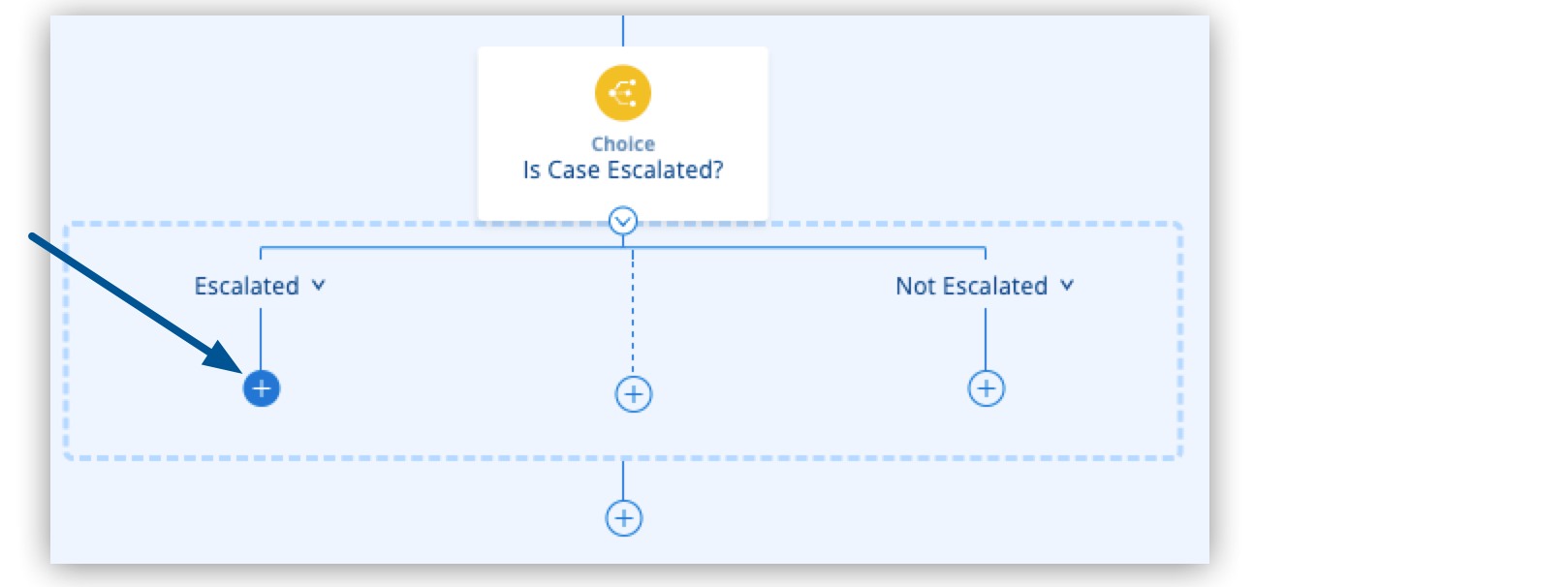
3. Click the  (**Add component**) icon after the **Escalated** section:
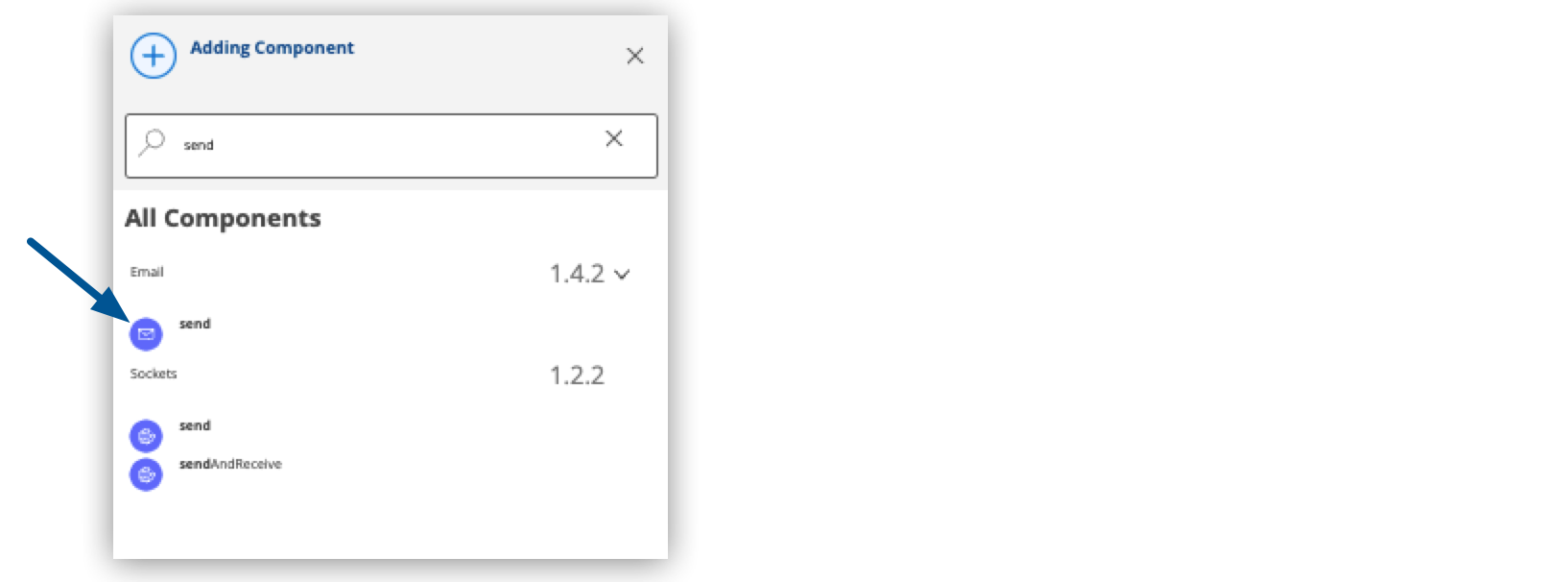
4. Type `send` and select **Send** from the **Email** section:
5. Configure `send` using the following code sample:
```XML
```
6. To be able to test the application, temporarily add a `` element inside your
`` element:
```XML
```
7. Examine your full Choice router configuration:
```XML
```
## Test Your Mule Application
1. To expedite the test, remove the breakpoint for your Logger component.
2. Select **Run** > **Start Debugging (F5)**.
3. After your application deploys successfully, log in to your Salesforce account.
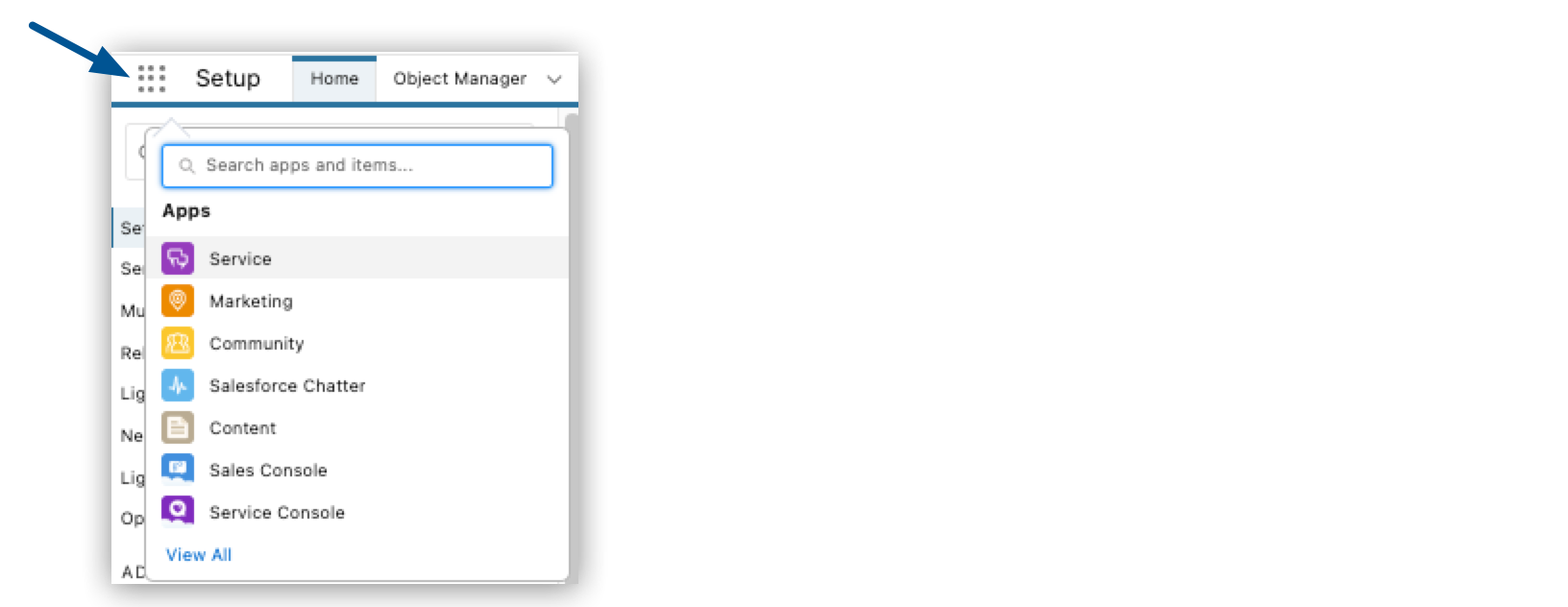
4. From **App Launcher**, select **Service**:
5. Select **Cases** > **New Case**:

6. Ensure that the **Status** of the new case is **Escalated**.
7. After a few seconds, ensure that your configured email account received an email with the
information configured in the case:
```none
Please handle this case. Case Number: 00001030, Origin: Phone, Case Type: , Priority: Medium, Status: Escalated
```
8. Proceed to [Configure Slack Integration](https://docs.mulesoft.com/anypoint-code-builder/tut-slack-configure-integration) to learn how to
configure the Slack message for any case that was not escalated.
[Extract Payload Information to Variables](https://docs.mulesoft.com/anypoint-code-builder/tut-slack-extract-payload-information)
[Configure Slack Integration](https://docs.mulesoft.com/anypoint-code-builder/tut-slack-configure-integration)