---
schema_version: "1"
id: e5aef22e5024d4fa9b8cfa0fe7f7dd2aeff1d01bd8d860fb9440c83a6993b4ef
title: Iteratively Design and Implement an API Specification
collection: mulesoft
version: current
locale: en-us
portal_url: https://docs.salesforce.com/mulesoft/current/en-us/anypoint-code-builder/tut-local-api-specification.md
canonical_url: https://docs.mulesoft.com/anypoint-code-builder/tut-local-api-specification
source_site: docs.mulesoft.com
content_type: documentation
content_hash: 90a4579ceacd54e954adf0535d073c3671564bc43bf89d5d47a93634e610392c
description: MuleSoft Documentation Site
latest: true
---
---
product: Anypoint Code Builder
version: master
---
# Iteratively Design and Implement an API Specification
> For the full documentation index, see: https://docs.mulesoft.com/llms.txt
Scaffold a REST API specification into an implementation project, and sync changes to the
specification with the interface without first publishing to Anypoint Exchange. For example, after
adding a new endpoint to your API specification, you can re-scaffold the change into the interface
to add a flow for that endpoint to the interface’s configuration XML file.
The interface XML is automatically created in a Mule project during the scaffolding process. You
define an API in a specification file within an API Design project.
Iterative API design and implementation takes place in a _multi-root workspace_ in VS Code. To map
project folders for your API specification and implementation projects into a multi-root workspace,
VS Code uses a file with the extension `.code-workspace`. For your projects to work properly, this
file _must not reside within_ either project folder. In addition, Anypoint Code Builder permits only
one pair of iterative design and implementation project folders per multi-root workspace. The
procedures for creating the specification and implementation projects are designed to meet these
requirements. For information in the VS Code documentation, see
[Multi-root Workspaces](https://code.visualstudio.com/docs/editing/workspaces/multi-root-workspaces).
## Before You Begin
- Set up your MuleSoft environment. See [Getting Started with Anypoint Code Builder](https://docs.mulesoft.com/anypoint-code-builder/start-acb) for
more information.
- Have some familiarity with [business groups](https://docs.mulesoft.com/access-management/business-groups).
When you publish your API spec to Exchange, Anypoint Code Builder requests the name of the
business group.
## Create an API Specification
1. Open a new window in VS Code by pressing Cmd+Shift+n (Mac) or Ctrl+Shift+n (Windows).
This step helps prevent the possibility of creating an API specification in a multi-root
workspace that already contains iterative design and implementation projects and ensures that
the command required in the next procedure,
[Scaffold the Local REST API Specification into an Interface](#scaffold), is available.
2. In the activity bar, click the  (**Anypoint Code Builder**) icon to
open Anypoint Code Builder.
3. Start an API specification by clicking the quick action **Design an API**.
Alternatively, open the Command Palette by pressing Ctrl+Shift+p (Mac) or Cmd+Shift+p (Windows),
and provide this command:
```command
MuleSoft: Design an API
```
4. If prompted, sign in to Anypoint Platform, and follow all the prompts to reopen Anypoint Code
Builder.
5. Complete the **API Specification** form:
Field Name
Field Value
Project Name
Retrieve Users API Alternatively, provide a similar name of your choice. The name must be unique. The name of the project and specification file is based on the name you provide.
6. Click **Create Project**.
This process creates a project that contains your API specification within your workspace.
7. Open your API specification file, `retrieve-users-api.raml`.
8. To track the progress of internal processing, open the **Output** panel to the **Mule DX
Server**. To see scaffolding errors only, select **Mule DX Server: Scaffolding** from the list.
Show me how
1. Press Cmd+Shift+u (Mac) or Ctrl+Shift+u (Windows) to open the Output panel.
2. Select **Mule DX Server** from the dropdown list in the panel. To see scaffolding errors
only, select **Mule DX Server: Scaffolding** from the list.
For more guidance, see [Viewing Logs and Errors](https://docs.mulesoft.com/anypoint-code-builder/start-open-output-panel).
9. In the editor for your API specification, add this example to `retrieve-users-api.raml`:
```raml
#%RAML 1.0
title: Retrieve Users API
version: 1.0.development
/users:
get:
description: Retrieve a list of all the users
responses:
200:
body:
application/json:
example: |
[{
"id": 1,
"name": "Leanne Graham",
"username": "Bret",
"email": "Sincere@april.biz",
"address": {
"street": "Kulas Light",
"suite": "Apt. 556",
"city": "Gwenborough",
"zipcode": "92998-3874",
"geo": {
"lat": "-37.3159",
"lng": "81.1496"
}
},
"phone": "1-770-736-8031 x56442",
"website": "hildegard.org",
"company": {
"name": "Romaguera-Crona",
"catchPhrase": "Multi-layered client-server neural-net",
"bs": "harness real-time e-markets"
} }]
```
10. Proceed to [Scaffold the Local REST API Specification into an Interface](#scaffold).
## Scaffold the Local REST API Specification into an Interface
Scaffold your local REST API specification into a local implementation project. The scaffolding
process creates a configuration XML for your implementation.
Local projects reside in Anypoint Code Builder.
To scaffold your local API specification:
1. With `retrieve-users-api.raml` open, prepare to scaffold the specification into a Mule project:
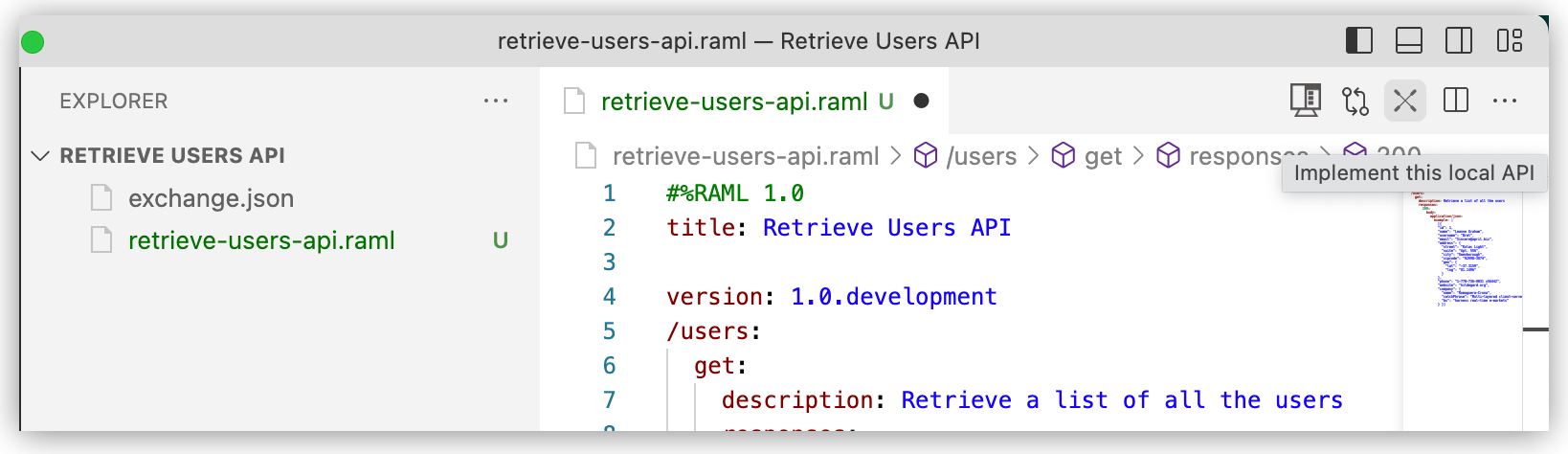
1. Click the  (**Implement this local API**) icon in the
activity bar:
Alternatively, open the Command Palette by pressing Cmd+Shift+p (Mac) or Ctrl+Shift+p
(Windows), and provide this command:
```command
MuleSoft: Implement this Local API
```
Do not select the command `MuleSoft: Implement an API Specification`, which is for
implementing a specification that is published on Anypoint Exchange and not for implementing
a local API specification.
2. Click **OK** when the UI displays the message **We’ll create a workspace to keep your API
specification and Mule project in sync.**
> [!IMPORTANT] At the prompt to save a file with the extension `.code-workspace` for a
> multi-root workspace, do not save this file within your API specification project folder.
> Proceed to the next step, instead.
3. Navigate up to the parent folder you created for your workspace, and save the
`.code-workspace` file.
4. Make sure that your **Mule DX Server** output is available for tracking the progress of
internal processes in the **Output** panel. To see scaffolding errors only, select **Mule DX
Server: Scaffolding** from the list.
The UI displays a message: **Implementing local API implementation, please wait.**
As you monitor output, wait for the field with placeholder text `_Mule project name_` to
appear in the UI, for example:

2. Start the scaffolding process by entering a name for your Mule implementation project, such as
`retrieve-users-implementation`:

3. When prompted, click **Select target folder**.
The target folder is the project folder where you created your API specification.
The UI provides updates while the scaffolding process takes place:
- **Executing scaffolding operation, please wait**
- **Scaffolding process ended. You can now start iterating over your local API and
implementation project**
4. From your multi-root workspace in the Explorer, Anypoint Code Builder opens the scaffolded
specification in your new Mule project.
The configuration XML file for the implementation (`retrieve-users-implementation.xml`) is
located in an implementation project directory similar to this one:
```implementation
retrieve-users-implementation/src/main/mule/retrieve-users-implementation.xml
```
- The canvas for this Mule project contains a Router component and several error handlers.
APIkit automatically creates these components during the scaffolding process.
- In the implementation XML, the flow ``
contains an `` element with your example:
```XML
```
5. Proceed to
[Update the API Specification and Re-scaffold the Implementation XML](#update-api-spec).
## Update the API Specification and Re-scaffold the Implementation XML
Add an endpoint to your specification file and re-scaffold:
1. In the Explorer, navigate to the specification file `retrieve-users-api.raml` in the **Retrieve
Users API** directory.
2. Append the following `/userbyid` endpoint configuration to your RAML file:
```raml
#%RAML 1.0
title: Retrieve User
version: 1.0.development
/users:
get:
description: Retrieve a list of all the users
responses:
200:
body:
application/json:
example: |
[{
"id": 1,
"name": "Leanne Graham",
"username": "Bret",
"email": "Sincere@april.biz",
"address": {
"street": "Kulas Light",
"suite": "Apt. 556",
"city": "Gwenborough",
"zipcode": "92998-3874",
"geo": {
"lat": "-37.3159",
"lng": "81.1496"
}
},
"phone": "1-770-736-8031 x56442",
"website": "hildegard.org",
"company": {
"name": "Romaguera-Crona",
"catchPhrase": "Multi-layered client-server neural-net",
"bs": "harness real-time e-markets"
} }]
/userbyid:
get:
description: Get information about a particular user
queryParameters:
id:
description: Specify the id of the user you want to retrieve
type: integer
required: false
example: 3
responses:
200:
body:
application/json:
example: |
[{
"id": 3,
"name": "Clementine Bauch",
"username": "Samantha",
"email": "Nathan@yesenia.net",
"address": {
"street": "Douglas Extension",
"suite": "Suite 847",
"city": "McKenziehaven",
"zipcode": "59590-4157",
"geo": {
"lat": "-68.6102",
"lng": "-47.0653"
}
},
"phone": "1-463-123-4447",
"website": "ramiro.info",
"company": {
"name": "Romaguera-Jacobson",
"catchPhrase": "Face to face bifurcated interface",
"bs": "e-enable strategic applications"
} }]
```
3. Re-scaffold the API specification to update your Mule project:
1. Open the Command Palette by pressing Cmd+Shift+p (Mac) or Ctrl+Shift+p (Windows), and
provide this command:
```command
MuleSoft: Re-scaffold this local API
```
> [!NOTE] This command is available only for API specifications that have not been published
> to Anypoint Exchange. If you publish the spec to Exchange, re-scaffolding is no longer
> available for that asset.
2. After receiving a message that your project **has been rescaffolded successfully**, navigate
to your implementation XML file, and notice the new flow
(``) for the `userbyid` endpoint:
```XML
...
```
4. Proceed to [Publish the API Specification to Exchange](#publish).
## Publish the API Specification to Exchange
Publish the API specification to Anypoint Exchange to make the specification discoverable by your
team members.
1. Open the Command Palette.
Show me how
- Use the keyboard shortcuts:
- Mac: Cmd+Shift+p
- Windows: Ctrl+Shift+p
- Select **View** > **Command Palette**.
2. Provide this command:
```command
MuleSoft: Publish API Project to Exchange
```
3. If prompted, click **Allow**, and follow the prompts to sign in to Anypoint Platform.
4. In **Select a Business Group**, find and select your business group for the project.
For more information, see [Before You Begin](#prereqs).
5. Type a project name: **Retrieve Users API**.

6. Confirm the artifact ID: **Retrieve-Users-API**.
7. Confirm the asset version: **1.0.0**.
8. Confirm the API version: **v1**.
The status bar provides progress-related messages before Anypoint Code Builder updates your Mule
project POM file to point to `v1.0.0` of your API specification:
- **Publishing API Specification to Exchange**
- _Project_ **has been successfully published to Exchange**
The specification is now available on
[Anypoint Exchange](https://anypoint.mulesoft.com/exchange/?show=org&sort=last) for team members in
your business group to scaffold into their projects and implement. See
[Scaffold the API Specification from Exchange](#scaffold-from-exchange).
## Scaffold the API Specification from Exchange
Team members in your business group can import your API specification from Exchange:
1. Open a new VS Code instance.
2. Import version 1.0.0 of your API from MuleSoft VCS:
1. Open the Command Palette.
Show me how
- Use the keyboard shortcuts:
- Mac: Cmd+Shift+p
- Windows: Ctrl+Shift+p
- Select **View** > **Command Palette**.
2. Provide this command:
```command
MuleSoft: Implement an API Specification
```
3. In the **Implement an API Specification** tab that opens:
- Provide a new name for the implementation.
- Select or create a new project location.
- Find your API specification on Anypoint Exchange, and click **Add** to insert the API name
into the field.
4. Click **Create Project** to start scaffolding the specification into a new implementation.
3. Implement the scaffolded specification.
## Close a Multi-Root Workspace
Close a multi-root workspace with the command `Workspaces: Close Workspace`.
After closing, you can reopen a synchronized project from the workspace that you create when
implementing the API.
## Open a Multi-Root Workspace
Open a multi-root workspace from the `.code-workspace` file, such as
`Retrieve Users API.code-workspace`, for the projects in the workspace.
1. Open VS Code.
2. Open the Command Palette.
Show me how
- Use the keyboard shortcuts:
- Mac: Cmd+Shift+p
- Windows: Ctrl+Shift+p
- Select **View** > **Command Palette**.
3. Provide this command:
```command
File: Open Workspace from File...
```
4. Navigate to and double-click the `.code-workspace` file for projects in the workspace.
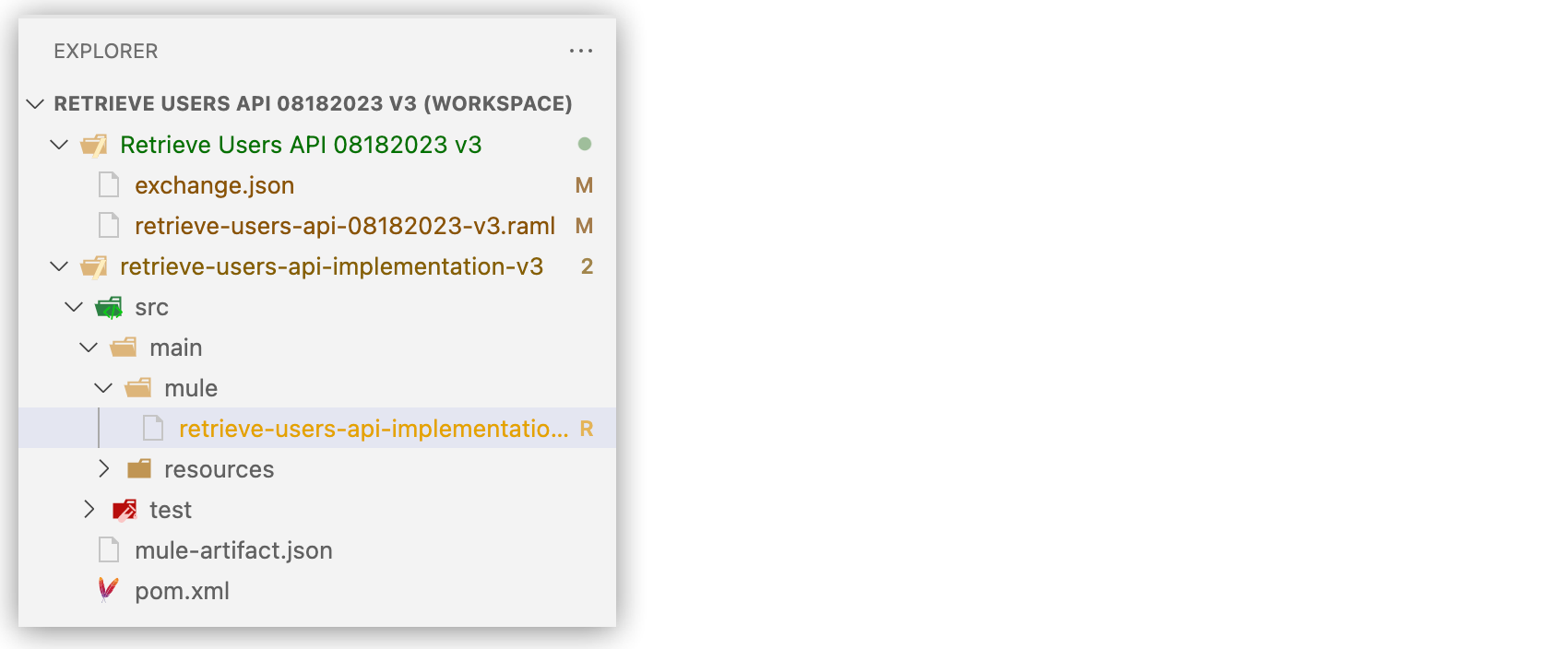
The projects open in the Explorer view, and the heading for the multi-root-workspace appends a
**(WORKSPACE)** identifier, for example: