---
schema_version: "1"
id: 7c64e985691f0ba1fb523b7968004370f4e10cd9766434dc8d34339d707c6f0f
title: Test Your GraphQL Project
collection: mulesoft
version: current
locale: en-us
portal_url: https://docs.salesforce.com/mulesoft/current/en-us/anypoint-code-builder/tut-graphql-test-first-implementation.md
canonical_url: https://docs.mulesoft.com/anypoint-code-builder/tut-graphql-test-first-implementation
source_site: docs.mulesoft.com
content_type: documentation
content_hash: 95b479f4f48e4b7ef9dfd90d0136513211e9f6f6a7fb2264b0a36d8c611dd9bd
description: MuleSoft Documentation Site
latest: true
---
---
product: Anypoint Code Builder
version: master
---
# Test Your GraphQL Project
> For the full documentation index, see: https://docs.mulesoft.com/llms.txt
Before making changes to your GraphQL project, run the application locally to test the endpoints.
## Before You Begin
Complete [Implement a GraphQL API](https://docs.mulesoft.com/anypoint-code-builder/tut-graphql-implement-api).
## Run Your Application
To deploy your Mule Application locally, run a debug session in Anypoint Code Builder:
1. In Anypoint Code Builder, open the **Books Implementation** project.
2. Click the  (**Run and Debug**) icon in the activity bar, then
click the **Start Debugging (F5)** icon.
3. Open the Terminal window in the console:
- Select **View** > **Terminal**.
- Alternatively, press Ctrl and then press the backtick key (\`).
4. In the terminal, open a new command prompt by clicking the plus (**+**) icon, for example:
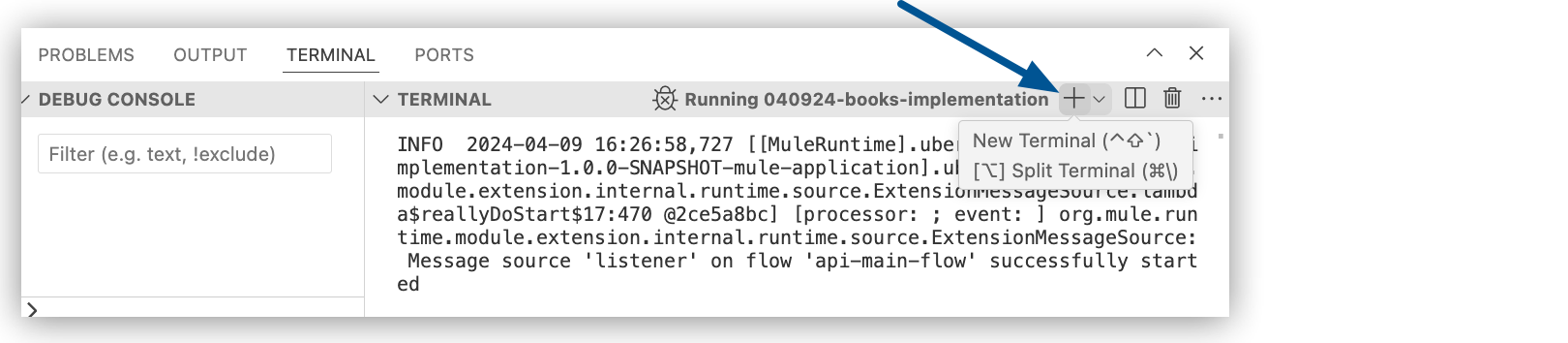
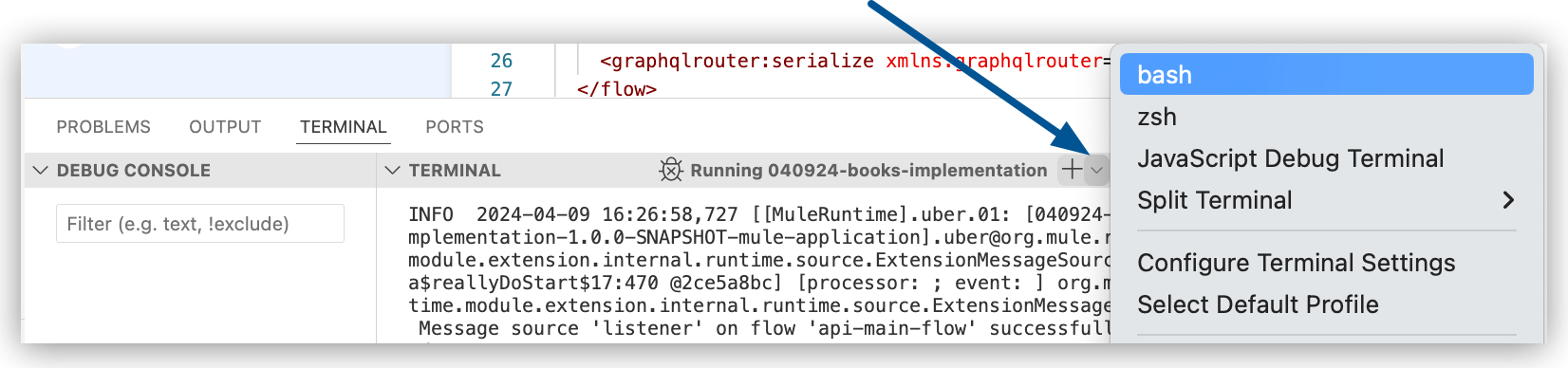
Alternatively, select a command shell, such as **bash**, by clicking the **v** menu (inverted
caret), located beside the plus (**+**) icon, and selecting the shell to use.
5. Run the following `curl` command from the shell’s prompt to trigger the **bookById** flow:
```curl
curl --request POST \
--location 'http://localhost:8081/graphql' \
--header 'Content-Type: application/json' \
--data '{
"query": "query bookById($id: ID) {bookById(id: $id){ id name pageCount author{ id firstName lastName}}}",
"variables": {
"id": 1
}
}'
```
If you receive the error
`curl: (7) Failed to connect to localhost port 8081 after 0 ms: Couldn’t connect to server`,
stop and rerun the application in debug mode. For guidance with stopping the application, see
[Debugging Mule Applications](https://docs.mulesoft.com/anypoint-code-builder/int-debug-mule-apps).
> [!TIP] Tools such as Postman provide a way to build GraphQL queries. For example, in Postman,
> you can place your query in the **Body** tab and copy the example `curl` request. The
> resulting command includes newline (`\\n`) and tab (`\\t`) characters that you can delete from
> the `curl` command’s `--data` value. For more information, see
> [Make an HTTP call with GraphQL](https://learning.postman.com/docs/sending-requests/graphql/graphql-http/)
> in the Postman documentation.
Anypoint Code Builder returns the following output in the terminal (manually reformatted to
enhance readability):
```GraphQL
{ "data": {
"bookById": {
"id":"#myID",
"name":"This is some example data",
"pageCount":100,
"author": {
"id":"urn:uuid:123e4567-e89b-12d3-a456-426655440000",
"firstName":"This is some example data",
"lastName":"Hello World!"
}
}
}
}
```
The mock data in the output comes from strings in the Set Payload component that is part of the
**Query.bookById** flow (``):
```xml
```
6. Optionally, try queries for other endpoints:
1. Query the `books` endpoint with the following `curl` command:
```command
curl --location 'http://localhost:8081/graphql' \
--header 'Content-Type: application/json' \
--data '{"query":"query books { books{ id name pageCount author{ id firstName lastName } }}","variables":{}}'
```
This command returns the following result (manually reformatted to enhance readability):
{ "data": { "books": \[{ "id":"urn:uuid:123e4567-e89b-12d3-a456-426655440000", "name":"This
is some example data", "pageCount":1, "author": {
"id":"urn:uuid:123e4567-e89b-12d3-a456-426655440000", "firstName":"This is some example
data", "lastName":"Hello World!" } }\] } }
For your reference, the `books` endpoint has the following structure:
```GraphQL
query books {
books{
id
name
pageCount
author{
id
firstName
lastName
}
}
}
```
2. Query `bestSellers`:
```command
curl --location 'http://localhost:8081/graphql' \
--header 'Content-Type: application/json' \
--data '{"query":"query bestsellers { bestsellers{ books{ id name pageCount author{ id firstName lastName } } authors{ id firstName lastName } } }","variables":{}}'
```
This command returns the following result (manually reformatted to enhance readability):
{ "data" : { "bestsellers": { "books": \[{ "id":"#myID", "name":"This is some example data",
"pageCount":1, "author": { "id":"urn:uuid:123e4567-e89b-12d3-a456-426655440000",
"firstName":"This is some example data", "lastName":"Hello World!" } }, { "id":"some-id",
"name":"Goodbye", "pageCount":100, "author": {
"id":"urn:uuid:123e4567-e89b-12d3-a456-426655440000", "firstName":"This is some example
data", "lastName":"Hello World!" } }, {
"id":"urn:uuid:123e4567-e89b-12d3-a456-426655440000", "name":"Hello World!",
"pageCount":-10, "author": { "id":"urn:uuid:123e4567-e89b-12d3-a456-426655440000",
"firstName":"This is some example data", "lastName":"Hello World!" } }\], "authors": \[{
"id":"urn:uuid:123e4567-e89b-12d3-a456-426655440000", "firstName":"Hello World!",
"lastName":"Hello World!" }, { "id":"#myID", "firstName":"Goodbye", "lastName":"Goodbye" }\]
} } }
For your reference, the `bestsellers` endpoint has the following structure:
```GraphQL
query bestsellers {
bestsellers{
books{
id
name
pageCount
author{
id
firstName
lastName
}
}
authors{
id
firstName
lastName
}
}
}
```
7. Proceed to
[Configure Responses for Your GraphQL Implementation](https://docs.mulesoft.com/anypoint-code-builder/tut-graphql-configure-flow-responses) to
populate each flow with a custom response for each query.
[Implement a GraphQL API](https://docs.mulesoft.com/anypoint-code-builder/tut-graphql-implement-api)
[Configure Responses for Your GraphQL Implementation](https://docs.mulesoft.com/anypoint-code-builder/tut-graphql-configure-flow-responses)