---
schema_version: "1"
id: d63d555c6196a46e4c7cc35bef01f44056f4a5705762dbd31c76e2af6e00d74b
title: Manage, Secure, and Monitor the American Flights API
collection: mulesoft
version: current
locale: en-us
portal_url: https://docs.salesforce.com/mulesoft/current/en-us/anypoint-code-builder/tut-flights-manage-secure-monitor-api.md
canonical_url: https://docs.mulesoft.com/anypoint-code-builder/tut-flights-manage-secure-monitor-api
source_site: docs.mulesoft.com
content_type: documentation
content_hash: 1ec82400f6287e05c16da0dd1c230d0e9a55052b8083c527eba7ab5ea0581e58
description: MuleSoft Documentation Site
latest: true
---
---
product: Anypoint Code Builder
version: master
---
# Manage, Secure, and Monitor the American Flights API
> For the full documentation index, see: https://docs.mulesoft.com/llms.txt
After deploying your American Flights API to CloudHub 2.0, register it with API Manager to apply
governance policies, secure it with a policy, and monitor its performance and health with Runtime
Manager.
## Create an API Instance and Link it with Your Application
Use [API Manager](https://docs.mulesoft.com/api-manager/latest/api-instance-landing-page) to manage, monitor, and secure
your APIs. After deploying your application to CloudHub 2.0, configure autodiscover to register it
with API Manager to apply governance policies, track usage, and control access.
### Step 1: Navigate to API Manager
1. Sign in to Anypoint Platform.
Show me how
- US cloud (non-EU host): [Anypoint Platform (US)](https://anypoint.mulesoft.com/login/)
- EU cloud (EU host): [Anypoint Platform (EU)](https://eu1.anypoint.mulesoft.com/login/)
2. From the Anypoint Platform home page, click **Agents & Tools** > **API Manager** in the
navigation menu.
3. Ensure you are working on the same environment where you deployed your application (for example,
Sandbox).
### Step 2: Create an API Instance
Create an API instance that links your deployed application to the API specification you published
earlier.
1. In API Manager, click **Add** and select **Add new API**.
2. In the runtime section, select **Mule Gateway** and click **Next**.
3. In the **API** section:
1. Click **Select API from Exchange**.
2. Search for "American Flights API" (the API specification you published earlier).
3. Select your API and click **Next**.
4. In the **Downstream** section, click **Next**.
5. In the **Upstream** section, set the Upstream URL to your application’s public endpoint (the one
you see in **Runtime Manager**).
For example:
`[https://american-flights-api-implementation-ij0c18.5sc6y6-3.usa-e2.cloudhub.io/](https://american-flights-api-implementation-ij0c18.5sc6y6-3.usa-e2.cloudhub.io/)`.
Click **Next**.
6. In the **Review** section, click **Save** to create the API instance.
Verify that your API status now shows **Active**.
7. Copy your API Instance ID for use in the next step while configuring API Autodiscovery.
### Step 3: Configure API Autodiscovery
API Autodiscovery links your running application to the API instance you created in the previous
step, so API Manager and Runtime Manager can report accurate status and enforce policies against the
correct application.
1. Open your project in Anypoint Code Builder.
2. Open MuleSoft Vibes.
3. Send this message:
```command
Enable API autodiscovery for my current project with this info:
- API Instance ID: {your_api_instance_id}
- Environment: {environment}
```
> [!NOTE] Replace `{your_api_instance_id}` with the ID you copied in the previous step, and
> `{environment}` with the environment you used to deploy your application (for example,
> Sandbox).
4. Save your project and deploy a new version from Anypoint Code Builder.
You need to deploy a new version because you updated the project’s code.
When prompted for the asset version, specify `1.0.1` so you can identify the updated deployment
when monitoring it in Runtime Manager.
### Step 4: Configure Business Group Credentials
Your application needs valid Business Group credentials to connect to the API instance for
autodiscovery and policy enforcement. Configure these credentials as properties in Runtime Manager.
1. Sign in to Anypoint Platform.
2. Click **Access Management** in the navigation menu.
3. Click **Business Groups** in the sidebar.
4. Click your business group (the same one you used throughout this tutorial).
5. Copy the **Client ID** and **Client Secret**.
6. Open **Runtime Manager** and select your deployed application.
7. On the side panel, click **Settings**.
8. Ensure your application is **Stopped**.
9. Add these properties:
Property Key
Property Value
anypoint.platform.client_id
{your_client_id}
anypoint.platform.client_secret
{your_client_secret}
Replace `{your_client_id}` and `{your_client_secret}` with the values you copied.
10. Click **Apply Changes**.
After setting the properties and restarting your application with API Autodiscovery configured,
confirm that the API status shows **Active** in API Manager.
> [!TIP] If the status doesn’t show **Active** right away, wait a few minutes, verify the properties
> are configured correctly in Runtime Manager, and check the status again.
Your API is now registered with API Manager and ready for policy configuration.
## Secure the API with a Policy
Policies in API Manager let you enforce security, compliance, and governance rules on your API
without modifying application code. In this section, you apply a Client ID Enforcement policy to
secure your API. Common policies include:
- **Client ID Enforcement**: Requires client applications to authenticate using a client ID and
secret.
- **Rate Limiting**: Controls the number of requests allowed per time period.
- **IP Whitelist/Blacklist**: Restricts access based on IP addresses.
- **CORS**: Configures Cross-Origin Resource Sharing headers.
- **OAuth 2.0**: Implements OAuth 2.0 authentication and authorization.
For this tutorial, you apply the Client ID Enforcement policy to require API consumers to register
their applications.
### Step 1: Apply the Client ID Enforcement Policy
1. In API Manager, navigate to your American Flights API instance.
2. Click the **Policies** tab.
3. Click **Add Policy**.
4. Search for **Client ID Enforcement**, select it, and click **Next**.
5. Set the following values:
Field Name
Field Value
Credentials origin
Select customExpression.
Client ID Expression
#[attributes.headers['client_id']]
Client Secret Expression
#[attributes.headers['client_secret']]
> [!NOTE] This configuration requires clients to pass their credentials in HTTP headers.
> Alternative configurations can extract credentials from query parameters or custom locations.
6. Click **Apply** to activate the policy.
### Step 2: Test the Policy
After applying the policy, verify that unauthenticated requests are rejected.
1. In your REST client, send a request **without** client credentials:
```command
GET http://american-flights-api-implementation{your_app_id}{region}.cloudhub.io/api/flights
```
Replace this URL with your application’s actual endpoint URL.
2. Verify that you receive a `401 Unauthorized` response.
Then, create a test client application to obtain credentials:
1. In Anypoint Platform, navigate to Exchange.
2. Search for your "American Flights API".
3. Click **Request Access**.
4. In **API Instance**, select your instance.
5. In **Application**, select **Create a new application**.
6. Provide an application name and click **Create**.
7. Click **Request Access**.
8. Copy the **Client ID** and **Client Secret** provided.
9. Test with credentials. In your REST client, add headers and resend the request:
```command
GET http://american-flights-api-implementation{your_app_id}us-e2.cloudhub.io/api/flights
Headers:
client_id:
client_secret:
```
Replace this URL with your application’s actual endpoint URL.
10. Verify that you receive a `200 OK` response with flight data.
Your API is now secured and requires authenticated clients to access it.
### Policy Best Practices
When applying policies:
- **Start with client authentication**: Always require client identification before exposing APIs
externally.
- **Apply rate limiting**: Protect your API from abuse by limiting request rates.
- **Use layered security**: Combine multiple policies (authentication + rate limiting + IP
filtering).
- **Test thoroughly**: Verify both authorized and unauthorized access scenarios.
- **Document requirements**: Inform API consumers about authentication requirements and rate limits.
## Monitor and Manage Your Application with Runtime Manager
[Runtime Manager](https://docs.mulesoft.com/runtime-manager/) is Anypoint Platform’s operational dashboard for deployed
applications. It provides real-time monitoring, log access, and management capabilities for
applications running on CloudHub 2.0.
Runtime Manager provides:
- **Application Status**: Real-time status of deployed applications.
- **Performance Metrics**: CPU, memory, and network usage.
- **Logs**: Application logs and system logs.
- **Alerts**: Configurable notifications for application issues.
- **Application Management**: Start, stop, restart, and redeploy applications.
- **Scaling**: Adjust worker size and count.
### Step 1: Review Application Status
1. From Anypoint Platform, click **Agents & Tools > Runtime Manager** in the navigation menu.
2. In the **Applications** list, locate your application (for example,
`american-flights-api-yourname`).
3. Click the application name.
4. On the side panel, click **Dashboard** to review key information:
- **Status**: Shows whether the application is running, starting, or stopped.
A green indicator with "Running" confirms your application is healthy.
- **Replicas**: Number of replicas and vCores assigned.
- **Last Updated**: When the application was last deployed or updated.
- **URL**: The application’s public URL.
### Step 2: View Application Logs
Logs help you troubleshoot issues and monitor application behavior.
1. In the side panel, click **Logs**.
2. View recent log entries:
- **Log Level**: Filter by INFO, WARN, ERROR, or DEBUG.
- **Search**: Search for specific log messages or error codes.
- **Time Range**: Adjust the time range to view historical logs.
> [!TIP] If you don’t see any entries, select a previously used Config from the dropdown menu.
3. Example log entries:
```command
[INFO] Application started successfully
[INFO] HTTP Listener on 0.0.0.0:8081
[INFO] Deployed application: american-flights-api
```
4. Search for specific events:
- Search for "ERROR" to find errors.
- Search for "flights" to see API-related logs.
- Search for "Database" to see database operations.
### Step 3: Monitor Performance Metrics
Monitor your application’s resource usage to ensure it runs efficiently.
1. In the side panel, select **Dashboard**.
2. Select the **Performance** tab.
3. Review performance metrics such as average inbound and outbound response times.
4. Select the **Infrastructure** tab.
5. Review metrics such as CPU % and memory usage.
### Step 4: Manage Your Application
Use Runtime Manager to control your application’s lifecycle. From the application dashboard, you
can:
- **Stop**: Click **Stop** to stop the application.
The application remains deployed but stops serving requests.
- **Start**: Click **Start** to start a stopped application.
- **Delete**: Click **Delete** to remove the application from CloudHub.
This action is permanent and cannot be undone.
- **Update Configurations**: Click **Apply Changes** after changing configurations such as
properties, to restart the application without redeploying.
### Step 5: Scale Your Application
As your API usage grows, scale your application by adjusting worker size or count.
1. From the application dashboard, click **Settings**.
2. In the **Deployment Target** section:
- **Replica Count**: Increase the number of workers for horizontal scaling.
- **Replica Size**: Change the worker size (for example, from 0.1 to 0.2 vCores).
3. Click **Apply Changes**.
4. CloudHub redeploys your application with the new configuration.
> [!NOTE] Scaling changes the resources allocated to your application and may affect your CloudHub
> costs. Monitor performance metrics before scaling to ensure it’s necessary.
## Stop Your Application
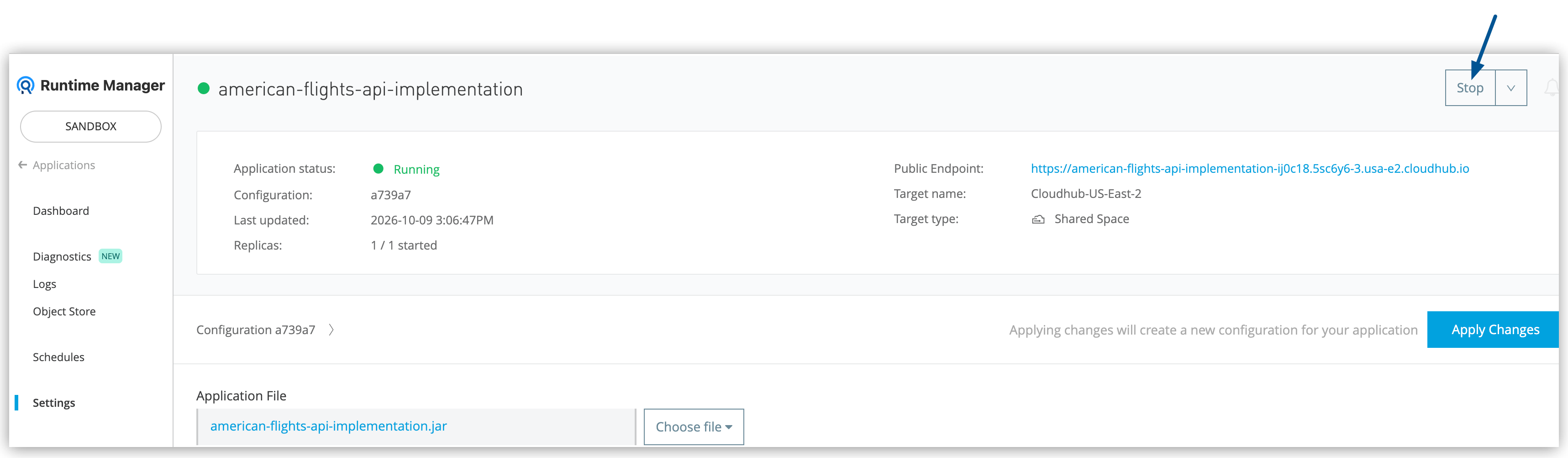
When you finish the tutorial, stop the application so it doesn’t keep consuming resources.
1. In Runtime Manager, open your application settings.
2. Click **Stop**.
This concludes the American Flights API tutorial series. You designed an API specification,
implemented it as an integration, validated and transformed data, debugged and tested your
application, deployed it to CloudHub 2.0, and secured and monitored it in production.
[Deploy the American Flights API to CloudHub 2.0](https://docs.mulesoft.com/anypoint-code-builder/tut-flights-deploy-api)