---
schema_version: "1"
id: be87a47d94cdfa7913578dd34698c474f077869eef4a8e35a0ef43993ed61911
title: Discovering the UI
collection: mulesoft
version: current
locale: en-us
portal_url: https://docs.salesforce.com/mulesoft/current/en-us/anypoint-code-builder/start-discover-ui.md
canonical_url: https://docs.mulesoft.com/anypoint-code-builder/start-discover-ui
source_site: docs.mulesoft.com
content_type: documentation
content_hash: ade589ea0ed426b4579e87aa374420770b152acd7fcbd36d7febcd5c75b38bf8
description: MuleSoft Documentation Site
latest: true
---
---
product: Anypoint Code Builder
version: master
---

# Discovering the UI

> For the full documentation index, see: https://docs.mulesoft.com/llms.txt

Get familiar with the Anypoint Code Builder UI and elements to design, develop, and deploy APIs and
integrations.

![Welcome mat in Anypoint Code Builder](/mulesoft/current/en-us/anypoint-code-builder/_images/welcome-mat-reference.png)

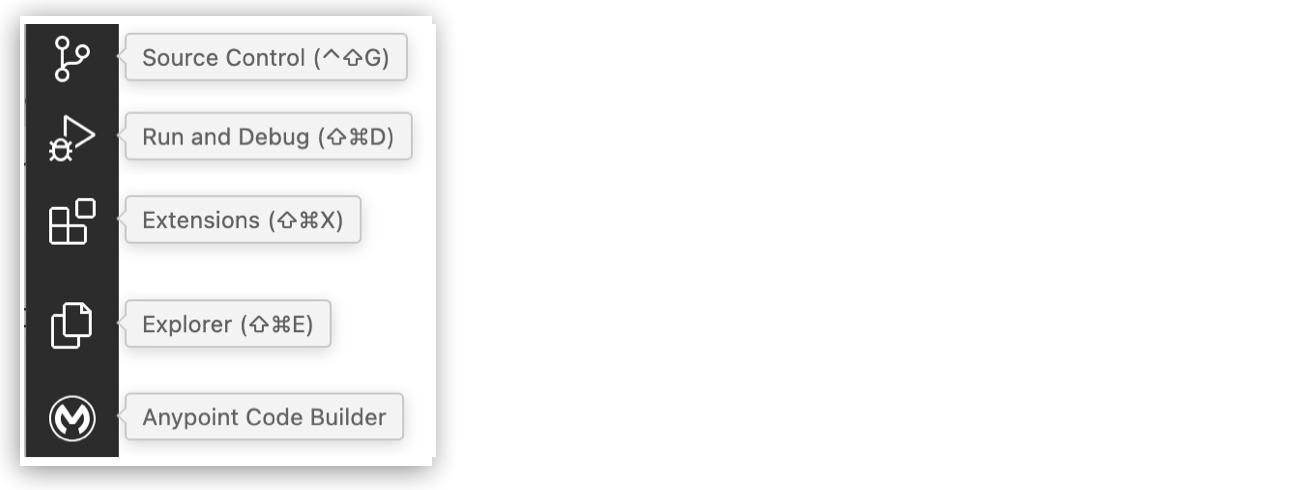
<table><tbody><tr><td><i data-value="1"></i><b>1</b></td><td><strong>Activity Bar</strong>: Use VS Code Activity Bar items as you work on your projects. Mouse over the items to find their names:<div><p><span><img src="https://docs.mulesoft.com/anypoint-code-builder/_images/acb-activity-bar-buttons.png" alt="Activity Bar buttons"></span></p></div><div><p>In addition to Anypoint Code Builder (MuleSoft icon), commonly used items in the Activity Bar include:</p></div><div><ul><li><p><strong>Explorer</strong>: Open project files, folders, and project dependencies.</p></li><li><p><strong>Source Control</strong>: Store your project files.</p></li><li><p><strong>Run and Debug</strong>: Run and debug integrations and implementations.</p></li><li><p><strong>Extensions</strong>: Open for installations and updates.</p><div><p>You can change the order of the items in your activity bar.</p></div></li></ul></div></td></tr><tr><td><i data-value="2"></i><b>2</b></td><td><strong>Anypoint Code Builder</strong> (MuleSoft icon): Open the <strong>Anypoint Code Builder</strong> panel to start a project. Follow the tutorials to get started with API specification design, implementation, and integration development in Anypoint Code Builder.</td></tr><tr><td><i data-value="3"></i><b>3</b></td><td><strong>Create</strong>: Start an API specification, implementation, or integration project.</td></tr><tr><td><i data-value="4"></i><b>4</b></td><td><strong>Settings</strong>: Set Anypoint Code Builder configurations, including the <a href="https://docs.mulesoft.com/anypoint-code-builder/#us-eu-clouds">US or EU cloud</a>. Select the cloud where your Anypoint Platform user account resides.</td></tr></tbody></table>

## Project UIs in Anypoint Code Builder

Integration and implementation projects are Mule applications with similar UIs:

![Anypoint Code Builder UI with integration project](/mulesoft/current/en-us/anypoint-code-builder/_images/ui-elements.png)

<table><tbody><tr><td><i data-value="1"></i><b>1</b></td><td><strong>Explorer</strong>: Open a workspace for your project.</td></tr><tr><td><i data-value="2"></i><b>2</b></td><td><strong>Editors</strong>: Develop your project in the canvas and configuration XML files. Configuration XML files support <a href="#use-autocomplete">auto-completion</a>.</td></tr><tr><td><i data-value="3"></i><b>3</b></td><td><strong>Status Bar</strong>: Check for your user name to learn if you are logged in to Anypoint Platform.</td></tr><tr><td><i data-value="4"></i><b>4</b></td><td><strong>Output Panel</strong>: As your projects run in Anypoint Code Builder, view output and logs from <strong>Mule DX Server</strong> or <strong>Mule DX Server: Scaffolding</strong>. Open the built-in command terminal. View problems and ports.<div><p>See <a href="https://docs.mulesoft.com/anypoint-code-builder/int-developing-integrations">Developing Integrations</a> and <a href="https://docs.mulesoft.com/anypoint-code-builder/imp-implementing-apis">Implementing APIs</a> for more detail.</p></div></td></tr></tbody></table>

API design projects include a service for mocking endpoints in the API Console:

![Anypoint Code Builder UI with integration project](/mulesoft/current/en-us/anypoint-code-builder/_images/ui-elements-api.png)

<table><tbody><tr><td><i data-value="1"></i><b>1</b></td><td><strong>Editor</strong>: Configure API specification project files. This editor supports <a href="#use-autocomplete">auto-completion</a>.</td></tr><tr><td><i data-value="2"></i><b>2</b></td><td><strong>API Console</strong>: Test endpoints on your examples.<div><p>See <a href="https://docs.mulesoft.com/anypoint-code-builder/des-designing-api-specs">Designing API Specs and Fragments</a> for more detail.</p></div></td></tr></tbody></table>

## Use Auto-Completion Menus

Auto-completion is supported through the Anypoint Code Builder extensions and through IntelliSense,
a built-in code-completion feature of VS Code, to provide auto-completion in Editor views.

1.  Open auto-completion options from the Editor view using one of the following options:

    - Using IntelliSense: Press Ctrl+Space to display a list of available options, and enter a
      search term to narrow the results, for example:

      ![Auto-complete options for \`get\`](/mulesoft/current/en-us/anypoint-code-builder/_images/des-autocomplete.png)

      IntelliSense shows different options, depending on the context, for example:

      ![Auto-complete options for \`responses\`](/mulesoft/current/en-us/anypoint-code-builder/_images/des-autocomplete-context.png)

    - Using the extensions: Place your cursor at the location where you intend to use the
      auto-suggestion menu, and optionally, start typing to narrow the list of suggested options to
      return. If the line has some content, click Tab, provide a space, or start typing after the
      content on the line. To close the auto-suggestion menu, click Escape.

      For API design, you can enable or disable auto-completion:

      Show me how

      1.  Open the **Extensions** panel from the activity bar by clicking the
          ![](/mulesoft/current/en-us/anypoint-code-builder/_images/icon-extensions.png) (Extensions) icon.

      2.  Right-click the extension **Anypoint Code Builder - API Extension**, and select
          **Extensions Settings**.

          This action opens the **Settings** tab to the configuration for the extension,
          **@ext:salesforce.mule-dx-api-component**.

      3.  In the **Settings** tab, enable the API design editor to suggest auto-completion options.

          See
          [Mule > Editor > Auto-completion: Enablement](https://docs.mulesoft.com/anypoint-code-builder/ref-mule-settings#setting-auto-complete).

      4.  Optionally, set a time in milliseconds to wait before listing auto-completion options.

          See
          [Mule > Editor > Auto-completion: Trigger Delay](https://docs.mulesoft.com/anypoint-code-builder/ref-mule-settings#setting-auto-complete).

2.  Use the arrow keys to navigate the list.

3.  Press Enter or Tab to insert the selected element.

    Auto-complete adds the element to the code and places the cursor for you to add values.

For more information, see [IntelliSense](https://code.visualstudio.com/docs/editing/intellisense) in
the VS Code documentation.

## Change the Look and Feel of Anypoint Code Builder

Select a theme to change the look and feel.

1.  Select the **Manage** (gear) icon from the activity bar.

2.  Select **Themes** > **Color Themes**, and select a theme, for example, **Dark Modern**:

    ![Anypoint Code Builder using the dark theme](/mulesoft/current/en-us/anypoint-code-builder/_images/acb-ui-dark-theme.png)

## Explore the Canvas View

By default, when you open a project in Anypoint Code Builder, the canvas view opens first. This
allows you to begin building and editing your flows visually, without switching to the code editor.

### Switch Views

You can use the toolbar to switch between the canvas and the code editor:

1.  Click the **</>** icon in the toolbar to toggle between canvas and code.

2.  To open both views side by side, right-click the canvas tab and select **Open in Canvas and Code
    Editor**.

> [!NOTE] A dot (•) on a canvas tab indicates that the file contains unsaved changes.

### Identify Components with Errors

Components that contain errors are marked with a red dot in the canvas. When you hover over the
component, a tooltip lists the errors and warnings, including the field names involved.