---
schema_version: "1"
id: b0040fa663c091f413a645045a4d555cc2b20dcde7d2aa2c2b7e19768c6b79bb
title: Pass Runtime Properties and Arguments to Mule Applications
collection: mulesoft
version: current
locale: en-us
portal_url: https://docs.salesforce.com/mulesoft/current/en-us/anypoint-code-builder/int-run-mule-apps-with-properties.md
canonical_url: https://docs.mulesoft.com/anypoint-code-builder/int-run-mule-apps-with-properties
source_site: docs.mulesoft.com
content_type: documentation
content_hash: 48baeb8862d4bec907620e8496c1df076628e90e9dffd7bd8381f82d35caa208
description: MuleSoft Documentation Site
latest: true
---
---
product: Anypoint Code Builder
version: master
---
# Pass Runtime Properties and Arguments to Mule Applications
> For the full documentation index, see: https://docs.mulesoft.com/llms.txt
Configure runtime behavior, secure sensitive data, and test different environments by passing
properties and arguments to Mule applications running locally in Anypoint Code Builder.
Use command-line properties to switch between development, sandbox, and production configurations,
provide encryption keys for secure properties, and override default values without modifying
application code.
You can pass properties when running Mule applications locally through different methods.
- [Global default arguments](#mule-settings-method): Apply the same arguments to all Mule
applications
- [Project-specific launch configurations](#launch-json-method): Configure arguments for individual
projects or create multiple configurations with different settings
## Configure Global Default Arguments
Configure arguments that apply to all Mule application runs in Anypoint Code Builder. Use this
approach when you consistently need the same encryption key or environment setting across all
projects during local development.
To configure global default arguments:
1. Open Mule settings:
2. If an API specification is open in the Explorer panel, close the project to avoid a
synchronization error when you switch clouds.
- Click **File** > **Close Folder**.
3. Open the **Settings** panel:
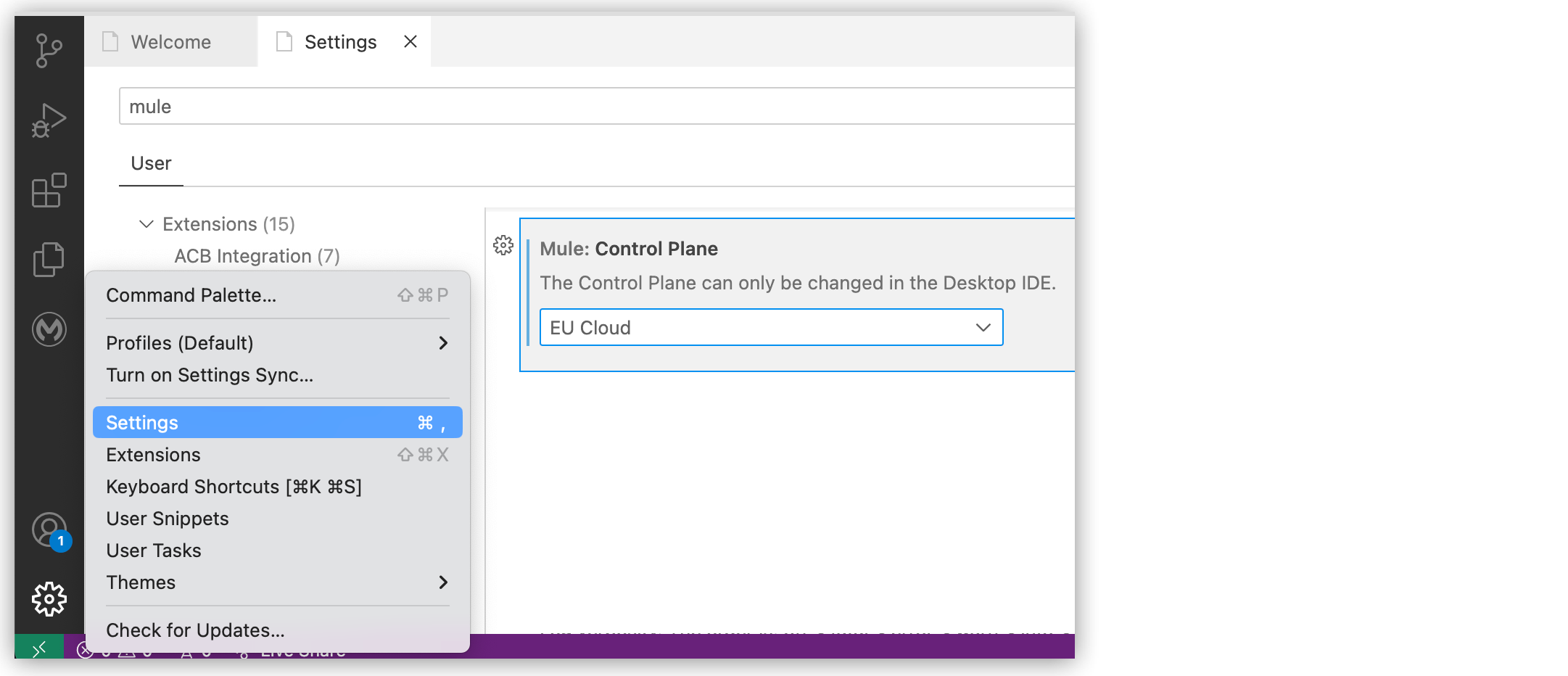
4. Find the **Mule › Runtime: Default Arguments** setting.
5. In the **Runtime: Default Arguments** field, append your arguments using the `-M-D` prefix
followed by the property name and value:
```text
-M-Dencryption.key=myEncryptionKey123
```
To add multiple arguments, separate them with spaces:
```text
-M-Dencryption.key=myEncryptionKey123 -M-Denv=dev -M-Dhttp.port=8082
```
6. Run or debug your Mule application:
7. Open the Command Palette.
Show me how
- Use the keyboard shortcuts:
- Mac: Cmd+Shift+p
- Windows: Ctrl+Shift+p
- Select **View** > **Command Palette**.
Select **View: Show Run and Debug**, then click **Run and Debug**.
Mule Runtime engine receives the configured arguments each time you run any application.
### Understand Property Syntax
The `-M-D` prefix passes system properties to the Java Virtual Machine (JVM) that runs Mule Runtime
engine. These properties become available throughout your Mule application and can be referenced in
configuration XML files.
When configuring properties in the **Runtime: Default Arguments** field:
- Use the `-M-D` prefix followed by the property name and value: `-M-Dname=value`
- Separate multiple properties with spaces
- Avoid quotes around values unless the value contains spaces
- Property names are case-sensitive
Common examples:
```text
-M-Dencryption.key=mySecretKey
-M-Denv=dev
-M-Dhttp.port=8081
-M-Ddatabase.host=localhost
-M-Dmule.env=development
```
## Configure Project-Specific Launch Configurations
Configure arguments for individual projects or create multiple run configurations with different
settings for the same project. Use this approach when different projects require different
configurations, or to test the same project with different property values.
Launch configurations reside in the `.vscode/launch.json` file in your project directory and apply
only to that project.
### Create or Modify a Launch Configuration
To configure project-specific arguments:
1. Open the Command Palette.
Show me how
- Use the keyboard shortcuts:
- Mac: Cmd+Shift+p
- Windows: Ctrl+Shift+p
- Select **View** > **Command Palette**.
2. Enter and select **Open 'launch.json'**.
If the file doesn’t exist, VS Code creates it in the `.vscode` folder of your project.
3. In the `launch.json` file, locate or create a configuration object within the `configurations`
array.
4. Add or modify the `mule.runtime.args` property to include your arguments:
```json
{
"version": "0.2.0",
"configurations": [
{
"type": "mule-xml-debugger",
"request": "launch",
"name": "Debug Mule Application",
"mule.project": "${workspaceFolder}",
"mule.home": "${config:mule.homeDirectory}",
"mule.runtime.args": "${config:mule.runtime.defaultArguments} -M-Dencryption.key=myKey -M-Denv=dev"
}
]
}
```
5. Save the `launch.json` file.
6. Run or debug your application by selecting the configuration from the **Run and Debug** view.
### Test the Same Project with Different Property Values
Create multiple launch configurations with different property values to test various environments
without editing the configuration file each time. For conceptual information about creating and
managing launch configurations, see
[Running Multiple Mule Applications Concurrently](https://docs.mulesoft.com/anypoint-code-builder/int-run-multiple-mule-apps).
The key difference when configuring properties is to vary the `mule.runtime.args` values for each
configuration:
```json
{
"version": "0.2.0",
"configurations": [
{
"type": "mule-xml-debugger",
"request": "launch",
"name": "Debug - Development",
"mule.project": "${workspaceFolder}",
"mule.home": "${config:mule.homeDirectory}",
"mule.runtime.args": "${config:mule.runtime.defaultArguments} -M-Denv=dev -M-Dhttp.port=8081"
},
{
"type": "mule-xml-debugger",
"request": "launch",
"name": "Debug - Sandbox",
"mule.project": "${workspaceFolder}",
"mule.home": "${config:mule.homeDirectory}",
"mule.runtime.args": "${config:mule.runtime.defaultArguments} -M-Denv=sandbox -M-Dhttp.port=8082"
}
]
}
```
Switch between configurations using the dropdown in the **Run and Debug** view.
### Use Environment Variables in Launch Configurations
Reference environment variables defined on your system to avoid hardcoding sensitive values in
`launch.json`:
```json
{
"version": "0.2.0",
"configurations": [
{
"type": "mule-xml-debugger",
"request": "launch",
"name": "Debug with Environment Variables",
"mule.project": "${workspaceFolder}",
"mule.home": "${config:mule.homeDirectory}",
"mule.runtime.args": "${config:mule.runtime.defaultArguments} -M-Dencryption.key=${env:ENCRYPTION_KEY} -M-Denv=${env:MULE_ENV}"
}
]
}
```
Reference environment variables using the `${env:VARIABLE_NAME}` syntax. The example configuration
references `ENCRYPTION_KEY` and `MULE_ENV` from your system environment.
## Common Use Cases and Examples
These examples demonstrate common scenarios for passing runtime properties and arguments, such as
configuring HTTP listener ports and database connection parameters.
For examples of passing encryption keys and switching between environment-specific property files,
see [Defining and Securing Properties for a Mule Application](https://docs.mulesoft.com/anypoint-code-builder/int-create-secure-configs).
### Example: Set HTTP Listener Port Dynamically
Set the HTTP listener port at runtime without modifying your configuration XML:
Global default arguments:
```text
-M-Dhttp.port=8082
```
Launch configuration:
```json
{
"version": "0.2.0",
"configurations": [
{
"type": "mule-xml-debugger",
"request": "launch",
"name": "Debug on Port 8082",
"mule.project": "${workspaceFolder}",
"mule.home": "${config:mule.homeDirectory}",
"mule.runtime.args": "${config:mule.runtime.defaultArguments} -M-Dhttp.port=8082"
}
]
}
```
Reference the property in your HTTP listener configuration:
```xml
```
### Example: Increase JVM Heap Size
Increase the maximum JVM heap size when running memory-intensive Mule applications locally. Use the
`-M-Xmx` flag to set the maximum heap and `-M-Xms` to set the initial heap.
Global default arguments:
```text
-M-Xms512m -M-Xmx2g
```
Launch configuration:
```json
{
"version": "0.2.0",
"configurations": [
{
"type": "mule-xml-debugger",
"request": "launch",
"name": "Debug with Increased Heap",
"mule.project": "${workspaceFolder}",
"mule.home": "${config:mule.homeDirectory}",
"mule.runtime.args": "${config:mule.runtime.defaultArguments} -M-Xms512m -M-Xmx2g"
}
]
}
```
You can combine heap size flags with other arguments, such as environment properties or encryption
keys:
```text
-M-Xmx2g -M-Denv=dev -M-Dencryption.key=myKey
```
### Example: Provide Database Connection Parameters
Provide database connection parameters at runtime to switch between local and remote databases:
Global default arguments:
```text
-M-Ddb.host=localhost -M-Ddb.port=3306 -M-Ddb.name=mydb
```
Launch configurations for different databases:
```json
{
"version": "0.2.0",
"configurations": [
{
"type": "mule-xml-debugger",
"request": "launch",
"name": "Debug with Local Database",
"mule.project": "${workspaceFolder}",
"mule.home": "${config:mule.homeDirectory}",
"mule.runtime.args": "${config:mule.runtime.defaultArguments} -M-Ddb.host=localhost -M-Ddb.port=3306 -M-Ddb.name=mydb"
},
{
"type": "mule-xml-debugger",
"request": "launch",
"name": "Debug with Remote Database",
"mule.project": "${workspaceFolder}",
"mule.home": "${config:mule.homeDirectory}",
"mule.runtime.args": "${config:mule.runtime.defaultArguments} -M-Ddb.host=remote-db.example.com -M-Ddb.port=3306 -M-Ddb.name=proddb"
}
]
}
```
Reference these properties in your database configuration:
```xml
```
## Configure Shared Encryption Keys Across a Workspace
When you have multiple Mule projects in the same workspace that use the same encryption key,
configure it once at the workspace level instead of duplicating it in each project’s launch.json.
Use the approach that better applies to your workflow and security requirements.
- [Workspace Settings](#workspace-settings-approach): Configure the encryption key in your workspace
settings.json. All projects inherit the setting automatically.
- [Environment Variable](#environment-variable-approach): Store the key as an OS environment
variable in your shell profile. Use this method to keep encryption keys completely out of
version-controlled files or if you need machine-specific configuration.
- [Multi-Root Workspace](#multi-root-workspace-approach): Configure the encryption key directly in a
.code-workspace file. Use this approach when working with multiple Mule projects open
simultaneously in a multi-root workspace.
### Use Workspace Settings
Add the encryption key to your workspace `settings.json` so all projects inherit it.
1. In your `.code-workspace` file or `.vscode/settings.json` at the workspace root, add the key.
```json
{
"settings": {
"mule.runtime.defaultArguments": "-M-Dencryption.key=MuleSecureKey024"
}
}
```
2. Reference the shared setting in each project’s `launch.json`.
```json
{
"mule.runtime.args": "${config:mule.runtime.defaultArguments}"
}
```
### Use an Environment Variable
Set the key as an OS environment variable in your shell profile (`~/.zshrc` or `~/.bash_profile`)
1. Run this command.
```bash
export MULE_ENCRYPTION_KEY="MuleSecureKey024"
```
2. Reference the key in the workspace `launch.json`:
```json
{
"version": "0.2.0",
"configurations": [
{
"type": "mule-xml-debugger",
"request": "launch",
"name": "Debug with Environment Variable",
"mule.project": "${workspaceFolder}",
"mule.home": "${config:mule.homeDirectory}",
"mule.runtime.args": "${config:mule.runtime.defaultArguments} -M-Dencryption.key=${env:MULE_ENCRYPTION_KEY}"
}
]
}
```
### Use a Shared Launch Configuration in Multi-Root Workspaces
To configure a shared encryption key in a multi-root workspace:
1. Open or create your `.code-workspace` file.
2. Add a `launch` section to the workspace configuration with the encryption key:
```json
{
"folders": [ (1)
{ "path": "salesforce-sync" },
{ "path": "netsuite-integration" },
{ "path": "slack-notifications" }
],
"launch": { (2)
"configurations": [
{
"type": "mule-xml-debugger",
"request": "launch",
"name": "Run Mule App (Shared Key)", (3)
"noDebug": true,
"mule.projects": ["${workspaceFolder}"],
"mule.runtime.args": "${config:mule.runtime.defaultArguments} -M-Dencryption.key=MuleSecureKey024" (4)
}
]
}
}
```
1
List the relative paths to each Mule project in your workspace
2
Add the launch configuration section with the shared encryption key
3
Name that appears in the Run and Debug dropdown
4
Replace MuleSecureKey024 with your encryption key
3. Save the workspace file.
When you select **Run Mule App (Shared Key)** from the Run and Debug dropdown, Code Builder applies
the shared encryption key to whichever project is active.
### Protect Workspace Configuration in .gitignore
If your workspace settings contain sensitive values, add them to `.gitignore`:
```gitignore
# Workspace config (may contain encryption key)
*.code-workspace
.vscode/settings.json
```
### Re-encrypt All Projects After Key Rotation
When you rotate the shared key, re-encrypt every secure properties file across all projects:
```bash
NEW_KEY="NewSharedKey2025!"
# For each project in the workspace:
for project in salesforce-sync netsuite-integration slack-notifications; do
FILE="$project/src/main/resources/prod.secure.properties"
if [ -f "$FILE" ]; then
echo "Re-encrypting: $FILE"
# Decrypt each value with old key, re-encrypt with new key
# (or use a local backup file with plaintext to re-encrypt)
fi
done
```
Then update the single workspace-level key reference and all projects work immediately.
## See Also
- [Defining and Securing Properties for a Mule Application](https://docs.mulesoft.com/anypoint-code-builder/int-create-secure-configs)
- [Running Multiple Mule Applications Concurrently](https://docs.mulesoft.com/anypoint-code-builder/int-run-multiple-mule-apps)
- [Launch Configuration Properties Reference](https://docs.mulesoft.com/anypoint-code-builder/ref-launch-json-properties)
- [Mule › Runtime: Default Arguments](https://docs.mulesoft.com/anypoint-code-builder/ref-mule-settings#setting-mule-args)
- [Managing Global Configuration Elements](https://docs.mulesoft.com/anypoint-code-builder/int-global-config-elements)
- [Working with Workspaces](https://docs.mulesoft.com/anypoint-code-builder/start-workspaces)
- [Configuring Properties](https://docs.mulesoft.com/mule-runtime/latest/configuring-properties)