---
schema_version: "1"
id: aa906e009697d52c11d4029c577c336bbeb758c5de29a4fdcee1999b85faeff0
title: Using DataWeave Expressions and Transformations in Anypoint Code Builder
collection: mulesoft
version: current
locale: en-us
portal_url: https://docs.salesforce.com/mulesoft/current/en-us/anypoint-code-builder/int-configure-dw-expressions.md
canonical_url: https://docs.mulesoft.com/anypoint-code-builder/int-configure-dw-expressions
source_site: docs.mulesoft.com
content_type: documentation
content_hash: 2f8d7ab47fe046a6554273b891be914e38eb36f825c71c7a5e4d696ad0ebe1d3
description: MuleSoft Documentation Site
latest: true
---
---
product: Anypoint Code Builder
version: master
---

# Using DataWeave Expressions and Transformations in Anypoint Code Builder

> For the full documentation index, see: https://docs.mulesoft.com/llms.txt

DataWeave is the MuleSoft programming language for data transformation and for defining expressions.

Use DataWeave to process Mule event data, such as `payload`, `attributes`, and `vars`, in connector
operations and other components. Develop DataWeave expressions and transformations in your Mule
applications using the **Expression Field**, **Expression Builder**, or **Transformation Builder**,
or in the code editor. Generate DataWeave transformations with AI help by providing input and output
sample data, metadata, or both. AI-powered auto mapping provides comprehensive error feedback for
GenAI actions, including authorization, metadata, and request limits, ensuring a more reliable and
guided mapping experience.

![A configuration panel showing three numbered callouts: 1) fx button for Expression Field, 2) Expression Builder button, and 3) Transformation Builder button](/mulesoft/current/en-us/anypoint-code-builder/_images/int-dw-transform-ui.png)

<table><tbody><tr><td><i data-value="1"></i><b>1</b></td><td><strong>Expression Field</strong>: Enters a DataWeave expression or script in a component configuration panel.</td></tr><tr><td><i data-value="2"></i><b>2</b></td><td><strong>Expression Builder</strong>: Creates and manages expressions within your Mule applications.</td></tr><tr><td><i data-value="3"></i><b>3</b></td><td><strong>Transformation Builder</strong>: Creates DataWeave transformations in your Mule applications in a visual interface assisted by AI.</td></tr></tbody></table>

Implementations and integrations in Anypoint Code Builder create Mule apps that run on an instance
of the Mule runtime engine.

Anypoint Code Builder integrates DataWeave expressions and transformations into the Mule app
development process and supports these features:

- Hierarchical mapping

- Object-to-object and array-to-array transformations

- Concatenation of strings, numbers, and booleans

- Type conversions

- Custom metadata for inputs and outputs

- [Namespace-aware generated scripts](#namespaces-in-generated-dataweave) when metadata defines
  namespaces (for example, qualified XML from a schema or sample)

Anypoint Code Builder supports these transform mapping use cases:

- `Object` to `Object`

- `Primitive` to `Primitive`

- `Object` to `Primitive`

- `Primitive` to `Object`

- `Object` to `Array`

- `Array` to `Object`

- Type conversion `Object` to `Object`

- Concatenation of simple fields

- `Array` to `Array` (same level)

## Before You Begin

- Understand the functions, operators, variables, and selectors of DataWeave expressions.

  For more information, see [DataWeave Reference](https://docs.mulesoft.com/dataweave/latest/dw-functions).

- Review the built-in documentation for functions that Anypoint Code Builder provides. For example,
  see [List DataWeave Functions and Get Documentation](#tab-functions).

  - [Predefined Mule event variables](https://docs.mulesoft.com/dataweave/latest/dataweave-variables-context) such as
    `payload`, `attributes`, `vars`.

  - [DataWeave selectors](https://docs.mulesoft.com/dataweave/latest/dataweave-selectors) for capturing the values of
    fields within the payload, an attribute, or a variable within the
    [Mule event](https://docs.mulesoft.com/mule-runtime/latest/about-mule-event).

    For more resources, see [DataWeave Overview](https://docs.mulesoft.com/dataweave/latest/).

- Make sure you have these permissions to use the Anypoint Code Builder AI feature:

  - Anypoint Code Builder Developer

  - Mule Developer Generative AI User

- Enable Einstein in Access Management. For more information, see
  [Enabling Einstein for Anypoint Platform](https://docs.mulesoft.com/access-management/enabling-generative-ai).

- AI-assisted features support multiple languages.

- If you have issues with the AI-assisted transformations, see
  [Troubleshoot AI-Assisted Transformations](#troubleshoot-ai-assisted-transformations).

## Open the Expression Field

Most connector operations and components provide at least one field that accepts DataWeave
expressions and scripts. In the configuration panel for a component, the **fx** button indicates
that the field accepts an expression. In the code editor, these fields have the `#[]` markup.
Expression fields accept DataWeave expressions, including DataWeave functions and Mule event data,
such as `payload`, `attributes`, and `vars`.

To open a component expression field (**fx**):

1.  Open a component that accepts expressions from the canvas in your implementation or integration
    project.

2.  Click **fx** to change the field from a string field to an expression field.

    ![Set Variable component configuration panel with the \*fx\* button highlighted next to the \*Value\* field](/mulesoft/current/en-us/anypoint-code-builder/_images/int-dw-fx-field-set-variable.png)

    The markup `#[]` in the **fx** field also appears in the code editor to indicate that the field
    is for an expression.

    <set-variable variableName="variableName" value="#\[\]"
                  doc:name="Set variable" doc:id="ndpiap" />

3.  Click **Expression Builder** to configure the component.

    ![\*Expression Builder\* interface shows the \*Data\*, \*Functions\*, and \*Preview\* tabs for building DataWeave expressions in the \`Set Variable\` component](/mulesoft/current/en-us/anypoint-code-builder/_images/int-dw-fx-expression-builder.png)

    Use the **Data**, **Functions**, and **Preview** tabs to ease configuration of expressions in
    your components. Select custom metadata for the payload, attributes, and Mule variables. Preview
    the expression output without running your Mule app with data from external sources:

    - [Check the Data Structure](#tab-data)

    - [List DataWeave Functions and Get Documentation](#tab-functions)

    - [Preview Output of DataWeave Expressions](#tab-preview)

## Open Expression Builder

**Expression Builder** simplifies the process of creating and managing expressions within your Mule
applications. The builder provides a visual interface to create DataWeave expressions and
transformations.

### Check the Data Structure

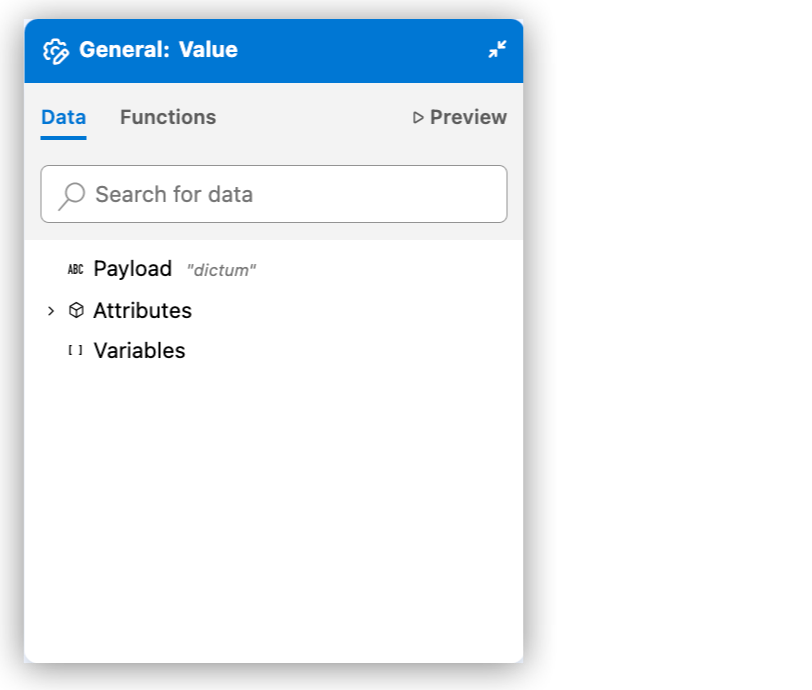
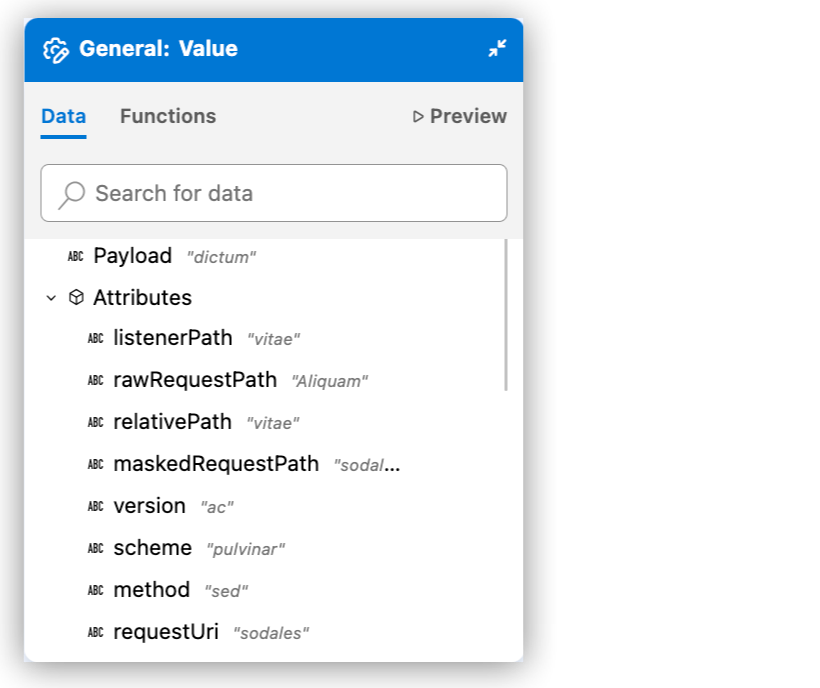
To review the data structure of the Mule event, including the payload, attributes, and Mule
variables, use the **Data** tab. The tab includes any sample data and custom metadata and is part of
**Expression Builder** for a component **fx** field. For example:

<table><colgroup><col> <col></colgroup><thead><tr><th><strong>Data</strong> tab (with automatically generated data)</th><th><strong>Data</strong> tab (expanded)</th></tr></thead><tbody><tr><td><div><div><p><span><img src="https://docs.mulesoft.com/anypoint-code-builder/_images/int-dw-fx-data-tab.png" alt="Data tab for expression field"></span></p></div></div></td><td><div><div><p><span><img src="https://docs.mulesoft.com/anypoint-code-builder/_images/int-dw-fx-data-tab-attributes.png" alt="Data tab for expression field with mock attributes"></span></p></div></div></td></tr></tbody></table>

Anypoint Code Builder shows the automatically generated strings as mock values and uses them to
generate output for previews, such as in the [Preview](#tab-preview) tab. The attribute metadata
keys in the example come from the configuration of an `HTTP Listener` component in the flow.

### Set Component Custom Metadata on the Metadata or Data Tab

The **Metadata** tab shows the structure of data entering (**Input**) and exiting (**Output**)
components. For example:

![Metadata tab for a component](/mulesoft/current/en-us/anypoint-code-builder/_images/int-dw-fx-input-output-sample.png)

From the **Metadata** tab or the **Data** tab of **Expression Builder**, manage component metadata
by setting, clearing, or editing custom definitions for inputs and outputs. Each payload, attribute,
or variable supports only one custom metadata assignment at a time.

To set custom metadata from the **Metadata** tab or the **Data** tab of **Expression Builder**:

1.  Click **No metadata selected** if metadata isn’t already set or click the name of the custom
    metadata. If default metadata is being used, click **Default**.

2.  Click **Set Custom Metadata**.

3.  Select, edit, or preview existing custom metadata or create new custom metadata. See
    [Create Custom Metadata](https://docs.mulesoft.com/anypoint-code-builder/int-manage-custom-metadata#create-custom-metadata) for more information
    about creating custom metadata. See
    [Edit Custom Metadata](https://docs.mulesoft.com/anypoint-code-builder/int-manage-custom-metadata#edit-custom-metadata) for more information
    about editing custom metadata.

4.  Click **Apply and Close**.

To clear custom metadata, click the name of the custom metadata and then click **Clear Custom
Metadata**. The metadata is cleared from the component.

### List DataWeave Functions and Get Documentation

To get a list of available functions from a component **Functions** tab, the **fx** field, or the
auto complete menu in the code editor:

1.  Open a component that has the **fx** expression field.

    For guidance, see [Open the Expression Field](#open-fx-field).

2.  List available functions:

    - To show a list of DataWeave functions from the `Core` module from an empty **fx** field, press
      Ctrl+Space in an _empty_ **fx** field. For example:

      ![DataWeave autocomplete dropdown menu showing available Core module functions like abs, avg, ceil, and floor with their descriptions](/mulesoft/current/en-us/anypoint-code-builder/_images/int-dw-fx-field-autocomplete.png)

    - To show functions from all [DataWeave modules](https://docs.mulesoft.com/dataweave/latest/dw-functions#dw_modules),
      such as `String`, `Array`, and `Core` modules:

      1.  Click the **fx** field to open **Expression Builder**.

      2.  Click the **Functions** tab.

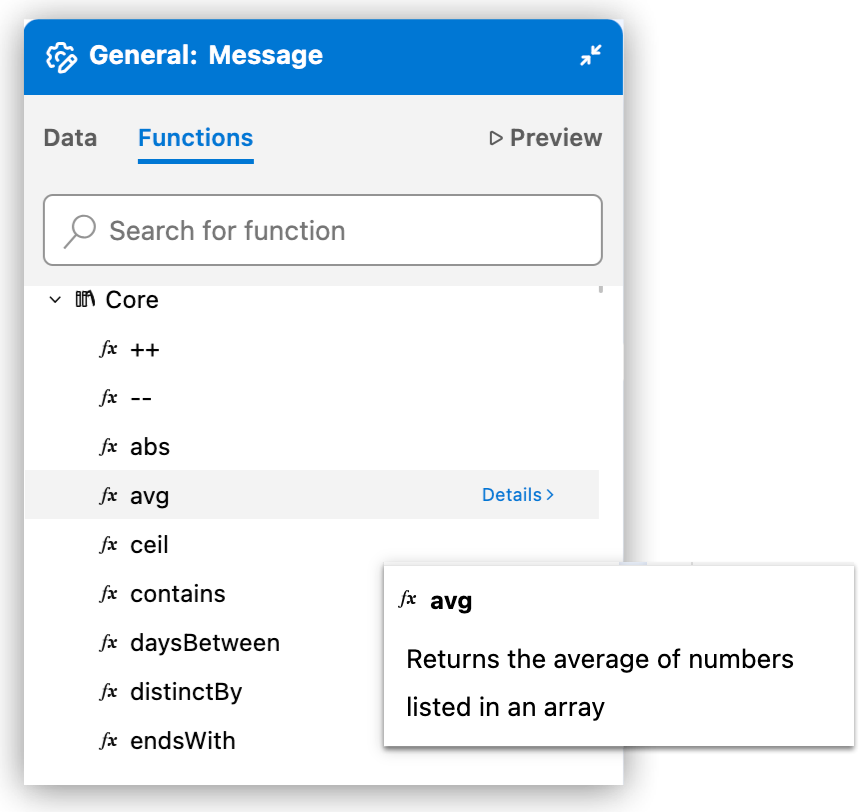
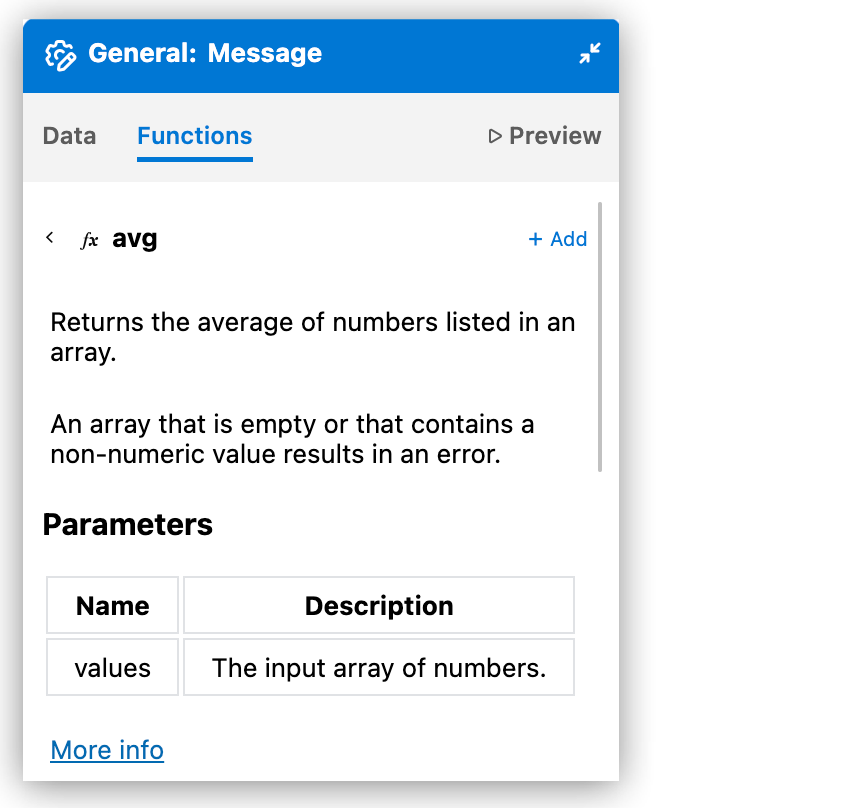
          <table><colgroup><col> <col></colgroup><thead><tr><th>DataWeave Functions</th><th>Function Reference</th></tr></thead><tbody><tr><td><div><div><p>Hover over a function to get a short description:</p></div><div><p><span><img src="https://docs.mulesoft.com/anypoint-code-builder/_images/int-dw-fx-functions-tab.png" alt="Expression Builder Functions tab displaying categorized DataWeave functions including Array, Core, Object, and String modules with search functionality"></span></p></div></div></td><td><div><div><p>Click <strong>Details</strong> to get complete documentation:</p></div><div><p><span><img src="https://docs.mulesoft.com/anypoint-code-builder/_images/int-dw-fx-functions-tab-details.png" alt="Function details popup showing complete documentation for a DataWeave function including syntax, parameters, and usage examples"></span></p></div></div></td></tr></tbody></table>

### Preview Output of DataWeave Expressions

Preview output of DataWeave expressions from the canvas or from the code editor. The preview feature
acts on sample data that you provide in the **fx** (expression) field in the code editor for the
payload (`payload`) or Mule variables (for example, `vars.somevar`).

To provide your own sample data, see [Provide Sample Data for a DataWeave Expression](#sample-data).

- [Preview Results in the UI](#preview-results-fx)

- [Preview Results from the Code Editor](#preview-results-xml)

#### Preview Results in the UI

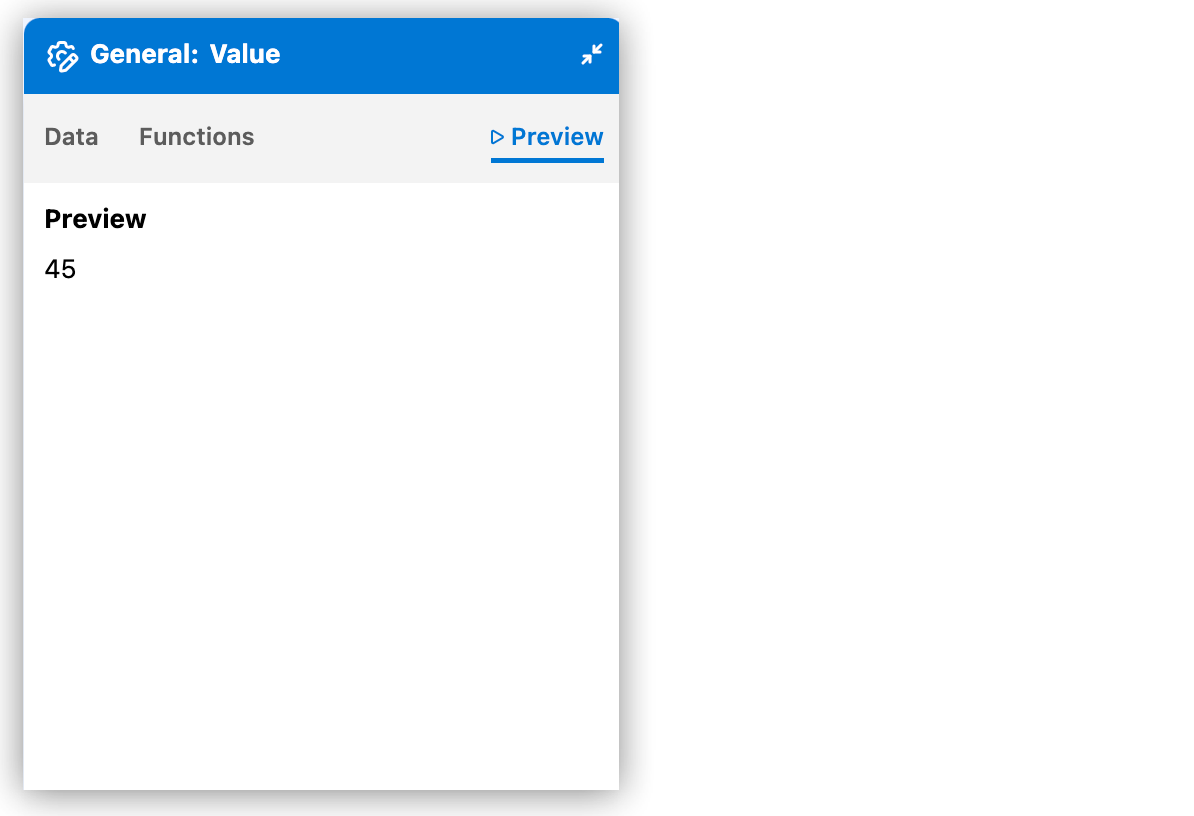
Preview auto generated sample data, or preview your own sample data. Preview the output in the
**Preview** tab of **Expression Builder** for a component expression field.

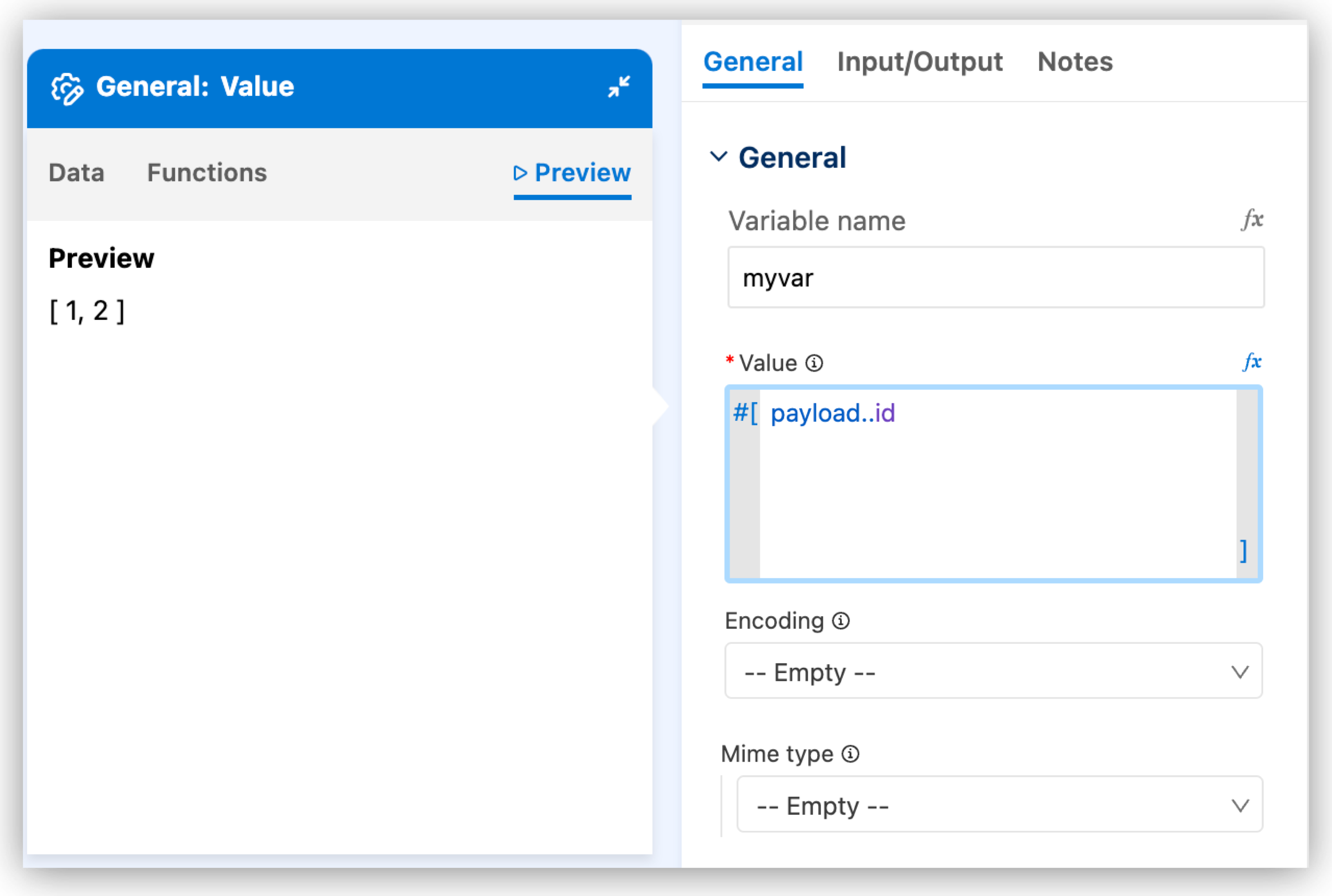
<table><colgroup><col> <col></colgroup><thead><tr><th>Preview Auto Generated Sample Data</th><th>Preview Your Sample Data</th></tr></thead><tbody><tr><td><div><div><p>Output results from auto generated sample data:</p></div><div><p><span><img src="https://docs.mulesoft.com/anypoint-code-builder/_images/int-dw-fx-preview-tab.png" alt="Expression Builder Preview tab showing the output of a DataWeave expression with automatically generated sample data"></span></p></div></div></td><td><div><div><p>Outputs results from an expression with user-created sample data:</p></div><div><p><span><img src="https://docs.mulesoft.com/anypoint-code-builder/_images/int-dw-fx-preview-tab-output.png" alt="Expression Builder Preview tab displaying the evaluated result of a DataWeave expression using user-provided sample data"></span></p></div></div></td></tr></tbody></table>

You can apply DataWeave selectors and functions to your sample data. To create sample data that has
the structure and data types you expect, see
[Provide Sample Data for a DataWeave Expression](#sample-data).

#### Preview Results from the Code Editor

To preview the results from the code editor, hover over your DataWeave code, click the **Show Code
Actions** icon, and click **Run Preview**:

![Code Actions menu in the code editor with 'Run Preview' option highlighted for executing DataWeave expressions](/mulesoft/current/en-us/anypoint-code-builder/_images/function-validation-run-preview.png)

Anypoint Code Builder opens a new **Preview Output** tab with the result of the function:

![Preview Output tab showing the executed result of a DataWeave function with JSON formatted output](/mulesoft/current/en-us/anypoint-code-builder/_images/dataweave-function-preview-output.png)

## Open Transformation Builder

Create DataWeave transformations in your Mule applications with **Transformation Builder**, assisted
by Einstein generative AI. Provide input and output sample metadata or data to generate DataWeave
scripts.

Use the drag-and-drop mapping in **Transformation Builder** for straightforward mappings, as it
supports nested arrays, multi-level mappings, field concatenation, and automatic type casting. For
complex logic, such as conditional branching or custom functions, switch to the script editor.

![The \*Transformation Builder\* window and its sections highlighted](/mulesoft/current/en-us/anypoint-code-builder/_images/int-dw-transform-builder-ui.png)

### Customize the Transformation Builder Layout

Customize **Transformation Builder** to make the workspace match your mapping and scripting needs.
Collapse and expand the **Input Preview** and **Output Preview** sections independently, resize the
vertical spacing between the input and output mapper areas, and adjust the **Script** panel for
better code visibility.

These layout controls provide more flexibility when working with complex transformations and large
metadata tree structures because you can focus on the section you need most at each step.

On **Transformation Builder**, select the option that best suits your needs:

- [Map with AI](#map-with-ai)

- [Map and Transform with AI](#map-and-transform-with-ai)

### Namespaces in Generated DataWeave Scripts

If your input or output metadata includes namespace URIs, Anypoint Code Builder updates the
generated DataWeave script for visual mapping to XML and similar targets, adds `ns` directives to
the script header for each URI that needs a declaration, and maps fields using qualified names with
a generated prefix. Prefixes are unique in the script (such as `ns0`, `ns1`), and Anypoint Code
Builder reuses any existing `ns` line if it binds the same URI.

Namespace handling applies to AI-assisted mapping and manual drag mapping in **Transformation
Builder**. It also applies to other flows that generate scripts from metadata, for MIME types where
the type system exposes namespaces. Provide accurate [custom metadata](https://docs.mulesoft.com/anypoint-code-builder/int-manage-custom-metadata)
or sample data so element namespaces are present in the structure the builder uses.

If you declared namespaces in the header, the tooling preserves those declarations when it updates
the output section of the script where supported.

For the DataWeave language rules that govern `ns` directives and qualified keys, see
[DataWeave formats](https://docs.mulesoft.com/dataweave/latest/dataweave-formats) and
[DataWeave documentation](https://docs.mulesoft.com/dataweave/latest/).

### Considerations for AI-Assisted Transformations

If using AI-assisted transformations, evaluate these considerations:

- To generate a DataWeave script using **Map and Transform with AI**, provide input and output
  samples. While optional, providing metadata helps AI understand the data structure and improves
  the accuracy of the transformation.

- Sample data provides the context to generate functions or expressions for calculations,
  conditions, and other operations. You can provide Web Services Description Language (WSDL) files
  with sample data. See [Provide Sample Data for a DataWeave Expression](#sample-data) for supported
  data formats (MIME types) for sample data.

- For field-to-field mapping using **Map with AI**, provide both input and output metadata. Use
  **Map with AI** even when a DataWeave script is already present in the component. Click **Map with
  AI** to trigger it.

- AI requires valid data to create the transformation script. Write it manually if needed.

- AI chat history isn’t available in **Transformation Builder**.

- Avoid using real personally identifiable information (PII) in sample data or AI inputs. Provide
  input and output sample data that contains only fictional or masked data.

- AI-assisted transformations provide comprehensive error feedback for GenAI actions. If you
  encounter errors related to authorization, metadata, or request limits, the error messages guide
  you to resolve the issue. See
  [Troubleshoot AI-Assisted Transformations](#troubleshoot-ai-assisted-transformations) for detailed
  troubleshooting steps.

### Map with AI

The **Map with AI** feature suggests a field-to-field mapping using AI-powered auto mapping. Click
**Map with AI** to trigger it. Use it even when a DataWeave script is already present in the
component. Provide both input and output metadata for the component. Mapping is performed based on
the metadata you provide.

**Map with AI** provides comprehensive error feedback for GenAI actions, including authorization
errors, metadata issues, and request limits. If you encounter errors during the mapping process, see
[Troubleshoot AI-Assisted Transformations](#troubleshoot-ai-assisted-transformations) for detailed
guidance on resolving specific error types.

If you don’t have access to **Map with AI**, you must:

- Make sure your configuration meets the prerequisites for using AI-assisted transformations. See
  [Before You Begin](#prereq-dw-transforms).

- Review that the provided input and output metadata are valid.

  1.  Open your Mule project.

  2.  Select a component that has a **fx** field.

  3.  Open **Transformation Builder**.

      ![Transformation Builder showing 'Fetching metadata' status message with loading indicator for AI-assisted mapping functionality](/mulesoft/current/en-us/anypoint-code-builder/_images/int-map-with-ai.png)

  4.  Click **Map with AI** to start the mapping. Provide both input and output metadata if not
      already provided.

      The mapping is applied to the XML file, and the **Preview** tab shows the output of the
      transformation.

  5.  After the mapping is complete, you must:

      1.  Click **Apply Mapping** to apply suggested mapping to your project.

      2.  Click **Revise Mapping** to get new suggestions from the AI.

### Map and Transform with AI

Create a DataWeave transformation script assisted by AI by providing input and output sample data.
You can also provide optional metadata to help define the data structure and instructions to guide
the AI.

1.  Open your Mule project.

2.  Select a component that has a **fx** field.

3.  Open **Transformation Builder**.

    ![Transformation Builder showing 'Fetching metadata' status message with loading indicator for AI-assisted mapping functionality](/mulesoft/current/en-us/anypoint-code-builder/_images/int-map-with-ai.png)

    The mapping starts automatically considering the data provided. The mapping is applied to the
    XML file.

4.  Click **Map and Transform with AI**.

5.  Provide this information if needed, or modify it as needed:

    - **Input sample** data

    - **Output sample** data

    - Optional instructions to guide the AI

      > [!NOTE] If modifying the input and output sample data, provide the same information to help
      > the AI understand the intended transformation. The input data can come from payloads,
      > attributes, or variables.

6.  Click **Transform**.

    Einstein AI analyzes your input and output samples, and the instructions, if any, to generate
    DataWeave script suggestions that aim to perform the suggested transformation.

7.  Click **View Suggested Scripts** to insert one if appropriate, or copy the suggested script to
    the clipboard without losing its format.

    After inserting a script, the XML file is updated, and you can regenerate the script by clicking
    **Revise**.

### Troubleshoot AI-Assisted Transformations

AI-assisted transformations in **Transformation Builder** provide comprehensive error feedback to
help you resolve issues. Error messages indicate the type of error and provide guidance to resolve
it.

If you encounter errors when using AI-assisted transformations, identify the error type and follow
the corresponding resolution steps:

- [Authorization Errors](#troubleshoot-authorization-errors)

- [Metadata Errors](#troubleshoot-metadata-errors)

- [Request Limit Errors](#troubleshoot-request-limit-errors)

- [General AI Errors](#troubleshoot-general-ai-errors)

#### Authorization Errors

Authorization errors occur when your Anypoint Platform account lacks the required permissions or
when Einstein generative AI isn’t properly configured for your organization.

If you receive an authorization error:

1.  Verify that you are logged in to Anypoint Platform from Anypoint Code Builder.

    For more information, see
    [Log in to Anypoint Platform](https://docs.mulesoft.com/anypoint-code-builder/start-acb#log-in-to-anypoint-platform-from-the-ide).

2.  Contact your Anypoint Platform organization administrator to verify:

    - You have the **Mule Developer Generative AI User** permission assigned in Anypoint Platform
      access management.

    - Einstein generative AI is enabled for your organization. For more information, see
      [Enabling Einstein for Anypoint Platform](https://docs.mulesoft.com/access-management/enabling-generative-ai).

    - You have accepted the terms and conditions for using Einstein generative AI.

    - Your Anypoint Platform organization is current and active.

3.  If you are the organization administrator, verify that:

    - The Salesforce organization connected for requests has generative AI enabled.

    - The Salesforce organization has an
      [established tenant relationship](https://docs.mulesoft.com/access-management/trusted-salesforce-org) with your
      Anypoint Platform organization, and the connection is enabled.

    - The Salesforce organization is valid and not expired or disabled.

#### Metadata Errors

Metadata errors occur when the input or output metadata provided to **Map with AI** or **Map and
Transform with AI** is invalid, missing, or improperly structured.

If you receive a metadata error:

1.  Verify that both input and output metadata are provided when using **Map with AI**.

    **Map with AI** requires both input and output metadata to perform automatic field-to-field
    mapping.

2.  Check that your metadata structure is valid:

    - Ensure the metadata follows the expected schema format.

    - Verify that required fields are present in the metadata.

    - Confirm that data types match between input and output metadata where applicable.

3.  Review the metadata source:

    - If metadata is generated from sample data, verify that the sample data structure is correct.

    - If metadata is imported from an API specification, verify the specification is valid and
      complete.

    - Refresh metadata by clicking **More Actions** in **Transformation Builder** and selecting
      **Refresh metadata**.

4.  For **Map and Transform with AI**, verify that:

    - Input sample data is provided and valid.

    - Output sample data is provided and valid.

    - Sample data formats match the expected MIME types. See
      [Provide Sample Data for a DataWeave Expression](#sample-data) for supported formats.

#### Request Limit Errors

Request limit errors occur when you exceed the rate limits for GenAI API requests. These limits help
ensure fair usage and system stability.

If you receive a request limit error:

1.  Wait before retrying your request:

    - The error message indicates when you can retry the request.

    - Avoid making multiple rapid requests in succession.

2.  Reduce the frequency of AI-assisted transformation requests:

    - Batch multiple transformations when possible.

    - Use manual mapping for simple transformations to reduce API calls.

3.  Contact your Anypoint Platform organization administrator if:

    - Request limits are consistently reached during normal usage.

    - You must understand your organization’s specific rate limits.

4.  Consider alternative approaches:

    - Use **Manually Adding Data Sources and Targets** for straightforward mappings. See
      [Manually Adding Data Sources and Targets](#manually-add-data-sources-targets).

    - Write DataWeave scripts manually for complex transformations that don’t require AI assistance.

#### General AI Errors

If you encounter other errors with AI-assisted transformations:

1.  Log in to Anypoint Platform and try again.

2.  Verify that your Anypoint Platform organization has access to Einstein generative AI.

3.  Ensure you have accepted the terms and conditions for using Einstein generative AI.

4.  Check your network connection and try again.

5.  If the error persists, contact your Anypoint Platform organization administrator or MuleSoft
    support.

### Manually Adding Data Sources and Targets

You can manually add data sources and targets to your transformation script.

1.  In the **Transformation Workspace** section, drag the source field from the input payload to the
    target field to map the source data to the target data.

    The mapped fields show a green dot and are highlighted to indicate that the mapping is
    successful. The **Script** section updates with the new mapping, and the **Output Preview**
    section displays the output of the transformation.

    If needed, map multiple source field to a target field, and then the Transform Builder
    concatenates them.

    To remove one mapping, see [Remove a Mapping](#remove-a-mapping).

2.  Click **More Actions** to refresh metadata or remove all mappings.

3.  Verify the input sample generated from the field mapping.

    You can select the generated sample or provide your own [sample data](#sample-data).

### Remove a Mapping

Remove one mapping from **Transformation Builder**. **Remove Mapping** is available on every mapped
node in the input and output metadata trees.

> [!NOTE] The **Remove Mapping** action removes the mapping for that node and any functions applied
> to the mapping.

1.  In **Transformation Builder**, right-click a mapped node in the input or output metadata tree.

2.  Select **Remove Mapping**.

3.  Confirm the removal.

    Anypoint Code Builder removes the mappings for that node. The **Script** section updates, and
    the **Output Preview** section shows the transformation without those mappings.

To remove every mapping at once, click **More Actions**.

### Set Custom Metadata in Transformation Builder

In Transformation Builder, you can manage component metadata by setting, clearing, or editing custom
definitions for inputs and outputs. Each payload, attribute, or variable supports only one custom
metadata assignment at a time.

To set custom metadata:

1.  Click **No metadata selected** if metadata isn’t already set or click the name of the custom
    metadata. If default metadata is being used, click **Default**.

2.  Click **Set Custom Metadata**.

3.  Select, edit, or preview existing custom metadata or create new custom metadata. See
    [Create Custom Metadata](https://docs.mulesoft.com/anypoint-code-builder/int-manage-custom-metadata#create-custom-metadata) for more information
    about creating custom metadata. See
    [Edit Custom Metadata](https://docs.mulesoft.com/anypoint-code-builder/int-manage-custom-metadata#edit-custom-metadata) for more information
    about editing custom metadata.

4.  Click **Apply and Close**.

To clear custom metadata, click the name of the custom metadata and then click **Clear Custom
Metadata**. The metadata is cleared from the component.

## Provide Sample Data for a DataWeave Expression

Test and preview DataWeave expressions locally in Anypoint Code Builder. Add sample data for Mule
variables such as `payload` in **fx** fields to preview outputs without running your application.
For AI-assisted transformations, providing sample input and output data helps AI understand the
intended transformation and generate the correct DataWeave scripts.

You can create sample data in these formats:

- JSON

- XML

- CSV

- Java

- Text

- YAML

- Avro

- Excel

- NDJSON

- URL Encoded

- Protobuf

- Multipart

> [!IMPORTANT]
>
> - To avoid errors when you run your app with real data, provide sample data that matches the basic
>   structure, format, and data type of the data the expression expects.
>
> - Your sample data is overwritten when you reopen the component from the canvas.

To create sample data for a Mule variable:

1.  Open your project.

2.  In the code editor, hover over the Mule event variable (such as `payload`), for example:

    ![Code editor with cursor hovering over payload variable, showing Quick Fix for creating sample data](/mulesoft/current/en-us/anypoint-code-builder/_images/int-dw-sample-quick-fix-hover.png)

3.  Click **Quick Fix** to open the **Quick Fix** menu.

4.  Select **Create sample data for _your-value_**, such as **Create sample data for payload**, for
    example:

    ![Quick Fix menu displaying 'Create sample data for payload' option in the code editor context menu](/mulesoft/current/en-us/anypoint-code-builder/_images/int-dw-sample-quick-fix-create.png)

5.  In the menu that opens, select a format, such as JSON, for the sample data.

    ![Sample data format selection menu showing options including JSON, XML, CSV, Java, Text, YAML, Avro, Excel, and other supported formats](/mulesoft/current/en-us/anypoint-code-builder/_images/dw-issue-sample-data-formats.png)

    Anypoint Code Builder opens a tab for your sample data.

6.  Add content in the selected format to the sample data file. For example, for JSON:

    ![Project Explorer showing sample data files like payload.json stored in src/test/resources directory structure](/mulesoft/current/en-us/anypoint-code-builder/_images/int-dw-sample-quick-fix-example-dir.png)

    The file name is `payload.json`. Files for your sample data and for the automatically generated
    sample data is stored in the project directory `src/test/resources`.

    Custom sample data files should be created under `src/main/resources/user-sample-data`.

    See [Important](#important) before adding sample data.

    Hover over the value in the code editor to show the structure, data keys, and data types of your
    sample data, for example:

    ![Hover over XML to display sample data](/mulesoft/current/en-us/anypoint-code-builder/_images/int-dw-sample-quick-fix-example-hover-xml.png)

7.  Preview your sample data in **Expression Builder**:

    1.  From the canvas, click the component that contains your sample data to open **Expression
        Builder** for that field.

    2.  Click **fx** of the component that has sample data to open **Expression Builder** for that
        field.

    3.  Click **Preview** to display the sample data. For example:

        ![Sample data preview in \*Expression Builder\*](/mulesoft/current/en-us/anypoint-code-builder/_images/int-dw-sample-quick-fix-example-preview.png)

        You can modify the value. For example, add DataWeave selectors or functions:

        ![Preview modified sample data](/mulesoft/current/en-us/anypoint-code-builder/_images/int-dw-sample-quick-fix-example-preview-modified.png)

        The example now returns an array of `id` values.

## Address DataWeave Errors

When your DataWeave code contains a syntactic or semantic error, Anypoint Code Builder highlights
the error and offers a suggested fix. Issues include:

- [Add a Missing Import Directive for a DataWeave Module](#fix-dw-add-import)

- [Fix an Undefined Function Error](#fix-dw-error)

### Add a Missing Import Directive for a DataWeave Module

Many DataWeave modules require an explicit `import` directive in the expression. Only the Core
module doesn’t require this directive.

For example, if you don’t import the string module to which this function belongs, the function
`camelize( "hello world")` produces an error `Unable to resolve the reference of 'camelize'`.

```xml
<set-payload value='#[ camelize( "hello world")]' doc:name="Set payload" doc:id="vyvcds" />
```

**Expression Builder** identifies the error. For example:

!['Import required' error](/mulesoft/current/en-us/anypoint-code-builder/_images/int-dw-fx-error-add-import.png)

To fix this issue, click to add the import directive automatically, for example:

![Import required error](/mulesoft/current/en-us/anypoint-code-builder/_images/int-dw-fx-error-fix-import.png)

The XML for the fix is similar to this example:

```xml
<set-payload value='#[%dw 2.0
import camelize from dw::core::Strings
---
 camelize( "hello world")]' doc:name="Set payload" doc:id="vyvcds" />
```

### Fix an Undefined Function Error

Anypoint Code Builder flags undefined functions automatically.

For example, in this code, DataWeave flags an error with `toUpper`:

![Undefined function error](/mulesoft/current/en-us/anypoint-code-builder/_images/dw-error.png)

When you place your cursor on the function, DataWeave provides information about the error:

![Information about the undefined function error](/mulesoft/current/en-us/anypoint-code-builder/_images/undefined-function.png)

To fix this issue:

1.  Click the error to display the popup.

2.  Click **Quick Fix**, and then click **Create Function**.

    Anypoint Code Builder automatically adds a function definition with the `???` placeholder for
    you to define your function:

    ```DataWeave
    fun toUpper(param0: String) = ???
    ```

3.  Update the function to use the `upper` function to return the provided String in uppercase
    characters:

    ```DataWeave
    <set-payload value="#[%dw 2.0
    fun toUpper(param0: String) = upper(param0)
    output application/json
    ---
    toUpper('hello')]" doc:name="Set payload" doc:id="xiyfpa" />
    ```

## Import a DataWeave Library

Use Anypoint Code Builder to import DataWeave libraries from Exchange into your Mule application.

A DataWeave library is a reusable package of DataWeave modules, mapping files, and resource files,
such as JSON, XML, and CSV files.

You can import a DataWeave library the same way you import any other asset from Exchange:

1.  Open your integration project in Anypoint Code Builder.

2.  Open the Command Palette.

    Show me how

    - Use the keyboard shortcuts:

      - Mac: Cmd+Shift+p

      - Windows: Ctrl+Shift+p

    - Select **View** > **Command Palette**.

3.  Enter `import` and select the following command:

    ```command
    MuleSoft: Import Asset from Exchange
    ```

4.  Select **DataWeave Library**.

    To search for a library, type the search term and press Enter. For example, enter **DataWeave**:

    ![Search for DataWeave libraries](/mulesoft/current/en-us/anypoint-code-builder/_images/int-dw-libraries.png)

5.  Select the DataWeave library from the **Assets From Exchange** menu.

6.  Select a version of the DataWeave library.

    The status bar shows the progress.

When complete, Anypoint Code Builder shows a message that the dependency was successfully added to
the project.

## Reference a DataWeave Script Stored in an External File

If you use the same transformation logic in multiple places, store the DataWeave script in a `.dwl`
file in `src/main/resources` instead of duplicating the transformation inline in each component. By
externalizing a script, you can update the transformation in one place and reference it wherever
it’s needed.

To reference an externalized script, use the `${file::<filename>}` syntax in any XML tag that
expects an expression, where `<filename>` is the name of your `.dwl` file in `src/main/resources`.
For example:

```xml
<http:body><![CDATA[#[${file::transform.dwl}]]]></http:body>
```

## See Also

- [Debugging Mule Applications](https://docs.mulesoft.com/anypoint-code-builder/int-debug-mule-apps)

- [DataWeave Issues and Errors](https://docs.mulesoft.com/anypoint-code-builder/troubleshoot-dataweave)

- [Add a Component to Your Project](https://docs.mulesoft.com/anypoint-code-builder/int-create-integrations#add-components)

- [Implementing OAS, RAML, AsyncAPI, and GraphQL APIs](https://docs.mulesoft.com/anypoint-code-builder/imp-implement-api-specs)

- [Locate Your API in Exchange](https://docs.mulesoft.com/anypoint-code-builder/des-publish-api-spec-to-exchange#locate-api)

- [Anypoint Code Builder Components and Commands Reference](https://docs.mulesoft.com/anypoint-code-builder/acb-reference)