---
schema_version: "1"
id: 685781e04cecdd56b1558177de1e153624cb6aa66bd1bf0abacfcc8eeffb95ef
title: Configuring Components
collection: mulesoft
version: current
locale: en-us
portal_url: https://docs.salesforce.com/mulesoft/current/en-us/anypoint-code-builder/int-configure-components.md
canonical_url: https://docs.mulesoft.com/anypoint-code-builder/int-configure-components
source_site: docs.mulesoft.com
content_type: documentation
content_hash: 1ea975291a2acb40ade182e96280cd42065f44b35b150e5fdcc0684eb94d0705
description: MuleSoft Documentation Site
latest: true
---
---
product: Anypoint Code Builder
version: master
---

# Configuring Components

> For the full documentation index, see: https://docs.mulesoft.com/llms.txt

Configure connectors and processors within your implementation and integration projects from the
canvas or the code editor.

Common tasks include the following:

- [Add a Component to Your Project](#add-components)

- [Configure Expressions](https://docs.mulesoft.com/anypoint-code-builder/int-configure-dw-expressions)

- [Test a Connection Configuration](#check-connection)

- [Import a Connector from Exchange](#import-connectors-from-exchange)

- [Open a Component in the Canvas from the Code Editor](#open-component-from-xml)

## Before You Begin

- Determine which connectors and processors you intend to use.

  When adding components, you can start from the canvas or the code editor for your app. You can
  configure components from their configuration panels in the canvas or from the code editor. For
  reference documentation on specific connector and component configurations, see
  [Anypoint Code Builder Components and Commands Reference](https://docs.mulesoft.com/anypoint-code-builder/acb-reference).

- Review [Get Familiar with the Basics](https://docs.mulesoft.com/anypoint-code-builder/#get-familiar-with-the-basics) to ensure that you are
  familiar with important concepts and features.

  Understand the basics of Mule flows, the Mule event structure, including the payload, attributes,
  and Mule variables. To transform data and add expressions to your components, have some
  familiarity of the DataWeave language.

## Add a Component to Your Project

These examples illustrate basic configurations for adding components to your project from the
canvas, and the code editor. The examples assume you are beginning with an empty integration
project.

1.  In the Explorer, open the configuration XML file for your project:, such as
    `my-project-name.xml`.
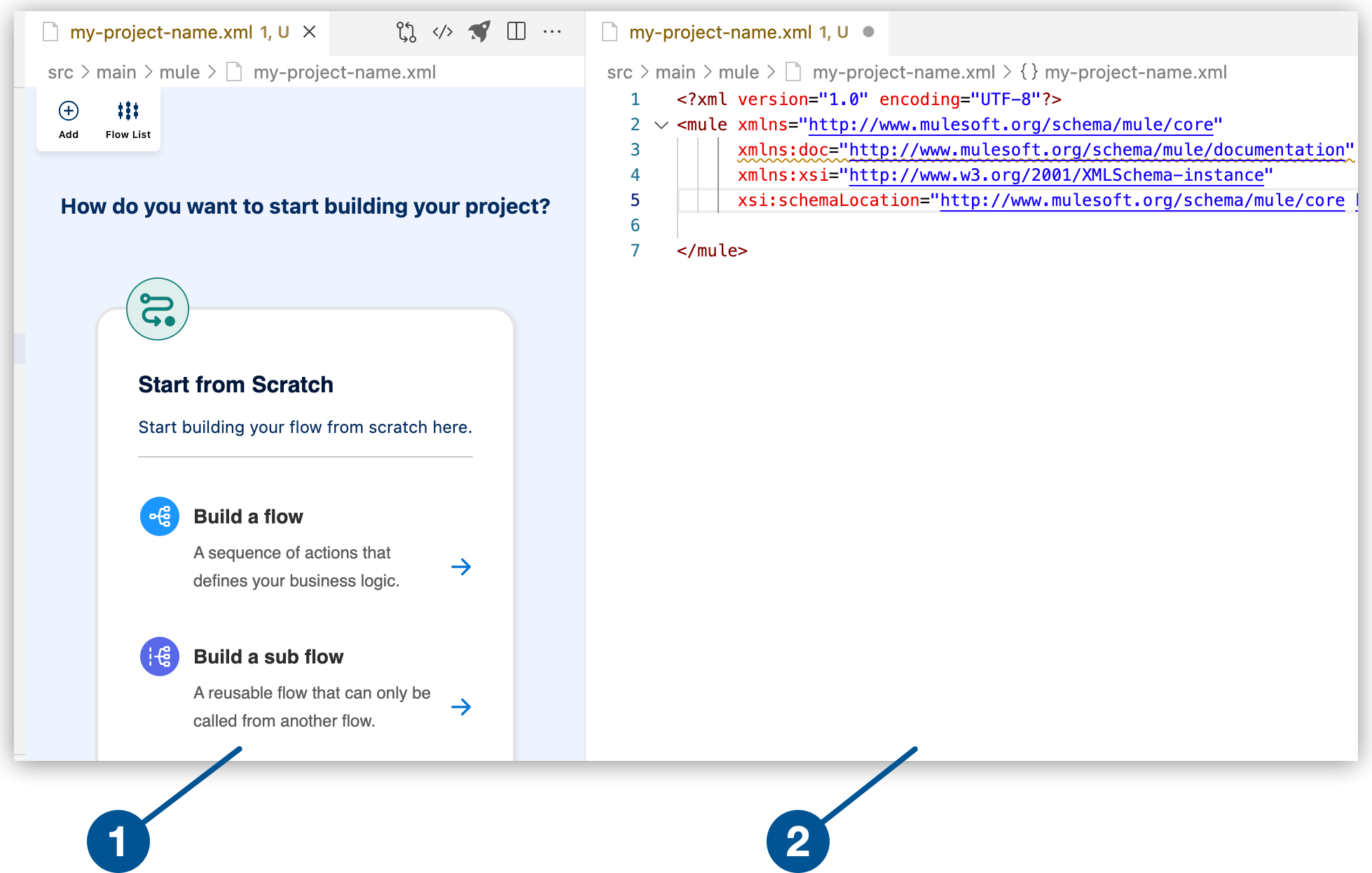
    ![Canvas showing visual representation of Mule flow and the Mule configuration file](/mulesoft/current/en-us/anypoint-code-builder/_images/int-empty-canvas.png)

    <table><tbody><tr><td><i data-value="1"></i><b>1</b></td><td>The canvas provides space for a visual representation of your Mule flows or subflows.</td></tr><tr><td><i data-value="2"></i><b>2</b></td><td>The code editor displays the configuration file for your Mule application.</td></tr></tbody></table>

2.  Select **Build a Flow** from the canvas to create an empty flow within a Mule integration
    application.

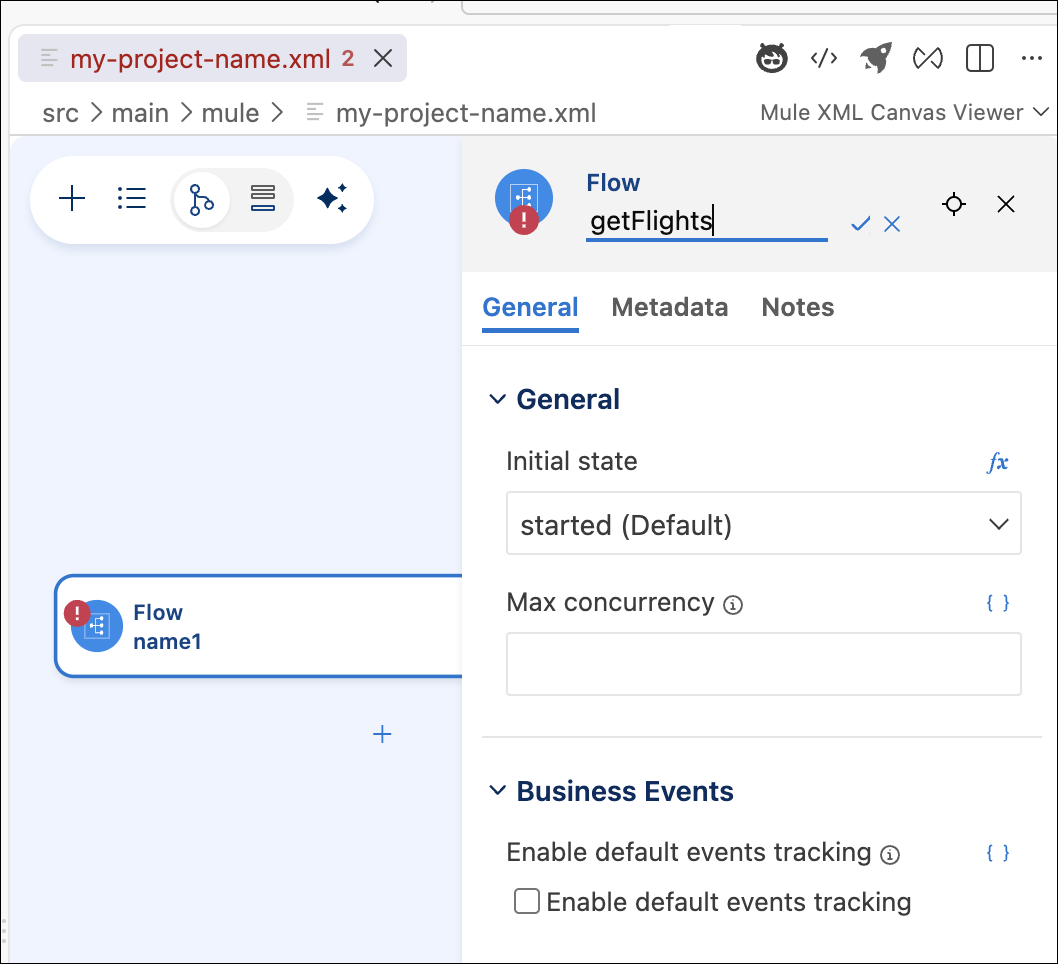
3.  Change the default name of the flow from the canvas or from the code editor.

    - From the canvas

    - From the code editor

    Click **Flow name1** to open the configuration panel for the Flow component, change the flow
    name, and click the check mark to set the new name.
    ![Change name of flow through canvas.](/mulesoft/current/en-us/anypoint-code-builder/_images/int-flow-name-ui.png)

    Replace the default name of the flow (`name1`) with your flow name, such as `getFlights`, for
    example:

    ```xml
    <flow name="my-flow" >

    </flow>
    ```

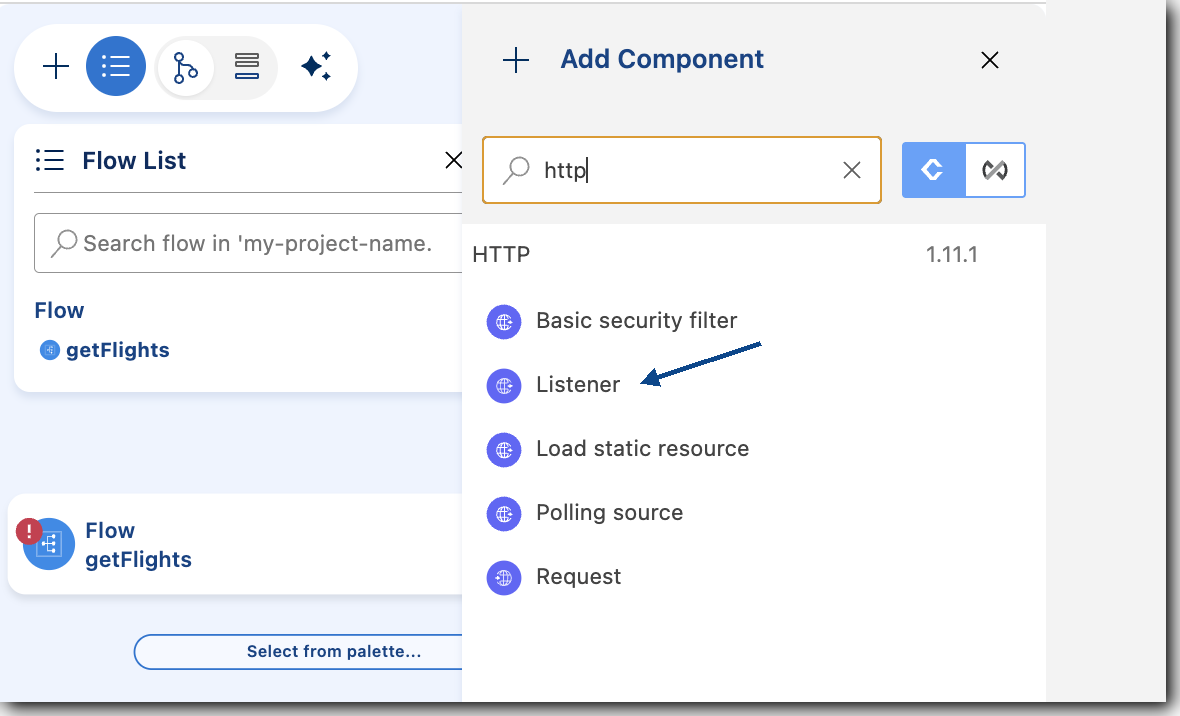
4.  Add a component to your project from the canvas.

    For example, add the HTTP Listener component:

    1.  In the canvas, click the ![](/mulesoft/current/en-us/anypoint-code-builder/_images/icon-plus.png) (**Add component**) icon.

    2.  In the **Add Component** panel, search for and select **Listener** from the **HTTP**
        results:
        ![Listener component highlighted in the Add Component section](/mulesoft/current/en-us/anypoint-code-builder/_images/main-tutorial-add-first-listener.png)

        The configuration XML file now includes the XML for the HTTP Listener within the `<flow/>`
        element, for example:

        ```XML
        <flow name="getFlights" >
          <http:listener path="mypath" config-ref="config-ref" doc:name="Listener" doc:id="rrjiqa" />

        </flow>
        ```

5.  Add another component, this time using the code editor.

    In the code editor, place your cursor before the opening `<flow>` tag. Ensure that the cursor is
    not inside the `<flow/>` element. Add the following code:

    ```xml
    <http:listener-config name="HTTP_Listener_config" >
      <http:listener-connection host="0.0.0.0" port="8081" />
    </http:listener-config>
    ```

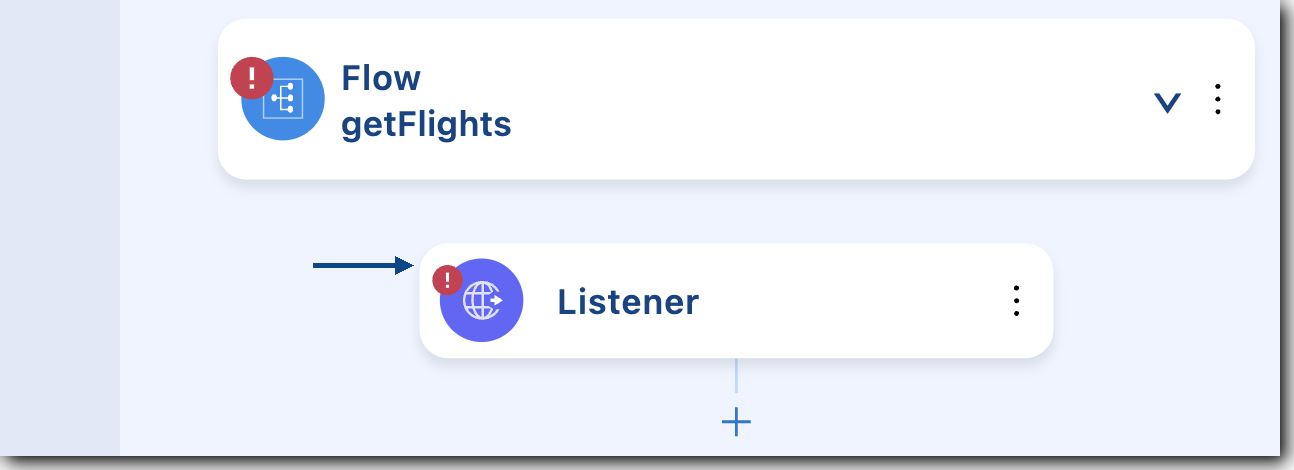
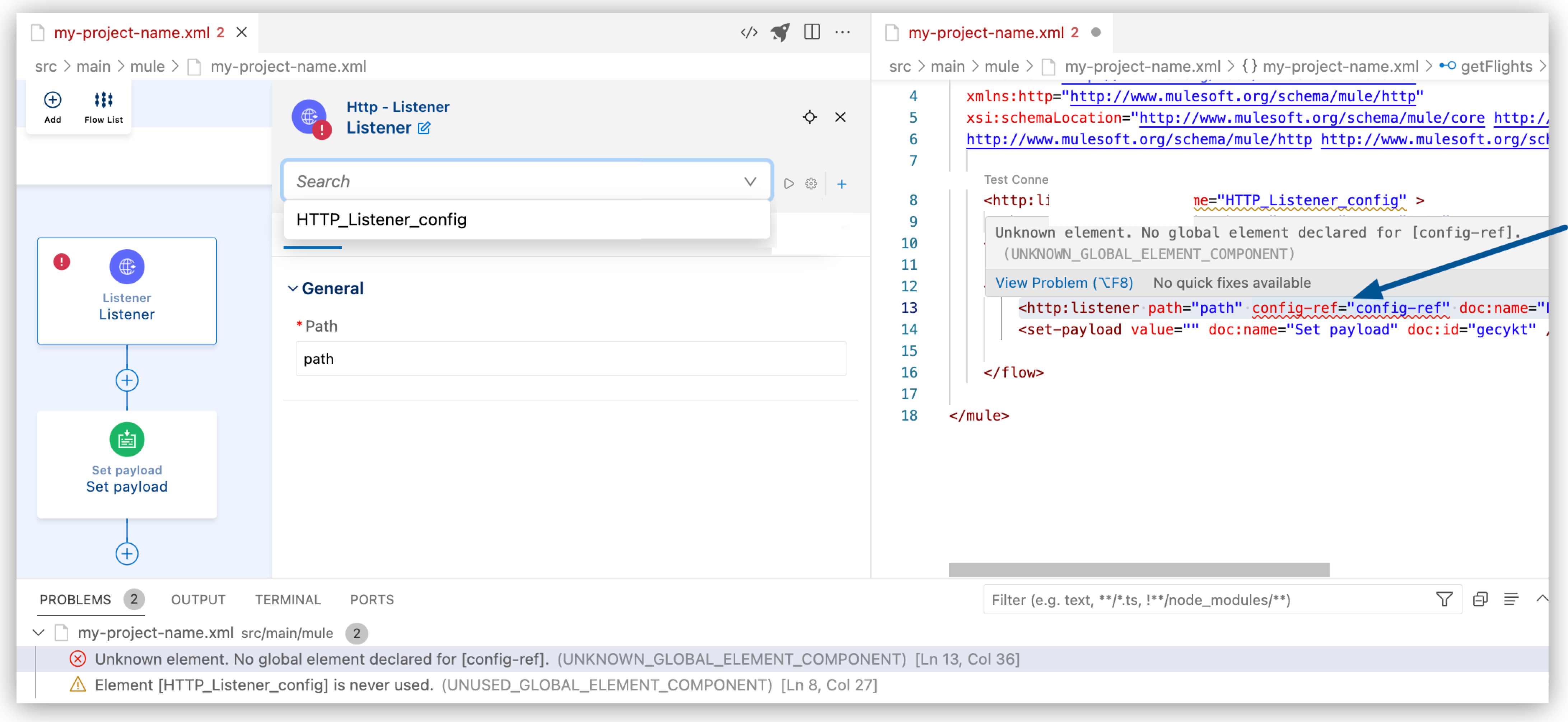
    1.  Notice that the Listener component in the canvas now displays an error:
        ![Listener error in the canvas](/mulesoft/current/en-us/anypoint-code-builder/_images/int-canvas-error.png)

    2.  To determine where the error is, select the processor in the canvas.

        Anypoint Code Builder highlights its location in the code editor, and you can mouse over the
        issue for more information, for example:
        ![Selecting configuration reference from configuration panel](/mulesoft/current/en-us/anypoint-code-builder/_images/int-select-listener-config.png)

    3.  To fix the error, change the value of the `name` attribute in `http:listener-config` to
        match the name of the `config-ref` value in your `http:listener` configuration:

        ```xml
        <http:listener-config name="config-ref" >
          <http:listener-connection host="0.0.0.0" port="8081" />
        </http:listener-config>
        ```

        The HTTP listener within your flow now references the HTTP listener configuration, a global
        connection configuration that resides outside of the flow. For more information about
        debugging, see [Debugging Mule Applications](https://docs.mulesoft.com/anypoint-code-builder/int-debug-mule-apps).

6.  Add another component to your flow.

    For example, add a Set Payload component to your HTTP Listener operation:

    1.  In the canvas, click the ![](/mulesoft/current/en-us/anypoint-code-builder/_images/icon-plus.png) (**Add component**) icon.

    2.  In the **Add Component** panel, search for and select **Set payload** from the
        **Transformer** results.

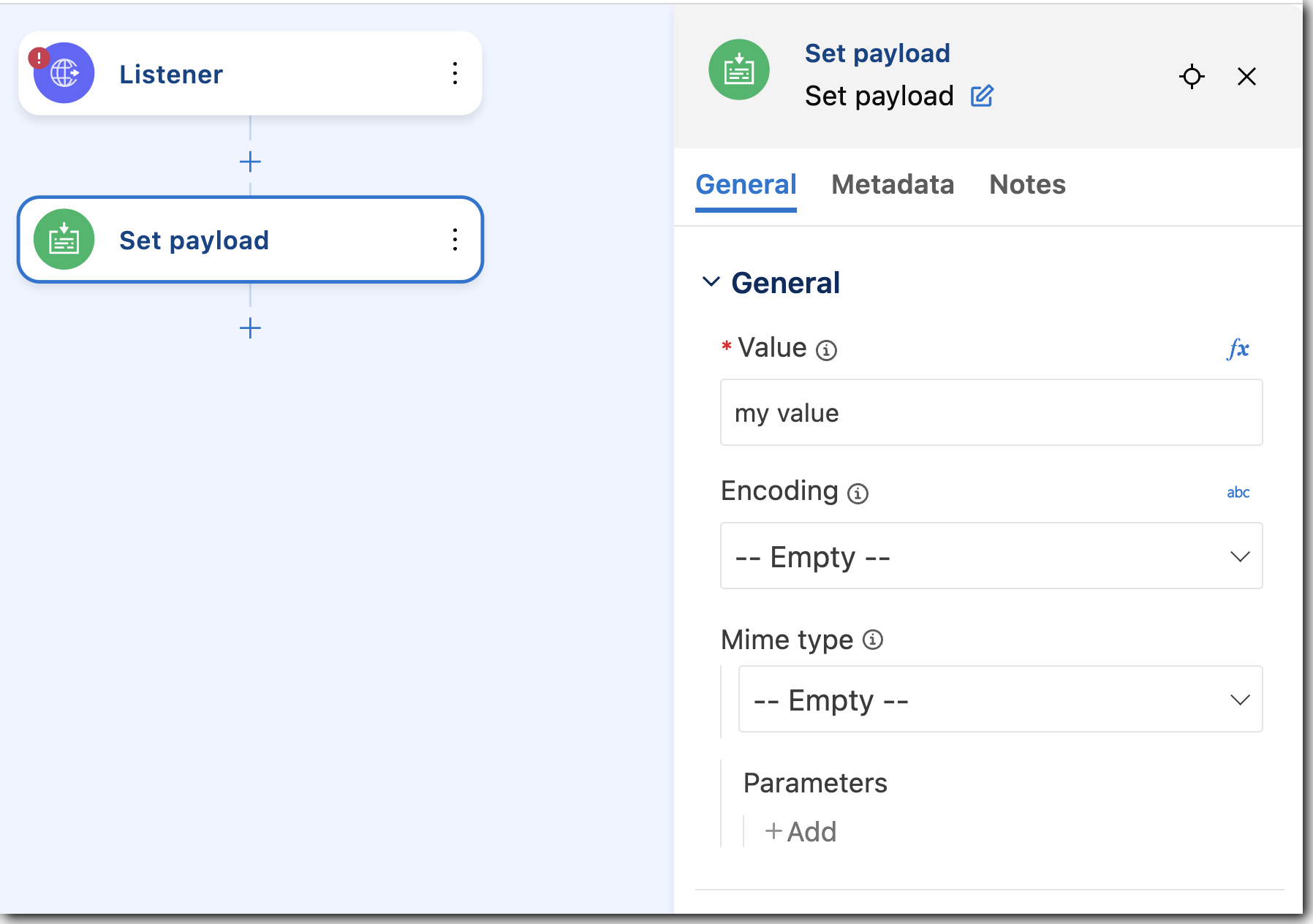
    3.  In the canvas, click **Set payload** to open its configuration panel, and add a string
        value, DataWeave expression, Mule variable, or configuration property.

        - To add a string, type a value such as `my value`. For example:
          ![Adding string to Set Payload](/mulesoft/current/en-us/anypoint-code-builder/_images/int-set-payload-config-string.png)

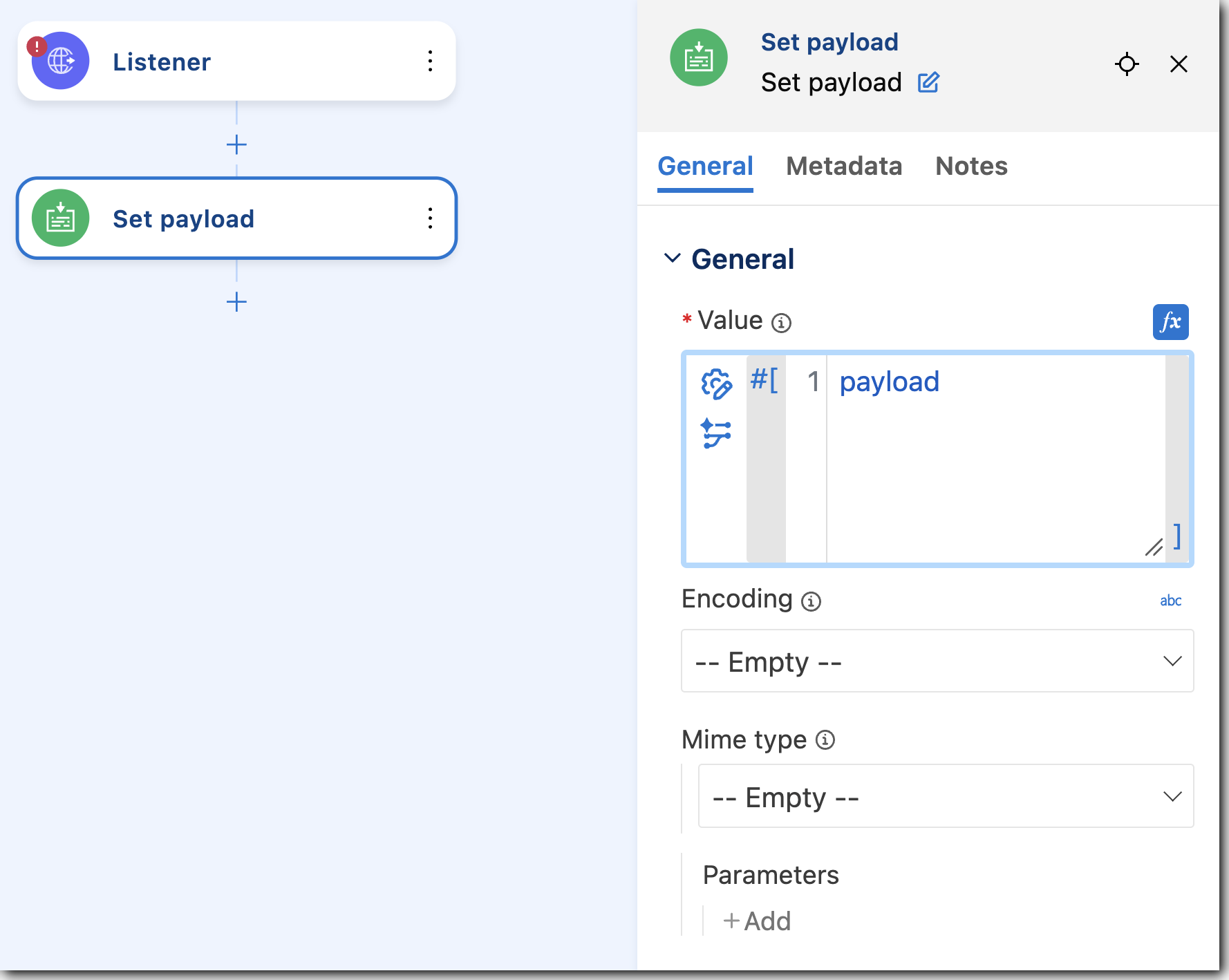
        - To add a DataWeave expression or a Mule variable as a value, such as `payload`, click
          **fx** (located before the field), and provide the value, for example:
          ![Adding expression to Set Payload](/mulesoft/current/en-us/anypoint-code-builder/_images/int-set-payload-config-fx.png)

    For more information about configuring DataWeave expressions, see
    [Using DataWeave Expressions and Transformations in Anypoint Code Builder](https://docs.mulesoft.com/anypoint-code-builder/int-configure-dw-expressions).

    - To add a configuration property as a value, type a value such as `${secure::mysensitiveprop}`.

      For more information about configuration properties, see
      [Defining and Securing Properties for a Mule Application](https://docs.mulesoft.com/anypoint-code-builder/int-create-secure-configs).

    Your configuration XML file now looks similar to the following:

    ```xml
    <http:listener-config name="config-ref" >
      <http:listener-connection host="0.0.0.0" port="8081" />
    </http:listener-config>

    <flow name="getFlights" >
      <http:listener path="path" config-ref="config-ref" doc:name="Listener" doc:id="rrjiqa" />
      <set-payload value="my value" doc:name="Set payload" doc:id="gecykt" />

    </flow>
    ```

7.  Add another component to your flow.

    For example, add the **Create** operation from Anypoint Connector for Salesforce to insert an
    Account record.

    Use this pattern when your flow receives data through an HTTP Listener and must create
    Salesforce records. If you completed the earlier steps that add **Set payload** with a fixed
    string, remove or replace that processor so you can shape the payload before **Create**.

    For more information about using **Create** with Account records, see
    [Salesforce Connector 12.0 Examples](https://docs.mulesoft.com/salesforce-connector/latest/salesforce-connector-examples).

    1.  In the configuration XML, add a global Salesforce connection element above your `<flow>`
        element (not inside the flow).

        Use configuration properties for credentials instead of literals; for example:

        ```xml
        <salesforce:sfdc-config name="Salesforce_Config" doc:name="Salesforce Config">
          <salesforce:basic-connection username="${salesforce.username}" password="${salesforce.password}" securityToken="${salesforce.token}" />
        </salesforce:sfdc-config>
        ```

        For more information about connection types and authentication fields, see
        [Salesforce Connector 12.0](https://docs.mulesoft.com/salesforce-connector/latest/).

    2.  In the canvas, click the ![](/mulesoft/current/en-us/anypoint-code-builder/_images/icon-plus.png) (**Add component**) icon after **HTTP
        Listener**.

    3.  In the **Add Component** panel, search for **Set payload**, and add the component.

    4.  Configure **Set payload** with a DataWeave expression that builds a JSON object whose fields
        match your HTTP API (they need not match Salesforce field names yet).

        For example, use **fx** to enter DataWeave with `output application/json` and sample fields
        such as `companyName`, `industry`, and `phoneNumber`.

        Alternatively, add **Transform Message** and use the same DataWeave in `<ee:set-payload/>`.

        For more information about **Transform Message**, see
        [Transform (<ee:transform/>)](https://docs.mulesoft.com/anypoint-code-builder/acb-component-transform).

    5.  From the canvas, click the ![](/mulesoft/current/en-us/anypoint-code-builder/_images/icon-plus.png) (**Add component**) icon after **Set
        payload** (or **Transform Message**).

    6.  In the **Add Component** panel, click **Connectors**, select **Salesforce**, and select
        **Create**.

    7.  In the configuration panel for **Create**, set:

        - **Connection config**: The global Salesforce configuration name (for example,
          `Salesforce_Config`).

        - **Type**: `Account`.

          If **Type** stays empty until you establish a working Salesforce connection, set
          `type="Account"` on `<salesforce:create/>` in the code editor.

        - **Records**: A DataWeave expression that resolves to the records to create.

          If the incoming payload uses different property names than Salesforce expects, map those
          properties in **Records**, as shown in the configuration XML example that follows. If the
          payload is already an array of Java objects with Salesforce field names
          (`output application/java`), you can use `#[payload]`.

        For more information about connector fields for this operation, see
        [Salesforce Connector 12.0](https://docs.mulesoft.com/salesforce-connector/latest/).

        > [!NOTE] Picklist fields such as **Industry** must use values that exist in your Salesforce
        > organization.

        This configuration listens on `/accounts`, builds a JSON payload, maps it to Account fields
        inside `<salesforce:records/>`, and calls **Create**. Align `config-ref` on
        `<http:listener/>` with the `name` of your `<http:listener-config/>` (for example,
        `config-ref` from the earlier steps in this topic).

        ```xml
        <http:listener-config name="config-ref" >
          <http:listener-connection host="0.0.0.0" port="8081" />
        </http:listener-config>

        <salesforce:sfdc-config name="Salesforce_Config" doc:name="Salesforce Config">
          <salesforce:basic-connection username="${salesforce.username}" password="${salesforce.password}" securityToken="${salesforce.token}" />
        </salesforce:sfdc-config>

        <flow name="createSalesforceAccountFlow" >
          <http:listener path="/accounts" config-ref="config-ref" doc:name="Listener" doc:id="rrjiqa" />
          <set-payload doc:name="Set Payload" value="#[%dw 2.0
        output application/json
        ---
        {
          companyName: 'Anypoint Inc.',
          industry: 'Technology',
          phoneNumber: '415-229-2000'
        }]" />
          <salesforce:create doc:name="Create" type="Account" config-ref="Salesforce_Config">
            <salesforce:records>#[%dw 2.0
        output application/java
        ---
        [{
          Name: payload.companyName,
          Industry: payload.industry,
          Phone: payload.phoneNumber
        }]]
            </salesforce:records>
          </salesforce:create>

        </flow>
        ```

        If the message payload is already an array of Java objects with Salesforce field names, you
        can omit `<salesforce:records/>` and set **Records** to `#[payload]`, or use a self-closing
        `<salesforce:create/>` element with that default.

        You can achieve the same result by adding **Transform Message** with
        `output application/java` followed by
        `<salesforce:create type="Account" config-ref="Salesforce_Config"/>` with **Records** set to
        `#[payload]`.

## Set Custom Metadata for a Component

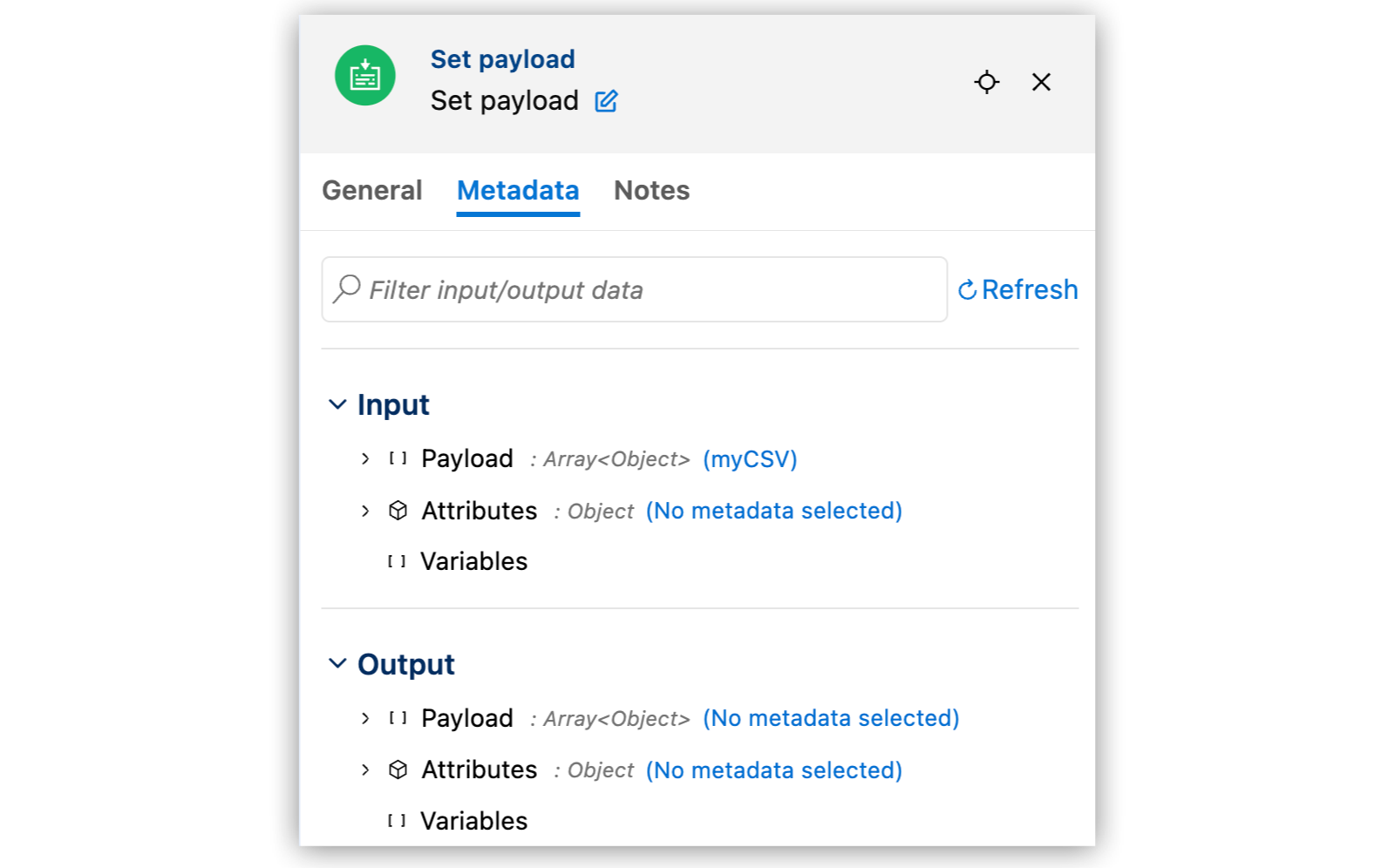
To set custom metadata for a component, add or open the component in the canvas and then apply the
metadata using the custom metadata options from the **Metadata** tab, **Expression Builder**, or
dataweave functions. For more information, see
[Set Custom Metadata on the Metadata or Data Tab](https://docs.mulesoft.com/anypoint-code-builder/int-configure-dw-expressions#set-component-custom-metadata-on-metadata-or-data-tab)
and see
[Set Custom Metadata in Transformation Builder](https://docs.mulesoft.com/anypoint-code-builder/int-configure-dw-expressions#set-custom-metadata-in-transformation-builder).
![Set Custom Metadata for a component](/mulesoft/current/en-us/anypoint-code-builder/_images/int-set-component-custom-metadata.png)

## Refactor Flows Using Canvas Actions

Reorganize and refactor your flows directly from the canvas. Move, copy, and extract components
without manually updating the underlying XML.

These actions help you reduce rework, maintain clean flow structures, and safely evolve your
implementations as complexity grows.

You can use canvas actions to:

- Move components within a flow or across files

- Copy and reuse components in the same or different projects

- Extract components into a new flow or subflow

When you perform these actions, Anypoint Code Builder automatically updates references, connections,
and configurations to prevent broken flows.

> [!NOTE] Some components can’t be extracted or moved. If a selection includes unsupported
> components, the available actions are limited to prevent invalid configurations. In some cases,
> the **Extract to Flow** option is displayed but no extraction is performed, for example when
> extraction across scopes isn’t supported.

### Extract Components to a Flow

Extract one or more components into a new flow or subflow. This is useful for simplifying large
flows or reusing logic.

To extract components:

1.  Select one or more components in the canvas.

2.  Right-click the selection and select **Extract to Flow**.

3.  Enter a name for the new flow.

4.  Select the target Mule configuration file.

5.  Configure metadata preferences if needed.

6.  Click **Extract**.

Anypoint Code Builder creates the new flow and replaces the selected components with a Flow
Reference in the original flow.

By default, the current file is selected as the target configuration file.

> [!NOTE] Some components can’t be extracted or moved. If a selection includes unsupported
> components, the available actions are limited to prevent invalid configurations. In some cases,
> the **Extract to Flow** option is displayed but no extraction is performed, for example when
> extraction across scopes isn’t supported.

### Metadata Preferences

When extracting components, you can define metadata preferences for the new flow.

You can configure:

- Payload metadata

- Attributes metadata

- Variables metadata

These settings help ensure that the extracted flow has the correct input structure.

### Multi-Selection Behavior

You can select multiple components by holding Shift and clicking components in the canvas.

### Validation and Safeguards

Canvas actions include built-in validation to prevent invalid operations.

For example:

- Extraction is blocked until required metadata is loaded

- Unsupported components can’t be extracted

- Actions are disabled while the canvas is loading

These safeguards help ensure that your flows remain valid and executable after refactoring.

## Copy Components

You can copy components and paste them in the same flow or in a different file or project.

To copy a component:

1.  Right-click the component. To copy multiple components, press and hold Ctrl (Windows) or Cmd
    (macOS), select the components, and then right-click a selected component.

2.  Click **Copy Component**. Or press Ctrl+c (Windows) or Cmd+c (macOS).

3.  Right-click the ![](/mulesoft/current/en-us/anypoint-code-builder/_images/icon-plus.png) icon in the current flow or in a different file or
    project and select **Paste Component** or press Ctrl+v (Windows) or Cmd+v (macOS). The component
    and its configuration are pasted in the new location. If multiple components are copied, they’re
    pasted in the same order as they’re copied.

> [!NOTE] Some components, like an HTTP Listener, can’t be pasted to certain locations. An error
> message shows if a component can’t be pasted to the location.

## Disable Components

You can temporarily remove components from your flow without deleting them by disabling them
directly from the canvas. This action is equivalent to commenting out code in the code editor.

To disable a component:

1.  Right-click a component in the canvas.

2.  Select **Disable Component**.

Disabled components appear with a dashed outline and a disabled icon. In the code editor, the
component is wrapped in an XML comment (<!-- …​ -→), preserving the code but preventing it from
executing. Disabled components appear greyed out in the canvas and are ignored at runtime.

### Re-enable a Disabled Component

To restore a component: . Right-click the disabled component. . Select **Enable Component**.

This also removes the comment from the code editor.

If you previously set a breakpoint on a component and then disable it, the breakpoint remains
associated with the component but is inactive.  
You can’t add new breakpoints to a disabled component until it’s re-enabled.

## Duplicate a Flow

To duplicate a flow, right-click the flow bar and select **Duplicate Flow**, or click the
![](/mulesoft/current/en-us/anypoint-code-builder/_images/icon-duplicate.png) (**Duplicate**) icon in the Flow List.

The new flow is named `[flow name] copy`. You can change the name in the configuration panel.

## Navigate to Referenced Flows

If a component references another flow (for example, via a Flow Reference), you can open the target
flow without switching views manually. Right-click the **Flow Reference** component and select **Go
to Flow**. You can also press Ctrl+Alt+g (Windows) or Cmd+Option+g (macOS).

Anypoint Code Builder opens the target flow in the application canvas or, from a test, in the MUnit
canvas. In MUnit, you can use this navigation to trace and validate the logic that a Flow Reference
invokes or simulates.

If the target flow is in an imported Mule project dependency, you can open it in a read-only canvas
and view its read-only XML. You can inspect the flow and go to other flows in the dependency, but
you can’t modify the dependency flow or its XML.

> [!TIP] Because flows from dependencies are read-only, add `doc:name` and `doc:description`
> attributes to key components in a flow that you intend to share as a library so that its purpose
> is clear to anyone who navigates to it with **Go to Flow**.

## Find Flows That Reference a Subflow

Find every flow that references a subflow without searching the project manually. Right-click the
subflow in the canvas and select **Find References**. You can also press Shift+Alt+F12 (Windows and
macOS).

Anypoint Code Builder lists each flow reference that points to the selected subflow, including
references in other configuration files and in MUnit tests. Select a reference to open that
location.

You can also use **Find References** on a flow to locate every flow reference that calls it.

This helps you trace execution paths and assess the impact of changes across a project.

**Find References** lists only flow reference components that use a static flow or subflow name. It
doesn’t resolve dynamic names that use DataWeave expressions.

## Import a Connector from Exchange

Anypoint Connectors provide operations for retrieving, modifying, and sending data to and from
systems. In addition to the [built-in connectors](https://docs.mulesoft.com/anypoint-code-builder/acb-reference#builtin-connectors) that Anypoint
Code Builder provides, you can download many other connectors from Anypoint Exchange. Exchange
lookups in Anypoint Code Builder use platform search components, which provide a more consistent
asset discovery and selection experience across supported Exchange flows.

- [Import a Connector from the Canvas](#import-canvas)

- [Import a Connector with a Command](#import-command)

## Import a Connector from the Canvas

To import a connector from Exchange and add it to your configuration:

1.  In the Explorer, open the configuration XML file for your project:, such as
    `my-project-name.xml`.

2.  Click ![](/mulesoft/current/en-us/anypoint-code-builder/_images/icon-tree-view.png) (**Show Mule graphical mode**) in the activity bar to open
    the UI canvas if it doesn’t open automatically.

3.  Add the connector the same way you added other components from the canvas:

    1.  In the canvas, click the ![](/mulesoft/current/en-us/anypoint-code-builder/_images/icon-plus.png) (**Add component**) icon.

    2.  In the **Add Component** panel, click **Connectors**.

    3.  Click the connector name and then click the operation to add, such as **Publish**:

        ![Add Publish operation from the Anypoint MQ Connector](/mulesoft/current/en-us/anypoint-code-builder/_images/int-add-connector-operation.png)

    4.  If the connector is not available locally, click the ![](/mulesoft/current/en-us/anypoint-code-builder/_images/icon-search-exchange.png)
        (**Search in Exchange**) toggle:

        ![Search in Exchange toggle](/mulesoft/current/en-us/anypoint-code-builder/_images/int-connector-search-exchange.png)

        <table><tbody><tr><td><i data-value="1"></i><b>1</b></td><td>Search locally</td></tr><tr><td><i data-value="2"></i><b>2</b></td><td>Search in Exchange</td></tr></tbody></table>

    5.  Select the connector to add to your project. You can select from connector versions that are
        compatible with your Mule runtime and Java version set in Project Properties.

    6.  Select the operation from the **Add Component** panel.

## Import a Connector with a Command

To import a connector from Exchange to use later in your project:

1.  In the Explorer, open the configuration XML file for your project:, such as
    `my-project-name.xml`.

2.  Click ![](/mulesoft/current/en-us/anypoint-code-builder/_images/icon-tree-view.png) (**Show Mule graphical mode**) in the activity bar to open
    the canvas if it doesn’t open automatically.

3.  Open the Command Palette.

    Show me how

    - Use the keyboard shortcuts:

      - Mac: Cmd+Shift+p

      - Windows: Ctrl+Shift+p

    - Select **View** > **Command Palette**.

4.  Select the following command:

    ```command
    MuleSoft: Import Asset from Exchange
    ```

5.  Select **Connector**.

6.  Search for the connector name to import, such as "MQ," for example:

    !["Import Anypoint MQ Connector from Exchange](/mulesoft/current/en-us/anypoint-code-builder/_images/int-import-connect-exchange.png)

7.  Select the connector.

8.  At the prompt, select the version of the connector to import, such as `v4.0.3`.

    Anypoint Code Builder imports the connector and makes it available in the Components list.

To change or upgrade connector versions later, see
[Select Connector Versions for a Project](https://docs.mulesoft.com/anypoint-code-builder/int-versions#project-versions-connectors).

For more information about the connectors available on Exchange, see [Connectors](https://docs.mulesoft.com/connectors/).
For more information about Exchange, see [Exchange (US)](https://anypoint.mulesoft.com/exchange/) or
[Exchange (EU)](https://eu1.anypoint.mulesoft.com/exchange/) and
[Anypoint Exchange Overview](https://docs.mulesoft.com/exchange/).

## Test a Connection Configuration

Most connectors provide an operation, such as the HTTP Listener operation, that triggers the flow to
start. These operations typically include connection configurations that you can test.

## Test Connection from the Configuration Panel

You can test the connection from the connectors **Configuration** panel. For example, to test an
HTTP Listener connection:

![Configuration panel for connectors](/mulesoft/current/en-us/anypoint-code-builder/_images/acb-configuration-panel-test.png)

<table><tbody><tr><td><i data-value="1"></i><b>1</b></td><td>Click the <strong>+</strong> icon on the connector to open the configuration panel.</td></tr><tr><td><i data-value="2"></i><b>2</b></td><td>After filling in the required fields, click <strong>Test Connection</strong>.</td></tr></tbody></table>

The status bar shows the progress:

- **Verifying connection** indicates that the test is in progress.

- **Connection is valid** indicates a successful connection.

- **Invalid Connection Got status code: 500 when trying to resolve a Mule Runtime operation**
  indicates a connection error.

## Test Connection from the Code Editor

You can test the connection from the code editor. For example, to test an HTTP Listener connection,
click **Test Connection** in the code editor:

![HTTP Listener Test Connection link in the code editor](/mulesoft/current/en-us/anypoint-code-builder/_images/http-listener-test-connection.png)

The status bar shows the progress:

- **Verifying connection inbound-request** indicates that the test is in progress.

- **Connection is valid** indicates a successful connection.

- **Invalid Connection Got status code: 500 when trying to resolve a Mule Runtime operation**
  indicates a connection error.

  A common code `500` error is `port 8081: Address already in use`. For port conflicts, configure a
  different port, such as `8082`, and retest the connection.

Before publishing, run your application in debug mode.

## Open a Component in the Canvas from the Code Editor

You can open a component and its configuration panel in the canvas from the code editor. This
feature is helpful, for example, if you want to configure the component from the UI, if a component
is in another flow than the flow currently displayed in the canvas, or if the canvas is not open.

1.  From the code editor, place your cursor within the component’s XML.

2.  Right-click and select **Configure Component in UI**.

    This action displays the component in the canvas and opens its configuration panel, for example:

    ![Opening a component in the canvas from the code editor](/mulesoft/current/en-us/anypoint-code-builder/_images/acb-open-component-ui-from-xml.png)

## Connection Configuration Panel

Use the Connection Management Configuration Panel to easily configure connections to third-party
systems directly from the UI.

In this panel, you can create, edit, delete, test connections , automatically populate connection
fields using metadata provided by the connector, and save and manage connection configurations
without switching to the code editor.

To open the configuration panel:

- Select an existing component, or add a new one.

- Click the **+** icon.

  This action displays the configuration panel, for example:

![Configuration panel for connectors](/mulesoft/current/en-us/anypoint-code-builder/_images/acb-configuration-panel-general.png)

From here, you can:

- Configure a connection for this project.

  You can select a previously saved connection in the **Connection** field and the form is
  pre-populated with existing configuration data.

  > [!NOTE] Changes impact all components using this connection.

- Update connection details without manually editing the XML in the code editor.

- Test the connection directly within the panel to verify it’s correctly configured.

  The test functionality helps prevent errors by allowing users to confirm that the connection is
  valid before committing changes.

- Delete an existing connection if it’s no longer needed.

  A confirmation message shows any affected components that use the connection.

- View all components that depend on a connection.

To add, edit, or delete connector configurations for the whole project without selecting a component
on the canvas, use **Global Elements**. See
[Managing Global Configuration Elements](https://docs.mulesoft.com/anypoint-code-builder/int-global-config-elements).
