---
schema_version: "1"
id: 32759f0981a4d1f20137c1c43f4fe8a2a34d8b3d735d789aefb0947d4b89329e
title: Adding a Component to Your Project
collection: mulesoft
version: current
locale: en-us
portal_url: https://docs.salesforce.com/mulesoft/current/en-us/anypoint-code-builder/int-configure-components-add.md
canonical_url: https://docs.mulesoft.com/anypoint-code-builder/int-configure-components-add
source_site: docs.mulesoft.com
content_type: documentation
content_hash: 9a2f03dac3555998159fabda868509f455512a3d9b80a52a0a88131c771bb350
description: MuleSoft Documentation Site
latest: true
---
---
product: Anypoint Code Builder
version: master
---
# Adding a Component to Your Project
> For the full documentation index, see: https://docs.mulesoft.com/llms.txt
These examples illustrate basic configurations for adding components to your project from the
canvas, and the code editor. The examples assume you are beginning with an empty integration
project.
1. In the Explorer, open the configuration XML file for your project:, such as
`my-project-name.xml`.
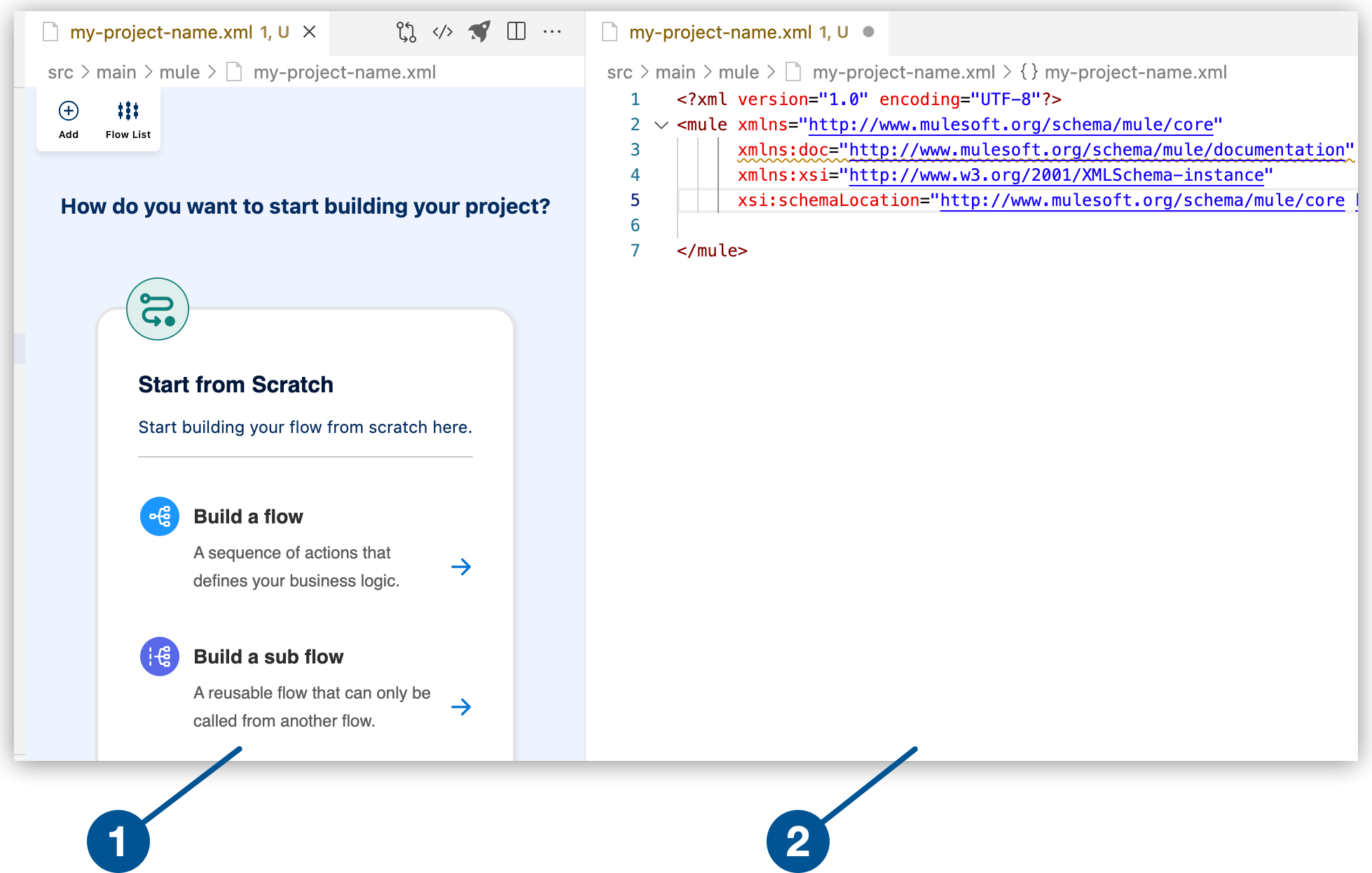
1
The canvas provides space for a visual representation of your Mule flows or subflows.
2
The code editor displays the configuration file for your Mule application.
2. Select **Build a Flow** from the canvas to create an empty flow within a Mule integration
application.
3. Change the default name of the flow from the canvas or from the code editor.
- From the canvas
- From the code editor
Click **Flow name1** to open the configuration panel for the Flow component, change the flow
name, and click the check mark to set the new name.
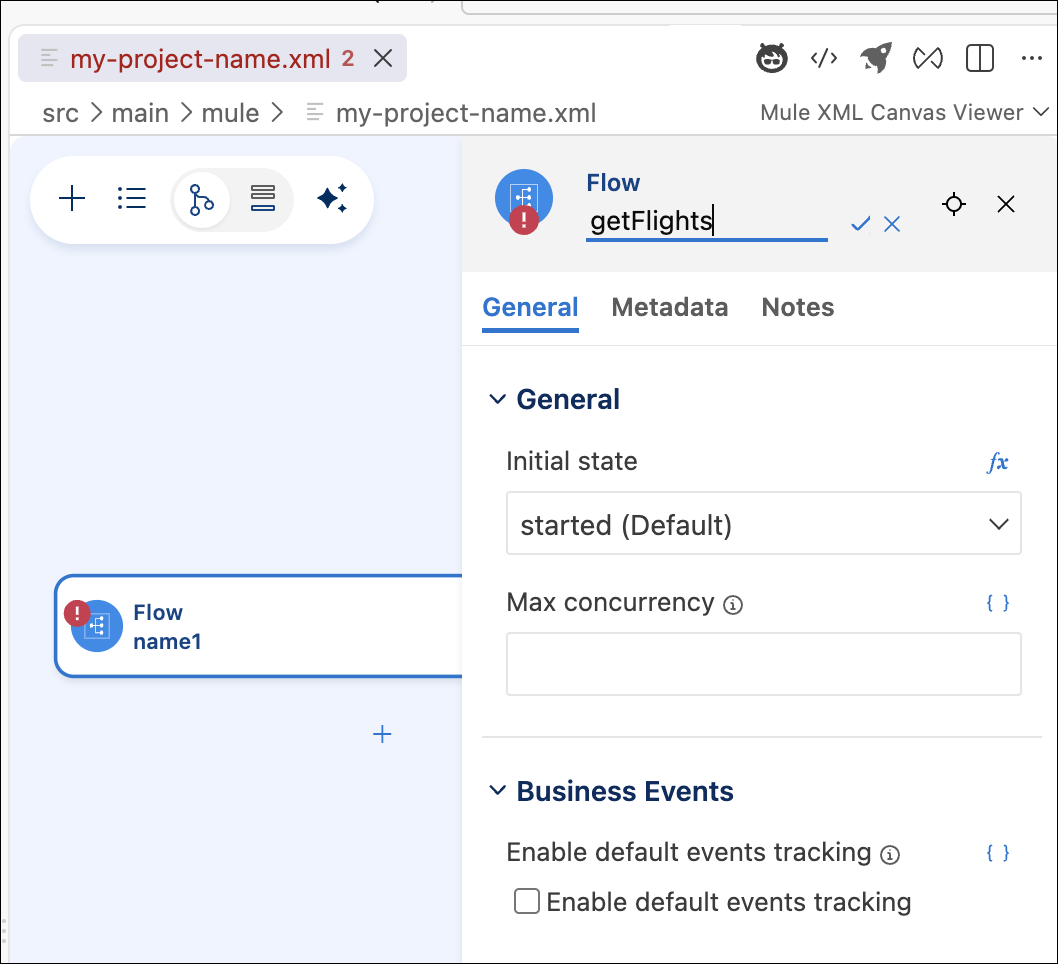
Replace the default name of the flow (`name1`) with your flow name, such as `getFlights`, for
example:
```xml
```
4. Add a component to your project from the canvas.
For example, add the HTTP Listener component:
1. In the canvas, click the  (**Add component**) icon.
2. In the **Add Component** panel, search for and select **Listener** from the **HTTP**
results:
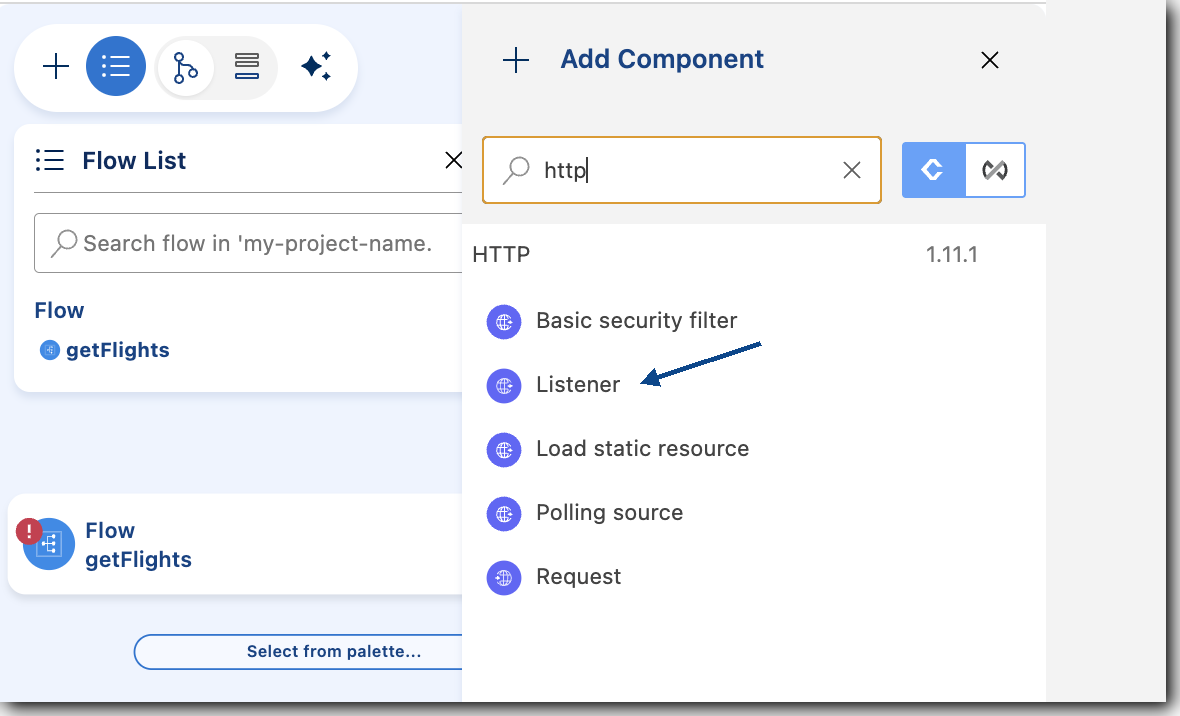
The configuration XML file now includes the XML for the HTTP Listener within the ``
element, for example:
```XML
```
5. Add another component, this time using the code editor.
In the code editor, place your cursor before the opening `` tag. Ensure that the cursor is
not inside the `` element. Add the following code:
```xml
```
1. Notice that the Listener component in the canvas now displays an error:
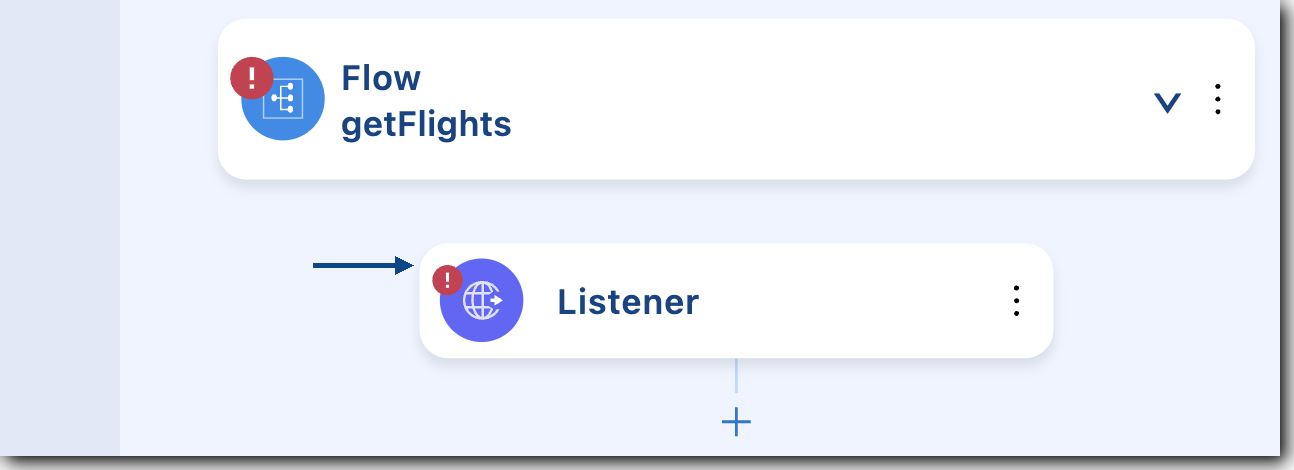
2. To determine where the error is, select the processor in the canvas.
Anypoint Code Builder highlights its location in the code editor, and you can mouse over the
issue for more information, for example:
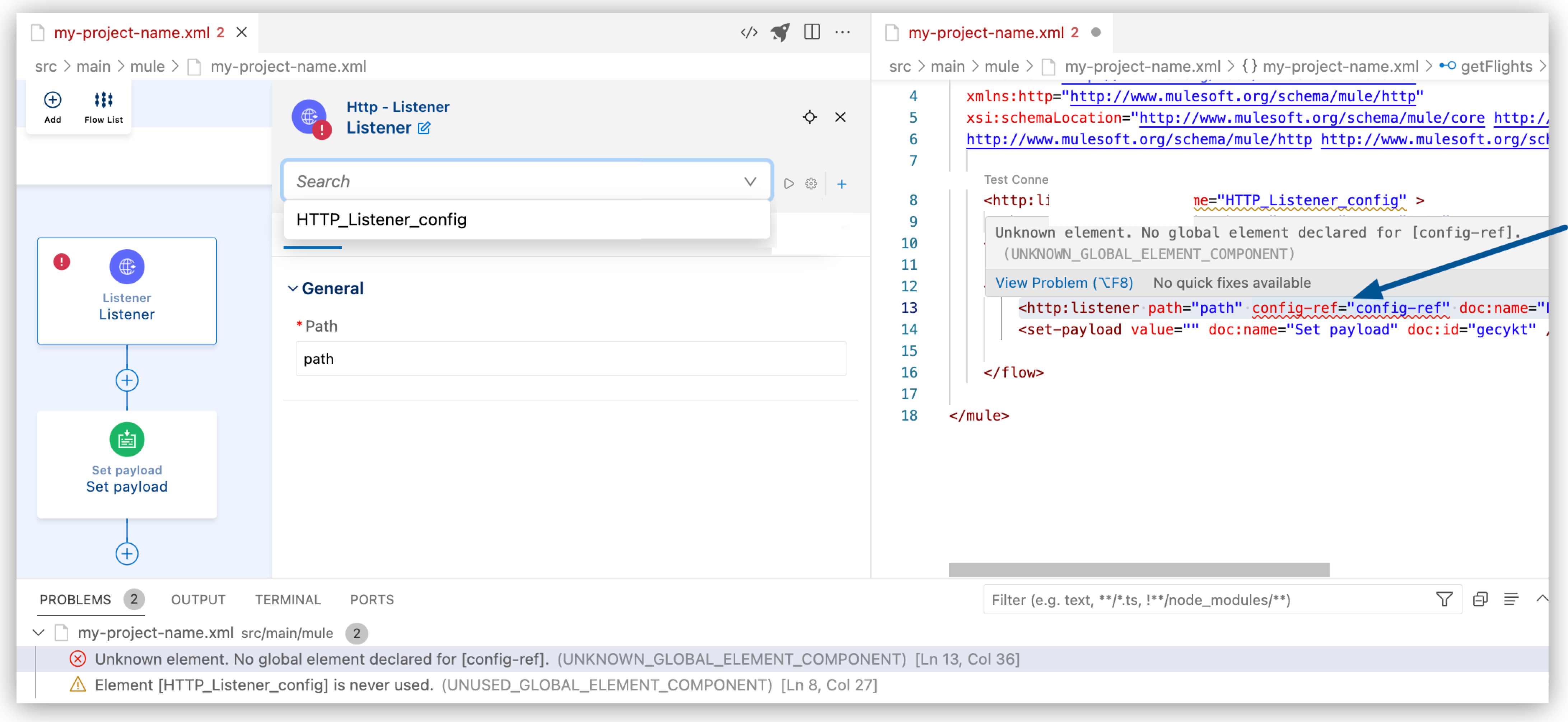
3. To fix the error, change the value of the `name` attribute in `http:listener-config` to
match the name of the `config-ref` value in your `http:listener` configuration:
```xml
```
The HTTP listener within your flow now references the HTTP listener configuration, a global
connection configuration that resides outside of the flow. For more information about
debugging, see [Debugging Mule Applications](https://docs.mulesoft.com/anypoint-code-builder/int-debug-mule-apps).
6. Add another component to your flow.
For example, add a Set Payload component to your HTTP Listener operation:
1. In the canvas, click the  (**Add component**) icon.
2. In the **Add Component** panel, search for and select **Set payload** from the
**Transformer** results.
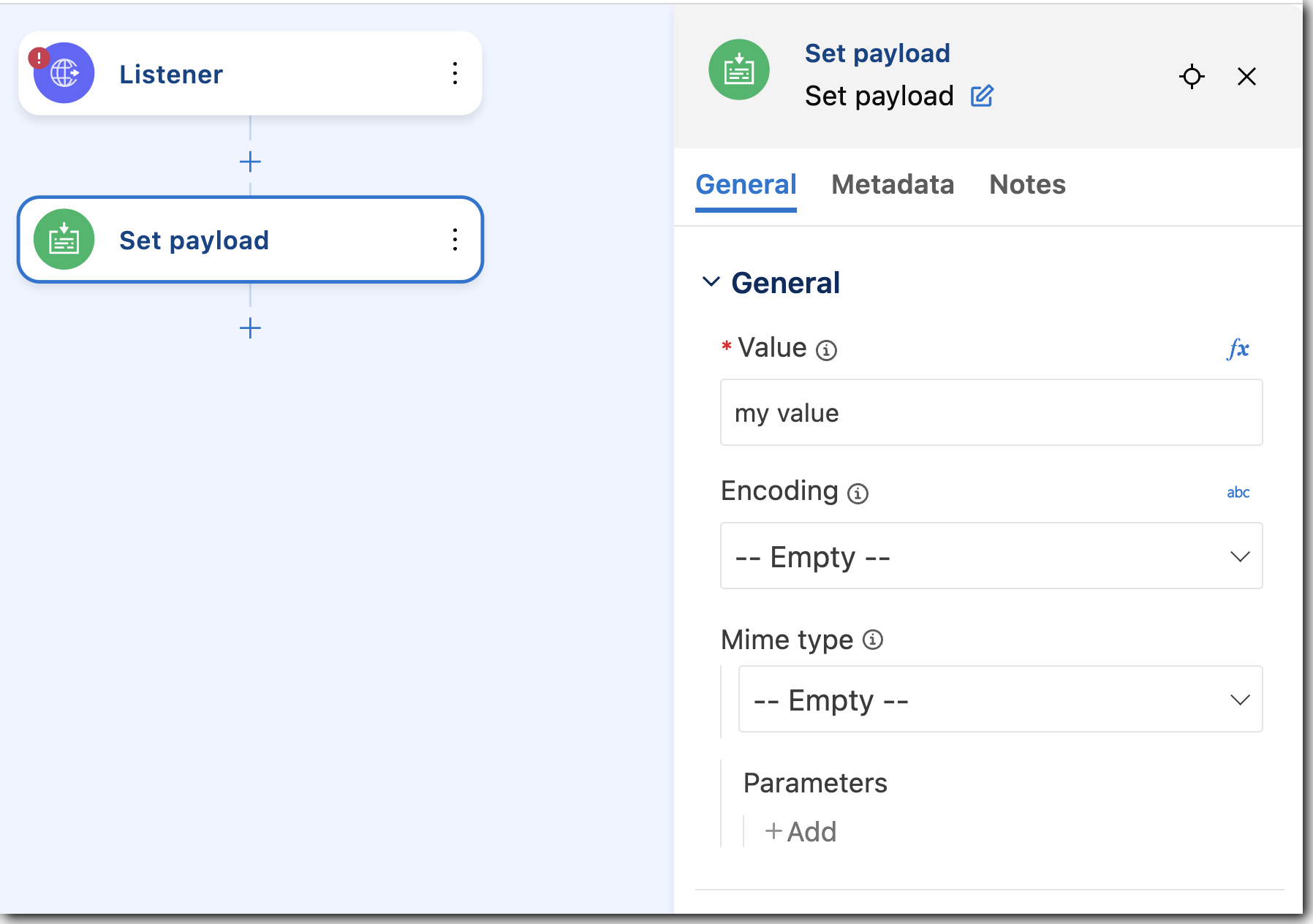
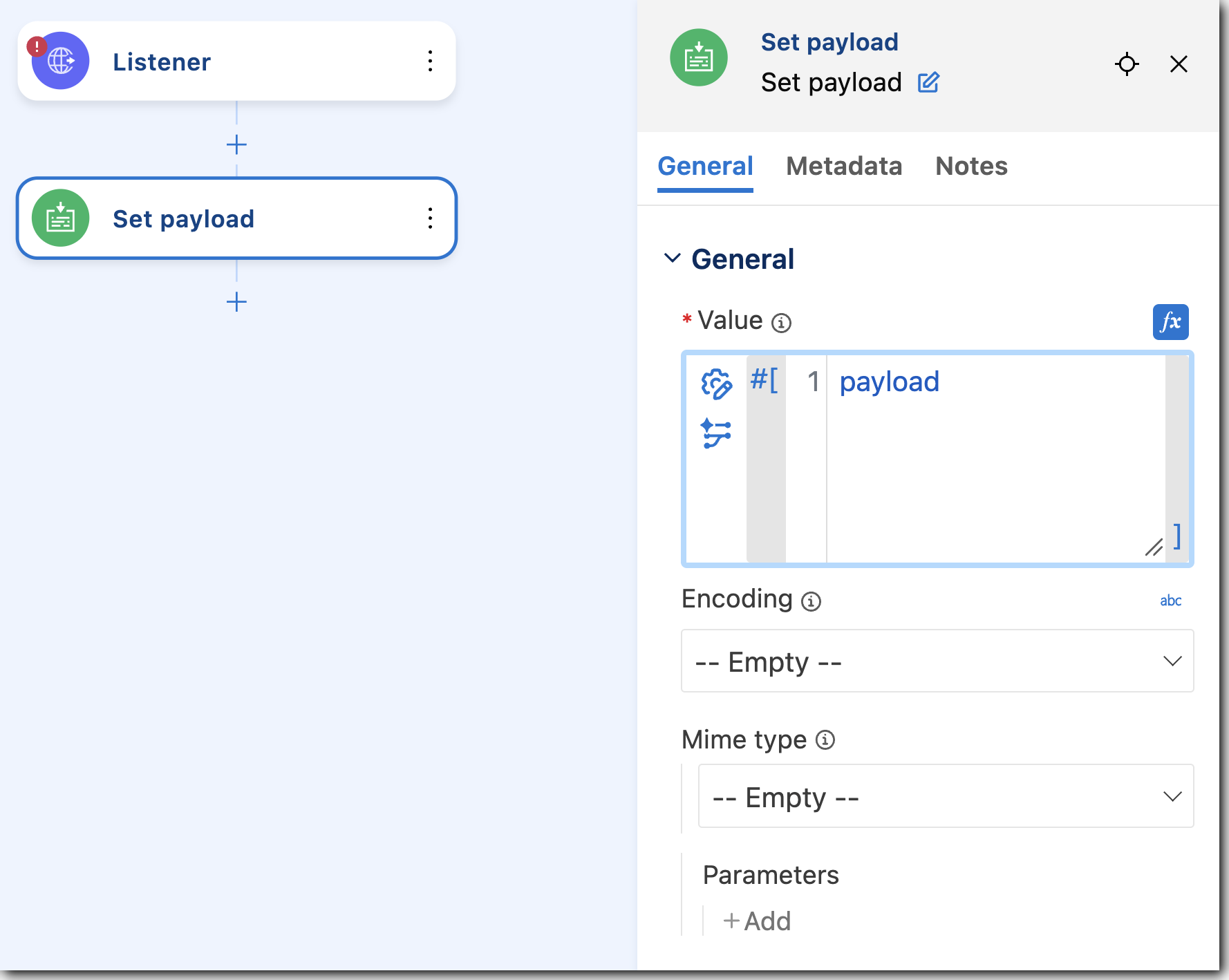
3. In the canvas, click **Set payload** to open its configuration panel, and add a string
value, DataWeave expression, Mule variable, or configuration property.
- To add a string, type a value such as `my value`. For example:
- To add a DataWeave expression or a Mule variable as a value, such as `payload`, click
**fx** (located before the field), and provide the value, for example:
For more information about configuring DataWeave expressions, see
[Using DataWeave Expressions and Transformations in Anypoint Code Builder](https://docs.mulesoft.com/anypoint-code-builder/int-configure-dw-expressions).
- To add a configuration property as a value, type a value such as `${secure::mysensitiveprop}`.
For more information about configuration properties, see
[Defining and Securing Properties for a Mule Application](https://docs.mulesoft.com/anypoint-code-builder/int-create-secure-configs).
Your configuration XML file now looks similar to the following:
```xml
```
7. Add another component to your flow.
For example, add the **Create** operation from Anypoint Connector for Salesforce to insert an
Account record.
Use this pattern when your flow receives data through an HTTP Listener and must create
Salesforce records. If you completed the earlier steps that add **Set payload** with a fixed
string, remove or replace that processor so you can shape the payload before **Create**.
For more information about using **Create** with Account records, see
[Salesforce Connector 12.0 Examples](https://docs.mulesoft.com/salesforce-connector/latest/salesforce-connector-examples).
1. In the configuration XML, add a global Salesforce connection element above your ``
element (not inside the flow).
Use configuration properties for credentials instead of literals; for example:
```xml
```
For more information about connection types and authentication fields, see
[Salesforce Connector 12.0](https://docs.mulesoft.com/salesforce-connector/latest/).
2. In the canvas, click the  (**Add component**) icon after **HTTP
Listener**.
3. In the **Add Component** panel, search for **Set payload**, and add the component.
4. Configure **Set payload** with a DataWeave expression that builds a JSON object whose fields
match your HTTP API (they need not match Salesforce field names yet).
For example, use **fx** to enter DataWeave with `output application/json` and sample fields
such as `companyName`, `industry`, and `phoneNumber`.
Alternatively, add **Transform Message** and use the same DataWeave in ``.
For more information about **Transform Message**, see
[Transform ()](https://docs.mulesoft.com/anypoint-code-builder/acb-component-transform).
5. From the canvas, click the  (**Add component**) icon after **Set
payload** (or **Transform Message**).
6. In the **Add Component** panel, click **Connectors**, select **Salesforce**, and select
**Create**.
7. In the configuration panel for **Create**, set:
- **Connection config**: The global Salesforce configuration name (for example,
`Salesforce_Config`).
- **Type**: `Account`.
If **Type** stays empty until you establish a working Salesforce connection, set
`type="Account"` on `` in the code editor.
- **Records**: A DataWeave expression that resolves to the records to create.
If the incoming payload uses different property names than Salesforce expects, map those
properties in **Records**, as shown in the configuration XML example that follows. If the
payload is already an array of Java objects with Salesforce field names
(`output application/java`), you can use `#[payload]`.
For more information about connector fields for this operation, see
[Salesforce Connector 12.0](https://docs.mulesoft.com/salesforce-connector/latest/).
> [!NOTE] Picklist fields such as **Industry** must use values that exist in your Salesforce
> organization.
This configuration listens on `/accounts`, builds a JSON payload, maps it to Account fields
inside ``, and calls **Create**. Align `config-ref` on
`` with the `name` of your `` (for example,
`config-ref` from the earlier steps in this topic).
```xml
#[%dw 2.0
output application/java
---
[{
Name: payload.companyName,
Industry: payload.industry,
Phone: payload.phoneNumber
}]]
```
If the message payload is already an array of Java objects with Salesforce field names, you
can omit `` and set **Records** to `#[payload]`, or use a self-closing
`` element with that default.
You can achieve the same result by adding **Transform Message** with
`output application/java` followed by
`` with **Records** set to
`#[payload]`.