---
schema_version: "1"
id: a086fba8ea0099b09b5337eaf0b3546807a57c0fa10b3fe5f65c39ee74252d3c
title: Amazon Redshift Connector 1.1 Example
collection: mulesoft
version: current
locale: en-us
portal_url: https://docs.salesforce.com/mulesoft/current/en-us/amazon-redshift-connector/1.1/amazon-redshift-connector-example.md
canonical_url: https://docs.mulesoft.com/amazon-redshift-connector/1.1/amazon-redshift-connector-example
source_site: docs.mulesoft.com
content_type: documentation
content_hash: bbe089d24d6c3cacbbc4675feee6f3d7e63a1ec974ecb0e9ff4d770e039c8395
description: MuleSoft Documentation Site
release: "1.1"
latest: false
---
---
product: Amazon Redshift Connector
version: 1.1
---

# Amazon Redshift Connector 1.1 Example

> For the full documentation index, see: https://docs.mulesoft.com/llms.txt

This example shows you how to use Anypoint Connector for Amazon Redshift (Amazon Redshift Connector)
to load data from Amazon S3 to Amazon Redshift.

## Create the Mule Project

1.  In Studio, select **File > New > Mule Project**.

2.  Enter `redshift-demo` as the name for your Mule project and click **Finish**.

3.  Open the `redshift-demo.xml` file in `src/main/mule` folder.

4.  In the **Mule Palette** view, click **(X) Search in Exchange**.

5.  In **Add Modules to Project**, type `redshift` in the search field.

6.  Click **Amazon Redshift Connector** in **Available modules**.

7.  Click **Add**.

8.  Click **Finish**.

9.  Repeat the previous steps to also add the Amazon S3 Connector (search for `amazon s3`) and File
    Connector (search for `file`) to the Mule project.

## XML Code for This Example

Overwrite the contents of `redshift-demo.xml` file with the following XML snippet:

```xml
<?xml version="1.0" encoding="UTF-8"?>

<mule xmlns:ee="http://www.mulesoft.org/schema/mule/ee/core"
	  xmlns:file="http://www.mulesoft.org/schema/mule/file"
	  xmlns:s3="http://www.mulesoft.org/schema/mule/s3"
	  xmlns:redshift="http://www.mulesoft.org/schema/mule/redshift"
	  xmlns:http="http://www.mulesoft.org/schema/mule/http"
	  xmlns="http://www.mulesoft.org/schema/mule/core"
	  xmlns:doc="http://www.mulesoft.org/schema/mule/documentation"
	  xmlns:xsi="http://www.w3.org/2001/XMLSchema-instance"
	  xsi:schemaLocation="http://www.mulesoft.org/schema/mule/core http://www.mulesoft.org/schema/mule/core/current/mule.xsd
http://www.mulesoft.org/schema/mule/http http://www.mulesoft.org/schema/mule/http/current/mule-http.xsd
http://www.mulesoft.org/schema/mule/redshift http://www.mulesoft.org/schema/mule/redshift/current/mule-redshift.xsd
http://www.mulesoft.org/schema/mule/s3 http://www.mulesoft.org/schema/mule/s3/current/mule-s3.xsd
http://www.mulesoft.org/schema/mule/file http://www.mulesoft.org/schema/mule/file/current/mule-file.xsd
http://www.mulesoft.org/schema/mule/ee/core http://www.mulesoft.org/schema/mule/ee/core/current/mule-ee.xsd">

	<http:listener-config name="HTTP_Listener_config" doc:name="HTTP Listener config" basePath="/">
		<http:listener-connection host="0.0.0.0" port="8081" />
	</http:listener-config>

	<redshift:config name="Amazon_Redshift_Connector_Config" doc:name="Amazon Redshift Connector Config">
		<redshift:basic-connection
				clusterId="${redshift.cluster_id}"
				database="${redshift.database}"
				user="${redshift.user}"
				password="${redshift.password}"
				region="${redshift.region}"
				port="${redshift.port}"
		/>
	</redshift:config>

     <redshift:config name="Amazon_Redshift_Connector_Config_Fips" doc:name="Amazon Redshift Connector Config Fips">
		<redshift:iam-connection
                clusterId="${redshift.cluster_id}"
                database="${redshift.database}"
                user="${redshift.user}"
                accessKey="${redshift.password}"
                secretKey="${redshift.secret_key}" customStsEndpoint="${redshift.fips.sts}">
            <redshift:role arn="${redshift.role_arn}" />
		</redshift:iam-connection>
	</redshift:config>

	<s3:config name="Amazon_S3_Configuration" doc:name="Amazon S3 Configuration">
		<s3:basic-connection accessKey="${s3.access_key}" secretKey="${s3.secret_key}" region="${s3.region}"/>
	</s3:config>

	<file:config name="File_Config" doc:name="File Config">
		<file:connection workingDir="${mule.home}/apps/${app.name}/" />
	</file:config>

	<configuration-properties doc:name="Configuration properties" file="mule-artifact.properties" />

	<flow name="Create-Redshift-Table-S3-Bucket-S3-Object-Flow">
		<http:listener doc:name="Listener" config-ref="HTTP_Listener_config" path="/init"/>
		<set-variable value="username-bucket" doc:name="Bucket Name" variableName="bucket" />
		<redshift:execute-ddl doc:name="Execute DDL" config-ref="Amazon_Redshift_Connector_Config">
			<redshift:sql ><![CDATA[CREATE TABLE username (Username VARCHAR(50), Identifier INTEGER, First_Name VARCHAR(50), Last_Name VARCHAR(50));]]></redshift:sql>
		</redshift:execute-ddl>
		<s3:create-bucket doc:name="Create bucket" config-ref="Amazon_S3_Configuration" bucketName="#[vars.bucket]"/>
		<file:read doc:name="Read" config-ref="File_Config" path="username.csv"/>
		<s3:create-object doc:name="Create object" config-ref="Amazon_S3_Configuration" bucketName="#[vars.bucket]" key="username.csv" contentType="text/csv"/>
		<ee:transform doc:name="Transform Message">
			<ee:message >
				<ee:set-payload ><![CDATA[%dw 2.0
output application/json
---
{
	success: true,
	redshiftTable: "username",
	s3bucket: vars.bucket,
	s3object: "username.csv"
}]]></ee:set-payload>
			</ee:message>
		</ee:transform>
	</flow>

	<flow name="Execute-Copy-Command-Flow">
		<http:listener doc:name="Listener" config-ref="HTTP_Listener_config" path="/execute"/>
		<set-variable value="#['s3://username-bucket/username.csv']" doc:name="Bucket Name" variableName="bucketNameEndpoint"/>
		<set-variable value="${copy.access_key}" doc:name="Access Key" variableName="access_key"/>
		<set-variable value="${copy.secret_key}" doc:name="Secret Key" variableName="secret_key"/>
		<redshift:execute-script doc:name="Execute script" config-ref="Amazon_Redshift_Connector_Config">
			<redshift:sql ><![CDATA[#["copy username from " ++ "'" ++ vars.bucketNameEndpoint ++ "'" ++ " access_key_id " ++ "'" ++ vars.access_key ++ "'" ++ " secret_access_key " ++ "'" ++ vars.secret_key ++ "'" ++ " delimiter ';' IGNOREHEADER 1 IGNOREBLANKLINES"]]]></redshift:sql>
		</redshift:execute-script>
		<ee:transform doc:name="Transform Message">
			<ee:message >
				<ee:set-payload ><![CDATA[%dw 2.0
output application/json
---
{
	"success": true
}
]]></ee:set-payload>
			</ee:message>
		</ee:transform>
	</flow>

	<flow name="Delete-Redshift-Table-S3-Bucket-Flow">
		<http:listener doc:name="Listener" config-ref="HTTP_Listener_config" path="/deleteAll"/>
		<set-variable value="username-bucket" doc:name="Set Variable" variableName="bucketDelete"/>
		<redshift:execute-ddl doc:name="Execute DDL" config-ref="Amazon_Redshift_Connector_Config">
			<redshift:sql ><![CDATA[DROP TABLE username;]]></redshift:sql>
		</redshift:execute-ddl>
		<s3:delete-bucket doc:name="Delete bucket" config-ref="Amazon_S3_Configuration" force="true" bucketName='#[vars.bucketDelete]'/>
		<ee:transform doc:name="Transform Message">
			<ee:message >
				<ee:set-payload ><![CDATA[%dw 2.0
output application/json
---
{
	"success": true
}]]></ee:set-payload>
			</ee:message>
		</ee:transform>
	</flow>

    <flow name="redshiftFipsDemoFlow">
		<http:listener doc:name="Listener" config-ref="HTTP_Listener_config" path="/redshift"/>
		<redshift:select doc:name="Select" config-ref="Amazon_Redshift_Connector_Config_Fips">
			<redshift:sql ><![CDATA[select * from <your-tableName>]]></redshift:sql>
		</redshift:select>
		<ee:transform doc:name="Transform Message">
			<ee:message >
				<ee:set-payload ><![CDATA[%dw 2.0
output application/json
---
payload]]></ee:set-payload>
			</ee:message>
		</ee:transform>
		<logger level="INFO" doc:name="Logger"  message="#[payload]"/>
	</flow>
</mule>
```

## Configure Global Elements

1.  Create a file named `mule-artifact.properties` in the `src/main/resources/` folder.

2.  Add the following properties in the `mule-artifact.properties` file and assign the correct
    values:

    s3.access\_key= s3.secret\_key= s3.region=

    redshift.cluster\_id= redshift.region= redshift.port= redshift.database= redshift.user=
    redshift.password=

    copy.access\_key= copy.secret\_key=

    ***
    - You must have Amazon S3 credentials to create and delete buckets and to create an object.

    - Amazon Redshift credentials are required to establish a connection to the database.

    - This example is using a `COPY` command to load a table in parallel from a data file on Amazon
      S3.

      To use the `COPY` command, you must authenticate using your IAM user credentials with the
      correct policies attached to it, therefore, it is best to use the Amazon S3 Read only policy
      for the `copy.access_key` and `copy.secret_key` properties.

    - Alternatively, it is possible to use an IAM Role instead of the Access and Secret key pair.

      To do this, you must ensure the role has the correct policies attached to it. It is best to
      use the Amazon S3 Read only policy for this purpose.

    - To create an IAM role to allow your Redshift cluster to communicate with the Amazon S3 service
      on your behalf, follow the steps in this
      [Amazon Redshift tutorial](https://docs.aws.amazon.com/redshift/latest/mgmt/authorizing-redshift-service.html).

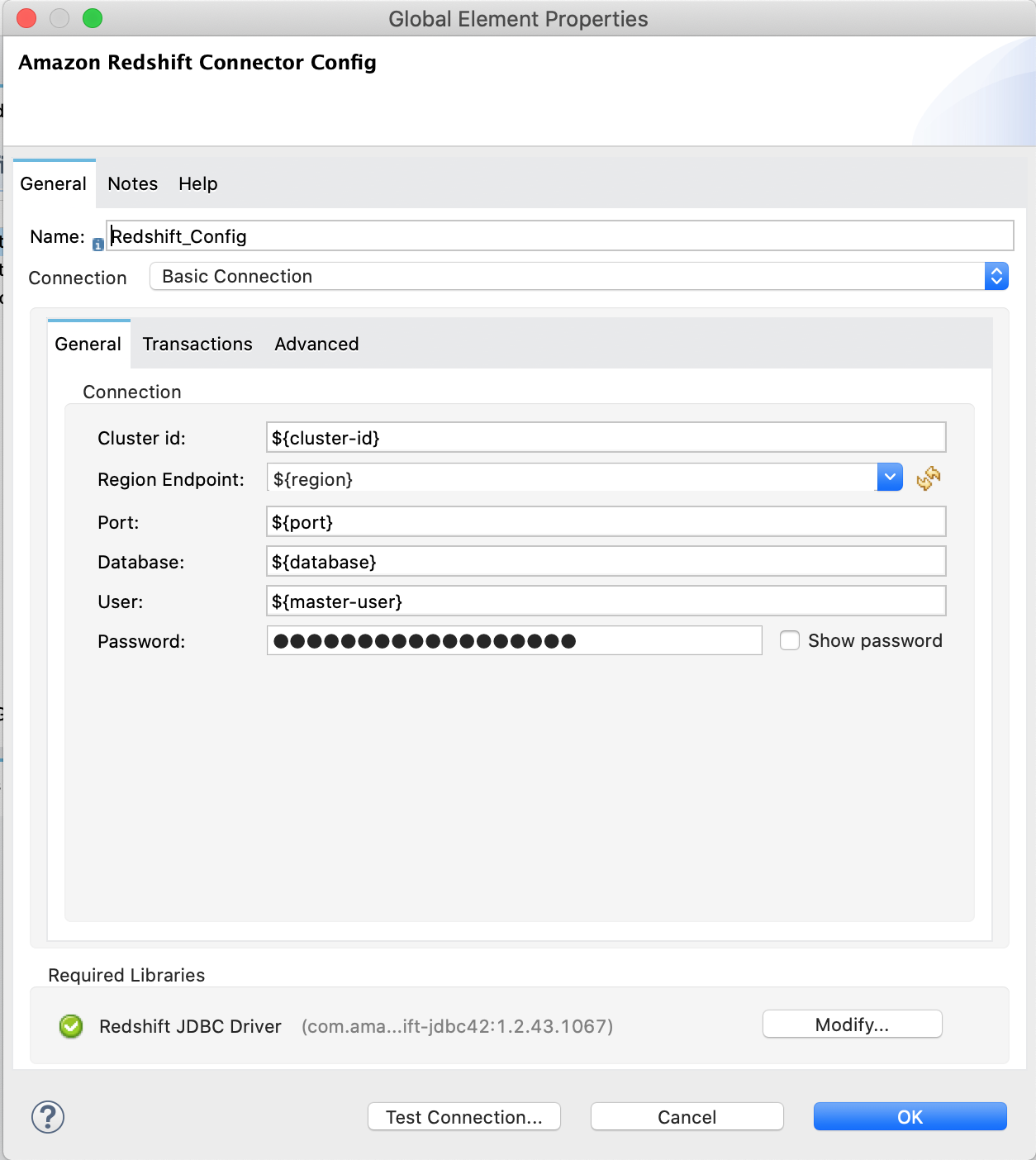
3.  Open the Amazon Redshift configuration, scroll down, and configure the JDBC driver in the
    **Required libraries** section. In this example, choose the **Add recommended library** option.
    If this doesn’t work, add the Amazon Maven repository to your `pom.xml` file and try again:

    ```xml
    <repositories>
    ...
        <repository>
            <id>redshift</id>
            <url>https://s3.amazonaws.com/redshift-maven-repository/release</url>
        </repository>
    </repositories>
    ```

The following images show the Amazon S3 and Amazon Redshift configurations:
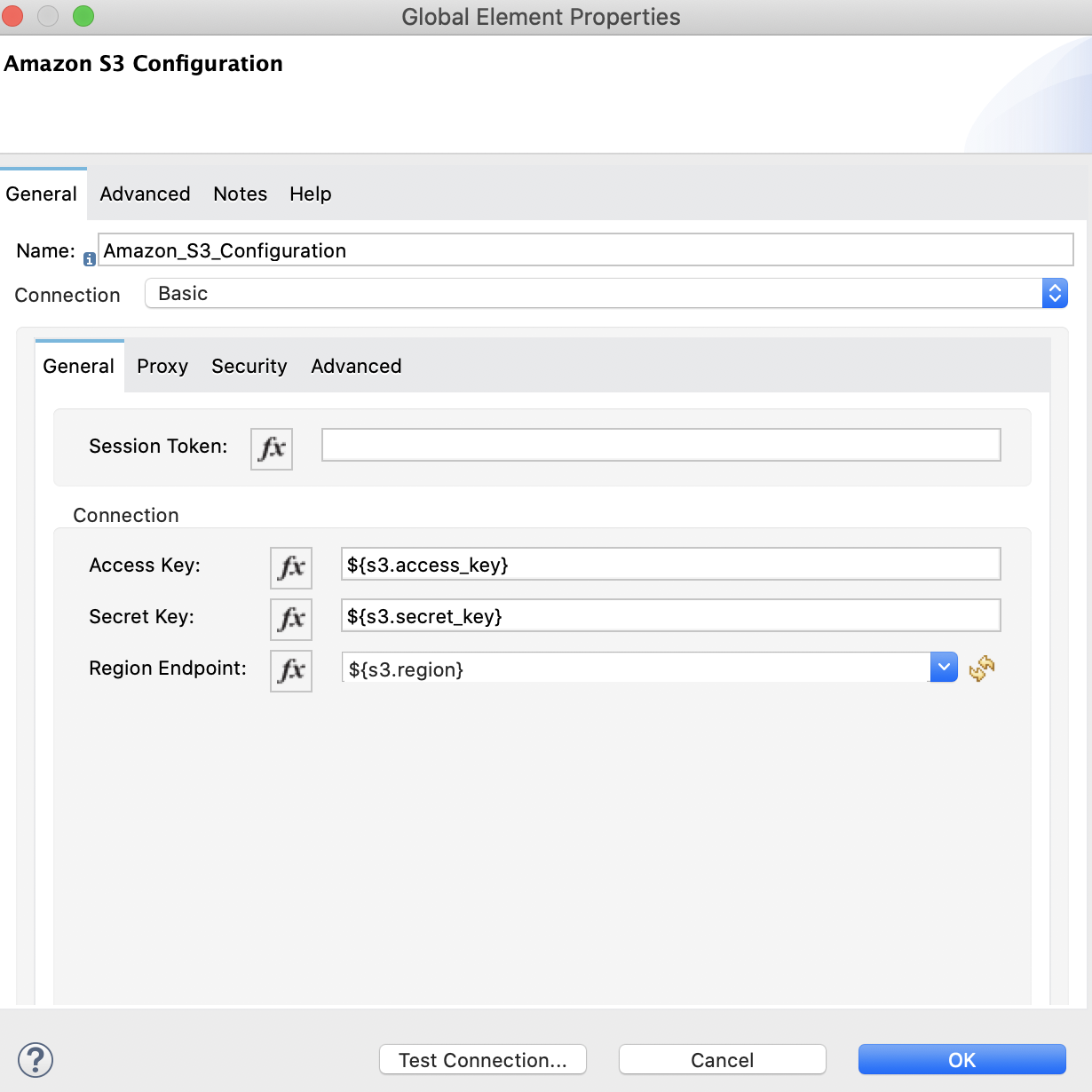
![Amazon S3 configuration](/mulesoft/current/en-us/amazon-redshift-connector/1.1/_images/s3-configuration.png)

Figure 1. Amazon S3 Configuration

![Amazon Redshift Basic configuration](/mulesoft/current/en-us/amazon-redshift-connector/1.1/_images/redshift-configuration.png)

Figure 2. Amazon Redshift Basic Configuration
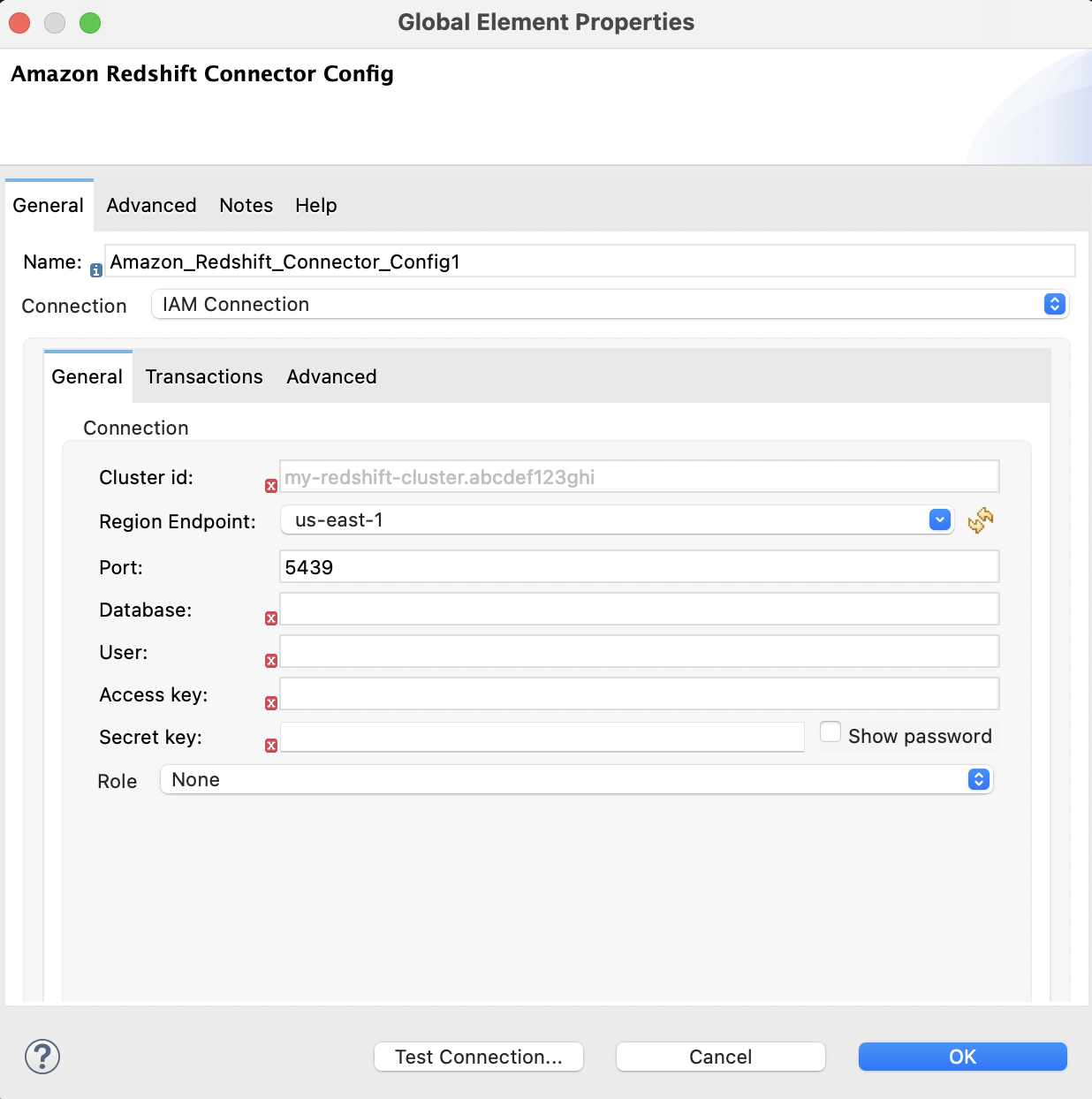
![Amazon Redshift IAM configuration](/mulesoft/current/en-us/amazon-redshift-connector/1.1/_images/redshift-configuration-iam.png)

Figure 3. Amazon Redshift IAM Configuration
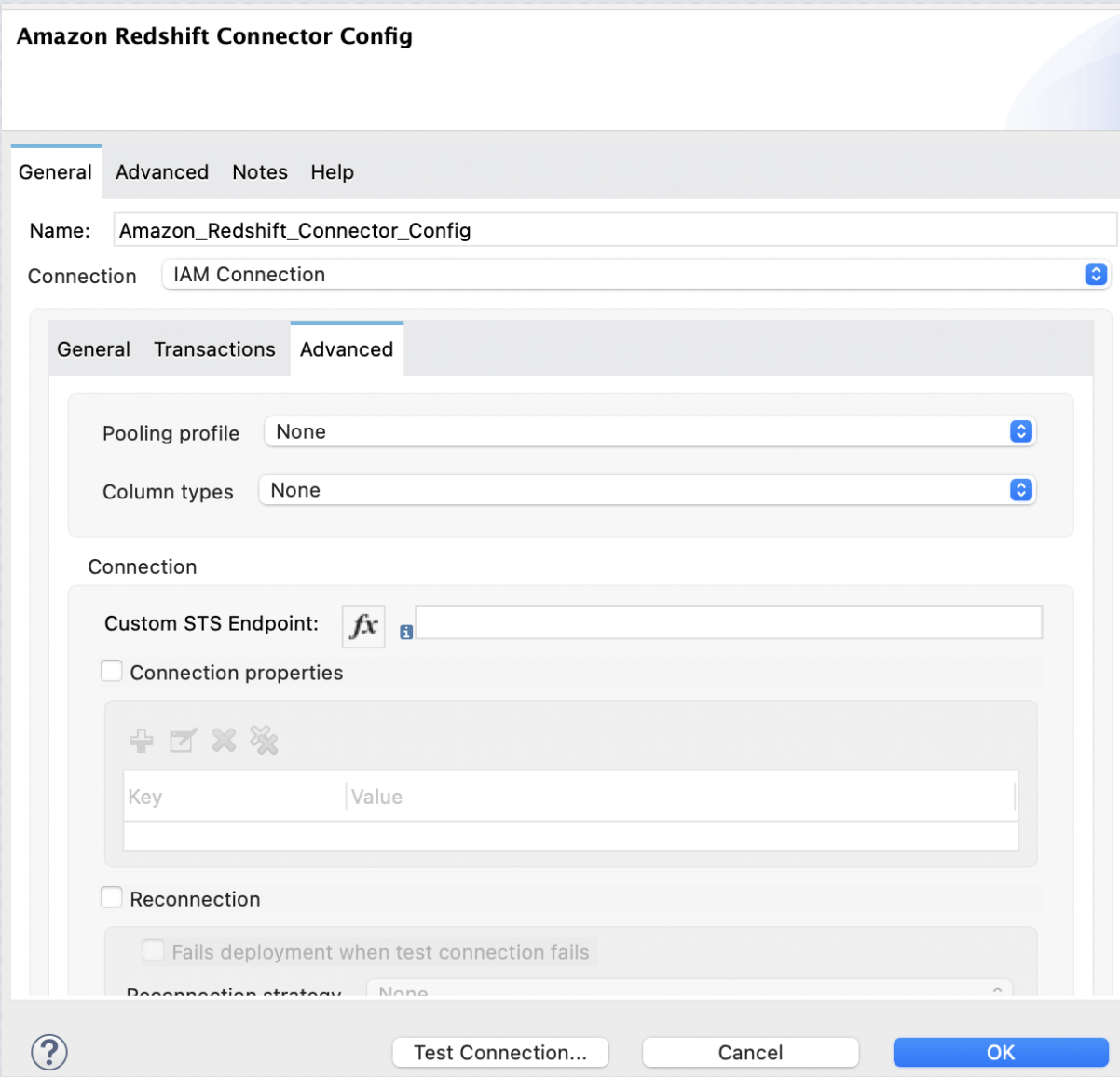
![Amazon Redshift IAM configuration Advanced tab](/mulesoft/current/en-us/amazon-redshift-connector/1.1/_images/redshift-advanced-configuration.png)

Figure 4. Amazon Redshift IAM Configuration Advanced Tab

## Prepare the Data File

Prepare a data file to upload to Amazon S3. This data file will then be used as the data set in the
`COPY` command for the Amazon Redshift table.

1.  Create a file named `username.csv` in the `src/main/resources/` folder in your Mule project.

2.  Populate the `username.csv` file with the following sample data:

```csv
Username; Identifier;First name;Last name
booker12;9012;Rachel;Booker
grey07;2070;Laura;Grey
johnson81;4081;Craig;Johnson
jenkins46;9346;Mary;Jenkins
smith79;5079;Jamie;Smith
```

## Flows in This Example

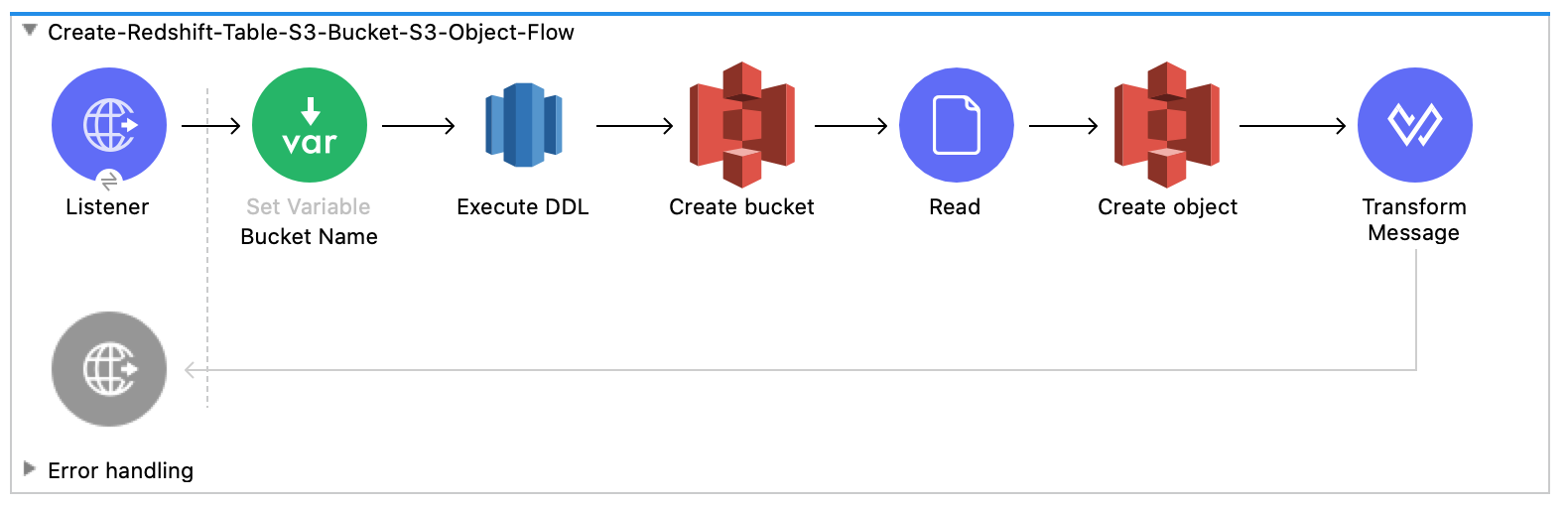
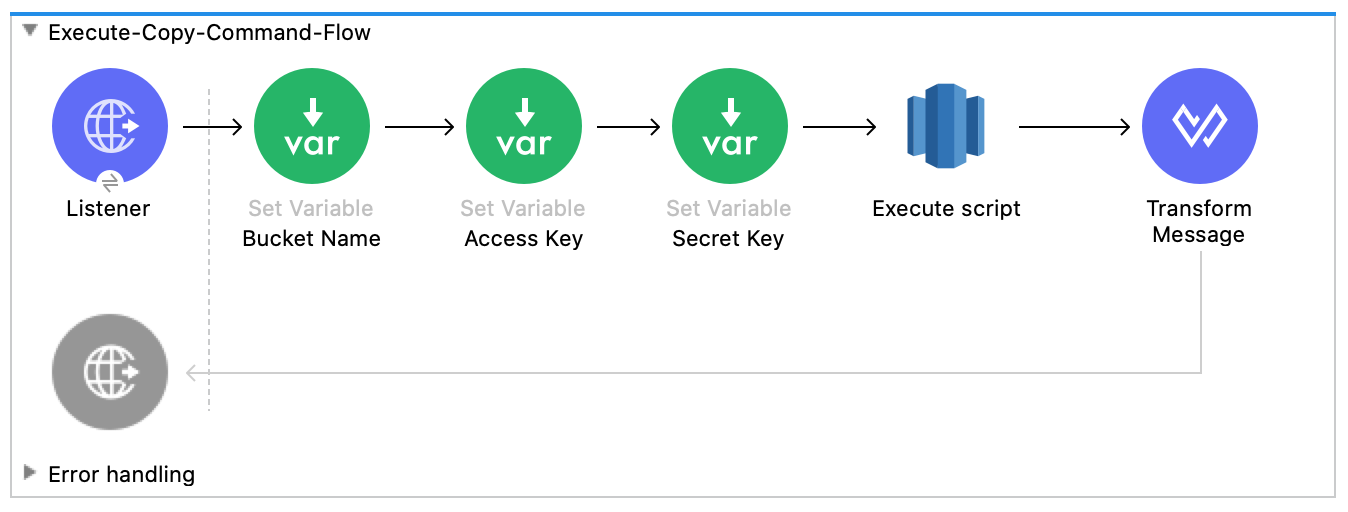
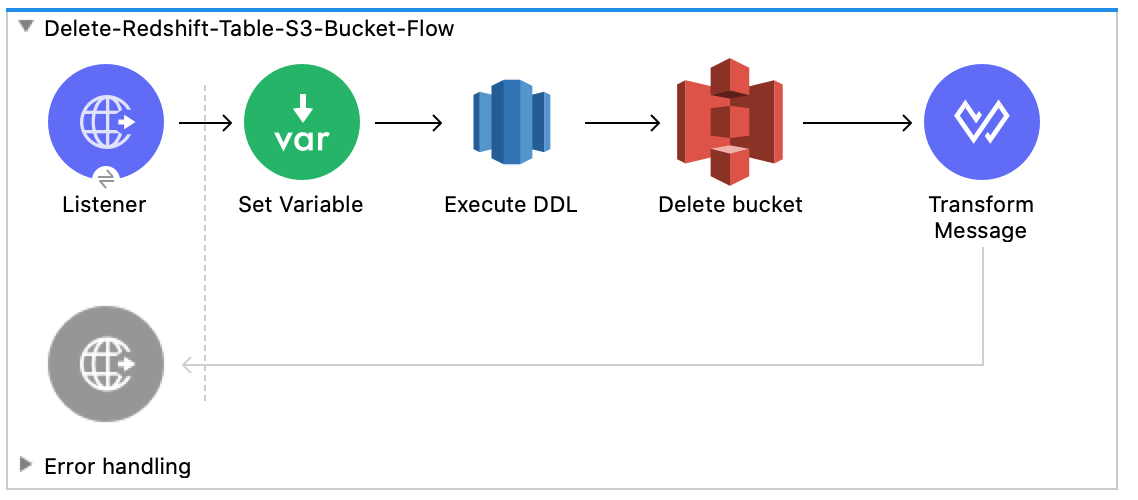
The following screenshots show the Anypoint Studio app flows for this example:

- This flow creates the Amazon Redshift table, Amazon S3 bucket and object:
  ![Flow for creating the Redshift table Amazon S3 bucket and Amazon S3 object](/mulesoft/current/en-us/amazon-redshift-connector/1.1/_images/create-flow.png)

- This flow executes the `COPY` command, which leverages the Amazon Redshift massively parallel
  processing (MPP) architecture to load data in parallel from a file in an Amazon S3 bucket:
  ![Execute the Copy command flow](/mulesoft/current/en-us/amazon-redshift-connector/1.1/_images/execute-flow.png)

- This flow deletes the Amazon Redshift table and Amazon S3 bucket:
  ![Flow for deleting the Amazon Redshift table and Amazon S3 bucket](/mulesoft/current/en-us/amazon-redshift-connector/1.1/_images/delete-flow.png)

## Run the Example

1.  Right-click in the project’s canvas and select **Run project redshift-demo**.

2.  Open `localhost:8081/init` in a web browser and wait until it returns a response containing
    `success:true` with the created table, bucket, and an object.

3.  Verify that the new Amazon S3 bucket `username-bucket` was created in your Amazon S3 instance.

4.  Verify that the new Redshift table `username` was created in your Amazon Redshift instance.

5.  Open `localhost:8081/execute` in a web browser and wait until it returns a response containing
    `success:true`.

6.  Verify that the `username` table contains data from the `username.csv` file you added to the
    Mule project in [Prepare the Data File](#prepare-data-file).

7.  Open `localhost:8081/delete` in a web browser and wait until it returns a response containing
    `success:true`.

8.  Verify that both the `username` Amazon Redshift table and `username-bucket` Amazon S3 bucket
    were deleted.

### See Also

- [Introduction to Anypoint Connectors](https://docs.mulesoft.com/connectors/introduction/introduction-to-anypoint-connectors)

- [Salesforce Help](https://help.salesforce.com)