---
schema_version: "1"
id: d62c0d45139e32b43795a42c640e9b39c7be9cf996dbf216936a5d4b26c99c2b
title: Using Anypoint Studio to Configure Aggregators Module 1.1
collection: mulesoft
version: current
locale: en-us
portal_url: https://docs.salesforce.com/mulesoft/current/en-us/aggregators-module/latest/aggregators-studio-configuration.md
canonical_url: https://docs.mulesoft.com/aggregators-module/latest/aggregators-studio-configuration
source_site: docs.mulesoft.com
content_type: documentation
content_hash: 72531e92976dcb1c6034b433754bb5ca04a0500350ffe1ae26404e34ec078a90
description: MuleSoft Documentation Site
release: "1.1"
latest: true
---
---
product: Aggregators Module
version: 1.1
is-latest-version: true
---
# Using Anypoint Studio to Configure Aggregators Module 1.1
> For the full documentation index, see: https://docs.mulesoft.com/llms.txt
Anypoint Studio (Studio) editors help you design and update your Mule applications, properties, and
configuration files.
To add and configure a module in Studio:
1. [Create a Mule project](#create-mule-project).
2. [Add the module to your Mule project](#add-connector-to-project).
3. [Configure a source for the module’s flow](#configure-source).
4. [Add an aggregator scope to the flow](#add-connector-operation).
5. [Configure an object store for an aggregator](#configure-os-aggregator).
When you run the connector, you can view the app log to check for problems in real time, as
described in [View the App Log](#view-app-log).
If you are new to configuring connectors in Studio, see
[Using Anypoint Studio to Configure a Connector](https://docs.mulesoft.com/connectors/introduction/intro-config-use-studio).
If, after reading this topic, you need additional information about the connector fields, see the
[Aggregators Module Reference](https://docs.mulesoft.com/aggregators-module/latest/aggregators-module-reference).
## Create a Mule Project
In Studio, create a new Mule project in which to add and configure the connector:
1. In Studio, select **File > New > Mule Project**.
2. Enter a name for your Mule project and click **Finish**.
## Add the Module to Your Mule Project
Add Aggregators Module to your Mule project to automatically populate the XML code with the module’s
namespace and schema location and to add the required dependencies to the project’s `pom.xml` file:
1. In the **Mule Palette** view, click **(X) Search in Exchange**.
2. In the **Add Dependencies to Project** window, type `aggregators module` in the search field.
3. Click **Aggregators Module** in **Available modules**.
4. Click **Add**.
5. Click **Finish**.
Adding a module to a Mule project in Studio does not make that module available to other projects in
your Studio workspace.
## Configure a Source
A source initiates a flow when a specified condition is met. You can configure one of these sources
to use with Aggregators Module:
- **HTTP > Listener**
Initiates a flow each time it receives a request on the configured host and port.
- **Aggregator listener**
Initiates a subflow by listening to elements triggered by a referenced aggregator scope.
After the aggregator scope referenced by the listener completes an aggregation, the **Aggregator
listener** triggers the subflow with a list of all the aggregated elements.
For example, to configure an Aggregator listener, follow these steps:
1. In the **Mule Palette** view, select **Aggregators > Aggregator listener**.
2. Drag **Aggregator listener** to the Studio canvas.
3. On the **Aggregator listener** configuration screen, optionally change the value of the
**Display Name** field.
4. Set **Aggregator name** to the name of the aggregator scope to listen to.
The listener executes after the aggregator scope releases its elements.
5. Select **Include timed out groups** to indicate whether the listener should be triggered when a
group is released due to a timeout.
This configuration option also works for non-group aggregators, such as the **Time based
aggregator** and **Size based aggregator** scopes.
## Add an Aggregator Scope to the Flow
When you add a module scope to your flow, you are specifying an action for that module to perform.
To add a scope for Aggregators Module, follow these steps:
1. In the **Mule Palette** view, select **Aggregators** and then select the desired scope:
- **Group based aggregator**
Enables you to aggregate elements into groups by group ID.
- **Size based aggregator**
Enables you to aggregate elements until a predefined size number of elements completes the
aggregation.
- **Time based aggregator**
Enables you to aggregate elements within a predefined time limit.
2. Drag the scope onto the Studio canvas to the right of the source:
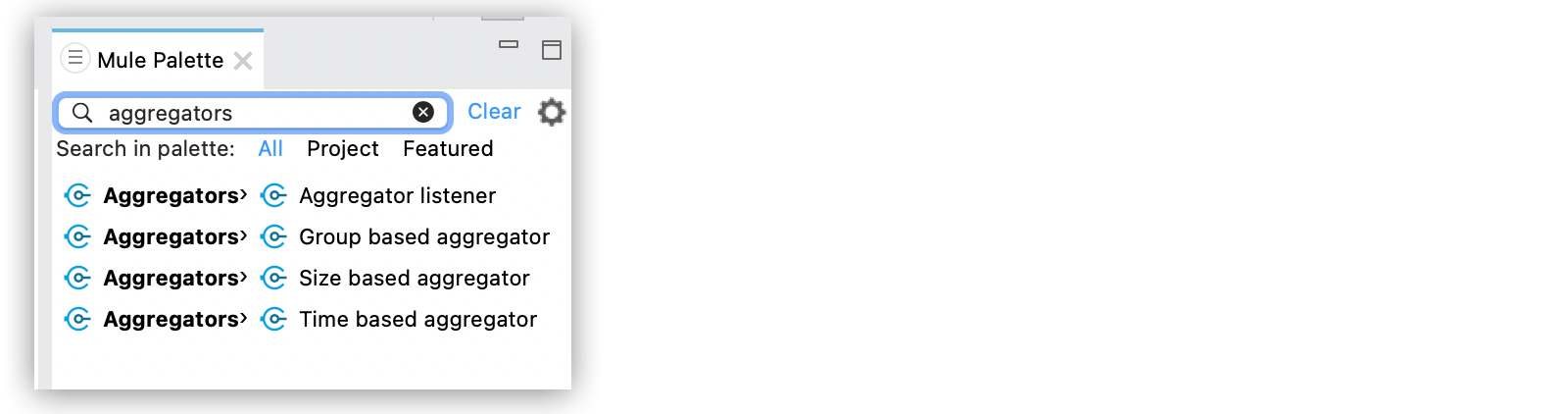
Figure 1. Aggregator Module scopes in Studio
## Configure an Object Store for an Aggregator
For any aggregator scope, you can configure an object store either by referencing a global object
store or creating a private one.
### Configure a Global Object Store
To configure a global object store in Studio, follow these steps:
1. Select the aggregator scope from the flow.
2. On the aggregator scope configuration screen, click **Advanced**.
3. Click the green plus sign (+) to create a global object store configuration.
4. In the **Global Object store configuration** screen, set **Name** to `aGlobalObjectStore`.
5. Complete the required configuration attributes and click **OK**.
The following screenshot shows the **Advanced** tab of **Group based aggregator** scope with an
object store configuration:
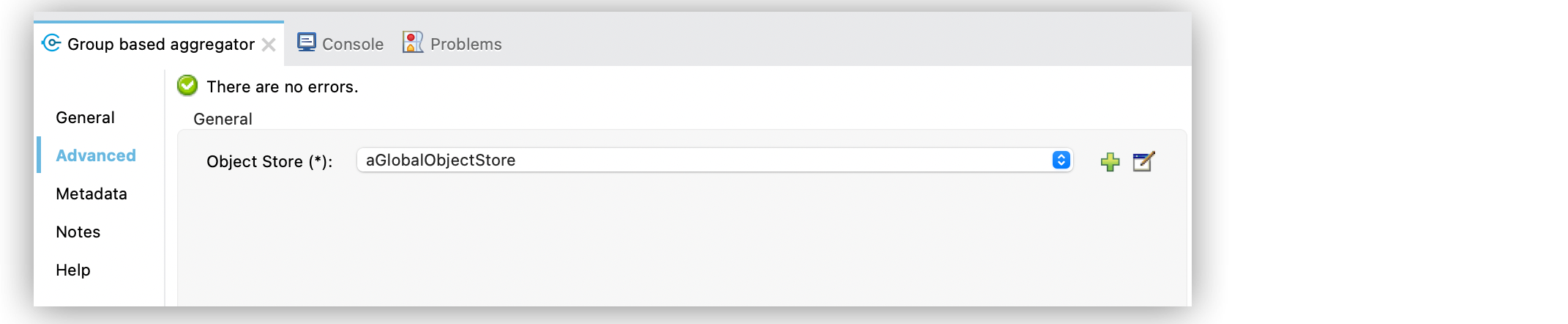
In the **Configuration XML** view, the `objectStore` configuration looks like this:
```xml
```
### Configure a Private Object Store
To configure a private object store in Studio, manually update the XML code:
1. Select the aggregator scope from the flow.
2. Click **Configuration XML** in your Studio canvas.
3. Add the XML private object store `` inside the
`` section, for example:
```xml
...
```
## View the App Log
To check for problems, you can view the app log as follows:
- If you’re running the app from Anypoint Platform, the app log output is visible in the Anypoint
Studio console window.
- If you’re running the app using Mule from the command line, the app log output is visible in your
OS console.
Unless the log file path is customized in the app’s log file (`log4j2.xml`), you can also view the
app log in the default location `MULE_HOME/logs/.log`.
## See Also
- [Introduction to Anypoint Connectors](https://docs.mulesoft.com/connectors/introduction/introduction-to-anypoint-connectors)
- [Using Anypoint Studio to Configure a Connector](https://docs.mulesoft.com/connectors/introduction/intro-config-use-studio)
- [Aggregators Module Reference](https://docs.mulesoft.com/aggregators-module/latest/aggregators-module-reference)
- [Salesforce Help](https://help.salesforce.com)