---
schema_version: "1"
id: e3a6d4dc3e247068c8285722fe0fc075af9c32026e880f7209f3ba351a4e6754
title: Mapping Single Sign-On Users to Roles or Teams in Anypoint Platform
collection: mulesoft
version: current
locale: en-us
portal_url: https://docs.salesforce.com/mulesoft/current/en-us/access-management/map-users-roles-teams.md
canonical_url: https://docs.mulesoft.com/access-management/map-users-roles-teams
source_site: docs.mulesoft.com
content_type: documentation
content_hash: 738b0c9c606f825be9618cf7c123dfc155122d78123c267db8ababf60ebe595c
description: MuleSoft Documentation Site
latest: true
---
---
product: Access Management
version: master
---
# Mapping Single Sign-On Users to Roles or Teams in Anypoint Platform
> For the full documentation index, see: https://docs.mulesoft.com/llms.txt
Map the users in a federated organization’s group to a team or role to maintain secure credentials
and organizational structure for accessing privileged information. Users in an external organization
can then log in to Anypoint Platform using the same organizational credentials and access
permissions that an external organization maintains using SAML, OpenID Connect (OIDC), or LDAP.
Anypoint Platform requires different information from your identity provider (IdP) based on whether
you use SAML, OpenID Connect, or LDAP. User mappings apply only to the IdP you configured them for.
## Before You Begin
- Have the Organization Administrator permission in the root Anypoint Platform organization.
- Configure an external identity provider (IdP), such as PingFederate, for your Anypoint Platform
organization.
- Create and configure the single sign-on (SSO) app in your IdP.
- Make sure the user or identity of the group of users is created in the identity provider.
## Add Group Mappings
1. Sign in to Anypoint Platform using an account that has the Organization Administrator
permission.
2. Select **Access Management** from the  menu.
3. In the Access Management navigation menu, click **Teams**.
4. Select the team to add the external IdP group to.
5. Select **External IdP Groups**.
6. Enter the name of the group in **Group Name**.
7. In **Provider Name**, select the name of the identity provider.
8. In **Type**, select **Member**, and then click **Add**.
9. Click **Save Changes**.
The SSO users associated with the group you mapped are assigned to the team.
## Configure Multiple Group Mappings for Single Sign-On Using SAML
If your organization uses single sign-on but requires permissions from multiple groups, configure an
attribute that contains all the groups for individual access permission. You can also create an
array of groups.
For example, if your IDP provides your groups in this format, you must create an attribute that
encompasses multiple group mappings to prevent security vulnerabilities:
Mule\_Org\_Admin\_XXX
Mule\_Exchange\_XXX
In this example of a SAML assertion, the **Group Attribute** is `Groups`:
Mule\_Org\_Admin\_XXX
Mule\_Exchange\_XXX
Verify that the value in the **Group Attribute** field matches the name of the SAML attribute that
contains the group names.
## Configure Multiple Group Mappings for Single Sign-On Using OpenID Connect (OIDC)
External identity providers format groups claims in different ways. Anypoint Platform checks the
`UserInfo` response for the groups claim. If the response for the groups claim isn’t found, Anypoint
Platform then checks the `Token` endpoint response.
Use groups claims values to create a team or role for each group of users in your organization:
1. Obtain a response to the `UserInfo` or `Token` endpoint that contains a groups claim from your
external identity provider.
2. If your IdP requires an additional OIDC scope to authorize access to groups claims, enter it in
the **Group Scope** field.
3. Verify that the [JSONata](https://jsonata.org) query in **Group Attribute JSONata Expression**
yields an array of group names from either the `UserInfo` or `Token` endpoint response.
### Examples of OIDC Group Expressions
These examples show responses from the `UserInfo` or `Token` endpoints that contain groups claims
from different external identity providers.
#### Entra ID
This example shows a typical Entra ID groups claim:
```xml
{
...
"roles": "[
\"Everyone\",
\"groupOne\"
]",
...
}
```
Given that groups claim, the JSONata expression is `$eval($string(roles))`.
#### Okta
This example shows a typical Okta groups claim:
```xml
{
...
"groups": [
"Everyone",
"groupOne"
]
}
```
Given that groups claim, the JSONata expression is `groups`.
#### Auth0
This example shows a typical Auth0 groups claim:
```xml
{
...
"https://anypoint.mulesoft.com/groups": [
"MyGroup",
"groupOne"
]
}
```
Given that groups claim, the JSONata expression is https://anypoint.mulesoft.com/groups.
#### Salesforce
This example shows a typical Salesforce groups claim:
```xml
{
...
"custom_attributes": {
"PermissionSets": "groupOne,groupTwo"
}
}
```
Given that groups claim, the JSONata expression is `$split(custom_attributes.PermissionSets, ',')`.
## Configure Multiple Group Mappings for Single Sign-On Using LDAP
You can obtain the information you need to map your LDAP group to a team or role using a SAML
assertion.
> [!NOTE] User management through LDAP is available only for Anypoint Platform Private Cloud
> Edition.
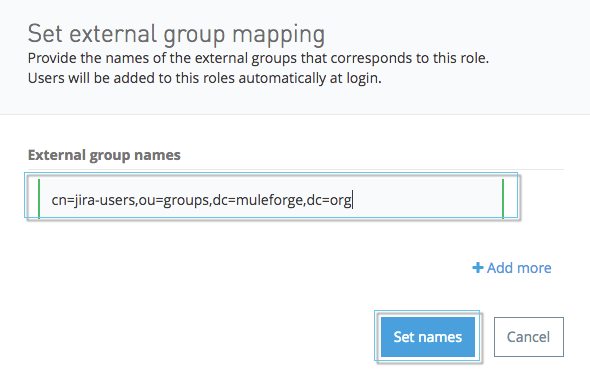
This is an example string from the SAML assertion `AttributeValue` to the **External group name**:
```xml
cn=jira-users,ou=groups,dc=muleforge,dc=org
```
This shows an example of an external group mapping:
## Map SSO Users to Teams
> [!NOTE] If you delete your IdP configuration, your associated team mappings are also deleted.
You can map SSO users to teams by including their group names.
If a user has multiple group names that map to a single team, the group name that grants the most
permissions is used. For example, if the Acme team has a Member group of `engineering-all` and a
Maintainer group of `engineering-managers`, a user with both `engineering-all` and
`engineering-managers` group names becomes a maintainer. If a user is explicitly designated as a
maintainer of a team and has a group name that gives them member status, the group name is ignored,
and the user remains a maintainer.
1. Sign in to Anypoint Platform using an account that has the Organization Administrator
permission.
2. Select **Access Management** from the  menu.
3. In the Access Management navigation menu, click **Teams**.
4. Click the team to modify.
5. Click the **External IdP Groups** tab.
6. In the **Group Names** field, enter one of the following:
- SAML: The group attribute that comes from your array of SAML groups
- OIDC: The groups claims values that come from the `UserInfo` or `Token` endpoint responses
- LDAP: The string from your SAML assertion AttributeValue
7. In the **Type** drop-down, select `Member` or `Maintainer`.
If you select **Maintainer**, users who have that group name become team maintainers for this
team. If you select **Member**, users who have this group name become team members.
8. In the **Provider Name** drop-down, select the IdP associated with the mapping.
9. Click **Add**.
10. Click **Save Changes**.
The SSO users associated with the group you designated are assigned to the team.
### API Access to Team Group Mappings
To access team external IdP group mappings using the Access Management API (for example,
`GET /organizations/{orgId}/teams/{teamId}/groupmappings`), have one of these permissions:
- **Access Controls Viewer** (`view:access_controls`) - View team group mappings via API
- **Access Controls Admin** (`admin:access_controls`) - Create, update, or delete team group
mappings via API
## Map SSO Users to Roles
You map groups of SSO users to roles in your organization. However, MuleSoft recommends using the
Teams feature to manage user permissions.
1. Sign in to Anypoint Platform using an account that has the Organization Administrator
permission.
2. Select **Access Management** from the  menu.
3. In the Access Management navigation menu, select **Business Groups**.
4. Select the name of the organization to access.
5. Select the **Roles** tab.
6. Click the role you want to modify.
7. Click the **External IdP Groups** tab.
8. In the **Group Names** field, enter one of the following:
- SAML: The group attribute that comes from your array of SAML groups
- OIDC: The groups claims values that come from the `UserInfo` or `Token` endpoint responses
- LDAP: The string from your SAML assertion AttributeValue
9. In the **Provider Name** drop-down, select the IdP associated with the mapping.
10. Click **Add**.
11. Click **Save Changes**.
The SSO users associated with the groups you designated are assigned the role.
## See Also
- [Teams](https://docs.mulesoft.com/access-management/teams)
- [Roles](https://docs.mulesoft.com/access-management/roles)