---
schema_version: "1"
id: 9fb5aab71236aa0dffc231edc282b1045ae01a4630c595cfe892e8b8172ecac6
title: Create a Custom Launchpad for the Salesforce Mobile App
collection: admin
version: current
locale: en-us
portal_url: https://docs.salesforce.com/admin/current/en-us/xcloud/264-0-0/salesforce_app_launchpad.md
canonical_url: https://help.salesforce.com/s/articleView?id=xcloud.salesforce_app_launchpad.htm&release=264.0.0&type=5
source_site: help.salesforce.com
content_type: documentation
content_hash: ed42ac33e304b54032360127610d1b9e5164ce6d108fe4c255b161b991e621e1
description: Launchpads let users quickly access the information they need. Use the Launchpad Lightning web component to add links to Lightning pages on mobile and desktop. If you don’t need a launchpad for desktop users, you can create a mobile-specific launchpad. Set the component visibility to show the launchpad to mobile users only. That way, mobile users can still access all of their navigation menu items, but the most important links are only a tap away.
products:
- Mobile App Mobile App Mobile App
- Cross Cloud Cross Cloud Cross Cloud
release: "264"
---
# Create a Custom Launchpad for the Salesforce Mobile App
Launchpads let users quickly access the information they need. Use the Launchpad Lightning web component to add links to Lightning pages on mobile and desktop. If you don’t need a launchpad for desktop users, you can create a mobile-specific launchpad. Set the component visibility to show the launchpad to mobile users only. That way, mobile users can still access all of their navigation menu items, but the most important links are only a tap away.
### Required Editions
Setup available in Lightning Experience in: Group, Professional, Enterprise, Essentials, Performance, Unlimited, and Developer Editions
User Permissions
Needed
To create and save Lightning pages in the Lightning App Builder:
Customize Application
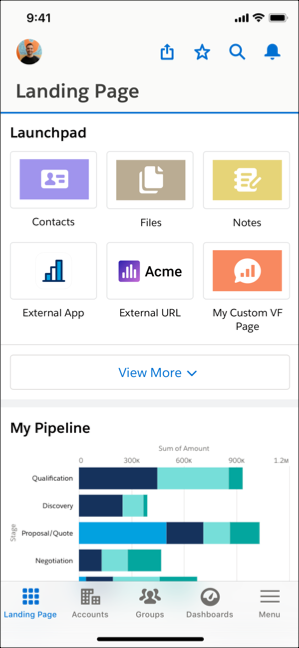
Launchpads are customizable Lightning web components that you can add to any Lightning page. They create a shortcut to important places for your users. You can add any items that have tabs associated with them—standard and custom objects, Lightning web components, Lightning pages, Visualforce pages, and external websites. Make sure that your users have permission to view the tabs—they only see items that they have access to in the launchpad.
You can use launchpads on multiple pages and add multiple launchpads to one page.
When users view the page on desktop or mobile, they see the launchpad. On mobile, Internal links open in the Salesforce mobile app, while external links open in a mobile browser window.
1. On your desktop, navigate to the Lightning page that you want to add a launchpad to.
2. Click the Setup gear icon, then click **Edit Page**.
3. From the list of standard Lightning web components, find Launchpad and drop it into the desired spot on the page.
4. Enter a custom title for your launchpad or keep the default.
5. Click **Select...** under Launchpad Items.
6. From the list of available items, drag at least one item into the Selected list

Note You can select up to 20 items. Users see the first six items you select, with the option to expand the launchpad to view more.
7. Click **OK**.
8. Select an item from the list to view and edit the details.

Note If you don't have access to a tab, you can still add it to the launchpad, but you can’t see it in the component preview.
9. Add any component visibility filters that you want.
10. Click **Save** | **Activate** | **Assign as Org Default** | **Desktop and Phone** | **Save**.
11. To view your changes on desktop, click **Back**.

Note The Calendar navigation item isn’t supported in mobile Launchpad components. Access it through a tab instead.