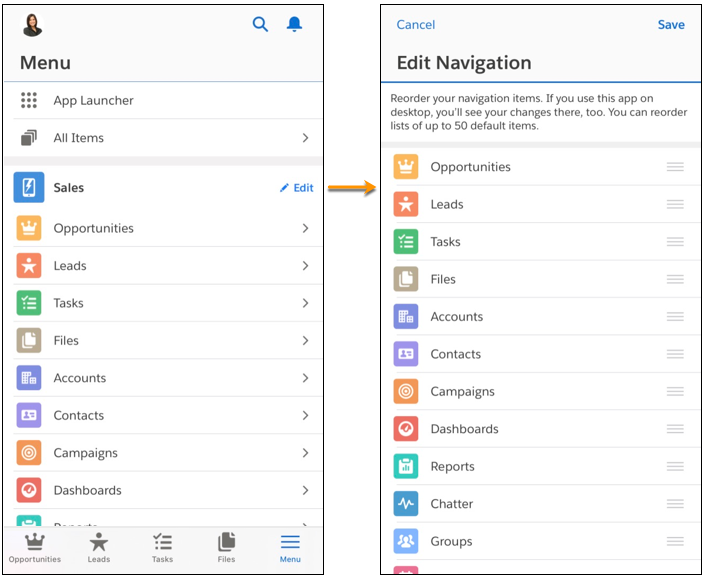
Users who have permission to edit the desktop navigation bar in a Lightning app can also reorder items in the navigation menu for that app in the Salesforce mobile app.
In Lightning Experience desktop, users who can personalize the navigation bar can add and reorder items, and rename or remove items they’ve added. Those changes sync to the navigation menu and navigation bar of that Lightning app in the Salesforce mobile app. To learn more about personalizing the navigation bar in Lightning Experience desktop, see Personalize the Navigation Bar in Lightning Experience.
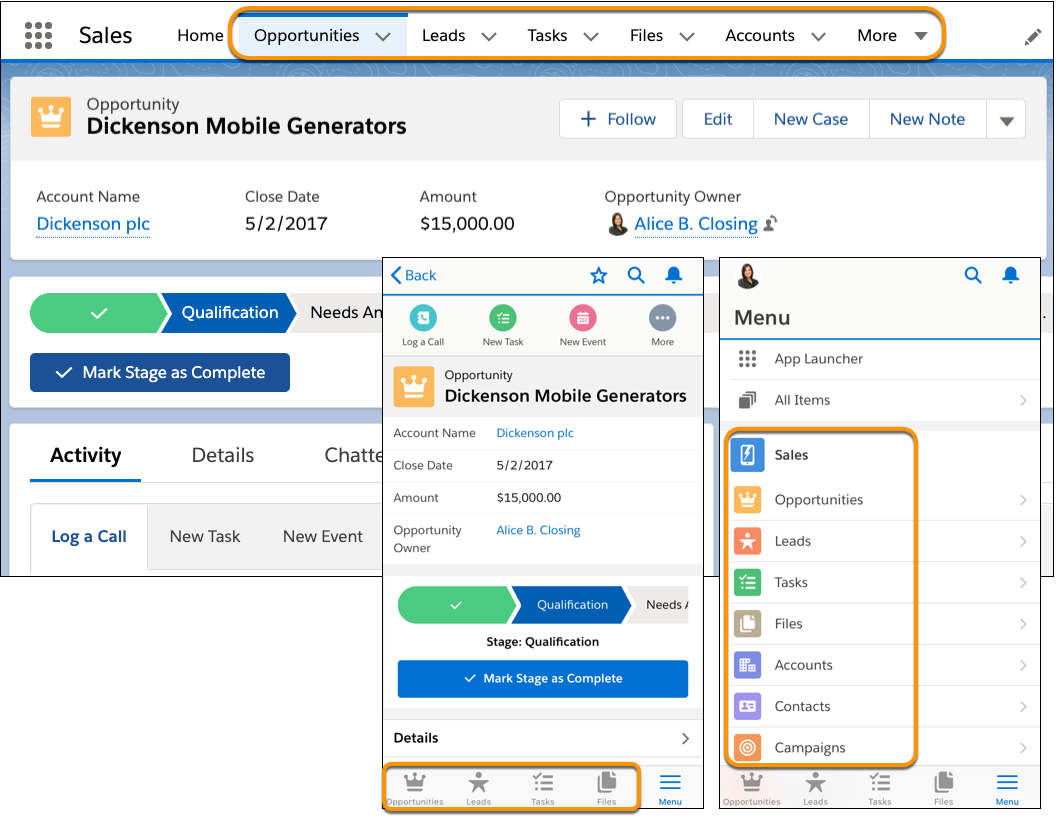
In the Salesforce mobile app, users can reorder the navigation menu items of a Lightning app, if they have 50 or fewer default items. Those changes sync to the desktop version of the app.
- Tap Menu in the navigation bar at the bottom of the screen.
- Tap Edit.
- Drag items to reorder them.
- Tap Save.