Collections enable you to curate your analytics in a customized way, and have a
personalized set of CRM Analytics items, and reports and dashboards when you first open the
application. Analytics can be added from different apps and folders, and they can exist in
multiple collections. With collections, you’re able to quickly access data that’s relevant to your
work or interests in one place.
Required Editions
| Setup for the Salesforce mobile app available in: Lightning Experience |
| Setup available in Lightning Experience in: Group, Professional,
Enterprise, Performance, Unlimited, and Developer
Editions
|
| A CRM Analytics license is required to view and access CRM Analytics items. |
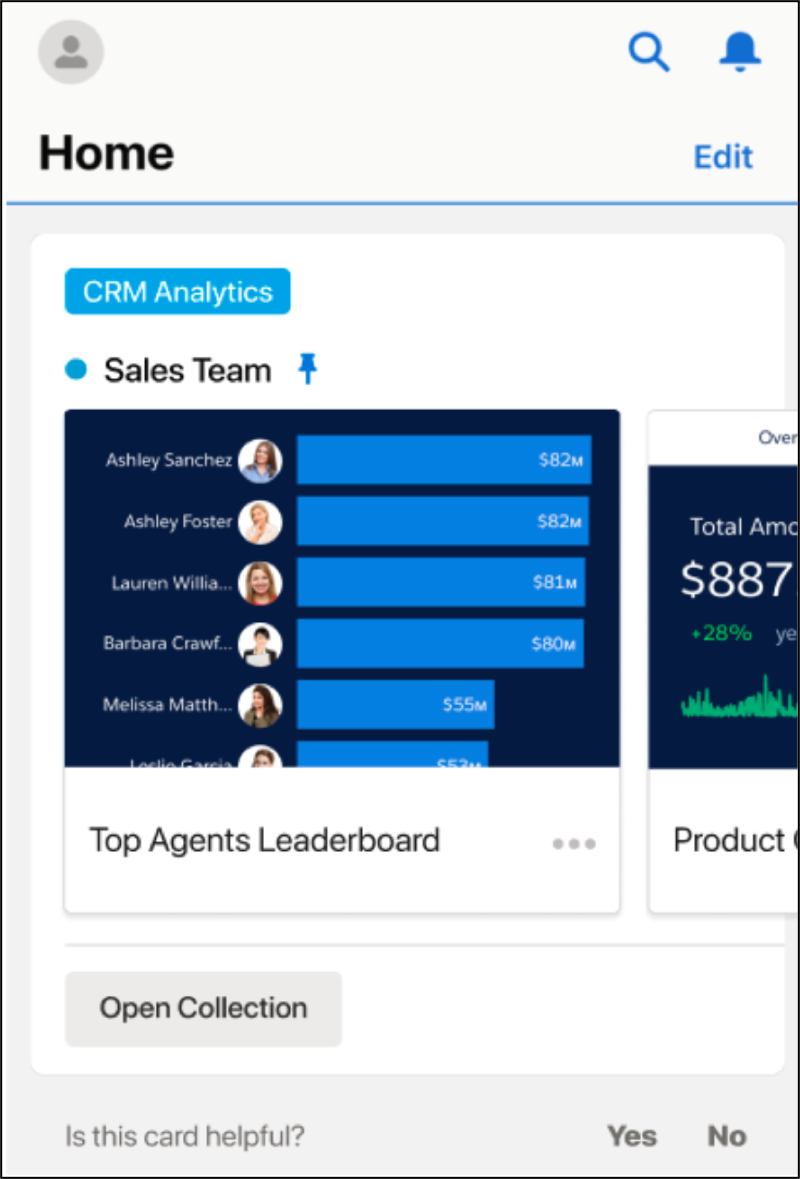
- Add a Collection to Home
- Tap Edit then tap Add Card.
- Tap Collection from the menu, and tap the collection you
want.
- Open an Item in a Collection
- Scroll across the Collection card and tap the item you want to open. You can also tap
Open Collection then locate and tap the item.
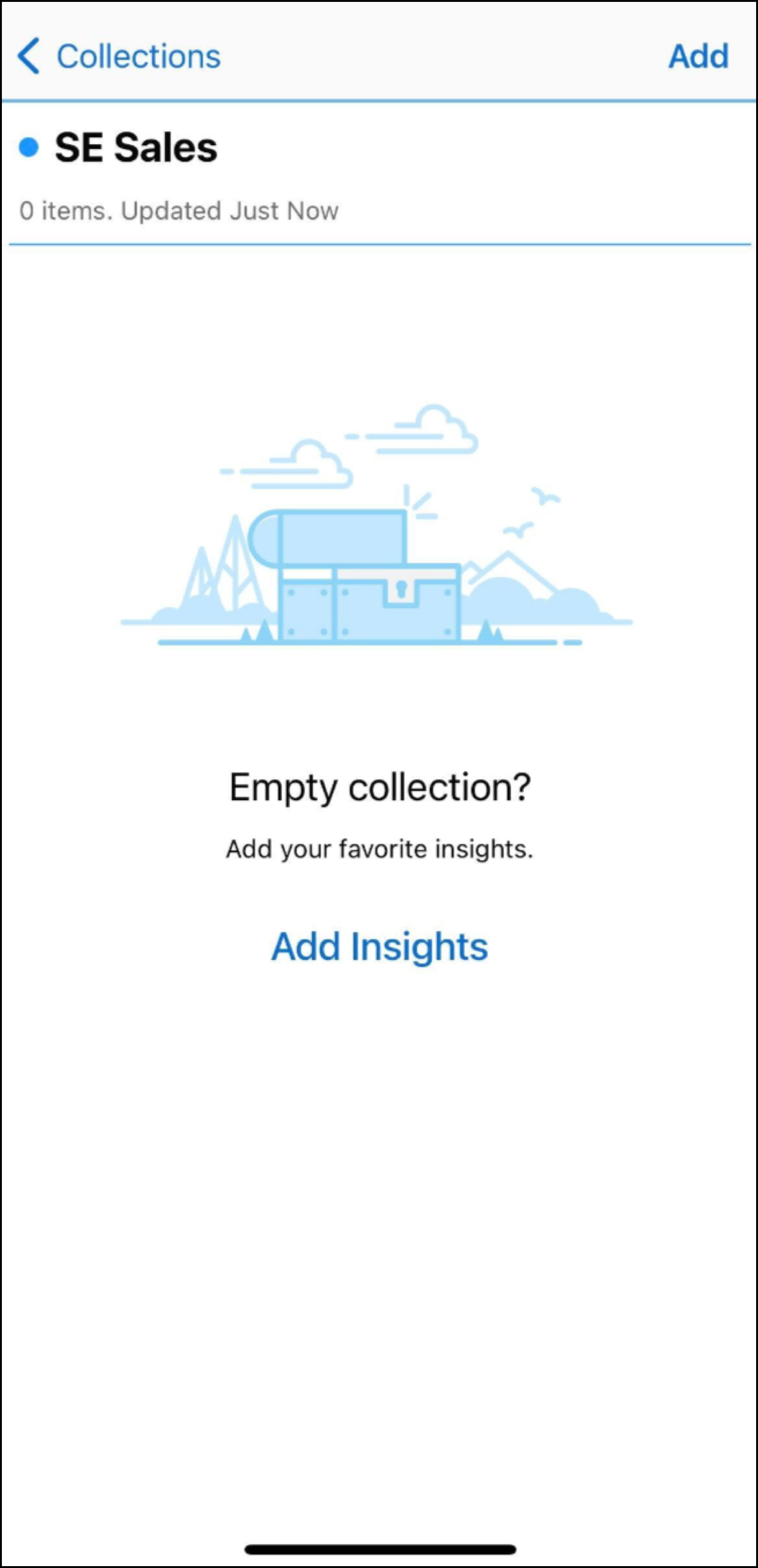
- Add Items to a Collection
- Tap Open Collection then tap
 .
.
- Tap the available items on the page or use the search bar to locate the items to add to
the collection.
- Tap Done.
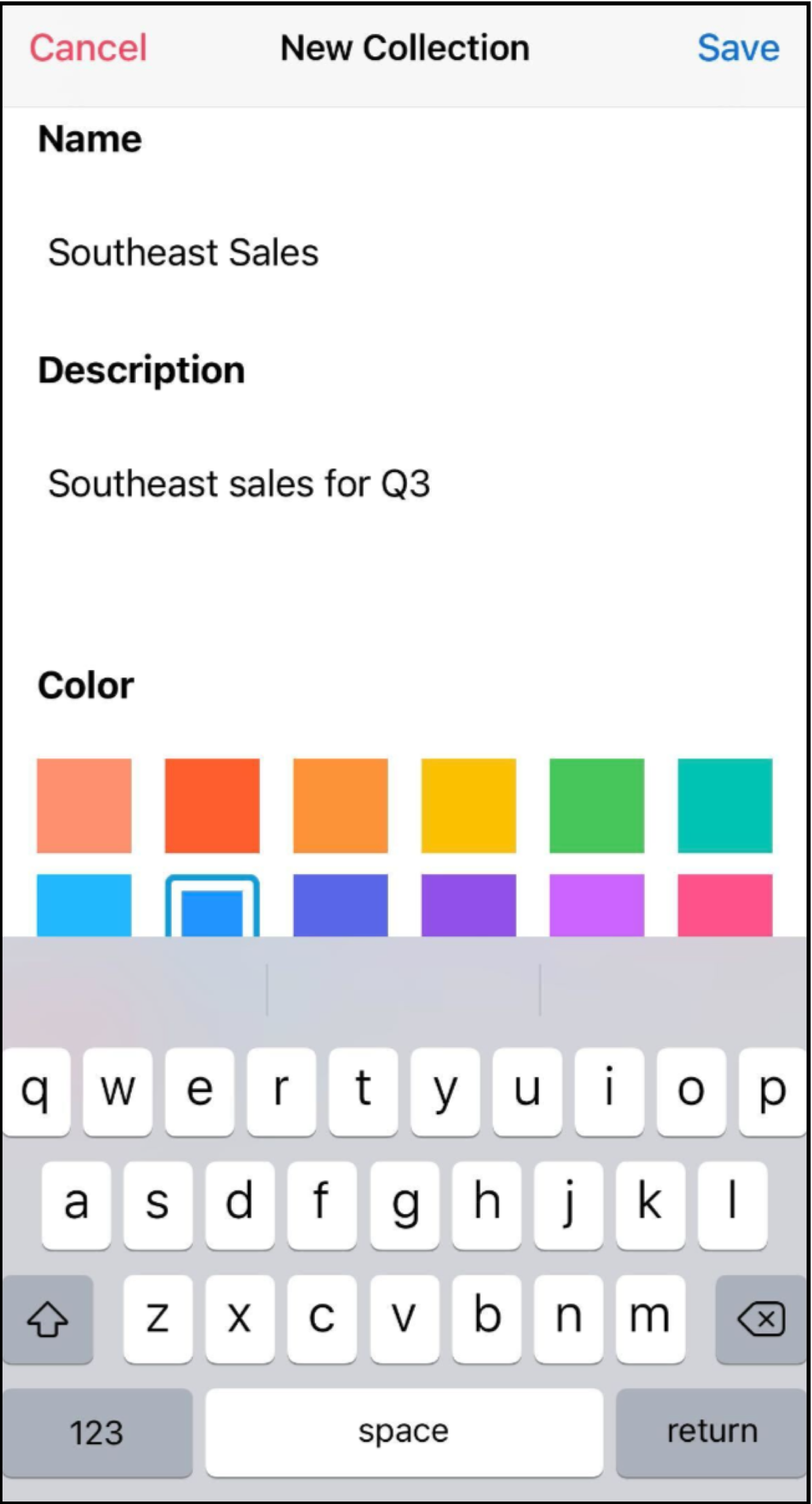
- Create a Collection
- Tap Edit then .
- Give the collection a name, optional description, and color.
- Tap Save.
- Tap Add Insights then select items for the collection.