
You can quickly switch between testing Production, Sandbox, and Custom Experience Cloud sites for both iOS and Android.
Required Editions
| Setup for Mobile Publisher available in: Lightning Experience |
| Setup for Mobile Publisher available in: production only (not sandbox) |
| Available in Lightning Experience in: Enterprise, Performance, and Unlimited Editions |
| User Permissions Needed | |
|---|---|
| To create and modify a Mobile Publisher project: | Manage mySalesforce Apps |
| To create and modify a site: | Create and Set Up Experiences |
iOS
- To refresh the app menu, launch and then quit your Mobile Publisher for Experience Cloud app.
- From your device home screen, long press and hold your branded app icon to bring up the
menu.
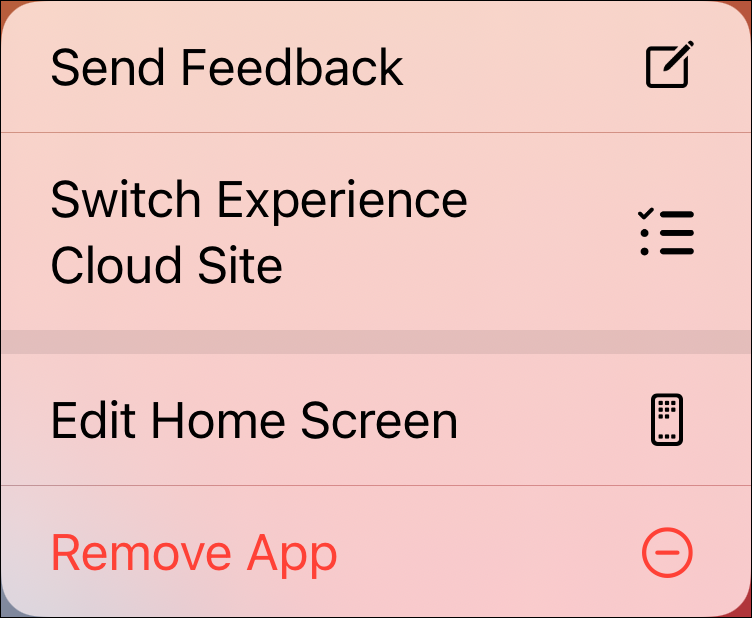
- Tap Switch Experience Cloud Site.
 Important
To ensure that the Switch Experience Cloud Site option is available, make sure the Sandbox Site field in your Mobile Publisher UI Setup page contains your sandbox URL.

If you want to remove the Switch Experience Cloud Site option from the context menu, leave the Sandbox Site field blank.
- Select your Sandbox site and tap Done.
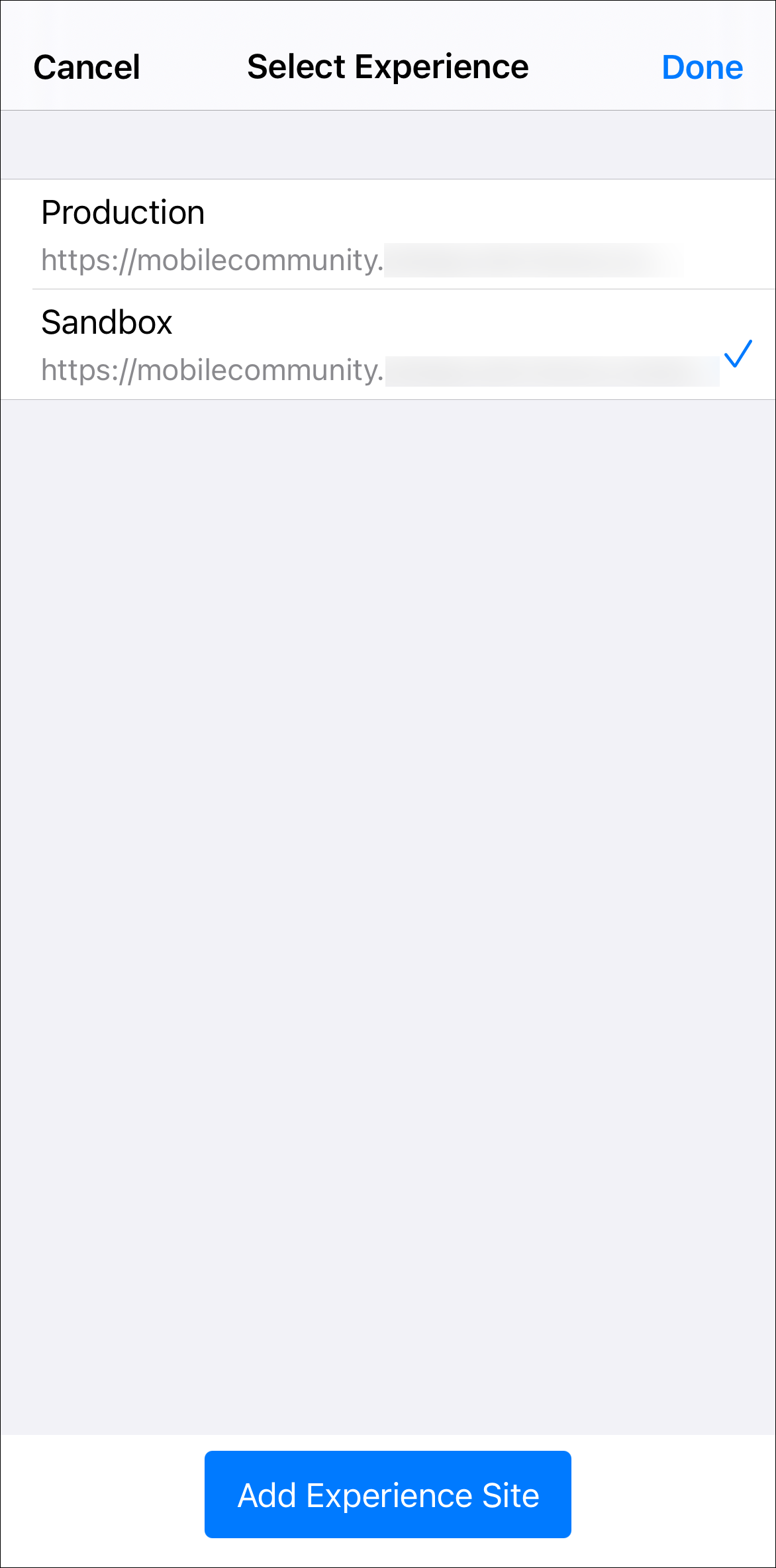

Note If you want to add a custom Experience Cloud site, tap Add Experience
Site and provide the login URL.
Android
- To refresh the app menu, launch and then quit your Mobile Publisher for Experience Cloud app.
- To bring up the menu from your device home screen, long press and hold your branded app icon.
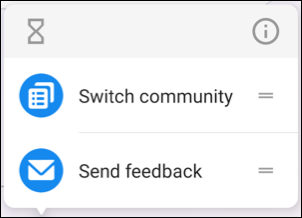
- Tap Switch Site.
- To select the Experience Cloud site you want to test, press the dropdown arrow.
- After you’ve selected the site you want to test, tap Switch.
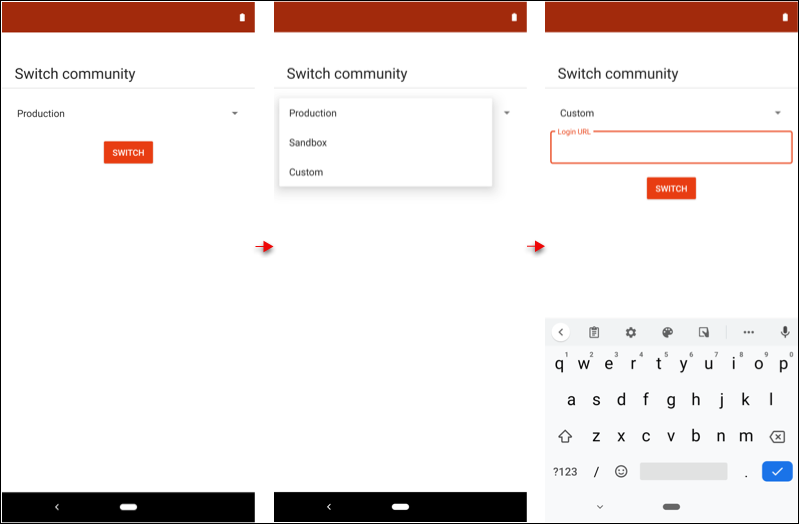 Note If you want to add a custom Experience Cloud site, tap Custom and provide the login URL.