
Customize your app’s appearance, including app icon, loading page logo, and header background color, and much more so that the app matches your company’s branding.
Required Editions
| Setup for Mobile Publisher available in: Lightning Experience |
| Setup for Mobile Publisher available in: production only (not sandbox) |
| Available in Lightning Experience in: Enterprise, Performance, and Unlimited Editions |
| User Permissions Needed | |
|---|---|
| To create and modify a Mobile Publisher project: | Manage mySalesforce Apps |

Note Mobile Publisher isn’t available in Salesforce Setup until your organization licenses the
feature. Contact your Salesforce sales rep for more information.
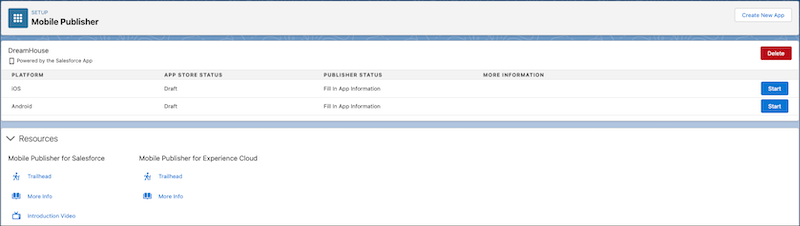
- On the Mobile Publisher page, click Start for the iOS app.
- Fill in all the necessary fields. For more information about the app distribution choices, see Set Up Distribution.
- If you’re confused about a certain field, hover your cursor over the info bubble to see helpful tips and guidance.
- When you’re done entering all the information, click Submit.
- Click Submit again to confirm that you want to submit the
form.
The submission goes to the Mobile Publisher team for review.
The app is now a draft, and you can see the status of the app on the iOS page.
If your company wants an Android version of the app, repeat the same steps for Android.