
Start a Mobile Publisher project for Salesforce app and manage both Android and iOS branded apps.
Required Editions
| Setup for Mobile Publisher available in: Lightning Experience |
| Setup for Mobile Publisher available in: production only (not sandbox) |
| Available in Lightning Experience in: Enterprise, Performance, and Unlimited Editions |
| User Permissions Needed | |
|---|---|
| To create and modify a Mobile Publisher project: | Manage mySalesforce Apps |

Note Your organization must license Salesforce Mobile Publisher in order to use the feature.
Contact your Salesforce sales rep for more information.
- From Setup, enter Mobile Publisher in the Quick Find box, then
select Mobile Publisher.
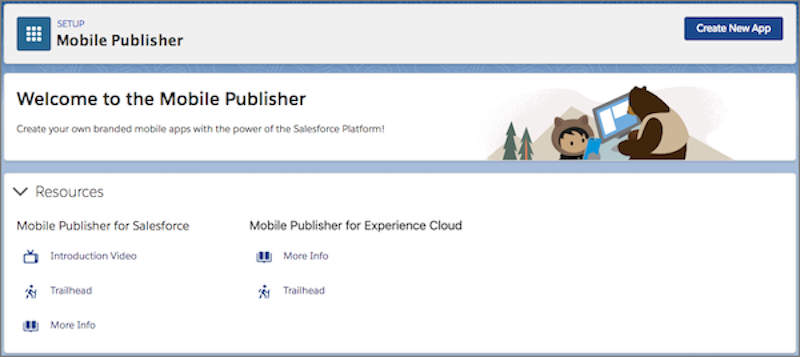
- Click Create New App.
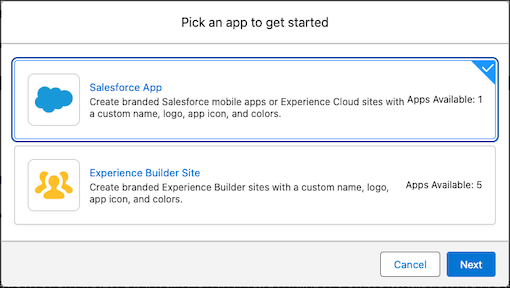
- Choose the Salesforce mobile app to brand (only one app can be branded per org).
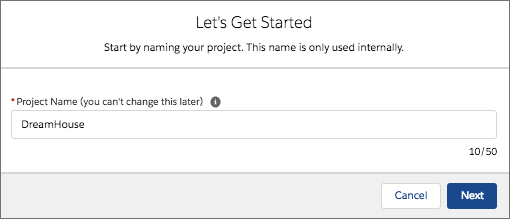
- Enter a name for the Mobile Publisher project. You can’t edit the project name after you
set it. This name is for internal reference only; it doesn’t display publicly in Google Play or
the App Store.
- Click Next.
-
In the Set Up the Mobile App section, click Start.
Note The setup process for new apps made with the External Client Apps framework is divided into three sections: Set Up the Mobile App, Set Up an External Client App, and Request the App Binary. If you select the Binary upload or Fully Managed distribution methods when creating your app, you also see a fourth section, Submit the App.
When you’re done creating the Mobile Publisher project, you can manage the Android and iOS apps that are part of your project.
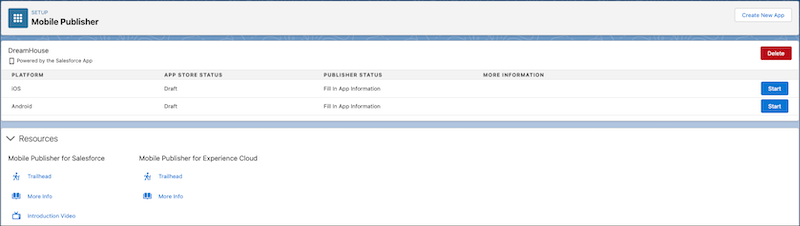
Each application store—Google Play and the App Store—requires a different set of information in order to publish an app.
- Enter Information and Upload Assets for Your App
Customize your app’s appearance, including app icon, loading page logo, and header background color, and much more so that the app matches your company’s branding.