---
schema_version: "1"
id: 7817035c71c4f9aff979f46bddc99e938ab23cc523f2ecf2d7dff9e8d1325fa1
title: Create a Right to Be Forgotten Policy
collection: admin
version: current
locale: en-us
portal_url: https://docs.salesforce.com/admin/current/en-us/xcloud/264-0-0/rtbf_policies.md
canonical_url: https://help.salesforce.com/s/articleView?id=xcloud.rtbf_policies.htm&release=264.0.0&type=5
source_site: help.salesforce.com
content_type: documentation
content_hash: 3ad08786e57fef298c6dc55bcde2b4bc08abbfc007cc05ca02c972cf7a45259d
description: For data subjects who want their data to be erased, create Right to Be Forgotten policies to run on individual customer records. Create policies that capture the objects that you want to be deleted, then manually run the policy on a specific record at any time. Right to Be Forgotten policies are created at the object level to ensure all customer data is removed.
products:
- Security
- Cross Cloud
release: "264"
---
# Create a Right to Be Forgotten Policy
For data subjects who want their data to be erased, create Right to Be Forgotten policies to run on individual customer records. Create policies that capture the objects that you want to be deleted, then manually run the policy on a specific record at any time. Right to Be Forgotten policies are created at the object level to ensure all customer data is removed.
### Required Editions
User Permissions Needed
To create and use Right to Be Forgotten policies:
ModifyAllData and PrivacyCenter
Available in: all editions
To create a Right to Be Forgotten Policy:
1. From the Privacy Center dashboard, under Right to Be Forgotten Policies, click **View All**.
2. Next to Right to Be Forgotten (RTBF) Policies, click **New**.
3. Enter a name for your policy. The name must be alphanumeric, with no spaces or special characters. Then click **Save & Edit**.
4. Optionally, enter a description for your policy, and save. If you plan to create multiple policies, we recommend that you add a description.
5. Under Objects & Fields, choose a parent object to run the policy on. Select only one parent object for each policy. Switch the object in the policy to Active, and save. If you no longer want the object’s data to be captured by the policy, switch the object to Inactive.
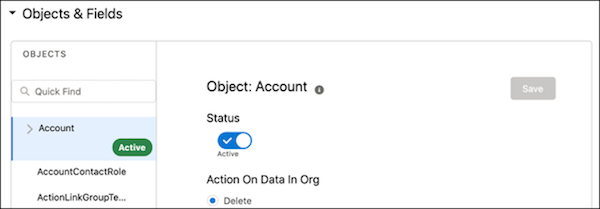
Under Action on Data in Org, the Delete option is automatically selected. More options become available with the Fall ’21 release.

Note All activated objects are marked as Active in the object list.
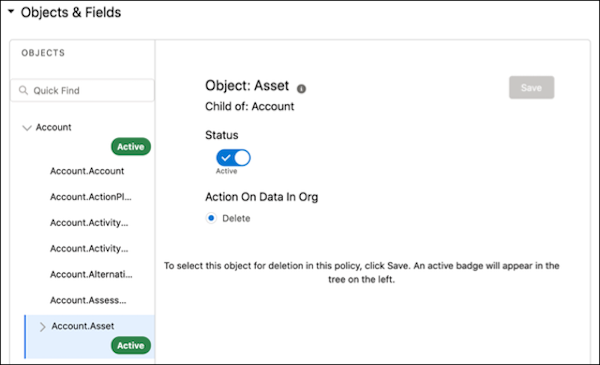
6. After you add and save the parent object to the policy, you have the option to add related child objects. To see a list of child objects, click the down arrow next to the parent object’s name. Switch the child objects you want to add to the policy to Active, and save.
7. Click **Activate**. You can deactivate your policy at any time, for example, if you want to save your work but don’t want the policy to be used.