---
schema_version: "1"
id: 9fbbb37d0b074098852d6d740e9b0bcf61bd7345af7793cb828ab00b16ab925a
title: Retain Records on an Object
collection: admin
version: current
locale: en-us
portal_url: https://docs.salesforce.com/admin/current/en-us/xcloud/264-0-0/retention_data_management_policies.md
canonical_url: https://help.salesforce.com/s/articleView?id=xcloud.retention_data_management_policies.htm&release=264.0.0&type=5
source_site: help.salesforce.com
content_type: documentation
content_hash: d58a1dbccc14f6f8089fd7d64b02ac774f8da7f9c67181f56216c786f383eb2f
description: Choose whether you want to copy records to an external data store for retention.
products:
- Security
- Cross Cloud
release: "264"
---
# Retain Records on an Object
Choose whether you want to copy records to an external data store for retention.
### Required Editions
Available in: Developer, Enterprise, Performance, and Unlimited Editions. Requires the Privacy Center license.
User Permissions Needed
To create, edit, and schedule Data Management Policies:
Manage Privacy Center Policies

Warning Certain Salesforce instances don’t support data retention. If your instance is listed here, skip the data retention setup by selecting **Do Not Copy**. Otherwise, errors occur when your policy executes. To find out your org instance, go to Company Information in Setup, or contact your account executive.
Data retention is unsupported in:
- South Korea: kor\* instances
- Indonesia: idn\* instances
- Brazil: bra\* instances
- Middle East: are\* instances
Before you begin:
- Review [Considerations for Privacy Center Data Retention](https://help.salesforce.com/s/articleView?id=xcloud.privacy_center_retention_considerations.htm&release=264.0.0&type=5 "When you process Salesforce records with Data Management or Right to Be Forgotten policies, you can copy the records to an external data store for retention. Review these guidelines and limitations when implementing data retention with Privacy Center.").
- If you copy records to a retention store, you can view them from Salesforce by setting up the [Salesforce Connect adaptor for Privacy Center](https://help.salesforce.com/s/articleView?id=platform.salesforce_connect_privacy_center.htm&type=5&language=en_US).
- To protect your data, we recommend testing all privacy policies in a sandbox before executing them in your production org. If you include data retention, use Salesforce Connect to view the records in your sandbox data store and verify that the field values were copied as expected. This way, your production org data is preserved in case there are configuration errors or unexpected processing issues. To efficiently convert your policies between sandbox and production environments, use the [policy export tool](https://help.salesforce.com/s/articleView?id=xcloud.export_policies_between_sandbox_and_production.htm&release=264.0.0&type=5 "You can export privacy policies directly between your sandbox and production org. Use this feature to develop, test, and troubleshoot privacy policies while quickly converting them between your Salesforce environments.").
- By default, the original record values are retained. If you want to mask the records in your retention store, ensure that you select masking rules in Step 2.
Complete this task after adding [mask or deletion rules to an object](https://help.salesforce.com/s/articleView?id=xcloud.mask_delete_data_management_policies.htm&release=264.0.0&type=5 "Define how an object’s records are masked or deleted from your org, and determine how related files and attachments are handled.").
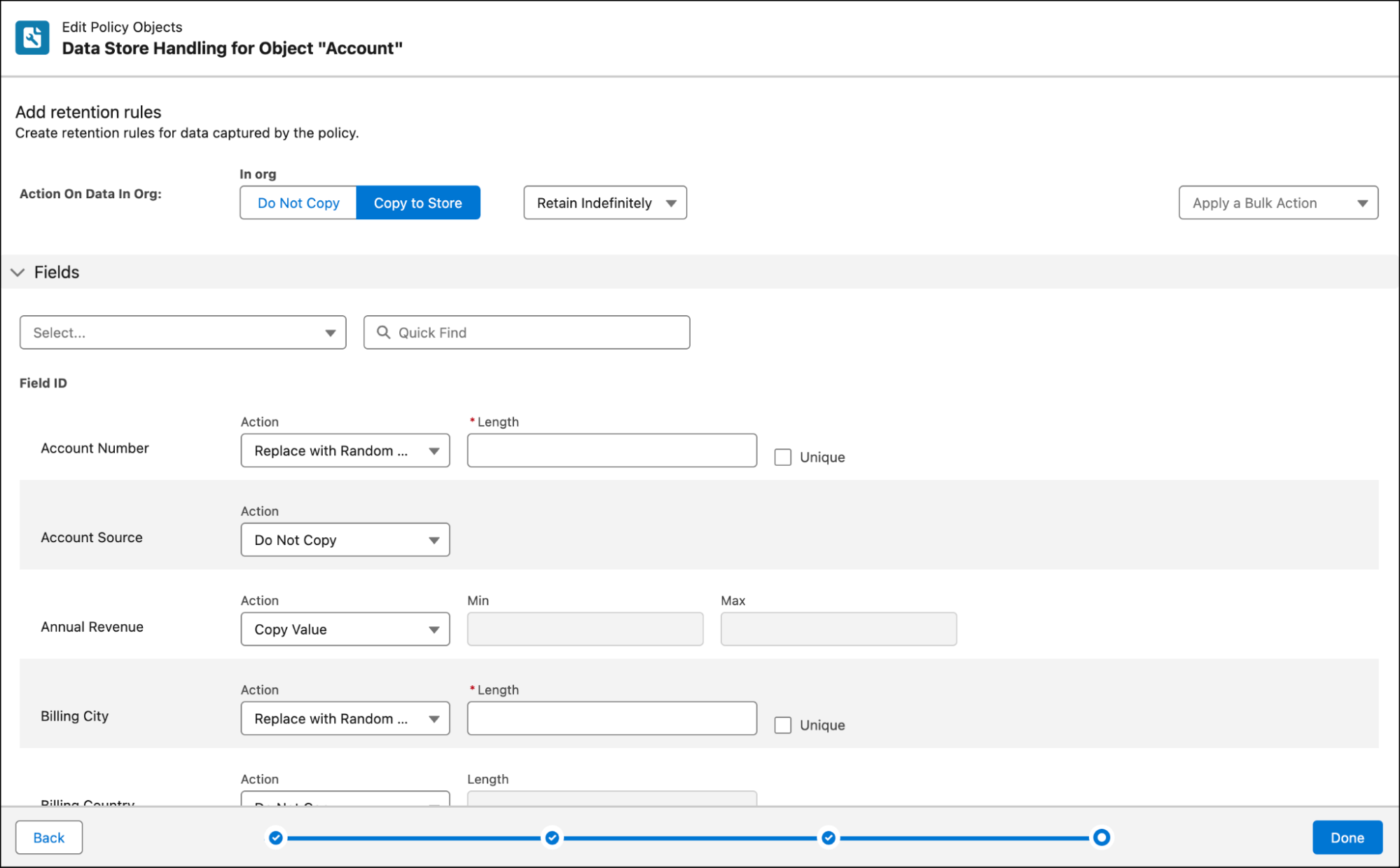
1. From the Action On Data In Org dropdown list, select an option.
- **Copy to Store** creates a copy of the records in an external data store.
- **Do Not Copy** skips the data retention option. Records on the current object aren’t copied to the retention store.
2. Under Fields, select retention rules for individual fields using the Action dropdown list.
- **Do Not Copy** prevents Salesforce from copying the field value to the retention store.
- **Replace with Random Characters** obfuscates the field’s value in the retention store with a string of random characters. To add the record’s Salesforce ID to the field value, select **Unique**. This option creates a globally unique value for the record in your retention store.
- **Copy Value** maintains the field’s original value in the retention store.
- **Replace with Static Value** obfuscates the field’s value in the retention store with a value that you enter. To add the record’s Salesforce ID to the field value, select **Unique**. This option creates a globally unique value for the record in your retention store.
To update the retention action for all listed fields or a group of selected fields, use the Apply a Bulk Action dropdown list.
3. Under Files and Attachments, choose whether to include associated files and attachments with the retained records.

Note This option is only available when you choose to retain records.
4. To save your changes and create your policy draft, click **Done**.
5. On the policy home page, click **Save**.
You’re ready to set the run schedule for your policy.