
For a secure, fast, and easy login with multi-factor authentication (MFA), create a passkey, also known as a built-in authenticator. With passkeys, you have multiple ways to log in: fingerprint or facial scanners on your device, physical security keys, a device PIN or password, or password managers. Some passkeys work only on the device where you set them up. If you set up a device-bound passkey on your laptop, you can’t use it to log in from your phone. If you log in to Salesforce from multiple devices, set up your passkeys so that you can access your account anywhere.
Required Editions
| Available in: both Salesforce Classic and Lightning Experience |
| Available in: all editions |
Starting in the summer of 2026, Salesforce enforces the requirement to log in with multi-factor authentication (MFA). With MFA enforcement, you see a prompt to create a passkey when you log in. You see this prompt only if you don’t have a registered MFA verification method yet.

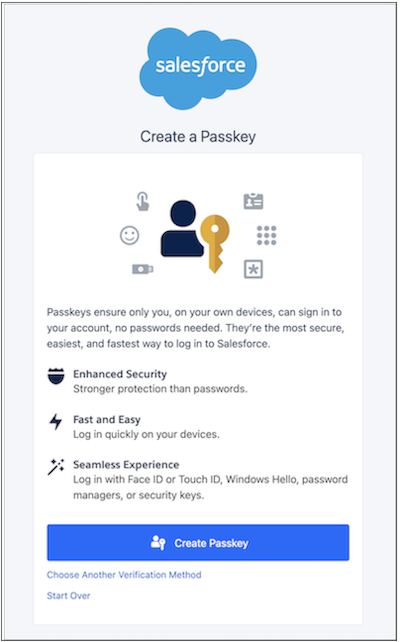
Before you create a passkey, keep these things in mind.
- Use a browser that supports passkeys: Chrome, Edge, Firefox, or Safari.
-
Passkeys require a way to verify your identity. Many common devices and operating systems support passkeys.
Note Some companies restrict the ways that you can use passkeys. Contact your Salesforce admin or company IT department for more information.- Apple device users: A password-protected user account, Face ID, Touch ID, or another method supported by your Mac, iPhone, or other Apple device.
- Windows users: Windows Hello with a PIN, fingerprint scanner, or face scanner.
- A physical security key, such as a YubiKey or Titan key.
- Another device, such as a phone or tablet, that supports passkeys. On some browsers, devices, and operating systems, you can use your other device to log in. Use your phone or tablet to scan a QR code that appears on the device where you want to log in. Then verify your identity by using the passkey on your phone or tablet.
- If you log in to Salesforce from multiple devices, set up your passkeys for cross-device use. Otherwise, to log in from other devices, you need a temporary verification code from your admin. To set up passkeys for cross-device use, use password managers (synced passkeys), physical security keys, or another device that supports passkeys for QR code login. Alternatively, set up separate passkeys on each device where you log in to Salesforce.
- To register a passkey on a new device, log in to Salesforce on that device first. The initial login requires a secondary verification method or a temporary verification code from your admin.
- Passkeys aren’t available for Experience Cloud sites.
- Salesforce sends you an email notification when a new passkey is added to your Salesforce account.
Quick links to set up steps:
Create Synced Passkeys with Password Managers
Before you start, determine what password manager you want to use. Some operating systems and browsers have built-in password managers that are already enabled for you and that don’t require extra setup, such as these options:
You can also use third-party tools, such as these common password managers:
- Set up your password manager of choice and make sure that you’re logged in to that password manager.
- On your Salesforce login page, enter your username and password. Or, if you’re already logged in, go to the Passkeys page in your personal settings and click Add Passkey.
- If prompted, verify your identity.
-
At the prompt to create a passkey, click Create Passkey.
Your browser, device, or operating system prompts you to verify your identity and save your passkey. With synced passkeys, your password manager can prompt you to set up and save the passkey.
- Follow the on-screen prompts to finish setting up and saving your passkey.
- To test your synced passkey, log in to Salesforce on another device. Make sure that you’re logged in to your password manager on the new device.
Use a Passkey on Another Device (QR Code Login)
You can use a passkey on another device, such as a phone or tablet, to scan a QR code and log in on your computer. With this option, you can easily log in from multiple devices as long as you have the phone or tablet that stores the passkey.
- On your first device, such as your phone or tablet, set up a passkey such as Touch ID, Face ID, or a device PIN. Don’t worry about logging in to your Salesforce account for this step—all you need is a passkey set up on the device itself. Here are the steps for iPhone and Android.
- On your second device, such as your desktop, go to the Salesforce login page and enter your username and password. Or, if you’re already logged in, go to the Passkeys page in your personal settings and click Add Passkey.
- If prompted, verify your identity.
-
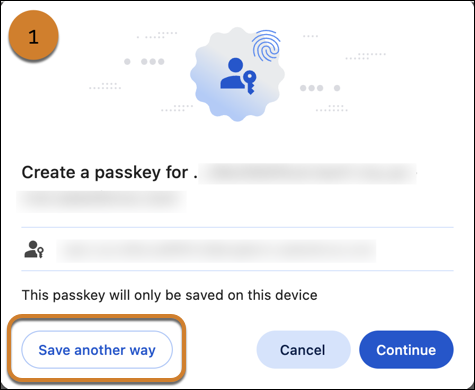
When your browser, device, or operating system prompts you to create a passkey, look
for an option to use a phone, tablet, security key, or QR code. If you don’t see a QR
code right away, check if the prompt includes other options.
For example, on Google Chrome, you see “Save another way” (1).Note These screenshots are examples. Your setup experience can look different depending on your browser, device, or operating system.
 From there, you can select the option to use a phone, tablet, or security key (2), which shows a QR code (3).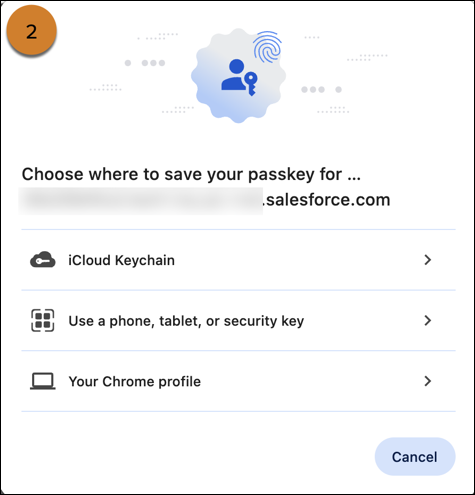
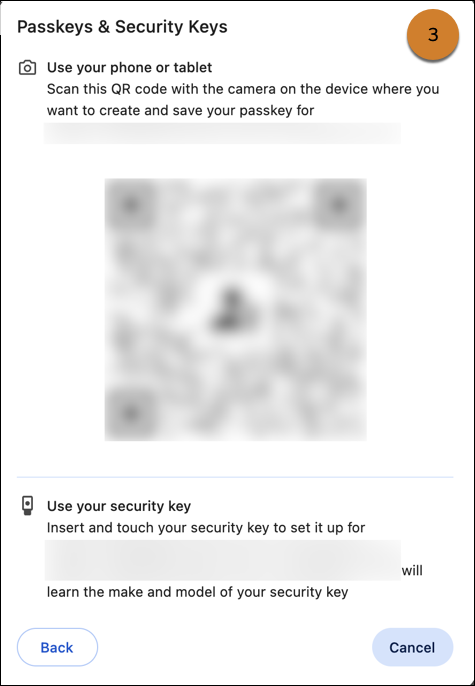
- Use your first device (phone or tablet) to scan the QR code.
-
At the prompt, verify your identity by using the passkey on your first device.
On your second device, you’re now logged in.
Create a Passkey on a Physical Security Key
Store new passkeys on physical security keys, such as YubiKeys or Titan keys. Then use your passkey to log in on any device that supports the physical security key.
- Have your security key in hand so that you’re ready to insert it when prompted. If you wait too long, your registration attempt can time out.
- On your Salesforce login page, enter your username and password. Or, if you’re already logged in, go to the Passkeys page in your personal settings and click Add Passkey.
- If prompted, verify your identity.
- At the prompt to create a passkey, click Create Passkey.
-
When your browser, device, or operating system prompts you to use your passkey,
insert your security key into the appropriate port on your computer or mobile device. If
it has a button, touch the button. Security keys aren’t biometric devices, even though
some have a button that requires your touch to activate the device.
If you don’t see a security key option right away, check if the prompt includes other options. For example, on Google Chrome, select Save another way and then look for an option to use a security key. Sometimes, security keys are grouped with phones and tablets.
- Follow the on-screen prompts to finish setting up and saving the passkey on your security key.
- To test your security key, use it to log in from a new device.
Create a Passkey on Your Device (Device-Bound)
Create a passkey that uses an authenticator that’s built into your device. Depending on your device, these authenticators include Touch ID, Face ID, Windows Hello, and device PINs or passwords. You can use device-bound passkeys only on the device where you set them up.

- On your Salesforce login page, enter your username and password. Or, if you’re already logged in, go to the Passkeys page in your personal settings and click Add Passkey.
- If prompted, verify your identity.
-
At the prompt to create a passkey, click Create Passkey.
Your browser, device, or operating system prompts you to verify your identity by using a fingerprint or facial scanner on your device, or a device PIN or password. If your operating system or browser has a built-in password manager, it can prompt you to save your passkey there too. With this option, you can use your saved passkey on other devices where you’re logged in to your password manager.
-
Follow the on-screen prompts to finish creating your passkey.
The next time you log in, enter your username and password, and then use your passkey.
Create Device-Bound Passkeys on Each of Your Devices
Set up device-bound passkeys on every device where you log in to Salesforce. After you create a passkey on your first device, you need a temporary code from a Salesforce admin to set up passkeys on the rest of your devices.
- On your first device, go to your Salesforce login page and enter your username and password. Or, if you’re already logged in, go to the Passkeys page in your personal settings and click Add Passkey.
- If prompted, verify your identity.
-
At the prompt to create a passkey, click Create Passkey.
Your browser, device, or operating system prompts you to verify your identity by using a fingerprint or facial scanner on your device, or a device PIN or password.
-
For each new device where you want to set up a passkey.
-
Get a new temporary verification code from a Salesforce admin to log in. See
Access Your Account When You Can’t Use a
Passkey.
Without a temporary code, Salesforce prompts you to use the passkey on your first device, which doesn’t work on your new device.
- After you log in on the device, go to the Passkeys page in your personal settings and click Add Passkey. Then follow the on-screen prompts to create your passkey.
Each passkey remains bound to the device where you set it up. -
Get a new temporary verification code from a Salesforce admin to log in. See
Access Your Account When You Can’t Use a
Passkey.