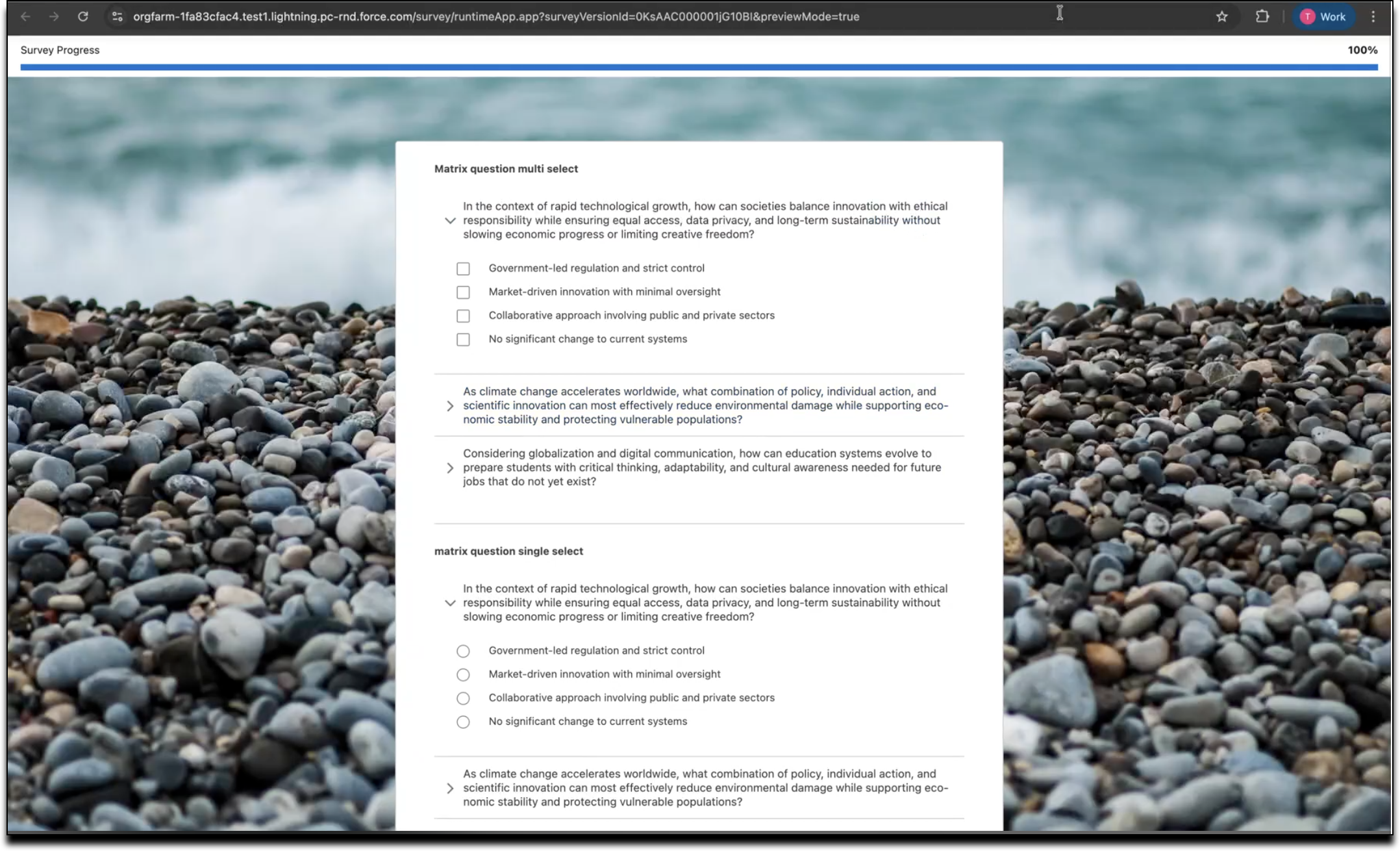
Use Custom CSS to design surveys that align with your company style and branding. Customize your survey theme by using Custom CSS for flexible styling, adjusting the font, progress bar, background color, button color and so on.
Required Editions
| Available in: Available in: Salesforce Classic and Lightning Experience |
| Available in: Enterprise, Unlimited, and Developer Editions |
| Available in: Feedback Management - Starter and Feedback Management - Growth licenses |
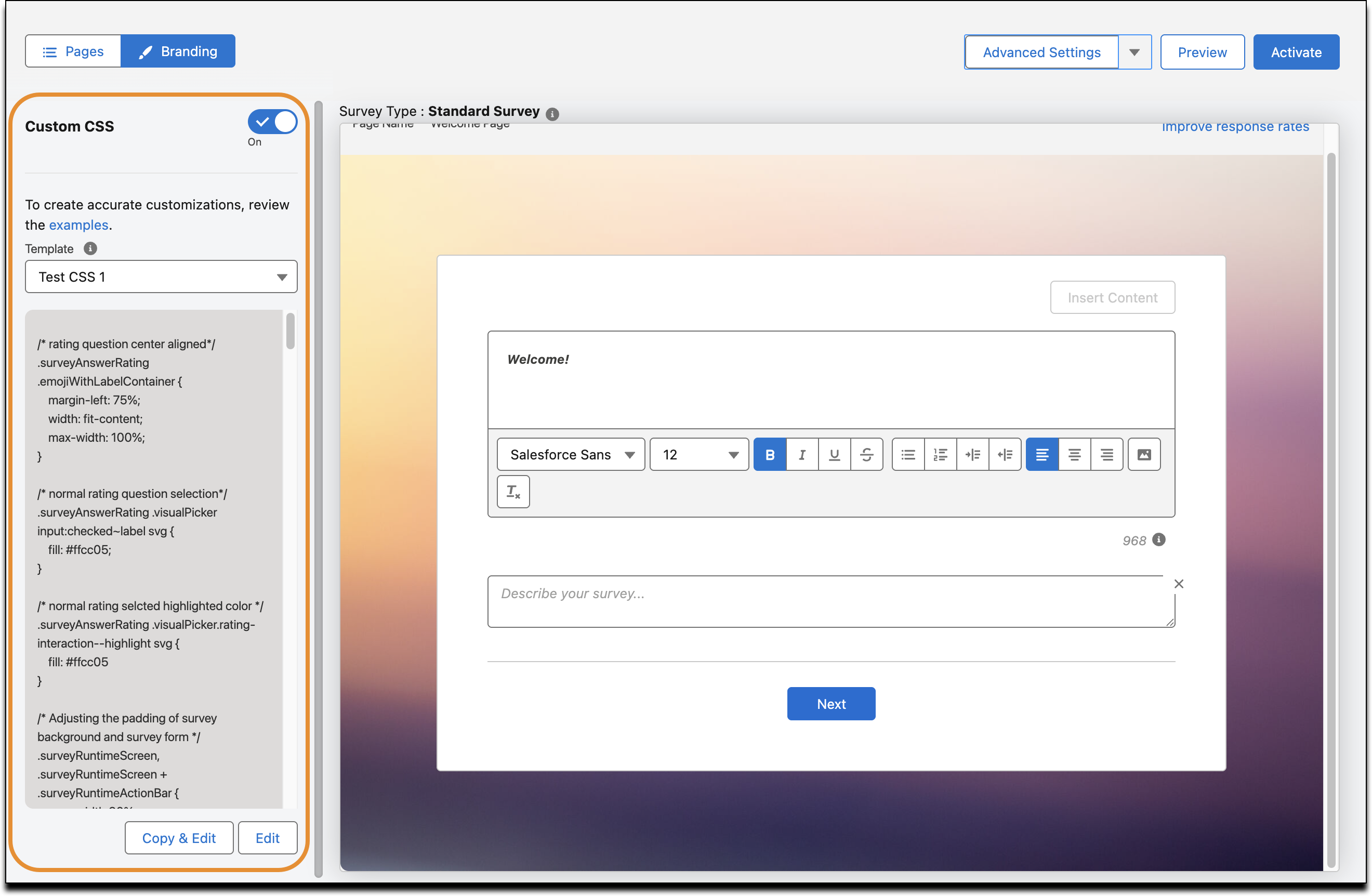
To enable this feature, select a survey and select open. The survey opens in Survey Builder. In the Branding section, turn on Custom CSS. After you turn on Custom CSS, the default template appears. The default template includes predefined CSS code snippets for selected components and inline comments that explain the functionality of each section.
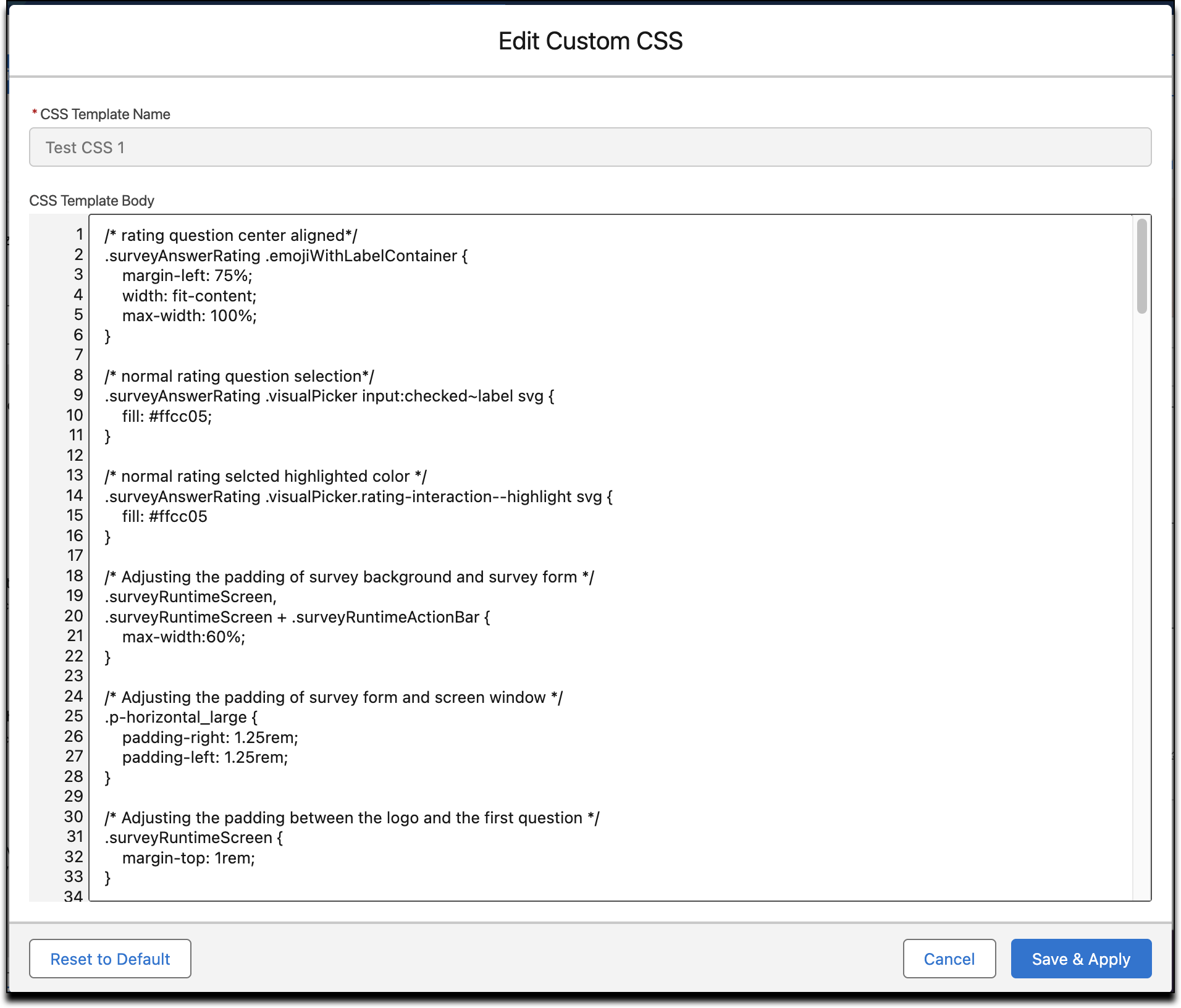
You can’t edit the default template or the CSS applied to an active survey. Instead, clone the template and modify the cloned version. To clone the template, click Copy and Edit. The template opens in the Edit Custom CSS window. Modify the template and save it as a new template. The new template appears in the Template dropdown on the Custom CSS panel.

- Global at-rules (@font-face, @keyframes, @property, @counter-style) - these rules require the top-level of a stylesheet and can’t be restricted to the survey's specific area on the page.
- Document-level selectors (html, body, :root) - surveys run in a sandboxed container, not the document root.
These examples show the most common CSS customizations. You can copy and paste them to use in your own surveys.
Adjust the padding between questions and navigation buttons.
.surveyRuntimeActionBar {padding-top:1rem}
![Adjust the padding between questions and navigation buttons.]](https://sf-zdocs-cdn-prod.zoominsoftware.com/tdta-xcloud-feedback_management-264-0-0-production-enus/a6ddb038-83cb-47d7-b4de-b2b573c479e7/feedback_management/images/surveys_custom_css_padding_between_questions_and_navigation_buttons.png)
Adjust the padding between survey background and survey form.
.surveyRuntimeScreen,
.surveyRuntimeScreen + .surveyRuntimeActionBar
{max-width:90%;}
Adjust the padding between the logo and the first question.
.surveyRuntimeScreen {margin-top: 1rem;}
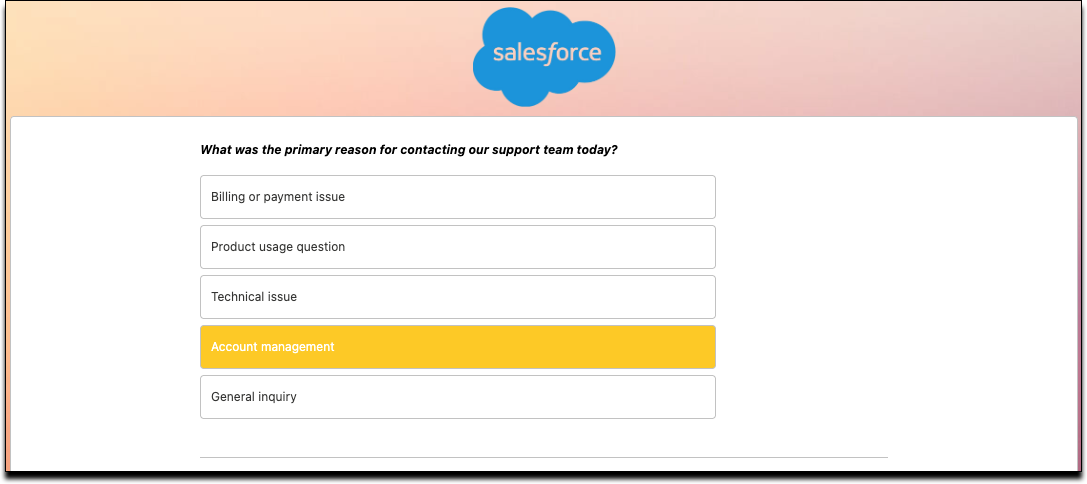
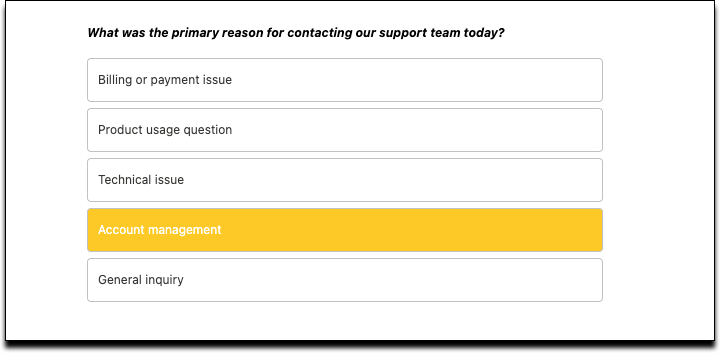
Change the color of the selection values in the survey instead of using the default blue.
/* Multi choice question button color */
.surveyAnswerMultiChoice .runtimeBtns:after {
    background-color: #006DD5
;
}/* Radio button selection color*/
.surveyAnswerRadio .visualPicker .slds-button.runtimeBtns.selected:enabled {
    background-color: #006DD5
;
}
/* Global brand button overrides (fallbacks outside navigation containers) */
.slds-button_brand,
.slds-button--brand {
    background-color: #006DD5
;
    border-color: #006DD5
;
}
/* Slider controls: thumb, hover, and track colors */
.slds-slider__range::-webkit-slider-thumb,
.slds-slider__range:active::-webkit-slider-thumb {
    background-color:#006dd5;
/* Rating question emoji selection color*/
.surveyAnswerRating .visualPicker input:checked~label svg,
.surveyAnswerRating .visualPicker.rating-interaction--highlight svg {
    fill: #006DD5;
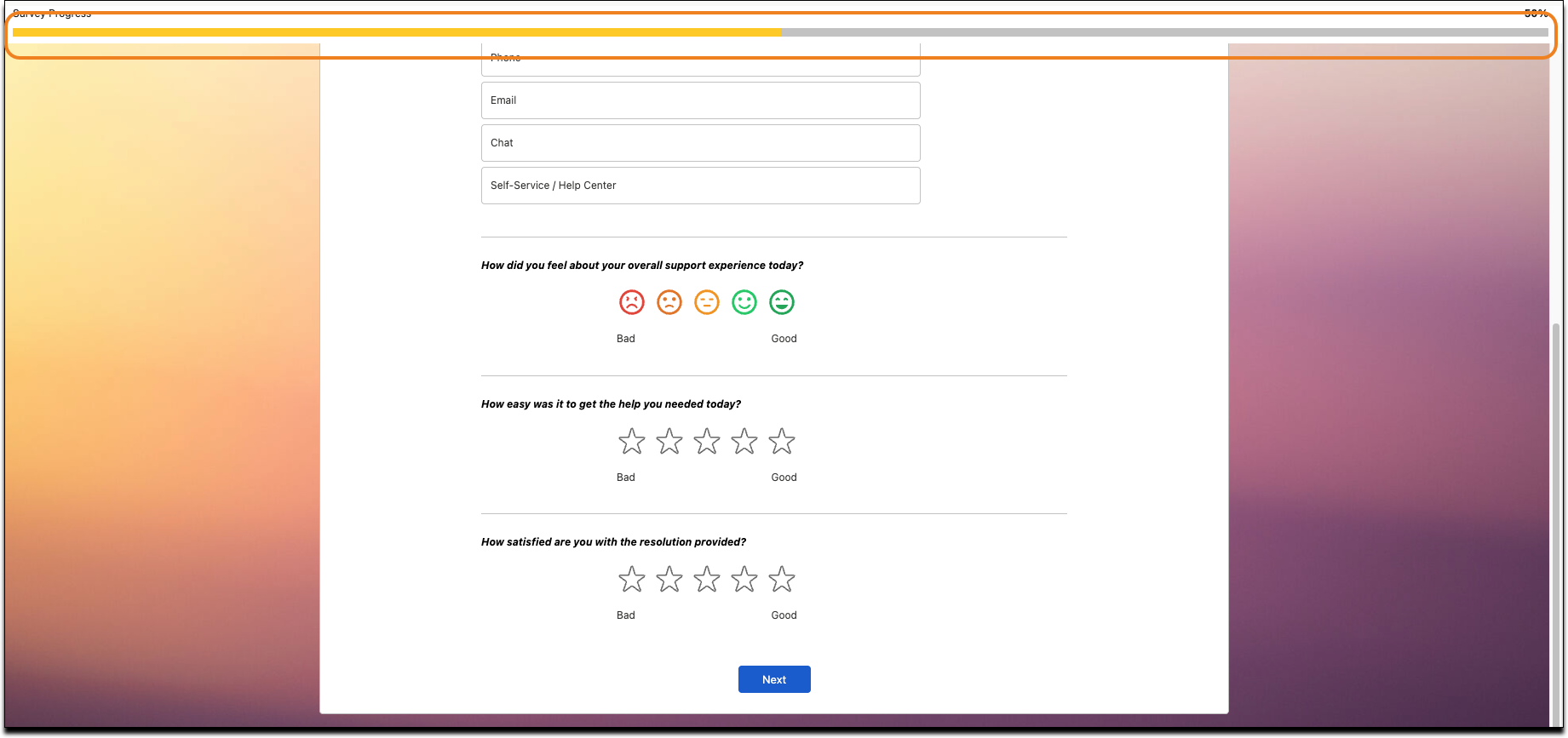
Change the color and styling of the progress bar.
/* Progress bar: foreground value (color, height, animation) */
.slds-progress-bar__value {
    background-color: #006DD5
;
    height: 10px;
    transition: width 1000ms ease;
}
/* Progress bar: track styling and dimensions */
.slds-progress-bar {
    background: #C9C9C9
;
    width:100%;
    border-radius: 1px;
    height: 10px;
}
/* Progress bar: Changing font style , size and weight */
.parentProgressBar {
    font-size: 12px;}
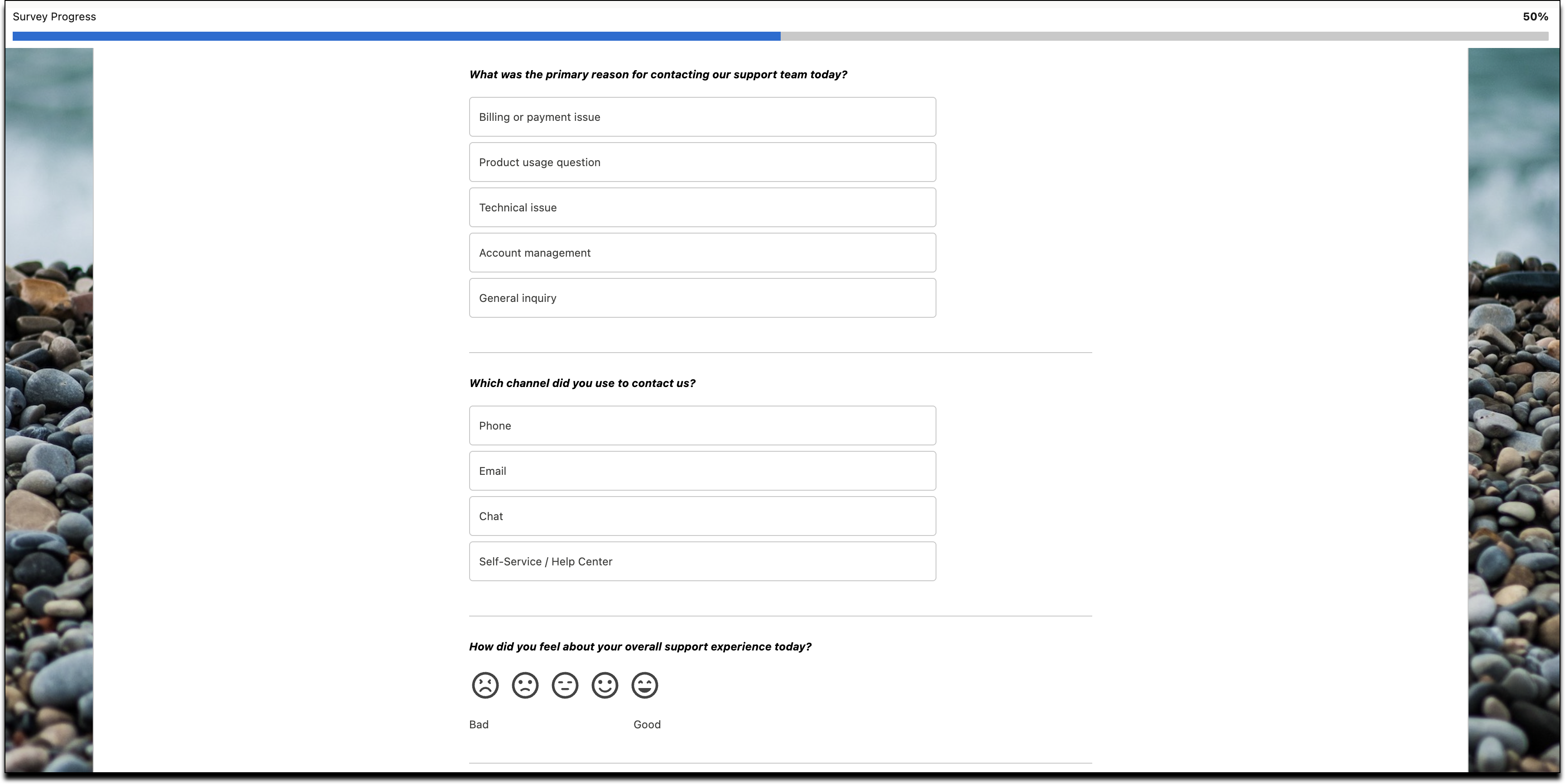
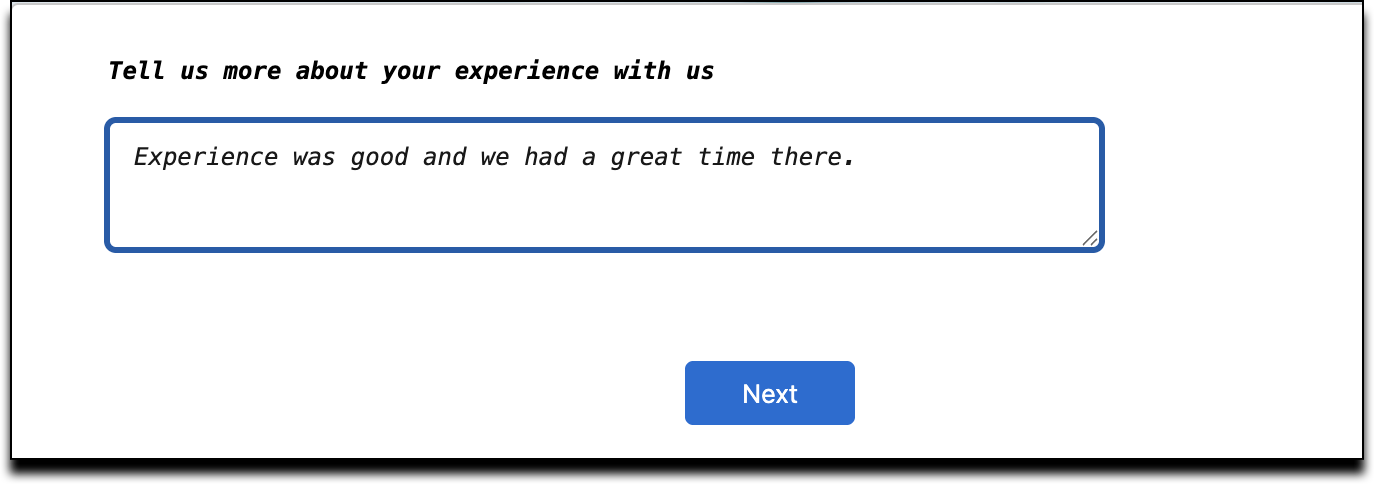
Change the font style of questions and answers. You can apply only CSS web safe fonts to the survey.
/* Changing the style of questions */
.slds-rich-text-editor__textarea, .slds-rich-text-editor__output {
    font-family: monospace;
    color: #000000
;
    font-size: 12px;
    font-style: italic;
}
/* Changing the style of text answers */
.surveyAnswerTextarea textarea {
    min-height: 4rem;
    font-family: monospace;
    font-style: italic;
    font-size: 12px;}
Adjust the alignment of rating icons in the survey.
.surveyAnswerRating .emojiWithLabelContainer
{margin-left: 75%;
  width: fit-content;
  max-width: 100%;}
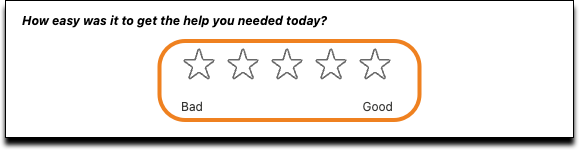
Change the size of the rating icons in the survey.
.surveyAnswerRating .visualPicker .emojiIcon svg
 {width: 60px;
    height: 60px;}
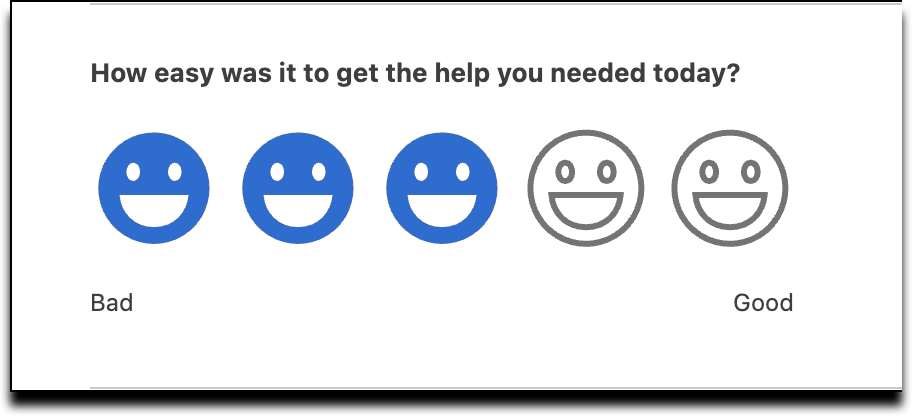
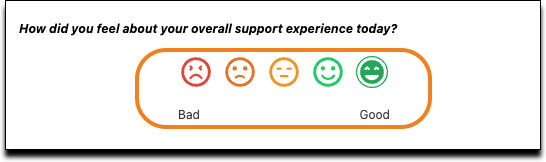
Change the color of dynamic emojis.
* Simplified Dynamic Emoji Color CSS for Survey Rating Component
 * Colors emojis from red (0/Bad) to green (5/Good)
 *
 * Usage: Add this CSS to your SurveyStyleSet Static Resource
 */
.emojiWithLabelContainer .ratingStars .visualPicker:nth-child(1) .dynamicEmojiIcon svg{
    fill: #E74C3C
!important; /* Red - Bad (0) */
    color: #E74C3C
!important;
}
.emojiWithLabelContainer .ratingStars .visualPicker:nth-child(2) .dynamicEmojiIcon svg {
    fill: #E67E22
!important; /* Orange-red (1) */
    color: #E67E22
!important;
}
.emojiWithLabelContainer .ratingStars .visualPicker:nth-child(3) .dynamicEmojiIcon svg {
    fill: #F39C12
!important; /* Yellow/Orange (2) */
    color: #F39C12
!important;
}
.emojiWithLabelContainer .ratingStars .visualPicker:nth-child(4) .dynamicEmojiIcon svg {
    fill: #2ECC71
!important; /* Light green (3) */
    color: #2ECC71
!important;
}
.emojiWithLabelContainer .ratingStars .visualPicker:nth-child(5) .dynamicEmojiIcon svg {
    fill: #27AE60
!important; /* Green - Good (4) */
    color: #27AE60
!important;
}
Display matrix questions without truncation.
.runtime-matrix-accordion lightning-accordion-section .slds-accordion__summary-content {
  white-space: normal;}