---
schema_version: "1"
id: 0a81e62980f54c0ae9bde5ac825a463402d3e2cd446028ca0784c4dbbd67a096
title: View and Restore Your Recycle Bin in Lightning Experience
collection: admin
version: current
locale: en-us
portal_url: https://docs.salesforce.com/admin/current/en-us/xcloud/264-0-0/recycle_bin_use.md
canonical_url: https://help.salesforce.com/s/articleView?id=xcloud.recycle_bin_use.htm&release=264.0.0&type=5
source_site: help.salesforce.com
content_type: documentation
content_hash: 6c0532e7a6d7561838631d520016eeadd2d92c8eb3b5523fcbd09d43486a6bba
description: Access your deleted records in the Lightning Experience Recycle Bin. The Recycle Bin is a list view that allows you to sort and filter to find the records you need.
products:
- Salesforce Platform
- Cross Cloud
release: "264"
---
# View and Restore Your Recycle Bin in Lightning Experience
Access your deleted records in the Lightning Experience Recycle Bin. The Recycle Bin is a list view that allows you to sort and filter to find the records you need.
### Required Editions
Available in: Lightning Experience
Available in: Group, Essentials, Professional, Enterprise, Performance, Unlimited, and Developer Editions
User Permissions Needed
To view and restore your deleted records:
Read on the records in the Recycle Bin
1. To access your Recycle Bin, from the App Launcher, find and open it, or add it to your navigation bar.
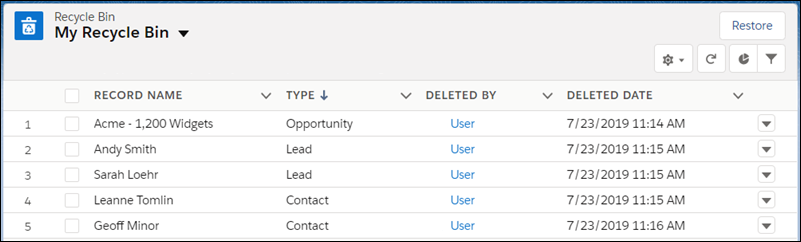
2. To restore records, select them and click **Restore**.
#### See Also
- [App Switching in Lightning Experience](https://help.salesforce.com/s/articleView?id=xcloud.basics_app_launcher_lex.htm&release=264.0.0&type=5 "Use the App Launcher to navigate between your apps. You can easily switch between apps and access other Salesforce items and features.")
- [Personalize the Navigation Bar in Lightning Experience](https://help.salesforce.com/s/articleView?id=xcloud.user_userdisplay_tabs_lex.htm&release=264.0.0&type=5 "Customize an app’s navigation bar so that the user interface suits the unique way you work. You can add and reorder items, and rename or remove items you’ve added.")
- [Find and View Your Data](https://help.salesforce.com/s/articleView?id=xcloud.basics_viewing_data.htm&release=264.0.0&type=5 "Use tabs, search, or lists to look at your records.")
- [Create a Custom List View in Lightning Experience](https://help.salesforce.com/s/articleView?id=xcloud.customviews_lex.htm&release=264.0.0&type=5 "To see an infinitely scrollable list of records that meet your filter criteria, create a custom list view. You can start from scratch or you can clone an existing list view and then customize it with filters.")